Learn about the GrabCAD Platform
Get to know GrabCAD as an open software platform for Additive Manufacturing
Visit our new homepage
Home
Control
Shop
Streamline Pro
Partner Program
Print
Community
Log in
Library
Challenges
Groups
Questions
Tutorials
Engineers
Blog
Log in
Learn from thousands of free Tutorials.
New user?
Join the community
or
log in.
Tutorials
Most liked this month
Recent
Most liked
Most viewed
Most commented
This week
This month
All time
Category
Design & CAD
Modeling
Drafting
Assemblies
BOM
Dimensioning / Tolerancing
Translations
Manufacturing & CAM
3D Printing
Tooling
NC Machining
Composites
Measurement / Inspection
Simulation & CAE
FEM
CFD
Kinematics
Process Simulation
Engineering Fundamentals
Theory
Process
Standards
Other
Software
Snagit
Alibre Design
ArchiCAD
AutoCAD
AutoCAD Electrical
Autodesk 3ds Max
Autodesk Alias
Autodesk Inventor
Autodesk Maya
Autodesk Revit
Autodesk 123D
BricsCAD
Bentley MicroStation
BlenderCAD
BobCAD-CAM
CATIA
Delmia
DraftSight
FreeCAD
Femap
Fusion 360
Geomagic Design
IronCAD
JT
Kompas-3D
KeyCreator
KeyShot
Lagoa
Luxology
Mastercam
Moi3D
NX Unigraphics
OBJ
Onshape
OpenSCAD
Parasolid
Powermill
Powershape
Pro/Engineer Wildfire
PTC Creo Parametric
PTC Creo Elements
Rhino
SpaceClaim
SOLIDWORKS
solidThinking Evolve
Solid Edge
SolidFace
STEP / IGES
SketchUp
STL
TopSolid
TinkerCAD
T-Flex CAD
TurboCAD
VectorWorks
ViaCAD 3D
VRML / WRL
ZW3D
GrabCAD Print
Rendering
GrabCAD Community
GrabCAD Workbench
Text file
3D Manufacturing Format
Cinema 4D
Other
Skill level
All levels
Beginner
Intermediate
Expert
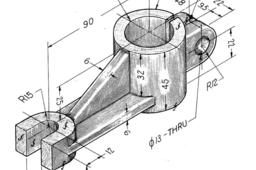
Shifter Fig 6.39
NRzksy
in
Modeling
5
0
Beginner
Welcome back! In this video, we will model a "Shifter" part in SolidWorks 2024 based on the technical drawing Fig 6.39. This is a great exercise for engineering students to practice complex sketching, angled features, and proper dimensioning. Key Features used: Sketching & Relations Extruded Boss/Base & Cut Hole Wizard & Fillets 📥 Download the 3D Model & Drawing files here: https://grabcad.com/library/fig-6-39-shifter-1 If you find this video helpful, please hit the Like button and Subscribe for more engineering design content!
SOLIDWORKS
cad
mechanicalengineering
solidworkstutorial
3dmodeling
solidworks
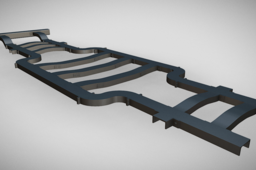
CHASSIS || LADDER FRAME CHASSIS || STRUCTURAL DESIGN || 3D - CAD MODEL || NX SIEMENS
VR DESIGNER
in
Modeling
4
0
Expert
In this video, we explore the complete structural design of a Ladder Frame Chassis using Siemens NX (Structure Designer). You’ll learn how to model longitudinal rails, cross members, and reinforcements while following real-world automotive design practices. 🔧 What you’ll learn in this video: Basics of Ladder Frame Chassis design Step-by-step modeling in NX Siemens Structure Designer Member creation, gussets, and stiffeners Structural layout considerations for vehicles Industry-relevant CAD workflow This tutorial is ideal for mechanical engineering students, automotive designers, and CAD professionals looking to strengthen their skills in vehicle chassis design. If you find this helpful, don’t forget to Like, Share & Subscribe for more CAD modeling tutorials and engineering content! 📐 Software Used: Siemens NX (Unigraphics NX) 🎯 Skill Level: Beginner to Intermediate 🎓 Ideal For: Engineering Students | CAD Designers | Product Developers Don’t forget to Like 👍 | Share 🔗 | Subscribe 🔔 for more NX CAD tutorials on automotive & mechanical components.
NX Unigraphics
mechanical part
automotive part
nx siemens
nx cad
nx siemens tutorial
cad tutorial
ladder frame chassis tutorial
chassis tutorial
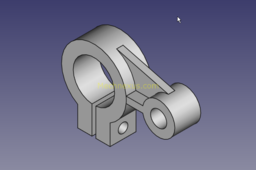
Model Pipe Clamp in FreeCAD
Amar Patel
in
Modeling
4
0
Beginner
Hello friends welcome to FreeCAD Part Modeling tutorial. In this tutorial we will Model Pipe Clamp with the help of Part Design Workbench. 👉 Visit my website for more info on FreeCAD-: https://mechnexus.com/ 👉 Visit my FreeCAD Video Tutorial Library-: https://mechnexus.com/freecad-video-tutorial/ 👉 Visit my FreeCAD Mechnical Part Library-: https://mechnexus.com/freecad-mechanical-3d-part-library-with-download/ 👉 If you want to learn FreeCAD from scratch you can buy My Complete FreeCAD Course : From Zero to Expert ! on Udemy. https://www.udemy.com/course/freecad-course-for-beginner/?referralCode=3BA9B526A12F96295D44 👉 Buy Me a Coffee If you like what do please consider supporting me so that I can to continue to produce content for your enjoyment. You can buy me a coffee: https://ko-fi.com/mechnexus Your kind support will help me to grow . Even if it's just enough to buy me a coffee every little helps and this will be repaid in full through my sharing of knowledge.
FreeCAD
freecad
HSMWorks tutorial №2 - High-speed 3D machining
Omellejr
in
NC Machining
3
0
Beginner
In this tutorial you will learn how to machine the part above on a high speed machine tool through the following steps: ▸Creating a Tool Library ▸Roughing: Adaptive Clearing ▸Rest Roughing: Pocket ▸Contour Machining ▸Scallop Machining ▸Scallop ▸Horizontal ▸Pencil Milling ▸Collapsed Pencil ▸Post Processing Before proceeding, open the part Tutorial2.SLDPRT into HSMWorks. The files used in this manual can be found in the examples folder in the folder where HSMWorks is installed. Typically, this is something like C:\Program Files\HSMWorks\examples\ 𝐃𝐢𝐬𝐜𝐥𝐚𝐢𝐦𝐞𝐫: This tutorial is a representation of the original Help tutorial with the HSMWorks software suite. This guide is intended for educational purposes and to make the features and tools of HSMWorks more accessible to the general public. More information about purchasing, installing, and using HSMWorks can be found on the official website: https://www.autodesk.com/products/hsmworks
hsmworks
3d machining
nc
solidworks
milling
cam
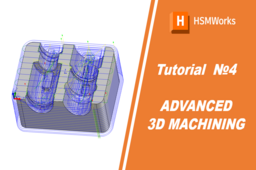
HSMWorks tutorial №4 - Advanced 3D machining
Omellejr
in
NC Machining
3
0
Intermediate
In this tutorial we will learn how to machine a 3D part using the following steps: ▸ Create a Machining Assembly ▸ Create a Coordinate System ▸ Job Settings ▸ Facing ▸ Outside Contouring (2D) ▸ Adaptive Clearing ▸ Adaptive Clearing Rest Machining ▸ Horizontal ▸ Contour Finishing ▸ Parallel ▸ Pencil 1 ▸ Pencil 2 ▸ Pencil 3 ▸ Post Processing Before proceeding, open the part Tutorial4.SLDPRT into HSMWorks. The files used in this manual can be found in the examples folder in the folder where HSMWorks is installed. Typically, this is something like C:\Program Files\HSMWorks\examples\ 𝐃𝐢𝐬𝐜𝐥𝐚𝐢𝐦𝐞𝐫: This tutorial is a representation of the original Help tutorial with the HSMWorks software suite. This guide is intended for educational purposes and to make the features and tools of HSMWorks more accessible to the general public. More information about purchasing, installing, and using HSMWorks can be found on the official website: https://www.autodesk.com/products/hsmworks
hsmworks
cam
milling
solidworks
advanced machining
nc
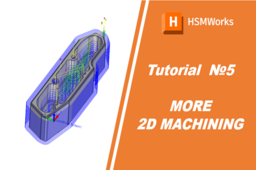
HSMWorks tutorial №5 - More 2D machining
Omellejr
in
NC Machining
3
0
Intermediate
In this tutorial we will learn how to machine a 2.5D part using the following steps: ▸ Create a Machining Assembly ▸ Sketch the Stock ▸ Create a Coordinate System ▸ Job Settings ▸ 2D Contour ▸ Pocket Machining ▸ Drilling ▸ Tapping ▸ Drilling 2 ▸ Circular Pocket Machining ▸ Counter Sinking ▸ Chamfering ▸ Post Processing Before proceeding, open the part Tutorial5.SLDPRT into HSMWorks. The files used in this manual can be found in the examples folder in the folder where HSMWorks is installed. Typically, this is something like C:\Program Files\HSMWorks\examples\ 𝐃𝐢𝐬𝐜𝐥𝐚𝐢𝐦𝐞𝐫: This tutorial is a representation of the original Help tutorial with the HSMWorks software suite. This guide is intended for educational purposes and to make the features and tools of HSMWorks more accessible to the general public. More information about purchasing, installing, and using HSMWorks can be found on the official website: https://www.autodesk.com/products/hsmworks
cam
solidworks
2d machining
milling
hsmworks
nc
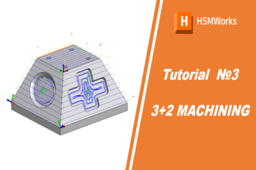
HSMWorks tutorial №3 - 3+2 Machining
Omellejr
in
NC Machining
3
0
Beginner
In this tutorial you will learn how to set up 3+2 Machining toolpaths. ▸ Job Setup ▸ Adaptive Machining, Pocket ▸ Pocket Clearing Before proceeding, open the part Tutorial3.SLDASM into HSMWorks. The files used in this manual can be found in the examples folder in the folder where HSMWorks is installed. Typically, this is something like C:\Program Files\HSMWorks\examples\ We will assume that the stock we start from is already roughed to a shape that only requires the machining of the two pockets using 3+2 toolpaths. The file for this tutorial is an assembly and contains the final component as well as the stock shape we start from. 𝐃𝐢𝐬𝐜𝐥𝐚𝐢𝐦𝐞𝐫: This tutorial is a representation of the original Help tutorial with the HSMWorks software suite. This guide is intended for educational purposes and to make the features and tools of HSMWorks more accessible to the general public. More information about purchasing, installing, and using HSMWorks can be found on the official website: https://www.autodesk.com/products/hsmworks
hsmworks
32 machining
nc
solidworks
milling
cam
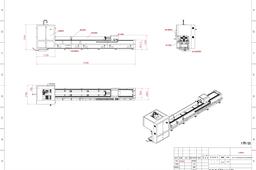
Fiber optic laser pipe cutting machine CAD
Liu Bruce
in
Modeling
2
1
Beginner
Yihai laser cutting machine CAD
AutoCAD
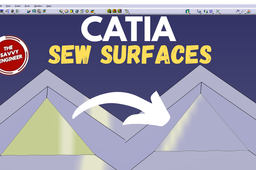
CATIA Sew Surfaces | How to Combine a Surface with a Solid Body
The Savvy Engineer
in
Modeling
2
0
Beginner
Learning how to use the Sew Surfaces command in CATIA is an essential skill for designers and engineers who work with surface modeling and advanced part creation. In many real-world projects, complex shapes are created as multiple individual surfaces rather than a single solid feature. The Sew Surfaces command allows these separate surfaces to be joined together accurately, forming a unified surface or a closed solid that can be used in downstream design and manufacturing processes.
CATIA
sew surfaces
catia
catia sew surfaces
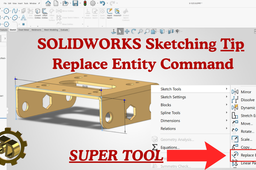
How to Use Replace Entity in a SOLIDWORKS Sketch | Preserve References & Avoid Errors
Peter CAD
in
Modeling
2
0
Beginner
Master the Replace Entity command in SOLIDWORKS and learn how to edit or replace sketch geometry—such as a line, arc, or spline—without breaking downstream features or references. In this step‑by‑step video, you’ll see how to: Replace one sketch entity with another while preserving feature history. Repair and manage sketch relations efficiently. Keep parametric design links stable when modifying geometry. Perfect for mechanical engineers, CAD designers, and anyone working with parametric models in SOLIDWORKS.
SOLIDWORKS
How to draw a conical thread screw
lam nguyen
in
Modeling
1
0
Beginner
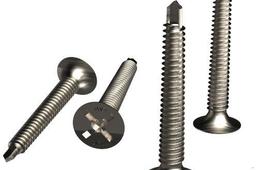
Draw a Conical thread Screw
SpaceClaim
3d conical thread
conical thread screw
flat screw
flat bolt
wooden screw
3d screw
screw
SolidWorks - Lock & Unlock Sketch Relations
MechVision3D
in
Other
1
1
Beginner
In complex or parametric models, sketch relations can easily break during edits. In this short SolidWorks tutorial you’ll learn: • How to lock sketch relations • When to unlock them safely • How to avoid broken or unstable sketches • A clean workflow for parametric parts Simple, fast and practical – useful for everyday CAD work.
SOLIDWORKS
design-workflow
solidworks-tips
cad-tutorial
sketch-relations
solidworks
ÇELİK SAÇ KALIBI TASARIMI STEEL SHEET METAL MOLD DESIGN
Mustafa yamaç
in
Modeling
1
0
Intermediate
TEK PART İLE TÜM TASARIMI MONTAJI ÇELİK İŞLEME BANDI DAHİL OLMAK ÜZERE TEK PART İŞLEMLERİ SINGLE-PART PROCESSING INCLUDING ALL DESIGN, ASSEMBLY, AND STEEL PROCESSING BELT.
STL
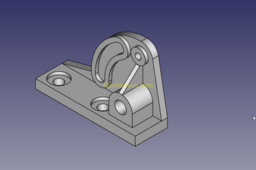
Model Pivot Bracket in FreeCAD
Amar Patel
in
Modeling
1
0
Beginner
👉 Visit my website for more info on FreeCAD-: https://mechnexus.com/ 👉 Visit my FreeCAD Video Tutorial Library-: https://mechnexus.com/freecad-video-tutorial/ 👉 Visit my FreeCAD Mechnical Part Library-: https://mechnexus.com/freecad-mechanical-3d-part-library-with-download/ 👉 If you want to learn FreeCAD from scratch you can buy My Complete FreeCAD Course : From Zero to Expert ! on Udemy. https://www.udemy.com/course/freecad-course-for-beginner/?referralCode=3BA9B526A12F96295D44 👉 Buy Me a Coffee If you like what do please consider supporting me so that I can to continue to produce content for your enjoyment. You can buy me a coffee: https://ko-fi.com/mechnexus Your kind support will help me to grow . Even if it's just enough to buy me a coffee every little helps and this will be repaid in full through my sharing of knowledge.
FreeCAD
freecad
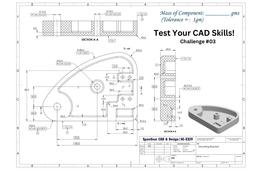
CAD Modelling Challenge #03
SpareGear CAD & Design | SG-XXIV
in
Modeling
2
0
Intermediate
🧩 Test Your CAD Skills Take this CAD challenge and model the component from the given engineering drawing in SolidWorks. Try it yourself first then follow the tutorial to compare your approach.
SOLIDWORKS
mechanical
drawing
cad
solidworks
1
2
3
…
13