
Copying a file in Document360 Drive creates a duplicate in a destination folder of your choice — similar to a copy-paste action. The copy is saved as an independent file with its own CDN URL, separate from the original.
Why copy files
You may need to copy a file when:
- Reusing media across folders — You want the same file available in multiple folder locations without moving the original.
- Creating variations — You need a base version of a file to edit or repurpose, while keeping the original intact.
- Reorganizing without risk — You want to place a file in a new structure before removing the original.
Before you begin
The destination folder must exist within the same project. Copying files across projects is not supported.
Copy a file
-
Open Drive () from your Document360 project.
-
Select one or more files you want to copy.
-
Click Copy in the top menu bar. The Copy files dialog appears.
-
Locate the destination folder, either by typing its name in the search bar or by browsing the folder list manually.
-
Click Copy.
The duplicate file appears in the destination folder with
Copy ofadded as a prefix to the original file name.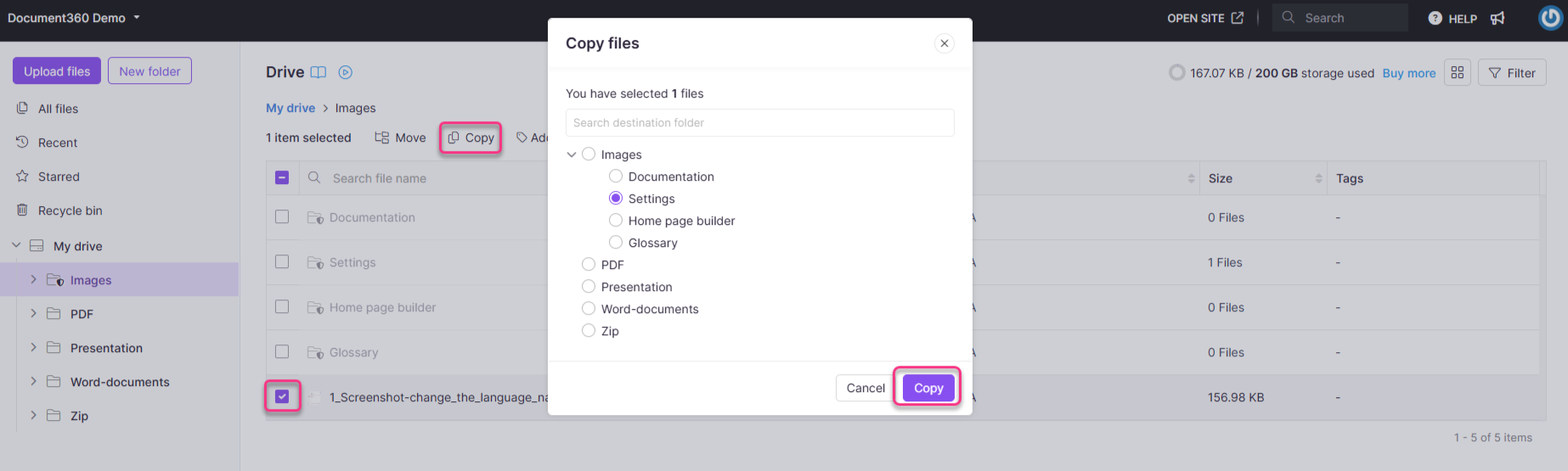
NOTE
- The copied file gets a new CDN URL, independent of the original. If you link articles to this file, use the new URL from the copied file's location.
- You can't copy a file into the same folder it's already in — the destination must be a different folder. If the destination folder already contains a file with that name, Document360 automatically appends a number (for example, copying
Copy of File.pnginto a folder that already has that name addsCopy of File (1).png), so nothing is overwritten.
Best practices
- Rename after copying — The "Copy of" prefix is a placeholder. Rename the file immediately to something meaningful so your Drive stays organized and files are easy to identify.
- Use copy intentionally — Every copy is a separate file that takes up storage. Avoid duplicating files unnecessarily; link to the original where possible instead.
- Track your copies — If you copy a file to update or replace it later, make a note of which articles reference the copy's URL so you can update them when needed.
