

Beautiful screen recordings, in minutes.
The screen recorder for Mac that handles the hard parts: zooms, motion, sound, and framing. Every demo and tutorial comes out polished.


Made with Screen Studio.
Thousands of people use Screen Studio for product demos, courses, tutorials, and social posts.


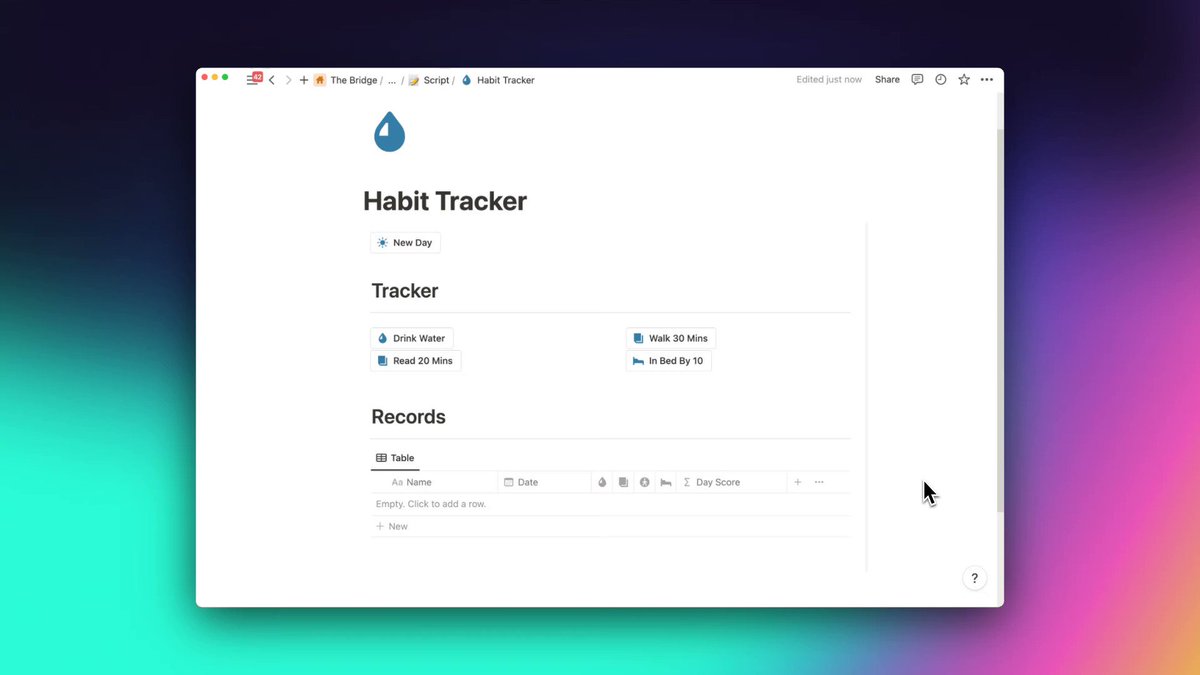


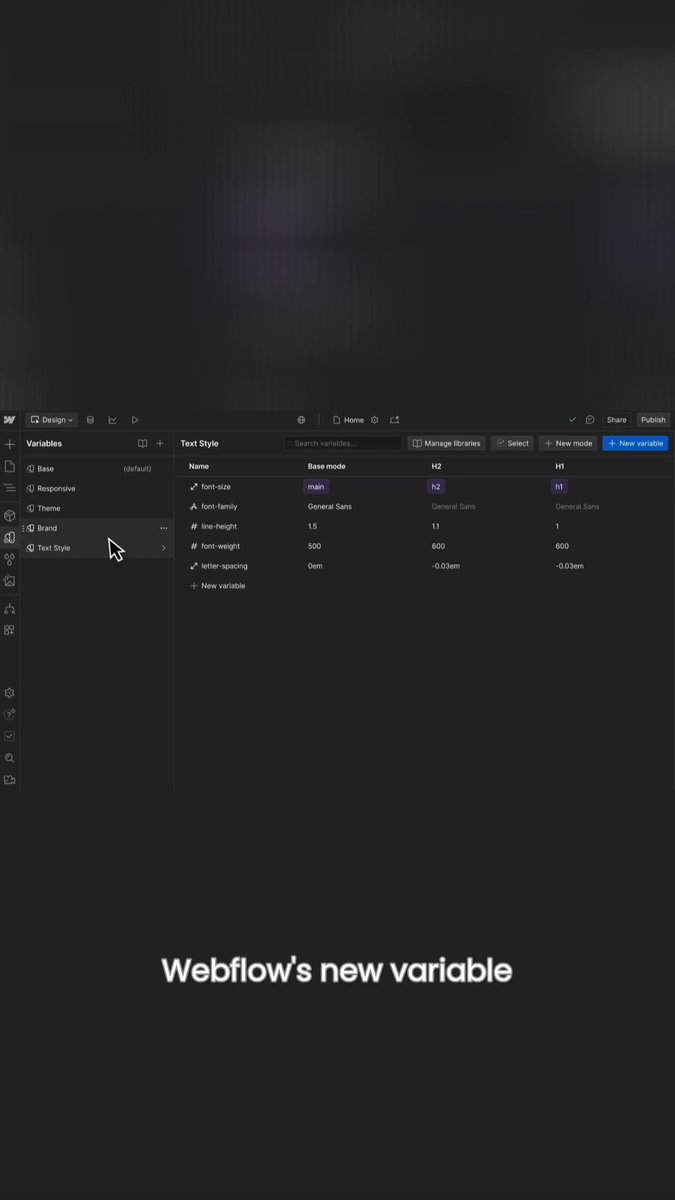


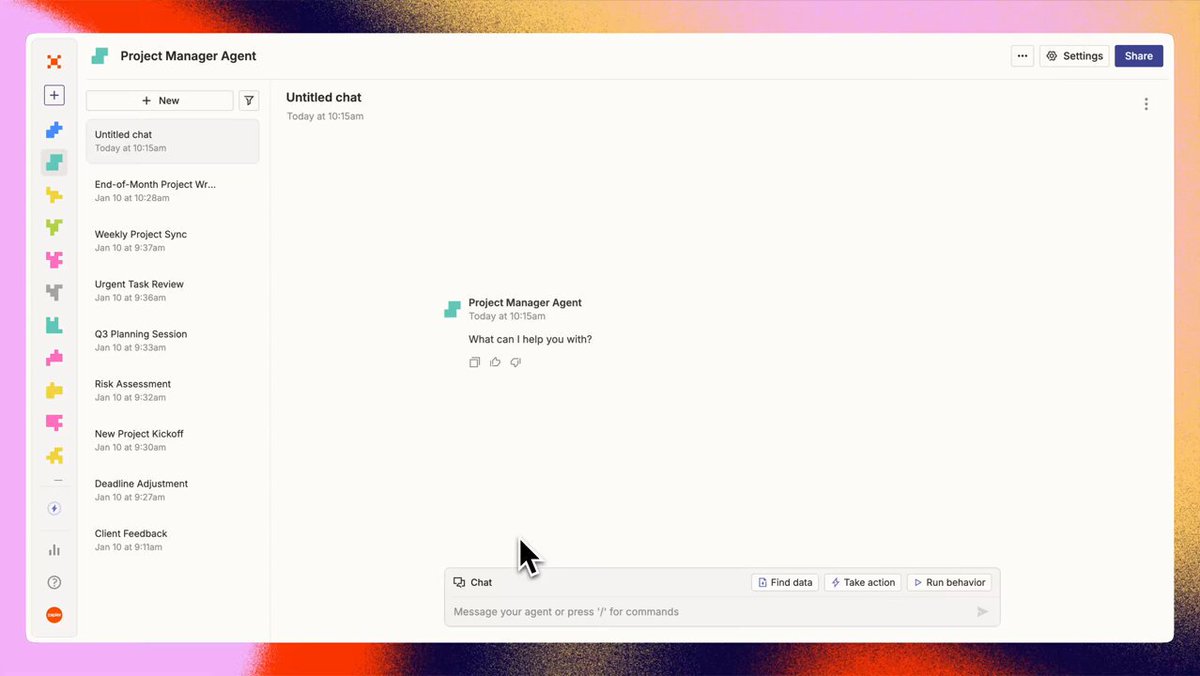


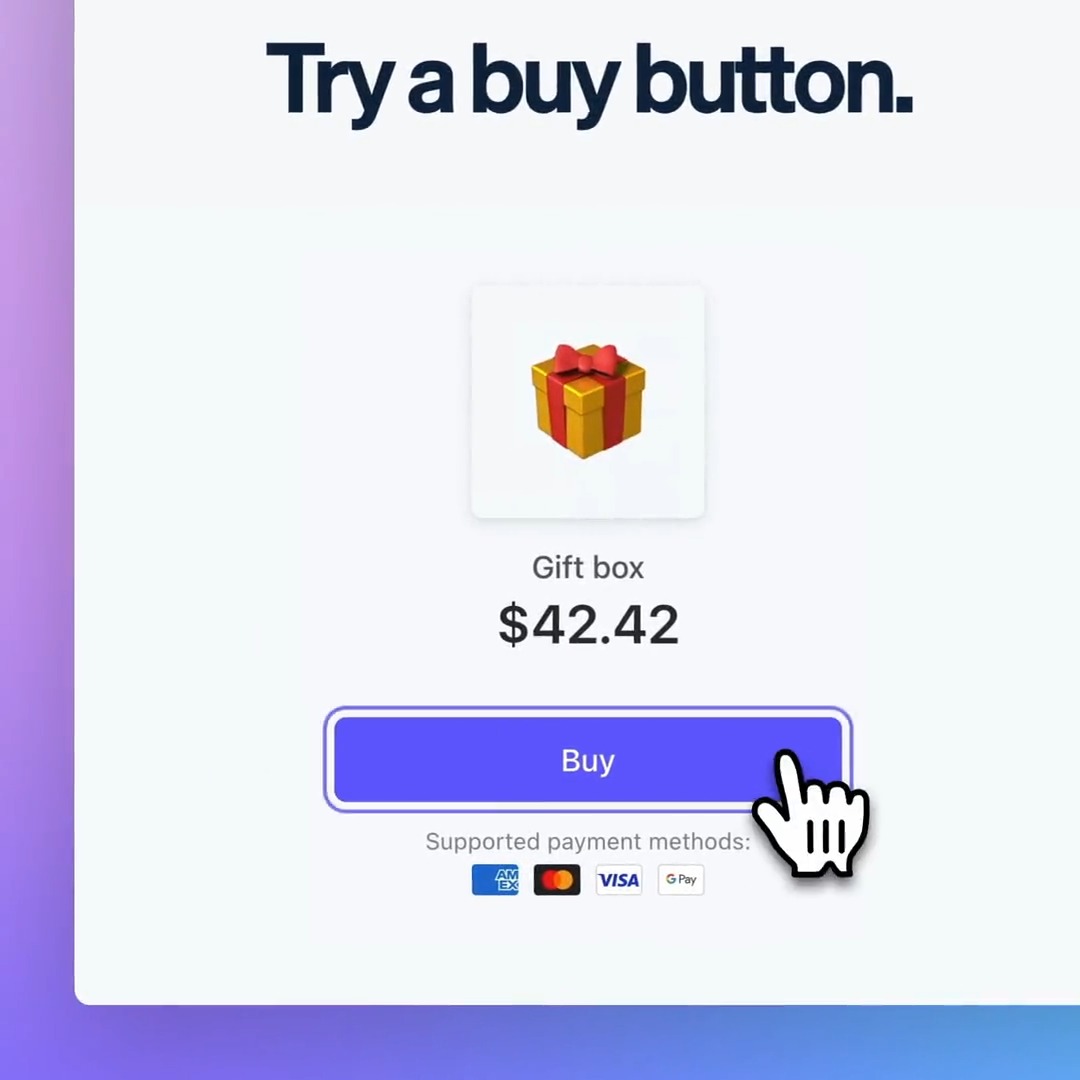
Focus and zoom
Nothing stays too small to read.
Pick the parts worth a closer look. Screen Studio animates every zoom and lays out the frame for you.

Every zoom is balanced and animated for you. Screen Studio has two beautiful types of zoom to choose from.
Every zoom is balanced and animated for you. Screen Studio has two beautiful types of zoom to choose from.
Every animation is created automatically.
Adding a zoom is as easy as dropping it on the timeline.
Post-processing and upscaling built for screen recordings keep everything sharp, even when you zoom in close.
Smart framing. Zooms are balanced so your webcam never covers the cursor.
Automatic zoom. Screen Studio looks at what you did while recording, like where you clicked, and zooms in on the moments that matter.
Manual zoom. Want to show one specific part of the screen? Add a zoom and point it right there.
Your camera, your screen, or both.
Introduce an idea in Fullscreen camera, walk through it in Split screen, keep a Camera overlay in the corner while you click, go Screen only when the screen needs the room, then step onto the stage with Camera cutout. One recording holds as many layouts as the story needs, and the transitions animate for you.

Layouts in this video
Fullscreen camera
0:00 / 0:19
Camera cutout. The background behind you is removed from your webcam, entirely on your Mac.
Hide during silence. When you stop talking, the camera steps aside, and it comes back when you speak again.
Face tracking. Your Mac keeps the picture centered on your face as you move.
Movement that feels filmed, not captured.
Fast motion picks up a natural blur. Raw cursor paths are smoothed, and clicks can ripple.

Optics-based motion blur makes every quick move look far smoother, the way a camera would film it.
Optics-based motion blur makes every quick move look far smoother, the way a camera would film it.
Shaky movement becomes a steady glide, without looking artificial.
A quiet circle or ripple, so every click is easy to follow.
Change the cursor’s size and style after you record, so every move is easier to follow.
Loop cursor position. The cursor can glide back to where it started, for videos that loop seamlessly.
Hides when idle. When the cursor rests, it steps out of view until you move it again.
Any aspect ratio
Record once. Post everywhere.
One take becomes the wide demo, the square post, and the vertical story. Switch whenever you like, and zooms, layouts, and captions adjust themselves automatically.

Reel mode
Reel mode shows how Instagram’s or TikTok’s interface would sit on top of your video, so you can check that nothing important ends up underneath it.
Zooms re-aim. Screen Studio finds the best way to keep your screen and cursor in focus at every size.
Layouts rearrange. Your screen and camera find their places in the new shape on their own.
Captions stay readable. Captions and shortcuts move to wherever they’re easiest to read.
Recording
Ready when you are.
Pick what to show, bring your camera and voice along, and press record.

Record your whole display, one window, or just the area that matters. Bring your webcam, microphone, and your Mac’s sound along.
Record your whole display, one window, or just the area that matters. Bring your webcam, microphone, and your Mac’s sound along.
Resize the window you record to an exact size in one click, so every recording comes out consistent.
Never lose a take. During recording, your take is saved to disk every two seconds. Even if your Mac loses power, you can recover it.
Light on your Mac. Built on Apple’s native ScreenCaptureKit, so your Mac stays responsive while you record.
Editing
Edit with your transcript.
Edit your video like you edit text. Delete a sentence to cut it. Clear filler words and long pauses in one pass. Trim and speed up the rest when you need to.

Edit by transcript. If you wouldn’t say it twice, you shouldn’t have to scrub for it twice. 
Filler words & pauses. Um, uh, and the silence between thoughts are shortened without a second take.
Voice that sounds like you meant it.
Your microphone as it was, with the keyboard and the room still in it.
Record with the microphone you have, and Screen Studio cleans it up afterward on your Mac: less keyboard, less room, more you.
Noise reduction. Fans, keyboards, and the hallway turned down, while your voice keeps its character.
Podcast. Made for lessons and walkthroughs, where the voice carries the video.
On your Mac. The processing runs locally. Your voice isn’t uploaded anywhere to be cleaned up.
Captions that keep up with the story.
Screen Studio turns what you say into accurate captions, quickly and right on your Mac.
Styles that fit. Pick from a range of caption text and animation styles to match your video.

Style
Make it look like it belongs to you.
Backgrounds, padding, and shadow, tuned to your brand. Save it as a preset, and every video looks consistent, whether you make them alone or with your team.

A macOS wallpaper, a gradient, your image, or a photo from Unsplash.
A macOS wallpaper, a gradient, your image, or a photo from Unsplash.
Set the shadow’s angle, distance, and softness, and inset the recording within its frame.
Save the whole look and share it with your team, so every video stays consistent.
iPhone and iPad, framed for you.
Connect your device and record. Screen Studio wraps your recording in the right device mockup, so a USB cable is all you need to make an app demo.


Just a cable. Connect over USB and pick the device in the recording bar. There’s nothing to install on it.
The same editor. Trim, caption, and export a device recording like any other.
Sharing
From stop to shared in seconds.
Send a shareable link, and anyone can watch right away. Or export a high-quality video for another app, or one optimized for social media and your website.

Send a link, and anyone can watch right in the browser, with nothing to download or install.
Send a link, and anyone can watch right in the browser, with nothing to download or install.
Copy the finished video and paste it straight into Slack, Linear, or a doc, like anything else you copy.
Screen Studio comes with carefully balanced export settings for every kind of video.
Send the editable project, so a teammate can keep working on it.
Links in 1080p at 60 fps. For videos up to 30 minutes. Viewers comment on the exact second they mean, and you choose who can watch.
MP4 up to 4K, or a GIF. MP4 in 720p, 1080p, or 4K at up to 60 fps, and small looping GIFs up to 1080p.
Whole projects. Projects up to 20 GB travel as a single download, with zooms, cuts, and layouts included.
Masks
Hide what’s private.
Highlight what matters.
Cover sensitive data after you record, or highlight the part that matters.

Cover an API key or an email address after the fact, and the mask blends into the UI around it.
Cover an API key or an email address after the fact, and the mask blends into the UI around it.
The rest of the frame dims, gently guiding viewers to what’s important.
Privacy
Offline first.
Screen Studio works offline without feeling limited. Cloud features are optional, many have an on-device alternative, and they’re there for what your Mac can’t do on its own. You’re always told before anything leaves your Mac.
On your Mac
Recordings and projects. Saved on your Mac, wherever you keep them.
Transcripts and captions. Transcribed locally, with Whisper or Apple’s speech recognition.
Voice enhancement. Noise reduction and Podcast mode run on-device.
Face tracking and cutouts. Your camera is framed and cut out by your Mac.
Enhancements and export. Debanding, super resolution, and encoding all happen on your Mac.
Only when you choose
Shareable links. Uploaded when you create one. You’re asked before the first upload.
Shared projects. Sent when you share a project with someone.
Cloud transcription. Optional. The audio is deleted from the server once the transcript is back.
AI voiceover. The text you type is sent to generate the voice.
Whenever something is about to leave your Mac, Screen Studio tells you right where you choose it.
Usage analytics never include the content of your recordings, and you can turn them off in Settings anytime.
And a whole lot more.
Screen Studio is full of small touches that make every recording a little more delightful.
Pause and resume
Stop mid-take, tidy up, and carry on in the same recording.
Speaker notes
Your talking points on screen while you record.
Countdown
A few seconds to get ready before the recording starts.
One shortcut
Start and stop a recording from anywhere on your Mac.
Crash recovery
If something goes wrong mid-take, the recording is recovered.
Import any video
Bring in a video from elsewhere and edit it like a recording.
Designed to feel at home on a Mac.
Screen Studio is made for Mac and nothing else. It’s tuned for your Mac, feels familiar from the first click, and uses the best of what macOS has to offer.


Built for Apple silicon. Recording, editing, and export all run natively on M‑series Macs.
Performance. Screen Studio records with ScreenCaptureKit, the system’s own capture, so it stays smooth even on big displays.
Hardware encoding. Exports run on your Mac’s media engine, which makes them faster and more efficient.
In their words.
Screen Studio helps thousands of people record beautiful videos and demos of their products and services.


Pricing
Everything included.
Every Screen Studio feature is available in every plan.
Yearly
Save 69%$9/mo.
All Screen Studio features included.
- All Screen Studio features
- Export up to 4K at 60 fps
- Shareable links
- Cloud transcript
- Sharing projects
- New features as they ship
Monthly
$29/mo.
All Screen Studio features included.
- All Screen Studio features
- Export up to 4K at 60 fps
- Shareable links
- Cloud transcript
- Sharing projects
- New features as they ship
Students and educators get 40% off. Request a discount
Questions & answers.
Something else on your mind? Get in touch.
Screen Studio records your screen differently than most apps.
It records your screen, ignoring the mouse cursor, and then adds the cursor back in the final video. This is possible because Screen Studio records precise mouse movement data and synchronizes it with the recorded video.
Thanks to this, it can apply many effects after the video is recorded, such as making mouse movement smooth, changing cursor size and shape, etc.
Most screen recording apps record your screen with the mouse cursor, making it impossible to apply cursor effects after the recording is done.
Yes.
Screen Studio never sends data about your recordings to servers.
Your recordings are stored and processed locally on your computer.
AI-based features, such as transcription, are done locally on your computer.
Screen Studio can collect basic usage data to help us improve the app, but you can opt out of it during the first launch. You can also opt out at any time in the app settings.
Yes.
If you have an email address from a university or other educational institution, you can automatically get a 40% discount on Screen Studio at Request Educational Discount page.
If you don't have an educational email address, you can send us confirmation of your student status (such as a student ID) at team@screen.studio and we will send you a discount code.
Please check out the roadmap page.
macOS Ventura 13.1 or higher is recommended.
Please check out the manage subscription page.
Your license is of course still valid.
If your access to the latest updates and features is expired, you can still renew your license at any time to restore your access to the latest updates and features.
Note: purchasing one-time licenses was possible in the past, but is no longer available for new purchases.
