Welcome to the Back in Pack app community.
GETTing Started
- Get started: App Overview and a little Design Philosophy!
- YOUTUBE VIDEO TO GO HERE 🙂
Contents
- Gear Management and the Gear Locker
- Pack Management and the Packs List
- Sharing Packs
- App Set-up and Enabling Functionality
- Misc Functionality
Gear Management
- Managing a Gear Locker
- Creating or updating a Gear Item
- Using images for gear
- Gear Lifecycle: Wish list > Active > Archived
Pack Management
- Managing the Packs List – Creating or updating a Pack or System
- Analysing a pack’s contents
- Pack Lifecycle: Systems, Active and Archived
MISC functionality
- Offline data access
- Split screen views
Sharing Packs
- Sharing a pack on the InterWeb
- Export to / Import from a file (coming soon)
- Generate a PDF packing list (coming soon)
- Import from Lighterpack
App Set-up
Stored Data
As the app is available for Android, iOS and on the web, your data is stored securely in the cloud, meaning you can access the same information on one or more devices with all of them kept in sync automatically.
On mobile devices with the installed app (not the web version) then a copy of your data is also stored on device, so you can view and maintain your data offline (with some minor limitations).
ADAPTIVE DISPLAY depending on device
- The app adapts to the amount of screen space.
- On a mobile phone it uses a single pane view, where as on the Web/Desktop/Tablet/Samsung Dex/Android 16 desktop, the app displays a split pane view making use of the extra space. The core functionality and processes are identical, however there is some functionality enabled in the larger view. This is highlighted in each of the sections below.
- Please note: The app was developed as a mobile-first application, so predominantly supports phones and tablets. It is available on desktop through browsers but is not a full desktop-designed app, drag and drop functionality is not available.
- For desktop users, the app is a progressive web app (PWA), so if you are using Google Chrome then it may be installed as a desktop app on Mac or WIndows.
Getting Started
The app has two main sections:
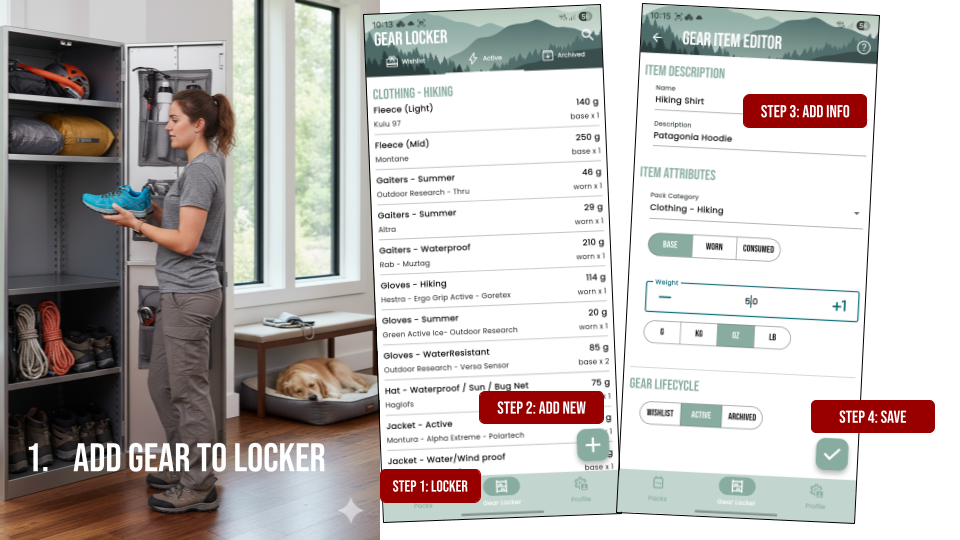
Gear Locker – the home for all of your gear. Many people have different gear for different trips or conditions, so the locker is a place where you can store and categorise all of the items.
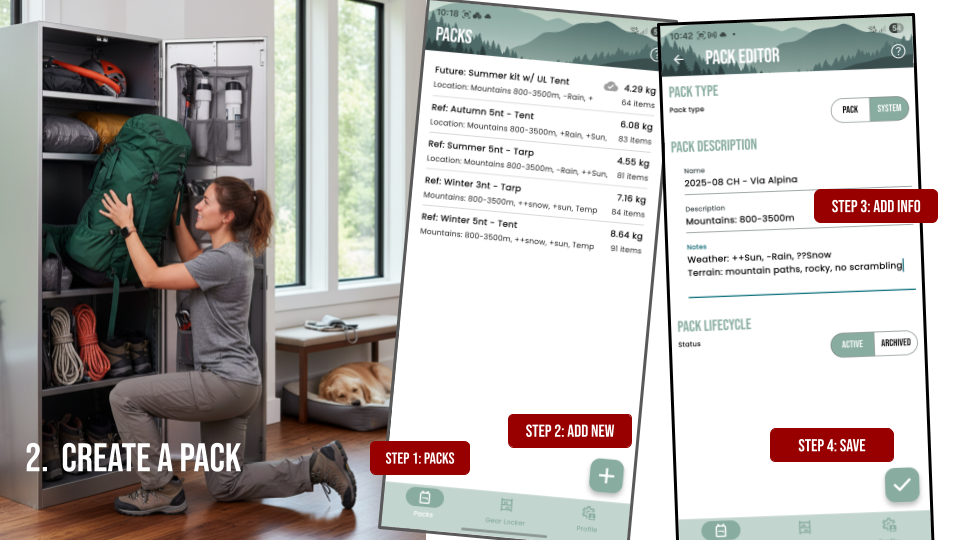
Packs – some people have one pack set-up, many people have a pack for each trip and may be even a specfic section that requires different gear for the different conditions. Create as many packs as you need!!
There are four basic processes (with several steps) to managing your gear and your packs
- Add gear to the locker
- Create a pack
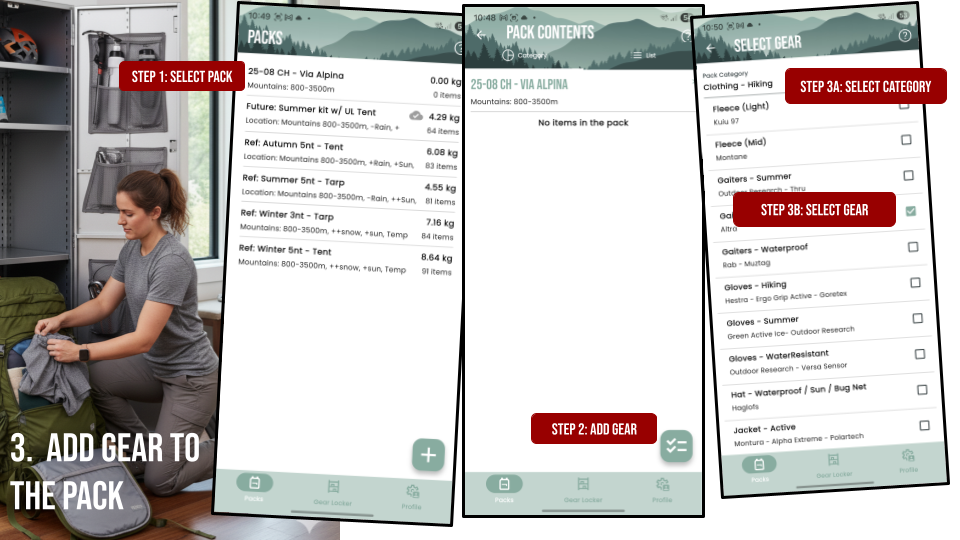
- Add gear to a pack
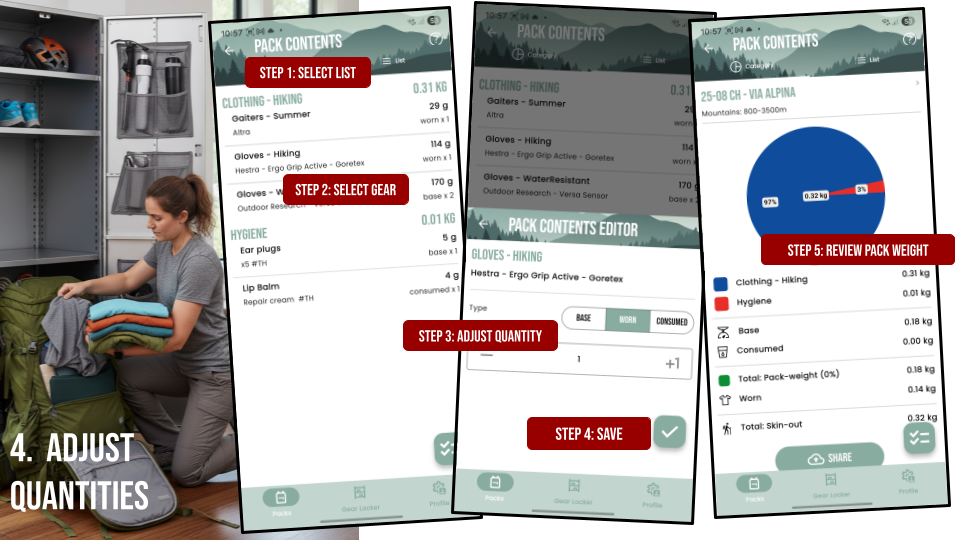
- Adjust quantities in the pack based on the duration or need, …e.g. increase the number of meals or decrease the number of tent stakes, …
This process may be a little different to some of the other tools available. However the core principal was that once gear has been added to the locker, it changes less frequently,
- So creating packs becomes more efficient.
- With consistent category classification, comparing packs becomes simpler.
- With type classification, assessing the weight of your pack becomes easier
See the other help pages to understand a little more about the functionality of the app.
