Wolfram Function Repository
Instant-use add-on functions for the Wolfram Language
Function Repository Resource:
Automatically format a string into boxes for documentation purposes
ResourceFunction["StringTemplateInput"]["string"] converts "string" into boxes with automatic formatting intended for documentation notebooks. |
Convert a string into formatted boxes:
| In[1]:= | ![ResourceFunction["StringTemplateInput"]["f[x,y]"]](https://www.wolframcloud.com/obj/resourcesystem/images/2e4/2e492da1-e653-4899-ae21-dd53abfd5da0/50ce0607771cc97a.png) |
| Out[1]= |  |
View the result:
| In[2]:= | ![DisplayForm[%]](https://www.wolframcloud.com/obj/resourcesystem/images/2e4/2e492da1-e653-4899-ae21-dd53abfd5da0/057fe253b8383d74.png) |
| Out[2]= |  |
Use some special formatting markup:
| In[3]:= | ![ResourceFunction["StringTemplateInput"][
"f[x$1,x$2,$$]"] // DisplayForm](https://www.wolframcloud.com/obj/resourcesystem/images/2e4/2e492da1-e653-4899-ae21-dd53abfd5da0/7db9c9bbfa1b89ff.png) |
| Out[3]= |  |
Automatically link to documentation pages when appropriate:
| In[4]:= | ![ResourceFunction["StringTemplateInput"][
"Table[expr, {i, i$min, i$max}, {j, j$min, j$max}, $$]"] // DisplayForm](https://www.wolframcloud.com/obj/resourcesystem/images/2e4/2e492da1-e653-4899-ae21-dd53abfd5da0/6c5ec9f270806d29.png) |
| Out[4]= |  |
Some strings will result in documentation links to non-symbol pages:
| In[5]:= | ![ResourceFunction["StringTemplateInput"][
"Entity[\"Country\", \"UnitedStates\"]", ShowStringCharacters -> True] // DisplayForm](https://www.wolframcloud.com/obj/resourcesystem/images/2e4/2e492da1-e653-4899-ae21-dd53abfd5da0/7ad338b126a93a2a.png) |
| Out[5]= |  |
| In[6]:= | ![ResourceFunction["StringTemplateInput"][
"Export[\"file\", expr, \"WXF\"]", ShowStringCharacters -> True] // DisplayForm](https://www.wolframcloud.com/obj/resourcesystem/images/2e4/2e492da1-e653-4899-ae21-dd53abfd5da0/62ad349207952dd7.png) |
| Out[6]= |  |
StringTemplateInput is similar to the resource function StringToBoxes:
| In[7]:= | ![b1 = ResourceFunction["StringToBoxes"]["Table[i+1,{i,i$min,i$max}]"]](https://www.wolframcloud.com/obj/resourcesystem/images/2e4/2e492da1-e653-4899-ae21-dd53abfd5da0/0f7279f3c9c491f0.png) |
| Out[7]= |  |
| In[8]:= | ![b2 = ResourceFunction["StringTemplateInput"][
"Table[i+1,{i,i$min,i$max}]"]](https://www.wolframcloud.com/obj/resourcesystem/images/2e4/2e492da1-e653-4899-ae21-dd53abfd5da0/6603d27a67ecdc35.png) |
| Out[8]= |  |
StringToBoxes formats as if the characters were typed literally:
| In[9]:= | ![DisplayForm[b1]](https://www.wolframcloud.com/obj/resourcesystem/images/2e4/2e492da1-e653-4899-ae21-dd53abfd5da0/773fd6c9c02f3563.png) |
| Out[9]= |  |
StringTemplateInput applies heuristics to automatically format some expressions:
| In[10]:= | ![DisplayForm[b2]](https://www.wolframcloud.com/obj/resourcesystem/images/2e4/2e492da1-e653-4899-ae21-dd53abfd5da0/3c38392f8caac118.png) |
| Out[10]= |  |
Output cells do not typically show string characters:
| In[11]:= | ![ResourceFunction["StringTemplateInput"][
"ResourceFunction[\"BirdSay\"]"] // DisplayForm](https://www.wolframcloud.com/obj/resourcesystem/images/2e4/2e492da1-e653-4899-ae21-dd53abfd5da0/73c68935cf7d8b5e.png) |
| Out[11]= |  |
Use ShowStringCharacters→True to force quotes to appear:
| In[12]:= | ![ResourceFunction["StringTemplateInput"][
"ResourceFunction[\"BirdSay\"]", ShowStringCharacters -> True] // DisplayForm](https://www.wolframcloud.com/obj/resourcesystem/images/2e4/2e492da1-e653-4899-ae21-dd53abfd5da0/629d811268d4a80c.png) |
| Out[12]= |  |
When ambiguous, StringTemplateInput guesses which documentation page to target for links and is unaware of context:
| In[13]:= | ![ResourceFunction["StringTemplateInput"]["Interpreter[\"Country\"]", ShowStringCharacters -> True] // DisplayForm](https://www.wolframcloud.com/obj/resourcesystem/images/2e4/2e492da1-e653-4899-ae21-dd53abfd5da0/49dd322e7f7f4c20.png) |
| Out[13]= |  |
In this case, "Country" linked to the documentation page for the entity type, and not the interpreter type. In these cases, it may be better to manually construct the desired link:
| In[14]:= | ![Hyperlink["\"Country\"", "paclet:ref/interpreter/Country", BaseStyle -> "Link"]](https://www.wolframcloud.com/obj/resourcesystem/images/2e4/2e492da1-e653-4899-ae21-dd53abfd5da0/4c0e7017bd7df4a4.png) |
| Out[14]= | 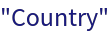 |
Create your very own Template Input button that can be used in any notebook:
| In[15]:= | ![Button["Template Input", With[{cell = Cell[BoxData[NotebookRead[InputNotebook[]]]]}, NotebookWrite[InputNotebook[], ResourceFunction["StringTemplateInput"][
First[FrontEndExecute[ExportPacket[cell, "PlainText"]]]]]]]](https://www.wolframcloud.com/obj/resourcesystem/images/2e4/2e492da1-e653-4899-ae21-dd53abfd5da0/0c6a45f49f694c86.png) |
| Out[15]= | 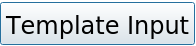 |
Select the following text and click the button to test it: f[x$1,x$2,$$]
This work is licensed under a Creative Commons Attribution 4.0 International License