
Alerting

Workflow Alerts: Know Before It Costs You

Automation that runs unattended is only safe if it tells you when something is wrong. Amernet watches the two things that actually bite: what your workflows spend, and whether they are still working.

Set a spend cap across the workspace, a folder, or a single workflow. At 80% of the cap you get a warning; at 100% you get a breach notice. Turn on the hard limit and new runs are refused rather than quietly billing straight through it.

A workflow that keeps failing pauses itself after a threshold you choose, with a banner and a one-click acknowledge — so a broken integration costs you a morning rather than a month.
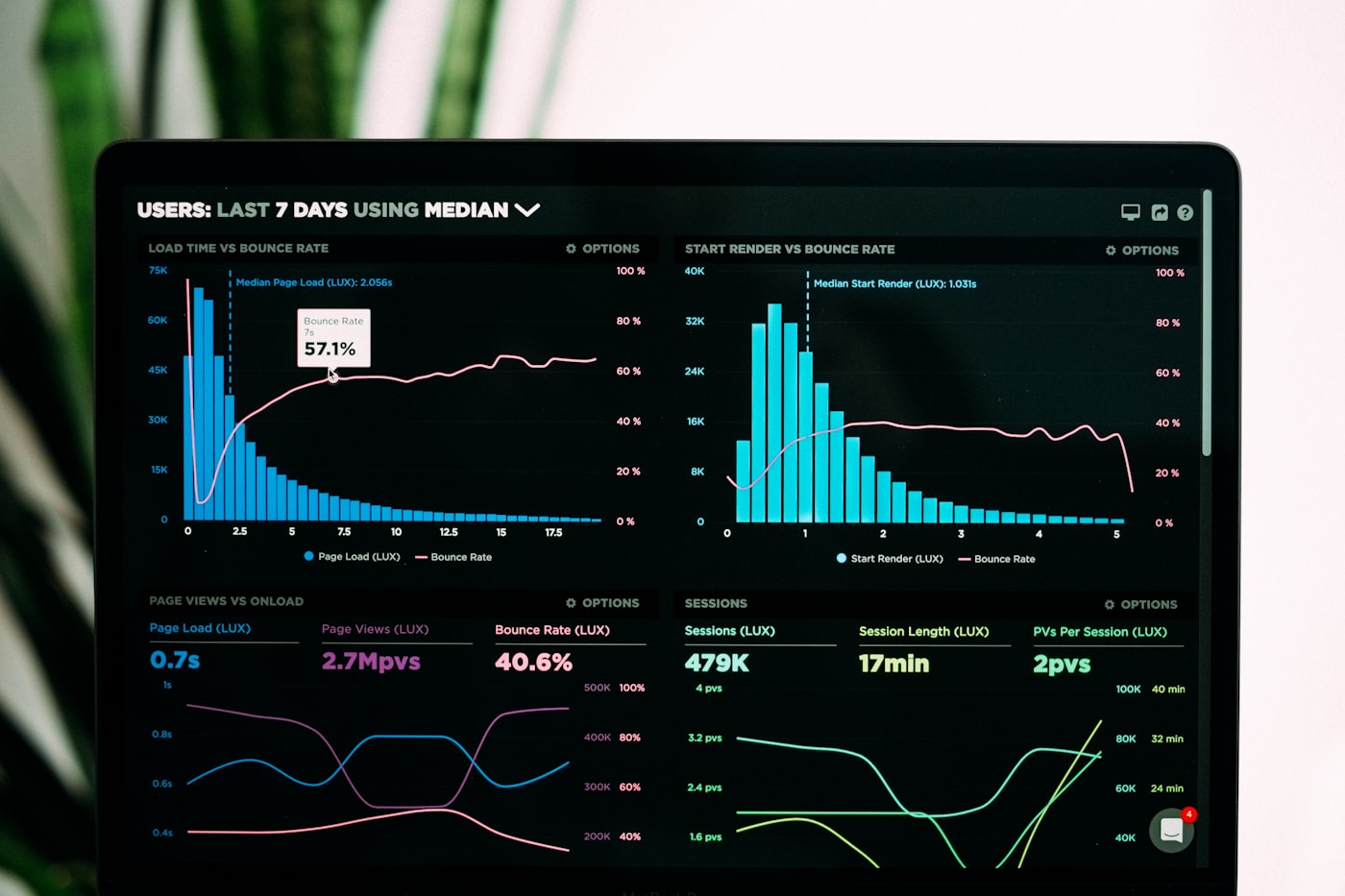
Workflow alerts dashboard showing usage charts and threshold metrics on a laptop screen
What is watched

Two questions, answered automatically

Not a monitoring suite. Two specific failure modes, covered properly.

Spend caps at three levels

Cap the whole workspace, a folder of workflows, or one workflow on its own, measured against a rolling thirty days.

Warning, then breach

One notification at 80% and one at 100%. It fires on escalation only, so a cap sitting at 85% does not page you every hour.

An optional hard stop

Switch on the hard limit and new runs are refused once the cap is hit. Runs already in flight are left to finish.

Failure auto-pause

After a number of consecutive failures that you set, the workflow pauses itself and raises a banner for someone to acknowledge.

Stale trigger check

Scheduled, webhook and event workflows that have not fired when they should have are flagged, so a dead trigger does not pass for a quiet week.

A delivery log

Every notification sent, with its delivery status, in one searchable log — so you can prove whether it went out.

Delivery

Where workflow alerts land

Notifications go to a webhook you control, and to an inbox inside the app.

Slack or any HTTPS endpoint

Spend warnings and breaches post to a Slack incoming webhook, or to any HTTPS endpoint you point them at.

An activity inbox in-app

Folder events, auto-pauses and cost alerts collect in an in-app inbox with per-person read markers.

Scheduled digests

A daily or weekly folder digest covering spend, run counts by status, and the five workflows failing most — plus filtered audit-event webhooks.

Questions

Common questions about alerting

What the alerts do, and what they deliberately do not do.

Not arbitrary ones. The alerts are purpose-built for spend and workflow health — caps with an 80% and 100% trigger, and a consecutive-failure threshold. Both thresholds are yours to set; the conditions themselves are fixed.

Delivery is by webhook — Slack or any HTTPS endpoint — plus the in-app activity inbox and the scheduled folder digests. Point the webhook at whatever your team already watches.

You are notified. If the hard limit is switched on, new runs are refused until the cap is raised or the window rolls; anything already running is allowed to finish.

Not past the threshold you set. After that many consecutive failures it pauses itself, and stays paused until someone acknowledges the banner.

No. It watches your automations inside Amernet — their spend, their failures and their triggers — not your own servers or websites.

Put a ceiling on it before you need one

A spend cap is cheapest to set on the day everything is working.

Set a workspace cap you are comfortable with, switch on the hard limit, and point the webhook at the channel your team already reads. Then set a failure threshold per workflow, so a broken integration raises its hand instead of retrying quietly all week.