
Controls
Fine-Tune Your WordPress Dark Mode Controls
Take control of your site’s dark mode with automatic activation, device-aware detection, keyboard shortcuts, and menu integration — whether you’re running a simple blog or a complex multi-site network.
wp-admin — Darkify · Controls
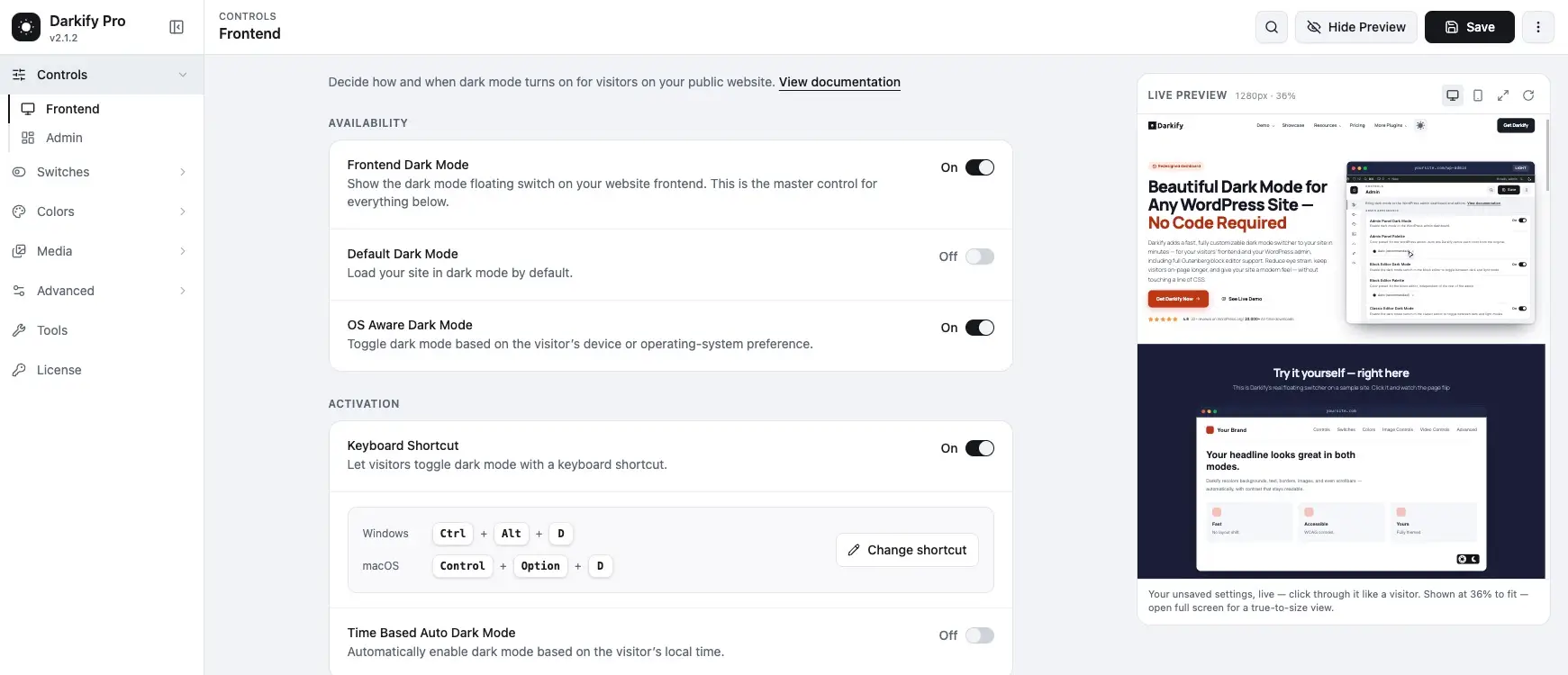
Take full control of your dark mode controls
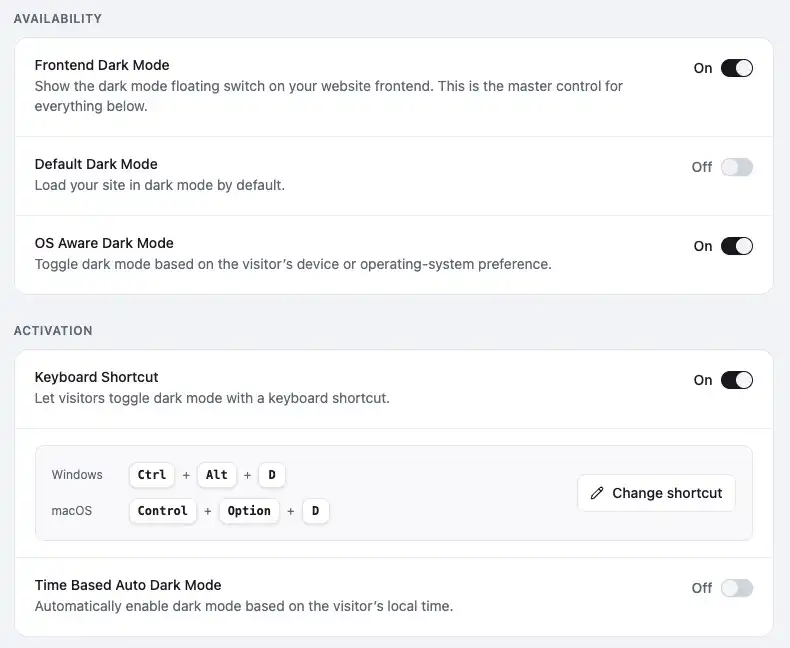
Four settings cover how dark mode turns on for every visitor.
Frontend Dark Mode
Instant dark mode across the whole site with a single toggle, no coding.
Default Dark Mode
Load the site in dark mode by default for all visitors, with a light-mode fallback still available.
OS-Aware Dark Mode
Automatically match each visitor’s system preference.
Keyboard Shortcut
Ctrl+Alt+D (Windows) / Control+Option+D or Cmd+Option+D (macOS) to toggle instantly.
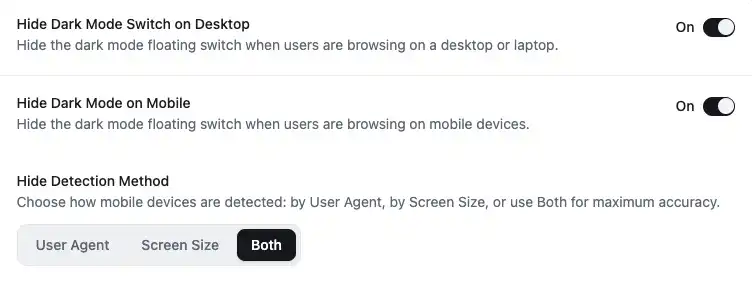
Advanced dark mode controls
Decide exactly when and where the switch appears.
Time-Based Auto Dark Mode
Switches automatically based on the visitor’s local time.
Hide Dark Mode Switch on Desktop
Keep the floating switch off screens where you do not want it.
Hide Dark Mode Switch on Mobile
Hide the floating switch for visitors on mobile devices.
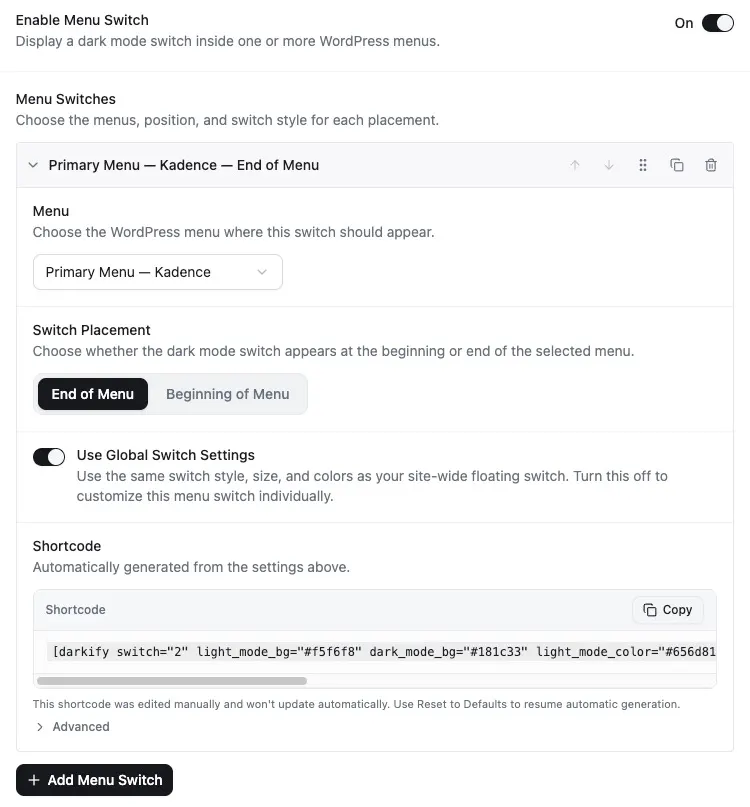
Show Switch in Menu
Add a dark-mode switch straight into one of your WordPress menus.
Shortcode to Add on Menu
Customizable placement within any selected menu.
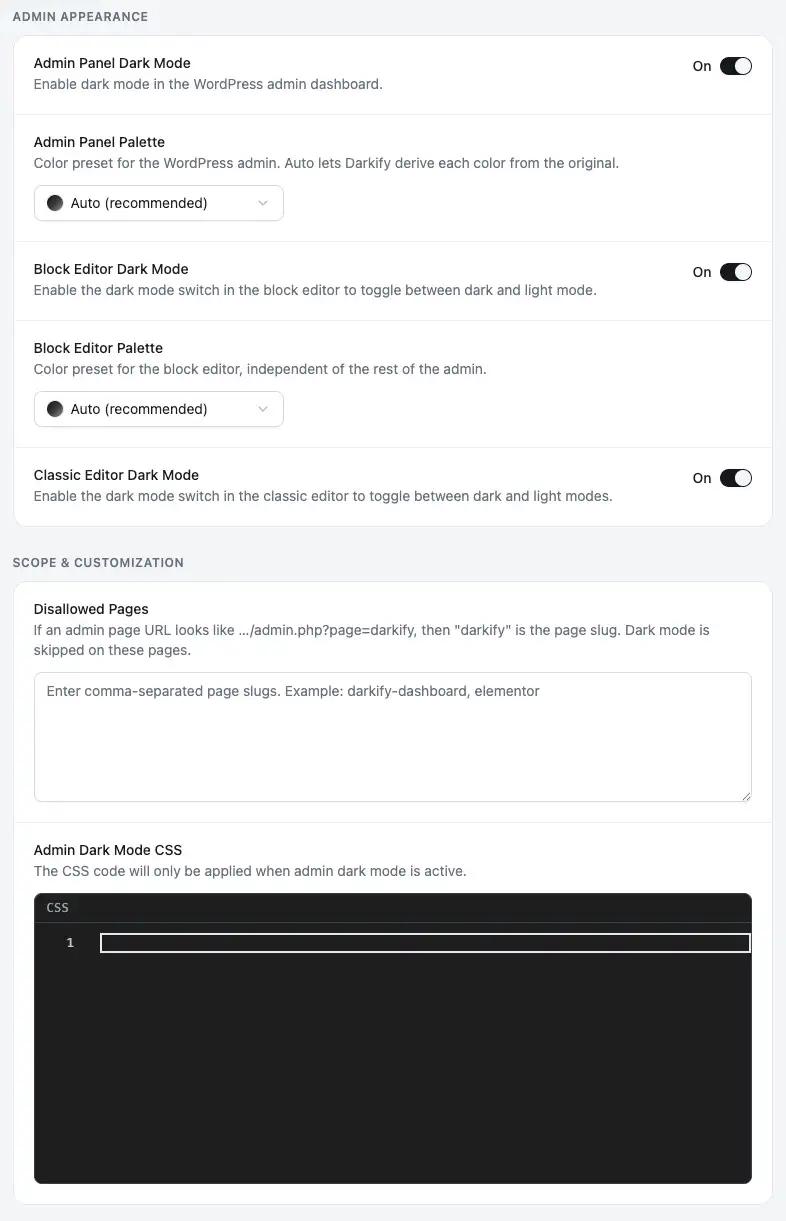
Upgrade your admin workflow with dark mode
Dark mode for the dashboard and both editors, with per-page exceptions.
Admin Panel Dark Mode
Enable dark mode in the WordPress admin dashboard.
Block Editor Dark Mode
Toggle between dark and light mode right inside the block editor.
Classic Editor Dark Mode
The same switch for sites still writing in the classic editor.
Disallowed Pages
Choose which backend pages always stay in light mode.
Common Questions About WordPress Dark Mode Controls
Still unsure? Talk to us.
