
-
Documentation
-
- Browser Cloud: Secure Remote Browser Testing
- Real Mobile Device Cloud: Secure Remote Mobile Testing
- How to get the User Token On TestGrid PlatForm
- Device Reservation
- App Management
- Image Injection for Camera Testing on Real Devices
- BioMetric Authentication
- Object Spy and Searching XPath in Appium Inspector
- Perform Geo-location Testing On TG Cloud
- Running ADB Native Commands with TestGrid Device Cloud
- Push Notification Testing in TestGrid Real Device
- Image Annotation for Marking Bugs with JIRA
- Manual Testing and Test Results with Mobile Screen Recording
- TG Connect (TG-Tunnel): Securely Connect Your Local/Low Environment to the TestGrid Device Cloud
- Central Repository for User Recordings Videos
- Configuring PIN on Real Devices in TestGrid
- TG Drive
- Browser resolutions and actions
- Real Devices Access Using Remote Lite URL
- Audio Output Streaming with TestGrid
- Virtual Remote USB Devices (vUSB) with TestGrid
- Device Cloud – Multiple Language Support
- View More Articles (7) Hide Articles
-
- Codeless/Scriptless Web Test Case Writer
- Codeless/Scriptless Mobile App Test Case Writer
- Scriptless Test Case Creation in TestGrid
- Web Test Case Execution
- Mobile App Test Case Execution
- Use Custom Expressions in Scriptless Test Cases with Java (Selenium & Appium)
- Network Assertions: Writing and Execution
- Video Recording for Build Execution in Codeless Testing
- Visual Regression Testing Using Codeless Automation
- Tap action with X and Y coordinates for perform on element Interaction
- Scriptless/Codeless Debugging
- Test Case Version's & Management
- AutoHeal and AutoFix for Codeless Test Automation
- Codeless Integration Testing with Network Assertions
- Using Global Variables in Test Cases and Functions
- Test Data Management with Parameterization in TestGrid
- Parallel Execution on Multiple Devices
- Parallel Execution on Multiple Browsers
- Using Import Statements and Custom Libraries in Versioned Test Suites
- Downloading Codeless Build HTML Reports for Web and Mobile
- Uploading Files for Website Testing via TestGrid TG Drive
- Debugging ‘Test Case Compilation Failed’ Error in TestGrid: Causes & Solutions
- Accessibility Testing
- Test Case Scheduler – Automate Your Codeless Builds
- Test Case Tagging In Codeless/Scriptless and Device Tagging
- Codeless Sequential Test Execution Across Web and Mobile Using APIs
- Test Case Execution on Android Emulators and iOS Simulators Using TestGrid
- How to Use TG Variables in Custom Script
- Retry Mechanism for Codeless Test Automation
- Codeless Projects: Access Control and User Role Assignment Guide
- Utility Keywords Guide
- Parameterizing a Test Case with a Database Source in TestGrid Scriptless
- View More Articles (17) Hide Articles
-
- Cross-Browser Testing with TestGrid Selenium Using Local Execution
- Accelerate Mobile App Testing with TestGrid Local Appium Execution
- View Execution Results and Reports of Automation Testing
- Local executions with Insights data & Page performance summary metric data
- Visual Regression Testing Using Local Execution
- Executing Your Local Web Automation Robot Code
- Robot Framework for Python: Local Mobile Automation with TestGrid Device Cloud
- Executing Appium Code from Windows Machine to Remote iOS Device
- Download Scriptless Generated Appium Code
- Native App Test on Android
- Native App Test on iOS
- Running Playwright Tests Remotely Using TestGrid
- Cross-Browser E2E Testing Using Cypress on TestGrid
- Dynamic Test Case Execution on TestGrid: Leveraging Random Device Allocation
- Run WebDriverIO Tests Remotely on TestGrid (Mobile & Browser)
- Run CodeceptJS Tests Remotely on TestGrid (Mobile & Browser)
- Best Practices & Troubleshooting Guide for Mobile Local Appium Execution with TestGrid
- Getting Started with API Testing in TestGrid
- View More Articles (3) Hide Articles
-
- PDF Validation with UI
- Automating Salesforce Application
- Automating Websites with iFrame
- Handling Dynamic Elements with Declare Keyword
- Automating Android Hybrid Apps
- Automating Flutter Application
- Automating APIs with Codeless Automation
- Integrating Selenium Custom Scripts with Codeless Automation
- Integrating Appium Custom Scripts with Codeless Automation
- Vault Test Cases – Integrating HashiCorp Vault with TestGrid Real Devices
- Reading and Auto-Entering OTP on iOS Using Appium in TestGrid
- Reading and Auto-Entering OTP on Android Using Appium in TestGrid
- Data-Driven Testing Using Database Integration in TestGrid Codeless
- Scriptless API Testing
- Executing Custom JavaScript in the Browser Console During Codeless Execution
-
- Jira Integration With TestGrid
- Slack Integration With TestGrid
- Microsoft Teams Integration With TestGrid
- Selenium IDE Integration with TestGrid through Selenium-Side-Runner
- Running Katalon TestCases on TestGrid Mobile Devices
- Running Katalon TestCases on TestGrid Browsers
- Ranorex integration with Testgrid
- Tosca Integration With TestGrid
- Integration of TestComplete by SmartBear with TestGrid
- Bitrise Integration with TestGrid
- Travis CI integration with TestGrid
- XRay JIRA Integration with TestGrid
- How to integrate HashiCorp Vault with TestGrid
- 1. CI CD Integration
- 2. Test Suite Management
- 3. Element Extraction from iOS and Android Device
- Scriptless Test Case Creation in TestGrid
- AutoHeal and AutoFix for Codeless Test Automation
- Automation Tips for React Native App Development
- BioMetric Authentication
- Network Assertions: Writing and Execution
- CircleCI Integration With TestGrid
- Cross-Browser E2E Testing Using Cypress on TestGrid
- Dynamic Test Case Execution on TestGrid: Leveraging Random Device Allocation
- Executing Appium Code from Windows Machine to Remote iOS Device
- Cross-Browser Testing with TestGrid Selenium Using Local Execution
- Executing Your Local Web Automation Robot Code
- Image Injection for Camera Testing on Real Devices
- Mobile App Test Case Execution
- Parallel Execution on Multiple Browsers
- Parallel Execution on Multiple Devices
- Performance & Load Testing using JMeter in TestGrid
- Real Devices Access Using Remote Lite URL
- Robot Framework for Python: Local Mobile Automation with TestGrid Device Cloud
- Running Playwright Tests Remotely Using TestGrid
- Codeless Integration Testing with Network Assertions
- Codeless/Scriptless Mobile App Test Case Writer
- Codeless/Scriptless Web Test Case Writer
- Scriptless/Codeless Debugging
- Tap action with X and Y coordinates for perform on element Interaction
- Test Case Version's & Management
- Test Data Management with Parameterization in TestGrid
- Accelerate Mobile App Testing with TestGrid Local Appium Execution
- TG Drive
- Tosca Integration With TestGrid
- Video Recording for Build Execution in Codeless Testing
- Visual Regression Testing Using Local Execution
- Web Test Case Execution
- Run CodeceptJS Tests Remotely on TestGrid (Mobile & Browser)
- Best Practices & Troubleshooting Guide for Mobile Local Appium Execution with TestGrid
- Getting Started with API Testing in TestGrid
- TG Connect (TG-Tunnel): Securely Connect Your Local/Low Environment to the TestGrid Device Cloud
- Parameterizing a Test Case with a Database Source in TestGrid Scriptless
- View More Articles (25) Hide Articles
-
-
Test Results
Running Katalon TestCases on TestGrid Browsers
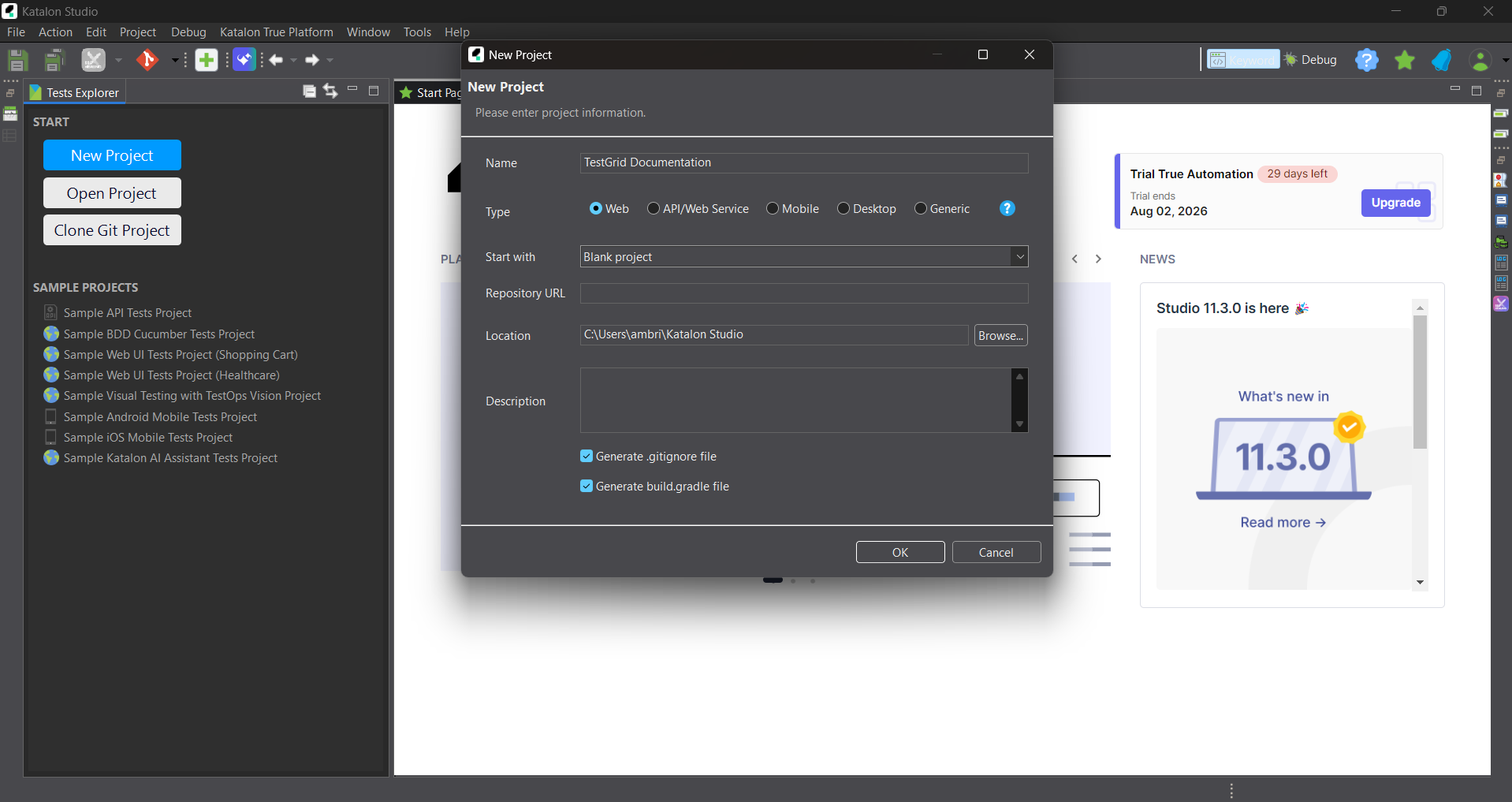
Step 1- Open Katalon Studio and Click on New Test Case
-
- First create a new project in Katalon
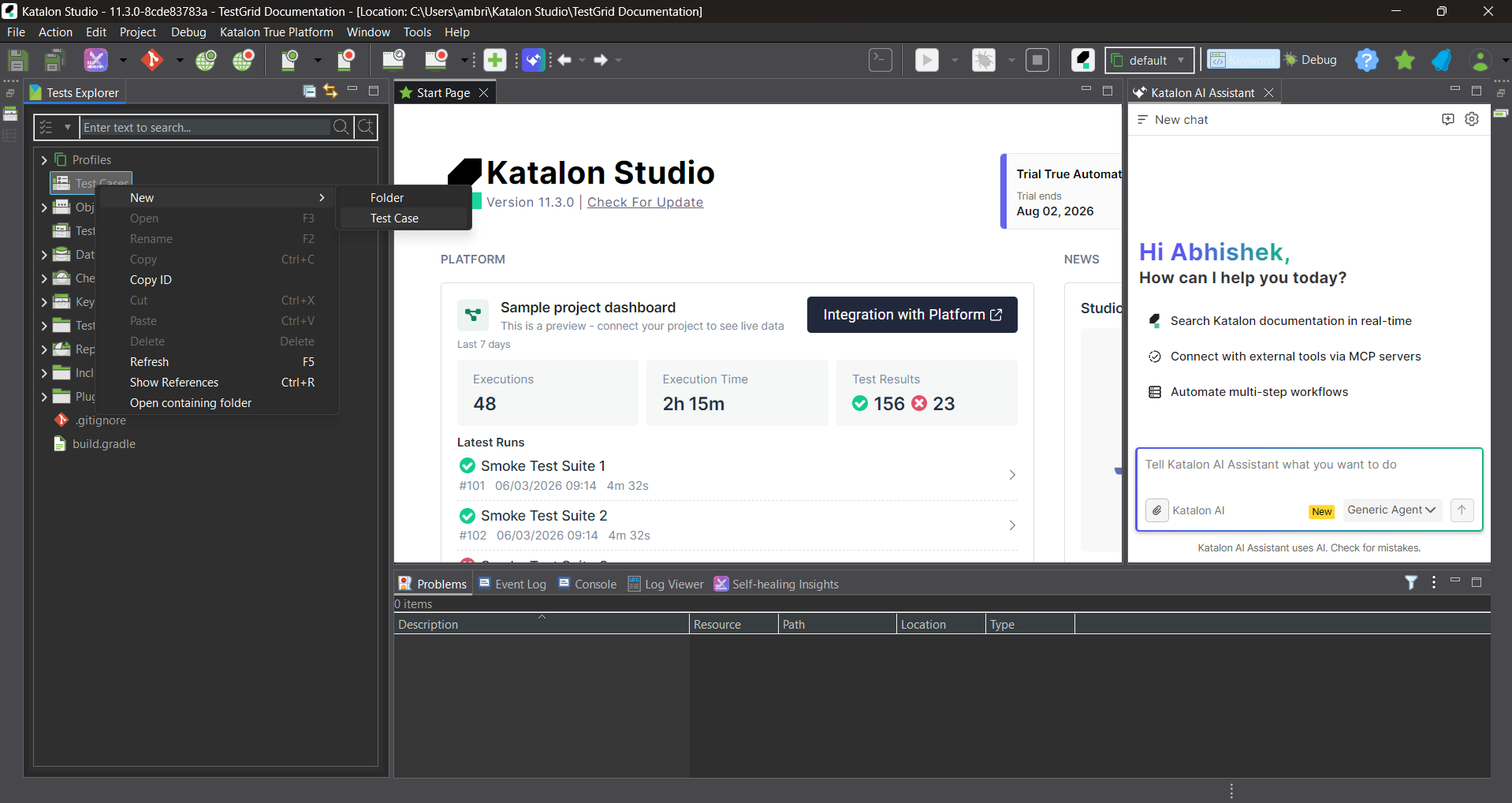
- Navigate to project and create a new Test case in Katalon as shown in below screenshots.
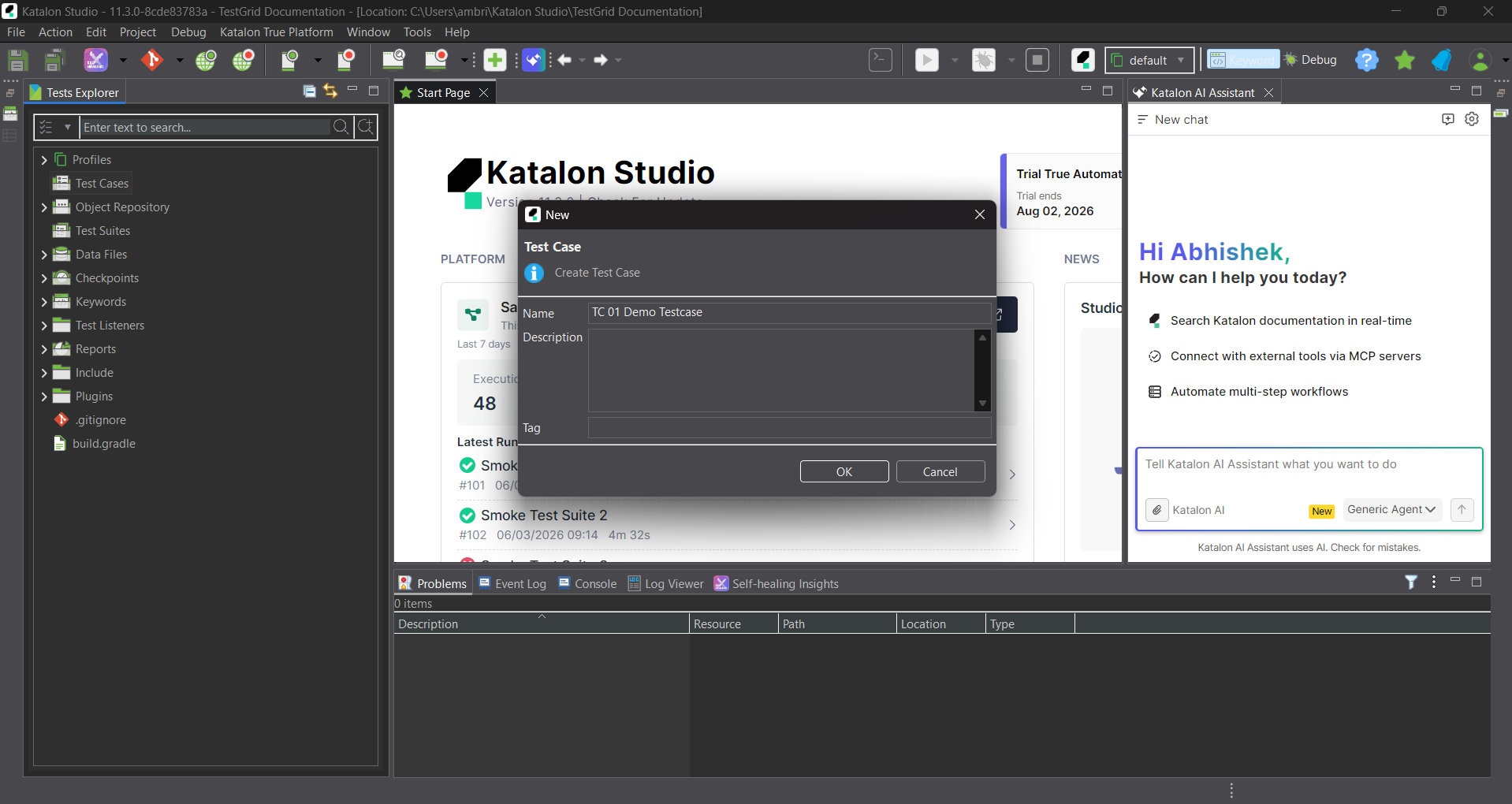
- Name the test case using Katalon UI
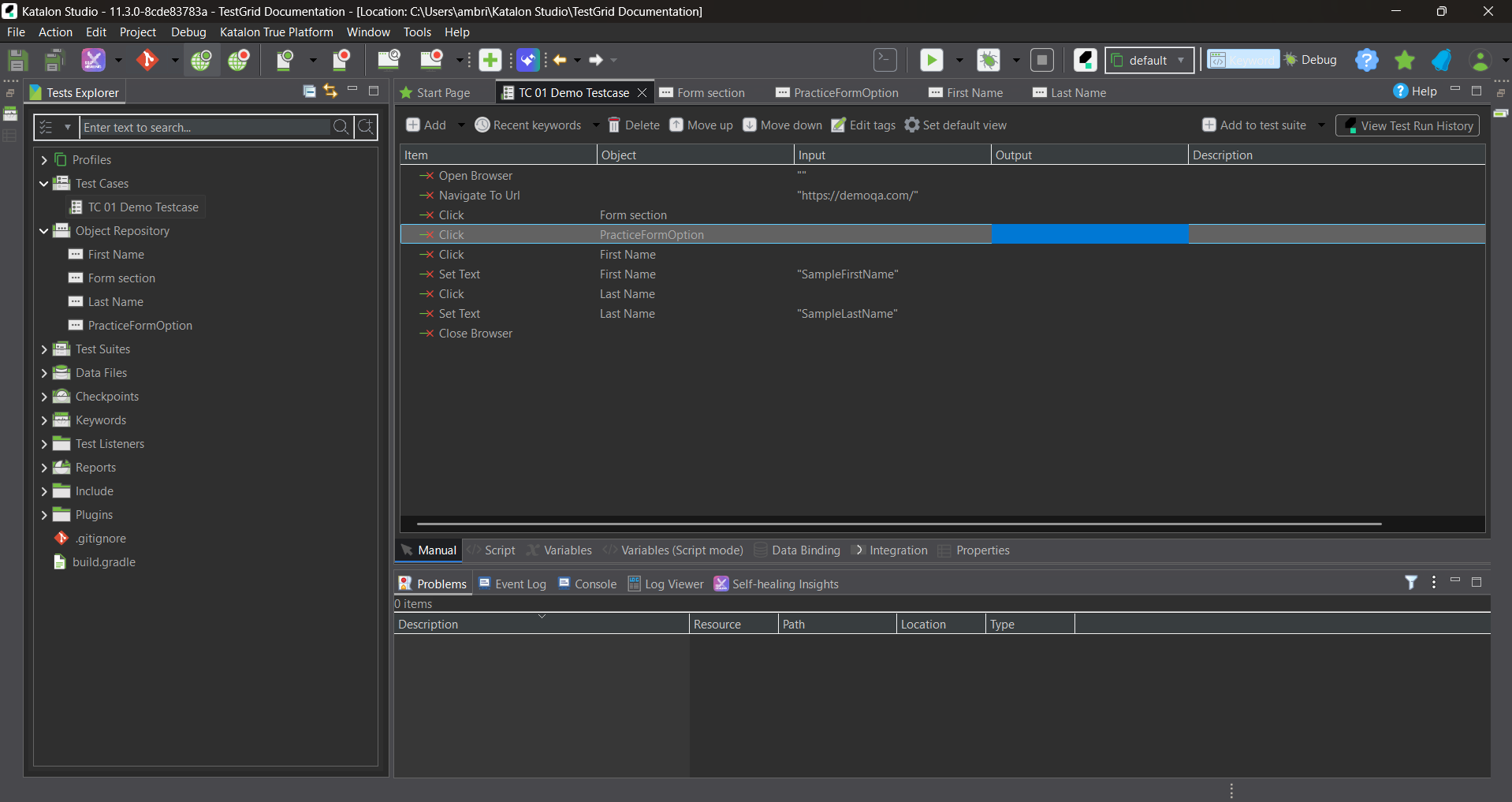
Step 2- Enter the flow of test case steps
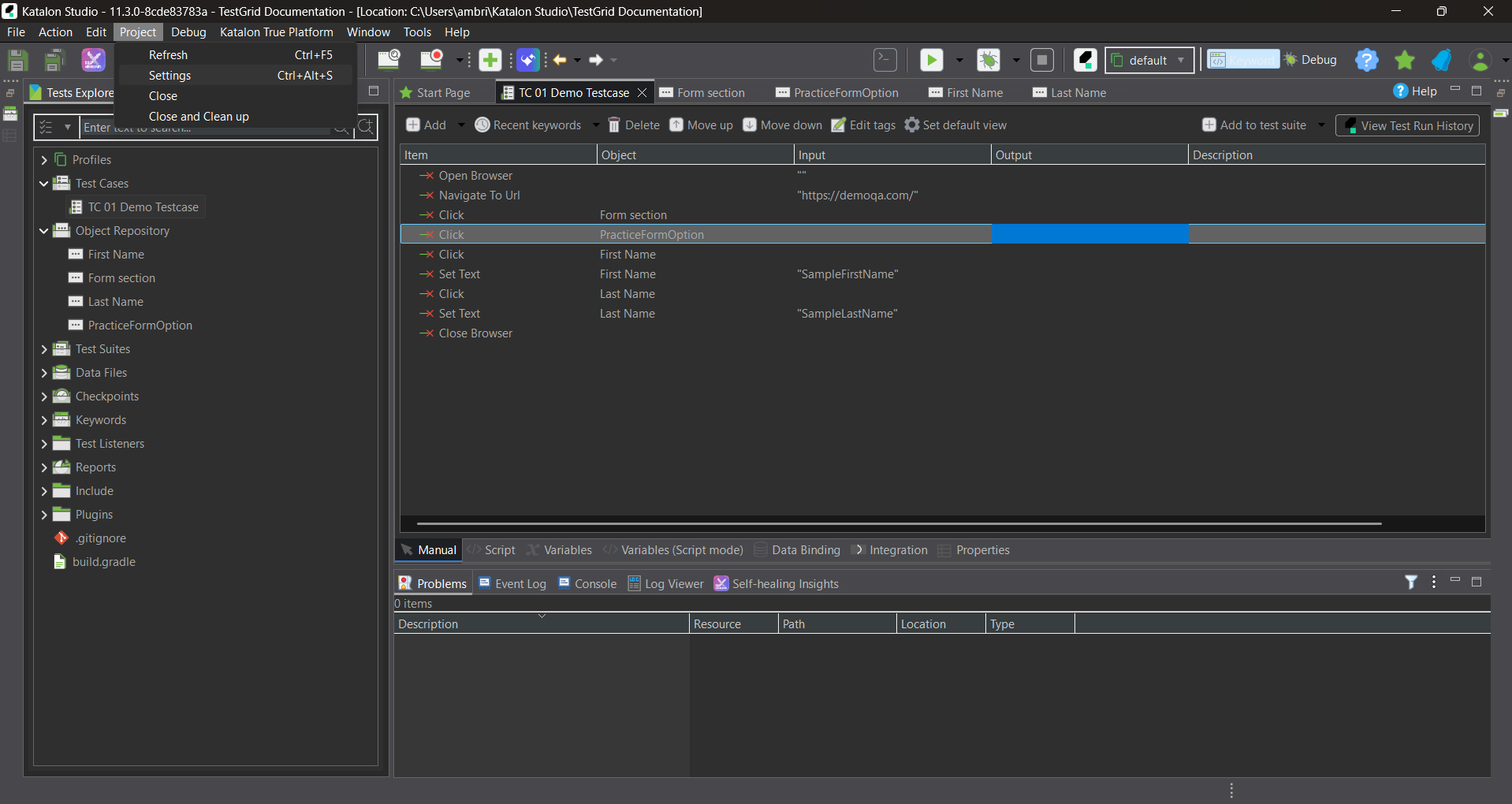
Step 3-Click on Project and Settings.
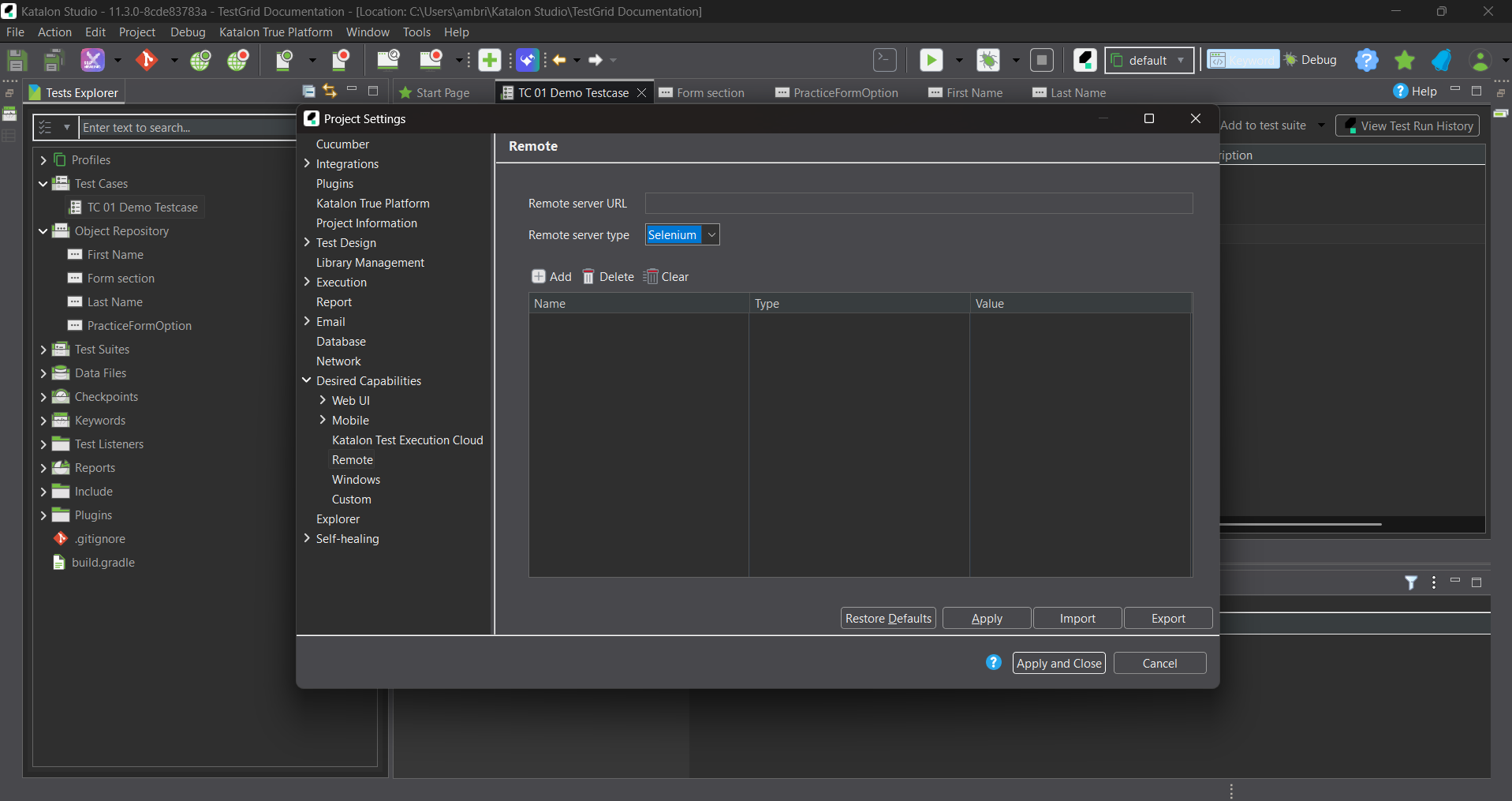
Step 4 – Under Desired Capabilities Click on Remote.
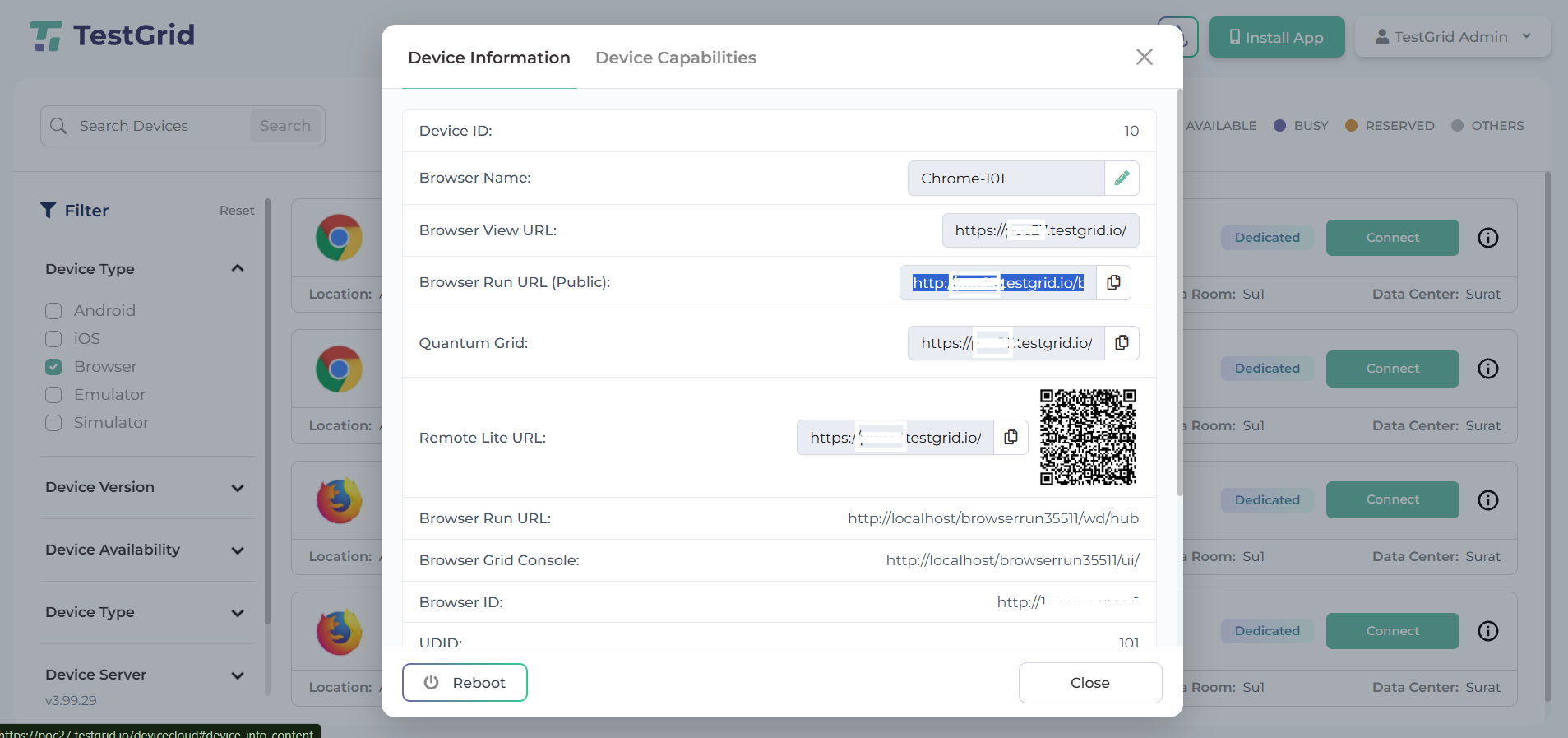
Step 5-Now open the Device Cloud from your TestGrid credentials and Click on the Browser and Copy the Browser Run URL
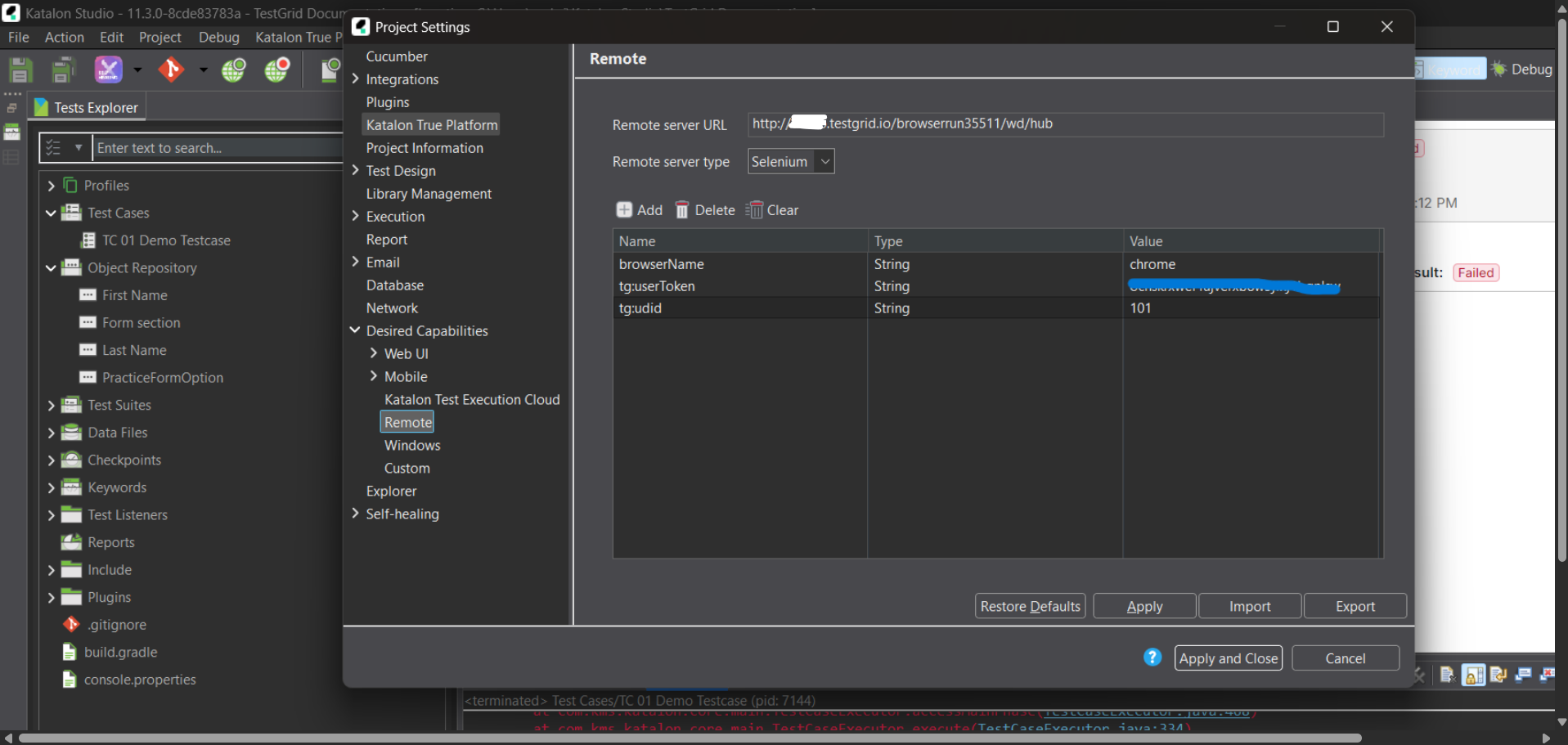
Step 6- Paste in Remote Server URL and Add Name: BrowserName, User Token, UDID, Type: String and Value: Chrome
Click Apply and Close.
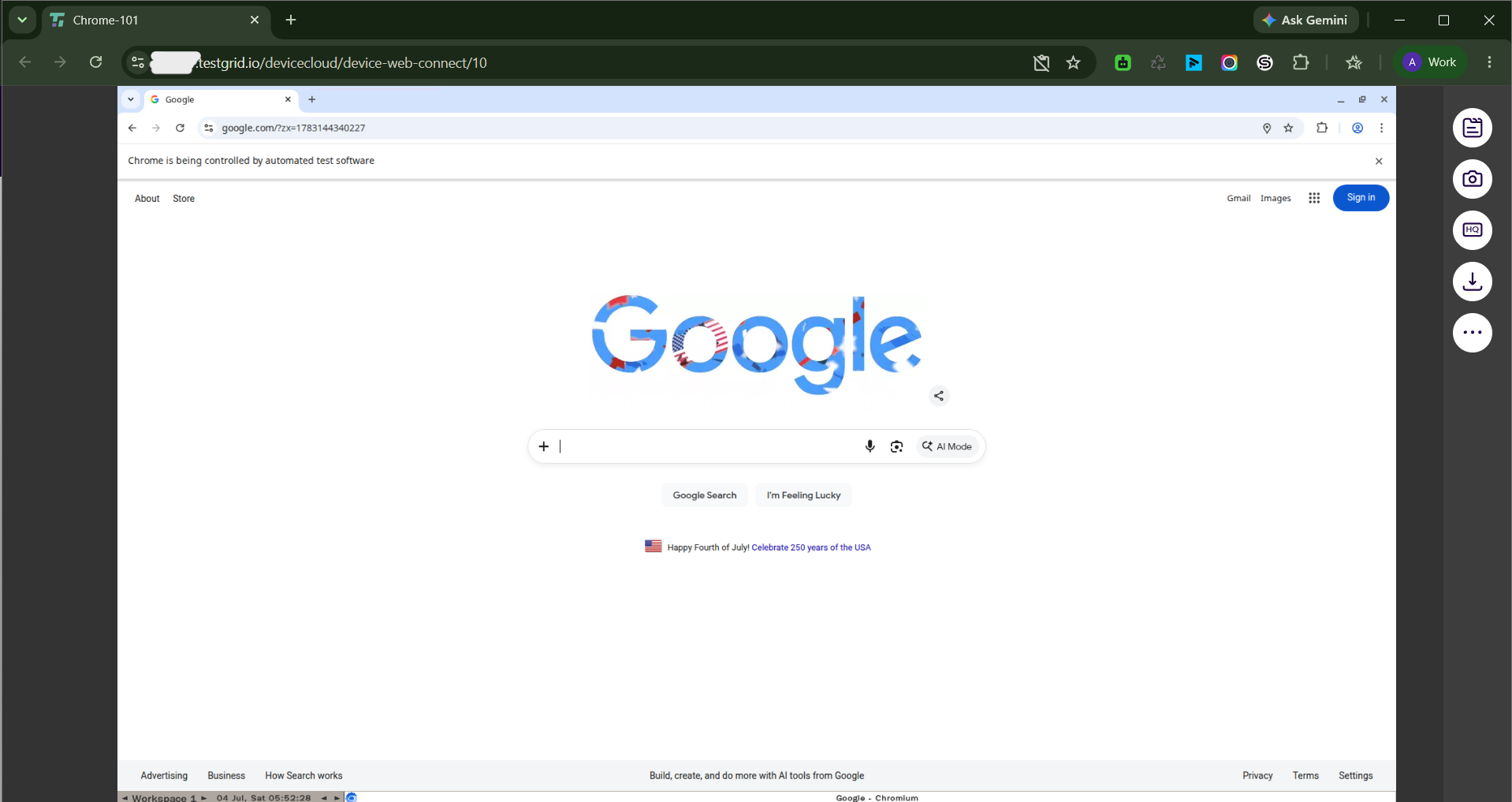
Step 7- Connect the browser manually from TestGrid.
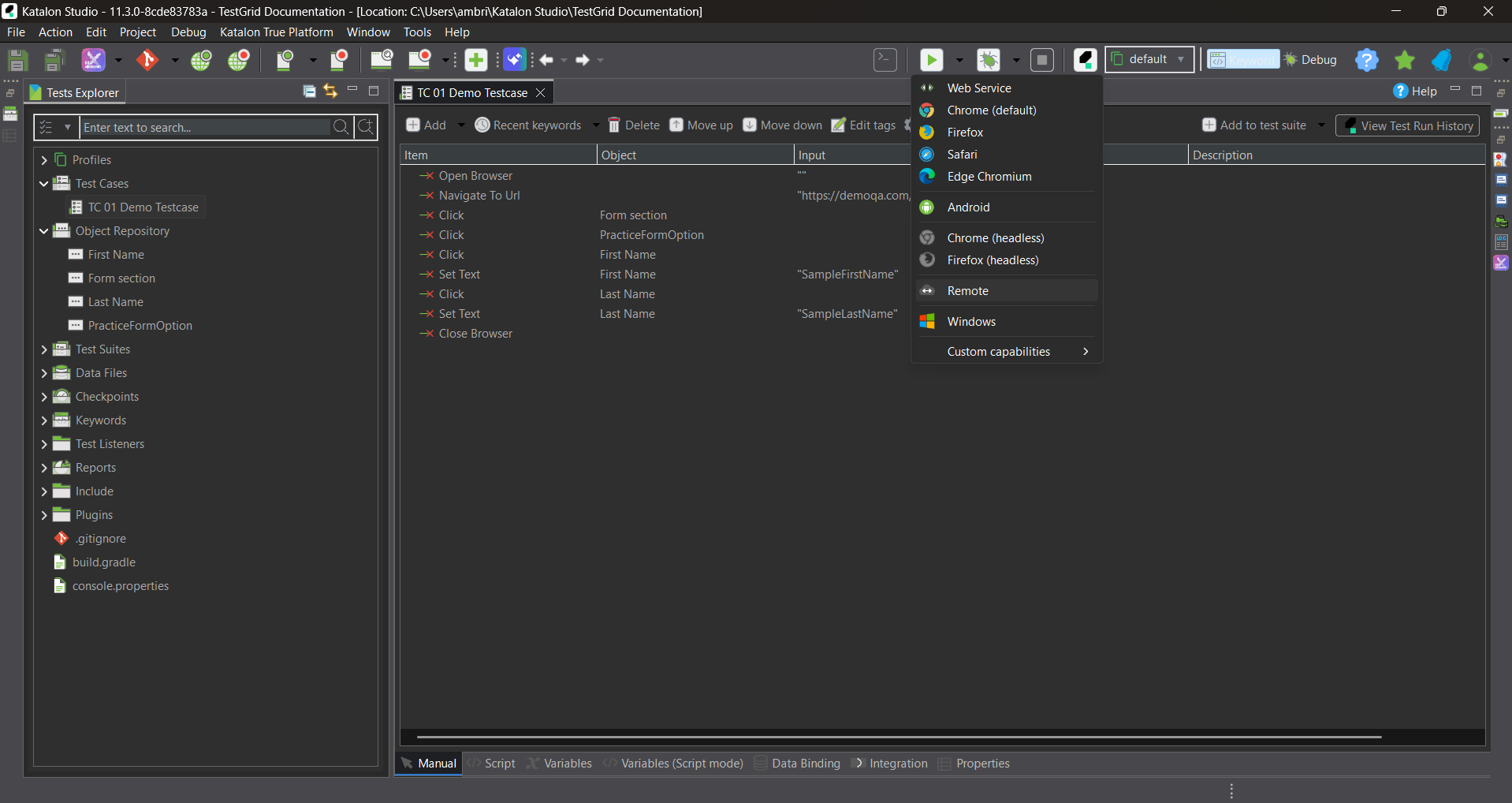
Step 8-Under Run, click on Remote.
Step 9- Upon clicking Remote, test cases can be seen running in Katalon and Browsers
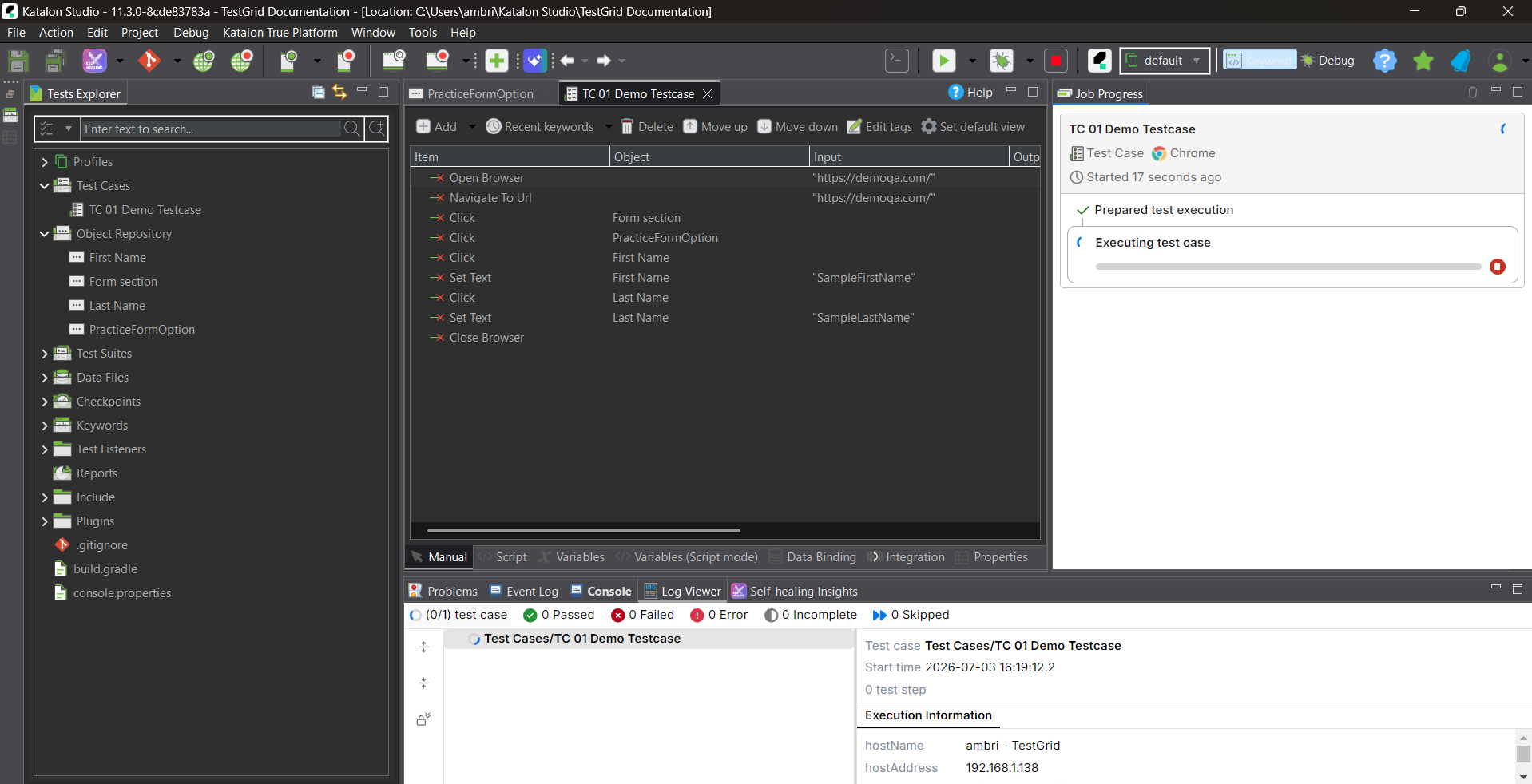
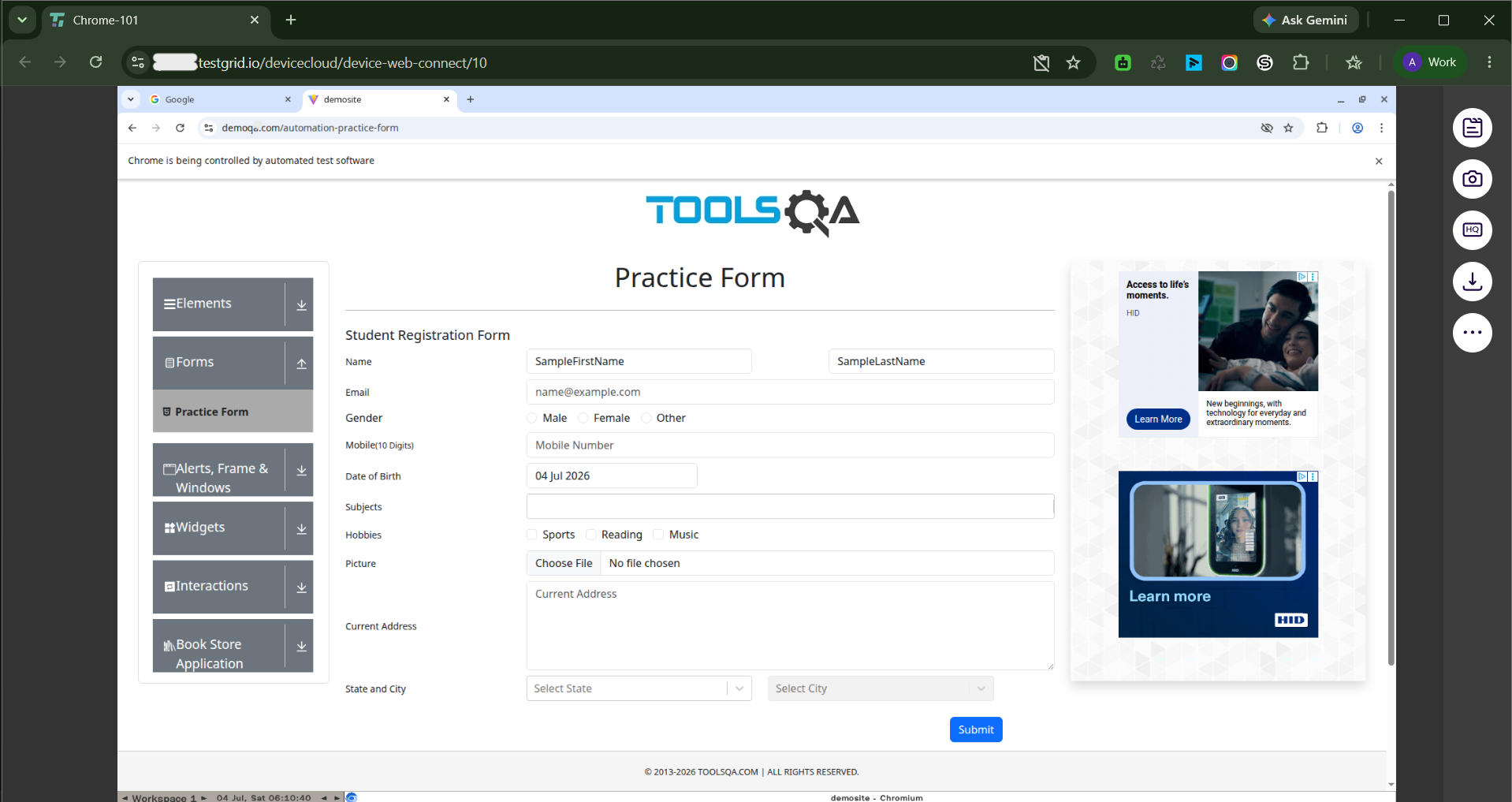
Table of Contents
