Search the Community
Showing results for tags 'pickup'.
Found 10 results
-

Version 1.6.9
2,658 downloads
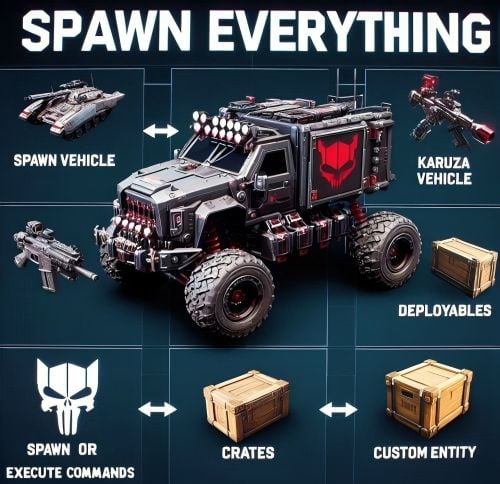
Spawn Everything - Spawn Vehicle, Karuza Vehicle, Deployables, Bases, Item, Recycler, Crates, Custom entity, Execute Commands, Loots, Pickup Entity, Pickup Vehicles, Deploy Nature, Instant Airdrop, and much more... Spawn Everything - Spawn all entity, Bases, Item, loot, Pickup Entity, Pickup Vehicles, Deploy Nature, Instant Airdrop, allows you to spawn any entity or execute commands, all by using an item, pickup entity or vehicles, and much more. It is already configured to generate vehicles by default, including custom vehicles from Karuza, Naval Deep Sea entity, Crates, Locked Crate, Deployables, Casino items and much more. Through the configuration you can add other entities that can be generated, just enter a prefab name, or a command if you do not have a prefab name, and set the skin of the item that will be used. It also allows you to limit the spawn, for example if you do not have building permits, avoid spawning in water or allow it only in water, also being able to choose the minimum depth of the water, allow or not spawn inside buildings, monuments and more. It is also possible to pick up the generated entity/vehicles, using the hammer. You can add items to the in-game shop, loot, or wherever you want. Spawn Bases using copy paste or other plugin. You can also Deploy Nature and enable instant airdrop. Ability to enable the cleanup system, to automatically delete deployed entities that are no longer used. Compatible with Oxide/Umod and Carbon. ALL AVAILABLE ENTITIES Here you can find a file with all the entities currently available and the various information on the item to create to spawn the entity ALL AVAILABLE ENTITIES ---------------------------------------- BUY KARUZA CUSTOM VEHICLES: Karuza vehicles are included in the configuration, but vehicles must be purchased separately from the Karuza website: https://karuza.dev/ ---------------------------------------- PLAYLIST - VIDEO EXAMPLE Below you can see an example video on how to use the plugin. -------------------- SOME EXAMPLES OF USE: Some examples of how the plugin works and the entities that can be spawned by default. Vehicle Spawn Spawn Custom Vehicles by Karuza Pickup Entity Pickup Vehicle Pickup Karuza Vehicle Spawn Recycler Deploy Nature Ability to enable instant airdrop. Spawn NPC vehicles, such as Bradley, Patrol helicopter, CH47 (Chinook 47) Spawn loot boxes, such as the: Locked Crate, Oil Rig Locked Crate, Bradley APC Crate, Patrol Helicopter Crate, Elite Tier Crate, Elite Tier Crate - Underwater Labs. Crater for mines, to place mines where you want. Survey Crater - For Mining Quarry, Survey Crater Oil - For Pump Jack. Spawn Bases using copy paste or other plugin Spawn Casino entities Spawn custom entities And much more PERMISSIONS: spawneverything.admin -- Allows the use of commands reserved for admins, such as giving items for entity spawning to players. spawneverything.fuel.unlimited -- If the entity to be spawned is a vehicle, the vehicle will not need fuel to run. The same can be achieved via the configuration file, for each individual entity. spawneverything.nodamage.enabled -- Spawned entities will not take damage if the player has this permission. spawneverything.nodamage.allow_decay_damage -- Entities for which damage protection has been activated will continue to take damage from decay. spawneverything.nodecay -- Disable entity decay. spawneverything.spawn.not_enabled -- Allows you to spawn entities that have not been enabled in the configuration file. spawneverything.spawn.bypass_building_privilege -- Allows you to spawn entities even if you don't have building permissions, for entities that require building permissions to spawn. spawneverything.spawn.bypass_tc -- Allows entities to be spawned, for entities that cannot be spawned near any Tool Cupboard (TC). spawneverything.spawn.bypass_monument -- Allows entities to be spawned in monuments, for entities that cannot be spawned in monuments. spawneverything.spawn.bypass_road_rails -- Allows entities to be spawned to the road/rails, for entities that cannot be spawned to the road/rails. spawneverything.spawn.bypass_only_outside -- Allows entities to spawn inside buildings, for entities that cannot be spawned inside buildings. spawneverything.spawn.bypass_water -- Allows entities to spawn in water, for entities that cannot be spawned in water. spawneverything.spawn.bypass_respawn_conditions -- Allows you to bypass condition checking for respawned entities after they have been picked up. Picked up entities will always be respawned in the max condition. COMMANDS FOR PLAYERS Commands can be typed in chat (by putting the / character in front of the command), or from console. /se pickup -- Command to pick up entities, without the hammer. COMMANDS FOR ADMIN Commands can be typed in chat (by putting the / character in front of the command), from console or Rcon. To use these commands you must have the role: spawneverything.admin /se <skinID> <quantity> -- Allows you to give the item to spawn the entity, to yourself. You need to pass these parameters: skinID of the configured entity The quantity of items. /se <skinID> <quantity> <steamID> -- Allows you to give the item to spawn the entity, to a player. You need to pass these parameters: skinID of the configured entity The quantity of items. The SteamID of the player to give the items to Commands can be added or modified in the configuration file: /oxide/config/SpawnEverything.json ENTITY PICK UP You can collect the generated entity using the hammer. By collecting the entity, you will be given back the item for the entity's spawn. To collect the entity you need to hold down the SHIFT key and hit the entity with the hammer. You can only collect entities that have been enabled for collection in the configuration file. Depending on the configurations/roles, the picked up entities can be respawned to the conditions they were in when they were picked up or to the maximum conditions. INSTANT AIRDROP In the plugin configuration, you can enable instant airdrop. USE VIA SHOP, LOOT. VENDING MACHINE The plugin can use any item for entity spawning. You need to generate an item with a certain skin id, to get the item that allows the entity to spawn. The name of the item to use and the skin id are present in the configuration file: Item name (That will be used to spawn the entity. Default grenade.flashbang) SkinID You can add these items to the in-game Shop, to the loot, in the Vending Machine or wherever you want, very easily. For example, this item spawns a minicopter: Item: grenade.flashbang | SkinID: 3366887420 or ItemID: -936921910 | SkinID: 3366887420 CONFIGURATION The settings and options can be configured in the SpawnEverything.json under the config directory. The use of an editor and validator is recommended to avoid formatting issues and syntax errors. { "TimeZone": "Europe/London", "Chat Command": [ "se", "spawneverything", "spawner" ], "ChatPrefix": "SpawnEverything", "Enable entity spawn when item is dropped. (Default: FALSE)": false, "Show Pick Up Entity Confirm Dialog. (Default: TRUE)": true, "Pick up entity using a button/key combination. Button to use: -1 DISABLED - 1 (MMB - middle mouse button) - 2 (SHIFT + MMB) - 3 (CTRL + MMB). Default: -1": -1, "Kill all Nature entities when the associated cupboard (TC) is destroyed? Default: false": false, "Add spawnable Resource/Nature to your configuration. (Default: FALSE)": false, "Add Karuza Custom Vehicles to your configuration. (Default: FALSE)": false, "Instant Supply Signal Settings": { "Enable instant Supply Signal drop. Default: FALSE": false, "Spawn Only Outside bases. Default: TRUE": true, "Spawn Cooldown (seconds). [Minimum 1 seconds]. Default: 1": 1, "Bypass Fancy Drop to avoid conflicts with the launch of the Supply Signal. Default: TRUE": true }, "Cleanup system": { "Enable Cleanup System. Default: FALSE": false, "Deletes all player deployed entities when disconnecting. Default: FALSE": false, "Deletes all player vehicles when disconnecting. Default: FALSE": false, "Deletes all player Karuza vehicles when disconnecting. Default: FALSE": false }, "Role Permission": { "vip1": { "Priority. (lower = higher priority)": 1, "Always regenerate picked up entities at maximum conditions. Default FALSE": false, "Global maximum number of active entities for each Enabled Spawnable Entity. (-1 no limit)": -1, "Maximum number of active entities for each Enabled Spawnable Entity. Value = SkinID, Limits (Number of active entities. -1 no limit)": {} }, "vip2": { "Priority. (lower = higher priority)": 2, "Always regenerate picked up entities at maximum conditions. Default FALSE": false, "Global maximum number of active entities for each Enabled Spawnable Entity. (-1 no limit)": -1, "Maximum number of active entities for each Enabled Spawnable Entity. Value = SkinID, Limits (Number of active entities. -1 no limit)": {} }, "vip3": { "Priority. (lower = higher priority)": 3, "Always regenerate picked up entities at maximum conditions. Default FALSE": false, "Global maximum number of active entities for each Enabled Spawnable Entity. (-1 no limit)": -1, "Maximum number of active entities for each Enabled Spawnable Entity. Value = SkinID, Limits (Number of active entities. -1 no limit)": {} }, "default": { "Priority. (lower = higher priority)": 100, "Always regenerate picked up entities at maximum conditions. Default FALSE": false, "Global maximum number of active entities for each Enabled Spawnable Entity. (-1 no limit)": -1, "Maximum number of active entities for each Enabled Spawnable Entity. Value = SkinID, Limits (Number of active entities. -1 no limit)": {} } }, "Entity Drop Item": [ { "Enabled": false, "DisplayName": "Spawn Minicopter", "Description": "Spawn Minicopter", "Item name (That will be used to spawn the entity. Default grenade.flashbang)": "grenade.flashbang", "Spawn PrefabName": "assets/content/vehicles/minicopter/minicopter.entity.prefab", "SkinID": 3366887420, "Item can be stacked? FALSE, the entity will be respawned in the same condition it was in when picked. TRUE, the entity will always be respawned as new. Default: FALSE": false, "Spawn Position Offset": { "Right": 0.0, "Forward": 0.0, "Up": 0.0 }, "Spawn Rotation Offset": { "X": 0.0, "Y": 0.0, "Z": 0.0 }, "Entity Type. Default Rust": "Rust", "Can Pick Up Entity. Default false": true, "Custom Radius Check": 0.0, "Execute Player Commands": [], "Execute Player Commands As Admin": false, "Execute Server Commands": [], "Spawn Cooldown (seconds)": 0, "Usage Cooldown. Cooldown for reuse (seconds) (0 no cooldown)": 0, "Requires Building Privilege to Spawn Entity. (Default: TRUE)": true, "Minimum spawn distance from any Tool Cupboard (TC). [0 = Disabled] (Default: 0)": 0, "Allow Spawn in Monuments. (Default: FALSE)": false, "Disable Spawn in Monuments and Monuments radius. (Default: FALSE)": false, "Disable Spawn On Road/Rails. (Default: FALSE)": false, "Minimum spawn distance from Road/Rails. (Default: 0)": 0, "Spawn Only Outside": true, "Dont Spawn In Water": true, "Requires Water": false, "Minimum Water Depth": 0.0, "Armored": false, "Unlimited Fuel": false, "Fuel Amount": 0 }, { "Enabled": false, "DisplayName": "Spawn Attack Helicopter", "Description": "Spawn Attack Helicopter", "Item name (That will be used to spawn the entity. Default grenade.flashbang)": "grenade.flashbang", "Spawn PrefabName": "assets/content/vehicles/attackhelicopter/attackhelicopter.entity.prefab", "SkinID": 3366893095, "Item can be stacked? FALSE, the entity will be respawned in the same condition it was in when picked. TRUE, the entity will always be respawned as new. Default: FALSE": false, "Spawn Position Offset": { "Right": 0.0, "Forward": 0.0, "Up": 0.0 }, "Spawn Rotation Offset": { "X": 0.0, "Y": 0.0, "Z": 0.0 }, "Entity Type. Default Rust": "Rust", "Can Pick Up Entity. Default false": true, "Custom Radius Check": 0.0, "Execute Player Commands": [], "Execute Player Commands As Admin": false, "Execute Server Commands": [], "Spawn Cooldown (seconds)": 0, "Usage Cooldown. Cooldown for reuse (seconds) (0 no cooldown)": 0, "Requires Building Privilege to Spawn Entity. (Default: TRUE)": true, "Minimum spawn distance from any Tool Cupboard (TC). [0 = Disabled] (Default: 0)": 0, "Allow Spawn in Monuments. (Default: FALSE)": false, "Disable Spawn in Monuments and Monuments radius. (Default: FALSE)": false, "Disable Spawn On Road/Rails. (Default: FALSE)": false, "Minimum spawn distance from Road/Rails. (Default: 0)": 0, "Spawn Only Outside": true, "Dont Spawn In Water": true, "Requires Water": false, "Minimum Water Depth": 0.0, "Armored": false, "Unlimited Fuel": false, "Fuel Amount": 0 }, { "Enabled": false, "DisplayName": "Spawn Scrap Transport Helicopter", "Description": "Spawn Scrap Transport Helicopter", "Item name (That will be used to spawn the entity. Default grenade.flashbang)": "grenade.flashbang", "Spawn PrefabName": "assets/content/vehicles/scrap heli carrier/scraptransporthelicopter.prefab", "SkinID": 3366892516, "Item can be stacked? FALSE, the entity will be respawned in the same condition it was in when picked. TRUE, the entity will always be respawned as new. Default: FALSE": false, "Spawn Position Offset": { "Right": 0.0, "Forward": 0.0, "Up": 0.0 }, "Spawn Rotation Offset": { "X": 0.0, "Y": 0.0, "Z": 0.0 }, "Entity Type. Default Rust": "Rust", "Can Pick Up Entity. Default false": true, "Custom Radius Check": 0.0, "Execute Player Commands": [], "Execute Player Commands As Admin": false, "Execute Server Commands": [], "Spawn Cooldown (seconds)": 0, "Usage Cooldown. Cooldown for reuse (seconds) (0 no cooldown)": 0, "Requires Building Privilege to Spawn Entity. (Default: TRUE)": true, "Minimum spawn distance from any Tool Cupboard (TC). [0 = Disabled] (Default: 0)": 0, "Allow Spawn in Monuments. (Default: FALSE)": false, "Disable Spawn in Monuments and Monuments radius. (Default: FALSE)": false, "Disable Spawn On Road/Rails. (Default: FALSE)": false, "Minimum spawn distance from Road/Rails. (Default: 0)": 0, "Spawn Only Outside": true, "Dont Spawn In Water": true, "Requires Water": false, "Minimum Water Depth": 0.0, "Armored": false, "Unlimited Fuel": false, "Fuel Amount": 0 }, { "Enabled": false, "DisplayName": "Spawn Hot Air Balloon", "Description": "Spawn Hot Air Balloon", "Item name (That will be used to spawn the entity. Default grenade.flashbang)": "grenade.flashbang", "Spawn PrefabName": "assets/prefabs/deployable/hot air balloon/hotairballoon.prefab", "SkinID": 3366893631, "Item can be stacked? FALSE, the entity will be respawned in the same condition it was in when picked. TRUE, the entity will always be respawned as new. Default: FALSE": false, "Spawn Position Offset": { "Right": 0.0, "Forward": 0.0, "Up": 0.0 }, "Spawn Rotation Offset": { "X": 0.0, "Y": 0.0, "Z": 0.0 }, "Entity Type. Default Rust": "Rust", "Can Pick Up Entity. Default false": true, "Custom Radius Check": 0.0, "Execute Player Commands": [], "Execute Player Commands As Admin": false, "Execute Server Commands": [], "Spawn Cooldown (seconds)": 0, "Usage Cooldown. Cooldown for reuse (seconds) (0 no cooldown)": 0, "Requires Building Privilege to Spawn Entity. (Default: TRUE)": true, "Minimum spawn distance from any Tool Cupboard (TC). [0 = Disabled] (Default: 0)": 0, "Allow Spawn in Monuments. (Default: FALSE)": false, "Disable Spawn in Monuments and Monuments radius. (Default: FALSE)": false, "Disable Spawn On Road/Rails. (Default: FALSE)": false, "Minimum spawn distance from Road/Rails. (Default: 0)": 0, "Spawn Only Outside": true, "Dont Spawn In Water": true, "Requires Water": false, "Minimum Water Depth": 0.0, "Armored": false, "Unlimited Fuel": false, "Fuel Amount": 0 }, { "Enabled": false, "DisplayName": "Spawn Armored Hot Air Balloon", "Description": "Spawn Armored Hot Air Balloon", "Item name (That will be used to spawn the entity. Default grenade.flashbang)": "grenade.flashbang", "Spawn PrefabName": "assets/prefabs/deployable/hot air balloon/hotairballoon.prefab", "SkinID": 3366893925, "Item can be stacked? FALSE, the entity will be respawned in the same condition it was in when picked. TRUE, the entity will always be respawned as new. Default: FALSE": false, "Spawn Position Offset": { "Right": 0.0, "Forward": 0.0, "Up": 0.0 }, "Spawn Rotation Offset": { "X": 0.0, "Y": 0.0, "Z": 0.0 }, "Entity Type. Default Rust": "Rust", "Can Pick Up Entity. Default false": true, "Custom Radius Check": 0.0, "Execute Player Commands": [], "Execute Player Commands As Admin": false, "Execute Server Commands": [], "Spawn Cooldown (seconds)": 0, "Usage Cooldown. Cooldown for reuse (seconds) (0 no cooldown)": 0, "Requires Building Privilege to Spawn Entity. (Default: TRUE)": true, "Minimum spawn distance from any Tool Cupboard (TC). [0 = Disabled] (Default: 0)": 0, "Allow Spawn in Monuments. (Default: FALSE)": false, "Disable Spawn in Monuments and Monuments radius. (Default: FALSE)": false, "Disable Spawn On Road/Rails. (Default: FALSE)": false, "Minimum spawn distance from Road/Rails. (Default: 0)": 0, "Spawn Only Outside": true, "Dont Spawn In Water": true, "Requires Water": false, "Minimum Water Depth": 0.0, "Armored": true, "Unlimited Fuel": false, "Fuel Amount": 0 }, { "Enabled": false, "DisplayName": "Spawn Kayak", "Description": "Spawn Kayak", "Item name (That will be used to spawn the entity. Default grenade.flashbang)": "grenade.flashbang", "Spawn PrefabName": "assets/content/vehicles/boats/kayak/kayak.prefab", "SkinID": 3366894316, "Item can be stacked? FALSE, the entity will be respawned in the same condition it was in when picked. TRUE, the entity will always be respawned as new. Default: FALSE": false, "Spawn Position Offset": { "Right": 0.0, "Forward": 0.0, "Up": 0.0 }, "Spawn Rotation Offset": { "X": 0.0, "Y": 0.0, "Z": 0.0 }, "Entity Type. Default Rust": "Rust", "Can Pick Up Entity. Default false": true, "Custom Radius Check": 0.0, "Execute Player Commands": [], "Execute Player Commands As Admin": false, "Execute Server Commands": [], "Spawn Cooldown (seconds)": 0, "Usage Cooldown. Cooldown for reuse (seconds) (0 no cooldown)": 0, "Requires Building Privilege to Spawn Entity. (Default: TRUE)": true, "Minimum spawn distance from any Tool Cupboard (TC). [0 = Disabled] (Default: 0)": 0, "Allow Spawn in Monuments. (Default: FALSE)": false, "Disable Spawn in Monuments and Monuments radius. (Default: FALSE)": false, "Disable Spawn On Road/Rails. (Default: FALSE)": false, "Minimum spawn distance from Road/Rails. (Default: 0)": 0, "Spawn Only Outside": true, "Dont Spawn In Water": false, "Requires Water": true, "Minimum Water Depth": 0.5, "Armored": false, "Unlimited Fuel": false, "Fuel Amount": 0 }, ........................................ ], "VersionNumber": { "Major": 1, "Minor": 6, "Patch": 3 } } TimeZone: -- Default: Europe/London Chat Command: -- Here you can add, edit or delete Commands can be typed in chat (by putting the / character in front of the command), or from console. ChatPrefix: -- Chat message prefix. Enable entity spawn when item is dropped: If set to FALSE, blocks the entity from spawning if the item is dropped instead of thrown. Default: FALSE Show Pick Up Entity Confirm Dialog: -- If enabled, show a confirmation dialog when you want to collect the entity for added security and to avoid unintentional errors. Default: TRUE Pick up entity using a button/key combination. Button to use: -1 DISABLED - 1 (MMB - middle mouse button) - 2 (SHIFT + MMB) - 3 (CTRL + MMB): Key combinations to pick up entities without using the hammer. Default -1 Kill all Nature entities when the associated cupboard (TC) is destroyed?: Destroys Nature/Resource entities when the associated cupboard (TC) is destroyed. NOTE: Entities generated before adding the TC will not be destroyed. Default false Add spawnable Resource/Nature to your configuration -- If set to TRUE, adds all Resources/Nature to the configuration. Default: FALSE Add Karuza Custom Vehicles to your configuration: -- If set to TRUE, adds all Karuza custom vehicles to the configuration. Default: FALSE INSTANT AIRDROP Configuration for instant airdrop: Enable instant Supply Signal drop: -- If enabled, Supply Drops arrive instantly. Default: FALSE Spawn Only Outside bases: -- Enable Supply Signals to spawn only outside bases. Default: TRUE Spawn Cooldown (seconds). [Minimum 1 seconds]: -- Sets a wait time before the Supply Drop arrive, once the Supply Signal is thrown. Minimum 1 seconds. Default: 1 Bypass Fancy Drop to avoid conflicts with the launch of the Supply Signal: -- If enabled, bypasses the FancyDrop plugin to avoid conflicts. Default: TRUE CLEANUP SYSTEM If enabled, it allows spawned entities to be automatically deleted after a player disconnects. This is useful for creative servers, but not only: Enable Cleanup System: Enable or disable the automatic cleanup system. Default: FALSE Deletes all player deployed entities when disconnecting: Destroys all spawned entities (except vehicles). Default: FALSE Deletes all player vehicles when disconnecting: Destroys all vehicles (Except Karuza vehicles). Default: FALSE Deletes all player Karuza vehicles when disconnecting: Destroys all Karuza vehicles. Default: FALSE GROUPS AND LIMITS - ROLE PERMISSION The plugin creates 4 default groups: Default, vip1, vip2, vip3. You can add more groups or rename groups. For example, if you change the group vip1 to vip_elite, the permission spawneverything.vip_elite will be created If you create a new group, for example vipvanilla, the permission spawneverything.vipvanilla will be created. In the configuration file there is this configuration for managing groups: Role Permission: Here you can set the configurations for the various roles: Priority. (lower = higher priority) -- Each group has its own property, the lower this number is, the more important the group is. This is useful in the case where a player has more roles assigned. In this case, the group with the lowest priority will be assigned, the most important group. Negative numbers are also allowed. Always regenerate picked up entities at maximum conditions: Force entity respawn to always be at maximum conditions, even for picked up entities. Default FALSE Global maximum number of active entities for each Enabled Spawnable Entity. (-1 no limit): Global limit that applies to all entities. Determines how many entities of the same type can be in use at the same time. Default -1 (no limit) Maximum number of active entities for each Enabled Spawnable Entity. Value = SkinID, Limits (Number of active entities. -1 no limit): Number of entities of the same type that can be in use at the same time. Here you can specify the limit for each individual SkinID. The limit applied here overrides the global limit. Configuration example: "Maximum number of active entities for each Enabled Spawnable Entity. Value = SkinID, Limits (Number of active entities. -1 no limit)": { "3366887420": -1, "3366892516": 20, "3366893095": 0 } SPAWNABLE ENTITY: ITEM CONFIGURATION Here you will insert all the items with their configurations for the spawn of any entity. Enabled: -- If set to FALSE, the entity cannot be spawned. You can bypass this check with the permission: spawneverything.spawn.not_enabled DisplayName: -- The name of the Item that the player will see when he clicks on it with the mouse. Description: -- A description of the entity that will be spawned. It has no effect on the player's Item, it is just for internal use to remind you what this Item does. Item name (That will be used to spawn the entity. Default grenade.flashbang): -- Here you need to specify the name of the item that will be used to spawn this entity. Spawn PrefabName: -- Here you enter the name of the Prefab that will be generated. It is not mandatory, you can not enter the Prefab Name and instead execute commands that you can define later in the configuration. SkinID: -- Here you enter the SkinID that will be applied to the item. Based on the SkinID, a different Item will be generated for the spawn of different entities. You can use existing SkinIDs on the Steam Workshop or create your own Skin. Item can be stacked? FALSE, the entity will be respawned in the same condition it was in when picked. TRUE, the entity will always be respawned as new: FALSE: the entity will be respawned in the same condition it was in when picked. TRUE: the entity will always be respawned as new. Default: FALSE Entity Type -- This field is used by the plugin to understand if it is a Rust entity or an entity generated by another plugin. If you do not know what to enter, leave it as default: Rust Align the entity with the player's direction: Spawns the entity in the direction the player is looking. Default false Reverse the player's direction for entity generation: If set to TRUE, reverses the player's direction for entity spawning. Default false Force persistence. Set to TRUE if the spawned entity disappears after a server restart: Set to TRUE if the spawned entity disappears after a server restart. Default false Can Pick Up Entity. Default false -- Here you can decide whether the entity can be picked up with the hammer or not. It is recommended to disable picking for all items that generate Loot, to avoid abuse. Spawn Position Offset: -- Here you can specify the position to add relative to the entity spawn point, to fine-tune the positions of entities. Right: Moves the entity to the right. Use a negative value to move the entity to the left Forward: Moves the entity forward. Use a negative value to move the entity backwards. Up: Moves the entity up. Use a negative value to move the entity down. Spawn Rotation Offset -- Here you can specify the coordinates to add relative to the entity's spawn point, to fine-tune the rotation of the entities. X: Rotate the entity on the X-axis Y: Rotate the entity on the Y-axis Z: Rotate the entity on the Z-axis Custom Radius Check -- Each spawn checks if there are entities that collide and the radius, within which to check, is automatically determined based on the size of the entity. But in some cases it is necessary to define a custom radius. Here you can decide the radius within which to check if there are entities that collide with the spawn. Execute Player Commands: -- Here you can enter 1 or more commands that will be executed when the Item is launched. You can use some placeholders that can be passed to the commands %%msg%%: This placeholder can be used to send a message to the player, here is an example command: "%%msg%% test command": This will send a message to the player with the text: "test command" "%%msg%% %%steamid%%": This will send a message to the player with the text: player steamID %%steamid%%: This placeholder is used to insert the player's steamID into the command. %%username%%: This placeholder is used to insert the player username into the command. %%displayName%%: This placeholder is used to insert the player display name (include clan tag) into the command. %%spawnCoordinateX%%: This placeholder is used to insert the spawn coordinate X into the command. %%spawnCoordinateY%%: This placeholder is used to insert the spawn coordinate Y into the command. %%spawnCoordinateZ%%: This placeholder is used to insert the spawn coordinate Z into the command. %%spawnRotationX%%: This placeholder is used to insert the spawn rotation X into the command. %%spawnRotationY%%: This placeholder is used to insert the spawn rotation Y into the command. %%spawnRotationZ%%: This placeholder is used to insert the spawn rotation Z into the command. %%mapGrid%%: This placeholder is used to insert the map grid into the command. %%mapGridLetter%%: This placeholder is used to insert the map grid letter into the command. %%mapGridNumber%%: This placeholder is used to insert the map grid number into the command. -------------------- Here are some possible command examples: "deposit %%steamid%% 1000": Will deposit 1000 RP into the player's account (Economics plugin) "inventory.giveto %%steamid%% "short name" "amount" ": This will send a certain amount of items to the player. Execute Player Commands As Admin: -- If set to TRUE, runs the command as Admin. Useful for running commands that require server-side Admin permissions. Default: FALSE Execute Server Commands: -- Run a command on the server console with server privileges. Allow administrative commands such as spawning entities, changing game variables, managing players, etc. Bypass normal player permission restrictions, as the command is executed as if it were entered directly into the server console. Useful if you want to run a command, that a player normally could not execute, because he does not have permissions. You can use the same placeholders as the property: Execute Player Commands Spawn Cooldown (seconds): -- Sets a wait time before the entity is spawned, once the item is thrown. Usage Cooldown. Cooldown for reuse (seconds) (0 no cooldown): Cooldown for entity reuse. Default 0 seconds Spawn Only Outside: -- If set to TRUE, the entity can only spawn outside of buildings or on the roof. It cannot spawn inside the building. Useful for vehicles or large entities, to avoid them getting stuck inside the base. Default: TRUE. You can bypass this check with the permission: spawneverything.spawn.bypass_only_outside Allow spawning entity only where you have Building Privilege -- If set to TRUE, spawning is only allowed where you have building permissions. Default: FALSE. You can bypass this check with the permission: spawneverything.spawn.bypass_building_privilege Requires Building Privilege or zones without TC to Spawn Entity: -- If set to TRUE, building permissions will be required to spawn an entity or zones without TC. Default: TRUE. You can bypass this check with the permission: spawneverything.spawn.bypass_building_privilege Minimum spawn distance from any Tool Cupboard (TC). [0 = Disabled] -- Minimum spawn distance from any Tool Cupboard (TC). [0 = Disabled]. Default: 0. You can bypass this check with the permission: spawneverything.spawn.bypass_tc Allow Spawn in Monuments: -- If set to FALSE, the entity cannot be spawned inside the monument, but can be spawned outside the monument, within the radius of the monument (Radius means the red radius visible when for example trying to build near a monument). Default: FALSE. You can bypass this check with the permission: spawneverything.spawn.bypass_monument Disable Spawn in Monuments and Monuments radius: -- If set to true, the entity cannot be spawned inside the monument and outside the monument, within the radius of the monument (Radius means the red radius visible when for example trying to build near a monument). Default: FALSE. You can bypass this check with the permission: spawneverything.spawn.bypass_monument Disable Spawn On Road/Rails -- Disable entity spawn on the road/rails. Default: FALSE. You can bypass this check with the permission: spawneverything.spawn.bypass_road_rails Minimum spawn distance from Road/Rails -- Minimum distance from the road/rails for the entity to spawn. Default: 0. You can bypass this check with the permission: spawneverything.spawn.bypass_road_rails Dont Spawn In Water: -- If set to TRUE, the entity cannot be spawned in water. Useful for vehicles that cannot go in water. Warning: There is one exception. In very shallow water, entities can still be spawned, for example near the coast. The water must not be deeper than 0.5 meters. Default: FALSE. You can bypass this check with the permission: spawneverything.spawn.bypass_water Requires Water: -- If set to TRUE, the entity can only be spawned in water, useful for vehicles that can only operate in water, such as boats. Default: FALSE Minimum Water Depth: -- If the entity can only be spawned in water, you can decide the minimum depth of the water. Useful to avoid spawning large entities in very shallow water so they do not get stuck. Default: 0 Meters = Any depth. The value cannot be negative. No Damage -- If set to TRUE, entities will not take damage. Default: FALSE No Damage - Allow Decay Damage -- Entities for which damage protection has been activated will continue to take damage from decay. Default: FALSE No Decay -- Disable entity decay. Default: FALSE Disable resource production, for example for entities of type Resource/Nature -- If set to TRUE, entities do not produce resources, useful for entities of type Resources/Nature Armored: -- There are entities that have the same Prefab Name, but 1 of the 2 can be generated with armor. In this case, you can decide which entity should have armor, For example Armored Hot Air Balloon. Unlimited Fuel: -- If the entity is a vehicle, you can choose to spawn the entity with unlimited fuel. This configuration does not apply to Karuza's custom vehicles. You can bypass this check with the permission: spawneverything.fuel.unlimited Fuel Amount: -- If the entity is a vehicle, you can decide how much fuel the entity will spawn with. Default: 0 fuel. You can bypass this check with the permission: spawneverything.fuel.unlimited NB: At least 1 of the 2 fields between Spawn PrefabName and Execute Commands is mandatory LOCALIZATION The plugin is translated into the following languages: English Italian Spanish French German Dutch Turkish Russian Ukrainian Chinese (Simplified - zh-CN) Translation files are located in the /oxide/lang folder,here is an example of a /oxide/lang/en/SpawnEverything.json translation file. You can add translations for other languages by adding them to the folder: /oxide/lang ALL AVAILABLE ENTITIES Here you can find a file with all the entities currently available and the various information on the item to create to spawn the entity ALL AVAILABLE ENTITIES ---------------------------------------- AVAILABLE ENTITIES By default the plugin is configured with these entities that can be generated: VEHICLES: Minicopter, Attack Helicopter, Scrap Transport Helicopter, Hot Air Balloon, Armored Hot Air Balloon, Kayak, Row Boat, RHIB, Tugboat, Submarine Solo, Submarine Duo, Horse, Snowmobile, Tomaha Snowmobile, Sedan, 2 Module Car, 3 Module Car, 4 Module Car, Motorbike, Motorbike With Sidecar, Pedal Bike, Pedal Trike. NAVAL DEEP SEA: PT Boat, Cannon - Land. KARUZA CUSTOM VEHICLES: All Karuza special vehicles are included, you need to enable the property in the config file to use them. Requires Karuza Vehicles plugin. SPECIAL VEHICLES: Bradley APC, Patrol Helicopter, Chinook 47. SPECIAL ENTITIES: Train Casino - Lucky Caboose, Blackjack Machine (Caboose), Card Table (Caboose), Slot Machine (Caboose), Card Table - A, Card Table - B, Card Table - C, Card Table - D, Slot Machine, Recycler, Recycler Safe Zone, Present Drop, Desk A Static, Door Vault, Small Ramp, Plank CRATE: Locked Crate, Oil Rig Locked Crate, Bradley APC Crate, Patrol Helicopter Crate, Elite Tier Crate, Elite Tier Crate - Underwater Labs. CRATER: Survey Crater - For Mining Quarry, Survey Crater Oil - For Pump Jack. RESOURCES/NATURE: Deployment of entities of type Resources/Nature, such as trees NEW ENTITIES You can add as many entities as you want via the configuration file. If you have any difficulties or need to add a particular entity, feel free to open a support request and it will be added to the plugin. New entities will be added with future releases of the plugin. ENTITY IMAGE PREVIEW: Spawn Minicopter Spawn Attack Helicopter Spawn Scrap Transport Helicopter Spawn Hot Air Balloon Spawn Armored Hot Air Balloon Spawn Kayak Spawn Row Boat Spawn RHIB Spawn Tugboat Spawn Submarine Solo Spawn Submarine Duo Spawn Horse Spawn Snowmobile Spawn Tomaha Snowmobile Spawn Sedan Spawn 2 Module Car Spawn 3 Module Car Spawn 4 Module Car Spawn Motorbike Spawn Motorbike With Sidecar Spawn Pedal Bike Spawn Pedal Trike Spawn Recycler Spawn Recycler Safe Zone Spawn Bradley APC Spawn Patrol Helicopter Spawn Chinook 47 Spawn MLRS Launcher Spawn Survey Crater - For Mining Quarry Spawn Survey Crater Oil - For Pump Jack Spawn Locked Crate Spawn Oil Rig Locked Crate Spawn Bradley APC Crate Spawn Patrol Helicopter Crate Spawn Elite Tier Crate Spawn Elite Tier Crate - Underwater Labs Spawn Train Casino - Lucky Caboose Spawn Casino - Blackjack Machine (Caboose) Spawn Casino - Card Table (Caboose) Spawn Casino - Slot Machine (Caboose) Spawn Card Table - A Spawn Card Table - B Spawn Card Table - C Spawn Card Table - D Spawn Casino - Slot Machine Spawn Present Drop Spawn PT Boat Spawn Cannon - Land Spawn Desk A Static Spawn Door Vault Spawn Small Ramp Spawn Plank SPAWN ALL KARUZA VEHICLES SPAWN BASES EXECUTE COMMANDS AND MUCH MORE... Swamp Tree A Swamp Tree B Swamp Tree C Swamp Tree D Swamp Tree E Swamp Tree F Arctic Forest - Douglas Fir A Snow Arctic Forest - Douglas Fir B Snow Arctic Forest - Douglas Fir C Snow Arctic Forest - Pine A Snow Arctic Forest - Pine C Snow Arctic Forest - Pine Dead Snow A Arctic Forest - Pine Dead Snow B Arctic Forest - Pine Dead Snow C Arctic Forest - Pine Dead Snow D Arctic Forest - Pine Dead Snow E Arctic Forest - Pine Dead Snow F Arctic Forest - Pine Sapling A Snow Arctic Forest - Pine Sapling B Snow Arctic Forest - Pine Sapling C Snow Arctic Forest - Pine Sapling D Snow Arctic Forest - Pine Sapling E Snow Arctic Forestside - Pine A Snow Arctic Forestside - Pine B Snow Arctic Forestside - Pine D Snow Arctic Forestside - Pine Dead Snow E Arctic Forestside - Pine Dead Snow F Arctic Forestside - Pine Sapling D Snow Arctic Forestside - Pine Sapling E Snow Arid Beachside - Palm Tree Short A Arid Beachside - Palm Tree Short B Arid Beachside - Palm Tree Short C Arid Beachside - Palm Tree Small A Arid Beachside - Palm Tree Small B Arid Beachside - Palm Tree Small C Arid Cactus 1 Arid Cactus 2 Arid Cactus 3 Arid Cactus 4 Arid Cactus 5 Arid Cactus 6 Arid Cactus 7 Arid Field - Palm Tree Short A Arid Field - Palm Tree Short B Arid Field - Palm Tree Short C Arid Field - Palm Tree Small B Arid Field - Palm Tree Small C Arid Forest - Palm Tree Medium A Arid Forest - Palm Tree Short A Arid Forest - Palm Tree Short B Arid Forest - Palm Tree Short C Arid Forest - Palm Tree Tall A Arid Forest - Palm Tree Tall B Arid Forestside - Palm Tree Short A Arid Forestside - Palm Tree Short B Arid Forestside - Palm Tree Short C Bushes Arctic - Willow Snow A Bushes Arctic - Willow Snow B Bushes Arctic - Willow Snow C Bushes Arctic - Willow Snow D Bushes Arctic - Willow Snow Small A Bushes Arctic - Willow Snow Small B Bushes Arctic Forest - Spicebush A Snow Bushes Arctic Forest - Spicebush C Snow Bushes Arctic Forest - Willow Snow A Bushes Arctic Forest - Willow Snow B Bushes Arctic Forest - Willow Snow C Bushes Arctic Forest - Willow Snow D Bushes Arid Desert - Creosote C Bushes Arid Desert - Creosote D Bushes Arid Desert - Mormon Tea A Bushes Arid Desert - Mormon Tea B Bushes Arid Desert - Mormon Tea C Bushes Arid Desert - Mormon Tea D Bushes Arid Dry - Creosote A Bushes Arid Dry - Creosote B Bushes Arid Grass - Creosote A Bushes Arid Grass - Creosote B Bushes Arid Grass - Creosote C Bushes Arid Grass - Creosote D Bushes Arid Ocotillo A Bushes Arid Ocotillo B Bushes Arid Ocotillo C Bushes Arid Ocotillo D Bushes Arid Ocotillo - Dry A Bushes Arid Ocotillo - Dry B Bushes Arid Ocotillo - Dry C Bushes Arid Ocotillo - Dry D Bushes Temperate - Spicebush A Bushes Temperate - Spicebush B Bushes Temperate - Spicebush C Bushes Temperate - Spicebush D Bushes Temperate - Willow A Bushes Temperate - Willow B Bushes Temperate - Willow C Bushes Temperate - Willow D Bushes Tundra - Spicebush A Bushes Tundra - Spicebush B Bushes Tundra - Spicebush C Bushes Tundra - Spicebush D Temperate Beachside - Birch Small Temperate Beachside - Birch Tiny Temperate Field - American Beech D Temperate Field - American Beech E Temperate Field - Birch Small Temperate Field - Birch Tiny Temperate Field Large - Oak B Temperate Field Large - Oak C Temperate Field Large - Oak D Temperate Field - Oak E Temperate Field - Oak F Temperate Field - Pine B Temperate Field - Pine D Temperate Forest - American Beech A Dead Temperate Forest - American Beech A Temperate Forest - American Beech B Temperate Forest - American Beech C Temperate Forest - Birch Big Temperate Forest - Birch Large Temperate Forest - Birch Medium Temperate Forest Pine - American Beech A Temperate Forest Pine - American Beech B Temperate Forest Pine - American Beech C Temperate Forest Pine - Birch Big Temperate Forest Pine - Birch Large Temperate Forest Pine - Douglas Fir A Temperate Forest Pine - Douglas Fir B Temperate Forest Pine - Douglas Fir C Temperate Forest Pine A Temperate Forest Pine C Temperate Forestside - American Beech D Temperate Forestside - American Beech E Temperate Forestside - American Beech E Dead Temperate Forestside - Birch Medium Temperate Forestside - Birch Small Temperate Forestside - Birch Tiny Temperate Forestside Pine - Douglas Fir D Temperate Forestside Pine B Temperate Forestside Pine D Tundra Field - Birch Big Tundra Field - Birch Large Tundra Field - Birch Medium Tundra Field - Birch Small Tundra Field - Birch Tiny Tundra Field - Pine Dead D Tundra Field - Pine Dead E Tundra Field - Pine Dead F Tundra Field Pine A Tundra Field Pine B Tundra Field Pine D Tundra Field Pine Sapling A Tundra Field Pine Sapling B Tundra Field Pine Sapling C Tundra Field Pine Sapling D Tundra Field Pine Sapling E Tundra Forest - Birch Big Tundra Forest - Birch Large Tundra Forest Dead - Douglas Fir C Tundra Forest - Pine Dead A Tundra Forest - Pine Dead B Tundra Forest - Pine Dead C Tundra Forest - Pine Dead D Tundra Forest - Pine Dead E Tundra Forest - Pine Dead F Tundra Forest - Douglas Fir A Tundra Forest - Douglas Fir B Tundra Forest - Douglas Fir C Tundra Forest - Douglas Fir D Tundra Forest - Pine A Tundra Forest - Pine C Tundra Forest - Pine Dead A Tundra Forest - Pine Dead B Tundra Forest - Pine Dead C Tundra Forest - Pine Dead D Tundra Forest - Pine Dead E Tundra Forest - Pine Dead F Tundra Forest - Pine Sapling A Tundra Forest - Pine Sapling B Tundra Forest - Pine Sapling C Tundra Forest - Pine Sapling D Tundra Forest - Pine Sapling E Tundra Forestside - Birch Medium Tundra Forestside - Birch Small Tundra Forestside - Birch Tiny Tundra Forestside - Douglas Fir D Small Tundra Forestside - Pine B Tundra Forestside - Pine D Wood Pile Stone Ore Metal Ore Sulfur Ore Driftwood 1 Driftwood 2 Driftwood 3 Driftwood 4 Driftwood 5 Driftwood Set 1 Driftwood Set 2 Driftwood Set 3 Logs Dry - Dead Log A Logs Dry - Dead Log B Logs Dry - Dead Log C Logs Snow - Dead Log A Logs Snow - Dead Log B Logs Snow - Dead Log C Logs Wet - Dead Log A Logs Wet - Dead Log B Logs Wet - Dead Log C$10.99- 122 comments
- 10 reviews
-
- 7
-

-

-
- #spawn everything
- #spawn
- (and 35 more)
-
Version 1.0.8
201 downloads
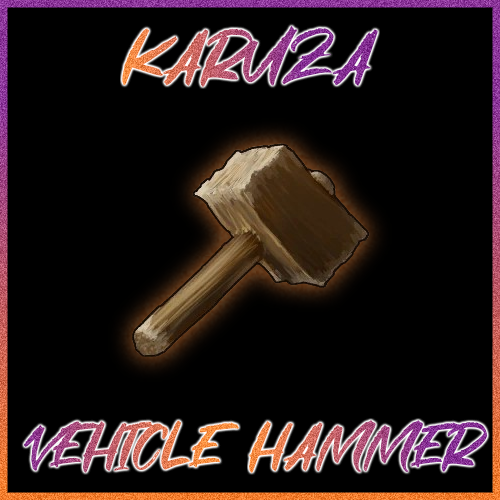
This Plugin allows you to turn Karuza Custom Vehicles back into Deployable Items! It also features Server Rewards and Economics as optional Dependencies, to have the option for players to pay for conversion and prevent exploiting the conversion Feature. Config features command changing, cooldown options, and price for conversion to deployable and option to disable charging. There is safety checks in line, if a vehicles inventory has contents it wont allow pickup so those items wont be lost, if there is infinite ammo or fuel, this check is bypassed, Otherwise the player is notified via Game Tip. ***DISCLAIMER*** Vehicles are not serialized or persisted. Conversion destroys the original vehicle and produces a deployable item used by the Karuza vehicle system to spawn a new instance using its own default configuration. Video Demo COMMAND DEFAULT /VH - Requires KaruzaVehicleHammer.use - Allows the Players hammer to pickup a Karuza Vehicle Back into a Deployable. PERMISSIONS KaruzaVehicleHammer.use - Allows Use KaruzaVehicleHammer.bypass - Allows unrestricted use CONFIG { "Hammer Options": { "Chat Command To Enable Hammer": "vh", "How Long to Enable Hammer Via Command": 30, "How Long of a Cooldown After Successful Pickup": 600 }, "Economy Options": { "Disabled = 0 - Economics = 1 - ServerRewards = 2": 2, "Price to Pickup Vehicle": 10000 } } LANG { "ALREADYACTIVE": "[<color=red>K</color><color=yellow>VH</color>] Vehicle Hammer is already active.", "DEACTIVATED": "[<color=red>K</color><color=yellow>VH</color>] Vehicle Hammer Deactivated.", "ACTIVATED": "[<color=red>K</color><color=yellow>VH</color>] Vehicle Hammer Activated for <color=yellow>{0}</color> Seconds.", "COOLDOWN": "[<color=red>K</color><color=yellow>VH</color>] You are on Cooldown.", "NOOWNERSHIP": "[<color=red>K</color><color=yellow>VH</color>] You do not own this Vehicle.", "REMOVEITEMS": "[<color=red>K</color><color=yellow>VH</color>] Remove your <color=yellow>Items</color> before Pickup.", "REMOVEFUEL": "[<color=red>K</color><color=yellow>VH</color>] Remove your <color=green>Fuel</color> before Pickup.", "REMOVEAMMO": "[<color=red>K</color><color=yellow>VH</color>] Remove your <color=red>Ammo</color> before Pickup.", "PICKEDUP": "[<color=red>K</color><color=yellow>VH</color>] Picked up your <color=yellow>{0}</color>.", "CANTAFFORD": "[<color=red>K</color><color=yellow>VH</color>] It costs <color=green>{0}</color> <color=yellow>{1}</color> to pickup a Vehicle." }$9.99- 18 comments
- 2 reviews
-
- 3
-
-
-
- #karuza
- #karuza vehicle
- (and 1 more)
-
Version 2024.10.3.1319
292 downloads
SAVE 10% WHEN BUYING THE BUNDLE This high performance patch will change the overall output rates of pickup, gather and quarries/excavator aka "Gather Manager". This is a standalone Harmony patch, Oxide installation is optional. Copy the Oxidation.Modded.X.dll file into your HarmonyMods folder and restart your server. At the first server start after installing the patch a new configuration file Oxidation.Modded.X.json will be created at the HarmonyMods folder. The following settings can be configured: Recycler tick rate (default: 5s) Research table speed (default: 10s) Crafting speed multiplier Vending machine buying speed Overall gather multiplier Overall pickup multiplier Overall quarry multiplier Overall excavator multiplier Overall trap multiplier It also supports setting unique output rates based on the Item's short name, example: "Excavator": { "*": 5.0, "hq.metal.ore": 1.0, "metal.ore": 2.5, "sulfur.ore": 1.0 } What is Harmony ? Harmony is a library for patching .NET code during runtime, it directly manipulates game code (CIL) without any additional abstraction layer such as Oxide. The direct patching of the game's byte code allows more performant modding as developers no longer need to rely on third party code, events or hooks to build custom functionality.$4.99- 12 comments
- 1 review
-
- 3
-
-
- #gather
- #gathering
- (and 12 more)
-
Version 1.1.1
40 downloads
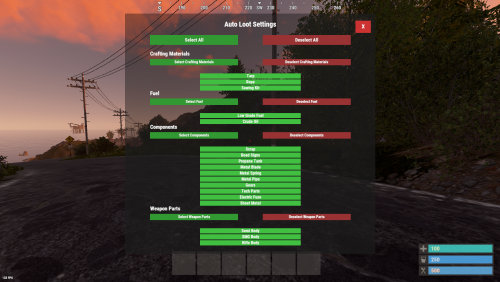
Description: Tired of manually looting every barrel and road sign in Rust? AutoLootMaster streamlines scavenging by automatically collecting loot into your inventory when you destroy barrels and road signs. With a clean, category-based UI, players can choose what to auto-pickup—components, fuel, crafting materials, weapon parts, and more. Plug & Play (No Permissions Required): AutoLootMaster is designed to work for all players by default—no group/permission setup needed. Default Behavior (Important): The UI works as a filter. If a player selects specific items, only those items will be auto-looted. If a player selects no items, AutoLootMaster will auto-loot everything (loot-all by default). It also includes a configurable pickup distance (default 3m) to prevent abuse and ensure looting only happens nearby. Lightweight, easy to set up, and compatible with most Rust servers. Key highlights: Automatic Pickup: Loot is added to your inventory upon destroying containers. Customizable Preferences: Per-player settings saved across sessions. Category System: Grouped items for quick selection. UI-Friendly: Select/deselect all, category toggles, and individual item buttons. Configurable Distance: Control pickup range (default 3m). Bonus Scrap Multiplier Support: Respects server scrap yield modifiers. Performance Optimized: Minimal impact on server resources. Video: Features: Auto-Loot from Containers: Automatically picks up items from barrels (loot_barrel_1/2, oil_barrel) and road signs (roadsign1-9) when destroyed by the player. Player-Specific Preferences: Each player can choose which items to auto-collect via a personal UI menu. Categorized Item Selection: Items grouped into categories like Crafting Materials, Fuel, Components, and Weapon Parts. Select/Deselect Options: Buttons for selecting/deselecting all items, entire categories, or individual items. Configurable Distance: Set a maximum distance (default 3m) for auto-pickup to ensure it’s only for nearby destructions. Data Persistence: Player preferences saved in a data file for reloads and wipes. Bonus Scrap Multiplier Support: Handles server modifiers for scrap yield automatically. Compact UI Design: Responsive and non-intrusive overlay menu accessible via chat command. Commands: /loot - Opens the AutoLootMaster UI menu for selecting pickup preferences. Configuration: The config file (AutoLootMaster.json) is auto-generated on first load. Example: json { "Auto Loot distance": 3.0 } Auto Loot distance: Maximum distance (in meters) from the player to the container for auto-pickup to trigger. Set to 0 to disable distance check (not recommended). Reload after changes: oxide.reload AutoLootMaster$4.99 -
Version 1.0.2
213 downloads
Take your Rust base automation to the next level with Usable Hoppers, the plugin that turns any containers into fully functional hoppers that automatically collect items from the ground within a configurable range. While Usable Hoppers is perfect for setting up an automated horse farm—where it gathers horse poop and deposits it into a composter—it’s versatile enough for other tasks too. Whether you're automating gathering dropped resources, or organizing loot from the battlefield, Usable Hoppers will save you time and effort. The plugin is designed to automate item collection directly from the ground, making resource management in your base smoother and more efficient. Usable on regular chests, furnaces, lootable crates and even airdrops. Fully customizable, you can control the pickup radius, item types, and collection frequency, giving you complete control over how it works in your base. Simplify your Rust gameplay and let Usable Hoppers do the heavy lifting! Chat commands: /uh - Shows available UsableHoppers commands. /uhset - Sets the container you are looking at to a hopper. /uhremove - Remove the hopper from the container you are looking at. /uhlist - Display all hoppers you own. /uhrange - Display the range of your hoppers. Admin commands: /uhclearall - Removes all hoppers in the game. /uhclearplayer <playername or steamid> - Removes a specific player's hopper. Permissions: Config: The config is easily configurable to your liking and performance requirements. Allowed containers for hoppers - Which containers allowed to be turned into hoppers. Command cooldown - The cooldown between command usage (in seconds). Debug mode - Used for detailed feedback in console. Hopper radius - The hopper pickup range, in a spherical dome. How often the hopper collects items - How often the hopper will attempt to pickup items in range. Higher values will increase performance Item types allowed - Which types of items that the hopper will pickup. Max hoppers per players - The number of hoppers available to each player. Max items per tick - The number of items the hopper will pickup at each tick. Default config. { "Allowed containers for hoppers": [ "woodbox_deployed", "box.wooden.large", "furnace", "storage_barrel_c", "storage_barrel_b" ], "Command cooldown": 0.0, "Debug mode": false, "Hopper radius": 3.0, "How often the hopper collects items": 10.0, "Item types allowed": { "ammunition": true, "attire": true, "blueprint": true, "component": true, "construction": true, "electrical": true, "food": true, "fun": true, "items": true, "medical": true, "misc": true, "resources": true, "tool": true, "traps": true, "weapon": true }, "Max hoppers per players": 5, "Max items per tick": 10 }Free -
![More information about "[RC] Sleeping Snake"](https://codefling.com/uploads/monthly_2025_12/sleepingsnakeposter.thumb.png.83145c4f03b3a7f1f1f829dedfa451ac.png)
Version 1.0.2
32 downloads
ABOUT THIS PLUGIN SleepingSnake adds a thrilling surprise for gatherers: when players pick up natural resources (like wood piles or ore collectables), there's a small chance a sleeping snake will spawn from under it — just like it was hiding there all along. A simple but immersive mechanic that adds life, danger, and unpredictability to the world. Only spawns in Temperate (grassy/forested) biomes No spawns in snow, tundra, or desert Smart spawn chance control (default: 5%) Collectable Control ( wood , stone , sulfur metal) { "SpawnChance": 0.05, "RequireTemperateBiome": true, "TriggeringPrefabs": [ "wood-collectable", "sulfur-collectable", "metal-collectable", "stone-collectable" ] } sleepingsnake2.mp4$3.99 -
Version 1.0.7
102 downloads
Spawn floating, rotating, collectable items. Includes instant-autoheal option for meds/foods, duration limit option for armour, and optional player UI to notify of heal amount and possession of temporary armour. Perfect addition to fast-paced arena games, but also useful for custom maps or placing health/armour perks around monuments. Permissions arenaitems.admin - allows use of UI and commands. Commands /arenaitems - Opens UI /arenaitems create <data-set-name> - Creates a new data set with your specified name. /arenaitems <data-set-name> add - Adds the item you're holding to the specified data set. *When adding an item, ammo type, attachments, skin, and ammo quantity are all recorded. UI options Buttons are included for : Loading/unloading of complete data sets. Deletion of data sets. Deletion of items. Replacement of items (with current held item) Adjustment of repsawn timer per-item, in seconds. Adjustment of item stack/ammunition amount, where applicable. Quitting the UI automatically reloads all items, applying new settings. Configuration "AutoHeal": true, Toggles between collect or instant use medical items. "AutoHealNotify": true, Notifies of collected item heal amount for 1 second via UI. "ArmourEffectDuration": 10, Select duration of armour perk. 0 means no limit is applied. "ArmourBoostNotify": true, Notifies if player has an armour perk which will expire. "RotateSpeed": 10, Adjust rotation speed of floating items. "FloatHeight": 0.6, Adjust elevation of floating items. "PickupDuplicateWeapons": false, Toggle whether player can pick up more than one of each weapon. "AllowPartialHeal": true, Toggle auto-use of medical items where item heal value exceeds player health defecit. "UiSettings": { "GuiTransparency": 0.9, "ButtonColour": "0.7 0.32 0.17 1" } This site has a handy colour picker, with RGBA decimal output, for CUI colours. Data. Item data is stored in /data/ArenaItems.json. Users should not need to manually edit this file – All options are adjustable via CUI. Notes. Item skins are saved and recalled. Water/fuel weapons work. Amounts are controlled in UI, the same as regular ammo. Ammo types are saved and recalled. (hv, incendiary, etc). Some game items, particularly ammo items, do not have a custom world models and will show as burlap bag. I recommend locating these ammo types close to their weapon spawns for clarity. Item axis have been manually adjusted to look right. If you notice any items which spin on the wrong axis or look out of place, please let me know. Finally, if you're a map-maker you might want to check out this free asset which compliments ArenaItems. Thanks to @Nemesis for creating and sharing.$25.00 -

Version 2.1.0
54 downloads
AutoBackpacks is an advanced and fully automated backpack management plugin that revolutionizes inventory organization in Rust servers, providing intelligent item sorting, dynamic capacity management, overflow protection, and seamless user experience through multiple interactive UIs. Main Features Dual Interactive UI System: Features a beautiful main configuration UI plus a dedicated Extra Slots UI for managing bonus backpack capacity, both with custom graphics integration via ImageLibrary and real-time updates. Dynamic Capacity System: Fully customizable tier-based capacity system supporting up to 58 slots for large backpacks and 42 for small backpacks, with automatic permission-based tier assignment and real-time capacity monitoring. Intelligent Overflow Protection: Advanced item redirection system that handles pickups, crafted items, consumable byproducts, and external item arrivals, preventing item loss when inventory is full. Extra Items Bag System: Automatically creates organized item bags when backpack capacity is reduced or when dropping backpacks with extra slots, with configurable despawn times and bag limits. Enhanced Priority System: Four priority modes including new BeltFirst option (BeltFirst, MoveFirst, KeepInMain, MoveToTop) allowing precise control over item placement priorities. Smart Sorting System: Advanced sorting algorithms with automatic organization after item movements, configurable cooldowns, and intelligent category-based grouping. Category Organization: Automatic organization by 14 item categories (Weapons, Tools, Resources, etc.) with customizable priorities and smart stacking algorithms. Multi-Style Notifications: Four notification types (Chat, GameTip, Toast, None) with per-player cooldowns and contextual messaging for different events. Visual Capacity Indicator: Color-coded backpack button overlay showing real-time capacity usage with percentage-based color transitions. Advanced Debug Tools: Comprehensive admin commands for troubleshooting inventory states, belt status, and item movement logic. Permissions autobackpacks.use: Basic plugin access and core functionality autobackpacks.automove: Automatic item movement to backpacks when inventory is full autobackpacks.smartsort: Smart sorting capabilities during loot collection autobackpacks.priority: Priority system access for advanced item management autobackpacks.categorysort: Category-based organization and sorting features autobackpacks.organize: Manual backpack organization commands autobackpacks.ui: Access to the interactive configuration UI autobackpacks.admin: Administrative commands and plugin management Chat Commands /ab - Opens the main interactive configuration UI /ab extra or /ab extraslots - Opens the Extra Slots UI for managing bonus backpack capacity /ab organize or /ab sort - Manually organize backpack contents by category /ab capacity or /ab cap - Display current backpack capacity information /ab inv - Show detailed inventory status (admin debug command) /ab belt - Debug belt/hotbar status (admin command) /ab help - Display comprehensive command help and feature information Config: { "EnableUI": true, "EnableSmartSorting": true, "EnableAnalytics": true, "EnableDebug": false, "NotificationCooldown": 2.0, "SmartSortCooldown": 1.0, "MaxMovesPerSecond": 10, "EnablePrioritySystem": true, "PriorityBehavior (BeltFirst:0, MoveFirst:1, KeepInMain:2, MoveToTop:3)": 1, "PriorityItems": [ "wood", "stone", "metal.ore", "cloth", "leather" ], "KeepInMainItems": [ "bandage", "syringe.medical", "ammo.rifle" ], "EnableCategorySorting": true, "AutoSortOnMove": true, "CategorySortOrder": { "Weapon": 1, "Construction": 2, "Items": 3, "Resources": 4, "Attire": 5, "Tool": 6, "Medical": 7, "Food": 8, "Ammunition": 9, "Traps": 10, "Misc": 11, "Component": 12, "Electrical": 13, "Fun": 14 }, "DefaultItemCategories": { "Weapon": true, "Construction": true, "Tool": false, "Resources": true, "Medical": false, "Food": true, "Component": true, "Electrical": false }, "BlacklistedItems": [ "keycard" ], "PluginTitle": "AUTOBACKPACKS", "PluginVersion": "v.2.0.2", "BackpackCapacity": { "EnableCapacityControl": true, "CapacityUpdateCooldown": 2.0, "ShowCapacityMessages": true, "EnablePermissionMonitoring": true, "AutoTransferExcessItems": true, "CapacityTiers": { "Default": { "Permission": "", "LargeBackpackSlots": 28, "SmallBackpackSlots": 12, "Priority": 0 }, "Small": { "Permission": "autobackpacks.capacity.small", "LargeBackpackSlots": 34, "SmallBackpackSlots": 18, "Priority": 1 }, "Medium": { "Permission": "autobackpacks.capacity.medium", "LargeBackpackSlots": 40, "SmallBackpackSlots": 24, "Priority": 2 }, "Large": { "Permission": "autobackpacks.capacity.large", "LargeBackpackSlots": 46, "SmallBackpackSlots": 30, "Priority": 3 }, "Extra": { "Permission": "autobackpacks.capacity.extra", "LargeBackpackSlots": 52, "SmallBackpackSlots": 36, "Priority": 4 }, "Ultimate": { "Permission": "autobackpacks.capacity.ultimate", "LargeBackpackSlots": 58, "SmallBackpackSlots": 42, "Priority": 5 } } }, "ExtraItemsBags": { "EnableExtraItemsBags": true, "BagDespawnTime": 1800.0, "MaxItemsPerBag": 30, "MaxBagsPerPlayer": 5 }, "CapacityColors": { "Color when 90-100% full (HEX format with optional alpha)": "#CC3333", "Alpha transparency for Critical (0-100)": 80, "Color when 70-89% full (HEX format)": "#CC9933", "Alpha transparency for High (0-100)": 80, "Color when 40-69% full (HEX format)": "#CCCC33", "Alpha transparency for Medium (0-100)": 80, "Color when 0-39% full (HEX format)": "#33CC33", "Alpha transparency for Low (0-100)": 80 }, "NCPIntegration": { "Enable NCP Notifications": true, "Use Chat Fallback if NCP Unavailable": true, "Notification Settings": { "Item Moved to Backpack (0=Info, 1=Warning, 2=Error, 3=Success, -1=Disabled)": 0, "Smart Sort Completed": 3, "Backpack Full": 1, "Inventory Full": 1, "No Permission": 2, "Capacity Updated": 0, "Extra Items Bag Created": 1, "Feature Toggled": 3, "Error Messages": 2 } } } Lang: { "Plugin.Title": "<size=16><color=#4ade80>AUTO BACKPACKS</color></size>", "Plugin.Prefix": "<color=#4ade80>[AutoBackpack]</color>", "Item.MovedToBackpack": "<size=12><color=#4ade80>·</color> <color=#DBE2E9>Moved</color> <color=#FFD700>{0}</color> <color=#DBE2E9>to backpack!</color></size>", "Item.MovedToBelt": "<size=12><color=#4ade80>·</color> <color=#DBE2E9>Moved</color> <color=#FFD700>{0}</color> <color=#DBE2E9>to belt!</color></size>", "Item.SmartSorted": "<size=12><color=#4ade80>·</color> <color=#DBE2E9>Smart sorted</color> <color=#FFD700>{0}</color> <color=#DBE2E9>items!</color></size>", "Item.Organized": "<size=12><color=#4ade80>·</color> <color=#DBE2E9>Organized</color> <color=#FFD700>{0}</color> <color=#DBE2E9>items by category!</color></size>", "Permission.NoMain": "<size=12><color=#E45858>·</color> <color=#DBE2E9>You don't have permission to use this plugin!</color></size>", "Permission.NoCommand": "<size=12><color=#E45858>·</color> <color=#DBE2E9>You don't have permission to use this command!</color></size>", "Permission.NoUI": "<size=12><color=#E45858>·</color> <color=#DBE2E9>You don't have permission to access the UI!</color></size>", "Permission.NoOrganize": "<size=12><color=#E45858>·</color> <color=#DBE2E9>You don't have permission to organize backpacks!</color></size>", "Permission.NoFeature": "<size=12><color=#E45858>·</color> <color=#DBE2E9>You don't have permission to toggle</color> <color=#FFD700>{0}</color><color=#DBE2E9>!</color></size>", "Status.BackpackEquipped": "<size=12><color=#4ade80>·</color> <color=#DBE2E9>Backpack:</color> <color=#FFD700>{0}/{1}</color> <color=#DBE2E9>slots used</color></size>", "Status.NoBackpack": "<size=12><color=#E45858>·</color> <color=#DBE2E9>No backpack equipped!</color></size>", "Status.BackpackFull": "<size=12><color=#E45858>·</color> <color=#DBE2E9>Backpack is full!</color></size>", "Status.InventoryFull": "<size=12><color=#E45858>·</color> <color=#DBE2E9>Inventory is full!</color></size>", "Toggle.Enabled": "<size=12><color=#4ade80>·</color> <color=#FFD700>{0}</color> <color=#DBE2E9>is now</color> <color=#4ade80>ENABLED</color></size>", "Toggle.Disabled": "<size=12><color=#E45858>·</color> <color=#FFD700>{0}</color> <color=#DBE2E9>is now</color> <color=#E45858>DISABLED</color></size>", "Toggle.NotificationChanged": "<size=12><color=#4ade80>·</color> <color=#DBE2E9>Notification style changed to</color> <color=#FFD700>{0}</color></size>", "Command.Organizing": "<size=12><color=#4ade80>·</color> <color=#DBE2E9>Organizing backpack by category...</color></size>", "Command.Organized": "<size=12><color=#4ade80>·</color> <color=#DBE2E9>Backpack organized by category!</color></size>", "Command.ConfigReloaded": "<size=12><color=#4ade80>·</color> <color=#DBE2E9>AutoBackpacks config reloaded!</color></size>", "Help.Title": "<size=16><color=#4ade80>AUTO BACKPACKS SYSTEM</color></size>\n<size=7><color=#9AA297>\n</color></size><size=11>\n</size>", "Help.Description": "<size=14><color=#4ade80>SMART BACKPACK MANAGEMENT </color><color=#9AA297>· </color><color=#DBE2E9>AUTOMATION SYSTEM</color></size>\n<size=12>· <color=#F3E7B3>Auto Move: </color><color=#DBE2E9>Automatically moves items to your backpack when inventory is full</color></size>\n<size=12>· <color=#F3E7B3>Smart Sort: </color><color=#DBE2E9>Intelligently organizes items based on priority and category</color></size>\n<size=12>· <color=#F3E7B3>Category Sort: </color><color=#DBE2E9>Groups items by type for better organization</color></size>\n<size=12>· <color=#F3E7B3>Priority System: </color><color=#DBE2E9>Moves important items first or keeps them in main inventory</color></size>\n\n", "Help.Commands": "<size=14><color=#4ade80>AVAILABLE COMMANDS </color><color=#9AA297>· </color><color=#DBE2E9>QUICK REFERENCE</color></size>\n<size=12>· <color=#FFD700>/ab</color> <color=#9AA297>-</color> <color=#DBE2E9>Open main configuration UI</color></size>\n<size=12>· <color=#FFD700>/ab organize</color> <color=#9AA297>-</color> <color=#DBE2E9>Manually organize backpack by category</color></size>\n<size=12>· <color=#FFD700>/ab help</color> <color=#9AA297>-</color> <color=#DBE2E9>Show this help information</color></size>\n\n", "Help.Footer": "<size=11><color=#DBE2E9>Configure your preferences with </color><color=#FFD700>/ab</color><color=#DBE2E9> command!</color></size>", "UI.BackpackSpace": "BACKPACK SPACE: {0}/{1}", "UI.NoBackpackEquipped": "NO BACKPACK EQUIPPED", "UI.NoPermission": "NO PERMISSION", "Analytics.TotalMoved": "<size=12><color=#4ade80>·</color> <color=#DBE2E9>Total items moved:</color> <color=#FFD700>{0}</color></size>", "Capacity.Updated": "<size=12><color=#4ade80>·</color> <color=#DBE2E9>Backpack capacity updated to</color> <color=#FFD700>{0}</color> <color=#DBE2E9>slots!</color></size>", "Capacity.Current": "<size=12><color=#4ade80>·</color> <color=#DBE2E9>Your backpack capacity:</color> <color=#FFD700>{0}</color> <color=#DBE2E9>slots</color></size>", "Capacity.NoBackpack": "<size=12><color=#E45858>·</color> <color=#DBE2E9>No backpack equipped to check capacity!</color></size>", "ExtraSlots.NoExtraSlots": "<size=12><color=#E45858>·</color> <color=#DBE2E9>No extra slots available!</color></size>", "ExtraSlots.ItemMoved": "<size=12><color=#4ade80>·</color> <color=#DBE2E9>Moved</color> <color=#FFD700>{0}</color> <color=#DBE2E9>to main inventory!</color></size>", "ExtraSlots.CannotMove": "<size=12><color=#E45858>·</color> <color=#DBE2E9>Cannot move item - inventory full!</color></size>", "ExtraSlots.TransferredAll": "<size=12><color=#4ade80>·</color> <color=#DBE2E9>Transferred</color> <color=#FFD700>{0}</color> <color=#DBE2E9>items to main inventory!</color></size>", "ExtraItems.BagsCreated": "<size=12><color=#4ade80>·</color> <color=#DBE2E9>Created</color> <color=#FFD700>{0}</color> <color=#DBE2E9>extra items bags from your backpack!</color></size>", "ExtraItems.ItemsDropped": "<size=12><color=#4ade80>·</color> <color=#DBE2E9>Your extra backpack items have been dropped in bags nearby!</color></size>", "Error.General": "<size=12><color=#E45858>·</color> <color=#DBE2E9>An error occurred. Please try again.</color></size>", "Error.NoItem": "<size=12><color=#E45858>·</color> <color=#DBE2E9>Item not found or invalid!</color></size>", "Error.Processing": "<size=12><color=#E45858>·</color> <color=#DBE2E9>Error processing request. Check console for details.</color></size>", "ExtraSlots.NoItemsToTransfer": "<size=12><color=#E45858>·</color> <color=#DBE2E9>No items to transfer!</color></size>", "ExtraSlots.SomeItemsFailed": "<size=12><color=#E45858>·</color> <color=#FFD700>{0}</color> <color=#DBE2E9>items couldn't be moved - inventory full!</color></size>", "ExtraSlots.NoItemsInExtraSlots": "<size=12><color=#E45858>·</color> <color=#DBE2E9>No items in extra slots to manage!</color></size>" }$12.99- 9 comments
-
- 1
-
-
- #backpack
- #backpacks
- (and 5 more)
-

Version 1.2.0
57 downloads
"Skin Popup & Command" enhances the item pickup experience by providing special notifications and commands for items with specific skins. The plugin offers a more immersive and interactive experience for players when they acquire skinned items in the game. Need help, please join my discord @ The Cantina Main Features: Custom Command Execution: The plugin will automatically execute predefined commands from the config (set by owner/admin) when players picks up the skinned items, allowing for instant activation of server events, announcements, and more. Customizable Popups: Create your own popup backgrounds using your own images (Currently is https://postimg.cc/8JZnvgvp). Plugin Integration: If you want a more visual creativity you can set the notification to use popular plugins such as UINotify, Notify, and Toastfy. This allows for more themed integration into your server. Easy Configuration: Customize your notification timing, message content, and popup amount through the config file (Example Below). Simple Notifications: If you do not want to use any fancy popup or Notification plugin you can simply just send the message to the chat. EXAMPLE CUSTOM CONFIG (NOT THE DEFAULT): { "Show notification via: TOASTIFY | NOTIFY | POPUP | CHAT": "POPUP", "Alert ID when using NOTIFY/UINotify?": 0, "Alert ID when using TOASTIFY?": "success", "Duration of alerts (ONLY FOR POPUP & TOASTIFY)?": 5.0, "POPUP Background Image URL": "https://i.postimg.cc/SR40wyNM/paper.png", "List of Skins": [ { "Skin ID?": 2420097877, "Item Name Used for Skin ID": "Cash", "How many Times to show alert?": 100, "Message on Special Item Skin Pickup?": "<color=black>Hey {player}, you just picked up some <color=orange>CASH</color>, use it to buy items and upgrades. Use your <color=orange>CASH</color> to upgrade your TC, BackPacks and much more!</color>", "Run a Command on pickup?": false, "If enable, what command to run?": null }, { "Skin ID?": 2834920066, "Item Name Used for Skin ID": "Epic Scrap", "How many Times to show alert?": 10, "Message on Special Item Skin Pickup?": "<color=white>Hey {player}, you just picked up some <color=orange>EPIC SCRAP</color>, use it to buy items and upgrades. Use your <color=orange>EPIC SCRAP</color> to upgrade your TC, BackPacks and much more!</color>", "Run a Command on pickup?": true, "If enable, what command to run?": "say This message was sent through console command, {player} after you picked up skin id:2834920066" } ], "Popup Co-ordinates": { "Anchor Min X": 0.78, "Anchor Max X": 0.98, "Anchor Min Y": 0.5, "Anchor Max Y": 0.62 } } Features to be implemented: Permissions Set Images per each skinned it popup$5.99 -

Version 1.0.3
661 downloads
The resources that you pick up from the ground (the resource type is specified in the configuration) can give you any item that you specify in the configuration file Configuration file Setting from which selected item the item you specified will fall out Setting up the chance of falling out Setting the maximum number of dropped items Setting the minimum number of dropped itemsFree