
Our 1st choice for extended functionality forms!


Last updated on August 12, 2026 by Formidable Team
How To Create a WordPress User Directory [With Template]
Looking for the right WordPress user directory plugin for your website? This user-friendly tool will help you quickly create a WordPress user directory without needing to code.

Approximate read time: 6 minutes
Upgrade your WordPress site with powerful, flexible forms.
What you'll need
A user directory has two moving parts: a way to collect profile information and a way to display it. Formidable's application templates build both in one step, and there are a few to choose from depending on what you need:
- Member Directory registers a WordPress user account for each person who fills out the profile form, lets them log in and edit their own entry, and lists everyone in a searchable member directory. This is the template this guide walks through, since it matches a true "user directory" most closely.
- Searchable Directory skips account registration and focuses on search: a dedicated search form with cascading filters sits above the directory grid. Good for a directory where you (not the members) create the entries.
- Staff Directory is a simpler, non-searchable listing meant for one organization's team page.
Member Directory requires an Elite license, since it's the one that registers users. If you only have a Business license, go with Searchable Directory or Staff Directory instead.
Prefer to build it yourself instead of starting from a template? See our Formidable Views documentation, or have an AI agent build it for you through the MCP/Abilities API (Business license, API Add-on required).
From Idea to Reality in Minutes. Build Powerful Forms, Dashboards, Apps and More.
Formidable Forms makes advanced site building simple. Launch forms, directories, dashboards, and custom WordPress apps faster than ever before.
Set up your directory in 5 steps
Here's the full build, from installing the template to a published, searchable directory. Plan on 15-20 minutes since the template does most of the work.
Step 1: Install Formidable Forms
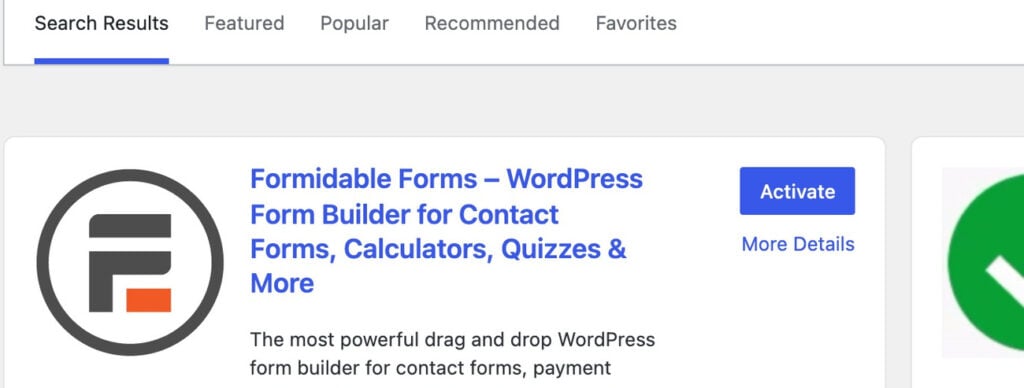
Install the Formidable Forms plugin from your WordPress dashboard under Plugins → Add New, search for Formidable Forms, then click Install Now and Activate.
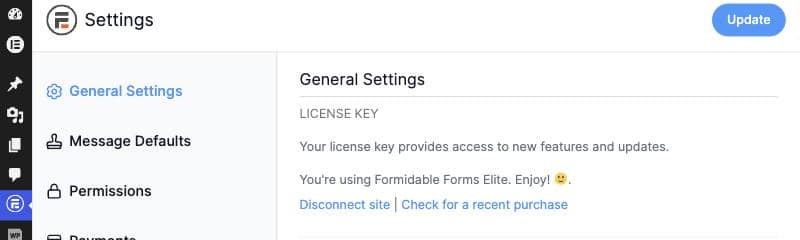
The Member Directory application template needs an Elite license, since that's the plan that adds user registration. Add your license key under Formidable → Global Settings if you haven't already.
Step 2: Install the Member Directory template
Go to Formidable → Applications, choose the Member Directory template from the gallery, and click + Add.
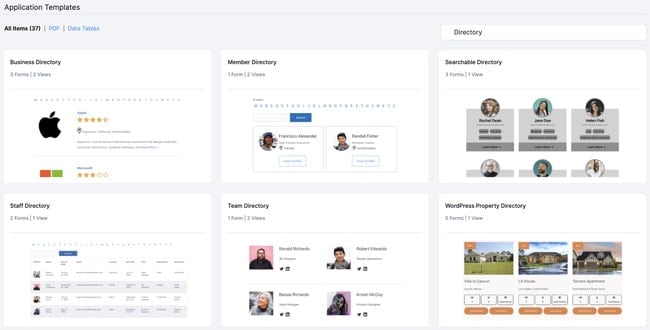
Give your directory a name and click Install Application.
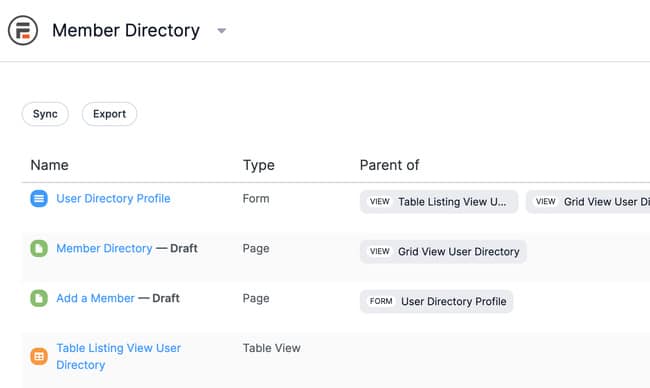
Formidable generates everything you need in one pass, including:
- One "User Directory Profile" form that doubles as registration and self-editing: submitting it the first time creates a real WordPress user account, and members can come back and resubmit it to update their own entry
- A Grid View and a Table Listing View, so you can show the directory as cards or as a sortable table
- Two pages, "Add a Member" (the public sign-up form) and "Member Directory" (the published directory)
The generated pages start as drafts, so you can review and edit before anything goes live.
Step 3: Customize the profile form
Open the User Directory Profile form. Add, remove, or rename fields to match what you want members to share, things like job title, city, or social links. It also includes an "I want to be included in the directory" toggle, so members can opt out of being listed without deleting their account.
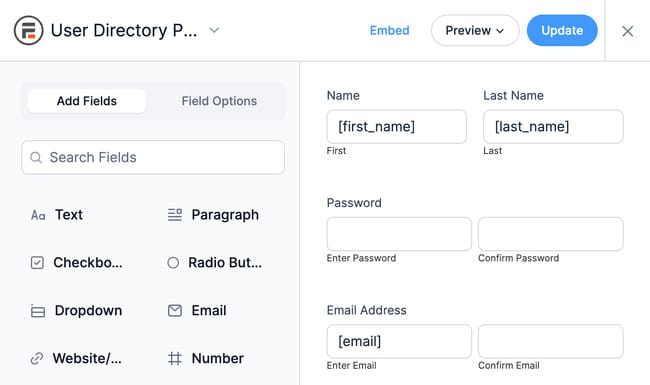
If you add a field you also want people to filter or search by, make sure it uses consistent option values (a Select or Radio field, not free-text) so entries stay comparable across the directory. Click Update when you're done.
Step 4: Publish the form and test a submission
Add the Formidable Forms block to a page (or use the one the template generated), select the User Directory Profile form, and publish it. Submit it yourself once or twice with sample profiles so the directory has something to display, and confirm each submission actually created a WordPress user under Users → All Users.
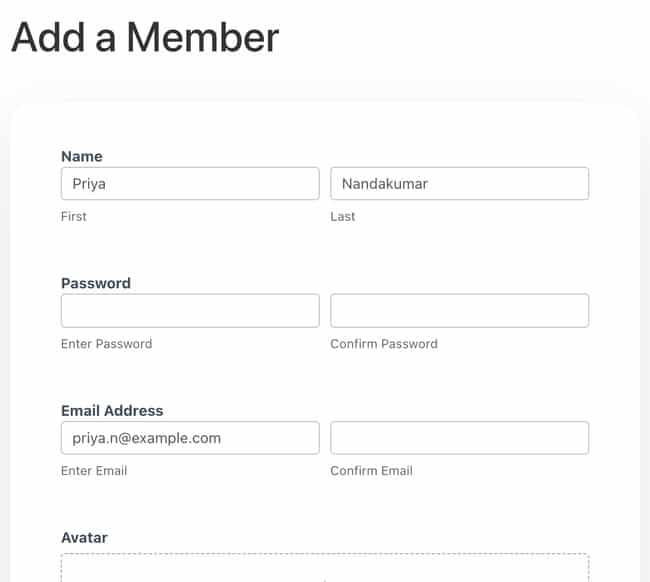
Head to Formidable → Entries and confirm your test submissions landed there too.
Step 5: Publish the directory
Open the auto-generated directory page under Formidable → Applications, make any edits you want, and click Publish.
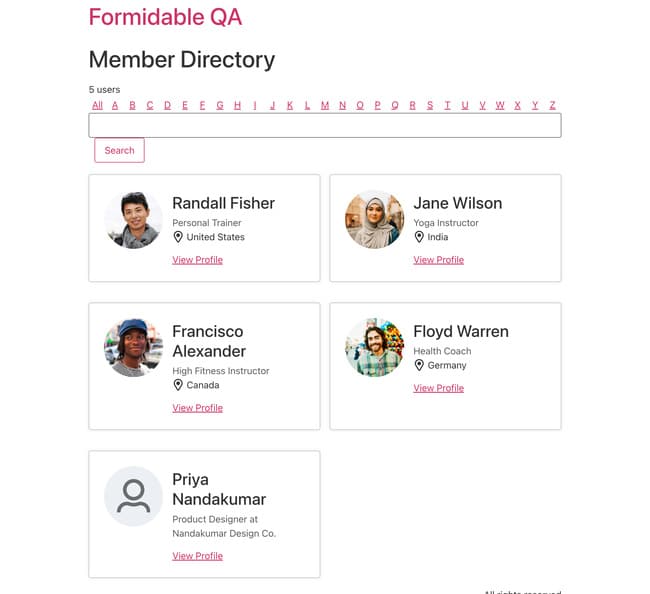
Open the page as a logged-out visitor and run through it: search a name, apply a filter, and click into a profile. Formidable Views is responsive out of the box, so test it on mobile too before you share the link.
Add a member directory for your community or membership site
The template above already builds a full WordPress member directory, registration and self-service profiles included, so a community, association, or membership site can use it as-is. The difference is mostly what you filter on and who gets to see it.
For a membership directory, add a Membership level or Chapter field to the registration form, then use it as a filter on the directory. If you only want logged-in members to see the directory, place the directory page behind your membership plugin, or gate it with Formidable Forms' conditional logic so the content shows only to logged-in users.
Which directory template do you actually need?
Formidable's Applications gallery has more than one directory template, and picking the right one saves you rework:
- Member Directory (Elite) registers a WordPress user for each submission and lets members edit their own profile later. Use this when visitors sign themselves up, which is what this guide covers.
- Searchable Directory (Business) skips account registration and pairs the directory with a dedicated search form with cascading filters. Use this when you (not the members) create the entries, but visitors still need to search and filter them.
- Staff Directory (Business) is a simple, non-searchable listing for one organization's own team, no registration or filtering needed. For more detail, see the ultimate WordPress employee directory plugin.
- A business directory lists companies, not people, usually with categories, maps, and paid submissions. That's a different build. If that's closer to your goal, see our guide on how to build a business directory in WordPress.
All of these run on the same Formidable Forms and Formidable Views foundation. You're really just changing what each entry represents, whether it needs to register a user, and how much filtering it needs.
From users table to living directory
Formidable Forms turns a plain sign-up form into a searchable, self-service directory, and members find each other on their own instead of routing every request through your inbox.
Get Formidable Forms and install the Member Directory template to see it live on your own site today.
How do I create a user directory in WordPress?
Install Formidable's Member Directory application template from Formidable → Applications. It generates a registration form, a profile-editing form, and a Grid View in one step. Customize the fields, publish the generated page, and you have a working directory where visitors can sign themselves up. No code is required.
Can members search and filter the directory?
Yes. The directory Grid View is searchable and filterable by whatever fields you choose, such as category or membership level. If you don't need visitor self-registration and want a dedicated search form with cascading filters instead, Formidable's Searchable Directory template is built specifically for that.
What is the difference between a user directory and a member directory?
They're built the same way. A user directory lists anyone who registers on your site, while a member directory usually adds membership-specific details like tier or chapter and is often shown only to logged-in members. Both start from the same Member Directory application template, so you can add membership fields and access rules as you grow.
Do I need a paid plan to build a user directory?
Yes. The Member Directory application template needs an Elite license or higher, since that's the plan that adds user registration on top of Formidable Views. Every other directory template in this guide runs on Business and up.
This article may contain affiliate links. Once in a while, we earn commissions from those links. But we only recommend products we like, with or without commissions.


