Product updates
Keep track of announcements and product updates in MockFlow
IdeaBoard MCP Server: Bring MockFlow's Visual Brainstorming to Claude, Cursor, and Any AI Assistant

Turn any AI assistant into a visual brainstorming powerhouse. Create contextual flowcharts, mind maps, knowledge graphs, architecture diagrams, and more visualization types directly from Claude, Cursor, or VS Code Copilot without leaving your workflow or spending MockFlow AI credits.
The IdeaBoard MCP Server opens up MockFlow's full visual brainstorming toolkit to the AI assistants you already use every day. Instead of switching to MockFlow to create a diagram, you can now ask Claude, Cursor, or VS Code Copilot to generate flowcharts, mind maps, storyboards, Gantt charts, architecture diagrams, customer journey maps, and more , all rendered as fully editable IdeaBoard projects.
MCP (Model Context Protocol) is an open standard created by Anthropic Inc; that lets AI assistants connect directly to external tools. Think of it as a universal plug that lets your AI talk to MockFlow. With the IdeaBoard MCP Server, your AI assistant gains specialized tools that go far beyond what text-based brainstorming can offer.
Why MCP Matters for Visual Brainstorming
MockFlow already has Mida AI, our built-in AI assistant that lives inside IdeaBoard. Mida generates, modifies, and transforms content directly on your canvas with full context of your project. It is the complete AI experience when you are working inside MockFlow, and it uses your plan's AI credits.
But the MCP Server solves a different problem. Many users brainstorm where they already are — in a terminal analyzing code, in an IDE reviewing architecture, in a Claude chat discussing strategy, or working with local documents and datasets. The MCP Server brings MockFlow's
powerful brainstorming components to those environments.
The key advantages of using IdeaBoard via MCP:
Contextual brainstorming — Your AI can read local files, codebases, spreadsheets, meeting transcripts, PRDs, and datasets on your machine, then visualize the insights directly. You never need to copy-paste or upload content to MockFlow.
Use your own AI credits — MCP uses your AI tool's credits (Claude, Cursor, Copilot), not your MockFlow plan's AI credits. This is especially valuable for teams that want unlimited visual brainstorming without consuming their MockFlow allocation.
No context switching — Stay in your terminal, IDE, or AI chat. The visualization appears as a shareable URL or renders directly on your open IdeaBoard canvas (Desktop App).
Full editability — Every generated visualization is a real IdeaBoard component. Open it to edit, collaborate with your team, present, or export.
In short: Mida AI is the full experience inside MockFlow. MCP brings MockFlow's visualization tools with powerful contextual engine to wherever your AI already is.
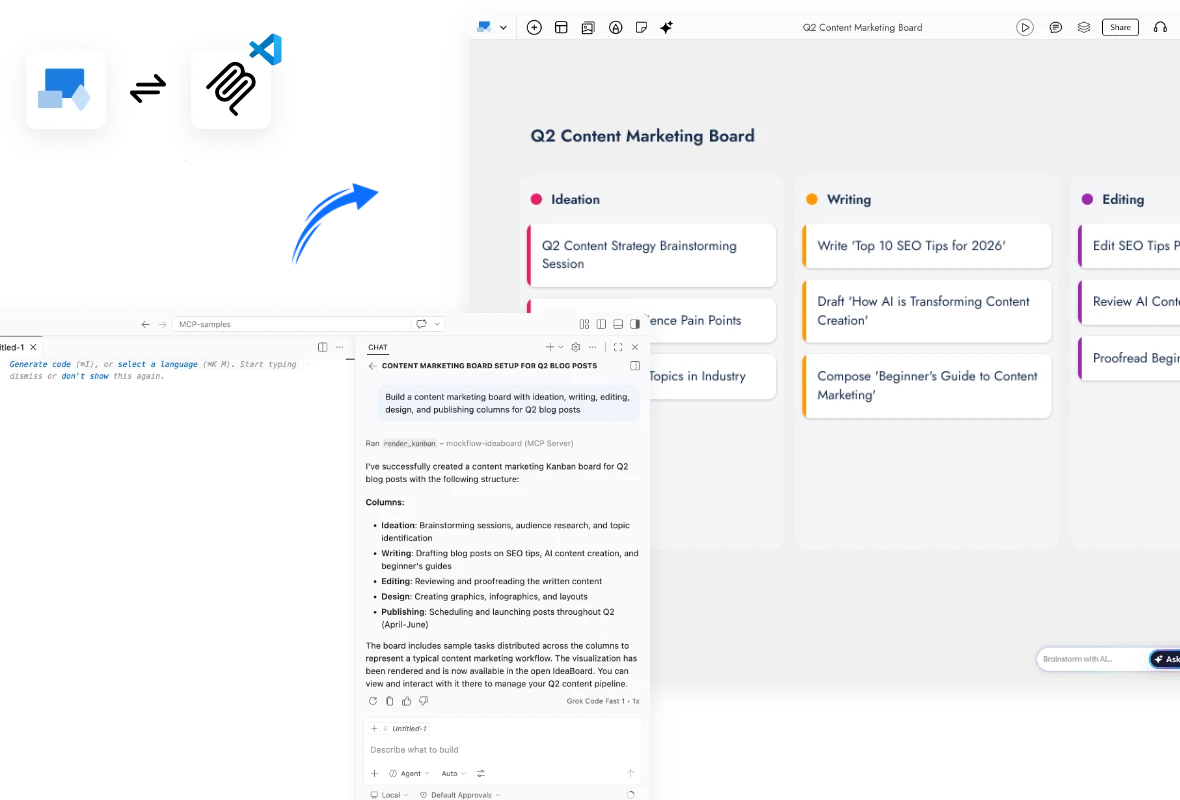
What does it provide?
While the component set in MockFlow IdeaBoard is growing fast, currently it offers generations in these broad categories.
Flowcharts and Diagrams
render_flowchart — Create flowcharts across 11 distinct diagram categories: default, sketchy hand-drawn, 3D isometric, bio/medical, circuit, piping and instrumentation (P&ID), UML, sketchy UML, cloud isometric, web layout, and mobile layout. Supports decision nodes, process steps, start/end terminators, and conditional branching.
render_swimlane — Cross-functional process flows with horizontal swim lanes for different actors, roles, or departments. Ideal for mapping business processes that span multiple teams.
render_database — Entity-relationship diagrams with tables, columns, primary key and foreign key marking, and relationship arrows between tables. Describe your data model and get a proper ER diagram.
Brainstorming and Ideation
render_mindmap — Hierarchical mind maps with balanced left-right branching, multi-level nesting, and emoji support. Perfect for breaking down complex topics, brainstorming features, or mapping knowledge areas.
render_whiteboard — Freeform brainstorming boards with sticky notes in pastel colors, sections for grouping, and text labels. Captures the feel of a physical whiteboard session.
render_knowledgegraph — Bubble network graphs (similar to Obsidian-style knowledge graphs) with weighted nodes and directed edges with labels. Visualize relationships between concepts, dependencies, or interconnected systems.
Planning and Project Management
render_kanban — Project management boards with customizable columns, cards with priority levels, due dates, assignees, and color-coded labels. Columns use topic-relevant categories rather than generic statuses.
render_gantt — Project timeline charts with phases, tasks, progress tracking (0-100%), start and end dates, dependencies between tasks, and priority levels.
render_calendar — Event calendars with support for timed events, all-day events, multiple event colors, and reminders.
render_timeline — Chronological event visualization in two modes: date-based (for real historical dates or project milestones) and label-based (for stages, phases, or abstract sequences).
Data and Analysis
render_chart — Eight chart types: pie, vertical bar, horizontal bar, line, area, scatter, bubble, and radar. Accepts CSV-formatted data with formula support.
render_table — Structured data tables with headers and flexible columns. Clean tabular output from any dataset.
render_spreadsheet — Full spreadsheets with formula support including SUM, AVERAGE, MAX, MIN, COUNT, IF, and ROUND.
Architecture and Infrastructure
render_cloudarchitecture — Cloud infrastructure diagrams with native support for AWS, Azure, GCP, and Cisco service icons. Supports VPC and subnet grouping, security group containers, and standard cloud architecture notation.
Customer Experience and Storytelling
render_customerjourney — Customer journey maps with stages, activities with icons, satisfaction metrics on a 0-4 emotion scale, experiences, expectations, and pain points at each stage.
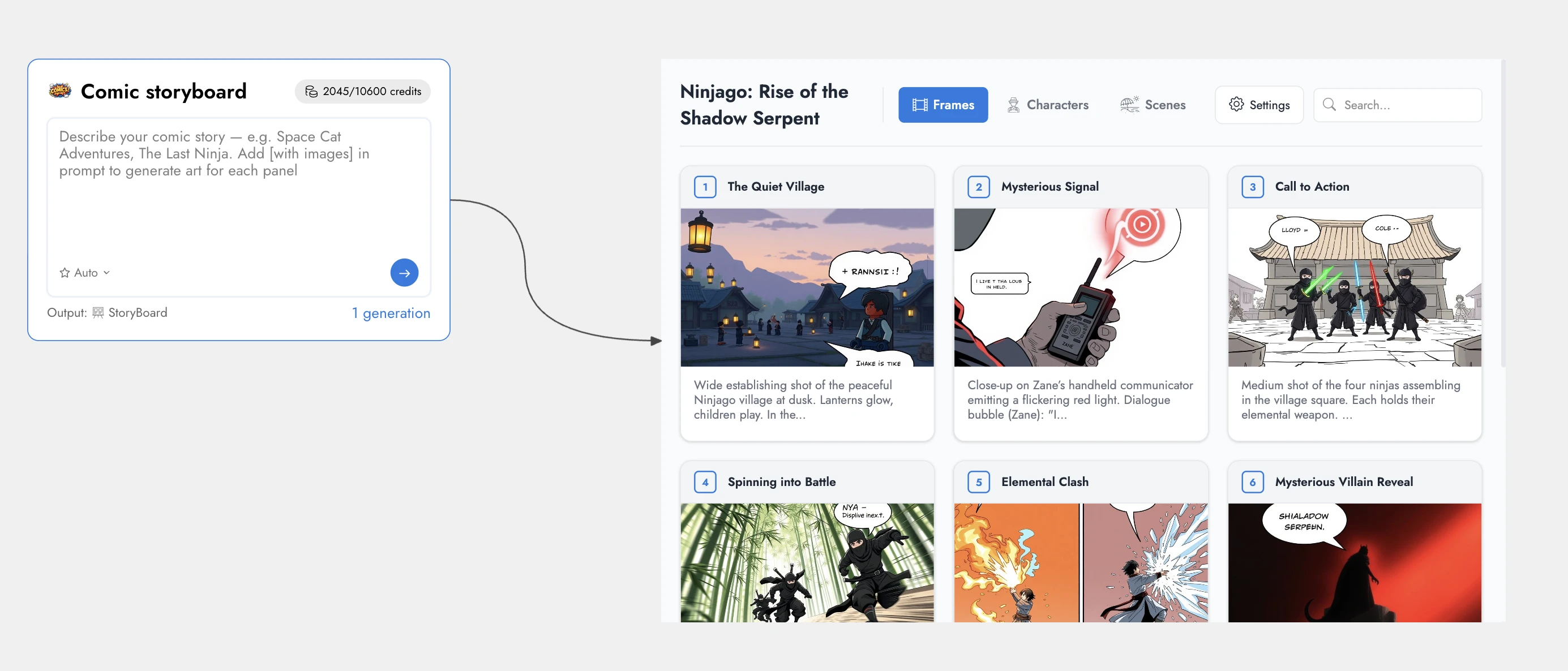
render_storyboard — Film and video storyboards with cinematic frame descriptions, camera angles, lighting notes, sequence numbers, metadata fields, and AI-generated cover images for each frame.
Content and Geography
render_markdown — Rich text documents with full Markdown syntax and optional AI-generated images via a prompt field.
render_map — Geographic maps with location markers using GeoJSON coordinates and emoji markers.
Desktop Exclusive
layout_board — After creating multiple visualizations, call this tool to automatically arrange them into a professional bento-box grid layout with a titled section wrapper. This is only available when using the MockFlow Desktop App or IdeaBoard for Mac, where the AI creates visuals directly on your open canvas.

Four Ways to Connect
The IdeaBoard MCP Server is available in four configurations, each designed for a different workflow.
1. Loginless Web MCP — Easiest: No Install, No Login
Add https://app.mockflow.com/ideaboard/mcp as a connector in Claude.ai or ChatGPT. No installation, no MockFlow account, no setup. A new board is created for each visualization and you get a shareable URL.
How to set up:
1. Open Claude.ai → Settings → Connectors
2. Paste: https://app.mockflow.com/ideaboard/mcp
3. Ask Claude to create a flowchart — done.
Best for: Managers, marketers, and anyone who uses Claude.ai or ChatGPT in the browser. No technical knowledge needed.
2. MockFlow Desktop App — Most Powerful: Direct on Canvas
Built into the MockFlow Desktop App. Your AI creates visuals directly on your open IdeaBoard canvas in real time — no URLs, no waiting. This is the most powerful option because it includes all tools plus the exclusive layout_board tool for bento grid layouts, and it works with both cloud projects and local file-mode (.board) projects.
How to set up:
1. Open the MockFlow Desktop App → open an IdeaBoard project
2. In Claude Code or Cursor, run: claude mcp add --transport http -s user mockflow-ideaboard http://localhost:21193/mcp
3. Ask your AI to create any visualization — it appears directly on your canvas.
Best for: Designers, product teams, and daily MockFlow users.
3. IdeaBoard for Mac (Standalone) — Native Mac Experience
The standalone https://apps.apple.com/in/app/mockflow-ideaboard/id6751854527?mt=12 includes the same built-in MCP server as the full Desktop App. Get a dedicated, lightweight brainstorming application with full MCP support — including layout_board and direct-on-canvas rendering. This is ideal if you want IdeaBoard as a focused visual thinking tool that does not use MockFlow servers and is fully offline. And also one-time payment.
Available at: localhost:21193/mcp (same as Desktop App)
Best for: Mac users who want a lightweight, focused brainstorming app with full AI integration.
4. CLI npm Package — For Developers: Saved to Your Account
Install from npm, authenticate via browser (OAuth), and all boards are saved to your MockFlow account.
How to set up:
1. npm install -g @mockflow/ideaboard-mcp
2. mockflow-ideaboard-mcp login
3. mockflow-ideaboard-mcp
Best for: Developers using Claude Code, Cursor, or VS Code Copilot who want boards saved to their workspace.
Works With Your Favorite AI Tools
The IdeaBoard MCP Server works with any MCP-compatible AI assistant:
- Claude.ai — Add as a connector in Settings → Connectors
- Claude Code — Add via claude mcp add command
- Cursor — Configure as an MCP server in settings
- VS Code Copilot — Connect via MCP configuration
- ChatGPT — Configure as an MCP server in settings
- OpenAI Codex — Configure as an MCP server in settings
AI Recipes — Now Downloadable as Agent Skills
One of the most powerful aspects of the IdeaBoard MCP Server is the AI Skills system. IdeaBoard's AI Recipes — the same pre-configured AI workflow templates available inside IdeaBoard's Recipe Library — can now be exported and downloaded as Agent Skills for Claude Code and other AI assistants.
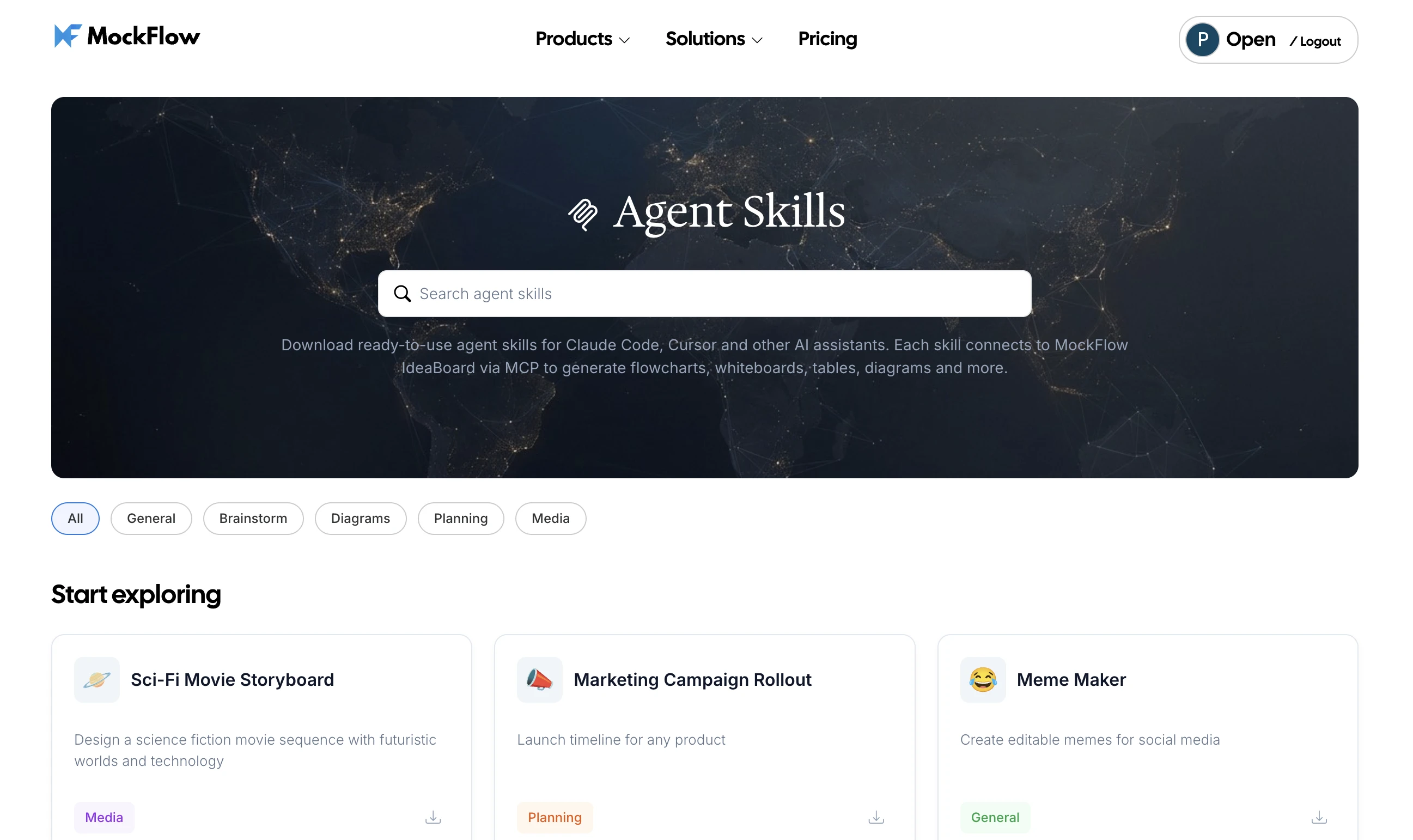
What are AI Recipes?
AI Recipes are curated, ready-to-use AI gen templates inside IdeaBoard. Each recipe is a fully configured AI Prompt Box that includes a title, system instructions, output type, placeholder guidance, model preferences, and an icon. Previously, these lived only inside IdeaBoard.
Now, any recipe can be exported as a skill file that your AI assistant understands natively.
How Skills Work
Each skill is a lightweight configuration file (SKILL.md) that teaches your AI assistant how to use a specific IdeaBoard MCP tool for a specific task. Install a skill once, and it triggers automatically when your AI detects a matching intent. You can also invoke skills directly.
For example, with the Decision Flowchart skill installed, simply asking Claude Code "Should I use React or Vue for this project?" automatically triggers the skill, which calls render_flowchart to create a structured yes/no decision tree — no manual tool selection needed.
Browse and Download from https://mockflow.com/skills
Create Your Own Skills
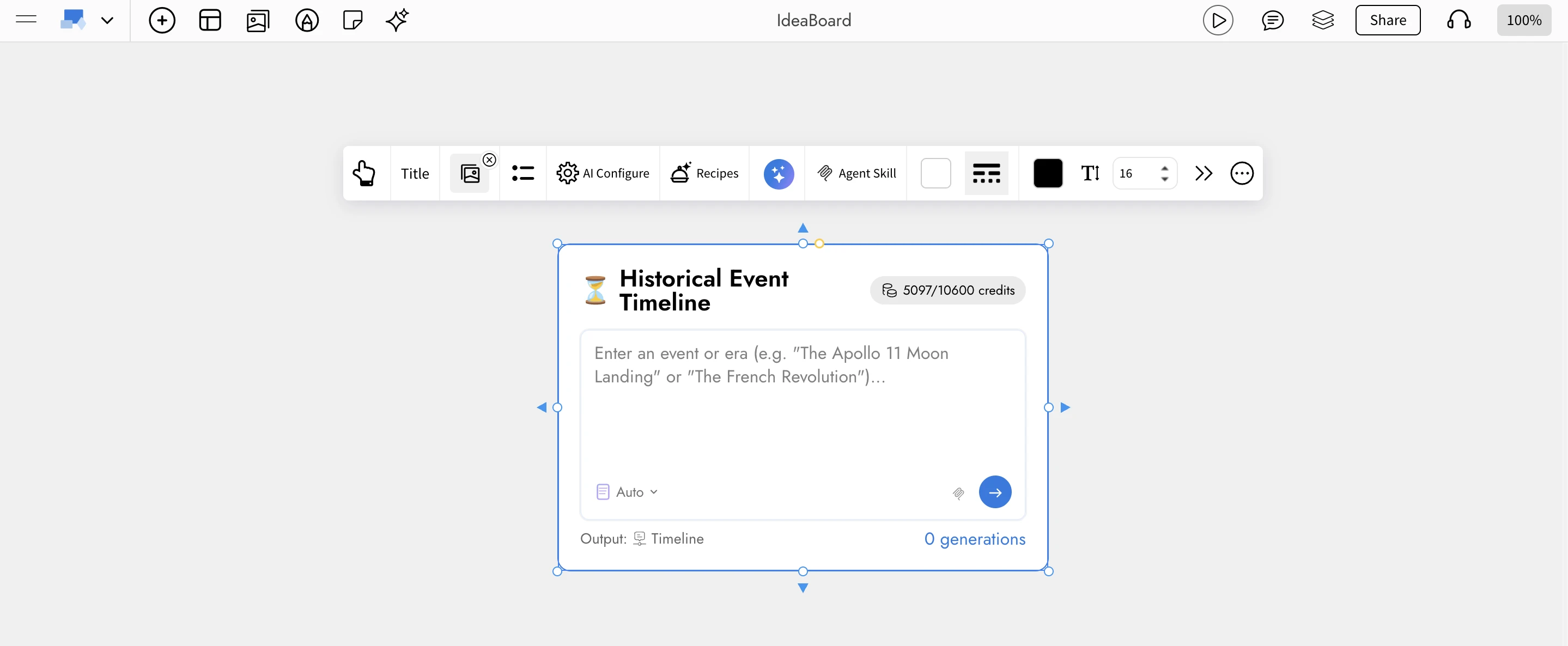
You can also create custom skills inside IdeaBoard using the AI Prompt Box component. Configure a Prompt Box with your specific instructions, output type, and system prompt, then export it as a Claude Code skill. This means your team's custom brainstorming workflows — tailored to your industry, brand, or process — become reusable AI skills that any team member can install and use from their terminal or IDE.
Use Cases — IdeaBoard MCP for Every Team
Product Management
- Scan a PRD document on your machine and generate a sprint kanban board with prioritized tasks, assignees, and due dates
- Convert meeting transcripts into structured mind maps of decisions, action items, and open questions
- Create roadmap Gantt charts from project plans and track dependencies across workstreams
- Map customer onboarding journeys directly from user research notes
Software Engineering
- Analyze your codebase and generate architecture diagrams showing how services, databases, and APIs connect
- Create ER diagrams from database migration files or schema definitions
- Visualize authentication flows, CI/CD pipelines, or microservice communication as flowcharts
- Generate AWS, Azure, or GCP infrastructure diagrams from Terraform files or deployment configs
Design and UX
- Create customer journey maps from user interview transcripts
- Generate storyboards for product walkthroughs, onboarding flows, or demo videos
- Map cross-functional swimlane diagrams for design review processes
- Build moodboards and brainstorming whiteboards from creative briefs
Marketing and Strategy
- Turn campaign strategy documents into content calendars with scheduled dates and categories
- Create customer journey maps for specific personas from research data
- Generate competitive analysis charts and comparison tables from market research
- Build mind maps from brand strategy documents to align teams on positioning
Film and Media
- Generate cinematic storyboards from scripts with camera angles, shot types, and scene descriptions
- Create shot lists as kanban boards organized by scene and priority
- Build production schedules as Gantt charts with crew assignments and dependencies
- Plan editorial calendars for content production pipelines
Education and Research
- Convert lecture notes or textbooks into structured mind maps for study guides
- Create flowcharts for scientific processes, algorithms, or historical decision trees
- Generate quiz content and study plans from curriculum documents
- Build knowledge graphs from research papers showing concept relationships
Data Teams
- Visualize CSV files and datasets as charts, tables, or spreadsheets with calculated fields
- Create geographic visualizations from location data
- Generate timeline visualizations from event logs or historical data
- Convert raw data into presentation-ready charts with eight visualization types
How IdeaBoard MCP Compares to Other Whiteboarding MCP Servers
The whiteboarding MCP space is still emerging. Most available options are either generic drawing tools or text-based diagram renderers. IdeaBoard MCP is the first purpose-built visual brainstorming MCP server with specialized tools for each visualization type.
Get Started Now
The IdeaBoard MCP Server brings MockFlow's visual brainstorming tools to wherever your AI already is. Brainstorm contextually, visualize your data contextually, and collaborate visually — all without leaving your workflow. MCP is available on free plans also but with rate limits.
For more information visit: https://mockflow.com/mcp
Transform Any Idea, Prompt, Document, or Image into a Multi-Visual Board with Mida AI
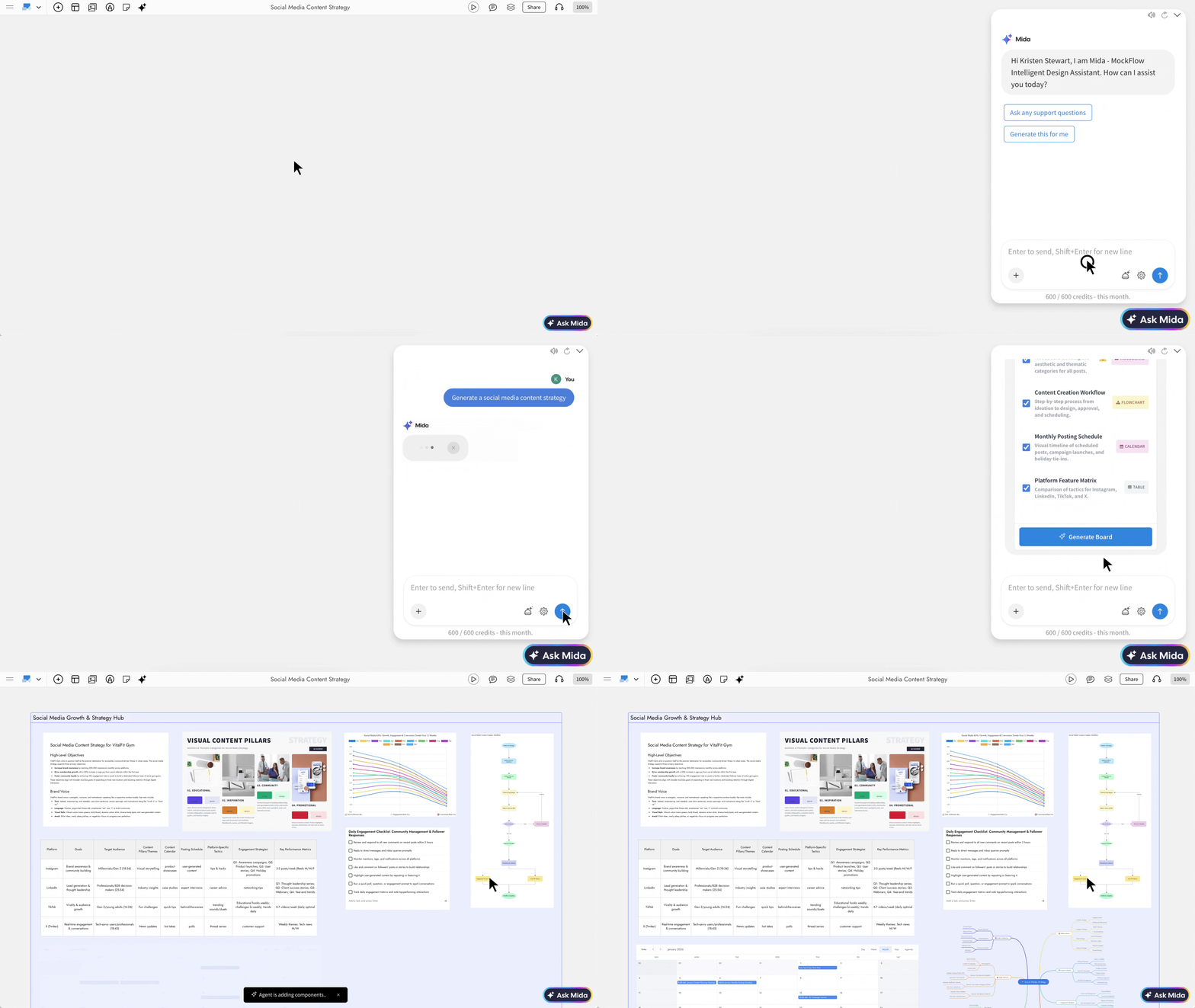
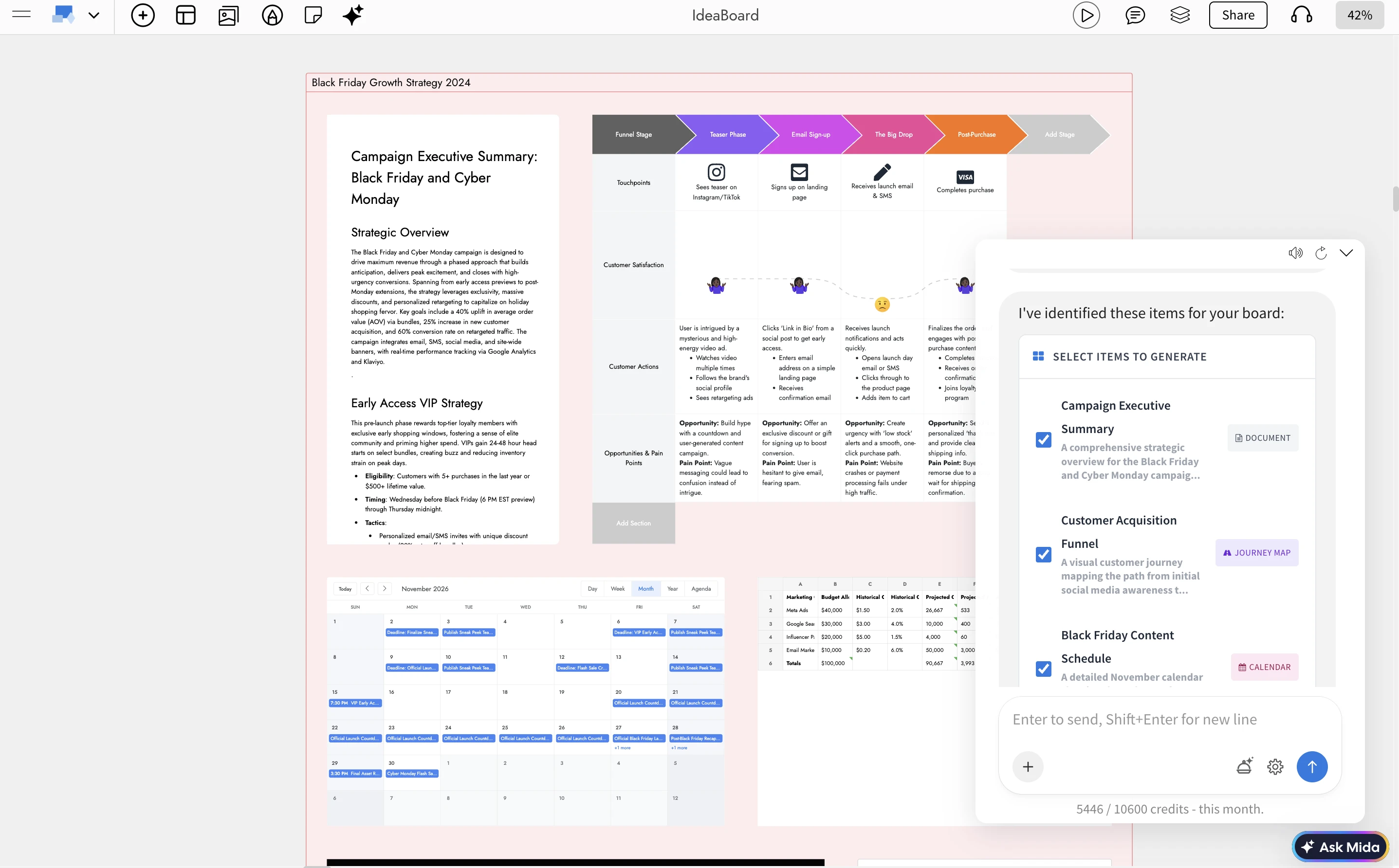
IdeaBoard now introduces a powerful way to convert raw ideas, documents, and conversations into fully structured visual workspaces using AI.
With a single prompt, you can generate a complete multi-component board that includes flowcharts, Kanban boards, Gantt charts, mind maps, spreadsheets, calendars, and more, all automatically organized into a clean, structured layout.
How It Works
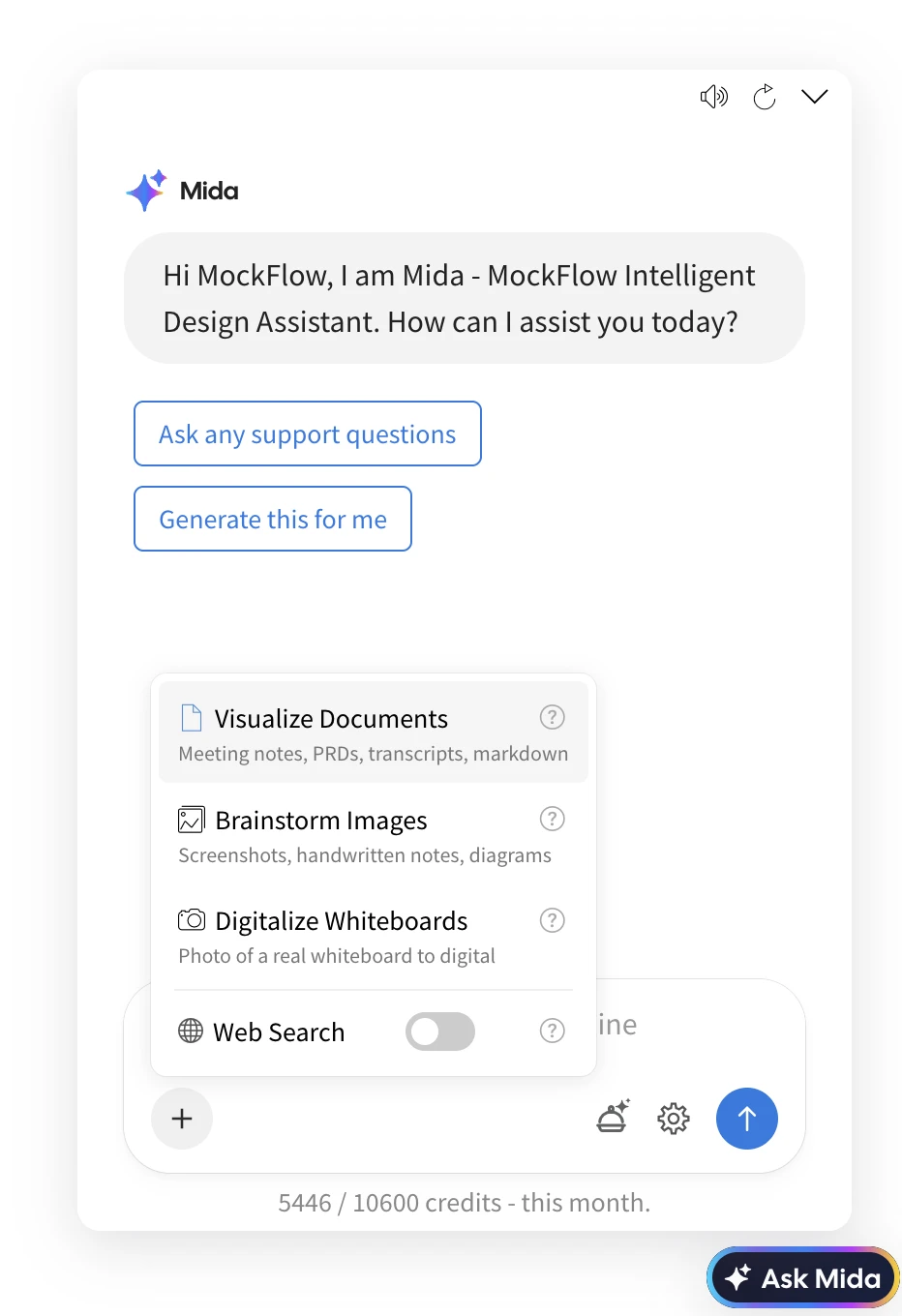
1. Describe, Paste, or Upload
Start with any type of input inside IdeaBoard:
- A short prompt such as planning a company trip or launching a product
- A long document such as a meeting transcript, PRD, or strategy notes
- An image such as handwritten notes, whiteboard captures, or screenshots
Mida AI supports large inputs and understands both structured and unstructured content.
2. AI Analysis and Planning
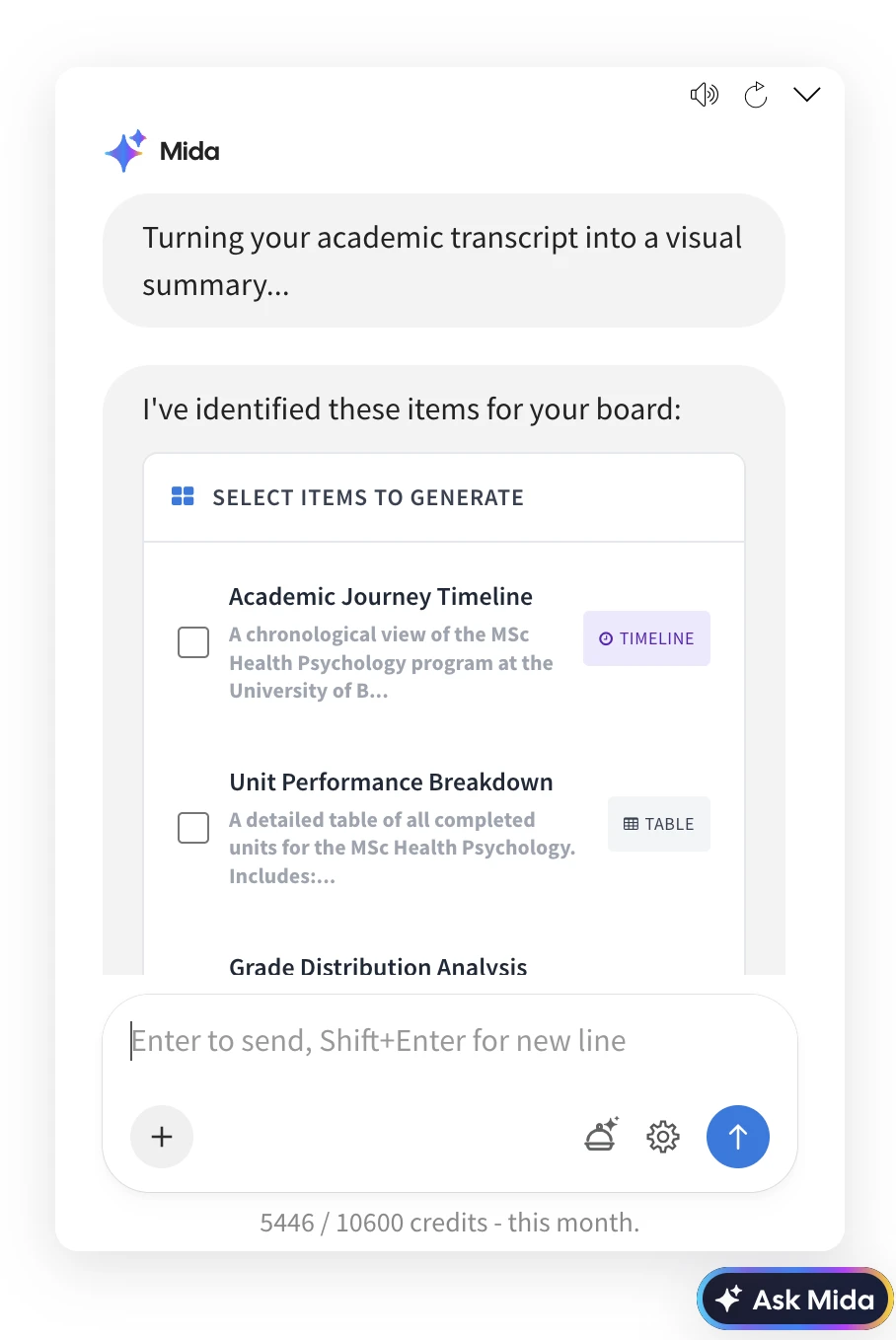
Mida analyzes your input and creates a structured plan for visualization:
- Detects intent to determine whether a single component or a multi-component board is needed
- Extracts key elements such as tasks, timelines, decisions, risks, and stakeholders
- Optionally enriches content using real-time web data when required
- Generates a curated plan with multiple visual components tailored to your input
3. Review and Customize
Before generating the board, you can review and refine the plan:
- Select or deselect individual components
- Modify the plan using natural language instructions
- Preview AI credit usage for advanced components
This ensures full control before generation.
4. Generate the Board
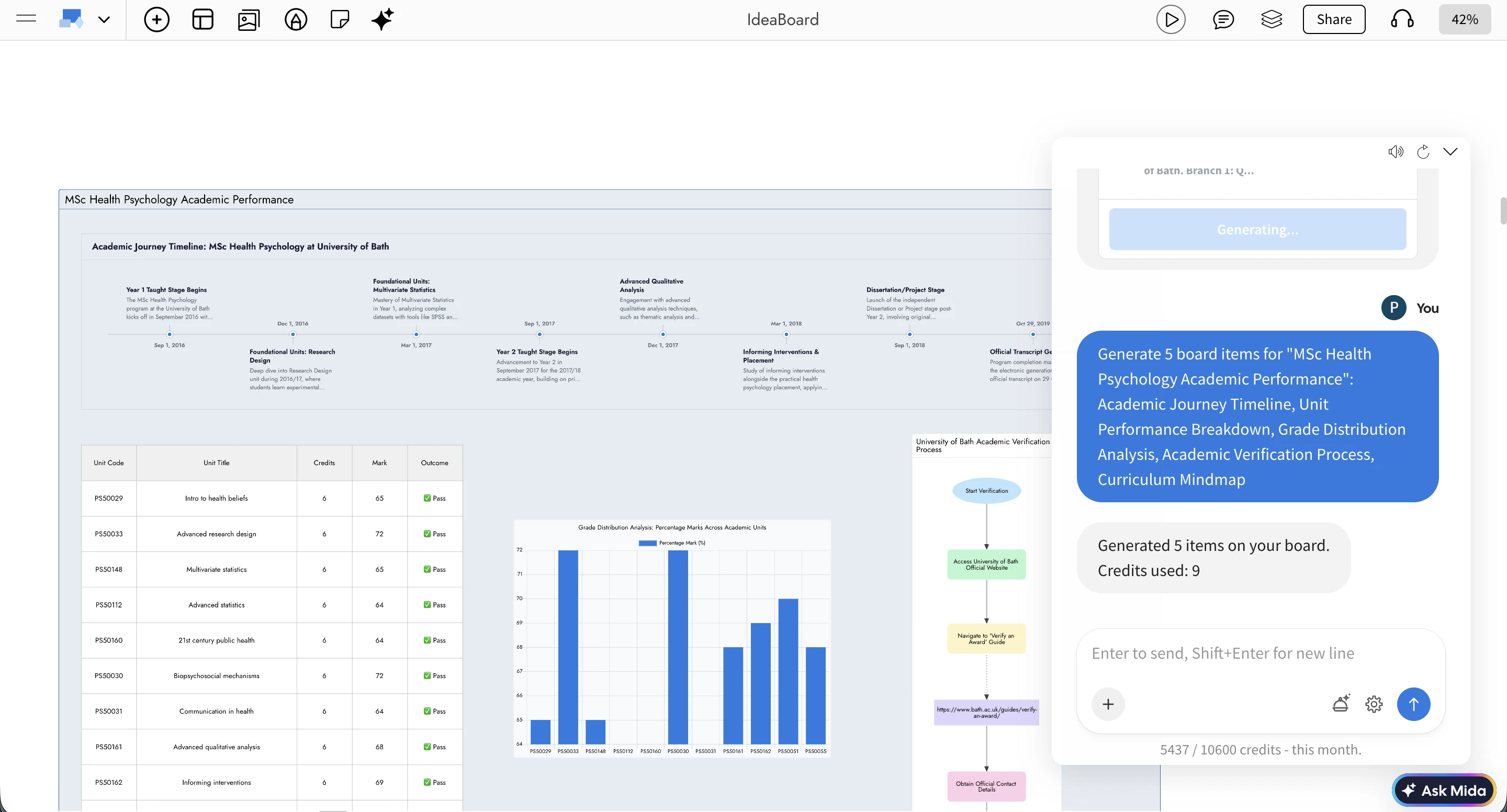
With one click, IdeaBoard generates all components and arranges them into a structured layout.
Each board is automatically organized using a bento-style grid, with balanced spacing, aligned sections, and a clear visual hierarchy. The result is a ready-to-use workspace that can be shared and edited collaboratively.
23 Visual Component Types Supported
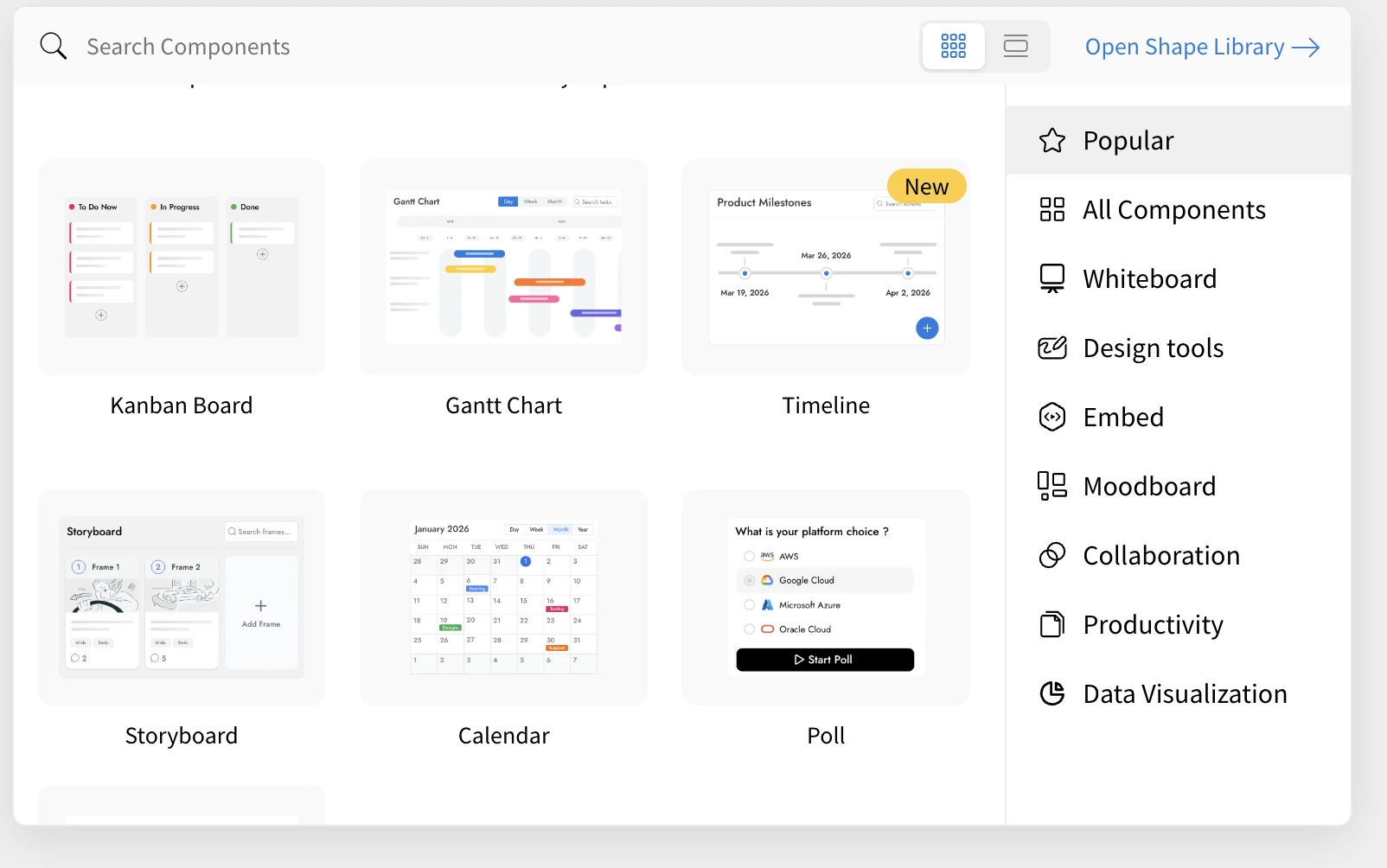
Mida can generate a wide range of visual components within a single board:
Planning and Tracking
Kanban boards, Gantt charts, timelines, calendars, to-do lists
Brainstorming and Ideation
Mind maps, whiteboards, mood boards, voting boards
Data and Analysis
Charts, spreadsheets, tables, polls
Process and Architecture
Flowcharts, swimlane diagrams, cloud architecture diagrams, customer journey maps
Content and Design
Markdown documents, storyboards, graphic layouts, AI-generated visuals
Location and Interactive
Maps with pins, spinning decision wheels
The system selects the most relevant combination based on your input.
Built for Real Workflows
This feature is designed to support practical, everyday use cases across teams:
Meeting transcripts to action plans
Convert discussions into structured boards with tasks, timelines, and ownership
PRDs to project dashboards
Transform product documents into visual execution plans with timelines and tracking
Quick ideas to structured plans
Expand simple prompts into comprehensive multi-component workspaces
Images to organized boards
Convert handwritten notes or whiteboard photos into structured visual layouts
Intelligent Layout Engine
Generated components are automatically arranged using a layout system that:
- Organizes components into balanced rows based on size
- Optimizes spacing to reduce empty areas
- Maintains visual alignment for clarity
- Avoids overlap with existing board content
- Applies consistent styling with titles and color themes
Conversational Refinement
You can continuously refine your board using natural language:
- Add or remove components
- Replace one visualization with another
- Adjust focus areas such as marketing, product, or operations
Mida updates the board plan dynamically based on your instructions.
Availability
Multi-component board generation is now available in IdeaBoard for all paid plans. Some advanced component types may use additional AI credits, which are shown during the planning stage.
Multi-Screen AI in WireframePro — From One Prompt to a Complete Design Plan
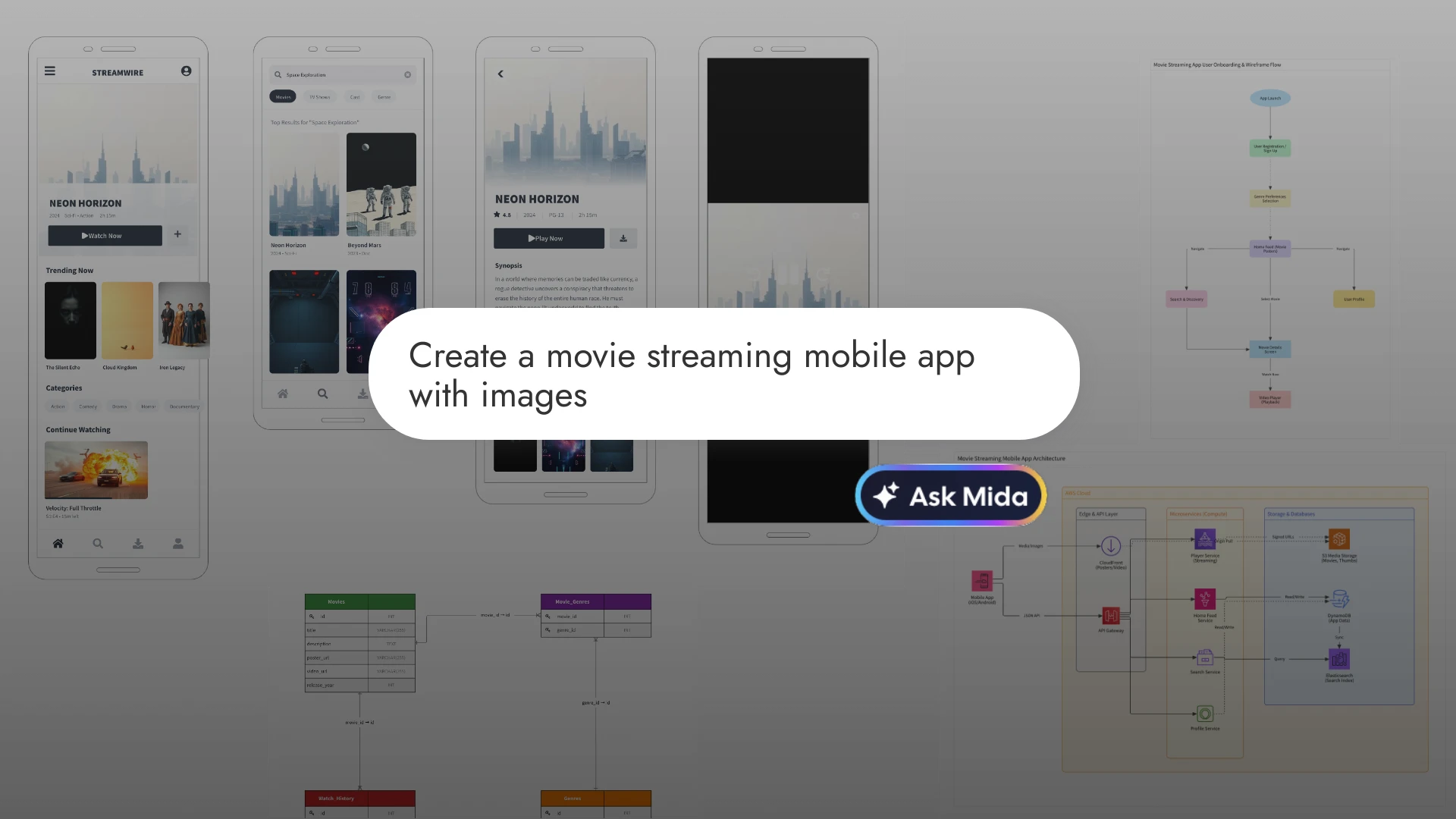
Ideating an entire product in WireframePro no longer means prompting one screen at a time. MockFlow AI now detects multi-screen intent, plans every wireframe, flowchart, architecture diagram, and database schema your project needs, and generates them all in one go.
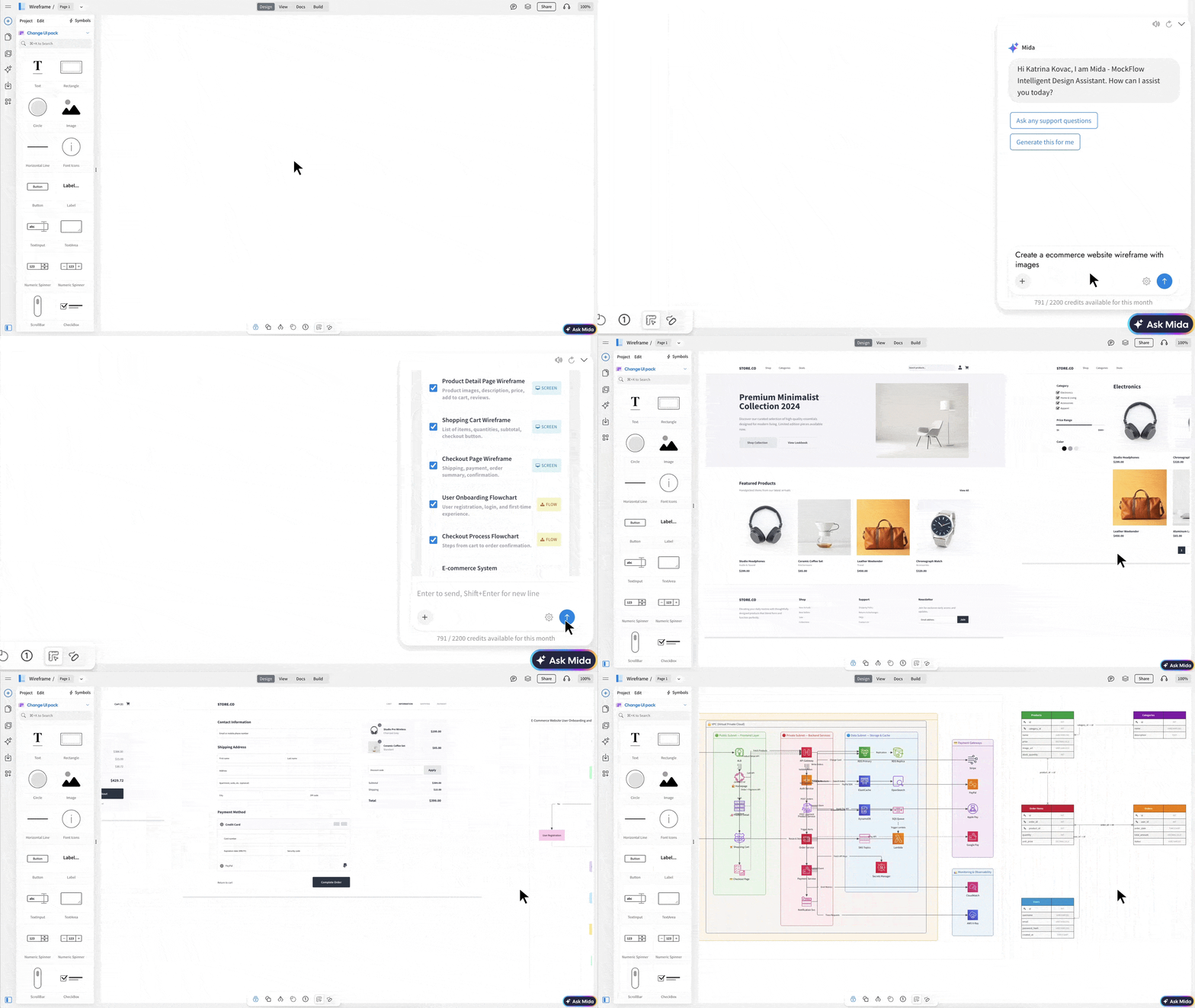
Now WireframePro intelligently understands the scope of your idea. When your prompt describes something that naturally requires multiple screens like an ecommerce website, a SaaS dashboard, or a mobile app , Mida (MockFlow Intelligent Design Assistant) automatically enters Plan Mode before generating anything. Instead of jumping straight to a single wireframe, it first thinks through what your project actually needs.
Plan Mode: AI That Thinks Before It Designs
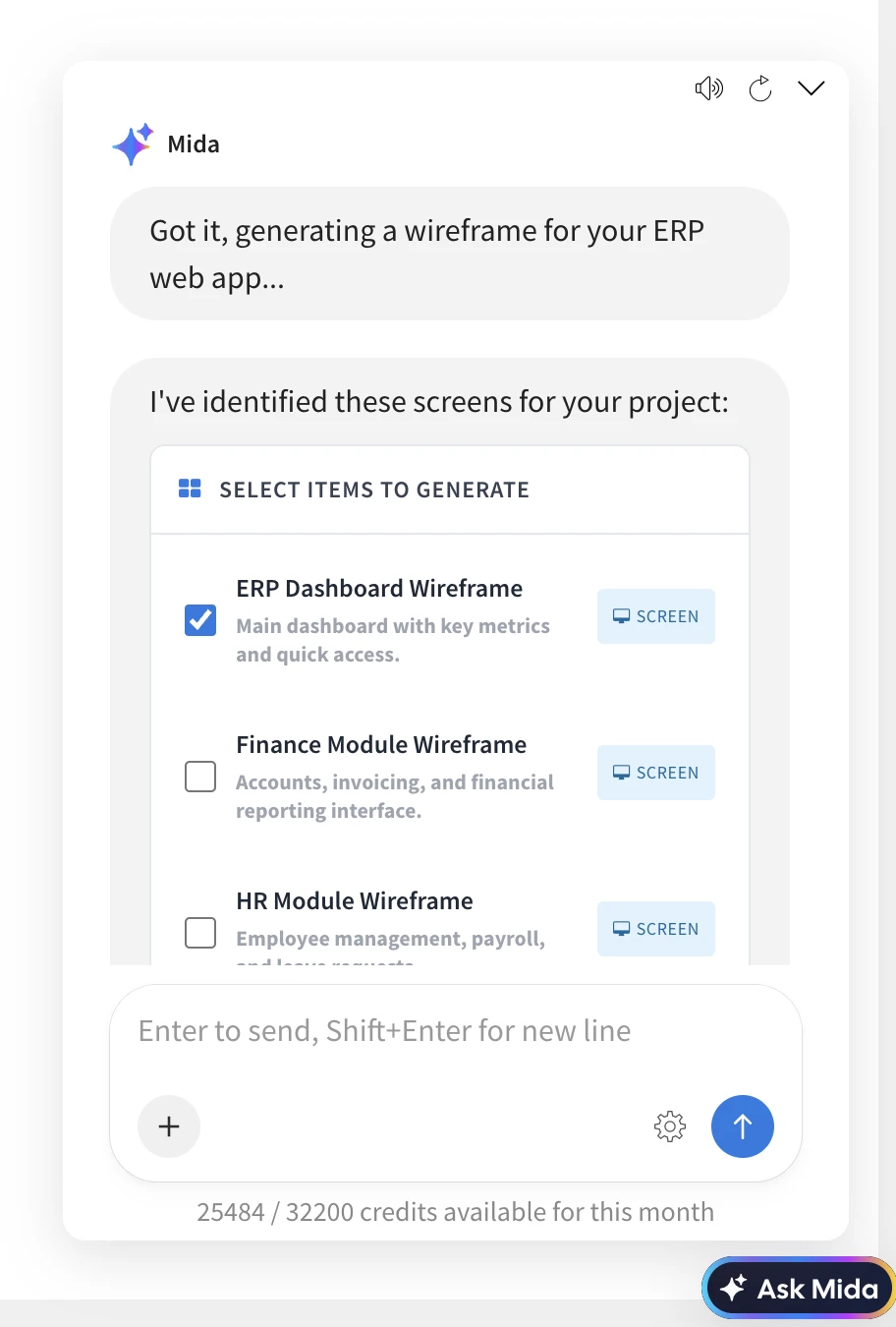
When MIDA detects a multi-screen intent in your prompt, it pauses generation and presents a structured design plan with a curated list of 5 to 10 deliverables that a designer would typically produce for that project. This isn't limited to wireframe screens. MIDA plans across four types of design artifacts:
- Wireframe Screens — the core UI pages your product needs (Homepage, Dashboard, Product Listing, Settings, Profile, etc.)
- Flowcharts — process and workflow diagrams that map user journeys (Checkout Flow, User Onboarding, Approval Workflow)
- Architecture Diagrams — system-level views of how things connect (Cloud Infrastructure, Microservices Layout, API Gateway)
- Database Diagrams — entity relationship and schema diagrams that define the data layer (Table Structures, Entity Relationships)
The plan appears as an interactive checklist directly inside the Mida chat. Each item shows its name, a brief description, and a type badge so you can see the mix of deliverables at a glance. You select what you want, deselect what you don't , giving you full control over what gets generated.
Choose How Your Screens Are Laid Out
Before generating, you can choose between two layout modes:
- Separate Pages — each selected item is generated on its own WireframePro page, making it easy to organize and present as a multi-page project
- Same Page — all selected items are placed side by side on a single canvas, useful for comparing screens or creating overview presentations
One Click, Consistent Ideation
Once you've reviewed the plan and made your selections, hit Generate. MIDA produces all selected wireframes, flowcharts, architecture diagrams, and database schemas in one go. Every generated screen shares a unified design system , the same color palette, typography, navigation patterns, and component styles carry across all pages, so your wireframes look like they belong to one product, not a patchwork of separate prompts.
Single-Screen Prompts Still Work Instantly
This new behavior is entirely automatic and contextual. Prompts that describe a specific screen — like "create a login page" or "design a pricing table" continue to generate immediately, exactly as before. Plan Mode only activates when MIDA recognizes that your idea needs more than one screen to fully express.
Wireframing Is Ideation, Not Just Layout
The purpose of wireframing has always been to explore ideas quickly to figure out what a product needs before investing in high-fidelity design or code.
Multi-screen ideation in MockFlow with AI takes that further. Instead of wireframing one screen at a time and mentally tracking the bigger picture, you can now describe an entire concept and let MIDA map out the full scope with screens, flows, systems, and data , so you can focus on refining the idea rather than assembling the pieces.
Note: Multi-screen AI is available only on WireframePro and Bundle plans. Basic plan users can add additional flow diagram with generation.
Instantly Export MockFlow Wireframes as Native Figma Designs
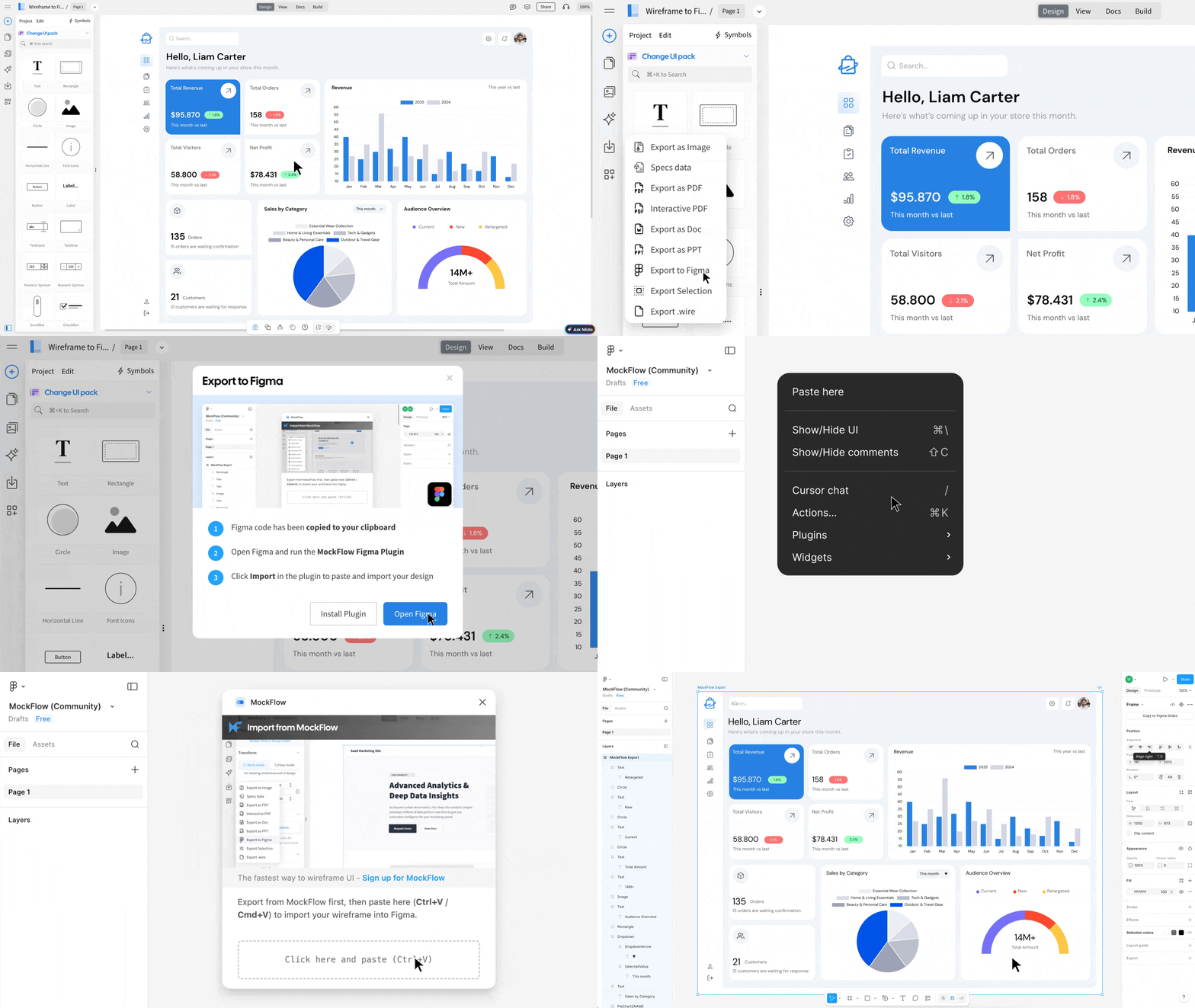
The MockFlow Figma Plugin lets you export your WireframePro wireframes as editable Figma components, preserving styling, layer structure, and layout accuracy so your designs are ready to refine the moment they land in Figma.
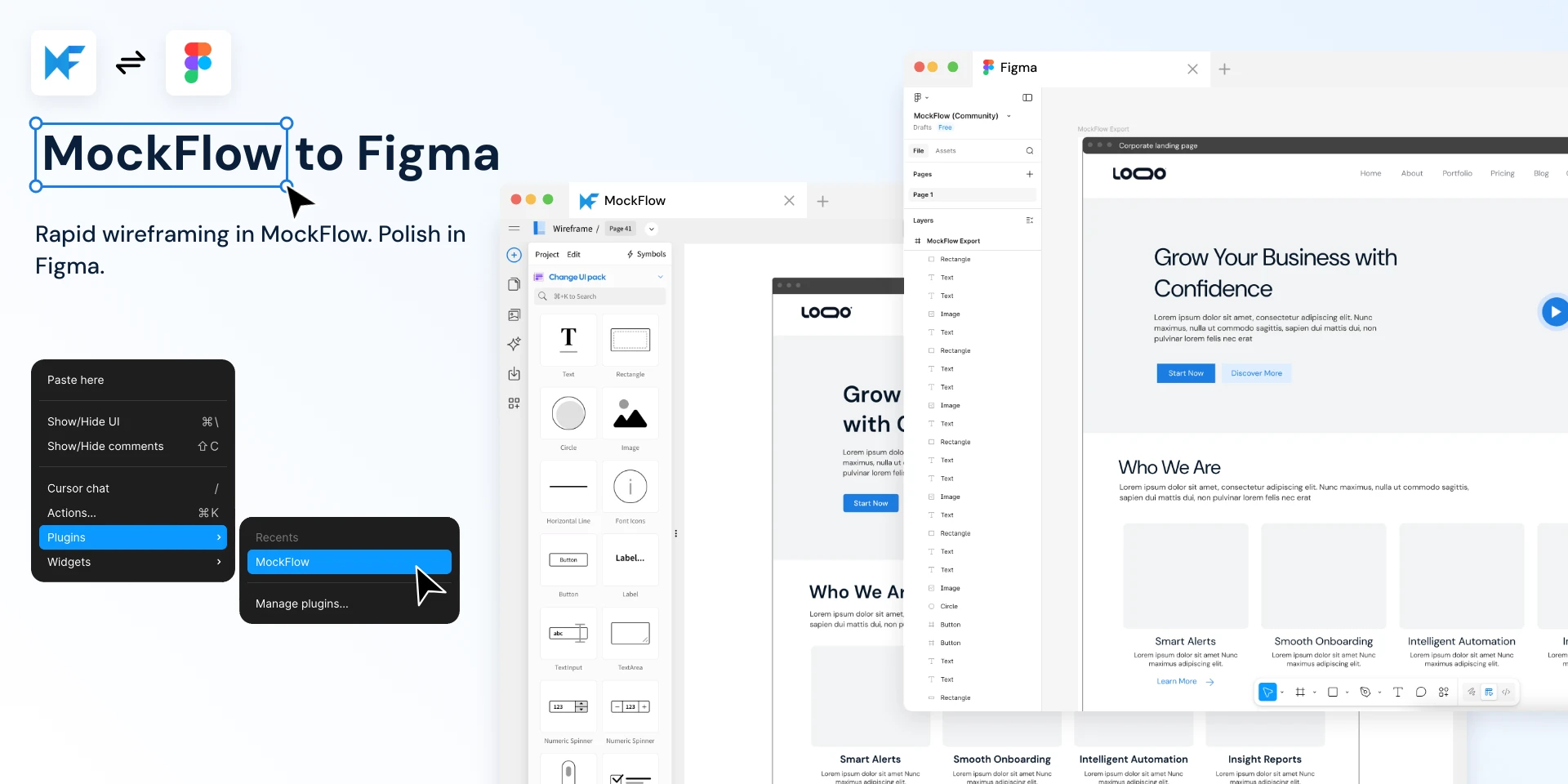
MockFlow WireframePro is built for speed helping teams sketch out ideas, validate layouts, and iterate on UI concepts faster than any high-fidelity tool allows. But when it's time to move from wireframe to polished design, Figma is where most teams go next.
The MockFlow Figma Plugin bridges this gap. Wireframe components transfer to Figma with accurate styling, proper layer structure, and full visual fidelity — making the handoff from rapid wireframing to high-fidelity design seamless.
Why Wireframe in MockFlow and Design in Figma?
The best design workflows separate ideation from execution. Wireframing is about exploring structure, flow, and content hierarchy — not pixel-perfect aesthetics. That's what MockFlow WireframePro excels at:
- Speed over polish — Drag-and-drop wireframe components let you build screens in minutes, not hours
- Built-in AI assistant (Mida) — Generate and modify wireframes using natural language prompts
- UI packs for anything — Visualize for any device, any framework it provides professionally maintained UI packs for all
- Zero learning curve — Purpose-built for wireframing, not adapted from a general design tool
- Advanced components — MockFlow provides ready made components for datagrid, charts, dropdown, arrows, all easy to create and edit for your UI brainstorming
Once your wireframe structure is validated, export to Figma where your design team can apply brand styling, build interactions, and create production-ready prototypes.
When the Plugin Saves You Hours
Stakeholder Reviews That Turn Into Real Designs
Product managers wireframe screens in MockFlow during a sprint planning call. Once the team agrees on structure, one click exports everything to Figma — where the design team picks up with brand colors, typography, and interactions already roughed in. No redrawing from scratch.
Agency Teams With Parallel Workflows
A UX lead wireframes three layout options in MockFlow while the visual designer works on another project in Figma. When the client approves a direction, the wireframe transfers instantly — borders, fonts, shadows, gradients, charts, and all ready for the designer to refine without recreating components.
Freelancers Delivering to Figma-First Clients
Many clients expect Figma deliverables. MockFlow lets you ideate and iterate at wireframe speed, then export a structurally accurate Figma file that looks like it was built natively. Buttons, inputs, data grids, navigation bars, device frames — everything carries over with correct layer naming and hierarchy.
Remote Design Sprints and Workshops
Teams brainstorm UI layouts in MockFlow's collaborative editor. Participants who aren't designers can contribute meaningfully at the wireframe level. The winning concepts export to Figma where the design system is applied — no translation layer, no screenshot tracing, no
miscommunication.
Non-Designers Who Need to Hand Off to Design Teams
Product owners, developers, and founders often know exactly what they want but aren't fluent in Figma. MockFlow's component library lets them express UI ideas clearly. The Figma export gives the design team an editable starting point with proper Figma primitives — not a flattened image.
Rapid Prototyping Across Large Projects
When you're wireframing 50+ screens for an enterprise app, rebuilding each one in Figma doubles the timeline. Export entire pages at once standard and sketchy components, charts, icons, SVGs, illustrations, images, and custom CSS styling all included.
How It Works
1. Select components on your wireframe page (or export the entire page)
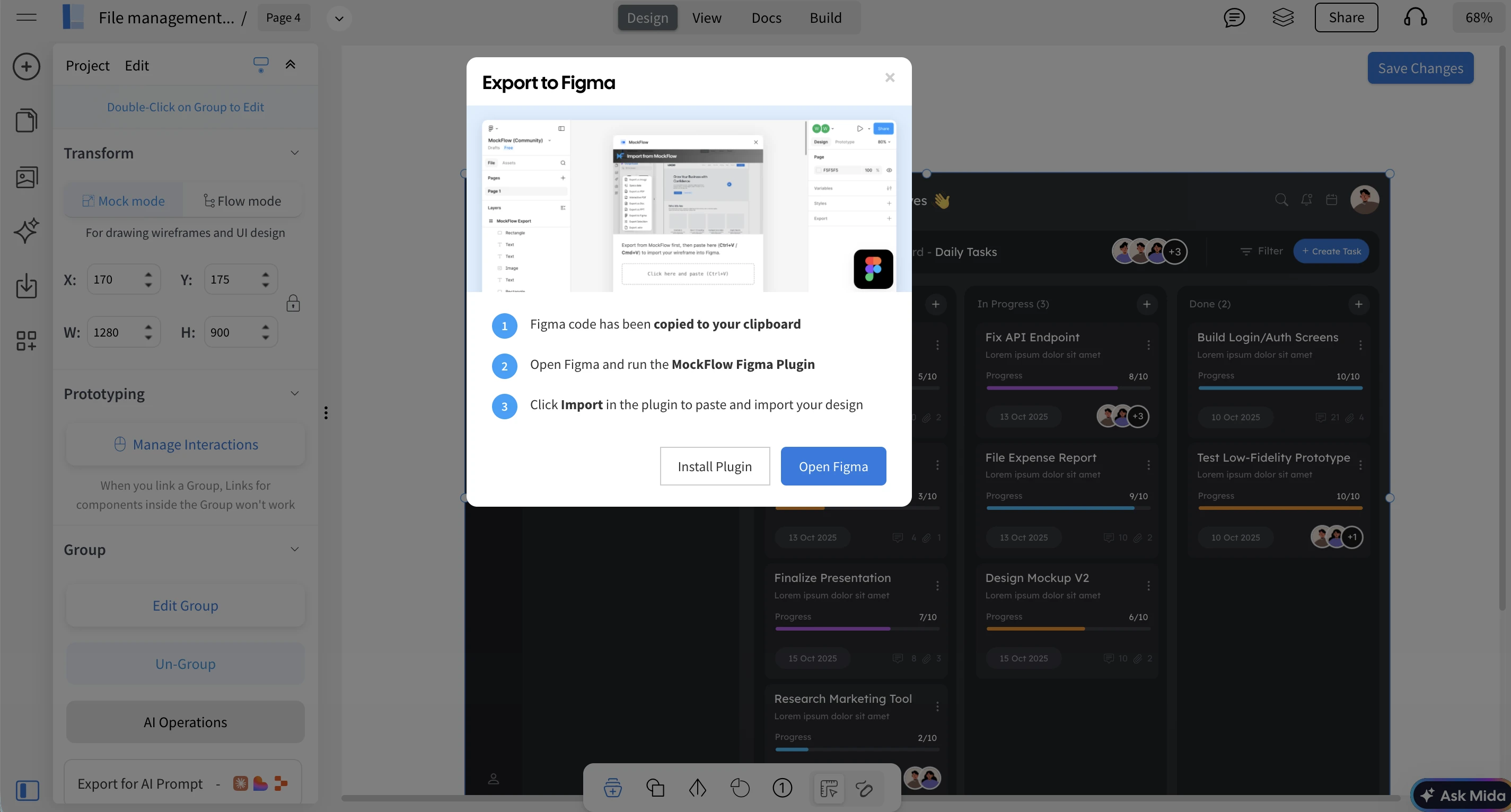
2. Click Export to Figma from the settings or right click menu
3. The wireframe data is copied to your clipboard
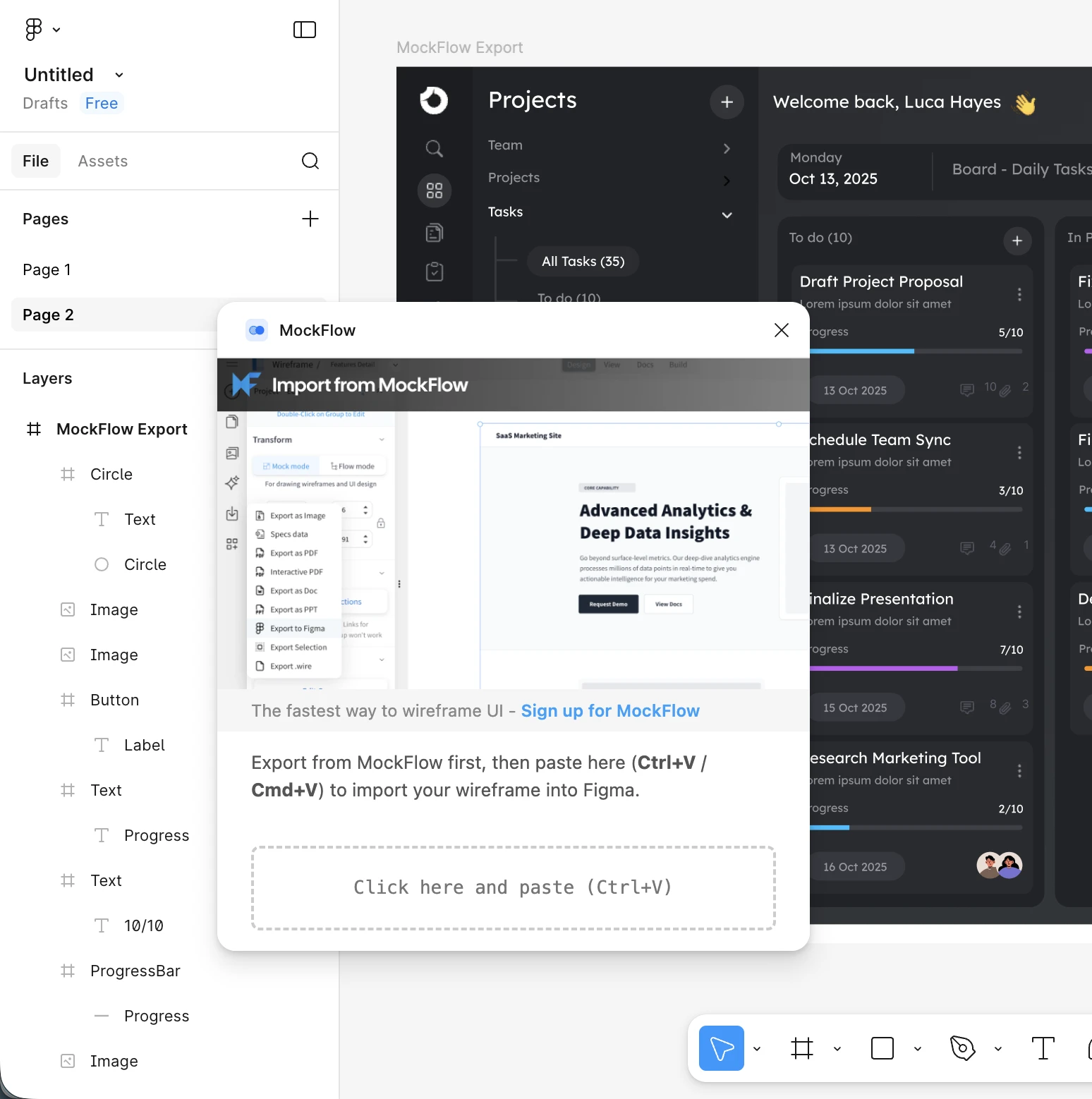
4. Open the MockFlow plugin in Figma and paste
Each import places the wireframe at your current viewport position and as a separate frame.
No Credits. No Limits. Instant Export.
Figma export consumes no credits. Export your entire project — every page, every component — as many times as you need. There are no usage caps or throttling.
Works Offline in Desktop Apps
The Figma export is fully available in MockFlow's desktop applications with file mode and offline mode. Wireframe without an internet connection, and export to Figma when you're ready to hand off.
Availability
The Export to Figma feature is available on paid MockFlow plans (WireframePro and Bundle) across web, desktop, and offline modes.
Download Plugin
Plugin is required for pasting the converted MockFlow Wireframe into Figma editor. Plugin just reads from your clipboard the copied design from MockFlow. There is no network access and requires no authentication and also it is very straightforward to use. Install plugin from here.
Introducing "AI prompt box" as a whiteboard component along with 🍲 AI recipes
The AI Prompt Box brings AI as a component directly onto your IdeaBoard canvas. Add configurable AI generators tailored to specific tasks so every collaborator can use them and track prompts in context. With the recipe library, your team can instantly drop ready-made AI workflows onto any board.
From Personal AI Tool to Shared Canvas Component
Previously, AI generation in IdeaBoard was limited to individual use. A user would enter a prompt, select an output type, and generate content independently on the board. The new AI Prompt Box transforms this into a structured, collaborative experience.
A team lead or facilitator can configure the Prompt Box once by defining the output type, adding system-level instructions, and setting a guided placeholder. Once placed on the canvas, it becomes a shared AI component that any team member can use. Every prompt generates content directly on the shared board while preserving consistent configuration. IdeaBoard also tracks each interaction, providing clear visibility into who generated what and when. This makes the AI Prompt Box ideal for team brainstorming, standardized workflows, and transparent AI-assisted collaboration.
Configure Once, Enable Consistent AI Generation Across Your Team
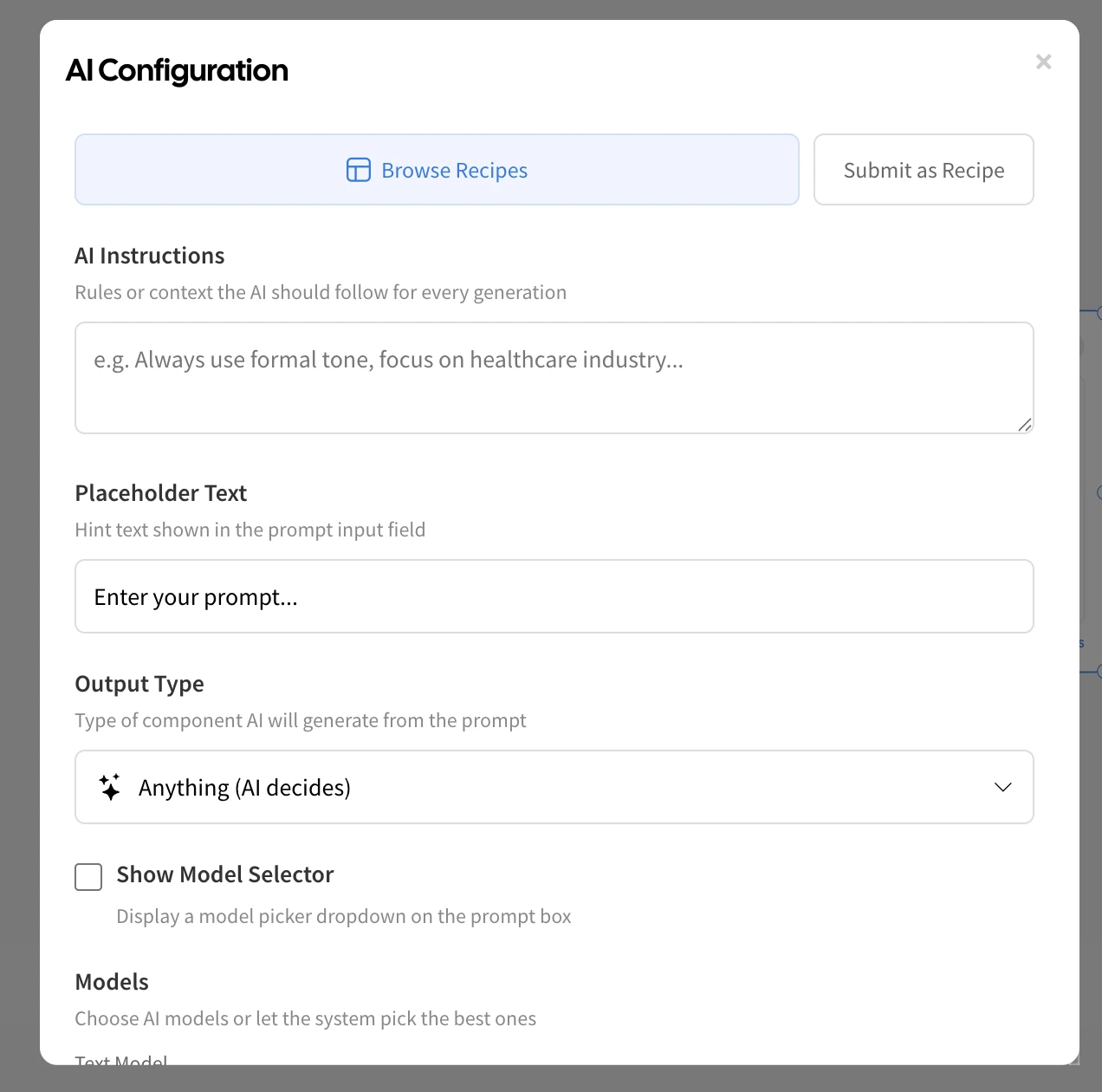
Each AI Prompt Box can be configured to generate a specific type of output, enabling structured and repeatable AI workflows directly on your IdeaBoard canvas. It supports a wide range of formats, including flowcharts, tables, images, audio, video, and 3D models, as well as AI-powered IdeaBoard components such as Kanban boards, Gantt charts, Swimlane diagrams, and Cloud Architecture diagrams.
The Prompt Box offers flexible configuration options to ensure consistency, clarity, and control:
- AI Instructions — Define a system prompt of up to 2,000 characters to control how the AI responds. This allows you to enforce formatting standards, define output structure, and guide the AI toward specific goals or criteria.
- Output Type — Restrict the generator to a specific format so every output remains consistent and aligned with the intended workflow.
- Placeholder Text — Provide contextual guidance to help team members understand what to enter for best results.
- Model Selection — Allow users to choose their preferred AI model or lock the Prompt Box to a specific model for standardized output across text, image, audio, video, and 3D generation.
- Title Icon — Assign a distinct icon to each Prompt Box to improve visual identification and organization on the canvas.
This configuration ensures that teams can create reliable, reusable AI generators tailored to specific use cases while maintaining consistency across collaborative sessions.
Recipe Library : Launch Pre-Configured AI Workflows in One Click
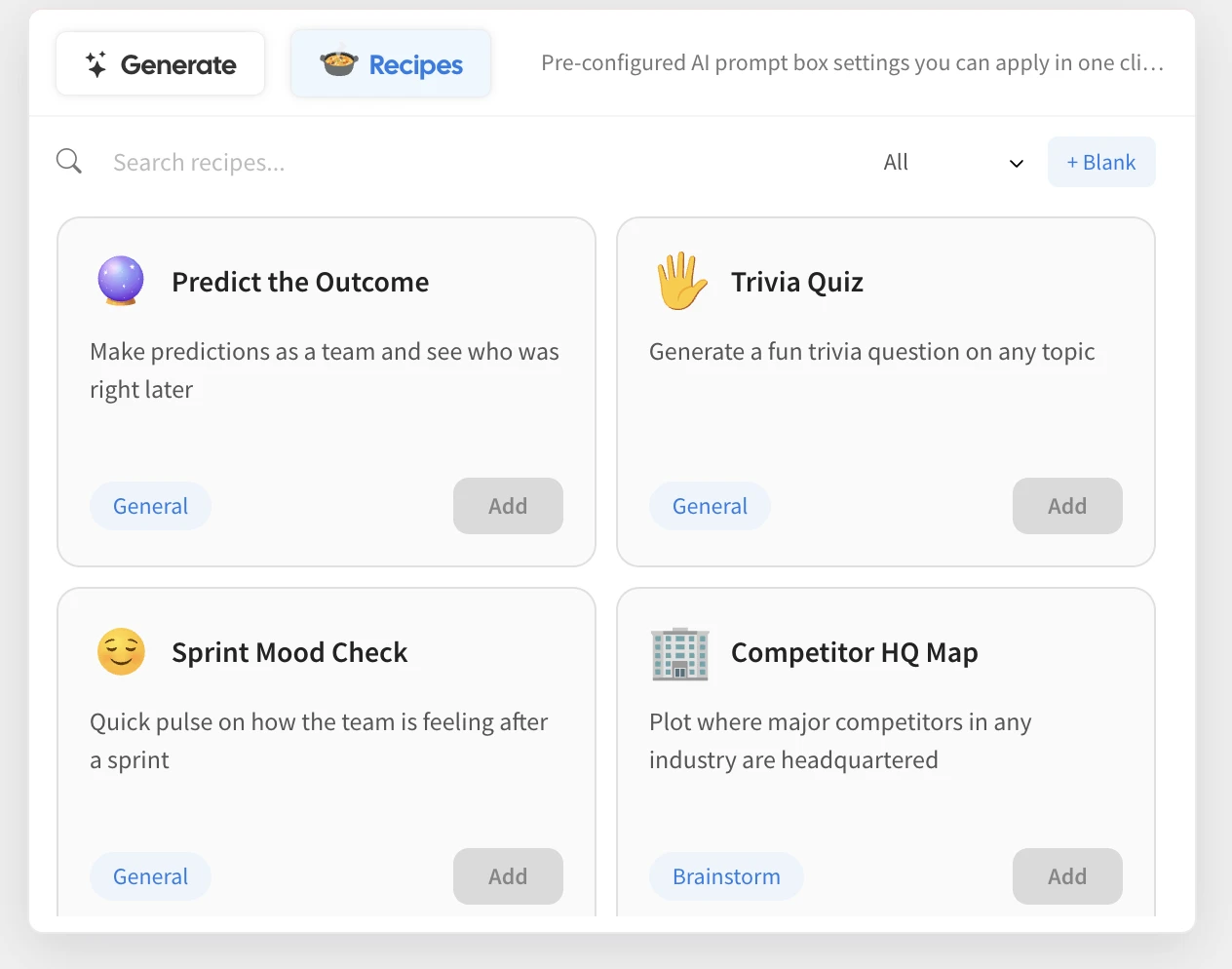
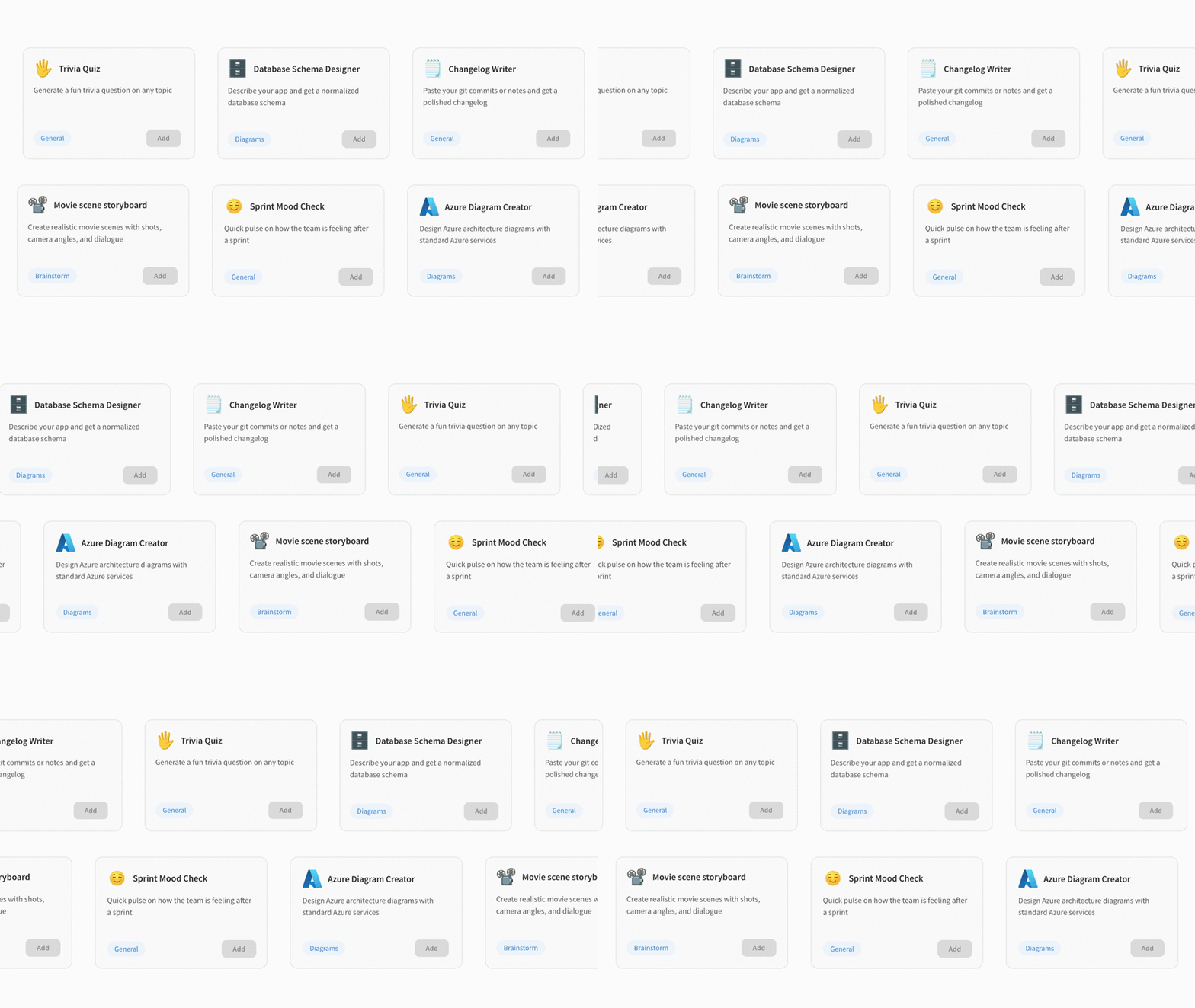
Alongside the AI Prompt Box, IdeaBoard introduces the Recipe Library — a curated and continuously expanding collection of ready-to-use AI workflow templates. Each recipe includes a complete Prompt Box configuration, including the title, system instructions, output type, placeholder guidance, model preferences, and icon. Simply browse the library, click Add, and the AI Prompt Box is instantly placed on your canvas, fully configured and ready for use.
The library currently includes 30 professionally designed recipes across five categories:
Brainstorm
- Devil’s Advocate — Critically evaluate ideas before committing
- Competitor HQ Map — Visualize competitor headquarters on a map
- Name This Thing Board — Generate and evaluate product or feature names
- Movie Scene Storyboard — Create detailed cinematic scenes with dialogue and framing
- Comparison Showdown — Analyze two options with a structured side-by-side comparison
- Emoji Only Mindmap — Build visual mindmaps using emoji-based nodes
Diagrams
- Database Schema Designer — Generate normalized database schemas from app descriptions
- Decision Flowchart — Create structured yes/no decision trees
- Comic Storyboard — Convert story ideas into comic-style panels
- AWS, Azure, and Google Cloud Diagram Creators — Design cloud architecture diagrams using standard services
- Explain Simply Mindmap — Break down complex topics into beginner-friendly visuals
- Startup Idea Mindmap — Explore startup concepts, features, and opportunities
- Approval Workflow — Map structured approval and review processes
General
- Predict the Outcome — Make and track predictions collaboratively
- Trivia Quiz — Generate engaging quiz questions on any topic
- Sprint Mood Check — Capture team sentiment after sprint cycles
- Fortune Cookie Wheel — Generate random advice, quotes, or fun prompts
- Job Description Generator — Create structured job listings quickly
- Changelog Writer — Convert commits and notes into professional changelogs
- Recipe Cost Calculator — Estimate ingredient costs for any dish
- Icebreaker Wheel — Generate interactive icebreaker questions for meetings
Planning
- Travel Route Planner — Plan and visualize multi-city travel routes
- Weekly Study Plan — Create structured learning schedules
- Content Calendar — Generate organized monthly content plans
- Meeting Notes to Action Items — Convert notes into clear, actionable tasks
- PRD Document Creator — Generate structured product requirements documents
Media
- Business Stock Image Generator — Create professional business visuals
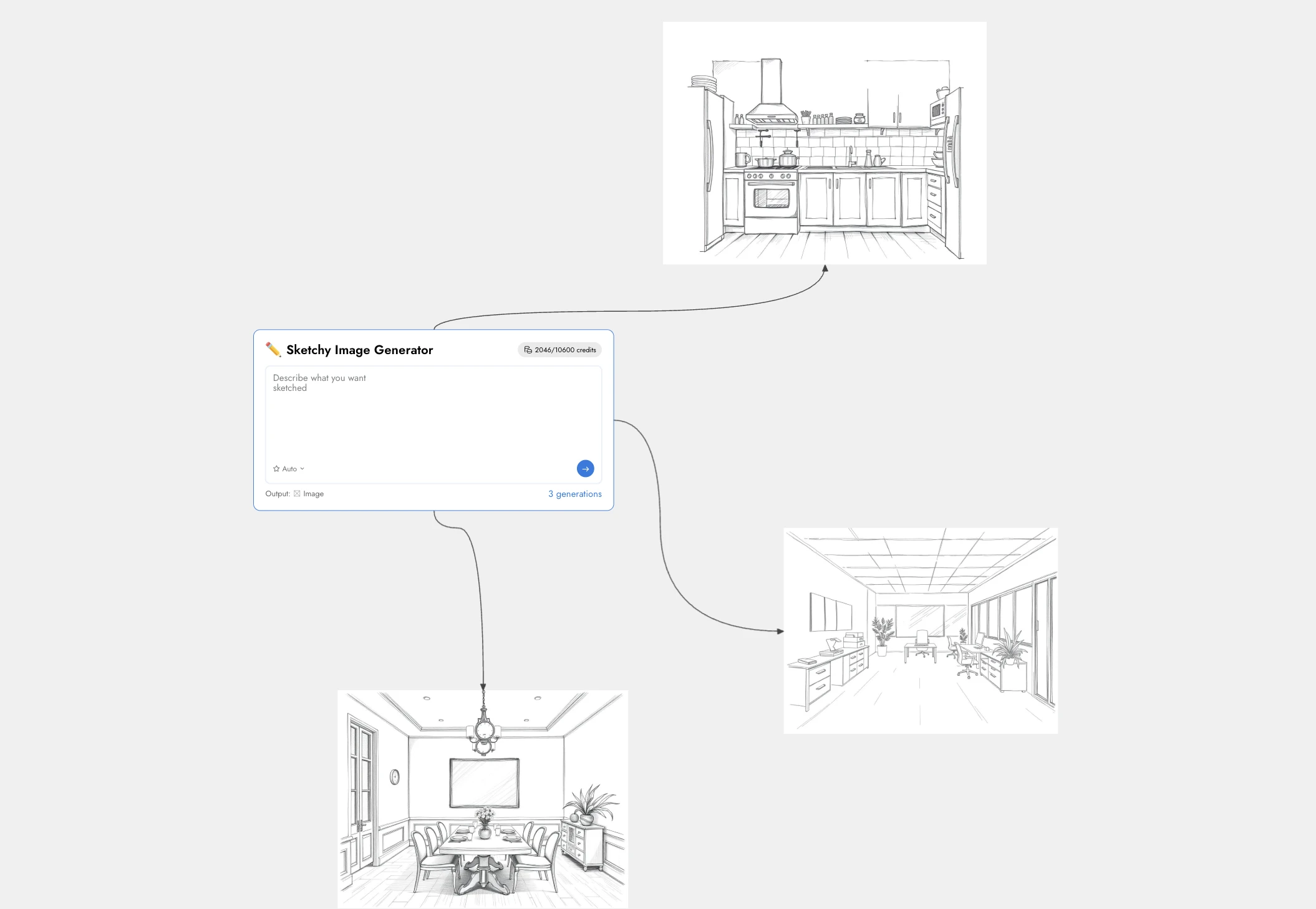
- Sketchy Image Generator — Generate hand-drawn style illustrations
The Recipe Library continues to grow, with new recipes regularly added to support more use cases, workflows, and industries. Future updates will also include community-contributed recipes, enabling teams to share and benefit from proven AI workflows created by others.
Generation History : Full Visibility into Team AI Activity
Every prompt submitted through an AI Prompt Box is automatically logged, including the team member’s name, timestamp, output type, and the exact prompt used. A generation count badge provides a quick overview of activity, while the detailed history panel allows owners to review all generations and jump directly to the corresponding output on the canvas.
This built-in tracking brings transparency and accountability to AI-assisted workflows, transforming AI generation into a structured, auditable, and collaborative team process.
Use Cases
Product Teams Running Design Sprints
Product teams can place multiple AI Prompt Boxes on a single board, each configured for a specific output such as moodboards, flowcharts, or PRD documents. This enables team members to generate ideas and artifacts simultaneously on the shared canvas, accelerating sprint activities without relying on a single facilitator to operate the AI.
Engineering Teams Designing System Architecture
Engineering teams can use pre-configured recipes like AWS, Azure, or Google Cloud Diagram Creators to instantly generate architecture diagrams from simple descriptions. Combined with tools like the Database Schema Designer, teams can visualize infrastructure and data models in the same workspace, improving clarity during system planning.
Workshops and Brainstorming Sessions
Facilitators can prepare boards in advance by adding Prompt Boxes configured for specific exercises, such as Devil’s Advocate analysis, comparison evaluations, or creative mindmapping. Participants can immediately begin generating ideas when the session starts, ensuring productive and structured collaboration.
Marketing and Content Teams
Marketing teams can use Prompt Boxes to generate content calendars, visual assets, and campaign naming ideas in one unified space. Recipes like the Content Calendar, Business Stock Image Generator, and Name This Thing Board help teams rapidly develop and organize campaign materials directly on the canvas.
Educators and Trainers
Educators can use Prompt Boxes to simplify complex topics, generate quizzes, and create structured study plans. This allows instructors to focus on teaching and discussion while AI assists in producing supporting materials tailored to the session’s needs.
Agencies and Client Collaboration
Agencies can configure Prompt Boxes with client-specific instructions, brand tone, and formatting rules before sharing the board. Clients can then generate content that aligns with brand and project requirements, reducing revisions and accelerating feedback and approval cycles.
What This Changes
AI generation was already a powerful capability in IdeaBoard. The AI Prompt Box transforms it into a fully collaborative workflow configured once, used by the entire team, and automatically tracked for transparency and accountability. Combined with the growing Recipe Library, teams can quickly deploy proven AI workflows and accelerate brainstorming, planning, and creation directly on the canvas.
The AI Prompt Box and Recipe Library are now available in MockFlow IdeaBoard, enabling faster, more structured, and truly collaborative AI-assisted work.
Brainstorm with the New Storyboard Component in IdeaBoard
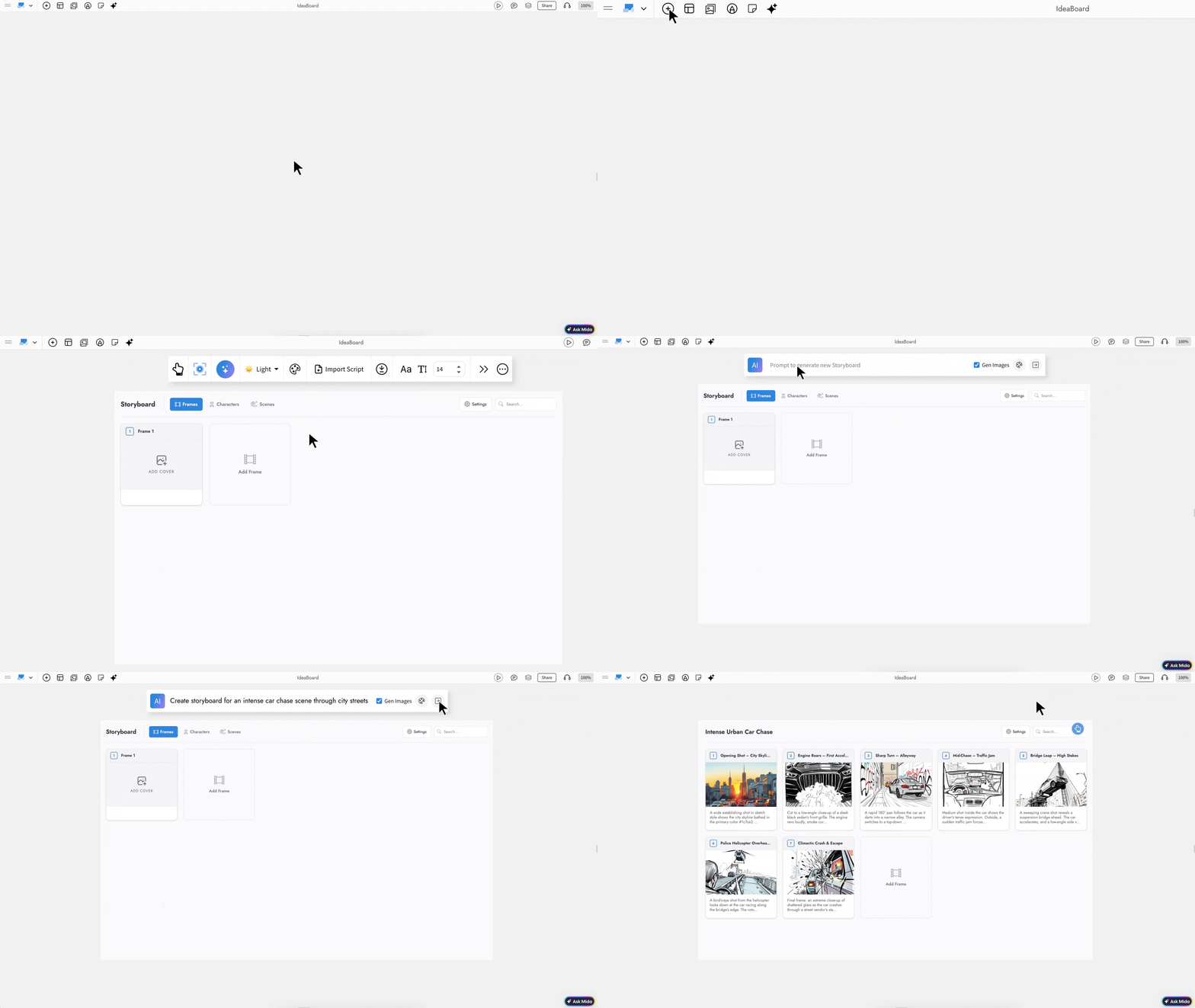
The new Storyboard component in IdeaBoard turns your online whiteboard into a powerful visual planning workspace. You can now brainstorm narratives, map scenes, organize frames, and structure entire productions without switching tools. Whether you are planning a film, designing a product journey, or pitching a campaign concept, everything happens directly on your board.
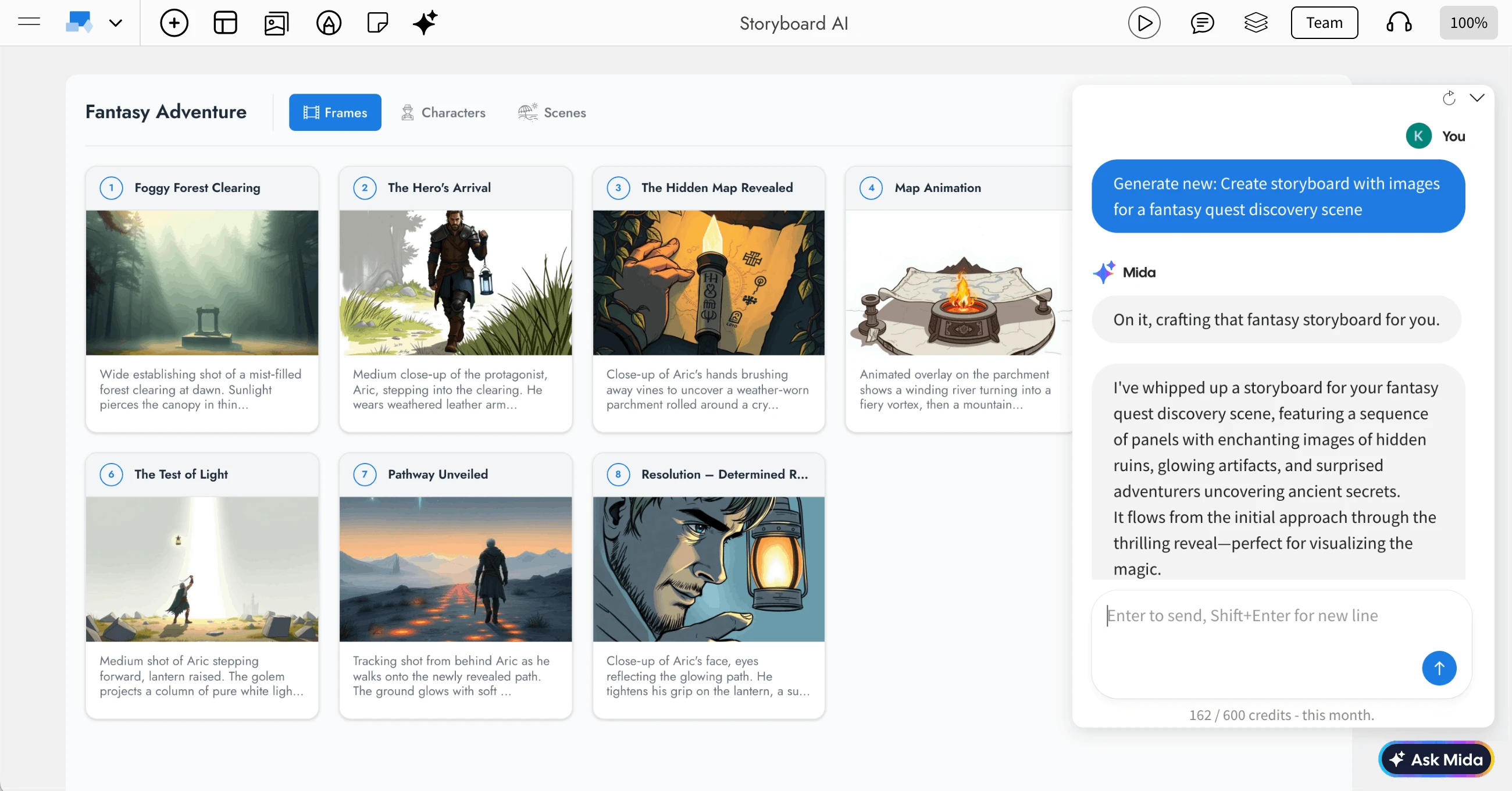
Storyboarding Without the Workarounds
If you have ever tried creating a storyboard in a traditional whiteboard tool, you know how frustrating it can be. Teams often drag rectangles into rows, manually align sticky notes, number frames one by one, and hope nothing shifts out of place. The result may look like a storyboard, but it behaves like disconnected shapes without structure, metadata, or export capabilities.
The Storyboard component eliminates that workaround. Instead of building from loose objects, you now work inside a structured storyboard system designed specifically for visual narratives. Frames belong to scenes. Metadata is built in. Media is organized properly. Exports are production ready.
This is not a workaround. It is a purpose-built storyboarding experience inside your whiteboard.
Why Storyboarding Belongs on a Whiteboard

Most dedicated storyboarding software lives separately from your brainstorming space. You ideate in one tool, design frames in another, and track production tasks somewhere else. Every switch slows momentum and breaks creative flow.
IdeaBoard changes that completely. Your team is already using sticky notes, mind maps, flowcharts, mood boards, and freeform sketches on an infinite canvas. Now you can move from a rough idea to a structured frame-by-frame storyboard without leaving the board.
Creative thinking and production planning finally happen in one continuous workspace.
Rich Media and Structured Metadata in Every Frame
Each storyboard frame supports:
- Cover image, video, or audio uploads directly from your media library
- Preset metadata fields such as Duration, Dialogue Text, Camera or Shot Type, Location, Action Notes, and SFX Audio
- Fourteen built-in shot types including Wide Shot, Close-Up, POV, Tracking, and more
- Custom metadata fields tailored to your production workflow
This structured approach ensures your storyboard behaves like a production document, not just a visual layout.
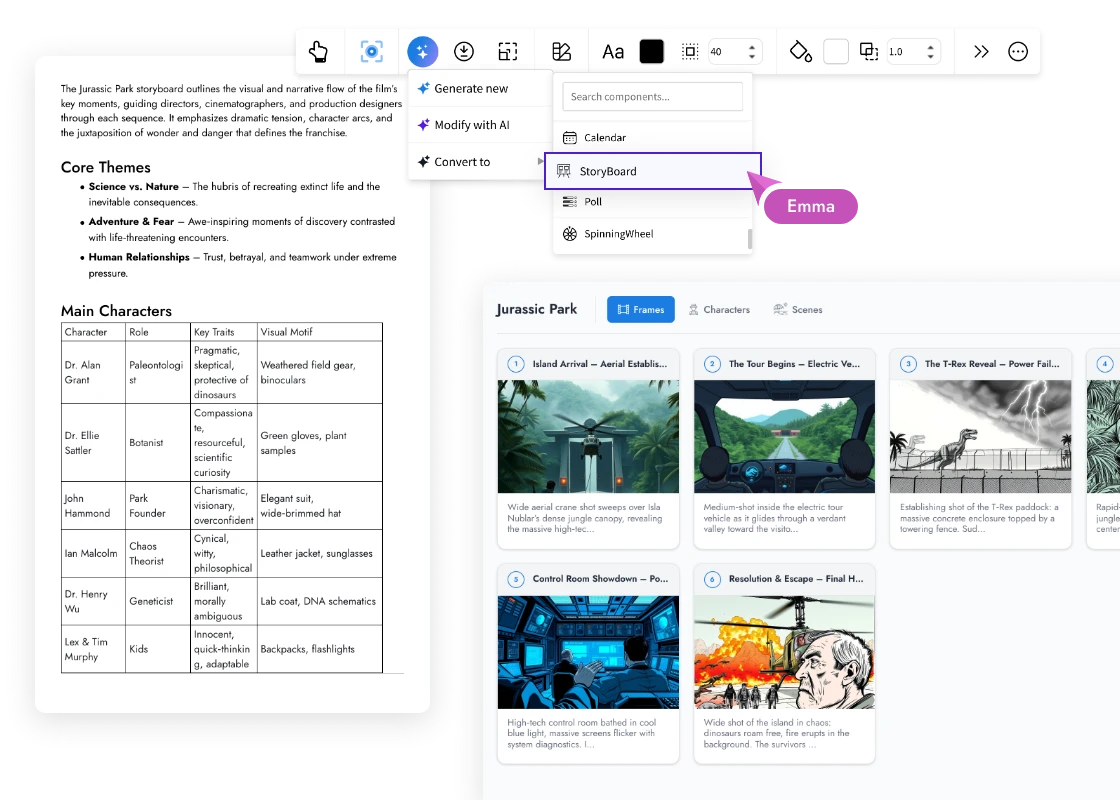
Generate and Refine Storyboards with Mida AI
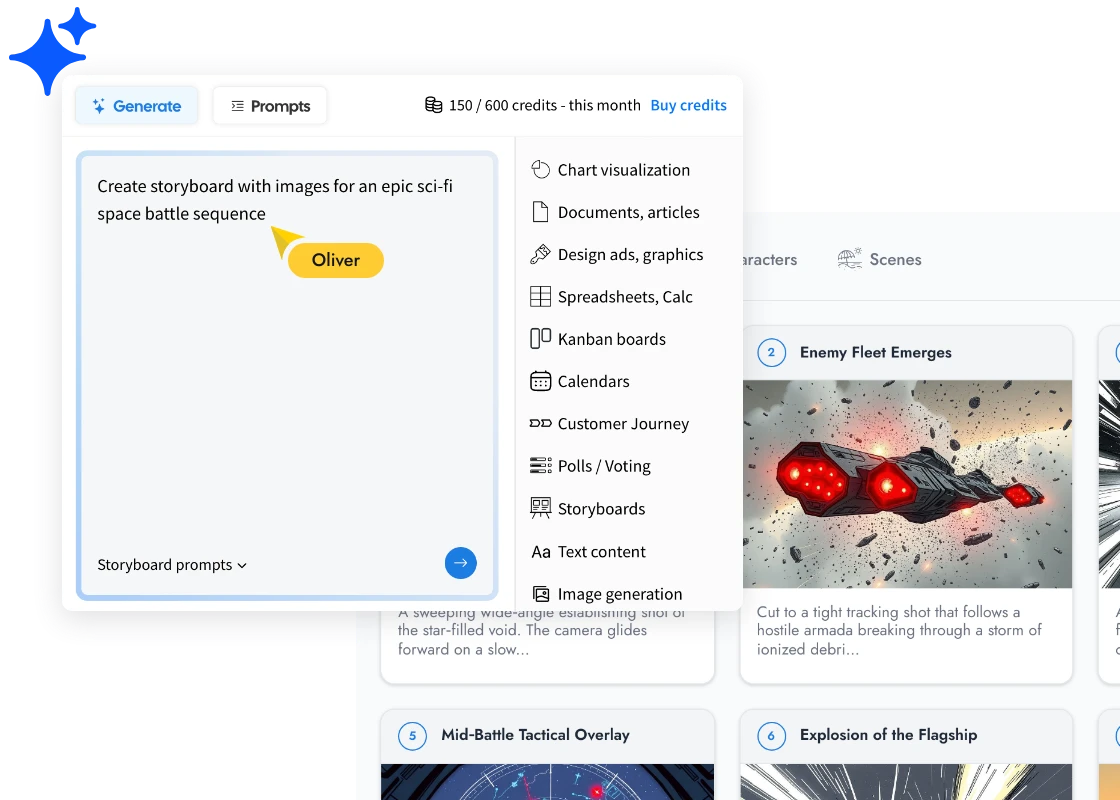
The Storyboard component becomes even more powerful with Mida, IdeaBoard’s AI co-pilot.
With Mida, you can:
- Generate a complete storyboard from a single prompt by simply describing your story
- Modify and expand an existing storyboard with follow-up instructions
- Generate AI images for frames, characters, and scenes based on descriptions
- Convert your storyboard into other IdeaBoard components such as Kanban, Gantt, or Calendar to transition from creative planning to execution
The AI prompt bar includes options like Gen Images and Brand Guide integration, giving you full control over whether visuals are generated and how they align with your defined style.
Maintain Visual Consistency with Brand Guide
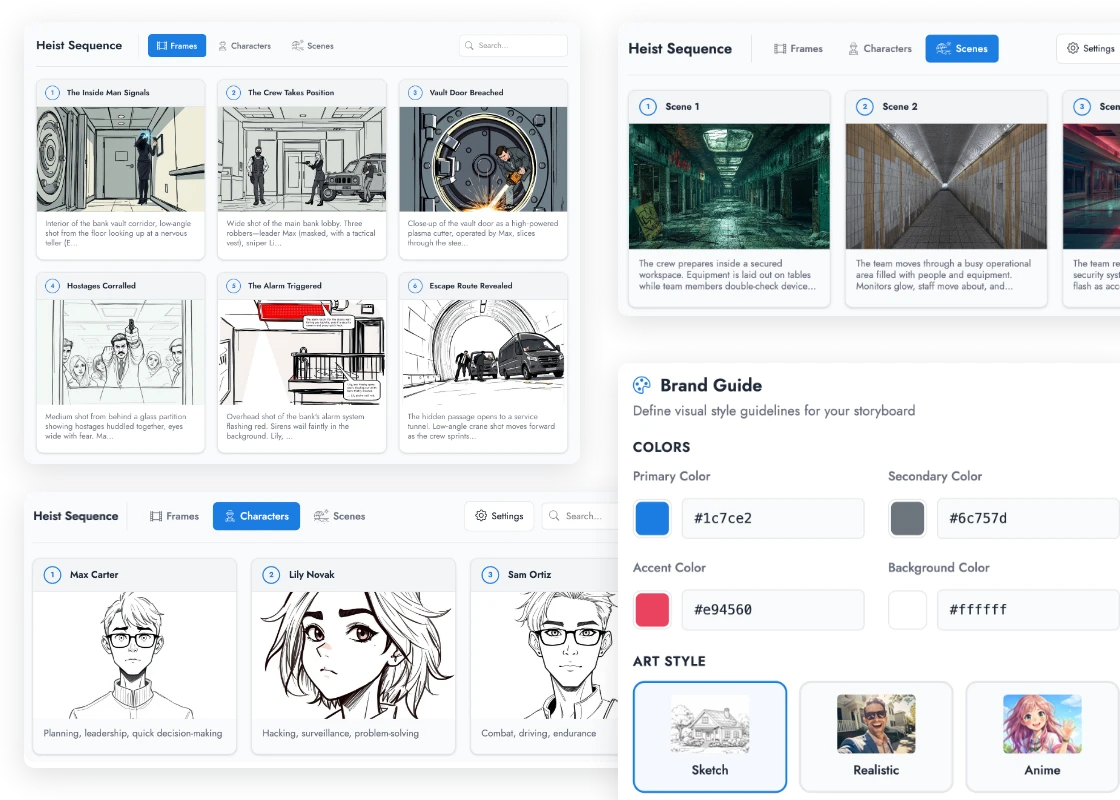
The built-in Brand Guide ensures every storyboard maintains a consistent visual identity. You can define:
- Art style such as Sketch, Realistic, Anime, Comic, Minimalist, or Watercolor
- Color palette preferences
- Style notes and visual references
- Do and do not guidelines for creative direction
These settings feed directly into Mida’s AI image generation, so your visuals stay aligned with your project’s tone and aesthetic.
Import Scripts from Industry Standard Tools
If you already have a screenplay or script, importing it is simple. The Storyboard component supports:
- Fountain files
- Final Draft XML
- Celtx project files
- Plain text scripts
The parser automatically detects the format and converts scenes, dialogue, and action lines into storyboard frames. You can choose to replace your existing storyboard or merge imported scenes into your current board.
Export and Share with Production Teams
When your storyboard is complete, export options include:
- CSV
- JSON
- Image ZIP
This makes it easy to hand off to production teams, share with stakeholders, or archive for future reference.
Built for Team Collaboration and Brainstorming
Every feature is designed for teamwork:
- Per-frame comments with user attribution
- Collaborator awareness so you always know who is contributing
- Read-only mode for reviewers
- Full undo and redo support
- Search functionality to filter frames, characters, and scenes
- Light and dark themes
- Focus Mode for distraction-free editing
This makes IdeaBoard one of the most collaborative online storyboard tools available today.
Who Is This For
- Film and video production teams can plan shots, manage characters, and map scenes before filming begins.
- Animation and motion design teams can sequence frames, define camera angles, and attach reference media.
- UX and product teams can map user journeys visually, with each frame representing a touchpoint and metadata capturing interaction details.
- Marketing and advertising teams can pitch campaign concepts visually and use AI to generate rapid storyboard drafts for clients.
- Game development teams can design cutscenes, define narrative beats, and generate AI-assisted concept art.
- Education and training teams can script instructional videos, import lesson scripts, and attach audio narration to each frame.
How to Get Started
- Open any IdeaBoard project.
- Go to the Components panel and search for Storyboard.
- Drag the Storyboard component onto your board.
- Add frames manually or use the AI button to generate a storyboard from a prompt.
- Organize scenes, define characters, and customize your Brand Guide.
- Collaborate with your team and export when ready.
The Storyboard component brings structured visual storytelling directly into your online whiteboard. From early brainstorming to production-ready exports, everything happens in one connected workspace.
Your story starts here.
Export wireframes as AI visual prompt for agentic tools like claude code
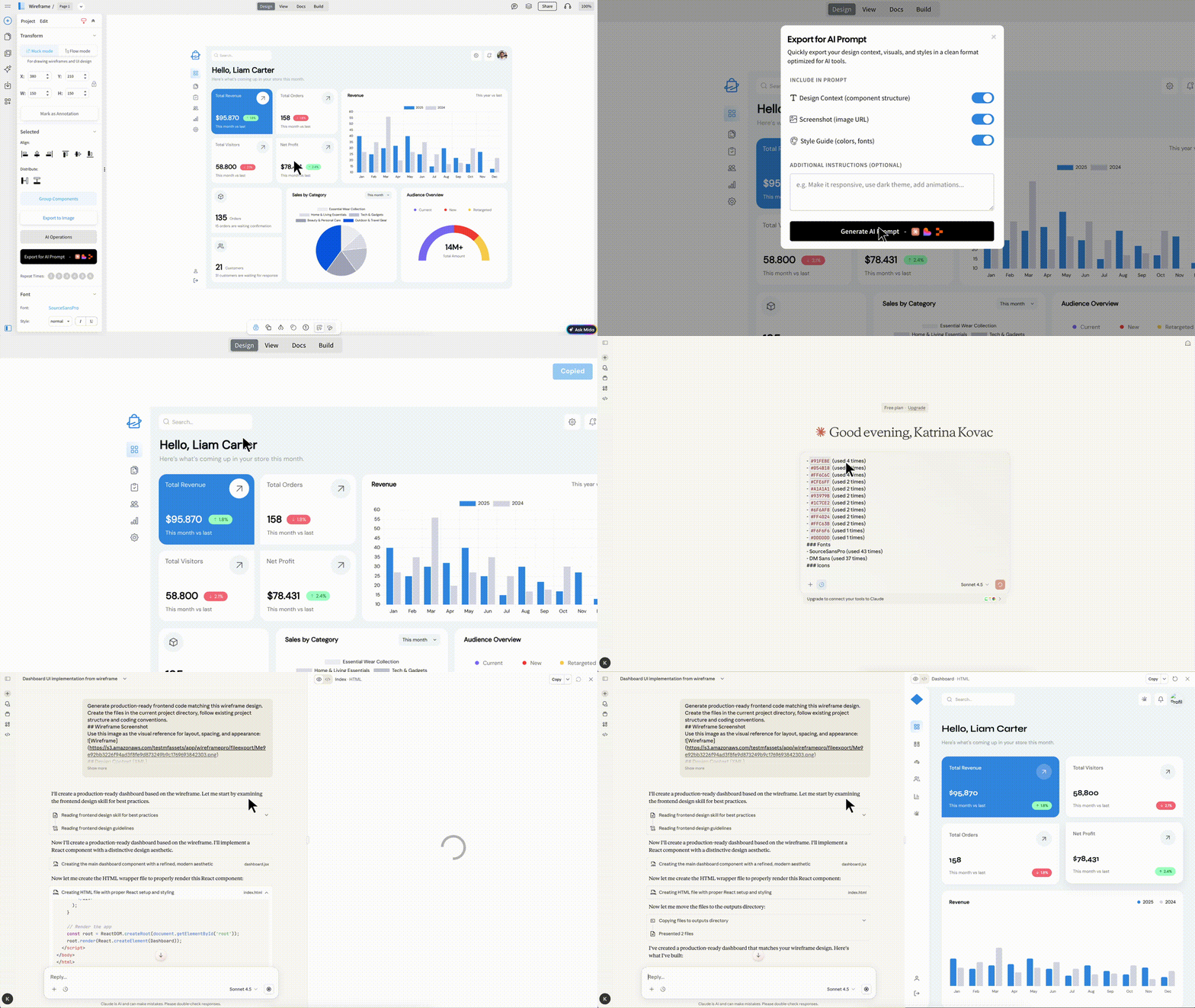
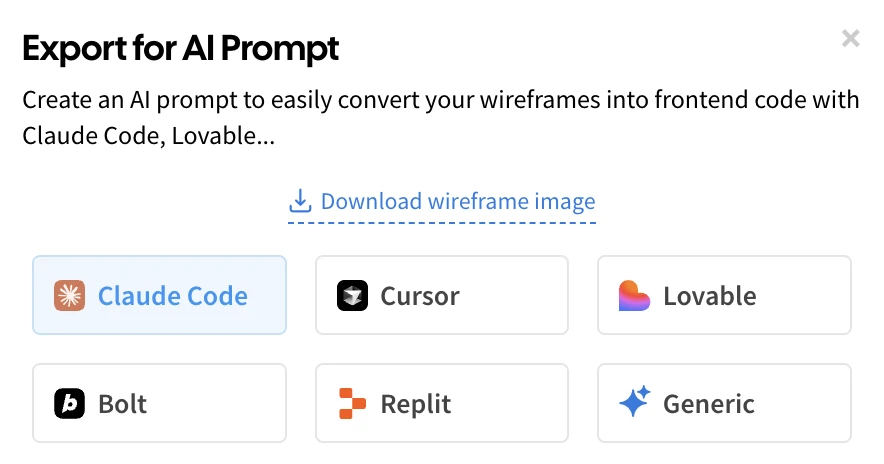
Converting your wireframes into production-ready front-end code just got significantly easier with Export to AI Prompt. This new feature lets you transform any wireframe into a structured, optimized AI prompt that can be directly used in modern agentic coding tools such as Claude Code, Codex, Cursor, Lovable, Bolt, and Replit.
With a single click, you can copy the generated prompt and paste it into your preferred AI coding platform to generate high-quality, pixel-accurate UI code for your existing or new projects without rewriting lengthy text prompts or manually explaining design intent.
Faster and Simpler than MCP-Based Workflows
Unlike MCP server setups that require configuration, authentication, and additional infrastructure, Export to AI Prompt works instantly with no setup required. You simply select any part of your design, whether it’s a section, frame, or specific content block and click Export to AI Prompt.
The generated prompt already includes all the necessary design context: layout structure, visual hierarchy, component relationships, and branding details. This allows AI coding tools to understand exactly what needs to be built, resulting in more accurate and consistent output with far fewer iterations.
Because it’s a direct copy-paste workflow, there’s no ambiguity around which part of the design is being referenced, no need to manage external servers, and no learning curve. Even non-developers can easily convert wireframes into functional UI prototypes to validate how their designs will look in real applications.
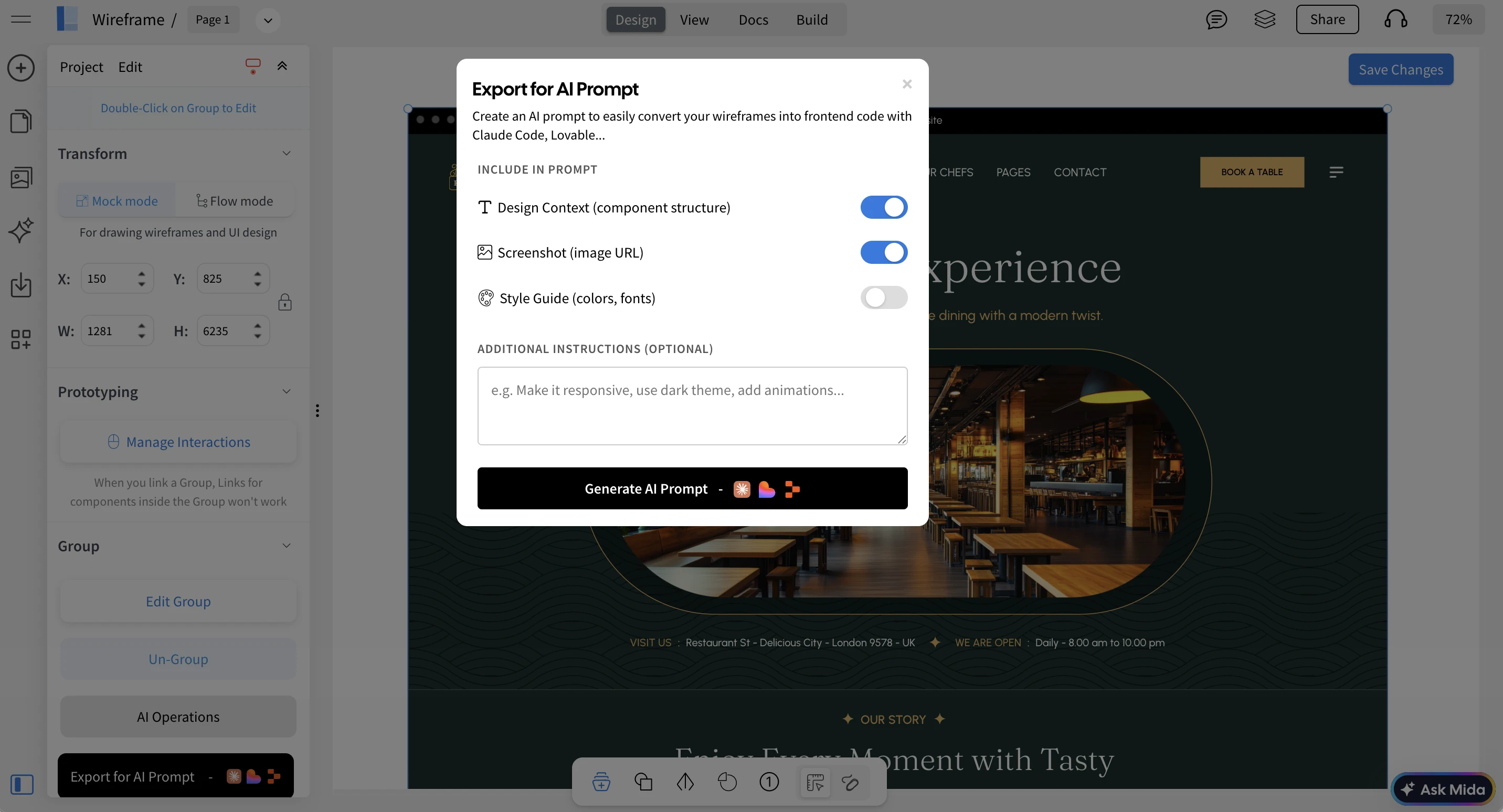
Supported AI Coding Platforms
Although the exported prompt can be used with virtually any AI coding tool, MockFlow optimizes prompts based on the capabilities and limitations of popular platforms, such as context length and image handling.
For best results, we recommend Claude Code, as it supports larger context windows and delivers more consistent UI generation. Other supported platforms include Codex, Cursor, Lovable, Bolt, and Replit.
Ideal for Vibe Coding with Visual Prompts
Export to AI Prompt is especially powerful for teams practicing vibe coding where ideas are explored visually instead of through long text instructions.
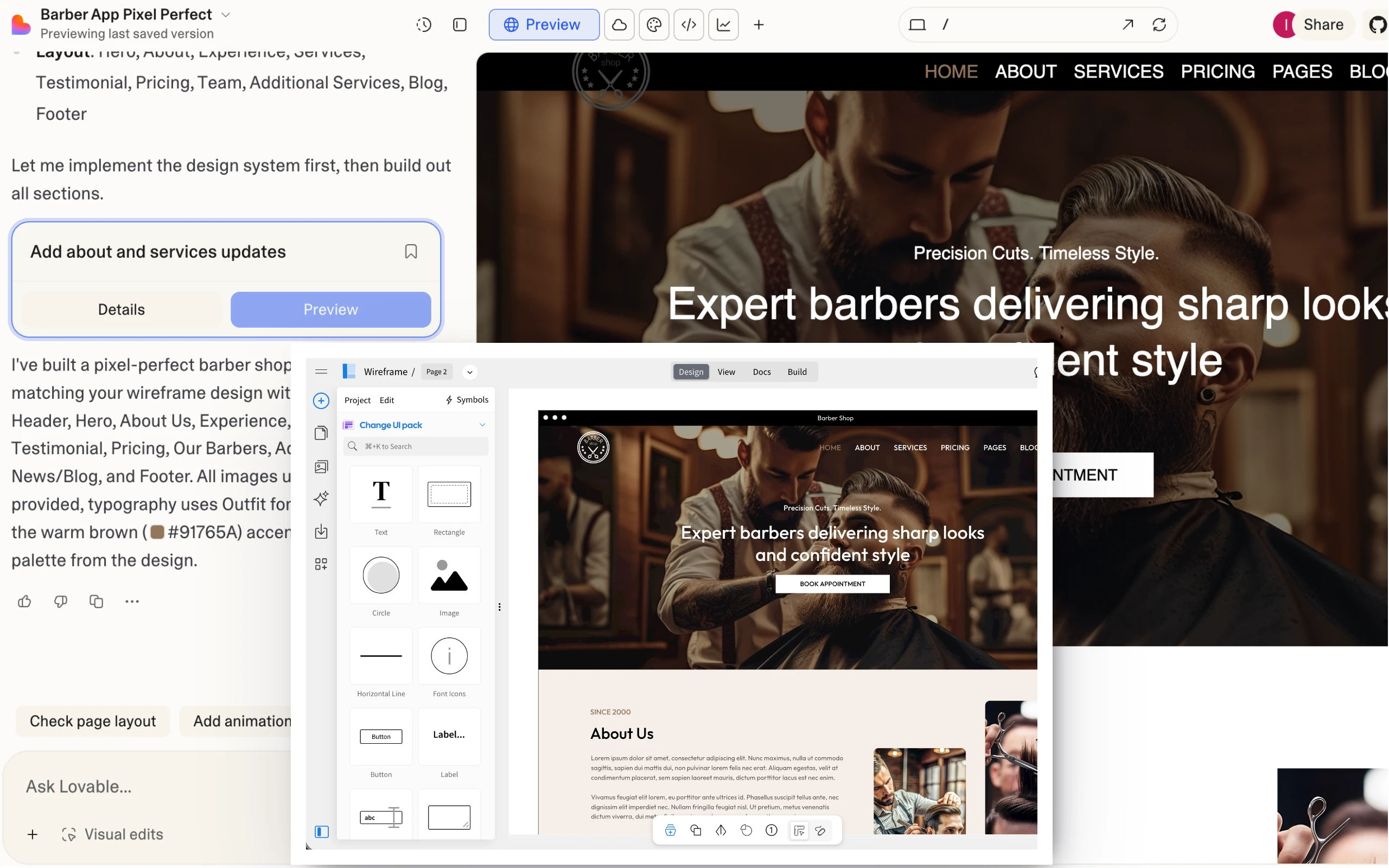
With MockFlow’s rapid wireframing, you no longer need to describe interfaces in paragraphs of text and hope the AI interprets them correctly. Instead, you can directly draw your idea and let MockFlow generate a visual AI prompt enriched with layout data, component structure, and brand guidelines.
This eliminates the gap between what’s in your mind and what the AI produces, enabling faster experimentation, better alignment, and more predictable results.
Export AI Prompt vs Build Mode in WireframePro
WireframePro already includes Build Mode, which converts wireframes into production-ready front-end code using built-in credits from your subscription. Build Mode is primarily designed for non-developers, such as product managers and designers who want to quickly generate working UI code for demos, reviews, and stakeholder approvals.
Export to AI Prompt, on the other hand, is designed for teams and developers who are already using AI coding tools. It acts as a visual bridge between MockFlow and your existing development workflow, allowing you to bring precise design context into your AI environment and build directly inside your own codebase.
Availability
Export to AI Prompt is available on paid plans (WireframePro and Bundle).
It’s a major time-saver for building front-end UIs with AI, helping you reduce unnecessary prompt iterations, avoid misinterpretations, and lower overall AI usage costs by starting with a clear, visual, and structured design prompt from MockFlow.
IdeaBoard for Google Meet : Real-Time Brainstorming Without Leaving Your Meeting
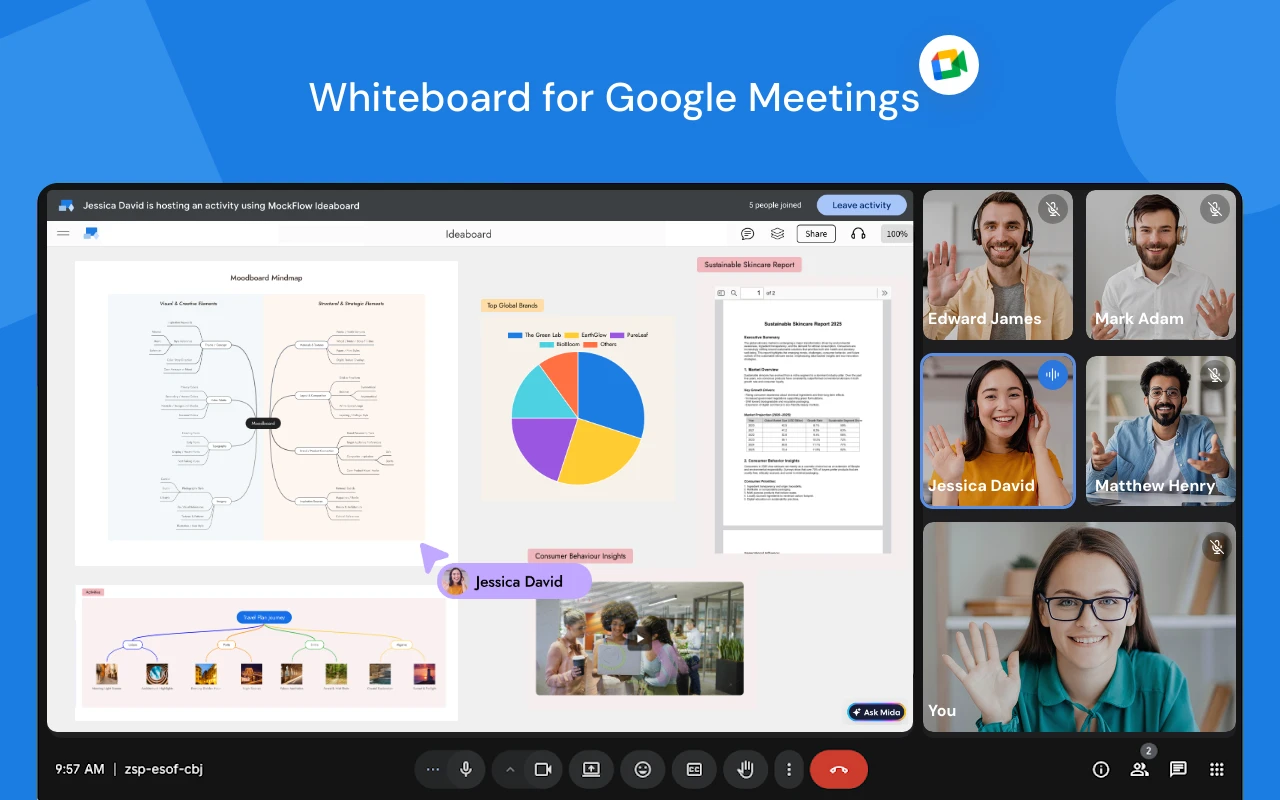
IdeaBoard now runs natively inside Google Meet, turning your video calls into live brainstorming sessions where everyone can think visually together, on the same canvas, without ever leaving the meeting.
Brainstorm Visually During Google Meet Calls
By combining IdeaBoard’s versatile whiteboard components with seamless Google Meet integration, you can turn everyday meetings into highly productive visual collaboration sessions. Use IdeaBoard to brainstorm and document cloud architectures, flow diagrams, storyboards, design moodboards, mind maps, customer journeys, and more all directly within your meeting.
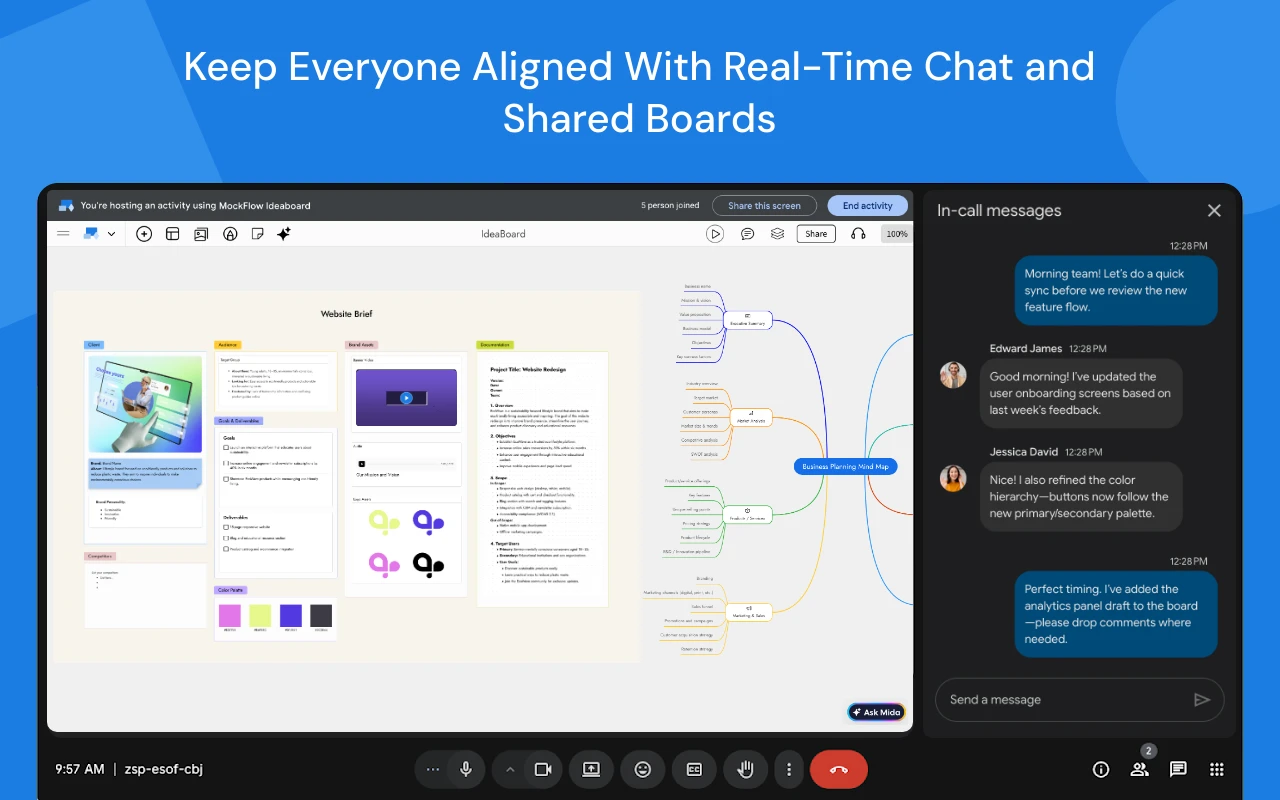
The IdeaBoard is automatically shared with all participants and supports Google Sign-In for instant access. With real-time multi-user editing, everyone in the meeting can contribute simultaneously to the same whiteboard.
Practical Use Cases
Imagine your next sprint planning meeting. Instead of reading tickets aloud, your team opens a Kanban board in IdeaBoard and drags priorities around in real time. Or your engineering lead sketches an AWS cloud architecture diagram on the canvas while walking the team through a migration plan, allowing everyone to annotate, question, and refine it instantly.
Running a product discovery session? Drop a customer journey map onto the board and let the team add pain points using sticky notes as the discussion unfolds. Need to break down a complex feature? Start a mind map and watch it grow organically as teammates branch out ideas together.
These aren’t activities you do after the meeting. They happen during the meeting , because IdeaBoard lives right inside Google Meet, not in another tab or screen share.
AI-Powered Brainstorming with Mida
Bring AI into your meetings with Mida, your built-in brainstorming co-pilot. Ask Mida to visualize your ideas instantly generate diagrams, structures, and layouts directly on the board as your discussion evolves.
How It Works: Getting Started
- Install the app from the Google Workspace Marketplace:
- https://workspace.google.com/marketplace/app/mockflow_ideaboard/162227401569
- Open any Google Meet session.
- Click the Activities panel (puzzle icon) and select MockFlow IdeaBoard.
- Sign in with your Google or MockFlow account.
- Choose an existing board or create a new one.
- The board opens on the main stage everyone can now brainstorm together in real time.
Availability
MockFlow IdeaBoard for Google Meet is available on all plans, including the free Basic plan. Business plan users get unlimited boards and higher collaborator limits for larger teams.
Improved Generation and New AI Features in WireframePro Mida
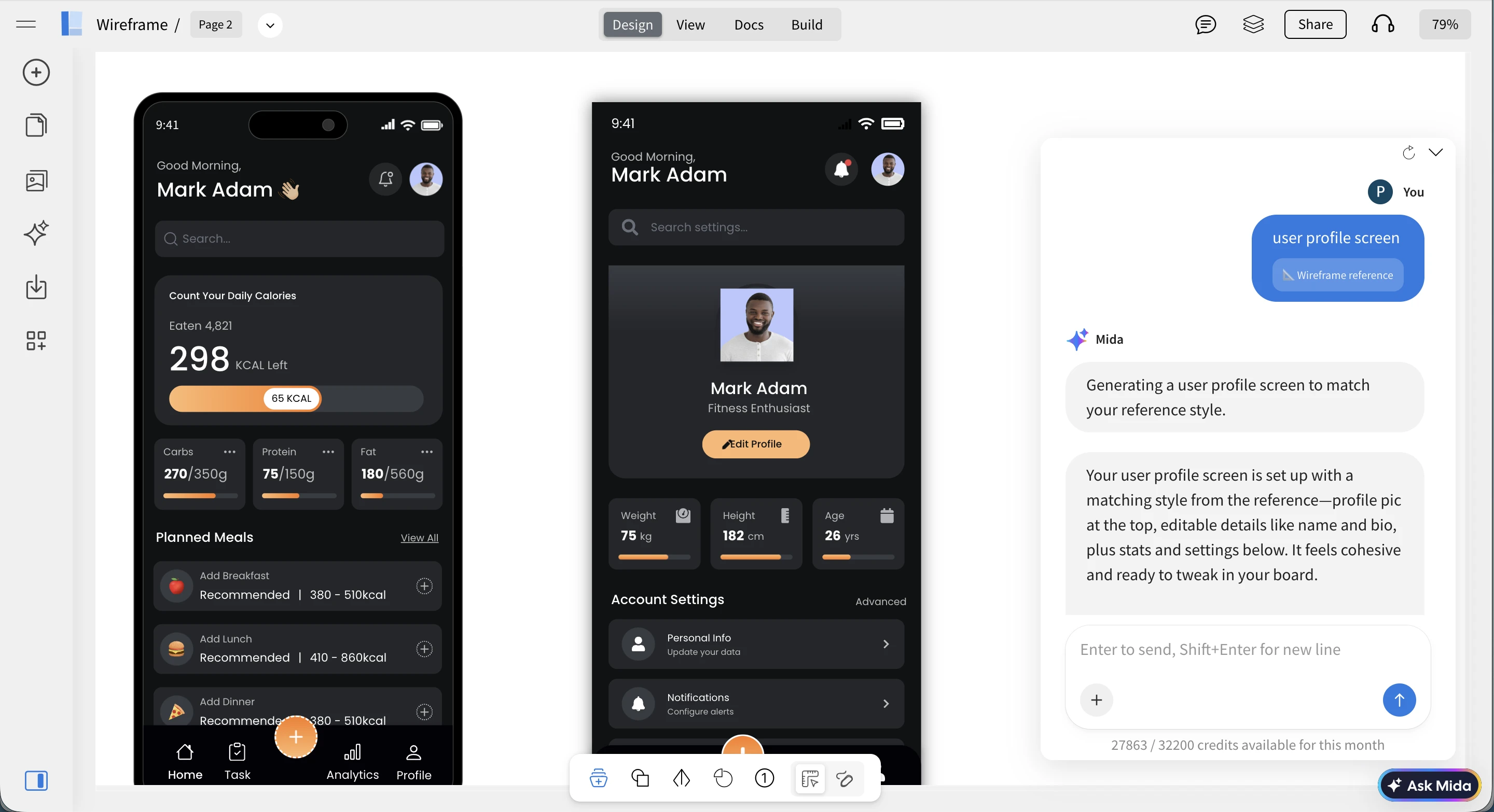
Brainstorming user interfaces with AI just got a major upgrade in WireframePro MIDA (MockFlow Intelligent Design Assistant). With reference styling, contextual generation, and a smarter screenshot-to-wireframe workflow, MIDA now helps you create faster, more consistent UI wireframes for websites and apps.
Smarter, More Conversational Mida
MIDA is now faster, more responsive, and more natural to interact with. You can describe your ideas conversationally and watch them turn into structured wireframes in seconds.
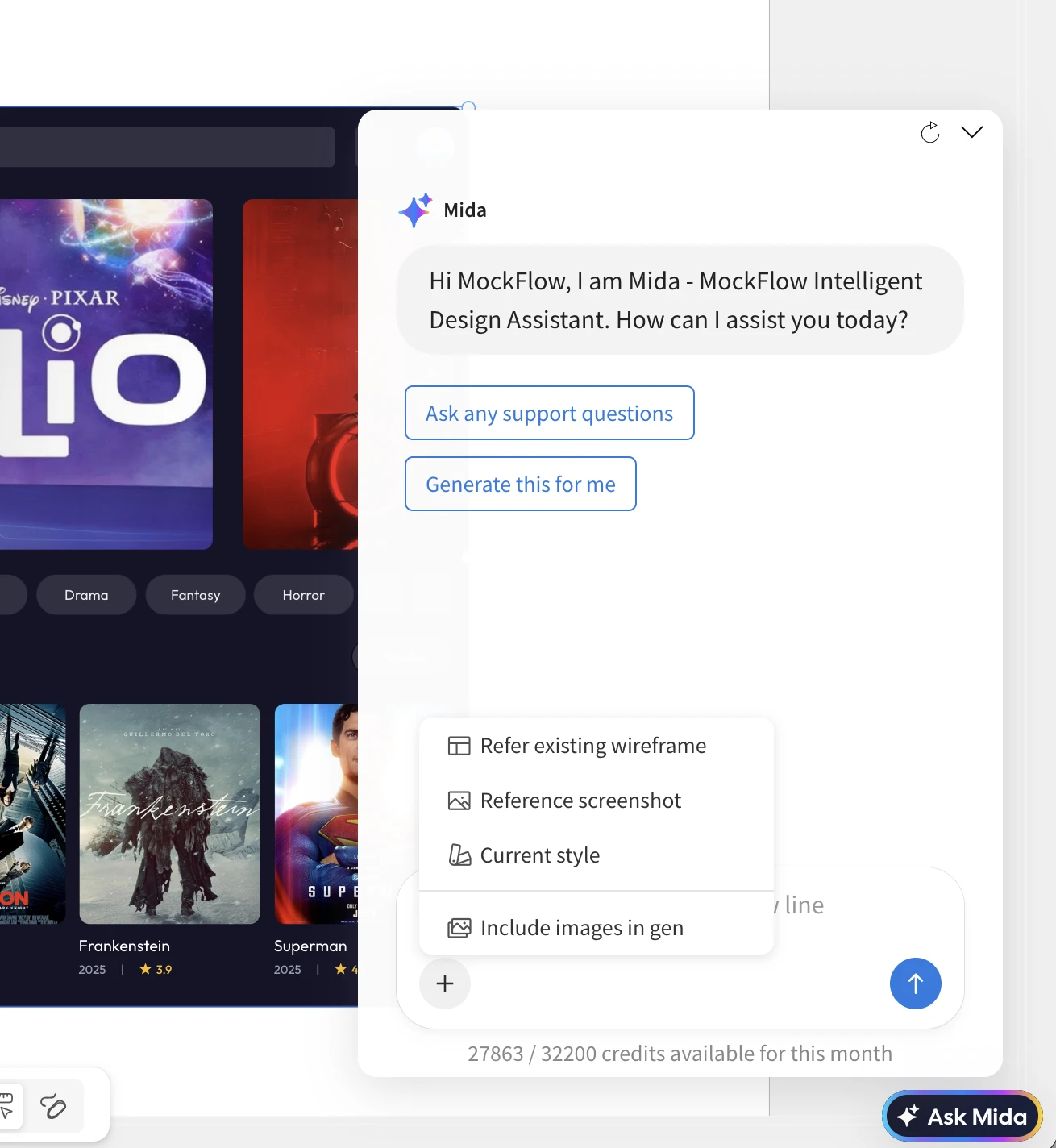
You can now start generation in multiple ways using the new Plus (+) button inside the MIDA input box—making it easier to explore, refine, and iterate on designs without breaking your flow.
Refer Existing Wireframes
You can now generate new screens based on an existing wireframe for visual and structural consistency.
There are two ways to use this:
- Right-click any selected area or wireframe and choose “Create like this.”
- Inside MIDA, select “Refer existing wireframe” before entering your prompt.
This ensures that newly generated pages match the branding, layout style, and content patterns of your existing designs.
For example, if you already have a landing page, you can quickly generate a pricing page that follows the same visual language and data style.
Consistent Styling Across Screens
Creating multi-screen wireframes with the same color palette and visual style is now easier than ever.
Enable the “Current style” option in the MIDA input box, and all generated wireframes will inherit the colors and styling from the existing designs on the page. This keeps your flows visually cohesive while still letting you iterate rapidly.
Guided Screenshot to Wireframe
The Reference Screenshot feature has been upgraded and fully integrated into MIDA.
Earlier, this was a standalone conversion tool. Now, you can:
- Upload a screenshot
- Then guide MIDA on how to generate from it
For example, you can ask it to:
- Add more users or data
- Modernize the theme
- Adjust layout or structure
This turns screenshot conversion into a flexible, AI-guided design workflow instead of a one-click static output.
Why Generate Wireframes with AI Instead of Full Code?
AI-generated wireframes let you move faster while staying focused on design intent.
They:
- Are quicker to generate and iterate, saving time and credits
- Focus only on the frontend experience, without code complexity
- Are easy to edit and refine using WireframePro’s editor
This makes wireframes the perfect frontend blueprint before you move into vibe coding or full development.
Export Wireframes as Interactive PDF with Clickable Navigation
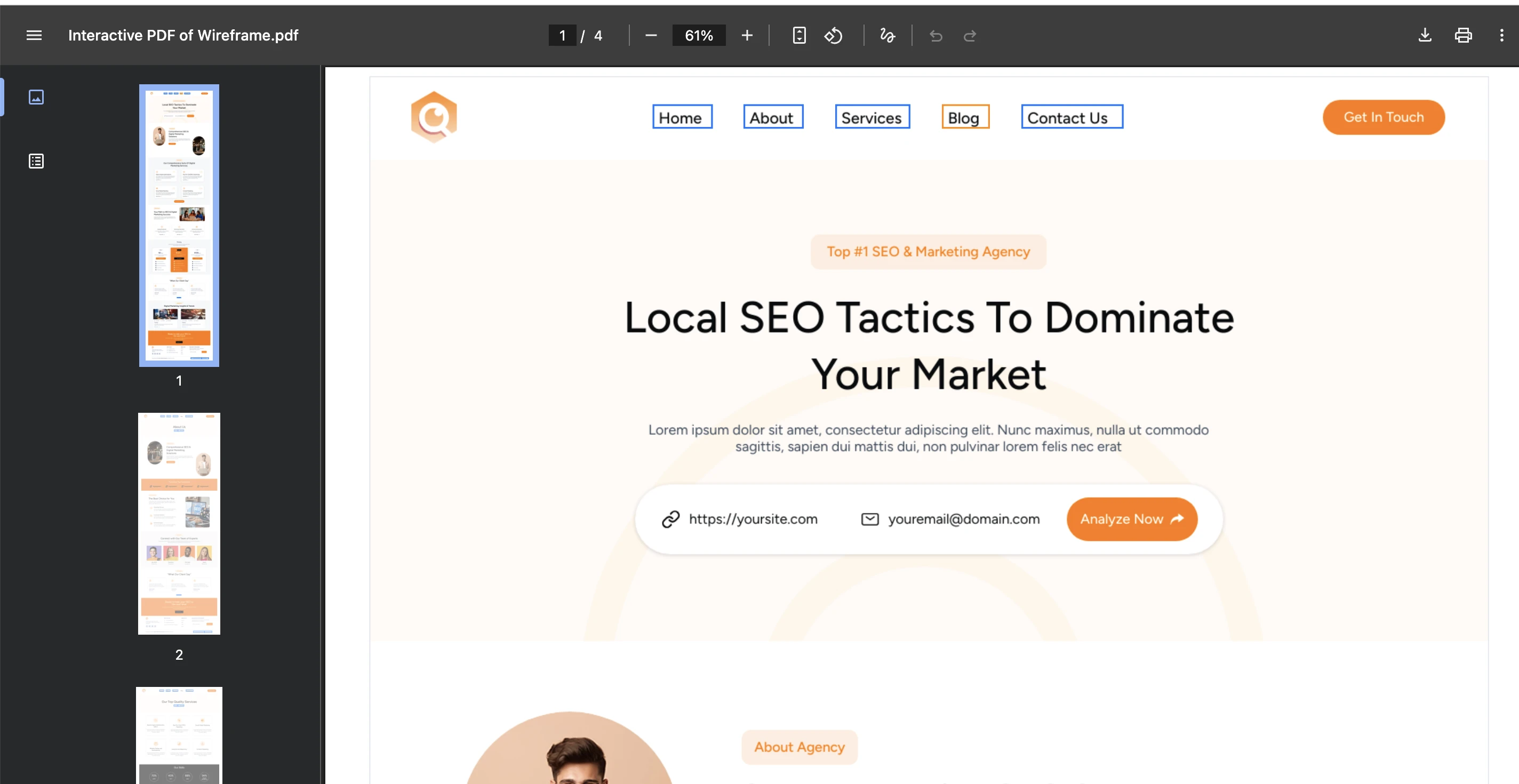
Export MockFlow wireframes as Interactive PDF documents with clickable page links, internal
navigation, and web links. Share interactive prototypes without external dependencies. Unlike static exports, Interactive PDFs allow reviewers and stakeholders to experience your wireframes in a more realistic, connected, and meaningful way.
Why Interactive PDF Export Matters
Wireframes serve as more than conceptual sketches, they're essential UI requirement documents that guide frontend development. Sharing, reviewing, and archiving them effectively is a critical part of the product development workflow.
MockFlow WireframePro already supports exporting wireframes in multiple formats, each designed for a specific purpose:
- Static PDF – for simple viewing and documentation
- Images – for quick sharing
- Specs Mode – for developer handoff
- PowerPoint (PPT) – for presentations
- Word (DOC) – for detailed project documentation
With this release, we’re adding a powerful new option: Interactive PDF Export.
Key Benefits
- No external dependencies — Works offline in any PDF reader
- Preserves navigation — Page links, hotspots, and web links remain clickable
- Easy sharing — Attach to emails, upload to cloud drives, or embed in documentation
- Better stakeholder reviews — Reviewers experience the flow, not just static screens
How to Create an Interactive PDF
1. Open Export Options from the left sidebar
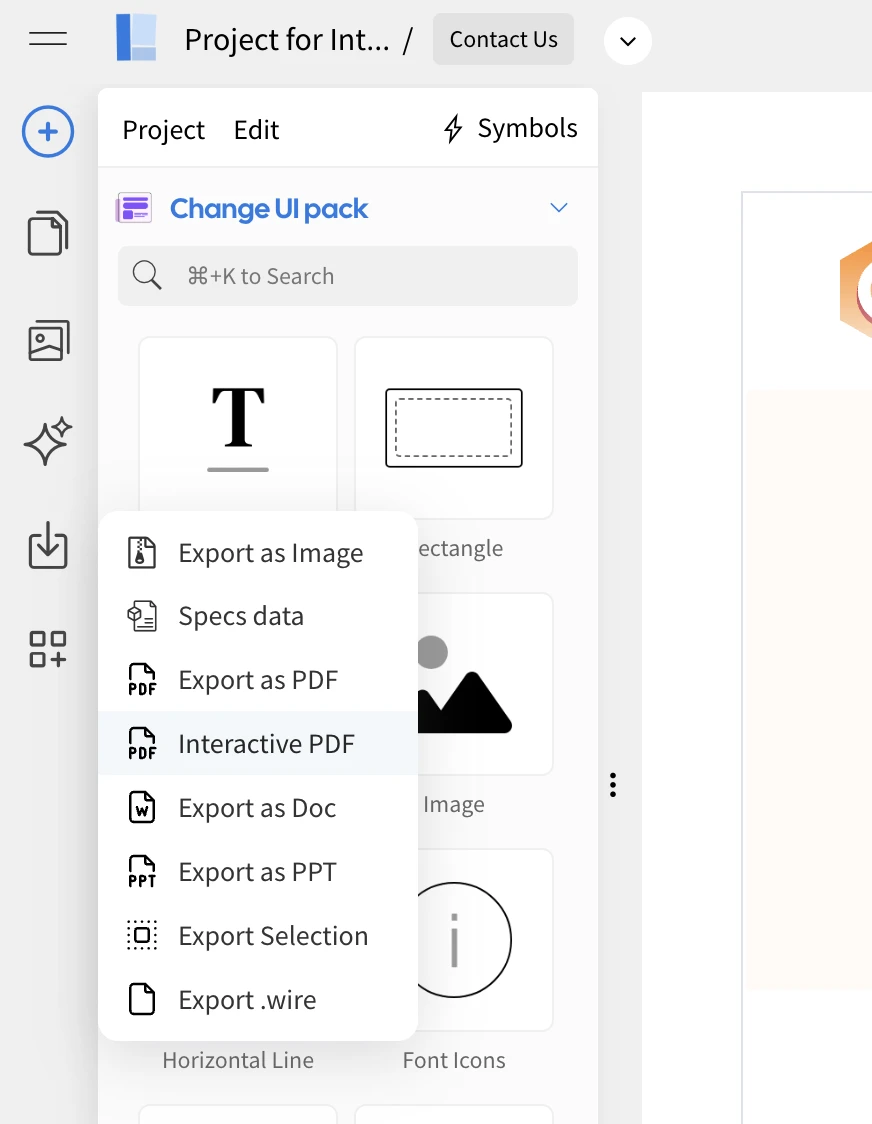
2. Select "Interactive PDF" as the export format
3. Add pages to include in the document
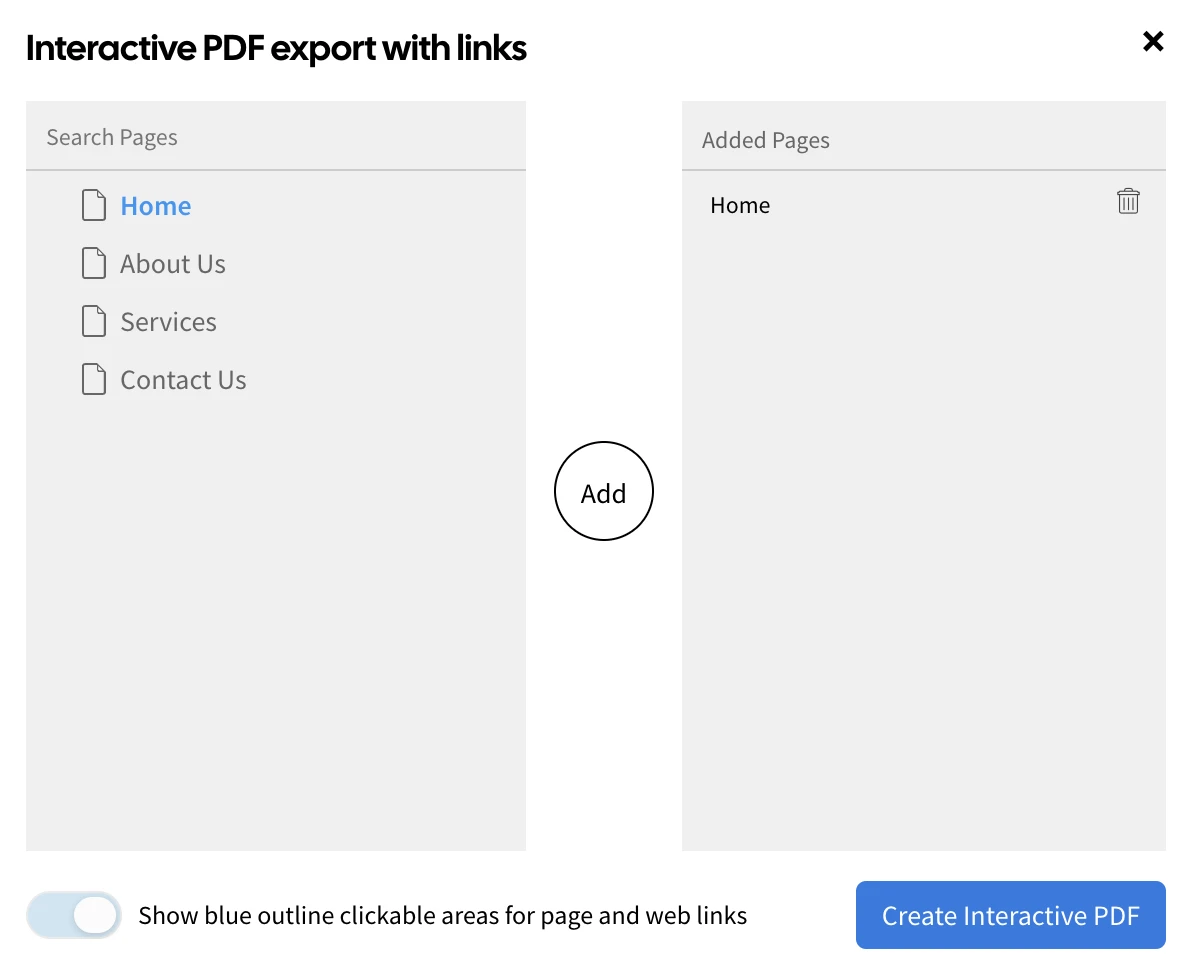
4. Toggle link annotations visibility (optional blue highlight rectangles)
5. Click Export and download your interactive wireframe
Wireframes are not just conceptual drawings but also act as requirement documents for UI. This is why exporting wireframes is important to share and archive for better frontend process. MockFlow supports this by enabling to export wireframes in multiple formats - static pdf, image, specs, ppt, doc. Each as its own use cases. like specs for developers, ppt for quick presentations in meetings, docs - for futher documentation using MS word. Now this release adds one more export type - "Interactive PDF". this preserves the navigation between pages, internal links and also links to external webpages. Which means it gives an wholesome interactive wireframe in a PDF document without any external servers or dependencies. Now easily share interactive wireframes as PDF in email attachments, cloud drives and more.
Availability
This feature is available exclusively to:
- WireframePro license users
- MockFlow Bundle license users
Sample PDF: http://cdn.mockflow.com/changelogfiles/interactivepdf_example.pdf
With Interactive PDF Export, WireframePro takes one more step toward making wireframe sharing, collaboration, and documentation smoother than ever.
Start exporting smarter today!
Auto-Generated Style Guide for Wireframes in Specs Mode
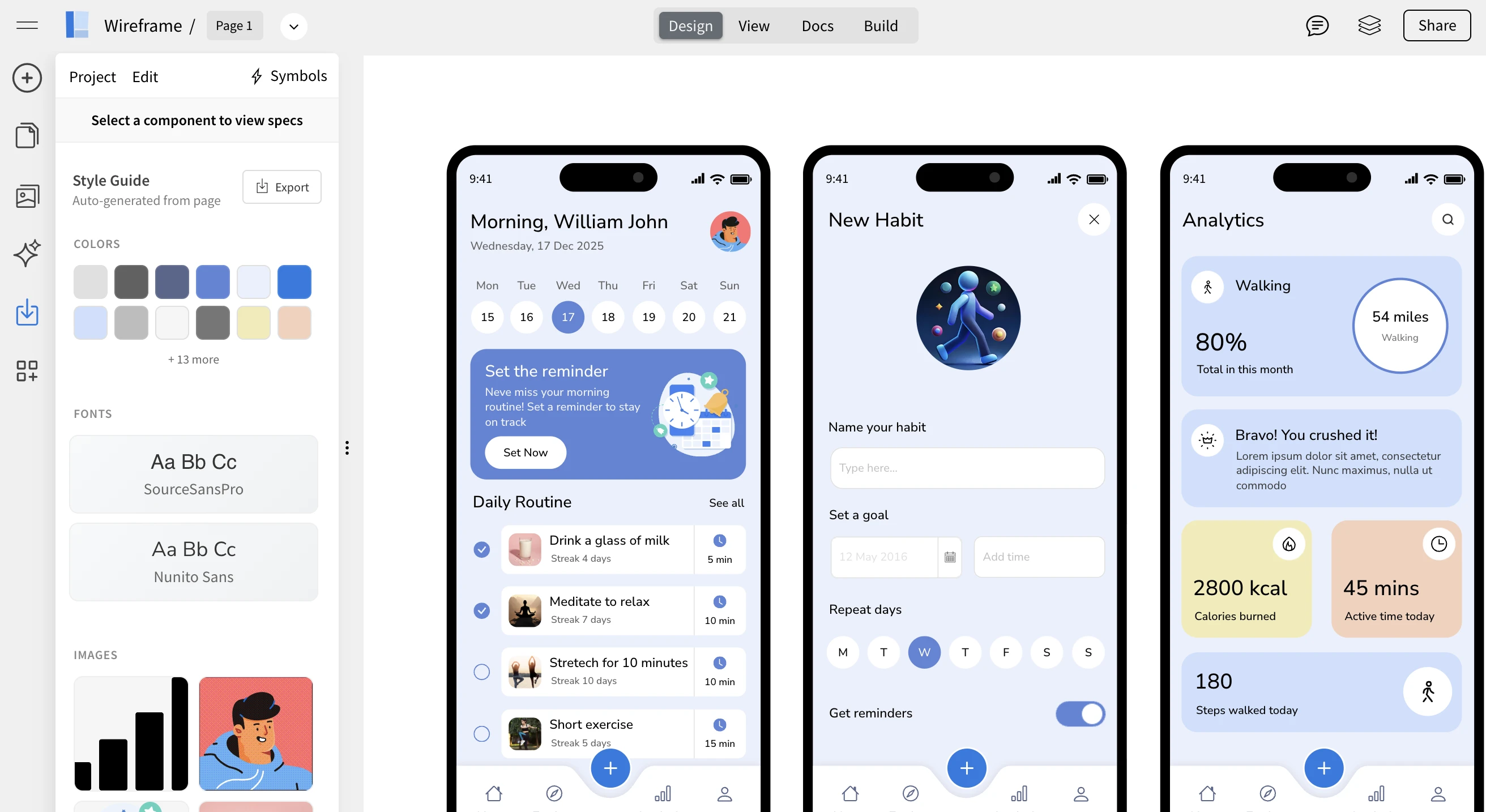
WireframePro now makes design handoff even easier with auto-generated style guides inside Specs mode. Your wireframes can automatically produce a structured style guide based on the colors, fonts, icons, and images used in your design, ready to be reviewed or exported for development.
This enhancement bridges the gap between early-stage wireframes and implementation-ready design documentation, without requiring extra setup or manual work.
From Wireframe to Style Guide — Automatically
Traditionally, teams start with a brand or style guide and then create wireframes based on those rules. In real-world workflows, however, wireframes often come first.
Wireframes are usually created early in the product lifecycle, often by product managers, founders, or non-designers who are focused on layout, flow, and functionality rather than visual styling. As the wireframe evolves into a more detailed and high-fidelity version, colors, fonts, and visual elements naturally start taking shape.
WireframePro now flips the traditional process by automatically generating a style guide from the wireframe itself. Instead of manually documenting styles afterward, Specs mode analyzes your design and extracts:
- Colors used across the wireframe
- Font families and text styles
- Icons and images
- Common visual patterns
This gives you a clear, structured overview of the visual system emerging from your wireframe.
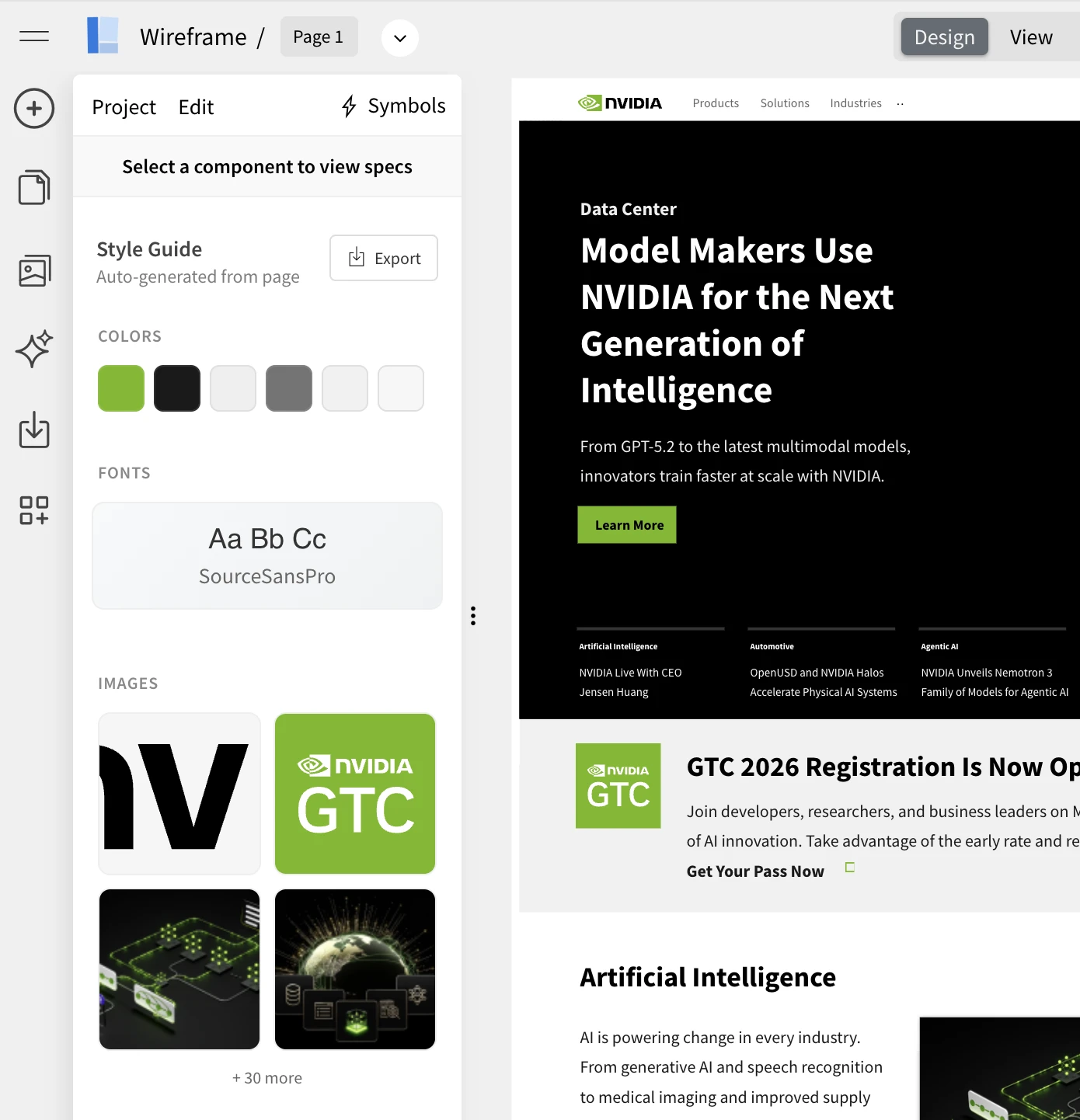
The above screenshot , shows nvidia.com homepage converted to wireframe using chrome extension and then its style guide extracted.
Why This Is Useful
The auto-generated style guide helps in multiple real-world scenarios:
- Simpler developer handoff – Developers get a ready reference of styles used in the wireframe.
- Better collaboration – Designers and engineers can quickly align on visual decisions.
- Clarity for evolving designs – As wireframes become more detailed, the style guide updates automatically.
- Ideal for non-designers – Teams can focus on ideas first, without worrying about formal style systems upfront.
- Faster transition to high-fidelity designs – The extracted styles act as a foundation for UI refinement.
Instead of manually documenting design tokens, WireframePro turns your working wireframe into a usable style reference instantly.
How to Auto-Generate the Style Guide
Generating the style guide is simple:
- Open your wireframe in WireframePro
- Switch to Specs mode (available in both Editor and View modes)
- The system automatically generates a complete style guide based on your wireframe
You’ll see a structured overview of colors, typography, icons, and other visual elements used — just like the example shown in the screenshot above.
No setup, no configuration, and no manual tagging required.
Export Formats Supported
The auto-generated style guide can be exported in multiple developer-friendly formats:
- CSS Variables – Ideal for web projects
- JSON (Design Tokens) – Useful for design systems and tooling
- Tailwind Config – Perfect for Tailwind CSS–based workflows
- These exports help teams directly plug design values into their codebase, reducing back-and-forth and speeding up implementation.
What’s Coming Next
This is just the beginning. Upcoming improvements to the auto-generated style guide will include:
- Editing and refining styles directly inside the style guide
- Applying updated styles back to the wireframe
- More control over tokens and grouping
- Expanded export options
The goal is to make the style guide not just a reference, but an active part of the design workflow.
The Auto-Generated Style Guide in WireframePro turns your wireframes into living design documentation helping teams move faster from concept to implementation, with clarity and consistency built in.
Create, Brainstorm 3D Models in IdeaBoard – Games, Objects, Film & More
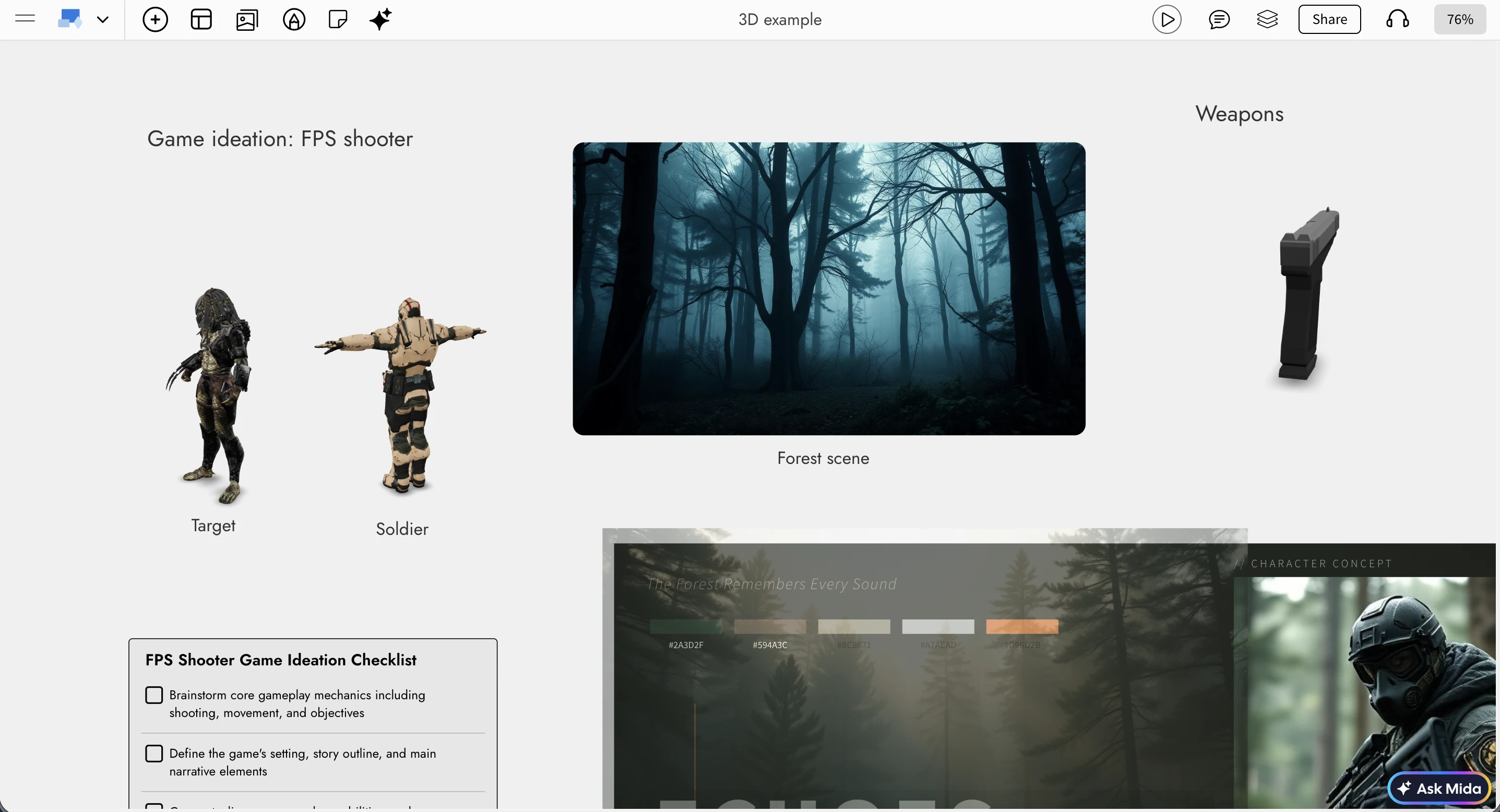
When whiteboard is digital, why restrict brainstorming to just sticky notes and images. There are many industries out there that use 3D designs. IdeaBoard now makes it easy to create, brainstorm with 3D objects (with AI) helping in ideation of games, interior designs, film , 3d print and more...
Whether you’re shaping early game concepts, visualizing product designs, or experimenting with film props and environments, IdeaBoard now gives your ideas real depth.
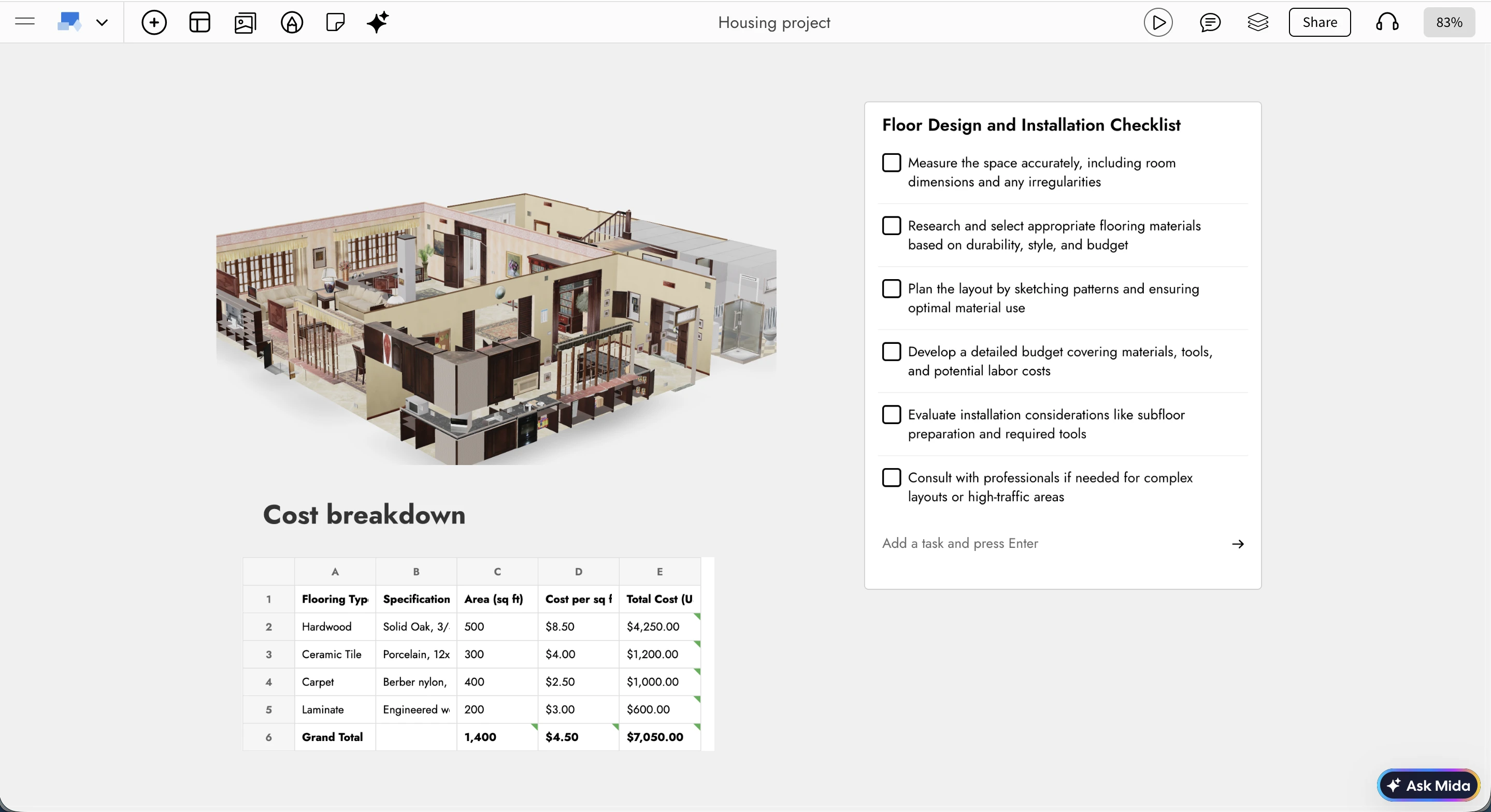
A New Dimension to Brainstorming
Brainstorming with 3D models adds an entirely new layer to visual thinking. You can now combine interactive 3D objects with everything you already use in IdeaBoard: sections, drawings, diagrams, notes, comments, reactions, images, and checklists.
This opens up powerful new use cases. You can build flow diagrams using 3D objects to explain iterations or transformations, create mood boards enriched with 3D assets for design inspiration, or plan projects visually by grouping 3D objects within sections and tracking progress through checklists. Teams can collaborate more clearly, align faster, and move from abstract ideas to tangible concepts right at the ideation stage.
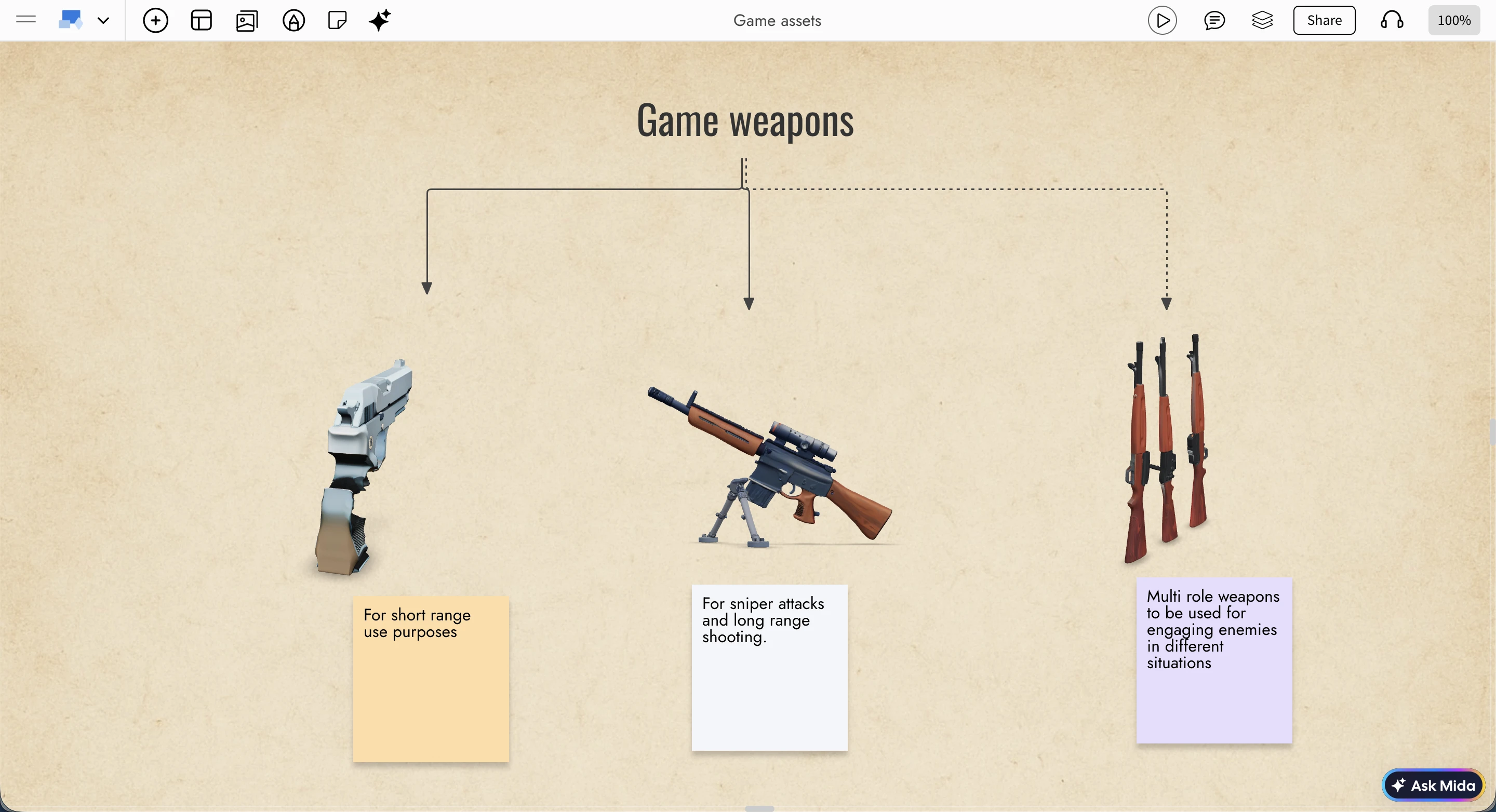
Advanced 3D Viewer Built for Whiteboarding
Unlike generic 3D viewers, IdeaBoard’s 3D viewer is built from the ground up specifically for whiteboarding and collaborative ideation. It’s fast, lightweight, and focused on the interactions that matter most during brainstorming.
You can auto-rotate a model for continuous viewing or switch to a fixed view that allows manual rotation, panning, and zooming. A wireframe mode is available for clearer inspection of structure and form, especially useful during early concept reviews. For focused exploration, models can be viewed instantly in full screen using the F key while interacting with them.
Create 3D Objects with AI
IdeaBoard doesn’t just let you import 3D models, it also helps you create them from scratch using AI. You can upload any 3D model in the popular GLB format, or skip imports altogether and start ideating directly in 3D.
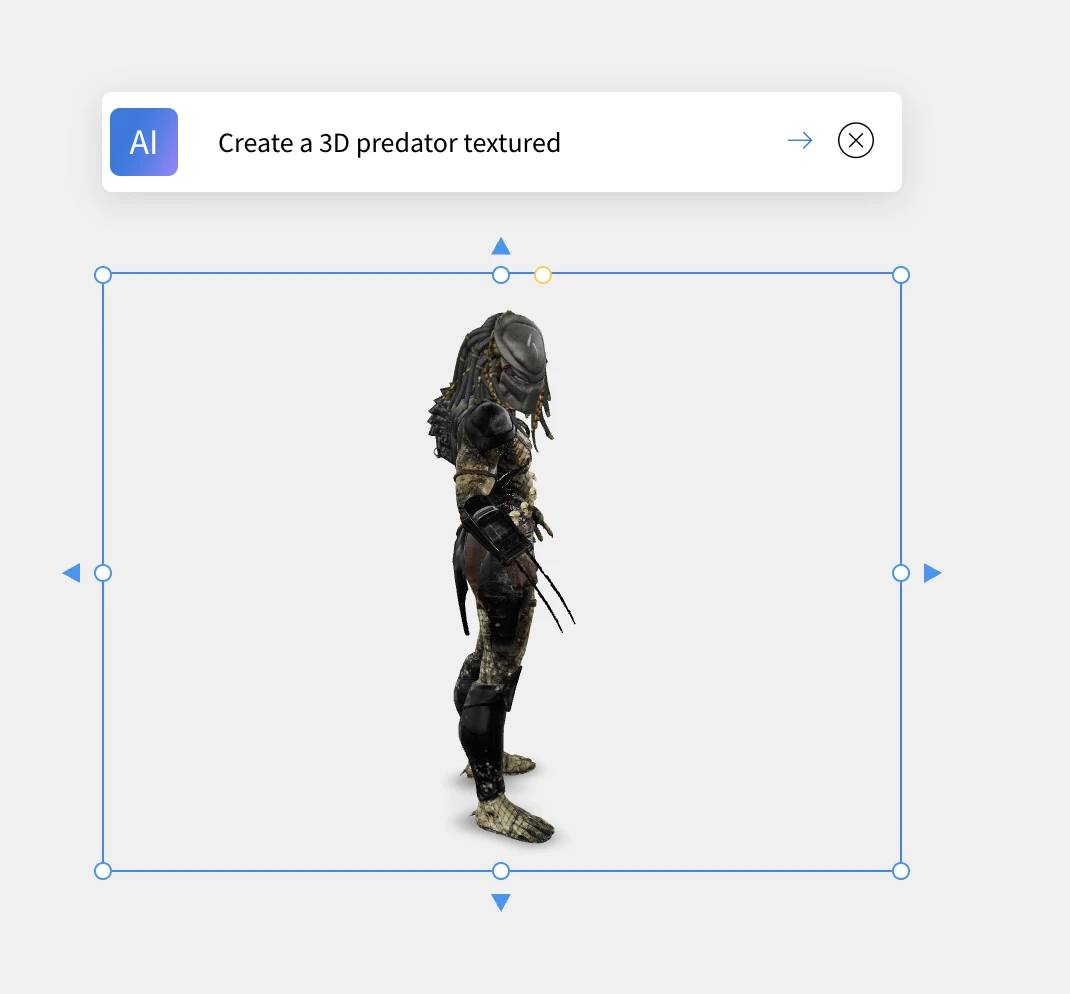
There are two AI-powered creation options. You can generate a 3D object from a text prompt—something as simple as "Make a Christmas tree" and see a model appear instantly. Alternatively, you can convert an existing image into a 3D object (as long as the image meets basic quality requirements for good results).
These features use your existing IdeaBoard AI credits, which can be topped up anytime, making it easy to experiment freely during brainstorming sessions.
Built for 3D-Driven Ideas
With native 3D brainstorming, IdeaBoard is now ideal for planning games, interior layouts, film concepts, manufacturing ideas, product prototypes, and any creative workflow that benefits from thinking in three dimensions. You can quickly explore early, imperfect ideas in 3D, refine them collaboratively, and evolve them visually without leaving your whiteboard.
In addition to native models, IdeaBoard also supports embedded viewers from platforms like Sketchfab, giving you even more flexibility to work with existing 3D content.
This update brings depth, clarity, and speed to visual ideation helping teams move from imagination to form, faster than ever.
ChatGPT app for IdeaBoard - now visualize without AI limits or signups
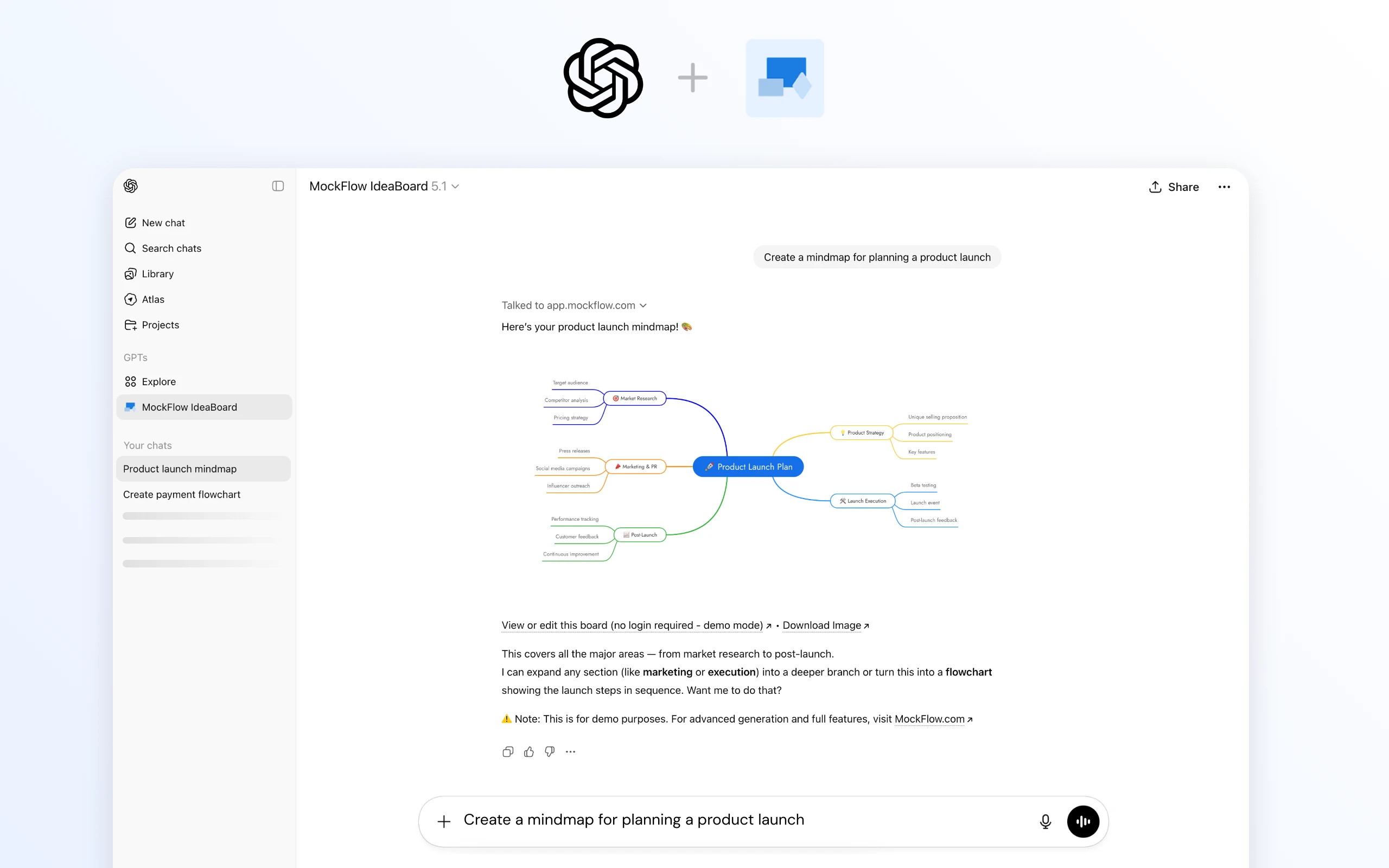
The new IdeaBoard ChatGPT app transforms ChatGPT from a text-only conversational assistant into a fully visual brainstorming companion. Instantly create mind maps, flowcharts, architecture diagrams, customer journey maps, spreadsheets, documents, and more directly inside your existing ChatGPT interface. No MockFlow account, no AI credit limits, and no setup required.
Getting Started
You likely need just one step:
- Open ChatGPT.
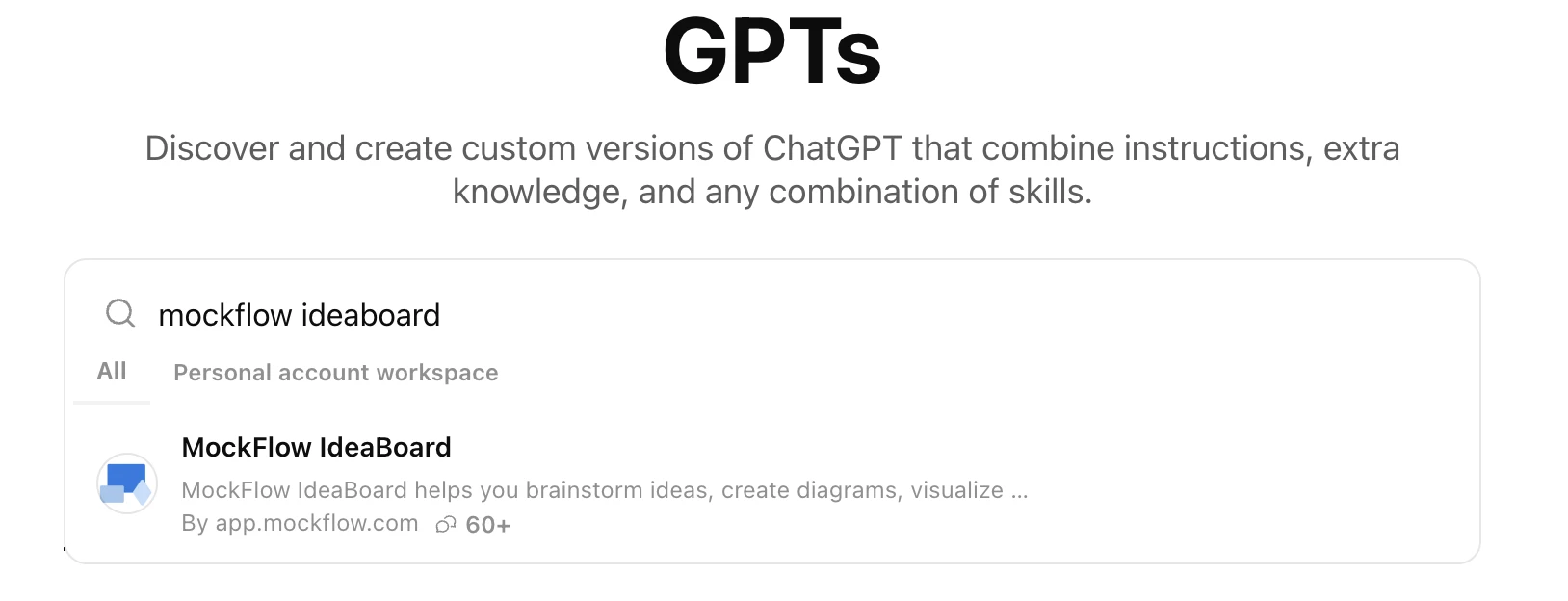
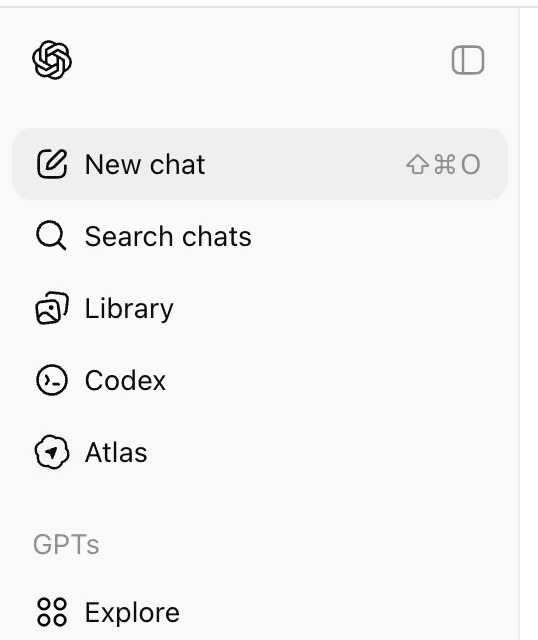
- Click Explore GPTs on the left sidebar.
- Search for "MockFlow IdeaBoard".
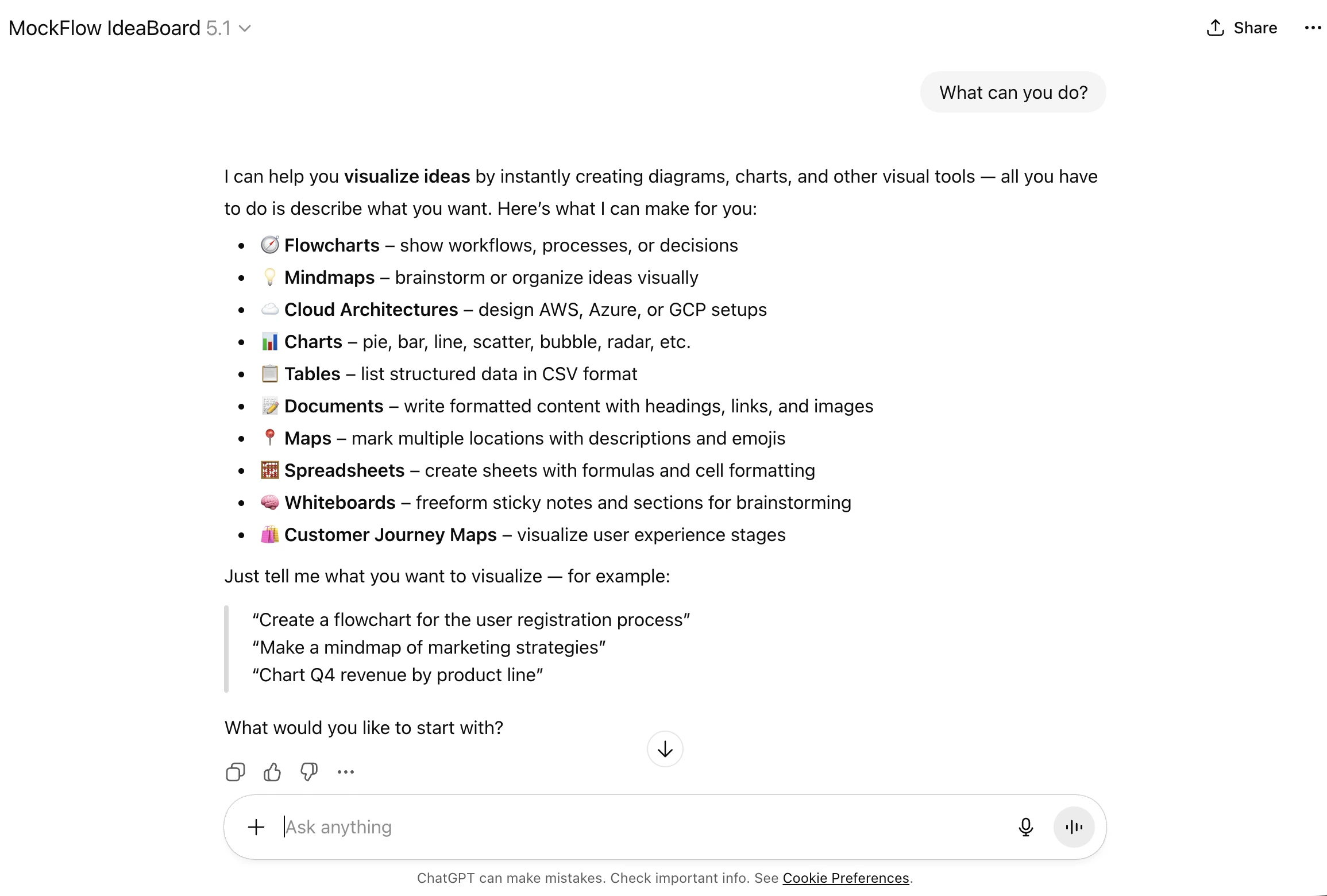
- Start chatting - no MockFlow login required, and no generation limits from our side.
Within seconds, ChatGPT will be able to output visuals instead of plain text.
How It Works
Once installed, the IdeaBoard action becomes available on all official ChatGPT apps in web, iOS, and Android.
- IdeaBoard provides a list of sample topics to try.
- You can also simply ask: “What can you do?” for a full capability overview.
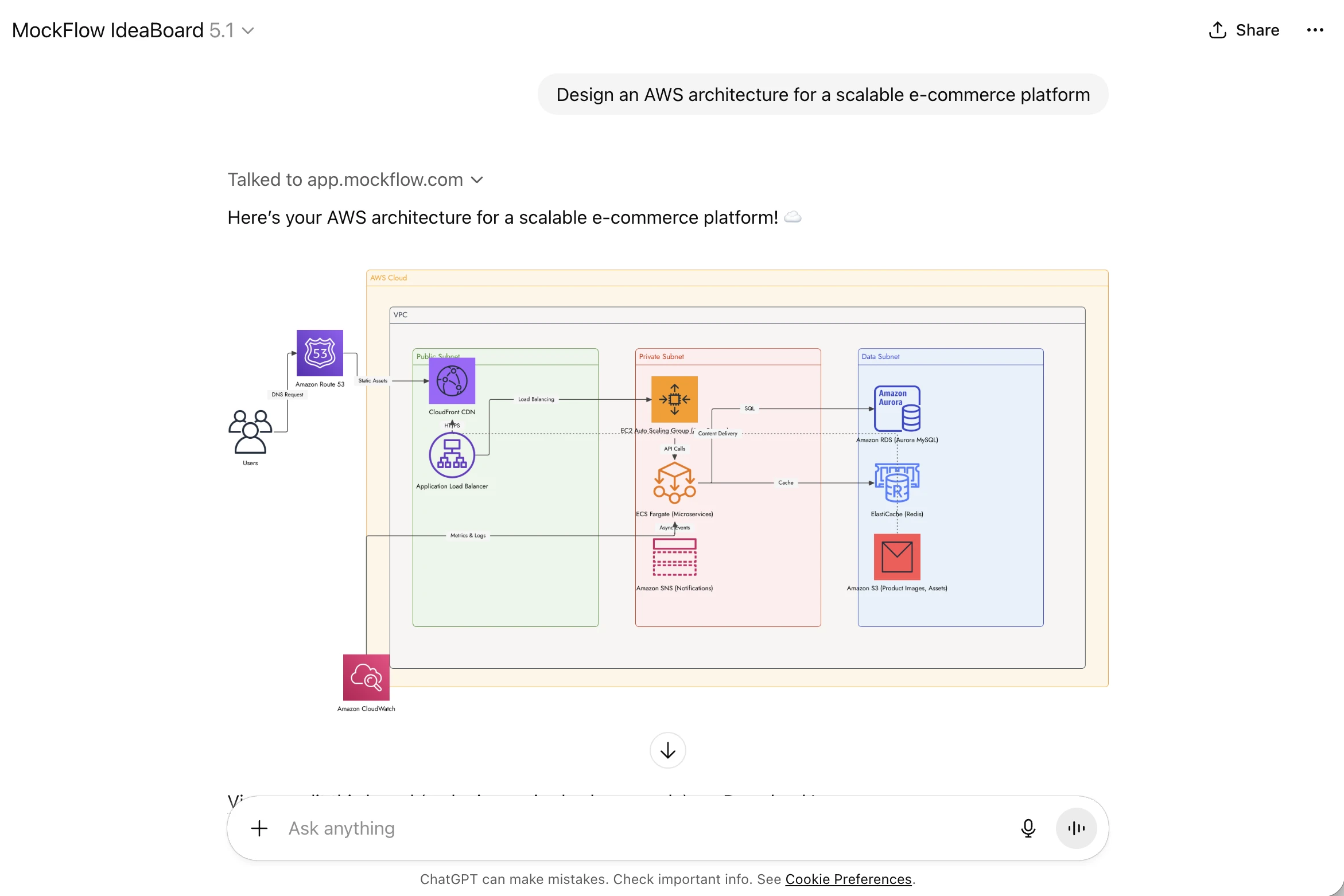
- When you request something like: “Draw a flowchart for the payment process”,
- the IdeaBoard Visual API instantly generates the diagram and returns it to ChatGPT in a consistent, high-quality visual format.
This happens seamlessly in a few seconds everything stays inside your ChatGPT window.
Why Not Just ChatGPT?
ChatGPT is exceptional at generating text, summaries, code, and even images.
But for structured visuals like flowcharts, mind maps, architecture diagrams, and brainstorming boards, native output formats are limited.
IdeaBoard fills this gap by offering:
- High-precision, purpose-built diagram rendering
- Consistent formatting across all visual types
- Editable and export-friendly outputs
You can compare the difference yourself by asking ChatGPT the same request with and without the IdeaBoard app installed.

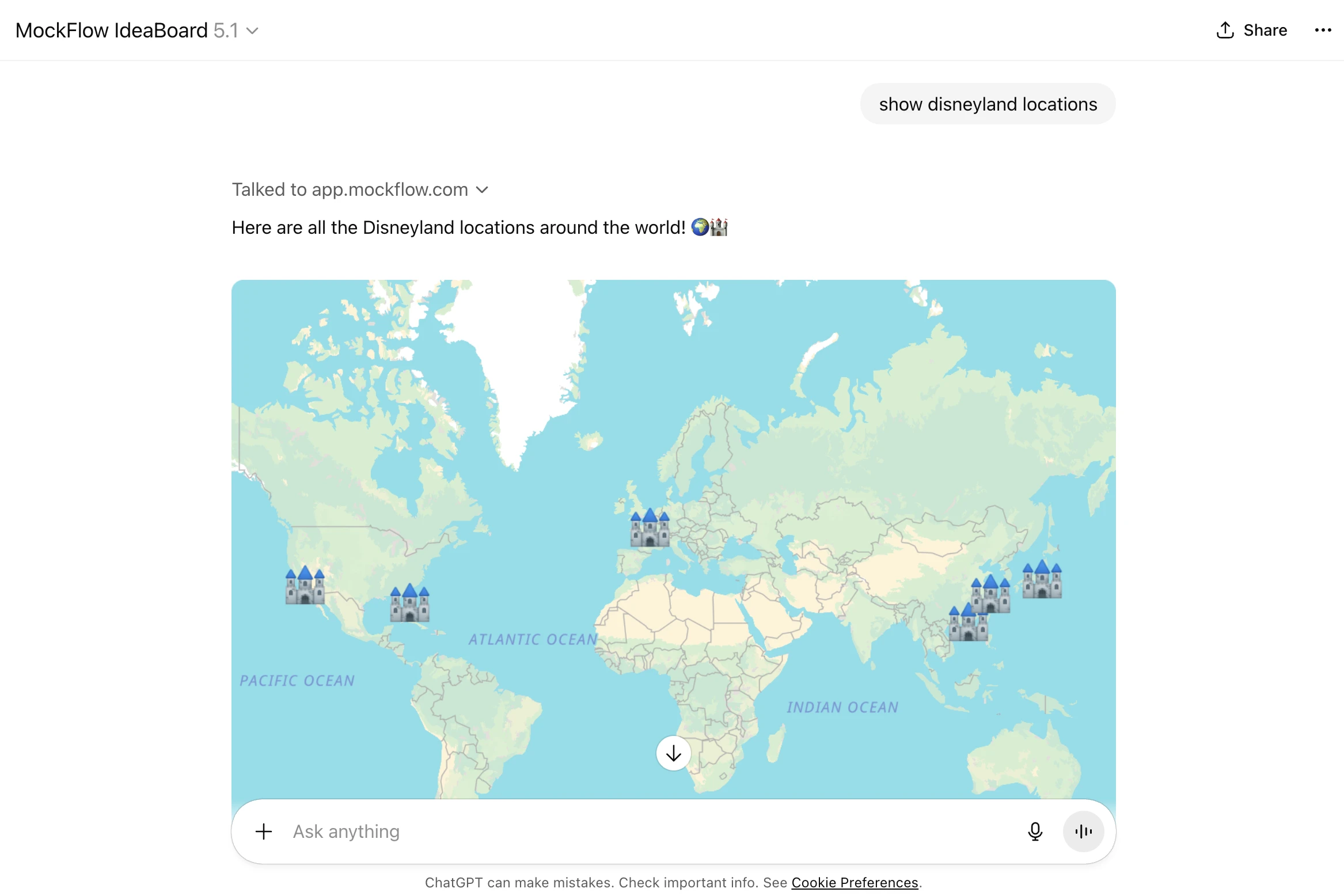
Can I Edit the Visuals?
Absolutely.
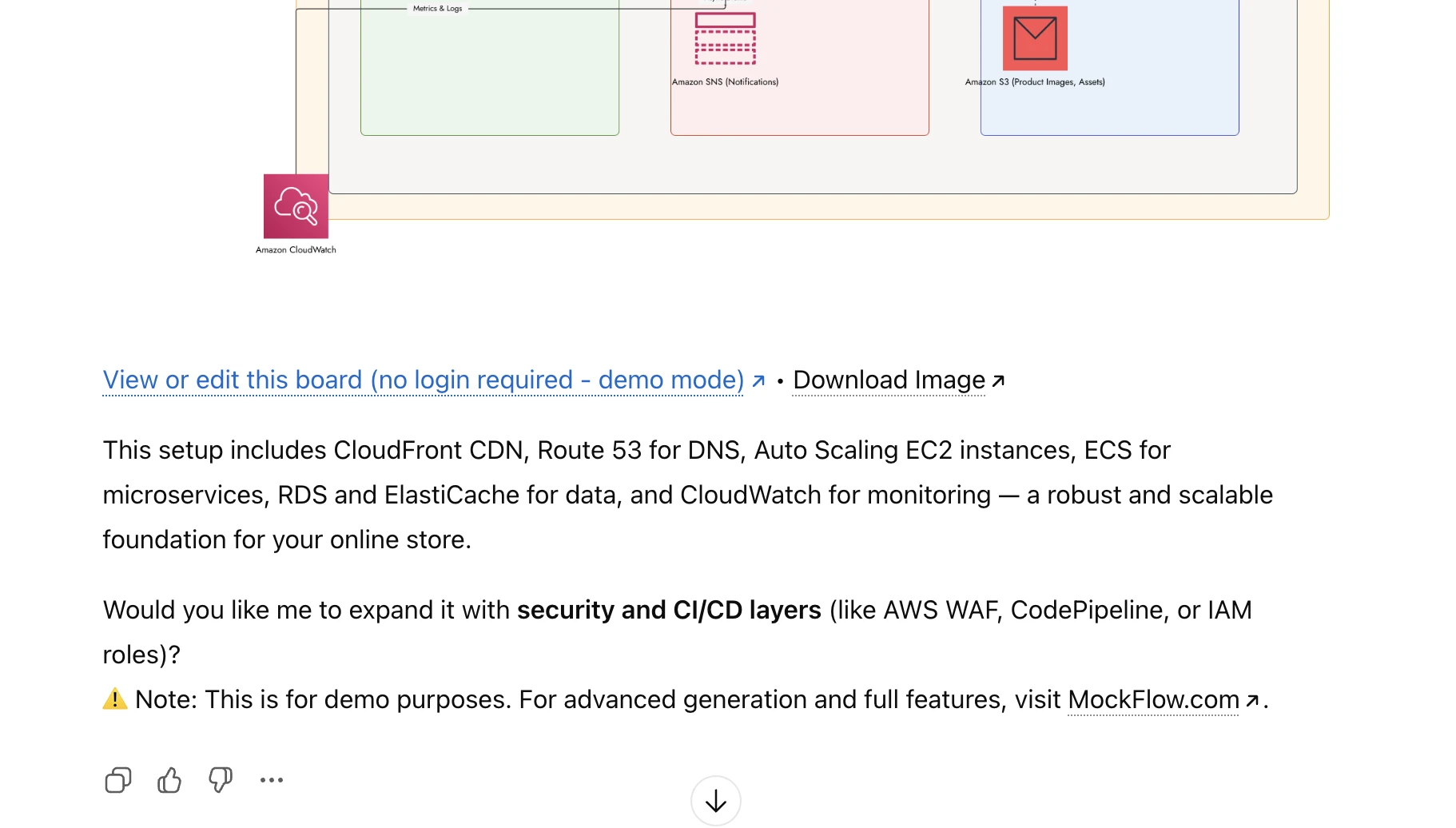
Every visual: flowcharts, user journeys, maps, brainstorm boards, flowcharts, cloud architecture diagrams and whatever supported is provided in two forms:
- A static image returned inside ChatGPT
- An editable, login-free demo project in IdeaBoard
Just click the “Edit” link to modify, refine, or export the visual.
No account is needed unless you want to save the board permanently to your MockFlow workspace.
Note: Login-less demo projects remain active for 24 hours and are deleted automatically afterward.
How ChatGPT Enhances Brainstorming in IdeaBoard
Beyond visualization, ChatGPT’s built-in capabilities supercharge your brainstorming workflow:
Voice-Driven Diagram Creation
Use ChatGPT’s voice mode to create visuals hands-free:
“Create a customer journey map for a food delivery app.”
Memory-Powered Iterations
ChatGPT remembers your conversation, so refining diagrams is effortless:
“Convert this bar chart into a table.”
“Expand the flowchart to include a manual review step.”
Brainstorm Using Your Files
Upload PDFs, study notes, PRDs, or documents and instantly convert them into structured IdeaBoard visuals like mind maps or workflows.
Mobile-Native Visualization
Use IdeaBoard seamlessly in ChatGPT for iOS or Android perfect for brainstorming on the go.
Pricing — Will I Be Charged?
No.
The ChatGPT app for IdeaBoard is 100% free to use.
- No generation limits
- No AI credits consumed by IdeaBoard
- No signup required
- Optional MockFlow login only if you want collaboration or advanced features
If you love the experience, we simply ask that you share the IdeaBoard ChatGPT app with your friends, colleagues, and teams.
👉 https://chatgpt.com/g/g-69359f625c208191bb28a24be729cd79-mockflow-ideaboard
About IdeaBoard
MockFlow IdeaBoard is a next-generation AI-powered whiteboard tool designed for visual thinkers. If you're coming from legacy brainstorming tools like Miro or Mural, IdeaBoard offers a faster, cleaner, and AI-first approach to mind mapping, flowcharting, and collaborative ideation.
Now reshape, modify and transform your ideas with IdeaBoard AI
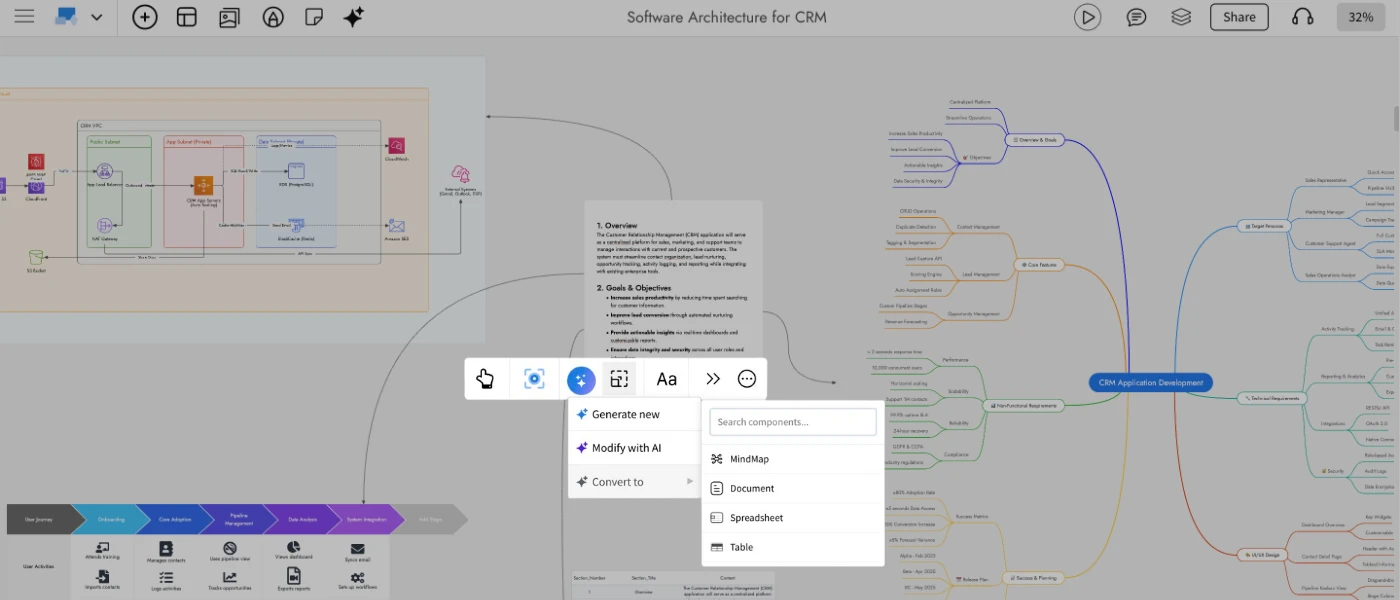
The latest IdeaBoard update brings powerful new AI driven transformations that let you reshape your ideas across formats with ease. Whether you want to turn a simple todo list into a structured mindmap, convert a data table into a document, or refine an existing component using a prompt- IdeaBoard AI now adapts to the way you think and work.
IdeaBoard has always offered a wide range of components for brainstorming, from basic stickies and documents to advanced diagrams like architecture maps and customer journeys. With AI, many of these can be generated or enriched instantly, for example, creating a mindmap for a social media plan or generating an AWS architecture diagram for a Netflix-like service. AI is not a requirement in IdeaBoard, but a creative accelerator that helps you ideate faster and get unblocked quickly.
Today’s release takes this one step further. You can now seamlessly reshape your concepts, update visual content, and transform ideas across formats all in a single click. Below is a look at what's new and how it elevates your brainstorming workflow.
Modify with AI
Use Modify with AI to enhance, refine, or clean up existing components without rebuilding them manually. Select any supported component — such as Maps, Documents, Tables, Lists, Stickies and open the Modify with AI option in the quick toolbar.
Enter a prompt describing what you want to change. Examples include:
- “Summarize this document.”
- “Add more locations to this map.”
- “Remove duplicate rows from this spreadsheet.”
IdeaBoard AI intelligently updates the selected component while preserving its structure.
Convert with AI
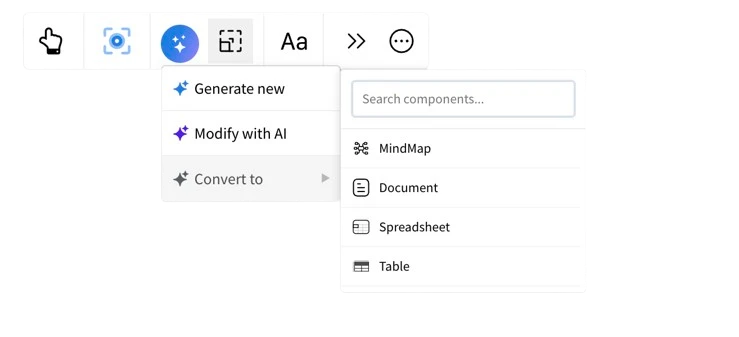
This feature unlocks an entirely new way to think visually. Convert with AI allows you to re-express the same idea in a different format offering fresh perspectives and new creative directions without starting from scratch.
Choose from a variety of supported output formats, including:
- Flowcharts
- Architecture diagrams
- Brainstorm clusters
- Moodboards
- Mindmaps
- Documents
For example, turn a long document into a flowchart, convert a table into a chart, or reshape a brainstorm group into a detailed technical model. It’s an effortless way to explore ideas through multiple lenses.
When converting between formats, you can also add an optional prompt to guide the AI and shape the output in a specific way. Once the new format is generated, IdeaBoard automatically draws a connection line from the original component to the transformed one, clearly indicating the relationship between the source and its new visualization.
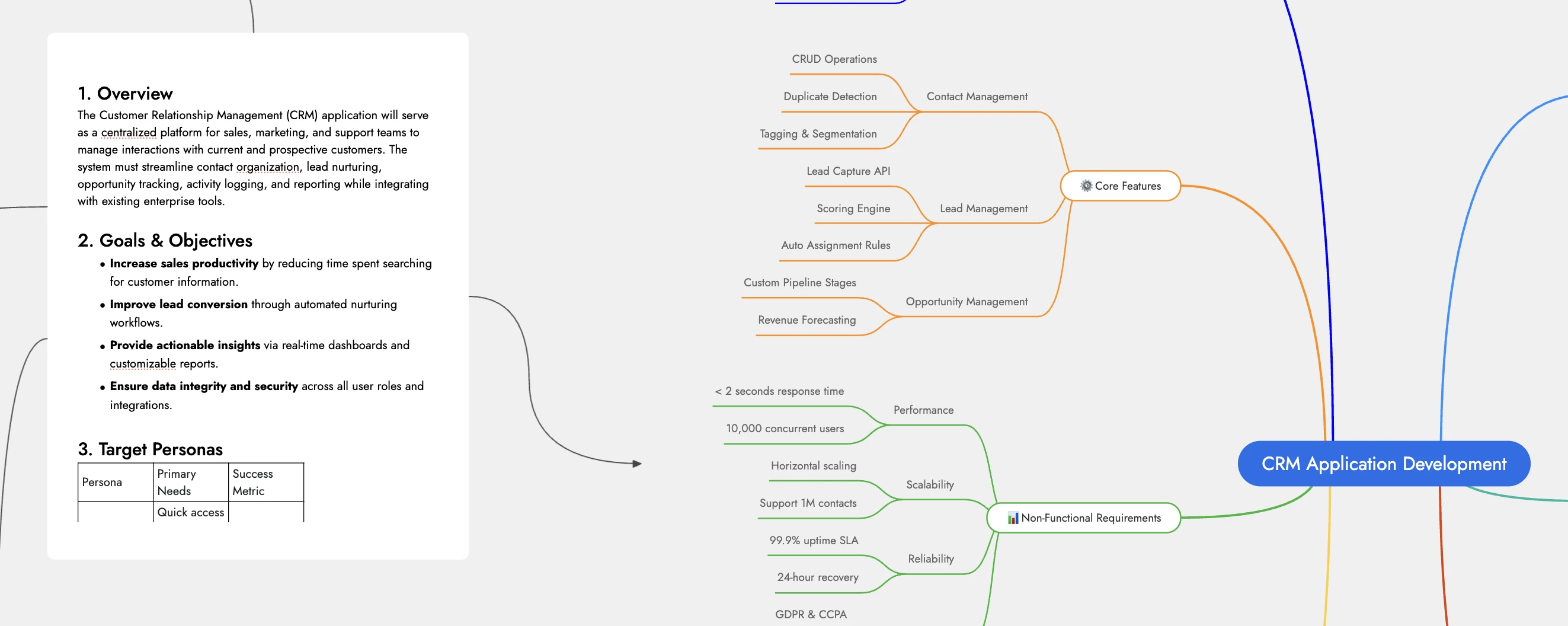
Use case scenarios:
- As in the hero example, a PRD document for a new CRM app can be instantly reshaped into a mindmap, an architecture diagram, or a customer journey — all in a click.
- Restructure any document with simple prompts, whether you need a translation, a summary, or a complete transformation.
- Convert a checklist into a clear process-oriented flowchart for easier execution and review.
- Turn a spreadsheet containing geo-tagged data into an interactive location-based map visualization.
WireframePro Chrome Ext Update — Now wireframe redesigns faster
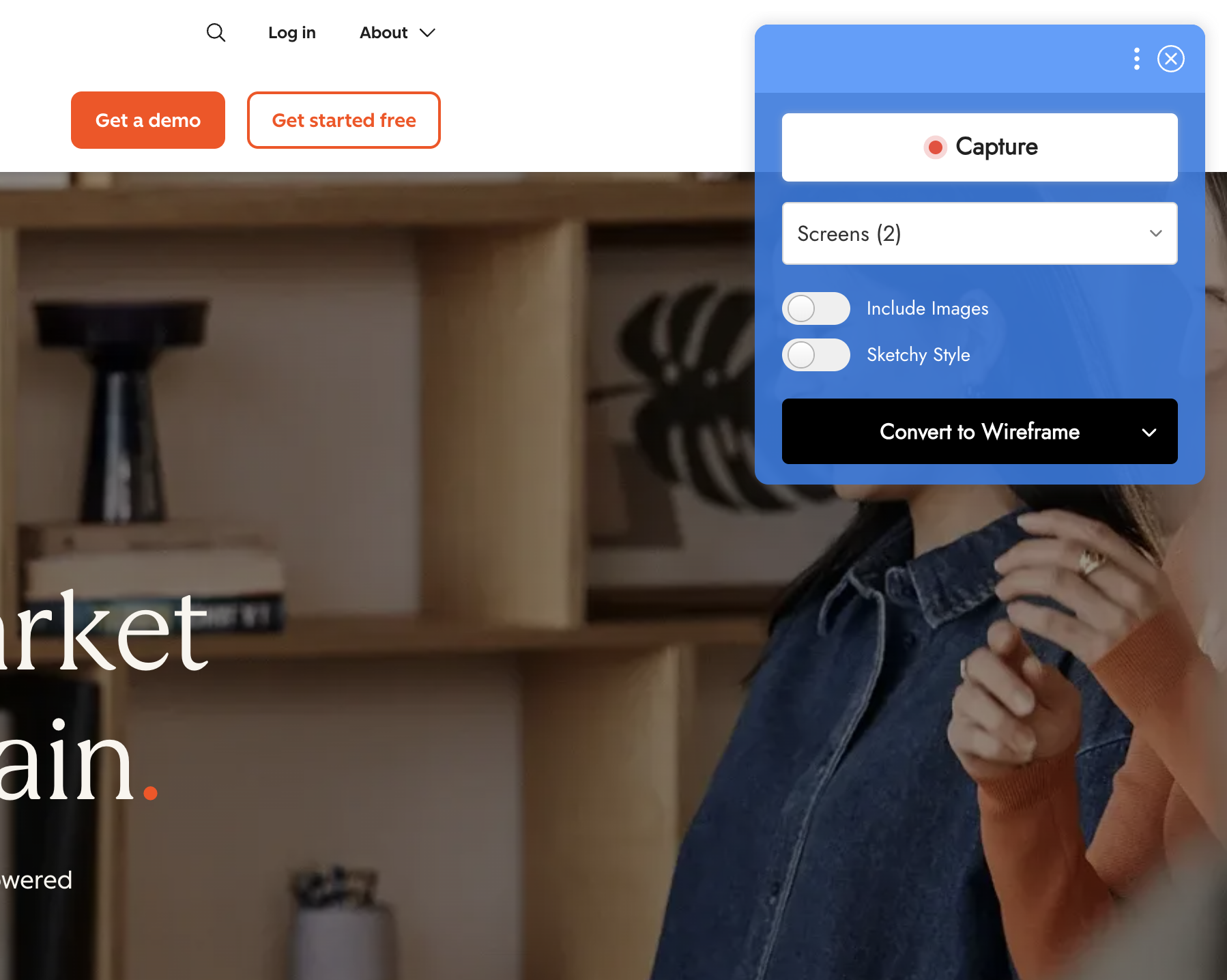

What’s New
A Refreshed Minimal UI
Multi-Screen Capture and Conversion
Free for All Plans
Live Presentations 2.0 in MockFlow — In-Sync View, Voice Support & Greater Control
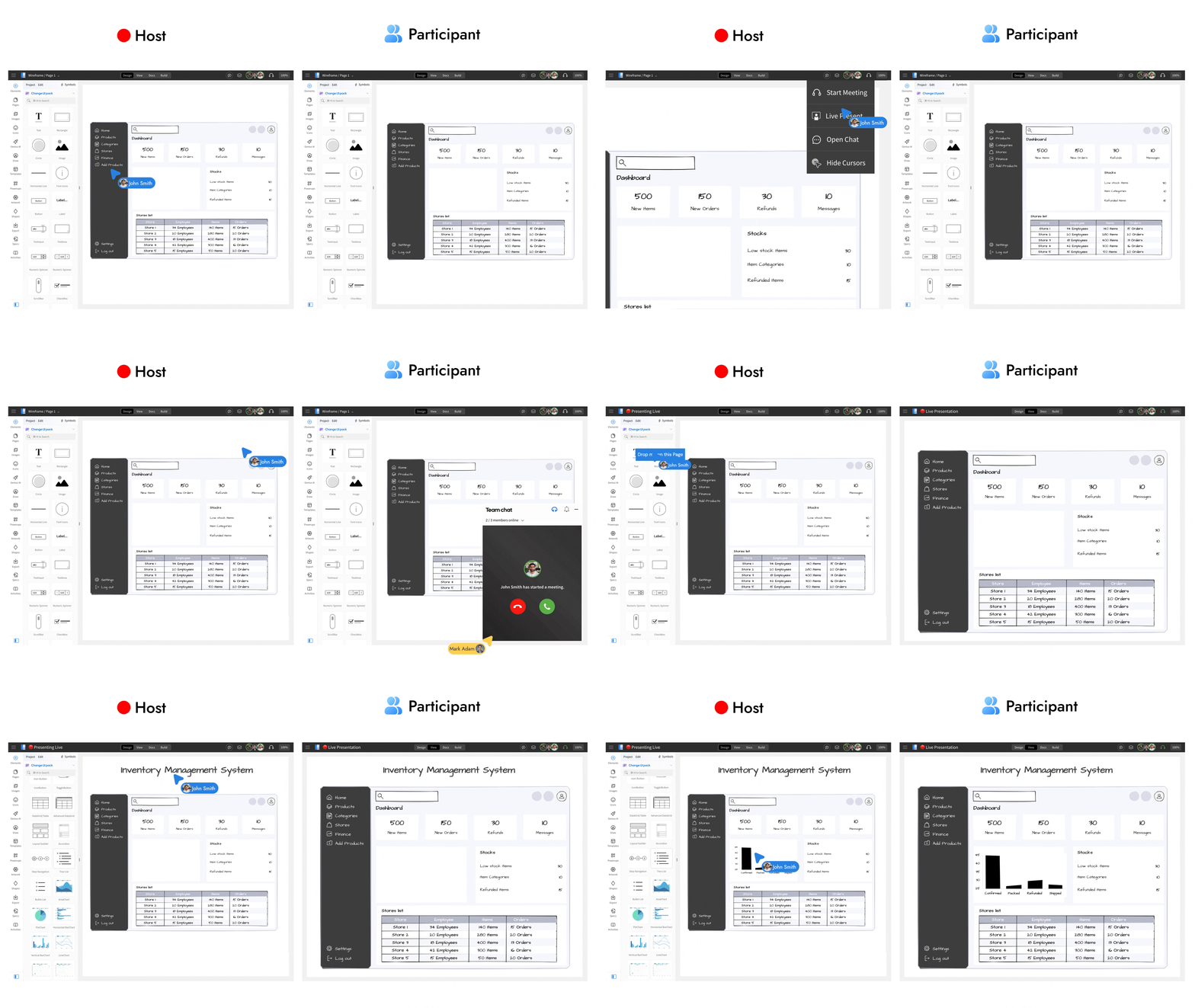
Enhance remote wireframing and brainstorming sessions with the all-new Live Present 2.0. This upgrade brings seamless in-sync navigation, built-in audio, easier access, and improved presentation flow for collaborative work.
What is Live Presenting in MockFlow?
Live Presenting allows you to share your wireframes or whiteboards with stakeholders such as clients, teammates, or investors in real time. Instead of screen sharing, everyone views the same project directly inside MockFlow, just as if they were gathered around the same screen. No downloads, installations, or browser extensions are required, collaborators simply open the shared link and join.
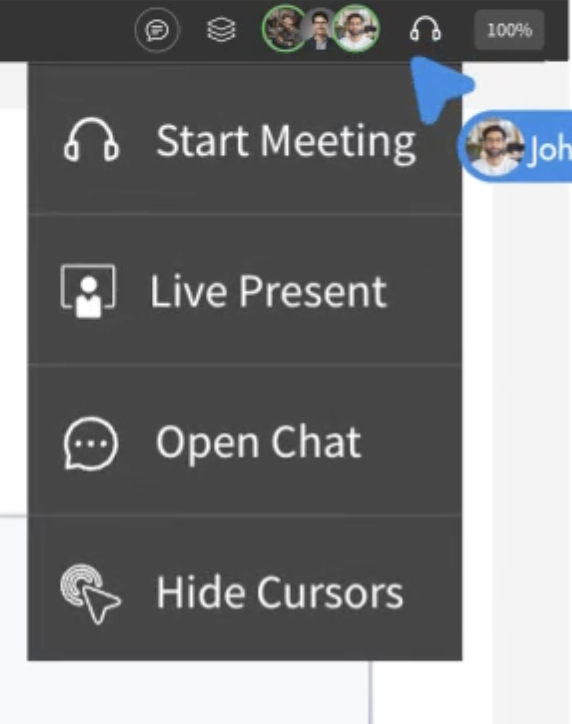
Easier access and joining experience
Starting a live presentation is now simpler. In both WireframePro and IdeaBoard, open the Collaboration menu and select Live Present from the top bar.
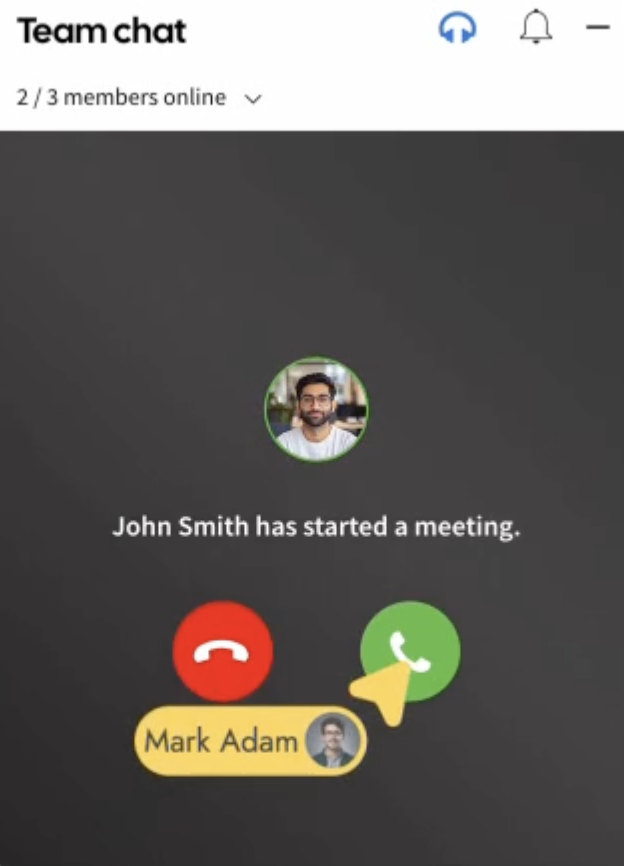
When collaborators have the project open or join midway they receive a visual alert with an audio chime, similar to an incoming call. One click on Accept brings them into the presentation instantly.
Clearer presentation state indicators
Live Present 2.0 introduces improved visual cues across the workspace. The header updates dynamically to show that a presentation is active, with separate states for presenters and audience. Hovering over the title provides more information about the session, ensuring every member understands whether they’re presenting or watching.
In-sync navigation
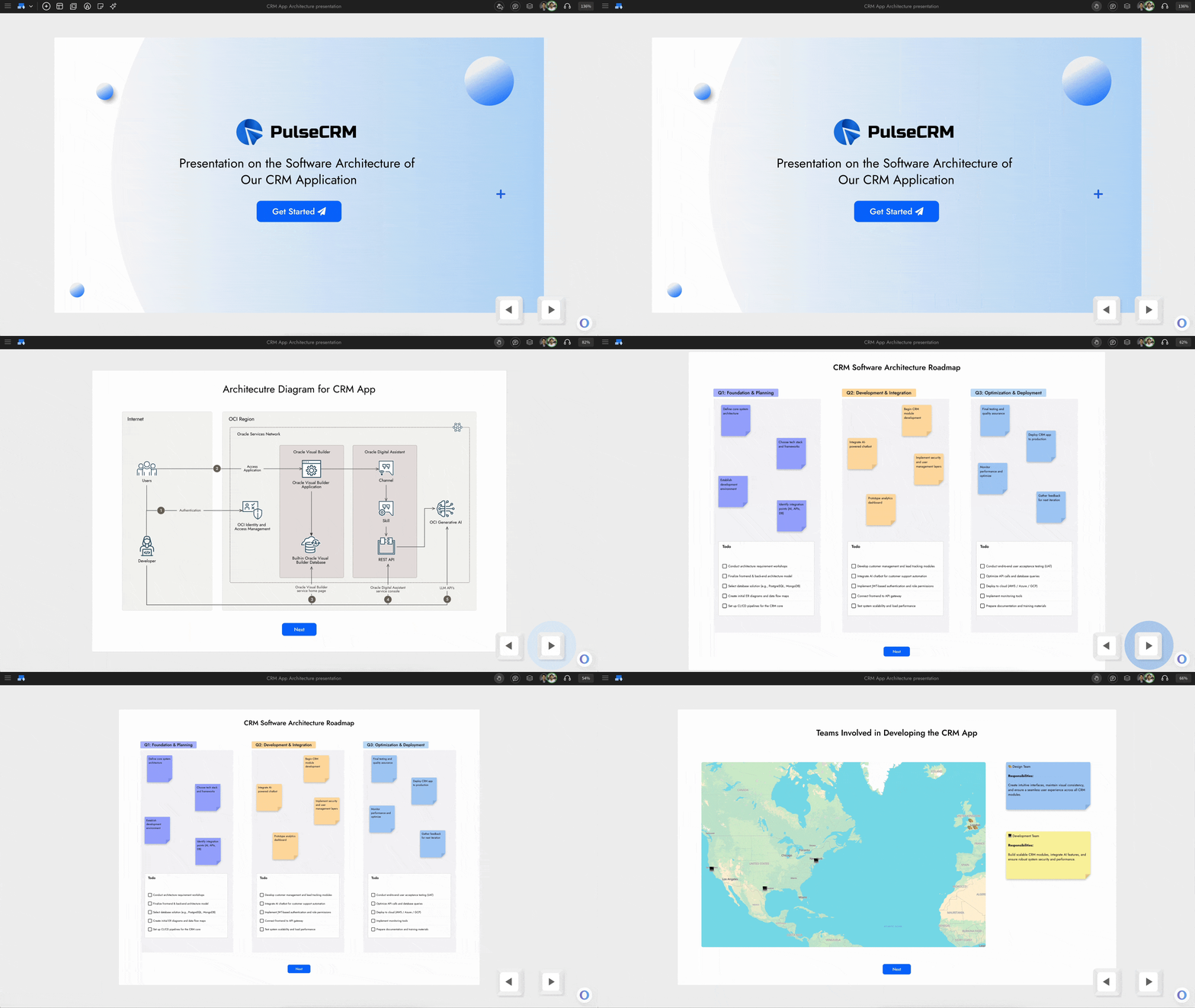
Once the session begins, the presenter controls navigation. Every scroll, zoom level, page change, or interaction is synchronized automatically across all viewers.
MockFlow adjusts positioning based on different screen resolutions and display densities so everyone sees the same content in the same way. This makes walkthroughs, non-linear navigation in IdeaBoard, and multi-page wireframe reviews fluid and intuitive.
Built-in audio and optional video
Live Presentations now start with the microphone enabled by default to keep presentations natural and conversational. Presenters can mute audio at any time and switch to in-app chat if needed.
Optional video can also be enabled from the collaboration bar to allow participants to see and hear the presenter, making remote sessions feel more personal and interactive.
A more connected and intuitive way to present
Live Present 2.0 delivers an upgraded remote collaboration experience that makes design reviews, brainstorming, and walkthroughs feel effortless and in-person — without screen sharing or meeting setup friction. This feature is available now for all paid plans in WireframePro and IdeaBoard.
Now create Non-Linear Presentations with Interactions in IdeaBoard
IdeaBoard now introduces interactive navigation between components, letting you craft dynamic, non-linear presentations with smooth zoom and scroll transitions. Engage your audience or team by turning any whiteboard into a clickable, guided experience perfect for storytelling, brainstorming walkthroughs, or product demos.
How to Add Interactions
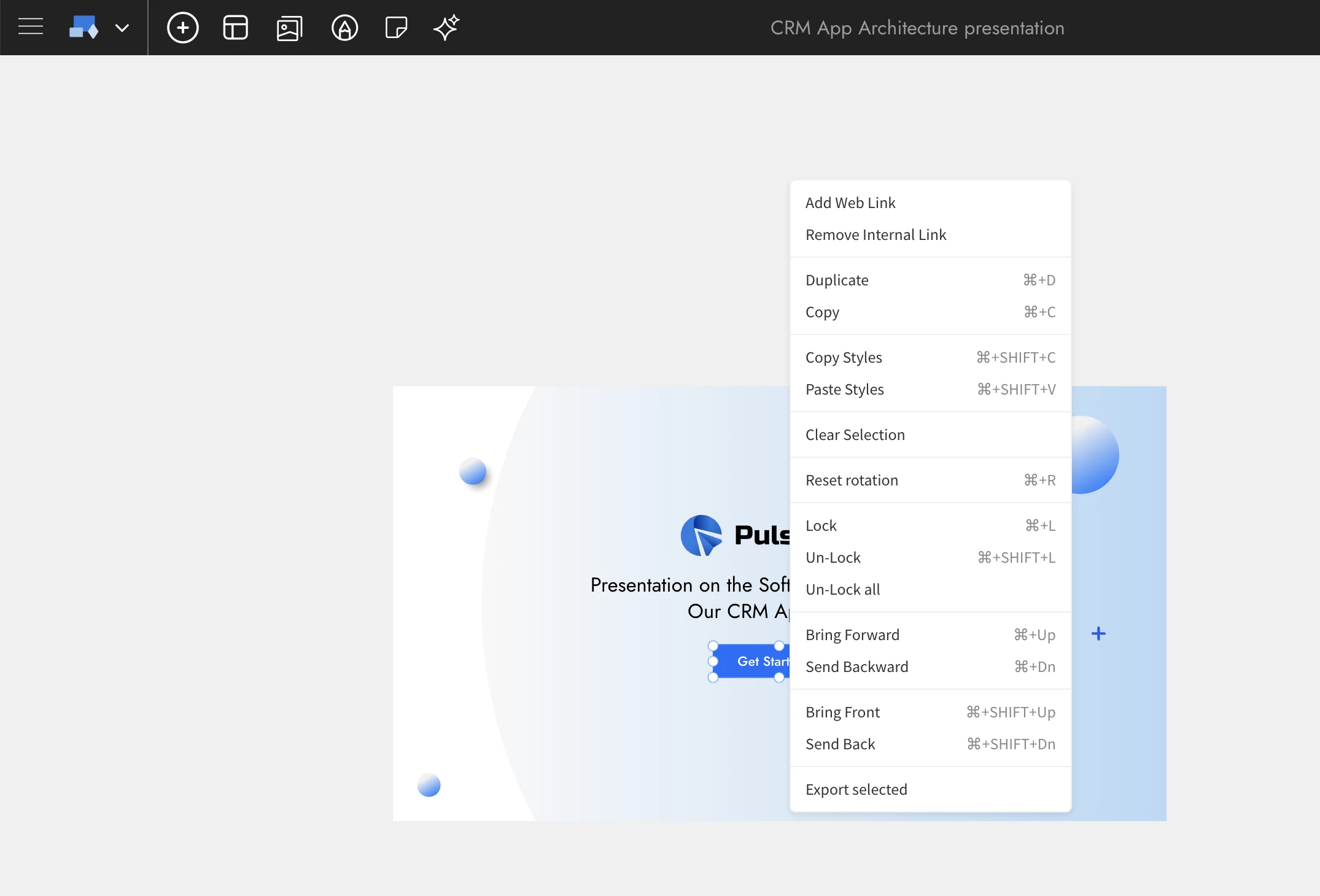
To get started, right-click on any supported component such as a button, sticky note, section, text box, or frame. You’ll see two new options in the context menu:
- Add Web Link: Create a hyperlink from your component to any external webpage or online resource.
- Add Internal Link: Connect one component to another within your whiteboard. You can link to large components like sections, mind maps, frames, or documents for presentation-style navigation.
By combining multiple internal links, you can establish a non-linear navigation path across different parts of your whiteboard, helping viewers explore ideas fluidly rather than following a rigid slide sequence.
How to Navigate Between Components
Once interactions are set up, click on any interactive component or use the right-arrow shortcut key to follow its link. IdeaBoard will automatically zoom and scroll to the target area, fitting it perfectly to your screen.
To return, press the left-arrow key—IdeaBoard remembers your navigation history, allowing seamless back-and-forth movement between connected components. This makes exploring complex boards effortless and immersive.
Use Cases for Interactive Whiteboards
Non-Linear Presentations:
Present ideas dynamically by jumping between sections based on audience input instead of following a fixed slide order. Perfect for brainstorming sessions, workshops, and agile reviews.
Interactive Storytelling and Product Demos:
Create narrative-style walkthroughs of user journeys or design concepts. Link wireframes, mockups, or idea clusters to demonstrate flow and context.
Flowcharts and Architecture Diagrams:
Showcase complex systems or workflows with interactive navigation. Link nodes, subsystems, or related diagrams to zoom into deeper layers of your architecture or process visualization.
Interactive Knowledge Maps and Documentation:
Build connected knowledge bases or process documents where each note or component links to supporting visuals or references, helping teams explore topics intuitively.
Training and Educational Boards:
Teachers and trainers can design guided learning paths—linking lessons, exercises, and examples into a structured yet explorative format that keeps learners engaged.
Sample demo: https://app.mockflow.com/iview/crmpresent#/mode/view
Final Note
With Interactions, IdeaBoard evolves from a whiteboard into an interactive presentation and storytelling platform. Whether you’re explaining workflows, teaching concepts, or mapping ideas, you can now guide your audience through your whiteboard with clarity, motion, and intent.
Enhanced Data Editor for Charts in WireframePro
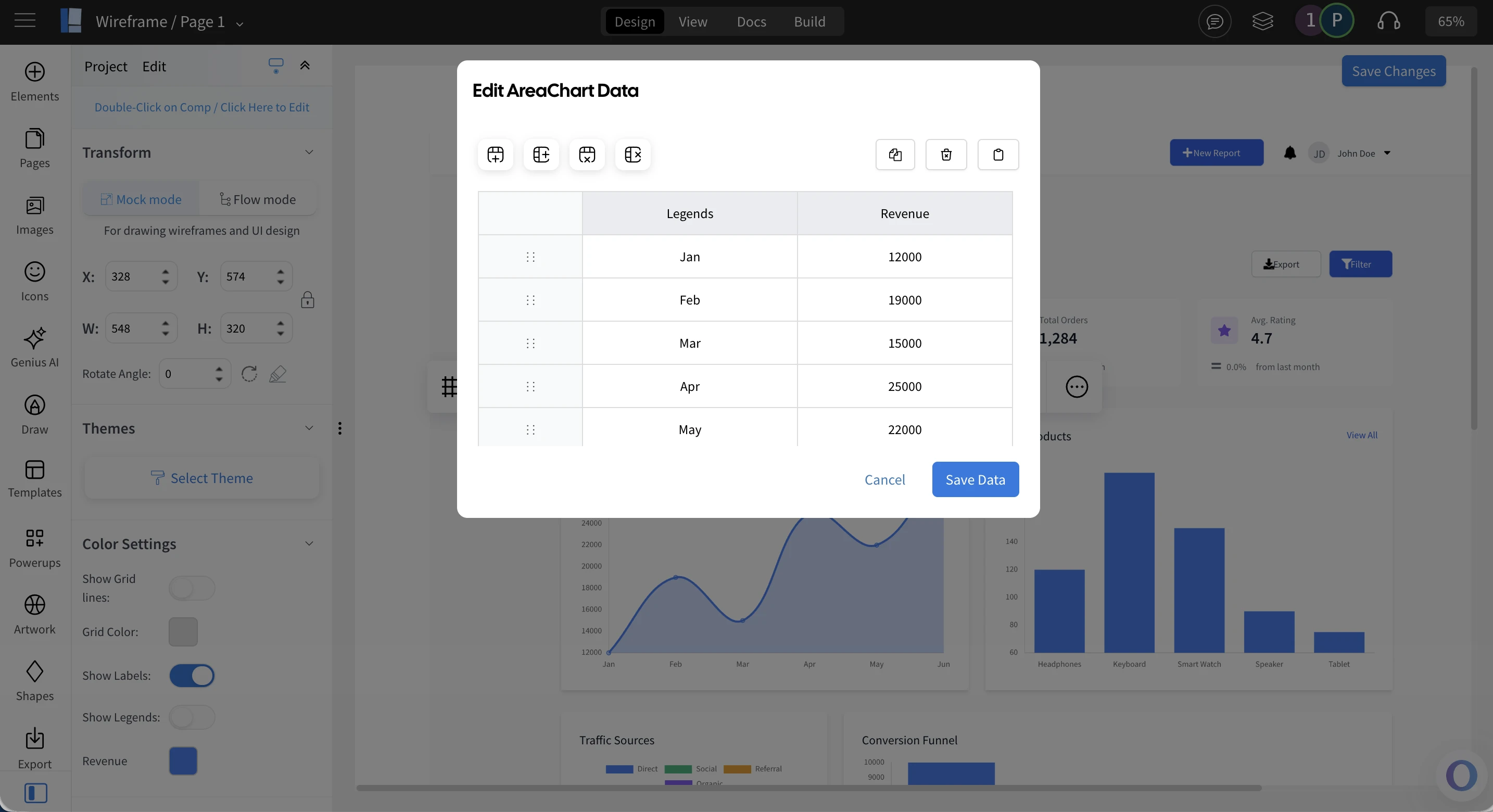
This update, makes editing chart data in WireframePro more intuitive, visual, and efficient helping you focus on design rather than data formatting. As Charts play a key role when wireframing dashboards, analytics, and insight-driven interfaces, this is very important.
A More Visual and Streamlined Chart Editing Experience
WireframePro offers a rich collection of built-in chart components including area, bar, line, radar, scalar, and bubble charts along with sketch style variants for hand-drawn wireframes.
Previously, editing chart data worked like modifying a CSV in a textbox. While convenient for quick copy-paste, it often felt tedious and error-prone, requiring extra effort to validate values manually. This experience didn’t align with our mission to keep UI ideation fast, simple, and friction-free.
With the new data editor, chart editing now feels as smooth as working in a spreadsheet dramatically improving accuracy, speed, and usability.
Introducing the New Chart Editor
The upgraded chart editor includes essential spreadsheet-like controls, tailored specifically for chart data. It intelligently adapts to different chart types and lets you:
- Add or remove rows and columns effortlessly
- Edit values directly with point-and-click interactions
- Sort data in one click
- Copy data or paste from Excel and CSV files
- Benefit from built-in validation to avoid formatting issues
Faster, Validated & Visual Chart Editing
Whether you're wireframing business dashboards, analytics screens, or data-rich reports, the new chart editor helps you shape your ideas faster and more accurately.
Try it today and give your wireframes cleaner, more realistic charts without sacrificing speed or creativity.
New maps component with AI for Whiteboard
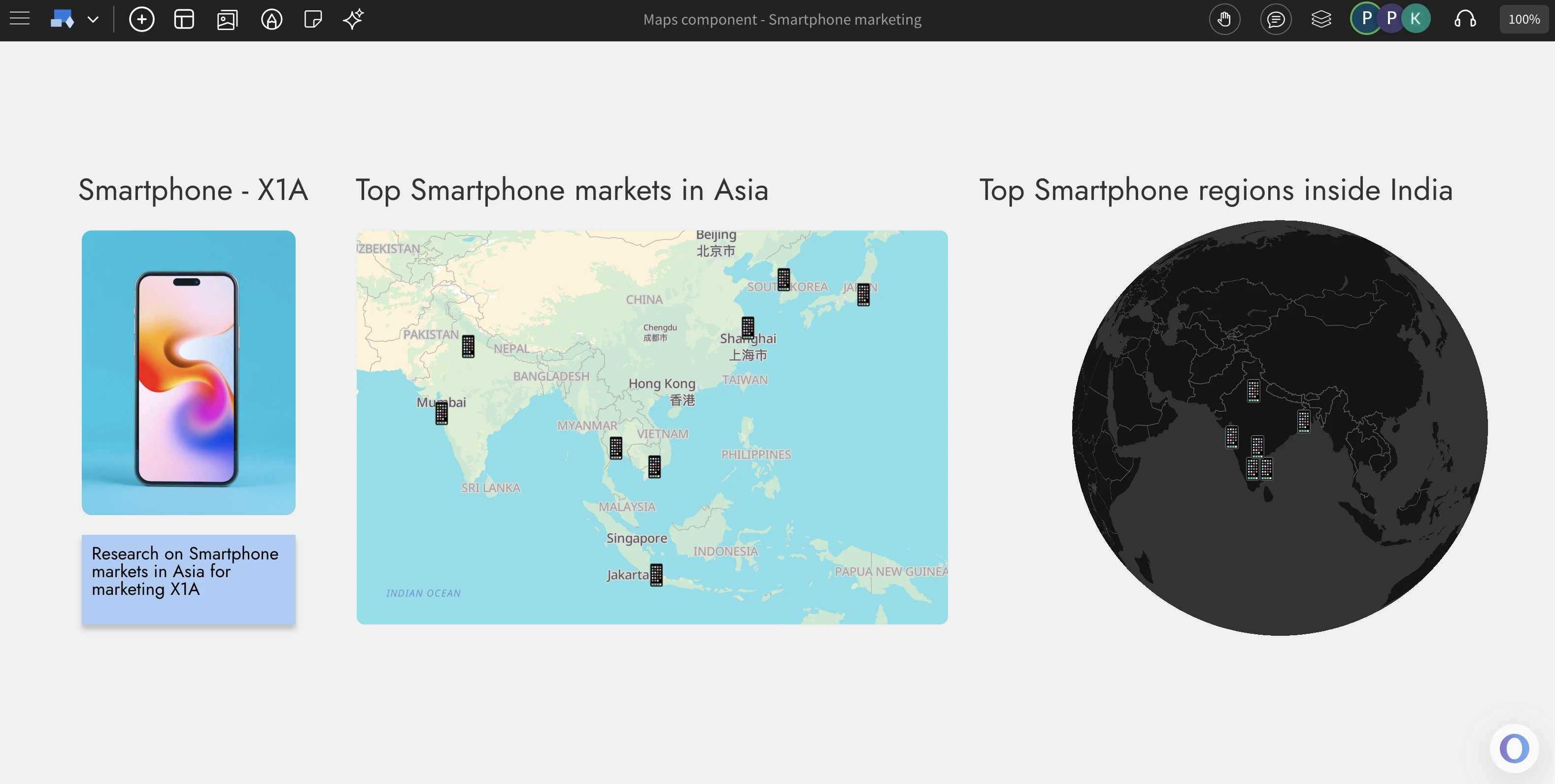
Now brainstorm with locations using the new maps component in IdeaBoard. Add location markers to ideate on geo based visualization. Available in flat or as 3D globe along with AI generation of markers.
Brainstorm with Maps
Maps play a vital role in brainstorming when your ideas or strategies are tied to geography. The new Maps component in IdeaBoard makes visualizing spatial ideas easy, accurate, and fully integrated into your whiteboard workflow. Unlike traditional mapping tools, this component is built specifically for whiteboarding allowing you to drag and drop multiple maps, resize, reposition, and customize them effortlessly. Explore different perspectives, themes, and locations to bring clarity and context to your geographic brainstorming sessions.
AI+Maps = geosome
Just like other smart components in IdeaBoard, the Maps component comes with built-in AI assistance to make map creation faster and smarter. Simply click the AI button in the settings and enter a prompt to generate a map for anything from F1 race circuits to top hospitals in Spain. The AI doesn’t just place locations it also adds contextual marker icons that visually represent your topic, such as race cars or hospital symbols. You can even generate complete map components using Mida, the MockFlow Intelligent Design Assistant, for instant, AI-powered geo visualization that fits perfectly into your whiteboard brainstorming.
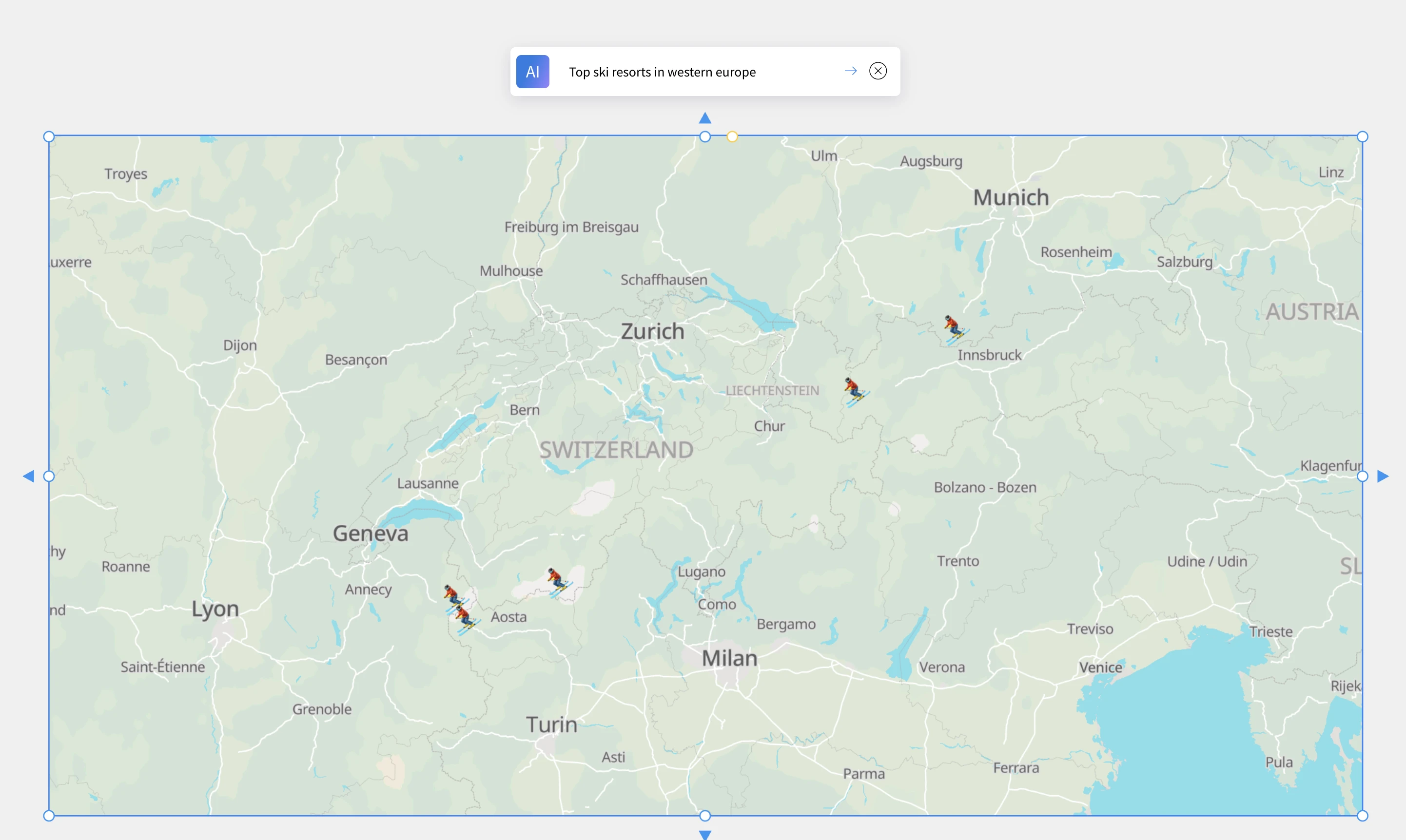
Perspectives and Themes
Experience maps the way you prefer either as a flat 2D view (Mercator projection) or a fully interactive 3D globe visualization. You can zoom, pan, rotate, and spin the globe effortlessly for dynamic exploration. Each perspective supports multiple visual themes currently including normal, dark, white, and gray allowing you to match your map’s appearance with your whiteboard’s overall design
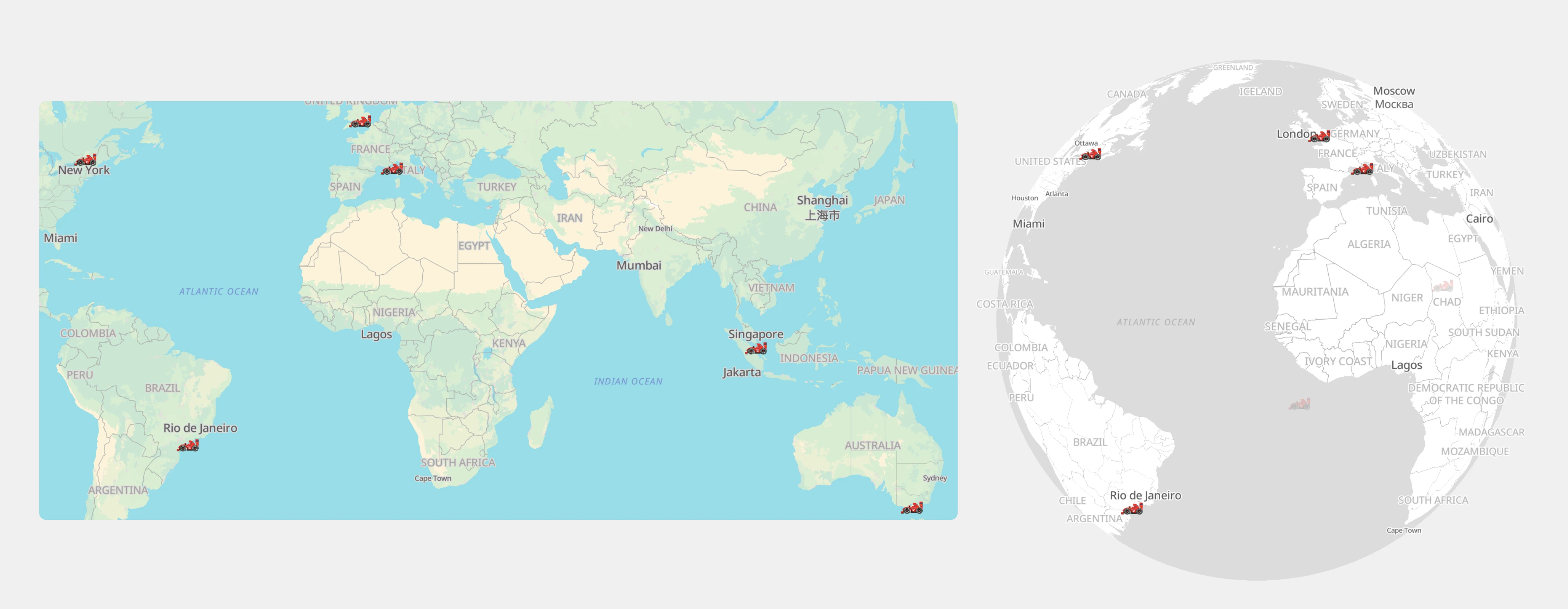
Unlimited and free usage of maps component
The Maps component in IdeaBoard is available with unlimited and free access for all users, including those on the Free Basic plan. Since MockFlow hosts its own dedicated maps server, you can explore, create, and collaborate without any usage limits or third-party restrictions. While AI-powered map generation depends on your available AI credits, the Maps component itself remains fully functional without AI, ensuring everyone can brainstorm visually with no barriers.
Use cases
- Market Planning: Visualize expansion opportunities, target cities, and regional strategies.
- Education & Research: Create interactive geography or data maps for learning and presentations.
- Event Mapping: Plan global events, tours, or campaigns with clear location markers.
- Team Collaboration: Coordinate remote teams and regional activities on a shared map.
- Travel & Exploration: Design travel itineraries or visualize destinations with 3D globe views.
Express Beyond Text: Add Video and Voice Comments in MockFlow Ideaboard
Comments in MockFlow IdeaBoard just got a major upgrade. With the new Comments 2.0, board members can now share feedback and ideas more naturally through video or voice comments. Whether it’s explaining a concept visually or adding quick audio feedback, discussions on your boards are now more contextual, expressive, and human than ever before.
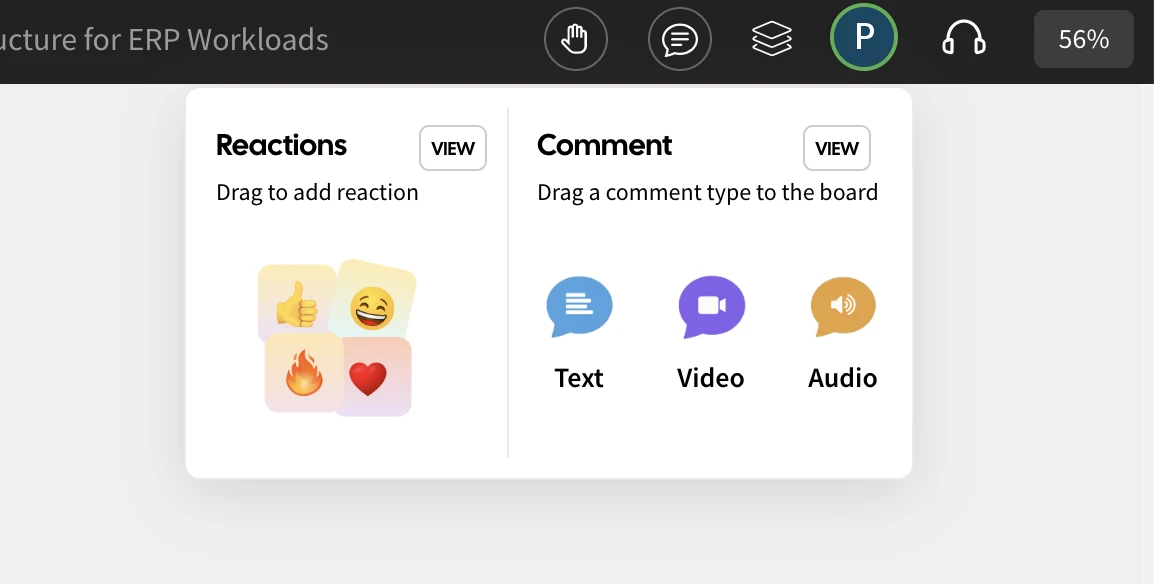
Express naturally
In IdeaBoard, comments are now treated as core components rather than simple add-ons. You can drag, position, or even attach them to specific sections just like any other element on your board. This makes feedback more collaborative, organized, and easy to follow within defined discussion threads.
While text comments work well for quick notes, they often fall short when it comes to expressing tone, emotion, or detailed thoughts. The latest update changes that board members can now record short video messages using their camera or share voice notes as audio comments, making communication more natural, personal, and expressive than ever before.
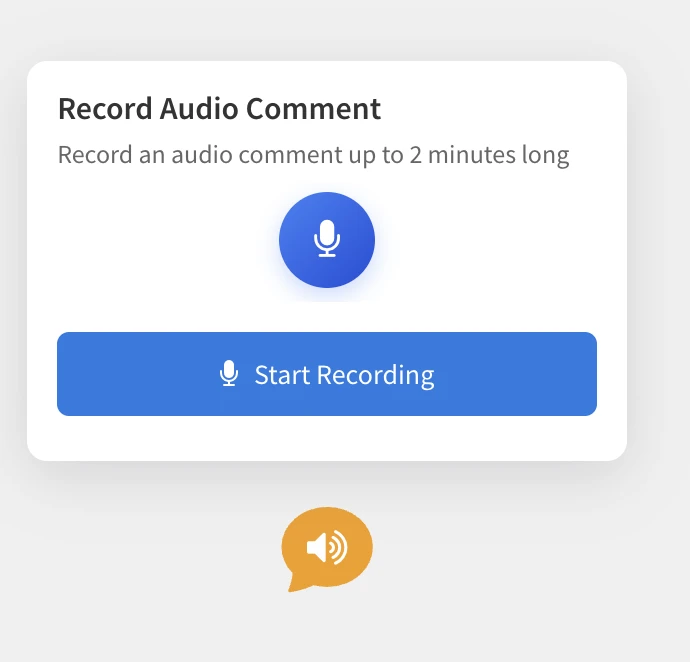
Press to Capture
Adding a video or voice comment in IdeaBoard is as simple as adding a text comment. Just drag and drop a video or audio comment component onto your board. If camera or microphone access isn’t already granted, you’ll be prompted to enable it. Then, hit the Record button to capture your comment whether it’s a quick video message or a voice note.
Once the recording is done, you can preview your capture before uploading. If you’re not satisfied, simply re-record, it’s that easy. The entire process works seamlessly within your browser, with no need for plugins or extensions. Designed with a minimal and intuitive interface, it requires zero learning curve.
To keep things focused, audio and video comments are limited to 2 minutes, which helps maintain viewer attention and ensures faster playback while still giving you enough time to convey your ideas clearly.
Play Seamlessly
Playing back comments is effortless. Simply click on a video or audio comment to start playback instantly and click anywhere outside to stop. There are no unnecessary controls or clutter, just a smooth and natural experience that keeps the focus on the conversation. This intuitive interaction not only feels fluid but also adds a delightful, human touch that makes feedback far more engaging than plain text comments.
Stored Secure and Private
At MockFlow, privacy comes first that also includes your voice or video. All audio and video comments are securely stored using private URLs, ensuring they are never publicly accessible. Only the board members you’ve shared the project with have permission to view or play these recordings.
To further protect your privacy, audio and video comments remain hidden in public links or shared previews of the board. This way, your conversations stay confidential, secure, and accessible only to your team.
Use Cases
Audio and video comments open up a range of new possibilities inside IdeaBoard. Beyond making annotated comments on specific elements, they can be used for board announcements, video walkthroughs, async team updates, and more. When combined with other IdeaBoard components, these rich, multimedia comments unlock creative new ways to collaborate, communicate, and share context visually.
Important: Audio and Video comments are not available in basic plan. It requires IdeaBoard or Bundle plan. However basic users can get a glimpse on how it works in their account.
Introducing Mini-Mode in WireframePro: A Smarter, Faster Way to Wireframe
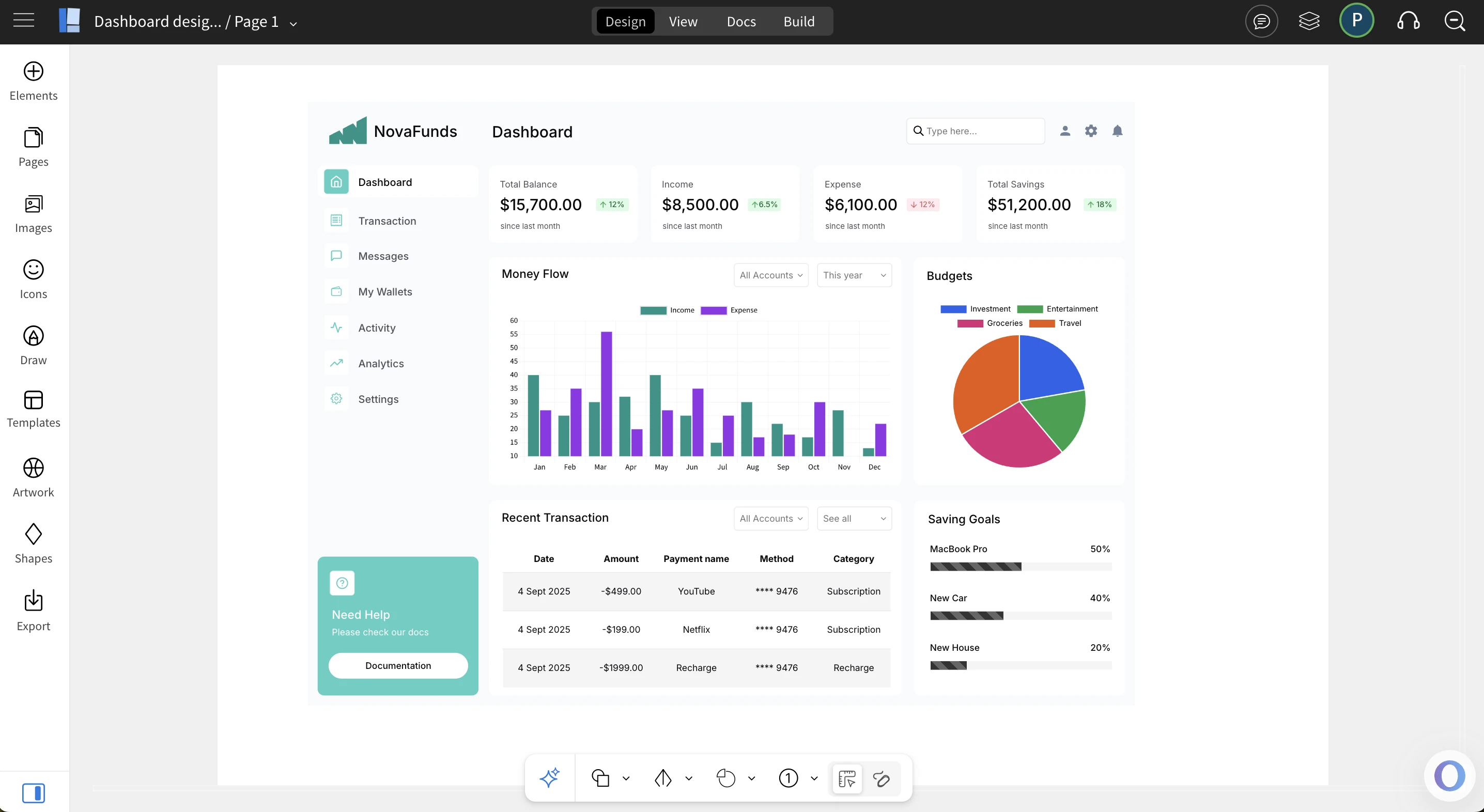
New Mini-Mode in WireframePro streamlines your workspace by reducing clutter, keeping key tools within reach, and giving you more canvas space for rapid, intuitive wireframing.
If you've been following our recent WireframePro updates, you’ll know we’ve introduced a host of invaluable features to MockFlow such as Build Mode for converting concepts into code, powerful AI tools, and expanded wireframing libraries. While these advancements are essential, wireframing should also feel like a natural extension of the designer’s thought process. To achieve this, creating UI concepts needs to resemble sketching on a real whiteboard clean, spacious, and free from unnecessary distractions. At the same time, designers must have quick access to the essential tools required to bring their ideas to life. The new Mini-Mode balances both, giving you more whitespace to think and the right functions at your fingertips
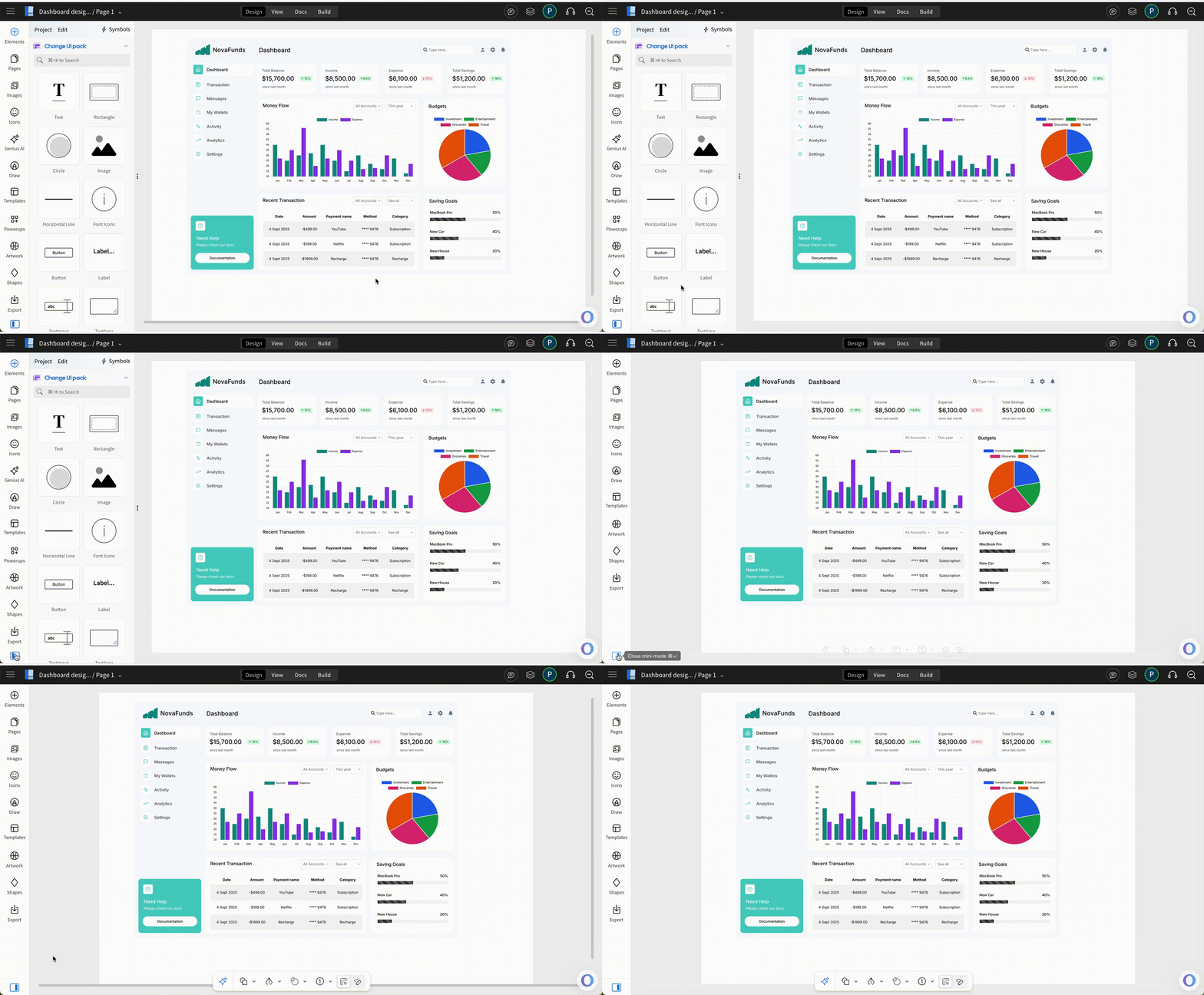
Backstory
This is how Mini-Mode was born. It’s not just a simplified version of the editor UI, but a carefully designed experience shaped by analyzing millions of heatmaps and wireframing usage patterns. The data revealed a clear trend: the more interface elements an editor displays, the less ergonomic the workflow becomes a challenge familiar to users of UI-heavy tools like Office or Photoshop. On the other hand, going too minimal can overwhelm users as they struggle to locate essential functions. Mini-Mode strikes the right balance, delivering a streamlined interface that enhances ergonomics while keeping the core functionality within easy reach.
Quick launcher
Mini-Mode delivers the right balance of UI by hiding non-essential elements while still keeping nearly 95% of WireframePro’s functionality instantly available without switching back to regular mode. It works by collapsing the sidebar into a smart overlay with related functions, while introducing a new always-on mini bottom bar featuring the most-used components. The result is a cleaner workspace that frees up significant whitespace, making both designing and viewing wireframes more seamless.

Shortcuts
Mini-Mode also introduces handy shortcuts for AI features, drawing components, and even switching between Mini and Regular modes. The new slim bottom bar is the icing on the cake styled like a subtle notch, it stays out of the way while giving instant access to your most-used components in both wireframe and sketchy styles. And of course, Mida remains in the bottom-right corner as your always-on design assistant, now enhanced to deliver not only text responses but also image-based answers, 24/7
Our analysis shows that Mini-Mode is a clear success as it delivers the majority of WireframePro’s features within a minimal, distraction-free interface, enhanced by faster shortcuts. The result: users can focus less on navigating the UI and more on bringing their concepts to life. This is the future of WireframePro. We’re also proud to share that some of these ideas were inspired by our sister product, IdeaBoard, reinforcing our commitment to building tools that make visual design more natural and intuitive
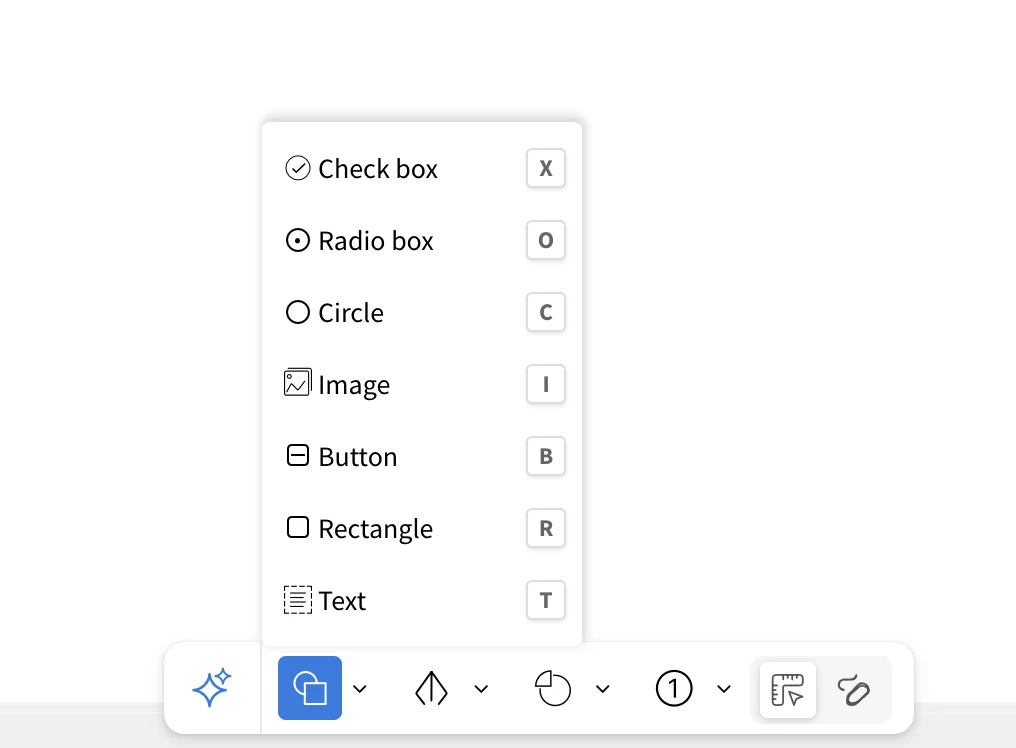
Quick access to AI
AI is now at the forefront of modern software, and with Mini-Mode, it takes center stage in WireframePro. A new mini AI input box is built right into the bottom bar, giving you instant access to powerful commands. Simply type requests like generate wireframes, tables, diagrams, cloud architecture flowcharts, or even images and AI will bring your ideas to life within seconds. It’s speed, simplicity, and creativity combined.”

The Future
Clean, intuitive, and rapid that's what MockFlow stands for when it comes to designing UI concepts. With the new Mini-Mode, you can wireframe at the speed of your thoughts. Use Ctrl/Cmd / shortcut to toggle mini mode anytime.
IdeaBoard launches as an offline whiteboard app, work seamlessly without servers
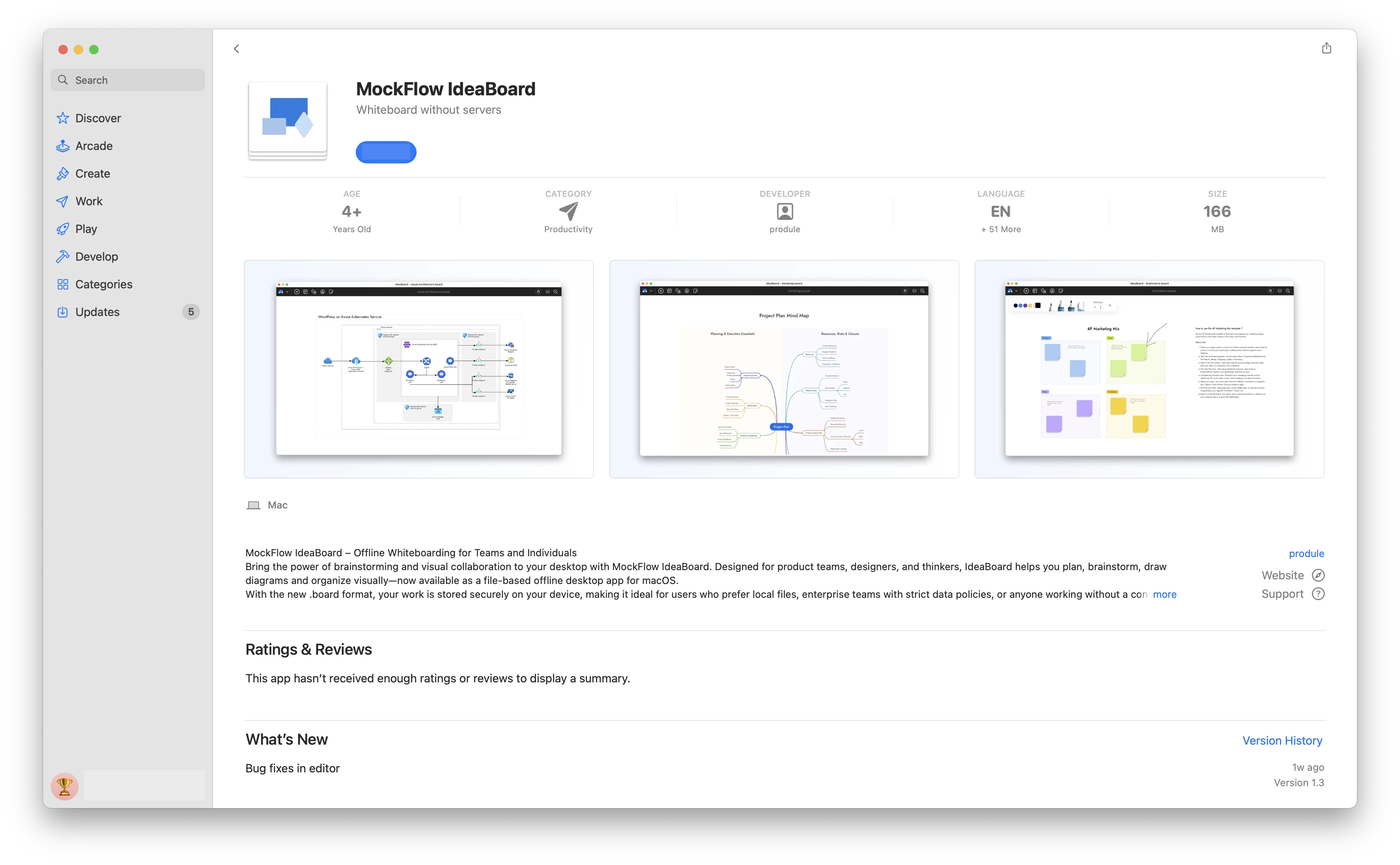
MockFlow IdeaBoard is now available on the Mac App Store as a secure, file-based offline whiteboard application. Designed for privacy, it requires no internet or servers to run. With a simple one-time purchase, you get unlimited brainstorming.
Whiteboard application that runs without servers
While IdeaBoard is best known as a collaborative online platform for real-time brainstorming, we've also built an offline edition that runs locally on your Mac. This file-based version was designed with two key goals in mind:
One-time purchase
Not every user needs a team-based, subscription whiteboard. Solopreneurs, freelancers, and individuals working in non-team environments may find paying for online collaboration features unnecessary, especially if their use case is simple or doesn't require AI. For them, the offline edition of IdeaBoard offers an affordable alternative. Available on the Mac App Store at a one-time launch price of $39.90, it provides most brainstorming features without recurring fees.
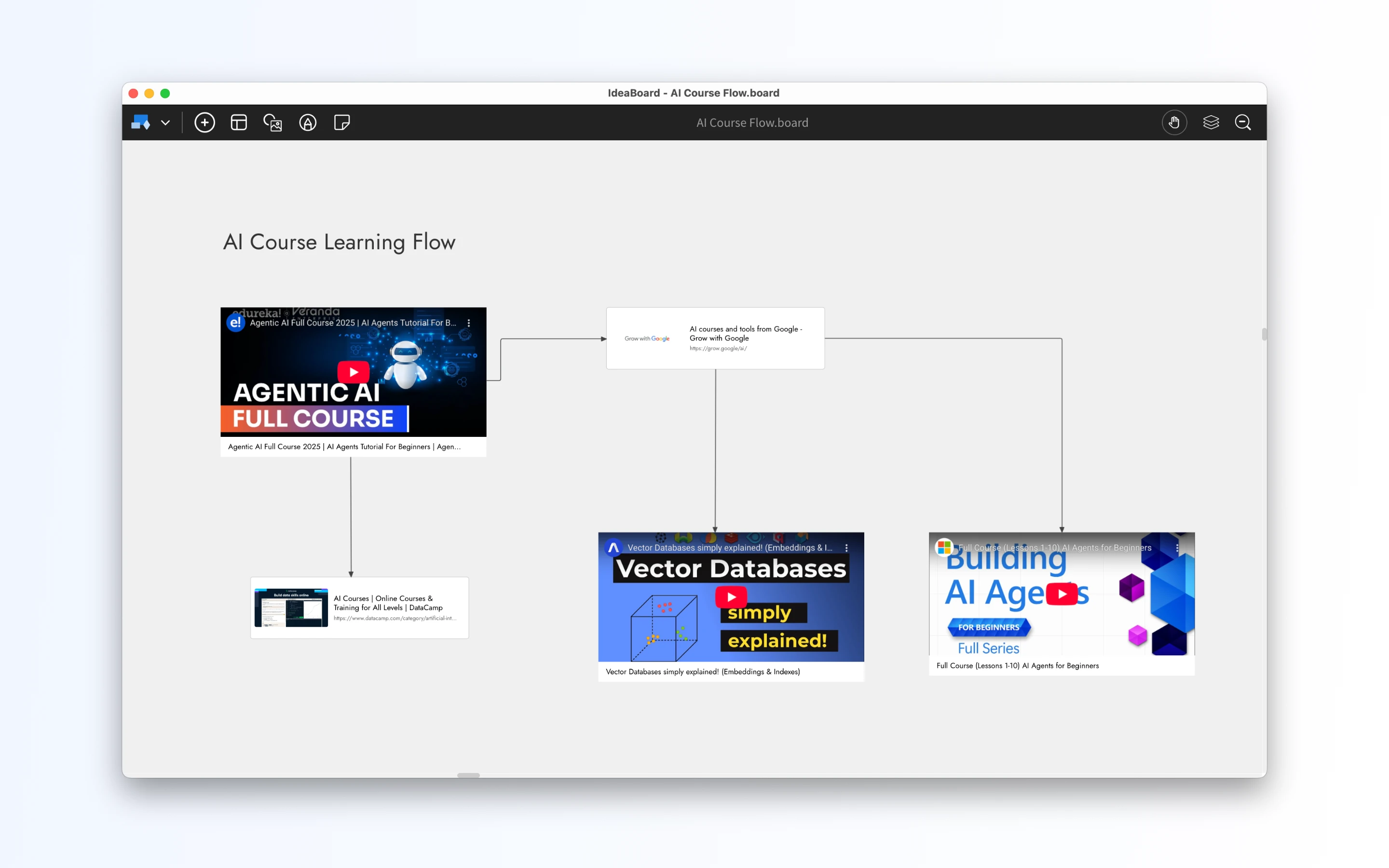
Full data ownership for enterprises
Brainstorming often captures the foundation of a company's next product, process, or breakthrough idea. For many enterprises, where data privacy and compliance are critical, storing this sensitive information on third-party servers may not be acceptable. With IdeaBoard for Mac, all whiteboarding data is saved locally as files, giving organizations complete ownership and control. These files can be seamlessly integrated into existing backup routines and security policies. For team collaboration, companies can securely share .board files using network storage or enterprise-ready file-sharing services like Dropbox or Box—just as they would with other important business documents.
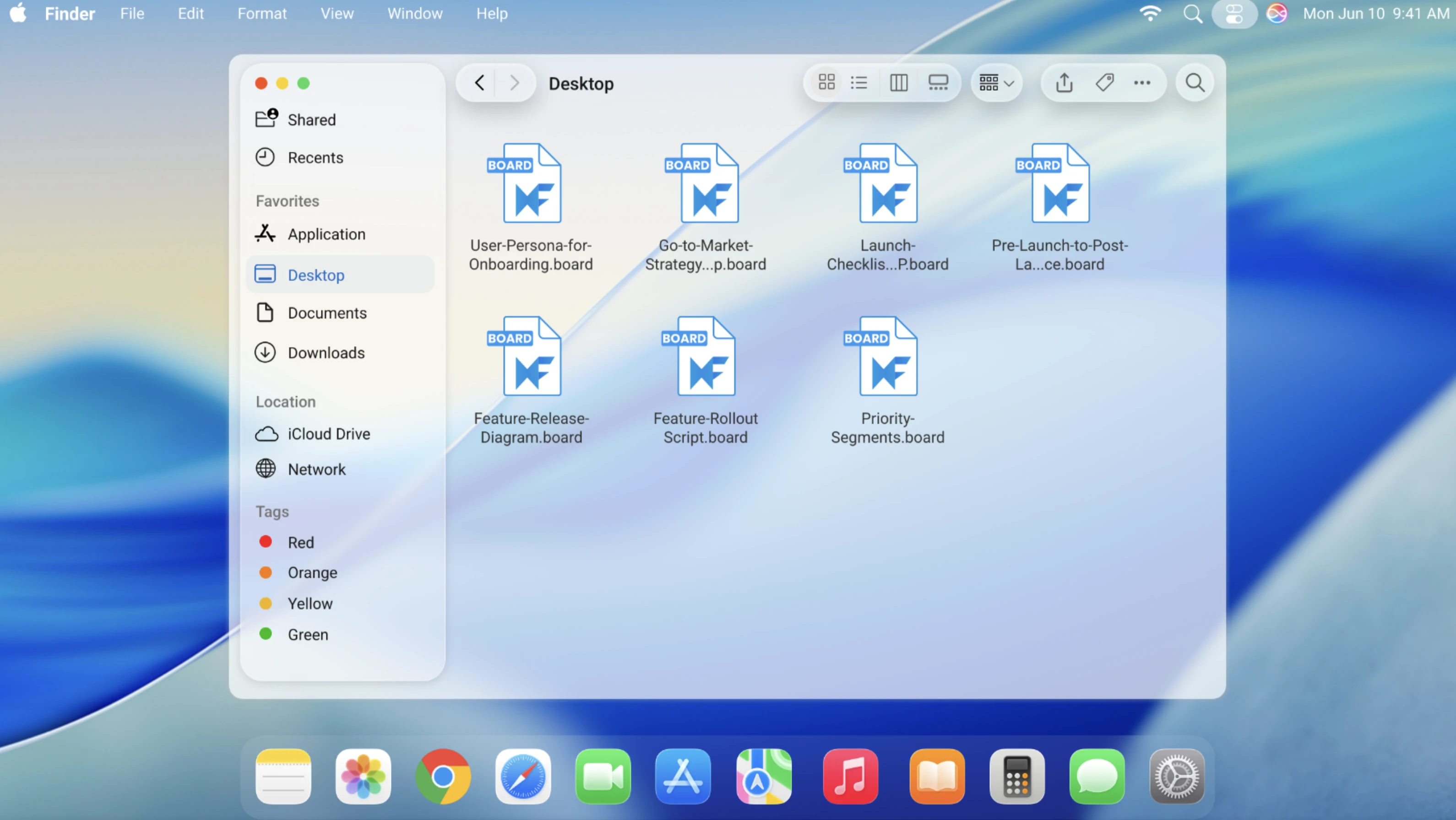
⚠️ Important: Feature limitations
The IdeaBoard app on the Mac App Store offers a simplified, offline-first experience compared to the full online version. While it is actively maintained and updated, certain features are currently not available in this edition:
- Windows support – available only for Mac (Windows version coming soon)
- AI features and Mida bot – not included in the offline version
- Collaboration tools – no audio/video meetings, real-time team chat, or online co-editing
- Business integrations – no direct connections with apps like Microsoft Teams, Slack, or Office
- Component library limits – fewer shapes, icons, and advanced design components
With the advantages and limitations of the Mac App Store edition clearly outlined, you can choose the version of IdeaBoard that best fits your workflow whether you prefer the privacy and simplicity of a file-based offline app, or the full power of real-time collaboration in the online version.
New Keyboard Shortcuts for Faster Wireframing and Whiteboarding in MockFlow
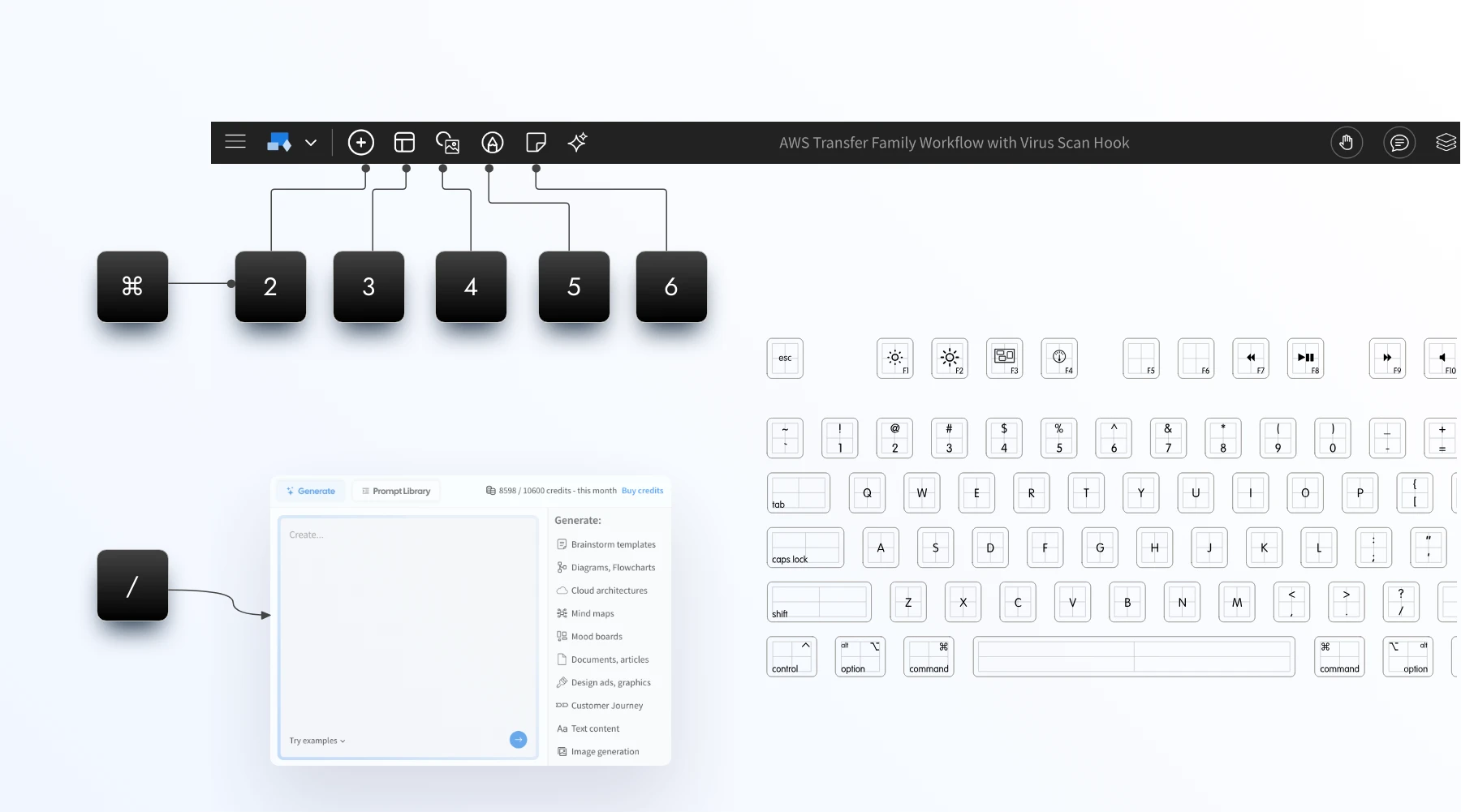
With the new shortcuts everything is in your finger tips, press '/' anytime to bring AI assist in WireframePro or IdeaBoard. Use Cmd + 2,3,4,5 to switch main tabs.
Type '/' to bringup AI toolbox:
Smarter design with AI is now just a slash away. In the editor, simply press ‘/’ to open AI tools instantly. Enter your prompt and generate wireframes, dashboards, mind maps, flowcharts, diagrams, images, or text whenever and wherever you need them.
⌘ + J = Mida Chat
Open Mida assistant inside editor for support, doubts, reporting issues, or even performing actions in both WireframePro and IdeaBoard.
⌘ + 2,3,4,5
Navigate your editor at lightning speed with new keyboard shortcuts. Use Cmd (Mac) or Ctrl (Windows) with numeric keys to instantly cycle through the main operations.
- In WireframePro, quickly switch between Components, Pages, Images, and Icons.
- In IdeaBoard, move seamlessly across Components, Templates, Library, Draw Mode, and Stationery.
This update saves clicks, reduces distractions, and keeps you focused on creating.
Contextual right-click menus
Alongside the new keyboard shortcuts, this release also introduces improved right-click menus when you select a blank canvas. These context-aware menus surface the most relevant options instantly, helping you add, organize, and design without breaking your flow.
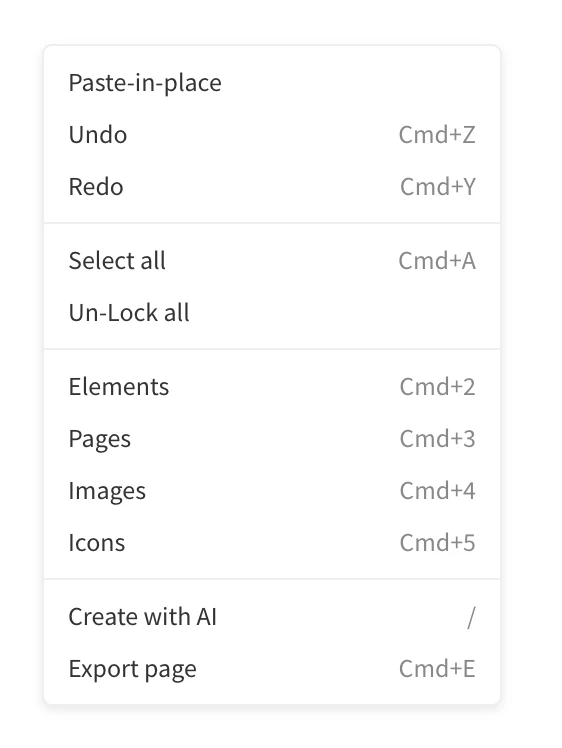
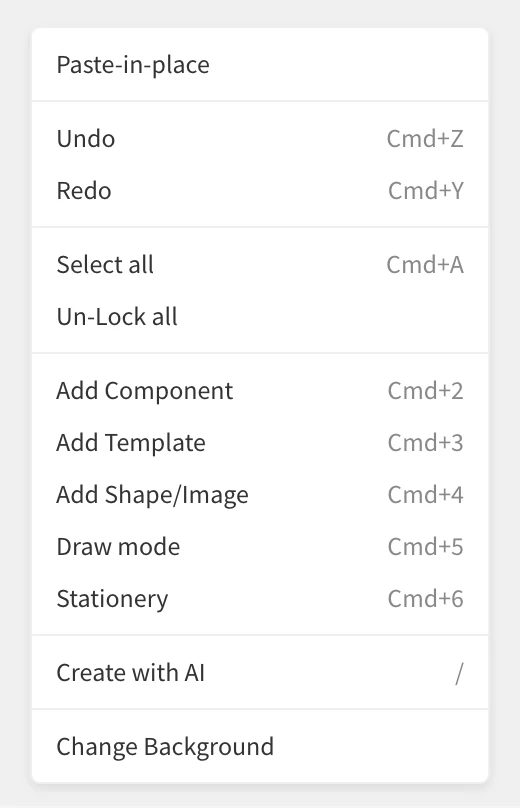
The above changes are now available in both web and desktop apps.
Generate dashboards, analytics, chart based wireframes with AI
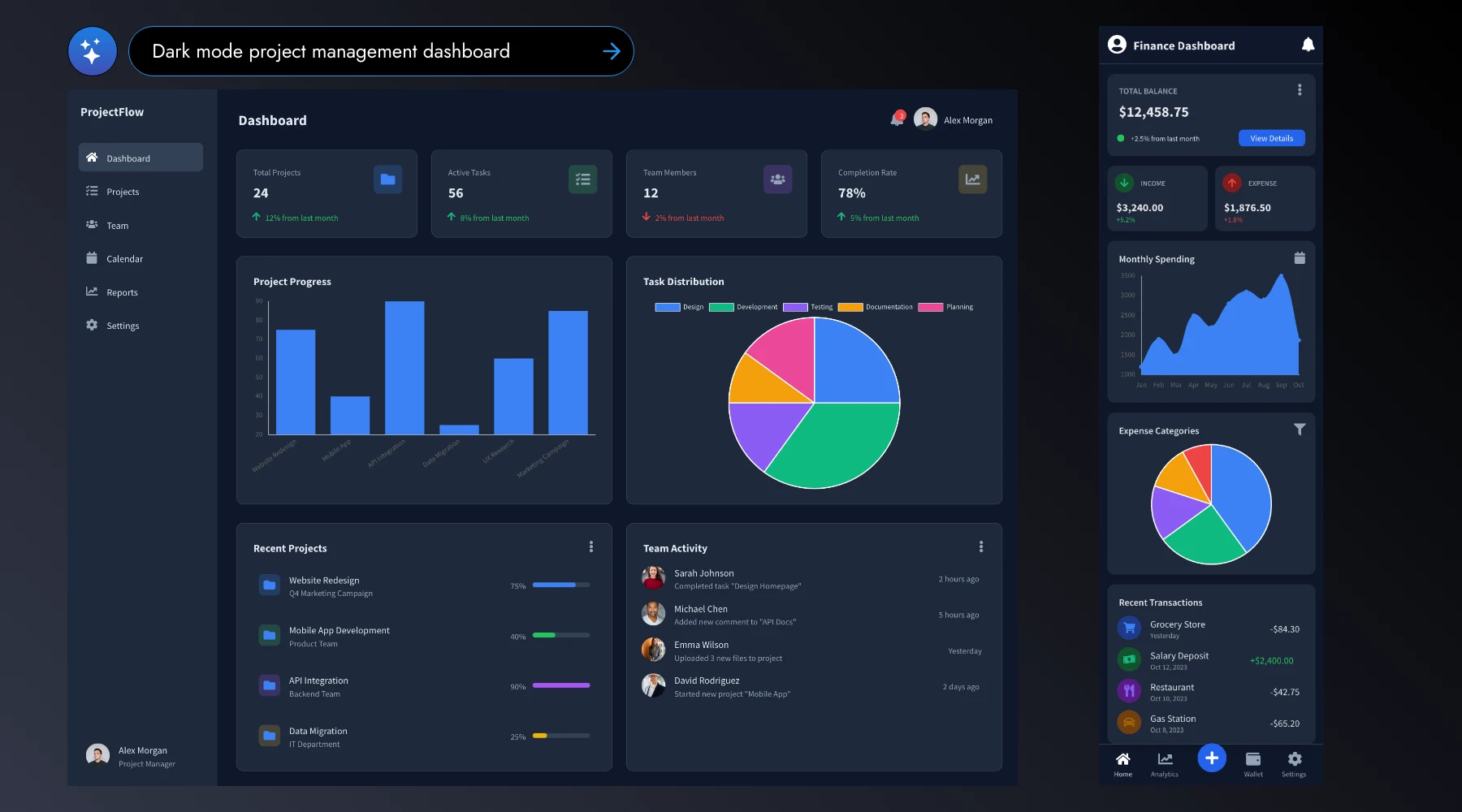
MockFlow AI just got smarter: wireframes generated with AI can now include real charts, analytics, and data visualizations. This makes it easier than ever to design dashboard wireframes and UIs that showcase graphs, reports, and insights.
Prompt-to-Wireframe creation in MockFlow continues to evolve with new features, fixes, and smarter generation. Today’s update is a major step forward, especially for wireframing business apps.
MockFlow has long supported native chart components to help teams brainstorm UIs with graphs. Now, this capability is extended to AI. With just a text prompt, you can instantly generate wireframes for dashboards, analytics, metrics, mobile charts, and more, making it easier to visualize complex data-driven interfaces.
For added flexibility, MockFlow AI also supports sketchy chart generation. By simply adding the keyword ‘sketchy’ to your prompt, you can create hand-drawn style wireframes that are perfect for early-stage brainstorming.
Prompt: CRM dashboard
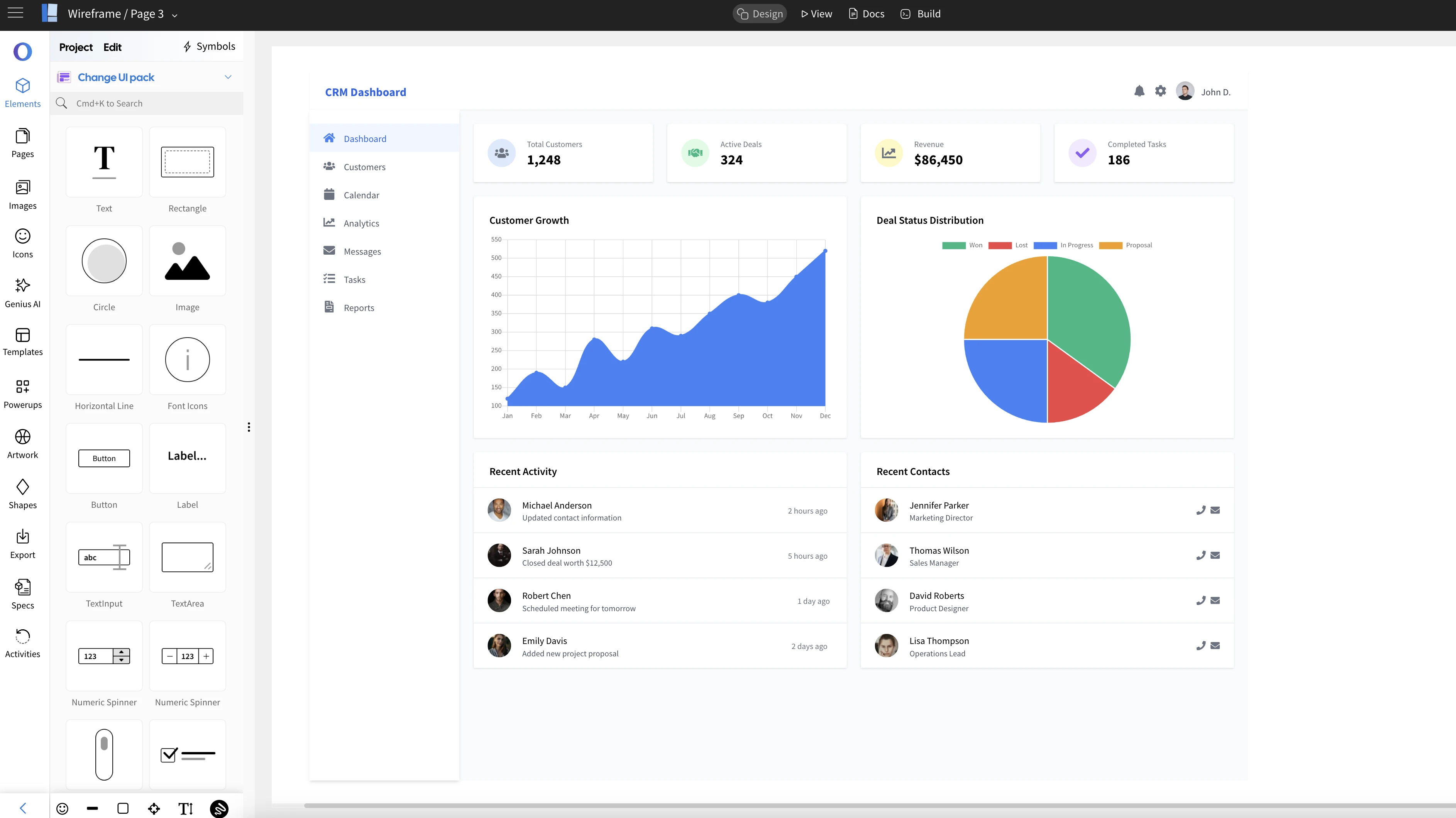
Prompt: Mixpanel like dashboard
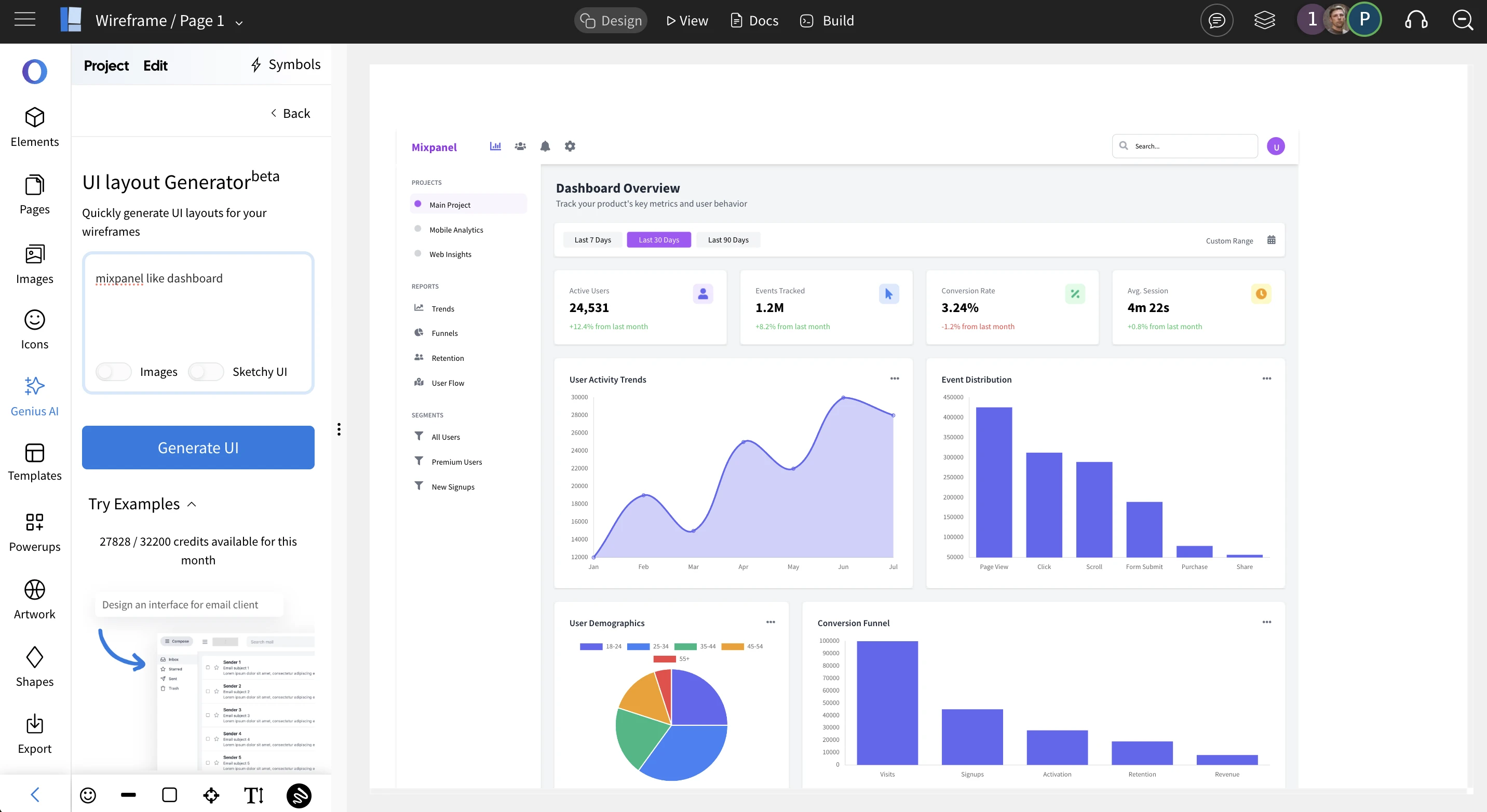
Prompt: Sketchy Google Analytics dashboard
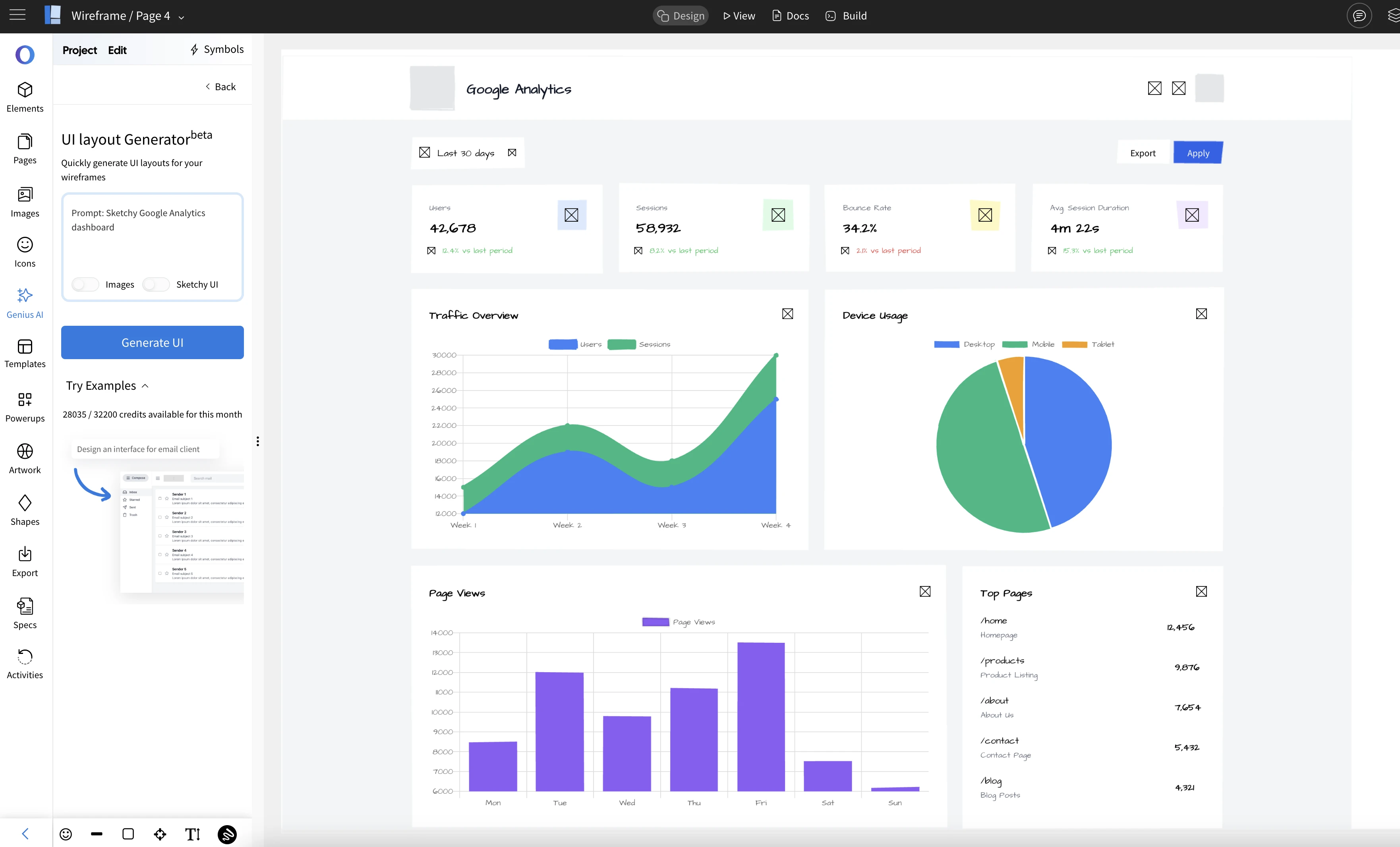
Prompt: Mobile app - Storage analytics
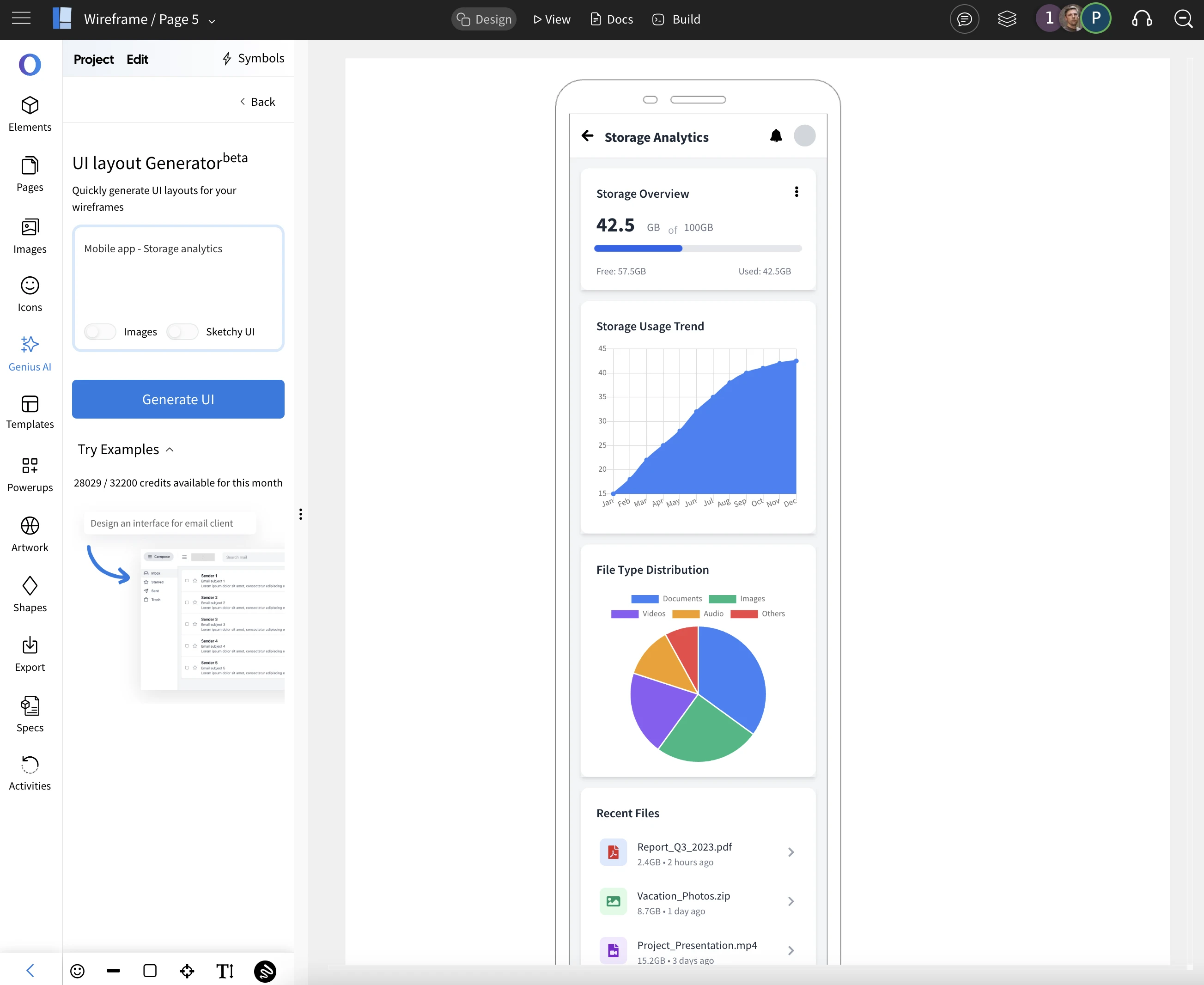
In this release, MockFlow AI now supports all built-in chart components—including Bar Chart, Line Chart, Area Chart, Pie Chart, Bubble, Scatter, and Radar. This means your AI-generated wireframes can instantly visualize a wide variety of data layouts. Coming soon, we’re also adding AI support for more native visualizations like Gauge and Treemap to make your dashboard wireframes even more powerful
Since AI is included in all plans, you can start exploring this feature right away. Simply generate wireframes with prompts like ‘Finance dashboard’, ‘CRM analytics’, or ‘Football club metrics’. You can also experiment by adding themes, modes, or specific visualizations you’d like to see in your design. Just bring your idea as a prompt and WireframePro will instantly turn it into a wireframe now even if it involves charts.
Bring Your Whiteboard to Life with Custom Backgrounds in IdeaBoard
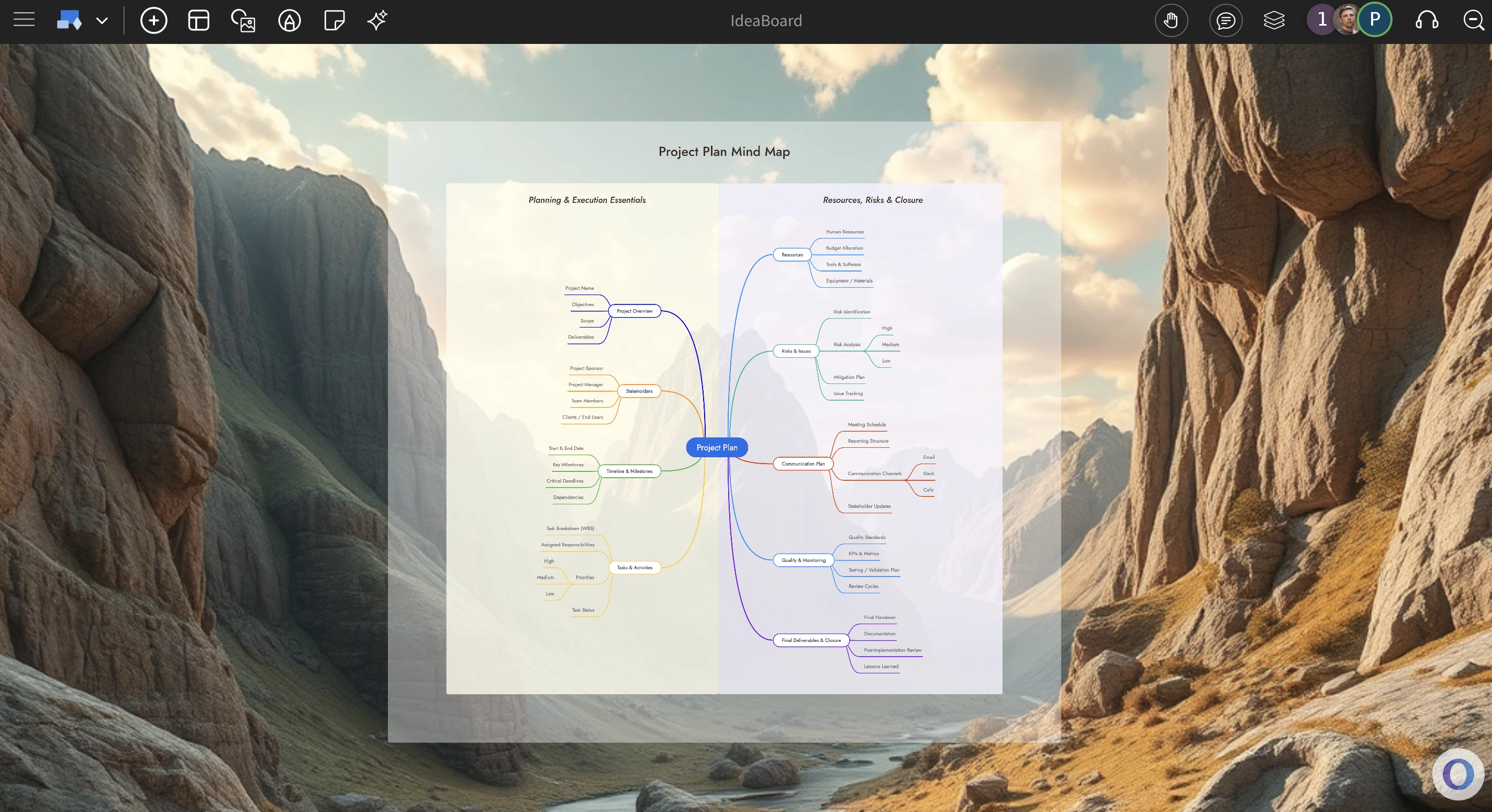
In IdeaBoard, your whiteboard need not be just white anymore, set vibrant wallpapers or background colors to the set tone, brand of your project whether you are designing a mindmap or in a brainstorming session, creating a diagram, IdeaBoard will now feel like your shared collaborative desktop between your team members that can be accessed anywhere.
MockFlow IdeaBoard is designed with a clean, distraction-free interface that features only a simple top bar. This minimal layout makes it the perfect canvas for wallpapers, as the unobtrusive content area allows your chosen background to shine through. By adding a wallpaper or background color to your whiteboard, you not only give it a desktop-like vibe but also create an immersive atmosphere tailored to your project’s purpose
This feature is especially useful across a wide range of use cases. Set a professional background for mind maps and strategy diagrams to keep the team focused, choose creative wallpapers for brainstorming sessions and mood boards to spark fresh ideas, or apply branded colors when designing flowcharts and project plans to maintain consistency. No matter the format, IdeaBoard backgrounds help you build an engaging, collaborative environment where ideas can grow.
Here are some use cases of using backgrounds in Ideaboard
AWS chart on top of a server rack wallpaper
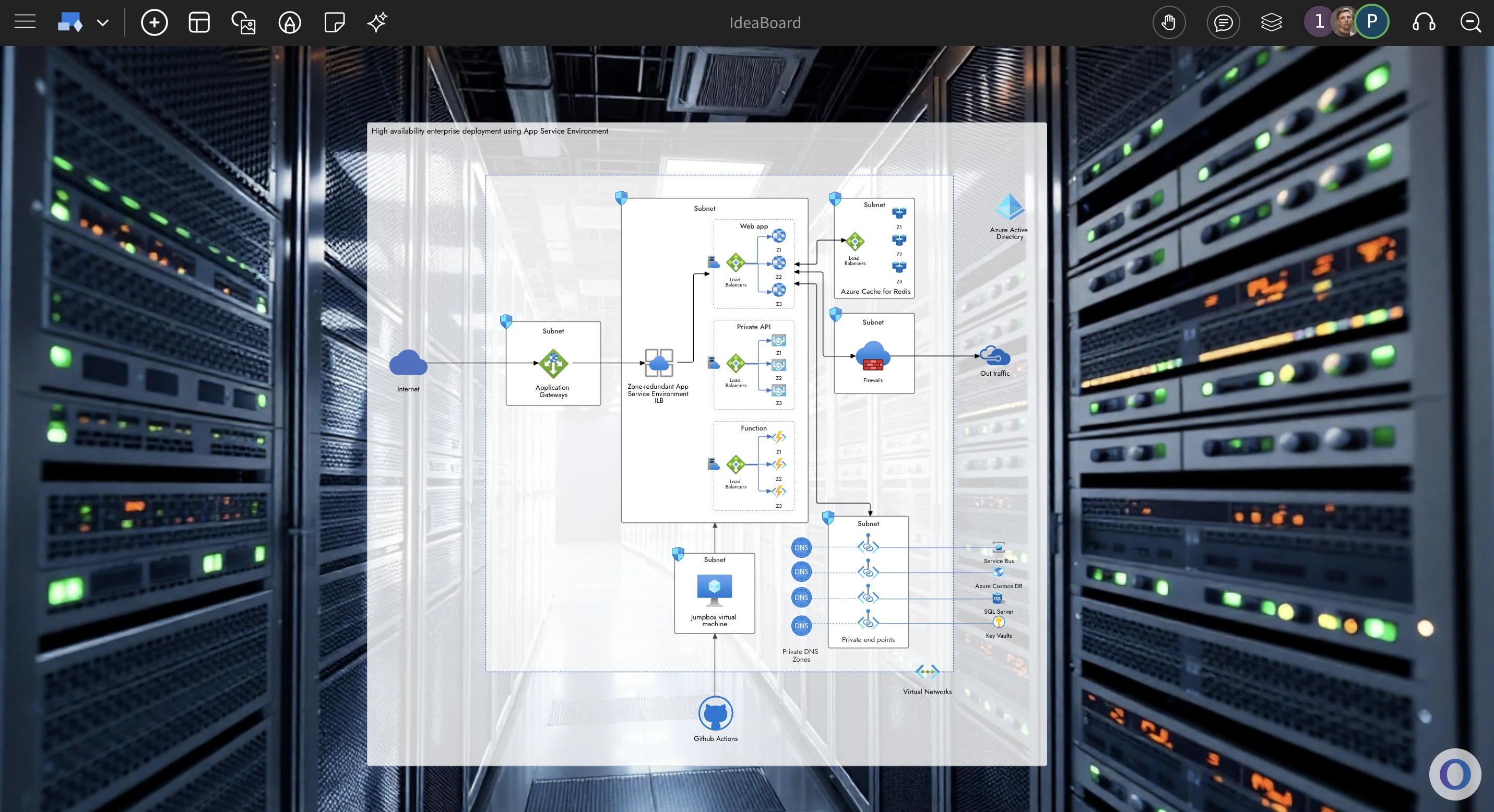
Brainstorming session with a Mandala chart with background of a meeting room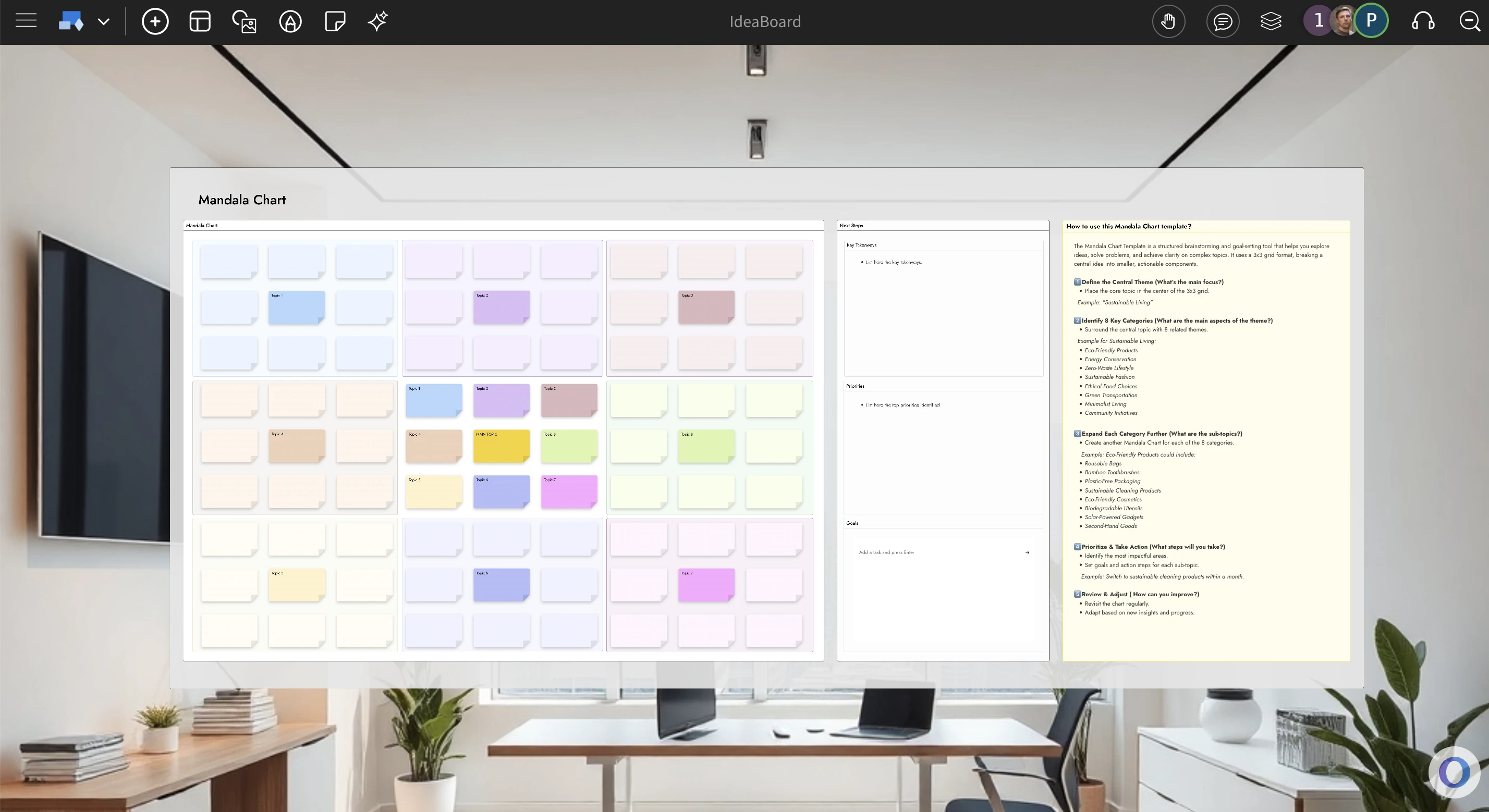
How to change background ?
To change background of your IdeaBoard project, either right click on the canvas or click the project title in the top toolbar to popup the project options modal. From here you can choose between plain colors, preset wallpapers or even upload or generate your own background wallpaper.
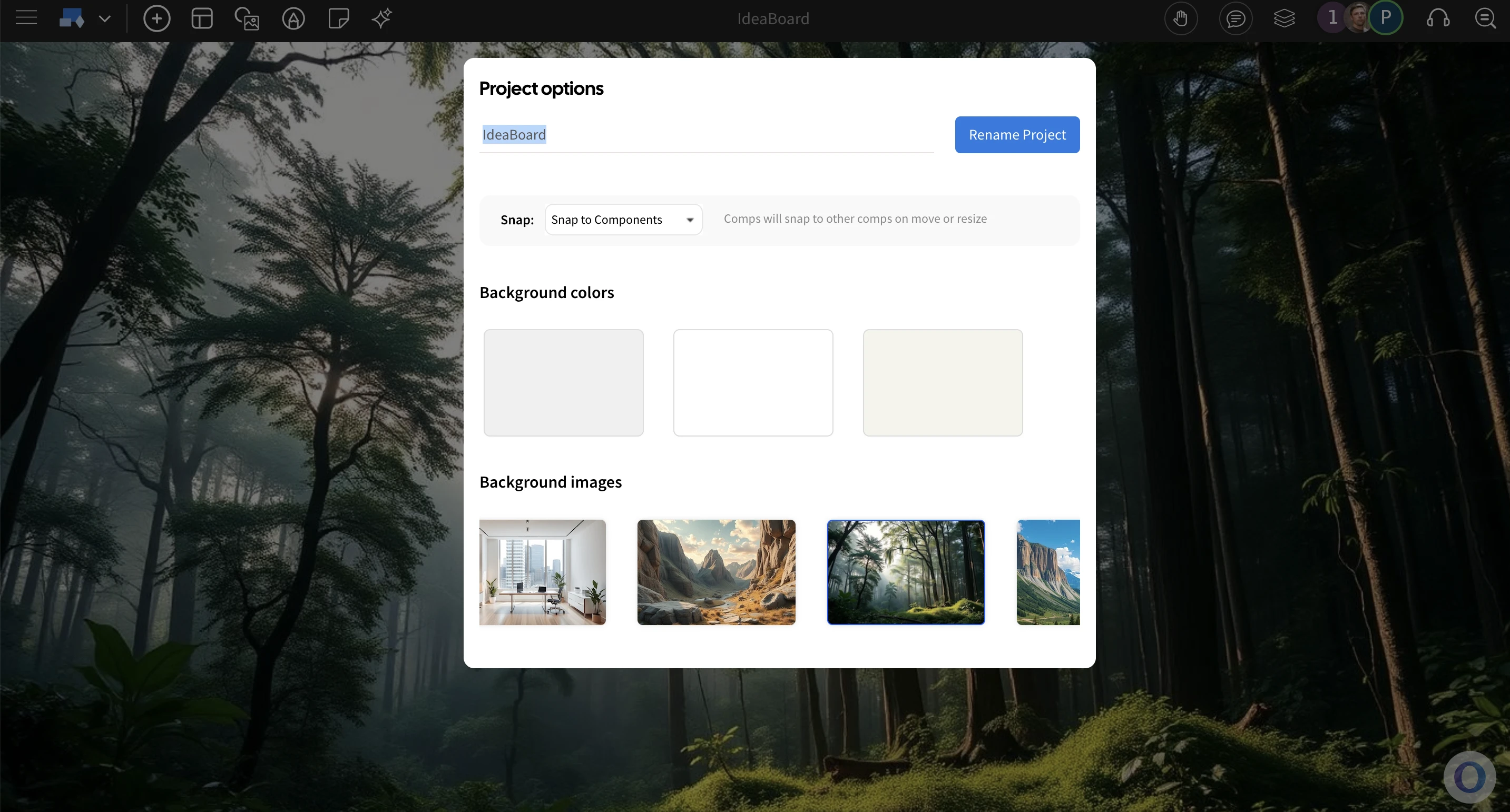
This feature is available in all plans including free basic, so try to convert your 'Whiteboard' into your own branded or contextual board.
New: Visual prompting for generating code in Visual Studio
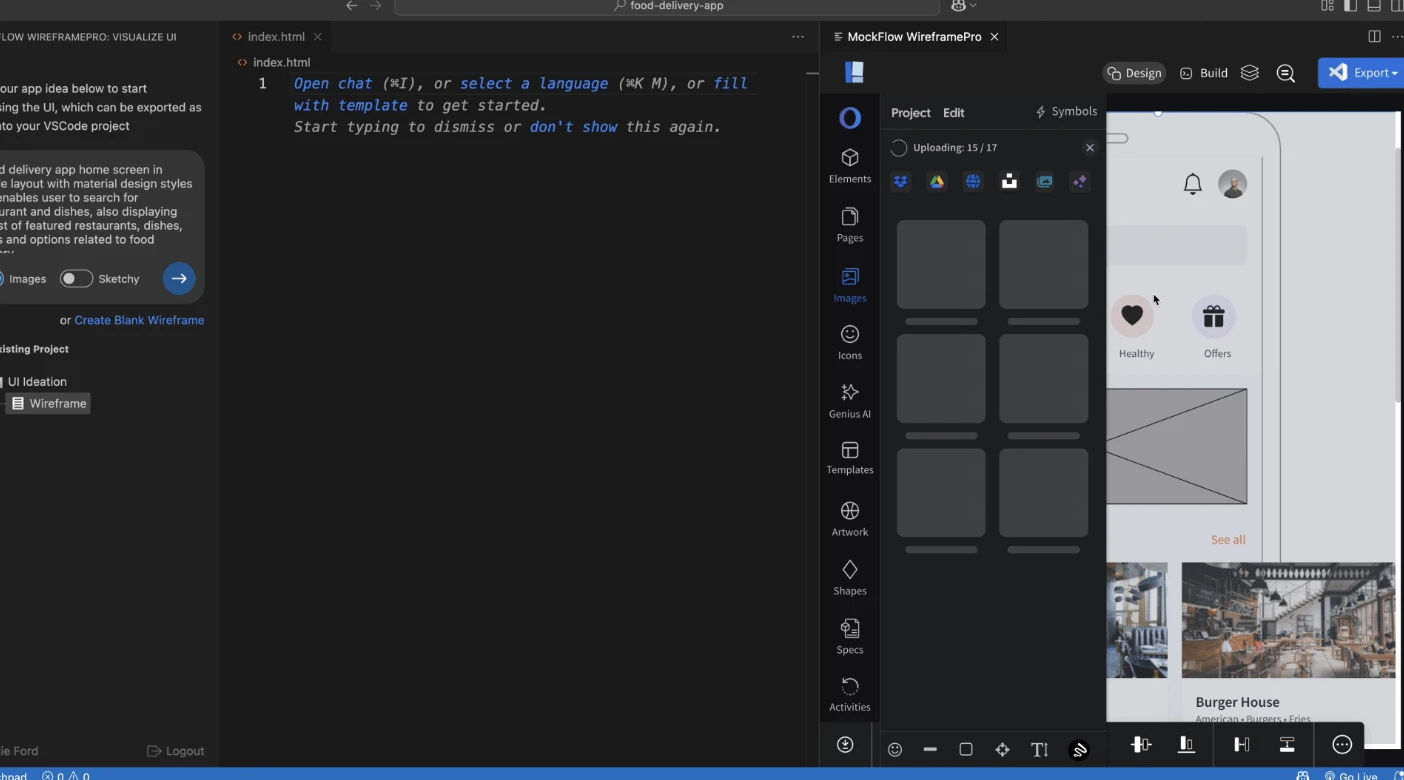
With the new MockFlow WireframePro extension for Visual Studio Code, you can instantly generate UI code through visual prompting. Simply draw your wireframes or leverage AI to bring your ideas to life, then convert them into production ready code in a click.
Bring ideas to life inside Visual Studio Code
MockFlow for Visual Studio Code lets you brainstorm and design UI ideas directly inside your favorite IDE. Use the built-in prompt box to have AI instantly generate your interface layout, or quickly sketch it yourself using the fastest visual UI design tool available.
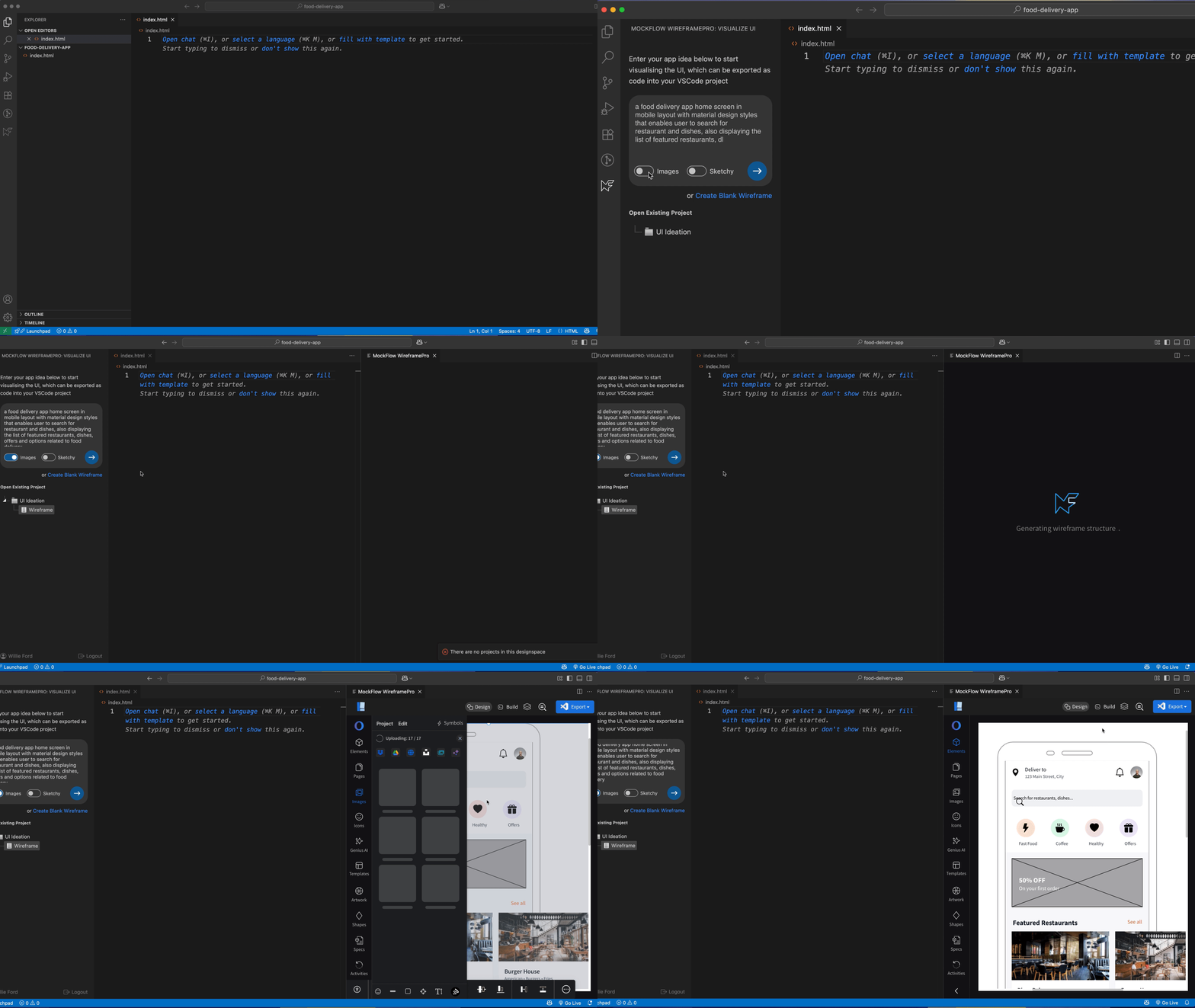
Tailored version for Visual Studio code
This extension integrates seamlessly with your Visual Studio Code IDE through a built-in MockFlow project sidebar, allowing you to create new wireframes or open existing ones. It also features a streamlined version of the WireframePro editor, ensuring a lighter, less cluttered editing experience inside Visual Studio Code.
Turn wireframes into actual code
With the integrated Build Mode in the MockFlow WireframePro extension, take your designs further by converting wireframes into clean, ready-to-use code and inserting it directly into your Visual Studio Code project files.
Build Mode lets you export any part of your wireframe whether it’s a single component, a section, or an entire page, into code. It supports all major frameworks in multiple versions, ensuring seamless integration with your project’s requirements.
Why brainstorming your UI is important
Wireframing is like sketching your ideas on a whiteboard, only better. It helps you brainstorm layouts, refine them quickly, and make changes before development begins. With rapid wireframing and code export, you can accelerate your workflow and save valuable development time.
Unlike other app builders, WireframePro extension only focuses on the UI that means it easily integrates with any new or existing Visual Studio projects and can be used as required.
The extension is available for Free in Visual Studio marketplace. Download and try now.
Introducing the Android 16 UI Kit for Wireframing – Now Available
Now ideate apps for Android 16 at lightning speed with this new wireframing UI-kit. With over 120 components and templates, brainstorming apps for Android 16 look and feel is now a breeze.
With the recent release of Android 16 and its shift to the new 'Material 3 Expressive' design standard, the Android user interface has undergone a significant visual and structural overhaul. To help you keep pace, our latest UI kit for WireframePro is tailored for wireframing apps that follow this new design language. It includes a wide range of components across multiple categories, making it easier to plan and prototype Android 16 apps with precision
- Frames
- Keypad
- Widgets
- Navigation
- Forms
- Buttons and Icons
- Tabs and sliders
- Templates
Before diving into advanced prototyping or development, it's essential to visualize your Android app ideas using the native design theme. With this Android 16 wireframe UI kit and MockFlow’s intuitive editor, you can quickly sketch app screens with no learning curve required. Effortlessly iterate your designs, explore different layouts, and communicate UI concepts more effectively, all while accelerating your development process.
IdeaBoard now adds free whiteboarding directly inside Atlassian Trello
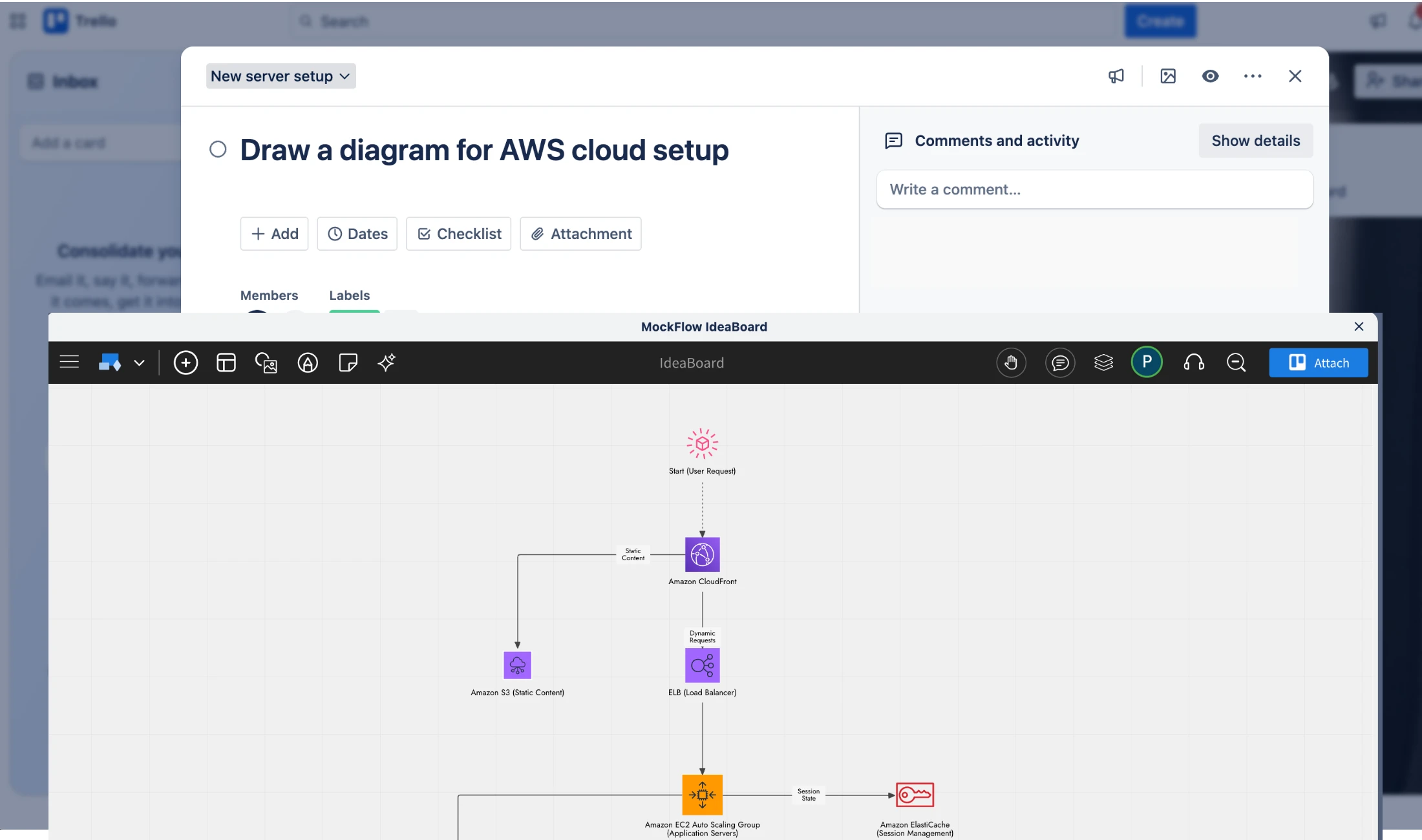
With the new IdeaBoard Power-Up for Trello, your team can now collaborate, brainstorm, create diagrams, and visualize ideas, without ever leaving your Trello board.
IdeaBoard is your visual canvas for seamless ideation. When brainstorming happens alongside task management, creativity flows effortlessly. With the new IdeaBoard Power-Up, Atlassian Trello users can easily sketch ideas, attach visual boards, and collaborate in real time all within Trello.
Whiteboard + Productivity = Success
Trello is a powerful productivity tool - fast, agile, and simple enough for teams of all kinds. But Trello tasks often remain text-heavy. While you can attach images to add context, it can be time-consuming, distracting, and limited in flexibility.
That changes now.
With the IdeaBoard Power-Up, you get a full-featured whiteboard experience right inside Trello. Make your tasks visual, easy to understand, and impossible to overlook.
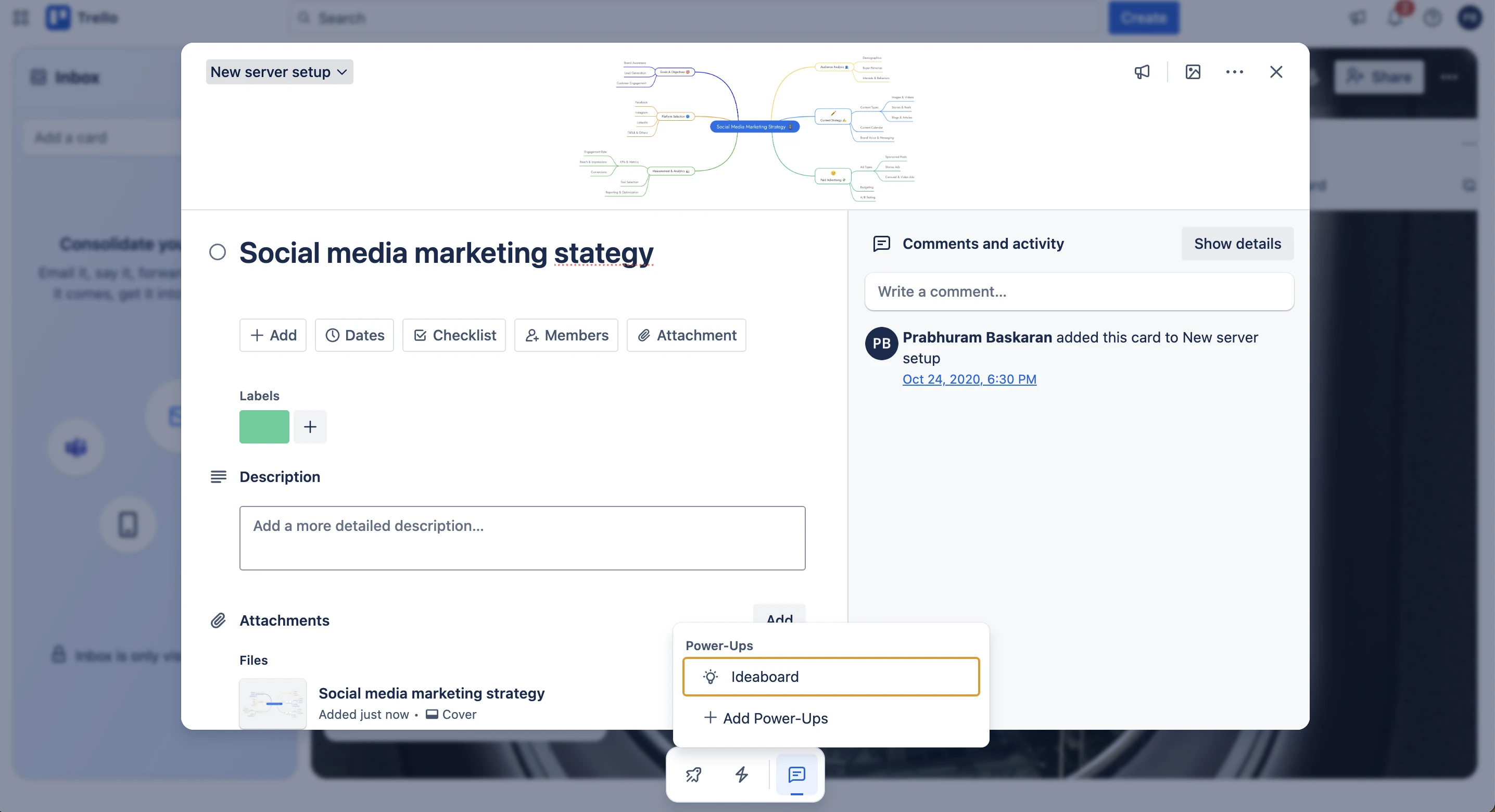
Real Use Cases of the IdeaBoard Power-Up in Trello
“Set up AWS SES for our email architecture”
→ Draw and attach a detailed AWS cloud diagram that clearly illustrates the workflow.
“Social media marketing strategy for product launch”
→ Create (or generate with AI) a visual mind map and connect your ideas in a structured way.
“Blog article for our new feature”
→ Collaborate on multiple documents in a single IdeaBoard—draft, review, and finalize content side by side in real time.
“Status board for the all-hands meeting”
→ Build a sticky note board that feels just like your physical whiteboard, but better—organized, collaborative, and always accessible.
Whatever you want to visualize or brainstorm, the IdeaBoard Power-Up brings it to life—right inside Trello.
MockFlow IdeaBoard is completely free and included in all MockFlow plans. Add the Power-Up to Trello and start visualizing your tasks today. Install now.
Free UI kits for MacOS 26, iPadOS 26, and watchOS 26 now available in MockFlow
The latest UI kits are now available for MockFlow WireframePro users, featuring approximately 143 components for macOS 26, over 160 components for iPadOS 26, and a complete UI kit for the new watchOS 26.
Following our recent release of the iOS 26 UI kit designed for brainstorming iPhone apps with the new Liquid Glass theme, we’re excited to officially launch UI kits for the latest major versions of macOS, iPadOS, and watchOS.
Each UI kit also includes ready-made templates that showcase how the components come together in real app scenarios. What sets MockFlow apart from other UI design tools is its zero-learning curve and speed, it’s like sketching on a whiteboard, but with real, functional components. This makes it incredibly easy to iterate quickly and communicate UI ideas visually, while staying true to the original design theme—in this case, Liquid Glass.
WatchOS 26 wireframe component set preview
iPadOS 26 wireframe component set preview
All UI packs are available for free in all MockFlow plans including basic.
Create Documents the Visual Way with the New Docs Component
Create multiple docs side-by-side, connect docs with flows, combine docs with stickies, images, todos. Move away from the traditional method of writing documents and start creating them visually with IdeaBoard.
We are excited to introduce a new document component with advanced editing features inside IdeaBoard. By combining an infinite canvas with a familiar document editor, you get a fresh approach to writing and organizing content.
Traditional document tools like Google Docs were designed with printing in mind. While they are great for that purpose, they often fall short when used for web-based writing due to their limitations.
With the new document component in IdeaBoard, you can write, arrange, and visualize your content however you like. Your mind processes information more efficiently when everything is visible on one screen, reducing mental strain and helping you think more clearly.
Doc features
Style it the way you want
Real-time editing
AI features:
Focus mode:
The document component supports IdeaBoard’s focus mode, designed to eliminate distractions while editing or reviewing. When enabled, only the document stays visible in the viewport, while all other elements are hidden. This provides a clean, isolated space for focused writing especially helpful when the canvas becomes cluttered or when zooming and panning interrupt the flow. You can also share just the document on its own using focus mode.
Example: https://app.mockflow.com/iview/MI0MLCFBssb#/mode/view/focus/D8be813c57937a67fcdee822eeba21d66
The Docs component in IdeaBoard offers a fresh, visual approach to creating and collaborating on documents. With powerful editing tools, seamless real-time collaboration, and AI-assisted writing, it redefines how documents are written and shared. Best of all, it's available for free across all MockFlow plans.

