Creating a basic character device driver for Linux
This tutorial shows how to create a Linux kernel module that will register a simple character device. Character devices support operations like reading/writing data and sending IOCTL codes. A typical example of a character device would be a COM port. In this tutorial we will create a virtual device that produces a stream of messages like this:
This is file #X, iteration Y. Z file handle(s) are now active...
Each time a new user-mode application opens a handle to the device the file number will be increased. Each file instance will have its own iteration counter. The device will produce a one-second delay between the iterations.
Before you begin please follow the basic KGDB tutorial or one of the other basic tutorials to ensure that you can create and debug a basic kernel module.
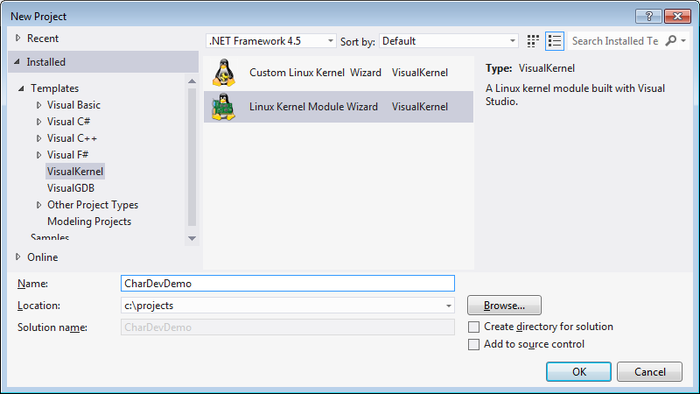
- Start Visual Studio. Select File->New Project->VisualKernel->Linux Kernel Module Wizard:
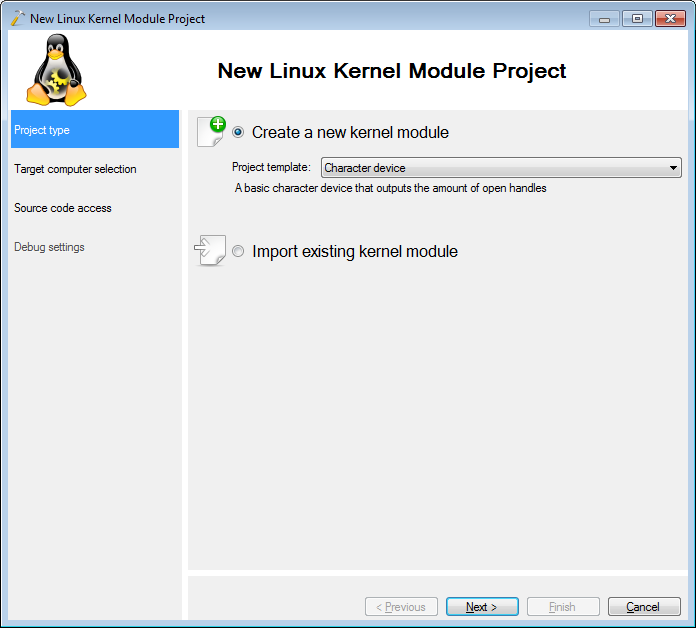
- Select “character device” as the project template on the first page of the wizard:
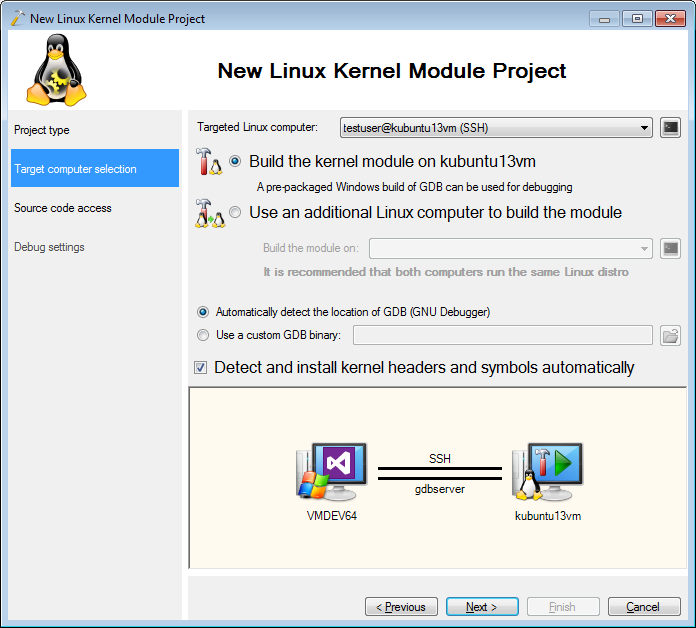
- On the next page select the Linux machine you are targeting:
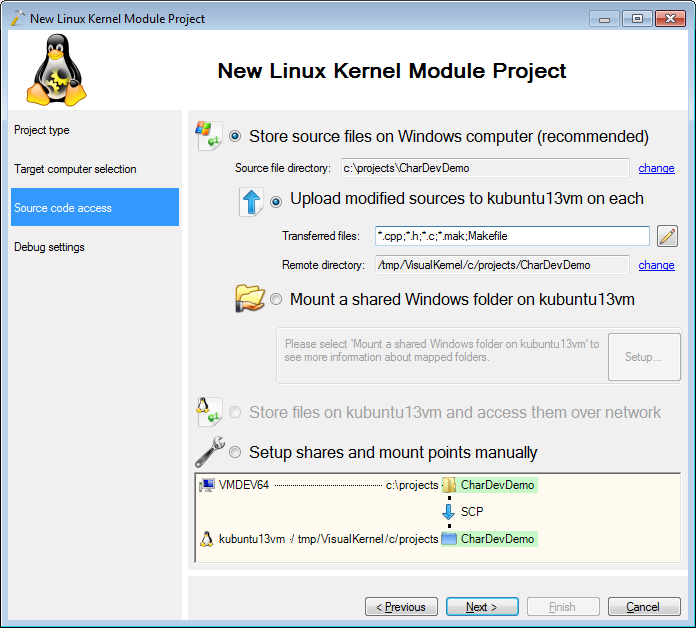
- On the third wizard page specify the directory where you want to store the source files:
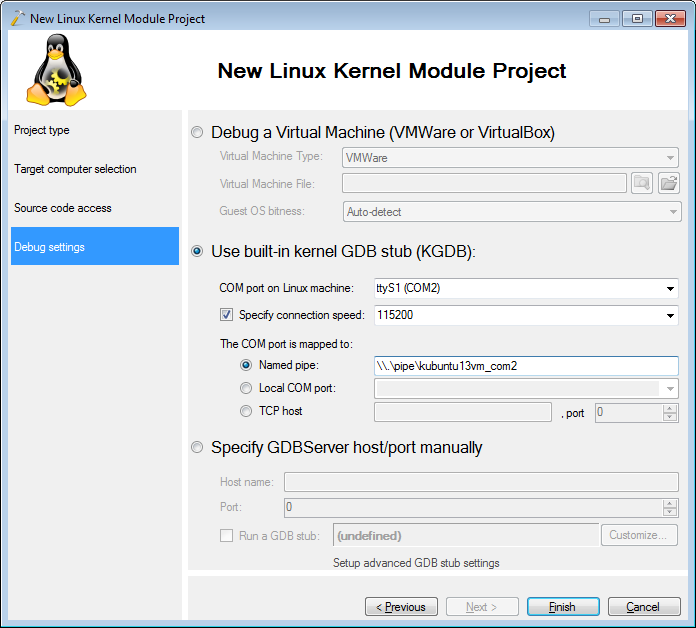
- On the last page select the method of connecting to the kernel debugger (e.g. KGDB):
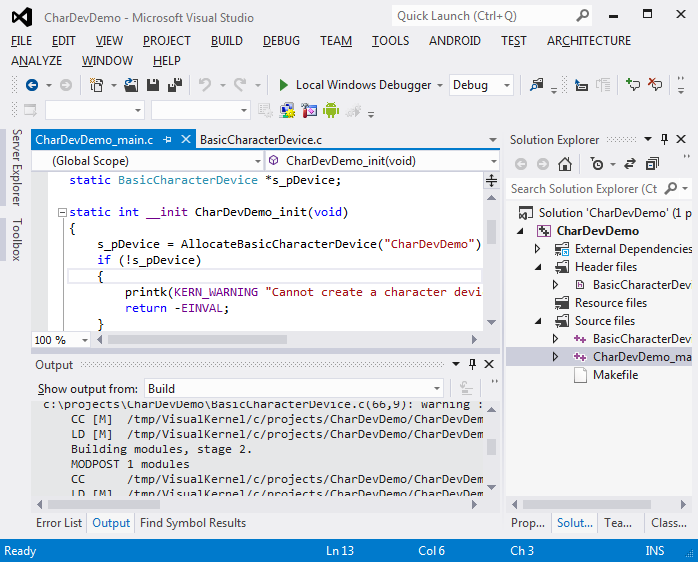
- Press “Finish” to generate a Visual Studio project. Build it by pressing Ctrl-Shift-B:
- Start debugging by pressing F5. VisualKernel will insert the module into the kernel and load the symbols for it. Go to the SSH Session window and click the console button:
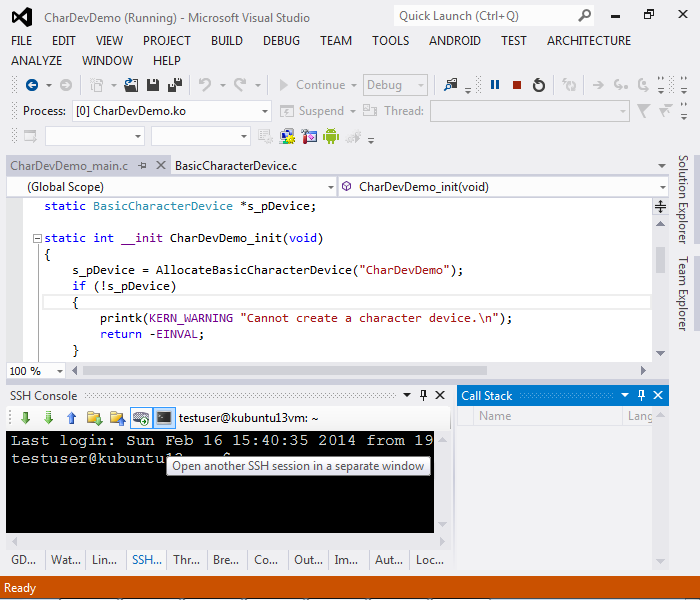
- This will open a multi-tabbed SSH window. Run “sudo cat /dev/<Your project name>” command:
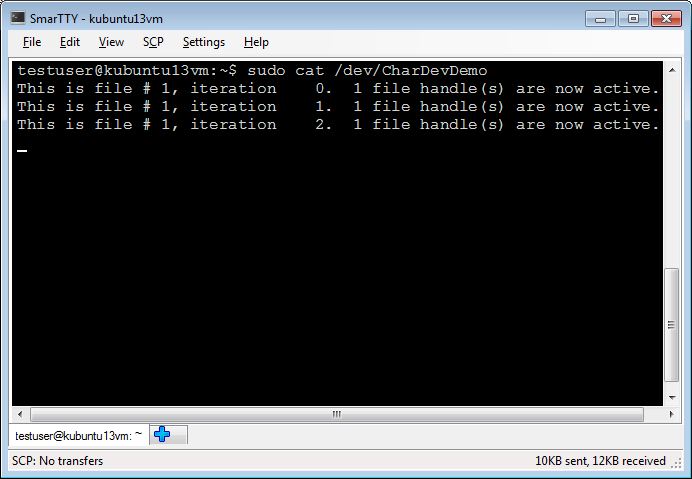
- Open a new tab and run the same command in it. Note how the file number will now be 2 and the device will also report that 2 handles are open:
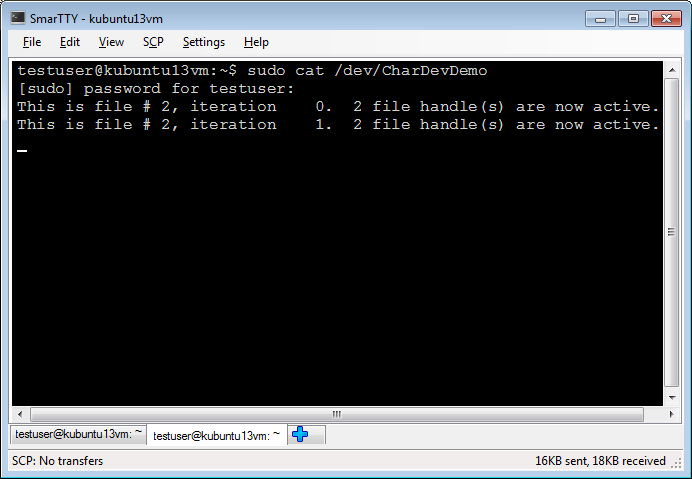
- Now we will see how the message stream is generated. Go back to Visual Studio and set a breakpoint in the read function:
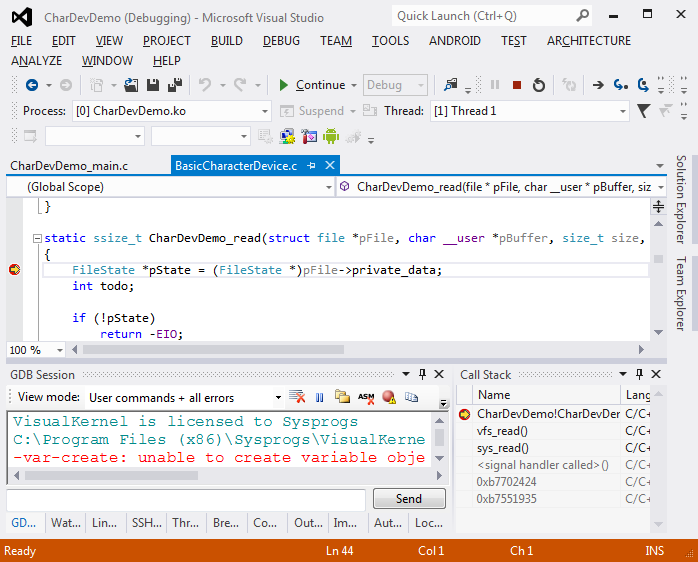 The call stack shows how the function was invoked as a result of handling the ‘read’ syscall. Step through the function by pressing F10 to see how the message is generated.
 - Our device can produce a one-second delay while handling the read() syscall, so to avoid completely hang the user-mode application that is waiting for us, we are using the msleep_interruptible() function. Set a breakpoint on the line returning -EINTR, resume execution, go to the SSH console and press Ctrl-C:
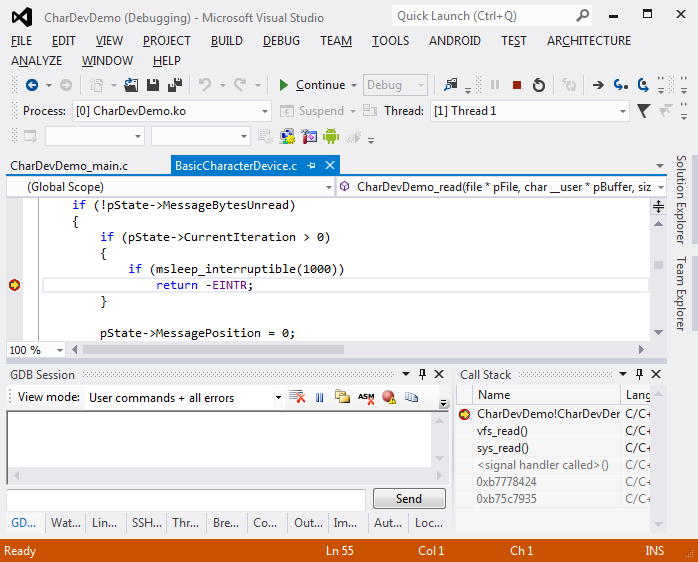 The breakpoint will now hit showing how pressing Ctrl-C resulted in a cancellation of the msleep_interruptible() call.
 - Now we will explore how the handle counter is implemented. Put a breakpoint in the open function and re-run the last command in the SSH console:
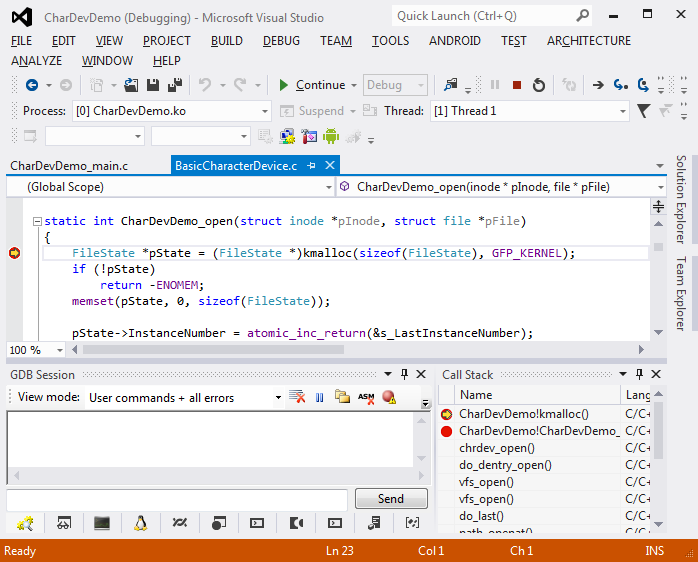 You can see how the open syscall invoked our function that allocated a state object and associated it with the file object.
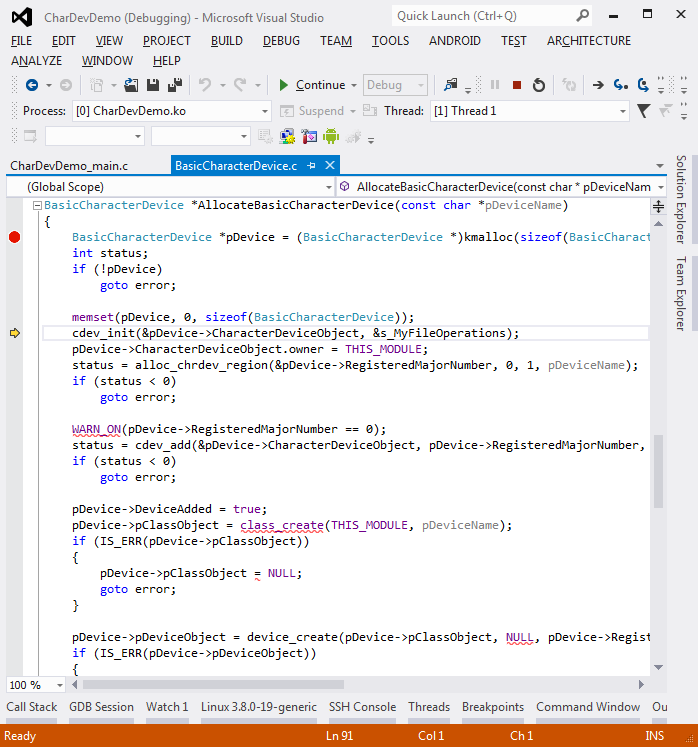
 - Finally we will explore how the device registration works. Set a breakpoint in the AllocateBasicCharacterDevice()function. Then go to the GDB Session window and reload the module:
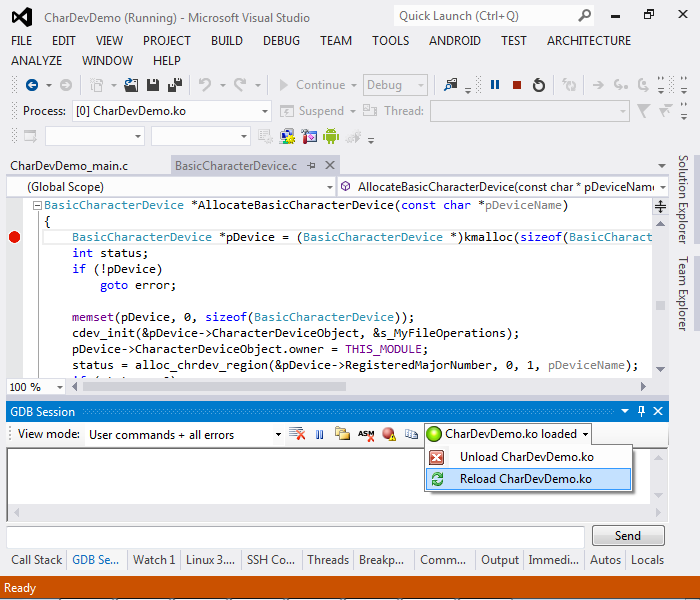
- When the breakpoint is hit, step through the function to see the steps required to register the device: