Showing posts with label how-to. Show all posts

Wednesday, 29 June 2016

Calling C# Methods from SQL Server

I was recently able to take advantage of a useful Microsoft SQL Server feature that enabled me to call a .NET library class method from a stored procedure.

Brief Context


I was working on a client project in which our team were required to write an ETL process. The ETL process was mostly written using SQL Server Integration Services (SSIS). In one part of the ETL process, we needed to do some fuzzy string similarity matching. We found that the Levenshtein string distance algorithm suited our requirements.

Aside: The Levenshtein algorithm takes two strings and computes the "edit distance" which indicates how many transformations are necessary to reach a given target string from a given source string. For example, the function Levenshtein("test", "tear") would return the value two.

In our case, we wanted to abstract the Levenshtein output into a percentage, so for example, the function GetTextSimilarity("test", "tear") would return 50% - indicating that the inputs are half similar.

Creating the Class Library


The full code for the class library is available on GitHub.

The first step is to create a .NET class library which targets a .NET framework version that the flavour of SQL Server you are working with supports. In my case, we created a C# class library targeting .NET framework 4.5 as we were going to use the class library in Microsoft SQL Server 2014.

Ensure that the method you want to call from SQL Server is marked static. You will need to decorate the method with the Microsoft.SqlServer.Server.SqlProcedure attribute. If you look at my class library code, you'll find two classes, namely, LevenshteinDistance and StringCompare. The LevenshteinDistance class contains the algorithm implementation in a static method marked with the SqlProcedure attribute. Similarly, the StringCompare method (shown below) contains one method, GetTextSimilarity, which is the method we want to call as a function from SQL server.

The GetTextSimilarity method calls the LevenshteinDistance.GetLevenshteinDistance method and returns the percentage similarity value that we required. Note that only the method you want to call as a function requires the SqlProcedure attribute. In this case, we could have only marked the GetTextSimilarity method with this attribute as this is the only method we want to call from SQL Server.

Registering the Class Library in SQL Server


Once you've finished writing the class library and you are ready to call your method(s) from SQL Server, you'll need to execute the following SQL script (obviously, you'll need to replace the database name, assembly file path, function name and method namespace).


Once the script has finished executing, you will find the registered assembly under the Database\Programmability\Assemblies node in SQL Server Management Studio.
Image

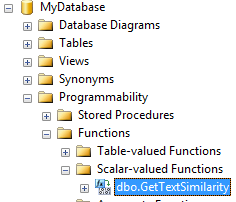
If you look under Database\Programmability\Functions, you'll find the method you registered earlier (see SQL script).
Image

You can now call your method as a standard T-SQL function call. Quite useful!

Image

Saturday, 19 December 2015

C# CSV Library and HTTP Handlers

A colleague and I was recently looking at some old ASP.NET WebForms code which generated a potentially large CSV string and returned it in a response to a HTTP request. The original code was placed in a standard ASP.NET WebForms page in the OnLoad event handler. As the code was working with the HttpResponse object and writing the CSV directly to the HTTP output stream, we determined that this code was better placed in a HTTP Handler. The primary advantage of using a HTTP handler to generate the file is that we can bypass the unnecessary ASP.NET WebForms page life cycle.

The existing code was using a StringBuilder to generate the CSV string in the page OnLoad event handler. As you may imagine, this looked messy and was a pain to maintain. To abstract the CSV string creation logic, my colleague introduced me to a useful CSV library called LINQ to CSV. The project page link for this library is here and the library is available as a NuGet package.

The LINQ to CSV library enabled us to decorate some properties in a model class with attributes that specify how to output the property in CSV form. The example below (from the library project page) shows how to apply the attributes:

public class Product
{
    [CsvColumn(Name = "ProductName", FieldIndex = 1)]
    public string Name { get; set; }
    [CsvColumn(FieldIndex = 2, OutputFormat = "dd MMM HH:mm:ss")]
    public DateTime LaunchDate { get; set; }
    [CsvColumn(FieldIndex = 3, CanBeNull = false, OutputFormat = "C")]
    public decimal Price { get; set; }
    [CsvColumn(FieldIndex = 4)]
    public string Country { get; set; }
    [CsvColumn(FieldIndex = 5)]
    public string Description { get; set; }
}

Once your model class is decorated, you can then use other classes of the library to generate a CSV representation of a collection containing your model instances. This representation can be output to disk as demonstrated in the code example below:

IList<Product> products = new List<Product>();
products.Add(
    new Product
    {
        Name = "Samung Galaxy S6",
        LaunchDate = DateTime.Today,
        Price = 500,
        Country = "United Kingdom",
        Description = "This is a Samsung phone product"
    }
);

products.Add(
    new Product
    {
        Name = "Apple iPhone 5",
        LaunchDate = DateTime.Today,
        Price = 600,
        Country = "United States",
        Description = "This is an Apple phone product"
    }
);

CsvFileDescription inputFileDescription = new CsvFileDescription();
inputFileDescription.SeparatorChar = ',';
inputFileDescription.FirstLineHasColumnNames = true;

CsvContext csvContext = new CsvContext();
csvContext.Write(products, @"C:\Products.csv");

Usefully, the CsvContext class of the library also supports an overload to the Write method which accepts a TextWriter stream. Passing a TextWriter stream to this overload results in the library outputing the CSV representation to your stream rather than a file on disk. In our case, we used a StreamWriter that wrote to a MemoryStream. Once the CSV file content was in the MemoryStream instance, we sent the stream contents in the HTTP response from the HTTP handler. The full HTTP handler code is below (using the example product data).

public class ProductsExportHandler : IHttpHandler
{
    public bool IsReusable { get { return true; } }

    public void ProcessRequest(HttpContext context)
    {
        context.Response.AddHeader(
            "content-disposition"
            "attachment;filename=BulkExport.csv"
        );
        context.Response.Cache.SetCacheability(HttpCacheability.NoCache);
        context.Response.ContentType = "application/vnd.text";

        IList<Product> products = new List<Product>();
        // Add products...
            
        var inputFileDescription = new CsvFileDescription();
        inputFileDescription.SeparatorChar = ',';
        inputFileDescription.FirstLineHasColumnNames = true;
            
        using (var memoryStream = new MemoryStream())
        {
            using (var streamWriter = new StreamWriter(memoryStream))
            {
                var csvContext = new CsvContext();
                csvContext.Write(products, streamWriter);
                    
                streamWriter.Flush();
                    
                context.Response.BinaryWrite(memoryStream.GetBuffer());
            }
        }
    }
}

Wednesday, 15 July 2015

Using Gacutil on a Non-Development Server

A short while ago I came across an issue with using the Visual Studio gacutil tool on a non-development server. By non-development server, I mean a system which does not have Visual Studio installed on it with the associated .NET Software Development Kit (SDK). I thought it may be useful to share the problem and solution here in case anyone else runs into the same issue.

The gacutil tool is part of the Visual Studio SDK and is used to install a strongly named assembly to the Global Assembly Cache (GAC). In my case, I had written a .NET 4 class library which was to be consumed by an application which lives on the same machine. As part of my deployment testing, I used the gacutil tool through the Visual Studio Developer Command Prompt to install the assembly in my local GAC. The result was successful as shown in the screenshot below.

Image

I then had to install the same class library in the GAC of a test server. The test server had .NET Framework version 4 installed but because it doesn't have Visual Studio installed, it did not have the Developer Command Prompt and gacutil on the server. I then located the gacutil.exe and gacutil.exe.config files from my laptop file system, the location in my case was:

C:\Program Files (x86)\Microsoft SDKs\Windows\v8.0A\bin\NETFX 4.0 Tools

I copied the gacutil.exe and gacutil.exe.config files onto the test server and opened command prompt (cmd.exe) as administrator. Running the gacutil install command yielded no success response from gacutil, as shown in the screenshot below.

Image

Surprisingly, gacutil gave no feedback as to what happened. After doing a bit of online research, I learned that gacutil has a dependency on a dll file named "gacutlrc.dll". In my laptop file system, I found this dependency in the folder location:

C:\Program Files (x86)\Microsoft SDKs\Windows\v8.0A\bin\NETFX 4.0 Tools\1033

I then created a folder named "1033" in the same directory that I copied gacutil.exe to on my test server. I copied the "gacutlrc.dll" file into the 1033 folder and executed the gacutil install command with a successful result.
Image

In summary, if you are using the gacutil command on a non-development server, ensure you have the following in a single folder:
  • gacutil.exe and gacutil.exe.config
  • a folder named "1033" with the gacutlrc.dll file within it
It should then just be a case of opening a command prompt window as an administrator, navigating to the directory containing gacutil.exe and running the gacutil /i [path to assembly] command.

Wednesday, 15 April 2015

C# How To: Using Implicitly Typed Arrays

Implicitly typed arrays allow the C# compiler to determine the most appropriate type for an array. The selected type is based on the values you initialise the array with. This useful feature was introduced in C# 3.0.
var intArray = new [] { 1, 2, 3 };
var stringArray  = new [] { "hello""world"null };
var nullableIntArray = new [] { 1, (int?)2, 3 };

Console.WriteLine(intArray.GetType());
Console.WriteLine(stringArray.GetType());
Console.WriteLine(nullableIntArray.GetType());

// Following results in a compile-time error:
//    "No best type found for implicitly-typed array"
var notGoingToWorkArray = new [] { "hello", 1, 2f };

Friday, 16 January 2015

C# How To: CSV to List or List to CSV

The following code snippet shows how to convert from a CSV string to a List using the string class Split method.

const string ColoursCsv = "red,blue,green,yellow";
                        
List<string> coloursList = ColoursCsv.Split(',').ToList();

The following code snippet shows how to convert from a list to a CSV string using the string class Join method.

List<string> coloursList = new List<string> { 
    "red"
    "blue"
    "green"
    "yellow" 
};

string coloursCsv = string.Join(",", coloursList);

C# How To: Convert to Convert String to Int

To convert from a string to an integer type you can use the Convert class as shown in the code snippet below. The Convert class contains a large number of static methods which allow you to convert from one type to another.

string numberString = "1985";
int number = Convert.ToInt32(numberString);

Monday, 12 January 2015

C# How To: Start a Program/Process

To start a program in C#, you can use the Process class. The Process class has a static method called Start which accepts a filename as a parameter. The example below shows how easy it is to start Microsoft Notepad from a C# application. Remember to include the "using System.Diagnostics;" directive at the top.

const string ProgramPath = "Notepad";

Process.Start(ProgramPath);

Note that if you need to start a program which accepts command line arguments, then you can use an overload of the Start method which accepts a ProcessStartInfo object. The following snippet shows how to open a file within notepad from your C# application.

const string ProgramPath = "Notepad";

Process.Start(new ProcessStartInfo
    {
        FileName = ProgramPath,
        Arguments = @"C:\WriteTest.txt"
    }
);

Sunday, 11 January 2015

C# How To: Create Text File And Write To It

Continuing with my new C# "how-to" theme, the code snippet below shows how to create a text file and write content to it using the StreamWriter class. Remember to add the "using System.IO;" directive at the top. Note that there is a StreamWriter constructor which supports a Boolean parameter "append" - if you pass true for this parameter and the file already exists, the StreamWriter will append content to the file rather than overwrite the existing content.

const string TextFilePath = @"C:\WriteTest.txt";

using (StreamWriter writer = new StreamWriter(TextFilePath))
{
    writer.WriteLine("Hello, world");
    writer.WriteLine("Bye, world");
}

C# How To: Read a Text File

This is the first of a series of C# "how to" posts. The following C# code snippet shows how to read a text file line-by-line using the StreamReader class. Remember to add the "using System.IO;" directive as this is the namespace which the StreamReader class is in.

const string TextFilePath = @"C:\ReadTest.txt";

using (StreamReader reader = new StreamReader(TextFilePath))
{
    string currentLine;

    while ((currentLine = reader.ReadLine()) != null)
    {
        Console.WriteLine(currentLine);
    }
}

Sunday, 7 July 2013

C# How To: Implement the Soundex Algorithm

I caught the end of a conversation about the Soundex algorithm at work the other day which inspired me to write an implementation of it in C#. If you are not familiar with what Soundex is then the Wikipedia article on Soundex is a good place to start. I first came across this algorithm in a Natural Language Processing module during my university education. In a nutshell, when the Soundex algorithm is applied to a word, a Soundex Code is produced as output. Words that differ in spelling but sound the same (homophones) should produce the same Soundex Codes. For instance, "to" and "two" are spelt differently, but sound the same and therefore produce the same Soundex Code of "T000".

This is a useful little algorithm and I particularly like it for its simplicity and the fact that the heuristics used in the algorithm work well in most cases (one limitation of Soundex is that it falls short of covering words that sound the same but have a different first letter, e.g. "site" and "cite" produce different Soundex codes). Soundex is useful when writing search functionality where you want to account for misspellings in the users query. It's worth pointing out that SQL Server natively supports Soundex (see the Soundex function in T-SQL, for example).

My C# implementation is below - I opted to implement it in a static class that exposes one public method "For". The example source code is available on GitHub - https://github.com/rsingh85/SoundexExample

public static class Soundex
{
    public static string For(string word)
    {
        const int MaxSoundexCodeLength = 4;

        var soundexCode = new StringBuilder();
        var previousWasHOrW = false;

        word = Regex.Replace(
            word == null ? string.Empty : word.ToUpper(),
                @"[^\w\s]",
                    string.Empty);

        if (string.IsNullOrEmpty(word))
            return string.Empty.PadRight(MaxSoundexCodeLength, '0');

        soundexCode.Append(word.First());

        for (var i = 1; i < word.Length; i++)
        {
            var numberCharForCurrentLetter =
                GetCharNumberForLetter(word[i]);

            if (i == 1 &&
                    numberCharForCurrentLetter ==
                        GetCharNumberForLetter(soundexCode[0]))
                continue;

            if (soundexCode.Length > 2 && previousWasHOrW &&
                    numberCharForCurrentLetter ==
                        soundexCode[soundexCode.Length - 2])
                continue;

            if (soundexCode.Length > 0 &&
                    numberCharForCurrentLetter ==
                        soundexCode[soundexCode.Length - 1])
                continue;

            soundexCode.Append(numberCharForCurrentLetter);

            previousWasHOrW = "HW".Contains(word[i]);
        }

        return soundexCode
                .Replace("0"string.Empty)
                    .ToString()
                        .PadRight(MaxSoundexCodeLength, '0')
                            .Substring(0, MaxSoundexCodeLength);
    }

    private static char GetCharNumberForLetter(char letter)
    {
        if ("BFPV".Contains(letter)) return '1';
        if ("CGJKQSXZ".Contains(letter)) return '2';
        if ("DT".Contains(letter)) return '3';
        if ('L' == letter) return '4';
        if ("MN".Contains(letter)) return '5';
        if ('R' == letter) return '6';

        return '0';
    }
}
Example:

// Both lines below output R100
Console.WriteLine(Soundex.For("Ravi"));
Console.WriteLine(Soundex.For("Ravee"));

Friday, 5 October 2012

C# How To: Convert Integer to Base Binary, Octal, Denary or Hexadecimal

A few weeks ago I had a requirement to convert an Int32 value (base 10 or decimal) to its binary representation as a string. I encapsulated the logic to convert the decimal number to a binary string in a method. I used the base 10 to base 2 algorithm where the decimal number is continiously divided by two until it becomes zero. Within the iteration, the modulo two of the number is then appended to the output binary string. At the time of writing that code, it seemed like the best way to go about it, and because it was neatly encapsulated in a method, I knew I could swap out the implementation at a later date without much hassle.

Today, I came across an overload of the Convert.ToString method which surprisingly accepted a parameter called toBase. I wish I had come across this earlier... The overload accepts the bases 2, 8, 10 or 16 and throws an ArgumentException if one of these are not passed in. Examples are below:

Console.WriteLine("{0}", Convert.ToString(10,2));  // Outputs "1010
Console.WriteLine("{0}", Convert.ToString(10,8));  // Outputs "12"
Console.WriteLine("{0}", Convert.ToString(10,10)); // Outputs "10"
Console.WriteLine("{0}", Convert.ToString(10,16)); // Outputs "a"
Console.WriteLine("{0}", Convert.ToString(10,3));  // Throws ArgumentException

Friday, 10 February 2012

C# How To: Write a Fluent API

I've seen a number of API's now that utilise a "fluent" interface (e.g., Fluent NHibernate, Moq etc.). So far, I've had mixed feelings about it. If you're not familiar with what a fluent interface is, then Martin Fowler's post on this subject is a good starting point. By following a fluent design, you get some neat looking "client-side" code that is almost self-describing. The following example models a real-world person and exposes a fluent interface.

public class Person
{
    public string FirstName { get; private set; }
    public string Surname { get; private set; }

    private Person() { }

    public static Person New()
    {
        return new Person();
    }

    public Person SetFirstName(string firstName)
    {
        this.FirstName = firstName;
        return this;
    }

    public Person SetSurname(string surname)
    {
        this.Surname = surname;
        return this;
    }

    public override string ToString()
    {
        return string.Format(
            "I am {0} {1}",
                this.FirstName,
                    this.Surname);
    }
}
As the code snippet shows, each setter method in the Person class returns a reference to the "current" object (think context/state). This is important as it permits users of the class to chain method calls on the object, with each invocation returning an up-to-date state of the original object. For example, we can create an instance of Person and then set its state in one single C# statement:

var person = Person.New()
    .SetFirstName("Ravi")
        .SetSurname("Singh");
This looks neat and is very readable. Without a fluent interface, you may have code that looks somewhat like:

var person = new Person();
person.FirstName = "Ravi";
person.Surname = "Singh";
Of course, you could use the object initialiser syntax or pass the names through to an appropriate constructor, but that's not the point. The point is that you don't get the same readability or fluentness that you get using method chaining. If your methods are named properly, then using the fluent technique makes reading your code closer to reading a sentence in natural language.

I personally prefer the fluent version. Earlier in the post, I mentioned that I had a mixed feeling - this mainly stems from the fact that it becomes difficult to debug code that uses a fluent interface. For example, if you have a statement in which a number of method calls are chained on an object, it's difficult to see the intermediary values returned by each method unless you step into each method call. This can be a bit of a pain when debugging. Other than this one problem, I've enjoyed working with fluent-based API's and will strive to write classes in a more "fluent" way.

Sunday, 29 January 2012

C# How To: JSON Serialisation and Deserialisation

I've started to make an active effort in using JSON over XML, the main reason being that I find JSON formatted data to be easier on the eye than XML formatted data. I found a project in our source control repository at work that used JSON formatted data as input. The project used a neat little JSON library that I'll now be using whenever required. The library is called Json.NET. The following code shows how easy it is to serialise a .NET POCO into JSON, and then reconstruct the object back from JSON using the aforementioned library.

Imagine we have a simple class that models a person:

internal class Person
{
    public string FirstName { get; set; }
    public string LastName { get; set; }
    public int Age { get; set; }
}
We can create an instance of this class and then serialize the object into a JSON string using the JsonConvert class as follows:

var inputPerson = new Person() 
    { FirstName = "Alan", LastName = "Turing", Age = 41 };

string json = JsonConvert.SerializeObject(inputPerson);
The json string variable now contains the value:

{"FirstName":"Alan","LastName":"Turing","Age":41}

Reconstructing the object back from a JSON string is as simple as:

var outputPerson = JsonConvert.DeserializeObject<Person>(json);

Wednesday, 21 December 2011

C# How To: Bit Flags

I use an Enumeration type whenever I need to define a set of named constants that can be assigned to a variable. Enums are easier on the brain than magic numbers and they ensure that valid values are being used throughout your code (you also have the added compile-time checking advantage).

The following enum models the months in the year:

enum Months { Jan, Feb, Mar, Apr, May, Jun, Jul, Aug, Sep, Oct, Nov, Dec }
To use the above enum, you define a variable of the enum type that can be assigned a value from the enumeration:

Months christmasMonth = Months.Dec;
The variable christmasMonth now represents the month December. It's worth knowing that by default, each enum value is assigned an integer value based on its order of definition (the underlying type of an enumeration value is actually an integer). In this example, the value Months.Jan is assigned the integer 0 and Months.Dec is assigned the int 11. These integer values can be overridden as we will see further below.

Sometimes, it makes sense to be able to assign multiple enum values to a single variable. For example, it would be nice to be able to assign multiple Month enum values to a Months variable called summerHolidayMonths. This is possible using the bit flag technique.

To create a bit flags enum, you assign the attribute [System.FlagsAttribute] to the enum definition and sequentially assign values of the power two (starting from zero) to each enumeration value:

[System.FlagsAttribute]
enum Months
{
     Jan = 0x0,   //000000000001 (base 2) 0 (base 10)
     Feb = 0x1,   //000000000010 (base 2) 1 (base 10)
     Mar = 0x2,   //000000000100 (base 2) 2 (base 10)
     Apr = 0x4,   //000000001000 (base 2) 4 (base 10)
     May = 0x8,   //000000010000 (base 2) 8 (base 10)
     Jun = 0x10,  //000000100000 (base 2) 16 (base 10)
     Jul = 0x20,  //000001000000 (base 2) 32 (base 10)
     Aug = 0x40,  //000010000000 (base 2) 64 (base 10)
     Sep = 0x80,  //000100000000 (base 2) 128 (base 10)
     Oct = 0x100, //001000000000 (base 2) 256 (base 10)
     Nov = 0x200, //010000000000 (base 2) 512 (base 10)
     Dec = 0x400  //100000000000 (base 2) 1024 (base 10)
}
Thus, the enum value Months.May, can now also be represented by the bit pattern "000000010000".

By thinking in terms of bits, we can now use the bitwise logical OR operator in C# to assign multiple enumeration values to a single enum variable, for example:

Months summerHolidayMonths = Months.May | Months.Jun | Months.Jul | Months.Aug;
summerHolidayMonths now represents the months May, June, July and August.

By logical OR'ing each value, we're storing the bit pattern "000011110000" in the summerHolidayMonths variable. As stated, this pattern was arrived at by bitwise OR'ing the bit patterns of each of the summer month enum values:

 Months.May = 000000010000
 Months.Jun = 000000100000
 Months.Jul = 000001000000
 Months.Aug = 000010000000
              ------------
Logical OR  = 000011110000


Clever... but how do we know if a particular month is stored in the summerHolidayMonths variable? We can use the bitwise logical AND operator like so:

bool isJuneInSummerMonths = (summerHolidayMonths & Months.June) == Months.June;
We can also remove a month from the summerHolidayMonths by computing the bitwise logical XOR of the variable with the enum value to remove. In the example below, we're removing the month May from summerHolidayMonths:

summerHolidayMonths = summerHolidayMonths ^ Months.May;
I'll leave it to you to apply the XOR on the months to see that it does really work!

Next time you define an enumeration, give some thought as to whether it makes sense to allow users of your enum to store multiple enumeration values in the enumeration variable - if it does make sense, then use bit flags!

Monday, 19 December 2011

C# How To: Log to File

Over the past few weeks, I've needed to write a number of small "throw-away" console applications. These applications processed a large amount of data and there was a need to log progress. I wrote the following fairly reusable file logging class which someone may find useful. Alternatively, I'm also interested to get some feedback on whether it could be improved in any way, so feel free to comment on this one.

public class FileLogger
{
    private static FileLogger singleton;
    private StreamWriter logWriter;

    public static FileLogger Instance
    {
        get { return singleton ?? (singleton = new FileLogger()); }
    }

    public void Open(string filePath, bool append)
    {
        if (logWriter != null)
            throw new InvalidOperationException(
                "Logger is already open");

        logWriter = new StreamWriter(filePath, append);
        logWriter.AutoFlush = true;
    }

    public void Close()
    {
        if (logWriter != null)
        {
            logWriter.Close();
            logWriter = null;
        }
    }

    public void CreateEntry(string entry)
    {
        if (this.logWriter == null)
            throw new InvalidOperationException(
                "Logger is not open");
        logWriter.WriteLine("{0} - {1}",
             DateTime.Now.ToString("ddMMyyyy hh:mm:ss"),
             entry);
    }
}
Simple example of usage (I'd wrap this in a try/catch/finally where the finally calls the close method):

FileLogger.Instance.Open(@"C:\MyLog.log", false);
FileLogger.Instance.CreateEntry("Hello, world!");
FileLogger.Instance.Close();