I covered a pretty nice way to list all of files and folders in which the total number of characters extended beyond the 260 limitation (MAX_PATH limitation) using a mix of robocopy and PowerShell. In that article I show you how to harness the ability of using robocopy to go beyond the limitation and also using some regular expressions to parse out the data that we need.
That is great and all, but I wanted something else to take as a challenge and decided that using Pinvoke to utilize some Win32 functions would work nicely! Of course, there are other avenues to locating files and folders beyond this limit in 3rd party tools and PowerShell modules such as the File System Security Module and anything using AlphaFS. But what fun is that when we can dig into some pinvoke to make this happen? I’m always up for the challenge of digging into this and making my own tools just for the sake of learning more and being able to share my code.
With that, we can begin the task at hand of building out this code for my function, which I will call Get-ChildItem2 as I aim to make it match Get-ChildItem with the exception that it will be able to look beyond the character limitation.
I am going to need the help of three win32 functions to be able to safely traverse the filesystem without being stopped by limitations. Those are:
I won’t cover the process of using Reflection to create the necessary methods, structs, etc… that is neede for pinvoke here, but you can look at a previous blog post that I wrote to see how I built these out. That being said, here is my code to build up the reflection piece:
Try{
    [void][PoshFile]
} Catch {
    #region Module Builder
    $Domain = [AppDomain]::CurrentDomain
    $DynAssembly = New-Object System.Reflection.AssemblyName('SomeAssembly')
    $AssemblyBuilder = $Domain.DefineDynamicAssembly($DynAssembly, [System.Reflection.Emit.AssemblyBuilderAccess]::Run) # Only run in memory
    $ModuleBuilder = $AssemblyBuilder.DefineDynamicModule('SomeModule', $False)
    #endregion Module Builder

    #region Structs
    $Attributes = 'AutoLayout,AnsiClass, Class, Public, SequentialLayout, Sealed, BeforeFieldInit'
    #region WIN32_FIND_DATA STRUCT
    $UNICODEAttributes = 'AutoLayout,AnsiClass, UnicodeClass, Class, Public, SequentialLayout, Sealed, BeforeFieldInit'
    $STRUCT_TypeBuilder = $ModuleBuilder.DefineType('WIN32_FIND_DATA', $UNICODEAttributes, [System.ValueType], [System.Reflection.Emit.PackingSize]::Size4)
    [void]$STRUCT_TypeBuilder.DefineField('dwFileAttributes', [int32], 'Public')
    [void]$STRUCT_TypeBuilder.DefineField('ftCreationTime', [long], 'Public')
    [void]$STRUCT_TypeBuilder.DefineField('ftLastAccessTime', [long], 'Public')
    [void]$STRUCT_TypeBuilder.DefineField('ftLastWriteTime', [long], 'Public')
    [void]$STRUCT_TypeBuilder.DefineField('nFileSizeHigh', [int32], 'Public')
    [void]$STRUCT_TypeBuilder.DefineField('nFileSizeLow', [int32], 'Public')
    [void]$STRUCT_TypeBuilder.DefineField('dwReserved0', [int32], 'Public')
    [void]$STRUCT_TypeBuilder.DefineField('dwReserved1', [int32], 'Public')

    $ctor = [System.Runtime.InteropServices.MarshalAsAttribute].GetConstructor(@([System.Runtime.InteropServices.UnmanagedType]))
    $CustomAttribute = [System.Runtime.InteropServices.UnmanagedType]::ByValTStr
    $SizeConstField = [System.Runtime.InteropServices.MarshalAsAttribute].GetField('SizeConst')
    $CustomAttributeBuilder = New-Object System.Reflection.Emit.CustomAttributeBuilder -ArgumentList $ctor, $CustomAttribute, $SizeConstField, @(260)
    $cFileNameField = $STRUCT_TypeBuilder.DefineField('cFileName', [string], 'Public')
    $cFileNameField.SetCustomAttribute($CustomAttributeBuilder)

    $CustomAttributeBuilder = New-Object System.Reflection.Emit.CustomAttributeBuilder -ArgumentList $ctor, $CustomAttribute, $SizeConstField, @(14)
    $cAlternateFileName = $STRUCT_TypeBuilder.DefineField('cAlternateFileName', [string], 'Public')
    $cAlternateFileName.SetCustomAttribute($CustomAttributeBuilder)
    [void]$STRUCT_TypeBuilder.CreateType()
    #endregion WIN32_FIND_DATA STRUCT
    #endregion Structs

    #region Initialize Type Builder
    $TypeBuilder = $ModuleBuilder.DefineType('PoshFile', 'Public, Class')
    #endregion Initialize Type Builder

    #region Methods
    #region FindFirstFile METHOD
    $PInvokeMethod = $TypeBuilder.DefineMethod(
        'FindFirstFile', #Method Name
        [Reflection.MethodAttributes] 'PrivateScope, Public, Static, HideBySig, PinvokeImpl', #Method Attributes
        [IntPtr], #Method Return Type
        [Type[]] @(
            [string],
            [WIN32_FIND_DATA].MakeByRefType()
        ) #Method Parameters
    )
    $DllImportConstructor = [Runtime.InteropServices.DllImportAttribute].GetConstructor(@([String]))
    $FieldArray = [Reflection.FieldInfo[]] @(
        [Runtime.InteropServices.DllImportAttribute].GetField('EntryPoint'),
        [Runtime.InteropServices.DllImportAttribute].GetField('SetLastError')
        [Runtime.InteropServices.DllImportAttribute].GetField('ExactSpelling')
        [Runtime.InteropServices.DllImportAttribute].GetField('CharSet')
    )

    $FieldValueArray = [Object[]] @(
        'FindFirstFile', #CASE SENSITIVE!!
        $True,
        $False,
        [System.Runtime.InteropServices.CharSet]::Unicode
    )

    $SetLastErrorCustomAttribute = New-Object Reflection.Emit.CustomAttributeBuilder(
        $DllImportConstructor,
        @('kernel32.dll'),
        $FieldArray,
        $FieldValueArray
    )

    $PInvokeMethod.SetCustomAttribute($SetLastErrorCustomAttribute)
    #endregion FindFirstFile METHOD

    #region FindNextFile METHOD
    $PInvokeMethod = $TypeBuilder.DefineMethod(
        'FindNextFile', #Method Name
        [Reflection.MethodAttributes] 'PrivateScope, Public, Static, HideBySig, PinvokeImpl', #Method Attributes
        [bool], #Method Return Type
        [Type[]] @(
            [IntPtr],
            [WIN32_FIND_DATA].MakeByRefType()
        ) #Method Parameters
    )
    $DllImportConstructor = [Runtime.InteropServices.DllImportAttribute].GetConstructor(@([String]))
    $FieldArray = [Reflection.FieldInfo[]] @(
        [Runtime.InteropServices.DllImportAttribute].GetField('EntryPoint'),
        [Runtime.InteropServices.DllImportAttribute].GetField('SetLastError')
        [Runtime.InteropServices.DllImportAttribute].GetField('ExactSpelling')
        [Runtime.InteropServices.DllImportAttribute].GetField('CharSet')
    )

    $FieldValueArray = [Object[]] @(
        'FindNextFile', #CASE SENSITIVE!!
        $True,
        $False,
        [System.Runtime.InteropServices.CharSet]::Unicode
    )

    $SetLastErrorCustomAttribute = New-Object Reflection.Emit.CustomAttributeBuilder(
        $DllImportConstructor,
        @('kernel32.dll'),
        $FieldArray,
        $FieldValueArray
    )

    $PInvokeMethod.SetCustomAttribute($SetLastErrorCustomAttribute)
    #endregion FindNextFile METHOD

    #region FindClose METHOD
    $PInvokeMethod = $TypeBuilder.DefineMethod(
        'FindClose', #Method Name
        [Reflection.MethodAttributes] 'PrivateScope, Public, Static, HideBySig, PinvokeImpl', #Method Attributes
        [bool], #Method Return Type
        [Type[]] @(
            [IntPtr]
        ) #Method Parameters
    )
    $DllImportConstructor = [Runtime.InteropServices.DllImportAttribute].GetConstructor(@([String]))
    $FieldArray = [Reflection.FieldInfo[]] @(
        [Runtime.InteropServices.DllImportAttribute].GetField('EntryPoint'),
        [Runtime.InteropServices.DllImportAttribute].GetField('SetLastError')
        [Runtime.InteropServices.DllImportAttribute].GetField('ExactSpelling')
    )

    $FieldValueArray = [Object[]] @(
        'FindClose', #CASE SENSITIVE!!
        $True,
        $True
    )

    $SetLastErrorCustomAttribute = New-Object Reflection.Emit.CustomAttributeBuilder(
        $DllImportConstructor,
        @('kernel32.dll'),
        $FieldArray,
        $FieldValueArray
    )

    $PInvokeMethod.SetCustomAttribute($SetLastErrorCustomAttribute)
    #endregion FindClose METHOD
    #endregion Methods

    #region Create Type
    [void]$TypeBuilder.CreateType()
    #endregion Create Type
}
The pinvoke build is always the meatiest piece of code in my functions with the rest being fairly small.
One thing about this approach is that we have to use a UNC style when we supply the path, otherwise our attempts to go beyond the limit will fail. The problem is that we don’t want to have a user worrying about using a UNC path to run the command. Instead, I will accept the standard format of C:\ and then work to replace that with a UNC style such as \?\C:\ as shown in the code below.
If ($Path -notmatch '^[a-z]:|^\\\\') {
    $Path = Convert-Path $Path
}
If ($Path.Endswith('\')) {
    $SearchPath = "$($Path)*"
} ElseIf ($Path.EndsWith(':')) {
    $SearchPath = "$($Path)\*"
    $Path = "$($Path)\"
} ElseIf ($Path.Endswith('*')) {
    $SearchPath = $Path
} Else {
    $SearchPath = "$($Path)\*"
    $path = "$($Path)\"
}
If (-NOT $Path.StartsWith('\\')) {
    $SearchPath = "\\?\$($SearchPath)"
    $Path = \\?\$($Path)
}

Another thing to note is that you must append a wildcard (*) at the end of the path in order for it to accurately find files and folders using FindFirstFile() and FindNextFile().
I handle the depth by setting the value as the max integer if the parameter is not used.
If ($PSBoundParameters.ContainsKey('Recurse') -AND (-NOT $PSBoundParameters.ContainsKey('Depth'))) {
    $PSBoundParameters.Depth = [int]::MaxValue
    $Depth = [int]::MaxValue
}
Now we can attempt our first file/folder find using FindFirstFile.
#region Inititalize Data
$Found = $True
$findData = New-Object WIN32_FIND_DATA
#endregion Inititalize Data

$Handle = [poshfile]::FindFirstFile("$SearchPath",[ref]$findData)
The handle returned just helps us to determine whether this actually worked or not. Our actual data resides in our reference variable, $FindData which contains the Struct that we built.

This is the part where we start to translate our data into something a little more human readable. I will split up my next piece of code to better explain what is going on.
If ($Handle -ne -1) {
    While ($Found) {
        If ($findData.cFileName -notmatch '^(\.){1,2}$') {
            $IsDirectory =  [bool]($findData.dwFileAttributes -BAND 16)
            $FullName = "$($Path)$($findData.cFileName)"
            $Mode = New-Object System.Text.StringBuilder
            If ($findData.dwFileAttributes -BAND [System.IO.FileAttributes]::Directory) {
                [void]$Mode.Append('d')
            } Else {
                [void]$Mode.Append('-')
            }
            If ($findData.dwFileAttributes -BAND [System.IO.FileAttributes]::Archive) {
                [void]$Mode.Append('a')
            } Else {
                [void]$Mode.Append('-')
            }
            If ($findData.dwFileAttributes -BAND [System.IO.FileAttributes]::ReadOnly) {
                [void]$Mode.Append('r')
            } Else {
                [void]$Mode.Append('-')
            }
            If ($findData.dwFileAttributes -BAND [System.IO.FileAttributes]::Hidden) {
                [void]$Mode.Append('h')
            } Else {
                [void]$Mode.Append('-')
            }
            If ($findData.dwFileAttributes -BAND [System.IO.FileAttributes]::System) {
                [void]$Mode.Append('s')
            } Else {
                [void]$Mode.Append('-')
            }
            If ($findData.dwFileAttributes -BAND [System.IO.FileAttributes]::ReparsePoint) {
                [void]$Mode.Append('l')
            } Else {
                [void]$Mode.Append('-')
            }
            $Object = New-Object PSObject -Property @{
                Name = [string]$findData.cFileName
                FullName = [string]($FullName).Replace('\\?\','')
                Length = $Null
                Attributes = [System.IO.FileAttributes]$findData.dwFileAttributes
                LastWriteTime = [datetime]::FromFileTime($findData.ftLastWriteTime)
                LastAccessTime = [datetime]::FromFileTime($findData.ftLastAccessTime)
                CreationTime = [datetime]::FromFileTime($findData.ftCreationTime)
                IsDirectory = [bool]$IsDirectory
                Mode = $Mode.ToString()
            }
            If ($Object.IsDirectory) {
                $Object.pstypenames.insert(0,'System.Io.DirectoryInfo')
            } Else {
                $Object.Length = [int64]("0x{0:x}" -f $findData.nFileSizeLow)
                $Object.pstypenames.insert(0,'System.Io.FileInfo')
            }
            If ($PSBoundParameters.ContainsKey('Directory') -AND $Object.IsDirectory) {
                $ToOutPut = $Object
            } ElseIf ($PSBoundParameters.ContainsKey('File') -AND (-NOT $Object.IsDirectory)) {
                $ToOutPut = $Object
            }
            If (-Not ($PSBoundParameters.ContainsKey('Directory') -OR $PSBoundParameters.ContainsKey('File'))) {
                $ToOutPut = $Object
            }
            If ($PSBoundParameters.ContainsKey('Filter')) {
                If (($ToOutPut.Name -like $Filter)) {
                    $ToOutPut
                }
            } Else {
                $ToOutPut
            }
            $ToOutPut = $Null

Here I am proceeding with taking the Struct and translating various parts into human readable data as well as adding a couple of other properties such as Mode to better duplicate how Get-ChildItem works. Also shown is where I make use of –Filter, –File and –Directory parameters where applicable.

            If ($Recurse -AND $IsDirectory -AND ($PSBoundParameters.ContainsKey('Depth') -AND [int]$Script:Count -lt $Depth)) {
                #Dive deeper
                Write-Verbose "Recursive"
                $Script:Count++
                $PSBoundParameters.Path = $FullName
                Get-ChildItemV2 @PSBoundParameters
                $Script:Count--
            }
        }
        $Found = [poshfile]::FindNextFile($Handle,[ref]$findData)
    }
    [void][PoshFile]::FindClose($Handle)
}
This portion will continue to process data as it comes in using FindNextFile() by referencing the Handle that we had from the previous command. If we are performing a recursive query, that is handles as well by calling the function again with our previously used parameters. If nothing is left to do, we will use FindClose to clean up after ourselves.
Here is an example of the function in use vs. using Get-ChildItem to go beyond the MAX_PATH limit.
Using Get-ChildItem

The image is a little small, but it basically says that it cannot look at the contents of my very long directory because it exceeds the maximum number of characters for a directory (248). Pretty much a wash if that happens, right? Now let’s try this using Get-ChildItem2 and see what happens.
Using Get-ChildItem2

Looks like it worked like a champ! I was able to easily avoid the long path issue and as you can see, we can see all of the folders and files (note that I used the –Recurse parameter here) and as an added bonus, I am displaying their character count here.
Bonus!
With this function, we can also take a look at the named pipes being used on our local system.
Get-ChildItem2 –Path \\.\pipe
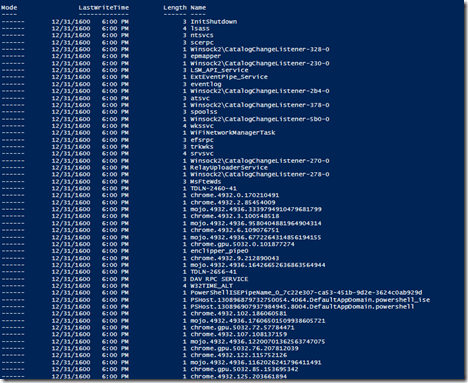
That is it for building your own function to work around the MAX_PATH issue that we are used to seeing when working with long paths in the file system. While there are other ways to use this and other projects out there, it is always fun to build your own tool to accomplish a goal!
You can download this function from the link below.
Download Get-ChildItem2
https://gallery.technet.microsoft.com/scriptcenter/Get-ChildItemV2-to-list-29291aae



![SNAGHTML2cb4d457[5]](/java/docs/reference/google-https-learn-powershell.net/wp-content/uploads/2015/10/snaghtml2cb4d4575.png "SNAGHTML2cb4d457[5]")



 Learn Powershell | Achieve More
