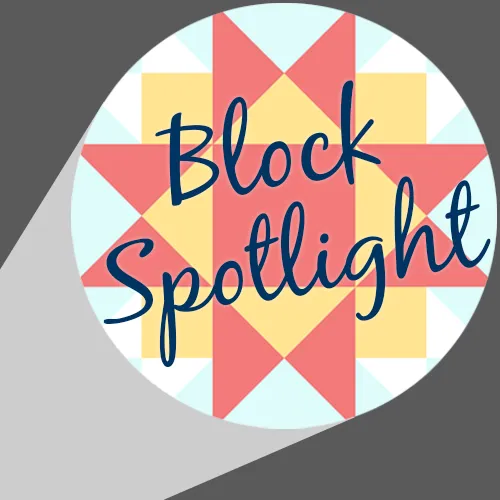


Welcome to the EQ8 Block Spotlight! Each month we highlight a block from the EQ8 Block Library with a few design ideas. Then we want you to show us what you can do with the block. We hope these posts will inspire you to try something new and expand your EQ skills! 
Don’t forget to comment on other quilter’s designs too. Let’s build each other up!
This month’s block: Galaxy

Where to find it: 02 Contemporary Pieced > Royal Crowns

Design ideas to spark your creativity
The first quilt is a 5 x 5 horizontal layout with three borders. I love using a Points Out style border to extend the blocks past the center of the quilt.
The fabrics used in both quilts this month are from the not-yet-released 2026 Membership Palette. EQ Members will have access to the new palette in January 2026! If you’re not a member yet, subscribe now (and get lots of great perks along with the new palette!).

For my second quilt, I started by playing with the Serendipity options available on the Block Worktable.

When I saw this block created with the Clip & Flip option, I couldn’t help but see Christmas trees (’tis the season!). So I used that idea as my jumping off point for this holiday wall hanging.

What would you design with the Galaxy block? Post a quilt or two in the comments below. It can be as simple or as complex as you’d like (it just has to use the featured block!).
Export an Image of your Quilt
- On the Quilt Worktable, click the PRINT & EXPORT tab.
- Click Export in the ribbon.
- In the palette on the left, click Image.
- Type a name for your image and click the Save button. (Make sure you know where you’re saving the image on your computer. We recommend saving to your My EQ8 > Images folder.)
In the comment form below, tell us a little bit about your design and then click Browse to include the image of your quilt.