4/10/17
My First Video Tutorial

11/1/16
Make React Component Code Shorter
In previous posts we created SearchPage component
class SearchPage extends Component {
      constructor(props) {
        super(props)
      }

      handleSearchTextChange(txt) {
        this.props.loadResults(txt);
      }

      render() {
        const {results, loading} = this.props;

        return (
          <div>
            <SearchBar onChange={this.handleSearchTextChange.bind(this)}/>
            <ResultsList results={results} loading={loading}/>
          </div>
        );
      }
};
This code is working but, is there a way to make it more nicer and also more shorter?
The answer is "Yes"
First lets get rid of redundant "handleSearchTextChange" method:
class SearchPage extends Component {
      constructor(props) {
        super(props)
      }
      /*
      handleSearchTextChange(txt) {
        this.props.loadResults(txt);
      }
      */
      render() {
        const {results, loading} = this.props;

        return (
          <div>//<-- instead of "this.handleSearchTextChange.bind(this)"
            <SearchBar onChange={ this.props.loadResults}/>
            <ResultsList results={results} loading={loading}/>
          </div>
        );
      }
};
or, even more simplier, lets take advantage of ES6 destructing syntax:
class SearchPage extends Component {
      constructor(props) {
        super(props)
      }

      render() {
        const {results, loading, loadResults} = this.props;//<--  loadResults method is one of the props too

        return (
          <div>
            <SearchBar onChange={loadResults)}/>
            <ResultsList results={results} loading={loading}/>
          </div>
        );
      }
};
React Trick
There is a way in react to write a component much shorter is it has no other methods except render :
let SearchPage = ({results, loading, loadResults}) => {
  return (
    <div>
      <SearchBar onChange={loadResults}/>
      <ResultsList results={results} loading={loading}/>
    </div>
  );
}
Thats all,far much shorter !
8/30/16
Using React Router
Instead of simple li elements the search results will display links to repo route.
The main application will also have its own route - the default "/".
    ReactDOM.render(
       <Router history={hashHistory}>
         <Route path="/" component={SearchPage}></Route>
         <Route path="repo/:owner/:repo" component={Repo} />
       </Router>,
        document.getElementById('example')
      );
Repo route will have its own component - Repo comonent, there will be displayed details of selected repo
    var Repo = withRouter(
      React.createClass({

        render: function() {
          return (
            <ul>
              <li><strong>owner</strong>:{this.props.params.owner}</li>
              <li><strong>repo</strong>:{this.props.params.repo}</li>
              <a href="#/">back</a>
            </ul>
          );
        }
      })
    );
Now the only thing left is modify the SearchResults components so it ill display links to repos:
    // Results List
    var ResultsList = React.createClass({

      render: function() {

          var createItem = function(repo, idx) {
           return <li key={idx}><Link to={`/repo/${repo.owner.login}/${repo.name}`}>{repo.name}</Link></li>;
          };
          var list;
          if(this.props.results && this.props.results.length && !this.props.loading) {
            list = this.props.results.map(createItem);
          }
          return <ul className="results">{list}</ul>;

      }
    });
See the code on plnkr
8/13/16
React - Building Search App (Part 6)
Last Finishes
Our app looks great now, but there some more things we could improve:
For example- when the user has not performed any search yet it is good to display no items yet message instead of "some item".
Lets modify Results List component accordingly:
// Results List
var ResultsList = React.createClass({
render: function() {
var createItem = function(item, idx) {
return {item.text} ;
};
var list;
if(this.props.results && this.props.results.length) {
list = this.props.results.map(createItem);
}else{ // <--- no search results came from server
list = 'no items yet';
}
return {list}
;
}
});
Displaying loading animation
It is good practice to display animation when request sent but results hasn't come back yet.
That way user will notified that his actions were noticed and the the server working to fulfill his request.
That means we should pass another property from SearchPage to ResultsList component
- loading which will "tell" the results component when request started and when it finished (e.g. when to show loading animation):
     loadResults: function(query){
        if(query==''){
          this.setState({
            loading: false,
            results:[]
          });
          return;

        }

        this.setState({loading:true}); // <--- the request started so animation must be visible
        var results = [];

        var url = "https://api.github.com/search/repositories?q="+query+"+language:typescript&sort=stars&order=desc";
        $.get(url)
        .then(function (result) {

          if(result.items.length!==0){
            results =result.items.map(item => {
              return   {text: item.name}
            }).slice(0,5);

          }else{
            results = []
          }
         this.setState({loading: false, results:results});
        }.bind(this));//<-- important to bind this for use "setState"

      }
       ...
       ...
       ...
      render: function() {
        return (
          <div >
             <SearchBar onTextChange={this.handleSearchTextChange}/ >
             <ResultsList results={this.state.results}  loading={this.state.loading}/ > //<---passing loading property to ResultsList component
           </div >
        );
      }
Animation
i will add to project the CSS code i took from this awesome project so it will display spinner animation:
.loader {
  margin: 20px auto;
  font-size: 10px;
  position: relative;
  text-indent: -9999em;
  border-top: 1.1em solid rgba(6,178,103, 0.2);
  border-right: 1.1em solid rgba(6,178,103, 0.2);
  border-bottom: 1.1em solid rgba(6,178,103, 0.2);
  border-left: 1.1em solid #06b267;
  -webkit-transform: translateZ(0);
  -ms-transform: translateZ(0);
  transform: translateZ(0);
  -webkit-animation: load8 1.1s infinite linear;
  animation: load8 1.1s infinite linear;
}
.loader,
.loader:after {
  border-radius: 50%;
  width: 5em;
  height: 5em;
}
@-webkit-keyframes load8 {
  0% {
    -webkit-transform: rotate(0deg);
    transform: rotate(0deg);
  }
  100% {
    -webkit-transform: rotate(360deg);
    transform: rotate(360deg);
  }
}
@keyframes load8 {
  0% {
    -webkit-transform: rotate(0deg);
    transform: rotate(0deg);
  }
  100% {
    -webkit-transform: rotate(360deg);
    transform: rotate(360deg);
  }
}
After adding the animation css, we need to modify the
ResultsList component code so it will be able to display the animation:
    // Results List
    var ResultsList = React.createClass({

      render: function() {

          var createItem = function(item, idx) {
            return <li key={idx}>{item.text}</li>;
          };
          var list;
          if(this.props.results && this.props.results.length && !this.props.loading) {
            list = this.props.results.map(createItem);
          } else if(this.props.results.length==0  && !this.props.loading){
            list = 'no items yet';
          } else if(this.props.loading) {
            list =  <div className="loader">Loading... </div>;
          }
          return  <ul className="results">{list} </ul>;

      }
    });
Now the animation is displayed

the code on plnkr
Hope you have fun reading
8/7/16
React - Building Search App (Part 4)
Events
So, in previous part we learned about props and state, and our search app
already able to display some results.
The results are came from parent SearchPage component, passed to ResultsList
child component which displays them.
But what about SearchBar component?
Isnt it suppose to play the key role in the app?
Well, indeed SearchBar suppose to pass user input when somebody search for something and typing-in some chars.
SearchBar should speak to SearchPage and it should perform search and pass the results to ResultsList

Handle Text Change
For to catch user input of search input box you must specify handler in the onChange attribute:
    var SearchBar = React.createClass({

      onChange: function(e) {
        console.log(e.target.value);
      },
      render: function() {
        return (
          <div><input placeholder="type search term" onChange={this.onChange}/></div>
        );
      }
    });
Now you can see the console prints the chars user enters. Yo ho!@!@!
Pass the input to the parent component
Lets take an advantage of the technique we just learned in previous part - lets use the props.
But how? We can modify state but we should avoid from trying to update the props from inside the component!
Actually we not have to modify things for passing data -
instead of placing some usual javascript variable into attribute (prop) as we did with ResultsList component,
we can set the prop with the function!
    //Search Page
    var SearchPage = React.createClass({
      getInitialState: function() {
        return {results: [{text:'some result'}]};
      },
      handleSearchTextChange: function(txt){
        console.log(txt)
      },
      render: function() {
        return (
          <div>
            <SearchBar onTextChange={this.handleSearchTextChange}/>//<---here is the magic!
            <ResultsList results={this.state.results}  />
          </div>
        );
      }
    });
Now the only thing left is to modify SearchBar the way it will use the passed function :
    var SearchBar = React.createClass({

      onChange: function(e) {
        this.props.onTextChange(e.target.value);
      },
      ...
    });
Now we just make SearchBar to be able to speak to its parent SearchPage!
see plnkr
If you find this stuff interesting - continue to the next post
8/3/16
React - Building Search App (Part 3)
Props(Properties)
Props are the attributes which can be accessible from inside the react component.
For our example we can define the results list array and put it in the results property (attribute) of ResultsList component.
First step: lets modifiy ResultsList components so it will able to display array of results:
    // Results List
    var ResultsList = React.createClass({
      //this.props.results should be set with array of search results
      render: function() {
          var createItem = function(item, idx) {
            return <li key={idx}>{item.text}</li>;
          };
          return <ul className="results">{this.props.results.map(createItem)}</ul>;

      }
    });
Now lets set the results attribute of ResultsList component with some static data:
  //Search Page
    var SearchPage = React.createClass({

      render: function() {
        return (
           <div>
             <SearchBar/>
             <ResultsList results={[{text:'some result'}]}  />
           </div>
        );
      }
    });
The result is - we can see the results are displayed:

see code:plnkr
State
Of course the results should not be set that way - statically inside the markup.
They should be defined as member of SearchPage component.
For make it accessible for the markup in react we must use state.
  //Search Page
    var SearchPage = React.createClass({
      getInitialState: function() {
        return {results: [{text:'some result'}]};
      },
      render: function() {
        return (
           <div>
             <SearchBar/>
             <ResultsList results={this.state.results}  />
           </div>
        );
      }
    });
Summary
So now we learned about props and state, and how SearchPage component, communicates with its ResultsList child component. If you find this stuff interesting - continue to the next post
8/2/16
React - Building Search App (Part 2)
Nested Component
So after we learned that react is components and created our first component - lets see how components may host other components inside themselves:
Lets create SearchBar component which be child component of SearchPage and which will include search text input:
    var SearchBar = React.createClass({
      render: function() {
        return (
          <div><input placeholder="type search term"/></div>
        );
      }
    });
     var SearchPage = React.createClass({
      render: function() {
        return (
          <div>
              <SearchBar/>
          </div>
        );
      }
    });

    ReactDOM.render(
        <SearchPage />,
        document.getElementById('example')
      );
And lets add another child component which will hold the list of search results:
     // Results List
    var ResultsList = React.createClass({
      render: function() {
        return (
          <div className="results">here will come search results.. </div>
        );
      }
     });

     ...
     ...

     var SearchPage = React.createClass({
      render: function() {
        return (
          <div>
             <SearchBar/>
             <ResultsList/>
          </div>
        );
      }
    });
Note that in react if you want specify some css class you need to use className
Communication
Ok, you asking yourself, but how those components will communicate one with other?
How searchBar will tell the resultsList to display results?
- Here are two words you must remember when you talking about component communication in react:
props and state , we will talk about them in the next part
7/29/16
React - Building Search App (Part 1)
Get Started
So, if you asking yourself how is it feels to program react - you may easily create your first react app withing seconds:
1. go to plunker
2. click on the down arrow in the green button on the top with caption "new"
3. select "react" or "react with addons" and yes, you have created your first react app!
Yes, it currently only says "Hellow World", but from this second no man can say you never programmed react...
Components are basic part of react
When building React app you must start from building components. So lets create our first component - searchPage
     var SearchPage = React.createClass({
      render: function() {
        return (
          <div>here will come search results...</div>
        );
      }
    });

    ReactDOM.render(
        <SearchPage />,
        document.getElementById('example')
      );
running codeThats it - was not too complicate, right? If you want to get more of this stuff - follow the next part
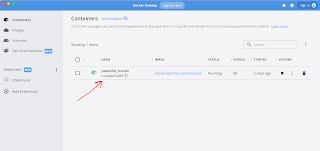
Getting started with docker
It is very simple to get started usig docker. All you need to do-is download the docker desktop for your system Once you get docker syste...
-
In frameworks like angular and react we have this behavior that tracks every change of model (a javascript variable which stores state of so...
-
Why Dashboard? Dashboards are very common thing in the world of wed apps, also it involves creation of dynamic components - thing i want t...
-
 This button must show the list of users who answered the survey. Which survey? The one with its checkbox checked, of course : This code i...
