Followers

Photobucket
Showing posts with label Tutorial. Show all posts

Saturday, March 9, 2013

Tips meningkatkan kelajuan uTorrent

Share

Tips meningkatkan kelajuan uTorrent


Image


Download from filehippo

option > Preferences > bandwidth 

- Set upload/download kepada 0 (unlimited)
- Number of connections : 500
- Maximum connected peers kepada 70
- Protocol encryption : Forced

nikmati speed yg agak memuaskan..  :)

Saturday, March 26, 2011

Tutorial - Cara Reset Router Linksys WRT310n

Share

.

Image

salam semua.. sekian lama blog ni tak di update dgn tutorial.. kali ni sy ingin berkongsi tutorial cara untuk reset frimware Router Linksys WRT310n.

semalam sy update frimware WRT310n dari version 1 kepada version 2.. setelah update sy dapati router gagal berfungsi seperti biase..

SELEPAS UPDATE :

-Power LED on solid

-LAN Ports LED on solid

-Wireless LED off

-NO RESPONCE AT ALL!

setelah pelbagai cara sy try and error untuk reset dan install semula frimware v1. akhirnya berjaya..

bagi sesiape yg tersalah update frimware v2 boleh la cuba tutorial ni..

Software to download / install:

-Installed vista TFTP client dari control pannel

-download firmware untuk linksys ( pastikan firmware version 1..!!!! )

TUTORIAL

Selepas membuat hard reset 30/30/30... ikut steps dibawah...

1. at the dos prompt, ping the router

2. on a different dos prompt, get ready the line: tftp -i 192.168.1.1 put C:\linksysfirmware.bin

3. unplug the router, hold the reset button, hit enter on the tftp prompt, plug in the router and let go of the reset button after 5 seconds

You should see pinging on the other dos prompt, and the tftp screen should be sending the firmware to the modem. It only takes a few seconds.

If you dont get it the first time, just keep trying!

You will have to use the linksys router configuring software to set up the modem again.

The default login is : admin/admin

semoga berjaya..alt

Monday, October 25, 2010

Tutorial - Login Multi Yahoo! Messenger

Share

ym

Bagi yang mempunyai banyak ID Ym dan ingin login yahoo messenger serentak dalam satu PC.. anda boleh mencuba tutorial ni..caranya senang sahaja..

  • Start >> Run…>> regedit

0

  • Buka HKEY_CURRENT_USER >> Software >> yahoo >> pager >> test

1

  • Pada sebelah kanan, klik kanan >> New >> DWORD value

2

  • Beri nama Plural tekan enter 2 kali dan berikan nilai 1

3

setelah selesai clouse regedit dan run YM seberapa byk yang anda mahu..

4

selamat mencuba..alt

Wednesday, October 20, 2010

Tutorial – Cara Buka Laptop Compaq CQ40

Share
.


image


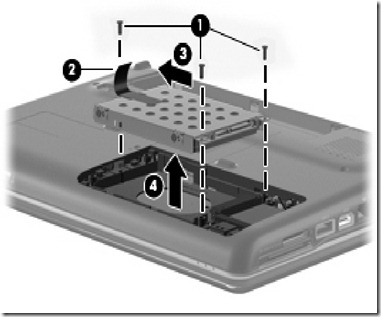
Dulu sy pernah Buat tutorial cara nak buka laptop compaq V3000, kali saya sediakan tutorial bergambar cara nak buka laptop compaq CQ40.. bagi pengguna CQ40 yang nak bukan dan service laptop sendiri boleh la ikut tutorial ni..
Peralatan yang diperlukan:
1- skru driver mata bunga (yg kecik)
2- berus cat / ape2 berus yg blh buang habuk..huhu

LANGKAH –LANGKAH
6 1 2 3 4 5
7 8 9 10 11 12
image
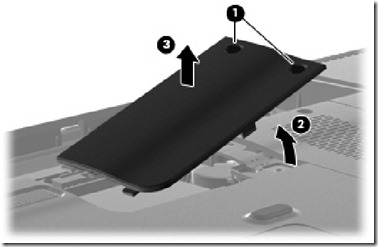
Turn the computer upside down, with the rear toward you.

Remove the Phillips PM2.0×2.0 broadhead screw (1) from the optical drive bay, the
Phillips PM2.5×5.0 screw (2) from the hard drive bay, the four Phillips PM2.0×3.0 screws (3) from the battery bay, and the two Phillips PM2.5×10.0 screws (4) from the base enclosure rear corners that secure the keyboard cover to the computer
image
image
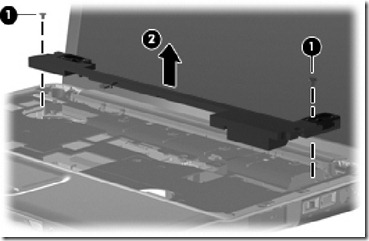
Remove the Phillips PM2.5×3.0 screw (1) from the power button board.
Lift the power button board (2) up and away from the keyboard cover.
16 17 18
Remove the wireless antenna cable (1) from the hole in the system board and the routing channels and clips built into the top cover.
Disconnect the display panel cable (2) that runs along the left side.
image
Remove the microphone cable (1) from the hole in the system board and the routing channels and clips built into the top cover.
Disconnect the microphone cable from the system board (2).


image
Remove the wireless antenna cable (1) from the hole in the system board and the routing channels and clips built into the top cover.
Disconnect the display panel cable (2) that runs along the left side.
image
Remove the microphone cable (1) from the hole in the system board and the routing channels and clips built into the top cover.
Disconnect the microphone cable from the system board (2).
image
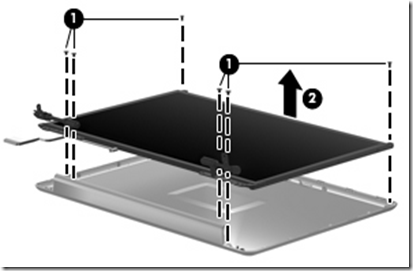
Step kat bawah ni tak perlu ikut bg yg nak servis FAN je. kalau nak tukar LCD anda kene ikut step bawah ni.
image
image
image
image
image
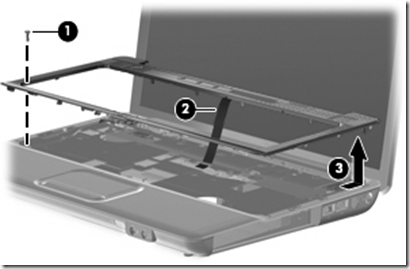
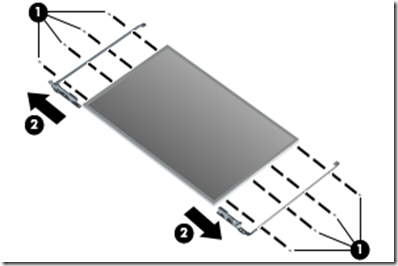
If it is necessary to replace the display cable, follow these steps:
a. Peel back the plastic (1) that covers the cable.
b. Remove the tape (2) that secures the cable to the display.
c. Unplug the cable (3) from the display.
d. Remove the cable from the display (4).
image
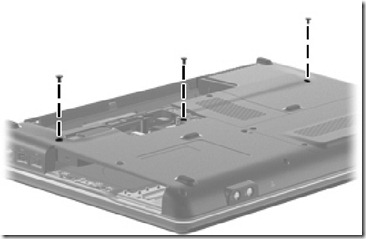
ok sambung blk.. terbalikkan laptop anda dan buka semua skru yg ada pada bahagian bawah.. spt dlm gmbr.
image
image
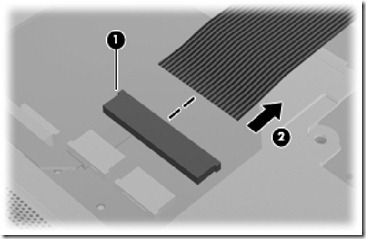
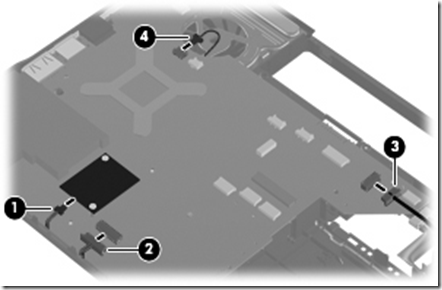
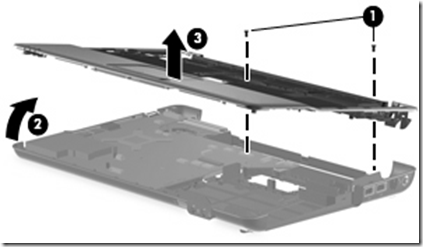
Disconnect the following cables from the system board:
● Bluetooth module cable (1)
● TouchPad cable (2) with zero insertion force (ZIF) connector
image
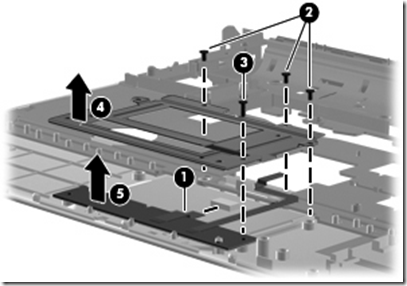
Remove the top cover (3).
image
Remove the TouchPad button board (5) from the TouchPad bracket
tak perlu buka bg yg nak service FAN.
image
Remove the Bluetooth module (5) from the top cover.
image
Remove the modem module.
image
Remove the audio board (4).
image
Lift the USB board (4) straight up to remove it from the computer.
image
image
image
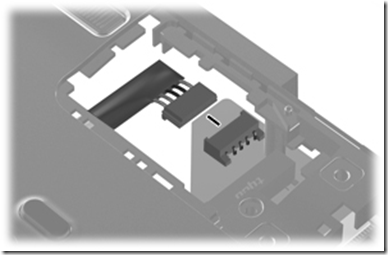
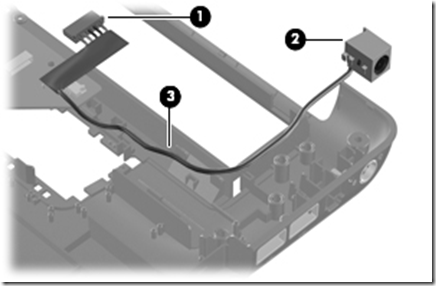
Disconnect the power connector cable.

image
image
image
Remove the heat sink (gantikan thermal paste yang baru)
image
tanggalkan dan bersihkan FAN laptop anda..

sekian..
JomTutorial.com
 
<

ShoutMix chat widget
>
JOM TUTORIAL Copyright © 2009 Blogger Template Designed by Bie Blogger Template