Showing posts with label Computer Tutorials. Show all posts

Sunday, February 01, 2009

Remote support in easy way

First, both parties must download this free software called TeamViewer at HERE.
After download, extract the files.
Both parties now run the TeamViewer.exe.

Image

Then, the person who encountered computer problems can now tell the temporary ID and password to the Helper.

For the Helper, under "CREATE SESSION", select "remote support" and key in the ID given. Press 'connect to partner' button. And enter the password given when prompted.

When the connection is established, a window will pop up which allowed the Helper to view the person desktop screen, and also granted keyboard and mouse control permission to solve computer problems.

Note: you can simply cut the connection anytime if found the Helper doing irrelevant stuff to your computer. =)


Friday, November 14, 2008

How to enable Symbian S60 to display chinese words

If your symbian phone (S60) cant read chinese words, here's a trick to enable your S60 phone to read it, taking my N70 as example.

Phone software required:
-Files explorer (eg. FExplorer, SeleQ)

Font file download:
-click here to download

Steps:
1) Download the required rar file, unrar it.
2) Install the 123MMCfonts.sis into phone.
3) Restart phone after finished.
4) IF your phone still unable to read chinese, please proceed below steps
5) Run phone's file explorer and go to [E:\System\]
6) Copy the folder "Fonts".
7) Now go to [C:\System\]
8) Delete the folder "Fonts" in [C:\System], if there is any
9) Paste the copied folder "Fonts" into [C:\System]
10) Restart the phone. Done.

p/s: I do not hold any responsible if anything bad happened to your phone, do it at your own risk. If your dont want to take any risk, go to nearest Nokia Care Center, pay some cash to flash your phone to firmware that suppport Chinese words.

Have a nice day :)


Saturday, April 05, 2008

How to download Youtube video in easy way?

Hi, do u have any problem in downloading youtube video? most of the ways that ppl often used are through firefox browser, youtube downloader, etc etc. Those ways are very problemsome, because the video need to be re-download if using such ways, this would take up more of your internet bandwidth....
Now i will show u the easiest way to downlaod watched Youtube video, not to say 'download', it's should be called 'save'.
STEPS
1) Watch any Youtube video, wait until it finish loading.
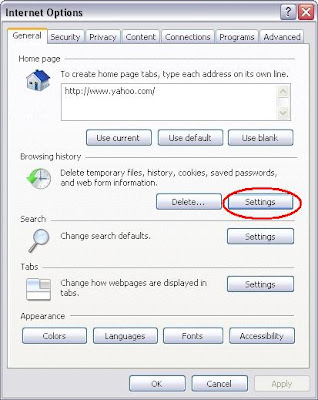
2) go to Internet Option, and Click "select" button under 'Browsing history'.

Image

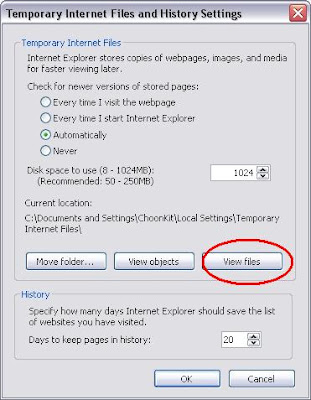
3) Then in 'Temporary Internet Files and History Settings', click the 'view files' button, as shown in the picture below.
Image
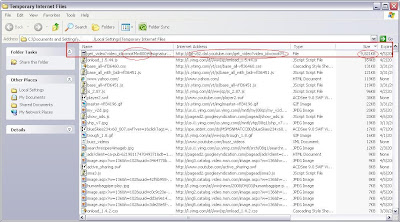
4) Next, a window of Temporary Internet Files will pop out. Click the "size" button to rearrange bigger size file to be ontop of list, usually video files are quite big size, ranging from 2MB to 50MB depends on how long the video u have watched..
Image
5) Next, compare the video code on the file, that matched with the URL of youtube video u have watched just now. After the files have been identified, copy the file and paste it somewhere else in your harddisk.
6) After paste, it would appear name as vid_file[o] without any extension. So, just simply rename it and remember add an extension of ".flv" behind it.
7) You have successfully save the Youtube video file, and can be watch in your computer now :)
8) This technique is quite useful on other websites/video streaming sites that do not allow you to download their songs, images, etc. Just compare the address where the file from :)
TIPs: - Delete Internet Temporary Files first would be easier for you to find the file u want.
Cheers, Have a nice day~