

In this guide, you will learn how to:
- navigate the user interface,
- create your first project,
- work with objects, actors, and backgrounds,
- use programming blocks, and
- save your project.

What is the difference between Catrobat and Pocket Code? What other apps are available? Learn more about it here.

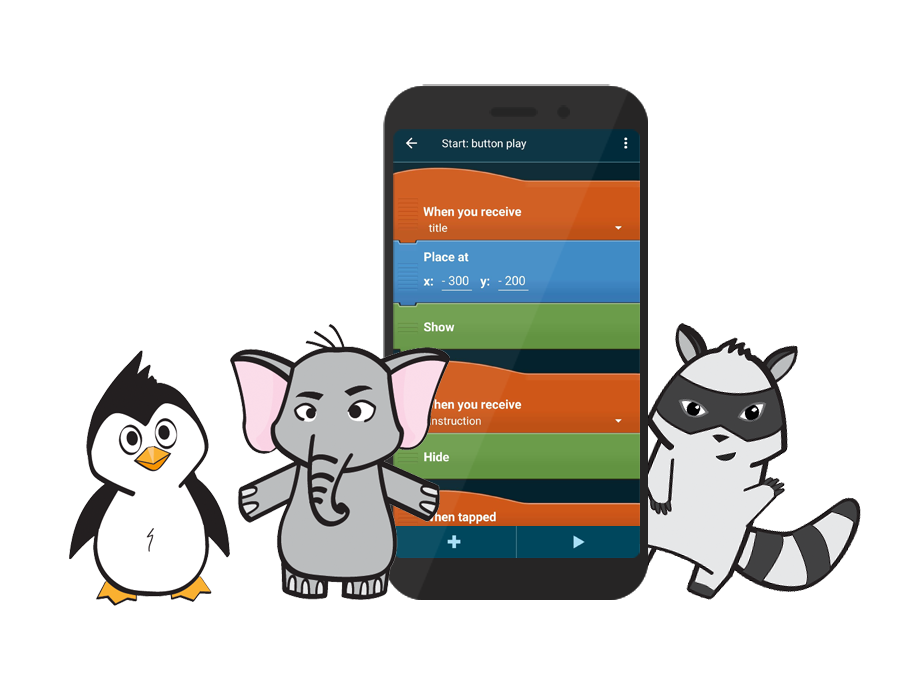
Programming with the ease of playing with Lego? The coding blocks do just that. With their help, it’s very easy to build your own programs.
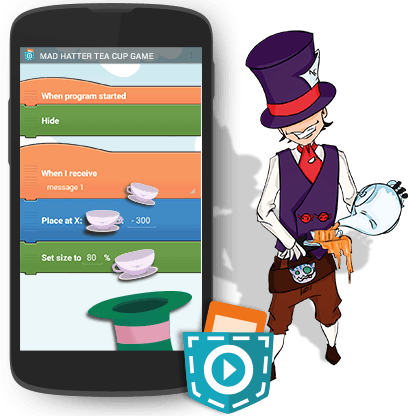
Want to learn how to program your own game? These tutorials will show you game mechanics and essential components to bring your ideas to life.
Have a look at our embroidery tutorials to create stunning designs for stitching machines! No borders are set to your fantasy!
Want to create your own plot? Our tutorials guide you through using bricks to cut drawn lines on a cutting plotter. Learn the techniques and tools needed to bring your designs to life with precision and creativity.

-
Getting started
-
Erste Schritte
-
Example Projects
This document has no sections yet. Check back later or wait for the author to add content.
-
Beispielprojekte
This document has no sections yet. Check back later or wait for the author to add content.
-
Brick Documentation
- Event
- When scene starts
- When tapped
- When stage is tapped
- When you receive
- When(…) becomes true
- When background changes to
- When you start as a clone
- Control
- Create clone of
- Wait
- Delete this clone
- Note
- Broadcast
- Forever
- Broadcast and wait
- If … Then … Else …
- If(…) is true then
- Wait until … is true
- Repeat … times
- Repeat until …
- For values from 1 to 10 in
- For each value from .. in ..
- Continue scene
- Start scene
- Finish stage
- Stop
- Wait until all other scripts have stopped
- Motion
- Set rotation style
- Glide … second to
- Go back … layer
- Go to front
- Place at
- Vibrate for … second
- Set X to
- Set your motion type to …
- Set Y to
- When you bounce off …
- Change X by
- Set velocity to
- Change Y by
- Spin left … degrees/second
- Go to
- Spin right … degrees/second
- If on edge, bounce
- Move … steps
- Turn left … degrees
- Turn right … degrees
- Point in direction … degrees
- Point towards
- Set gravity for all actors and objects to …
- Set mass to … kilogram
- Set bounce factor to …%
- Set friction to …%
- Sound
- Stop sound
- Stop all sounds
- Set volume to …%
- Change volume by …
- Set instrument to
- Play note … for … beats
- Play drum … for … beats
- Start sound
- Start sound and wait
- Set tempo to …
- Change tempo by …
- Pause for … beats
- Looks
- Hide
- Clear graphic effects
- Show
- Become focus point with …% horizontal and …% vertical fl…
- Ask … and store written answer in …
- Set background
- Say …
- Set background to number …
- Say … for .. second
- Set background and wait
- Think …
- Turn camera
- Think .. for … second
- Use camera
- Set transparency to …
- Turn flashlight
- Change transparency by …
- Get image from … and use as current look
- Set brightness to …%
- Paint new look …
- Switch to look
- Change brightness by …
- Edit look
- Switch to look with number …
- Set colour to …
- Copy look and name it …
- Next look
- Change colour by …
- Delete look
- Previous look
- Fade particle effect
- Set size to …%
- Turn particle effect additivity
- Change size by …
- Set particle color to …
- Set background to number … and wait
- Pen
- Data
- Delete all items from list …
- Insert … into list … at position …
- Replace item in list … at position … with …
- Write list on device …
- Read list from device …
- Set variable … to …
- Store column … of the comma-separated values …
- Change variable … by …
- Send web request to … and store answer in …
- Show variable … at X:… Y:…
- Show variable … at X:… Y:… size:.. colour:… aligned…
- Hide variable …
- Write variable on device …
- Read variable from device …
- Write variable … to file …
- Read variable … from file … AND …
- Add … to list …
- Delete item from list … at position …
- YourBricks
- Embroidery
- Set thread color to …
- Start running stitch with length …
- Start zigzag stitch with lenght … and width …
- Start triple stitch with length …
- Sew up
- Stop current stitch
- Write embroidery data to file …
- Stitch
- Device
-
Brick Dokumentation
- Ereignisse
- Wenn Szene startet
- Wenn angetippt
- Wenn der Bildschirm berührt wird
- Wenn du empfängst …
- Wenn … wahr wird
- Wenn der Hintergrund wechselt zu …
- Wenn ich als Klon starte
- Steuerung
- Wiederhole … mal
- Wiederhole bis … wahr ist
- Für Werte von … auf … im …
- Für jeden Wert von … im …
- Szene fortsetzen
- Beginne Szene
- Stufe beenden
- Stoppe …
- Warte bis alle anderen Skripte gestoppt
- Erzeuge Klon von …
- Warte … Sekunde
- Lösche diesen Klon
- Notiz
- Verschicke an alle: …
- Wiederhole fortlaufend
- Verschicke und warte
- Wenn … wahr ist, dann …
- Wenn … wahr ist, dann … sonst …
- Warte bis … wahr ist
- Bewegung
- Ändere x um …
- Setze Geschwindigkeit auf x:… y:… Schritt/Sekunde
- Ändere y um …
- Nach links drehen … Grad/Sekunde
- Gehe zu …
- Nach rechts drehen … Grad/Sekunde
- Pralle vom Rand ab
- Setze Gravitation für alle Figuren und Objekte…
- Verschiebe um … Schritte
- Setze Masse auf … Kilogramm
- Drehe links … Grad
- Setze Aufprallfaktor auf …%
- Drehe rechts … Grad
- Setze Reibung auf …%
- Zeige in Richtung …
- Zeige auf …
- Setze Rotations-Stil
- Gleite … Sekunde zu x:… y:…
- Gehe nach hinten … Ebene
- Gehe nach vorne
- Setze an Position x:… y:…
- Vibriere für … Sekunde
- Setze x auf …
- Setze Bewegungstyp auf …
- Setze y auf …
- Wenn du abprallst von …
- Klang
- Setze Tempo auf …
- Ändere Tempo um …
- Pausiere für … Schläge
- Klang starten …
- Starte Klang und warte
- Stoppe Klang
- Alle Klänge stoppen
- Setze Lautstärke auf
- Ändere Lautstärke um
- Setze Instrument auf …
- Musiknote abspielen … für … Sekunden
- Trommel abspielen … für … Schläge
- Aussehen
- Denke … für … Sekunde
- Verwende Kamera …
- Setze Transparenz auf …%
- Schalte Blitz …
- Ändere Transparenz um …
- Bild abrufen von …
- Setze Aussehen …
- Setze Helligkeit auf …%
- Neuen Look malen …
- Setze Aussehen auf Nummer …
- Ändere Helligkeit um …
- Aussehen bearbeiten
- Nächstes Aussehen
- Setze Farbe auf …
- Look kopieren und Namen geben …
- Voriges Aussehen
- Ändere Farbe um …
- Lösche Aussehen
- Setze Größe auf …%
- Blende Partikeleffekt …
- Setze Hintergrund und warte
- Ändere Größe um …
- Schalte Partikeleffekt-Additivität …
- Verbergen
- Setze Partikelfarbe auf …
- Anzeigen
- Grafikeffekt zurücksetzen
- Frage … und speichere das Eingegebene in …
- Fokuspunkt werden mit …% horizontal und …% vertikale Fle…
- Frage … und speichere das Eingegebene in …
- Setze Hintergrund …
- Sage …
- Setze Hintergrund auf Nummer …
- Sage … für … Sekunde
- Setze Hintergrund auf Nummer … und warte
- Denke …
- Schalte Kamera …
- Malstift
- Schalte Stift ein
- Schalte Stift aus
- Setze Stiftdicke auf …
- Setze Stiftfarbe auf Rot… Grün… Blau…
- Stempel
- Wische Malspur weg
- Daten
- Zeige Variable … bei x… y…
- Zeige Variable … bei x… y… Größe… Farbe… Ausrichtu…
- Verstecke Variable…
- Variable auf Gerät schreiben …
- Variable von Gerät lesen …
- Schreibe Variable … zur Datei …
- Lese Variable … aus Datei … und …
- Hinzufügen … zur Liste …
- Elemente aus Liste löschen … auf Position …
- Alle Elemente aus der Liste löschen …
- Einfügen … in Liste … auf Position …
- Elemente in Liste ersetzen … auf Position … im …
- Liste auf Gerät speichern …
- Liste von Gerät lesen …
- Setze Variable … auf …
- Speichere Spalte … von den durch Kommas getrennten Werten …
- Ändere Variable … um …
- Webanfrage senden an … und speichere Antwort in …
- Gerät
- Timer zurücksetzen
- Öffne … im Browser
- Einfaches tippen auf x… y…
- Berühre bei x… y… für … Sekunden
- Berühren und wischen von x… y… zu x… y… im … Sekun…
- Deine Bausteine
- Sticken
-
Educators
This document has no sections yet. Check back later or wait for the author to add content.
-
Lehrpersonen und Workshopleiter:innen
This document has no sections yet. Check back later or wait for the author to add content.
-
Pocket Code
This document has no sections yet. Check back later or wait for the author to add content.
-
Pocket Paint
This document has no sections yet. Check back later or wait for the author to add content.
-
Create@School
This document has no sections yet. Check back later or wait for the author to add content.
-
Embroidery Designer
This document has no sections yet. Check back later or wait for the author to add content.
-
Plot Tutorials (de)
-
Plot Tutorials
This document has no sections yet. Check back later or wait for the author to add content.
-
Spiele Tutorials
-
Game Tutorials
-
Stick Tutorials
- Stick Tutorials Beginner
- Stickbausteine aktivieren
- Stickbausteine
- Stich
- Laufstich
- Zickzack-Stich
- Dreifachstich
- Beende aktuellen Stich
- Stickobjekte erstellen
- Designs exportieren
- Viereck
- Kreis – Zickzack
- Halbkreis
- Kreis
- Stern
- Stern – Zickzack
- Lollipop
- Stick Tutorials Medium
- Herz
- Lotus
- Blume
- Spirale
- Optische Täuschung
- Penrose Dreieck
- Dreieck Spirale
- Nachthimmel
- Papierflieger
- Creeper (Minecraft)
- Regenbogen
- Yin & Yang
- Stick Tutorials Pro
-
Embroidery Tutorials
- Embroidery Tutorials Beginner
- Activate Embroidery-Bricks
- Create Embroidery-Objects
- Embroidery-Bricks
- Stitch
- Running Stitch
- Zigzag Stitch
- Triple Stitch
- Stop Current Stitch
- Export Designs
- Square
- Circle – Zigzag
- Star – Zigzag
- Star
- Circle
- Semicircle
- Lollipop
- Embroidery Tutorials Medium
- Heart
- Flower
- Lotus
- Spiral
- Optical Illusion
- Penrose Triangle
- Triangle-Spiral
- Night Sky
- Paperplane
- Creeper (Minecraft)
- Rainbow
- Yin & Yang
- Embroidery Tutorials Pro
In this guide, you will learn how to:
- navigate the user interface,
- create your first project,
- work with objects, actors, and backgrounds,
- use programming blocks, and
- save your project.

You must be logged in to post a comment.