
Amplitude is a product analytics tool for analyzing product usage data. It helps product and marketing teams draw out user behavioral data and reports to understand how people interact with a product and identify opportunities to improve it.
Key features of Amplitude include:
- Real-time user analytics covering retention, funnels, revenue analysis, and flexible user segmentation.
- Microscope, a feature for drilling into user behavior to understand what drives or blocks specific outcomes.
Integrating Amplitude with Document360 lets you track and view all your knowledge base site analytics and user behavior from the Amplitude dashboard.
Before you begin
- You need an Amplitude account.
- You need your Amplitude API Key. See How to find your Amplitude API Key below.
How to find your Amplitude API Key
The Amplitude API Key is a unique code obtained from the Amplitude application. It is required to connect Amplitude with Document360.
Existing Amplitude user:
From your Amplitude project dashboard, go to Projects and open the General section. Copy the API Key listed there.
New Amplitude user:
- Register an account at Amplitude.
- Your Amplitude API Key is provided during the initial account setup.

How to integrate Amplitude with Document360
-
In the Document360 portal, navigate to Connections () > Integrations () in the left navigation bar.
-
Select Amplitude from the list of integrations and click Add. The Add new integration panel appears.
-
Choose a configuration type:
Basic configuration: sets up a standard integration using your Amplitude API Key.
- Description: enter a description for this integration.
- Amplitude API Key: enter your Amplitude API Key.
- Optionally, expand Code inclusion/exclusion conditions to control when the integration runs based on IP address, Workspace, or Language.
NOTEThe Amplitude API Key is a unique code obtained from the Amplitude application. It is required to connect Amplitude and Document360 in the knowledge base portal.
Custom configuration: sets up an advanced integration with custom events added to a snippet code.
- Description: enter a description for this integration.
- Snippet code: paste your custom snippet code.
- Optionally, expand Code inclusion/exclusion conditions to control when the integration runs based on IP address, Workspace, or Language.
-
Click Add.
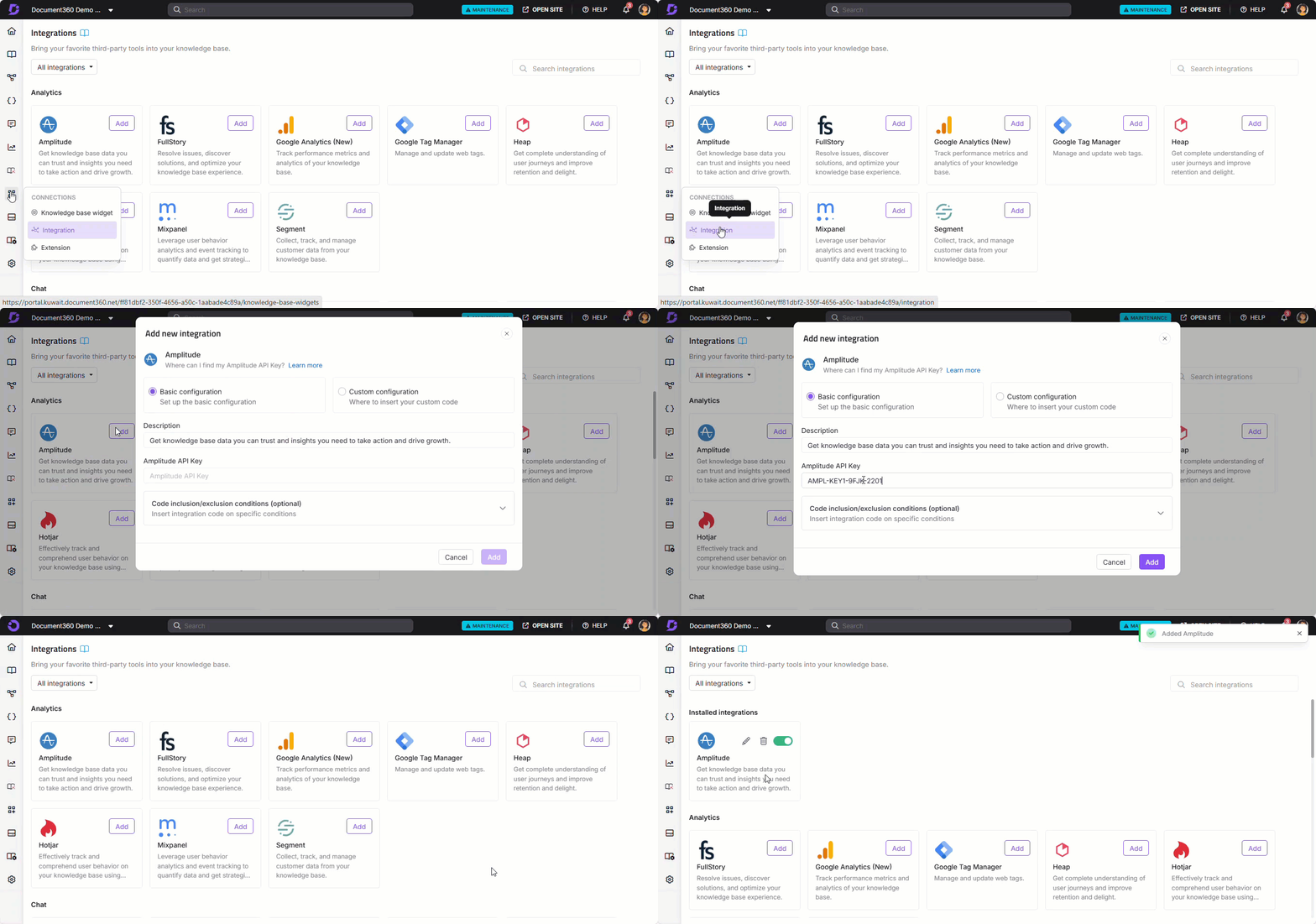
After setup, navigate to the Amplitude dashboard to view analytical reports for your knowledge base site and track user behavior.
Session replay and Autocapture
After signing up and activating your Amplitude account, Amplitude prompts you to connect your first application by adding a single snippet. Use the HTML code snippet below to enable Session replay with Autocapture.
Replace AMPLITUDE_API_KEY with your actual Amplitude API Key.
<script src="https://cdn.amplitude.com/script/AMPLITUDE_API_KEY.js"></script>
<script>
  window.amplitude.add(window.sessionReplay.plugin({sampleRate: 1}));
  window.amplitude.init('AMPLITUDE_API_KEY', {
    "fetchRemoteConfig":true, "autocapture":true
  });
</script>
For more details on Session Replay implementation, refer to the Session Replay instrumentation documentation.
Best practices
- Use Basic configuration for standard analytics tracking. Entering your API Key under Basic configuration is the fastest way to start sending data to Amplitude and covers the most common use case of tracking knowledge base page views and user sessions.
- Use Amplitude's Microscope feature to investigate drop-off points. After the integration is live, use Microscope to drill into specific user sessions and understand exactly where readers leave your knowledge base without finding what they need.
- Use Funnel analysis to track reader journeys. Build funnels in Amplitude to track how readers move from your knowledge base home page through to specific articles, and identify where they drop off.
- Enable Session Replay to capture visual recordings. Use the Session Replay and Autocapture snippet to record user sessions on your knowledge base site, giving you visual context to complement your analytics data.
- Use Code inclusion/exclusion conditions to exclude internal traffic. Add your office IP address as an exclusion to prevent team visits from skewing your analytics reports.
FAQ
Why should I integrate Amplitude with Document360?
Amplitude lets you track visitors using collaborative analytics and generate product analytics reports to fine-tune your knowledge base. You can view retention, funnels, revenue analysis, and user segmentation data, and use Microscope to drill into specific user behavior patterns.
What is the Amplitude API Key?
The Amplitude API Key is a unique identifier obtained from the Amplitude application. It is required to connect Amplitude and Document360. Existing users can find it in their Amplitude project dashboard under Projects > General. New users receive it during the initial account setup.
What is the difference between Basic and Custom configuration?
Basic configuration connects Amplitude using your API Key and starts tracking automatically. Custom configuration lets you add a snippet directly, which is useful when you want to track specific custom events or add Session Replay beyond what the standard setup provides.
What is Microscope in Amplitude?
Microscope is an Amplitude feature that lets you drill into specific user behaviors to understand what drives or blocks outcomes. You can use it to investigate why readers drop off at certain points in your knowledge base or to identify which content patterns lead to more successful sessions.
Can I limit which workspaces or languages Amplitude tracks?
Yes. When adding or editing the Amplitude integration, expand Code inclusion/exclusion conditions and add conditions based on IP address, Workspace, or Language. See Code inclusion and exclusion conditions for full details.
