
Crowdin is a cloud-based localization management platform that streamlines the translation process. By integrating Crowdin with Document360, you can automate and enhance the localization of your multilingual knowledge base, combining machine and human translation to ensure accuracy and quality.
Prerequisite: You must have an active Crowdin enterprise account. If you don't have one, sign up for one before starting the integration.
When to use the Crowdin extension
- Your knowledge base is available in multiple languages and you want to keep all language versions in sync without manually exporting and importing content for each article update.
- You work with external translation agencies or freelance translators and want to give them a structured platform to work in — without giving them access to the Document360 portal.
- You want machine translation as a first pass and human review as a second, using Crowdin's built-in workflow and translation engine support.
- You regularly update articles in your source language and need a reliable, low-friction way to push those updates to translators without disrupting your authoring workflow.
Basic setup guide
Step 1 — Create a project in Crowdin
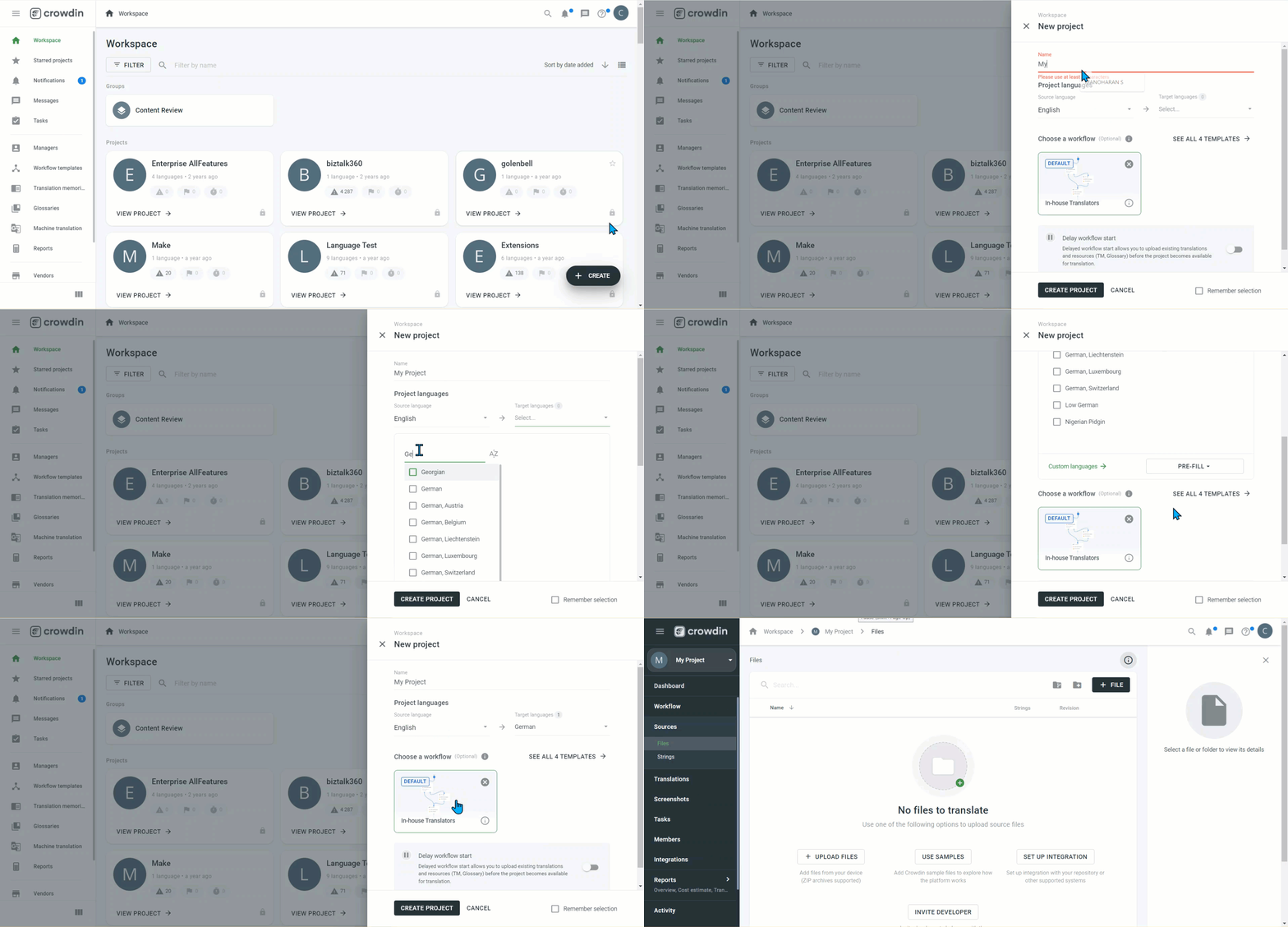
- Log in to your Crowdin enterprise account and go to your Crowdin workspace.
- Click Create Project on the right of the screen.
- Enter the name of your project.
We recommend using the same project name in both Document360 and Crowdin to make the Push to Crowdin feature work seamlessly. If you need to use different names, follow this sequence: create the projects in both platforms with matching names, enable the Crowdin extension in Document360 using a valid API key (the name must match for validation), and then rename the projects if needed.
- Select the source language of your project.
The source language cannot be changed after the project is created.
- Select the target languages for your project.
- Choose a workflow that maps the flow of content within your project.
- Click CREATE PROJECT.
Step 2 — Generate an API token in Document360
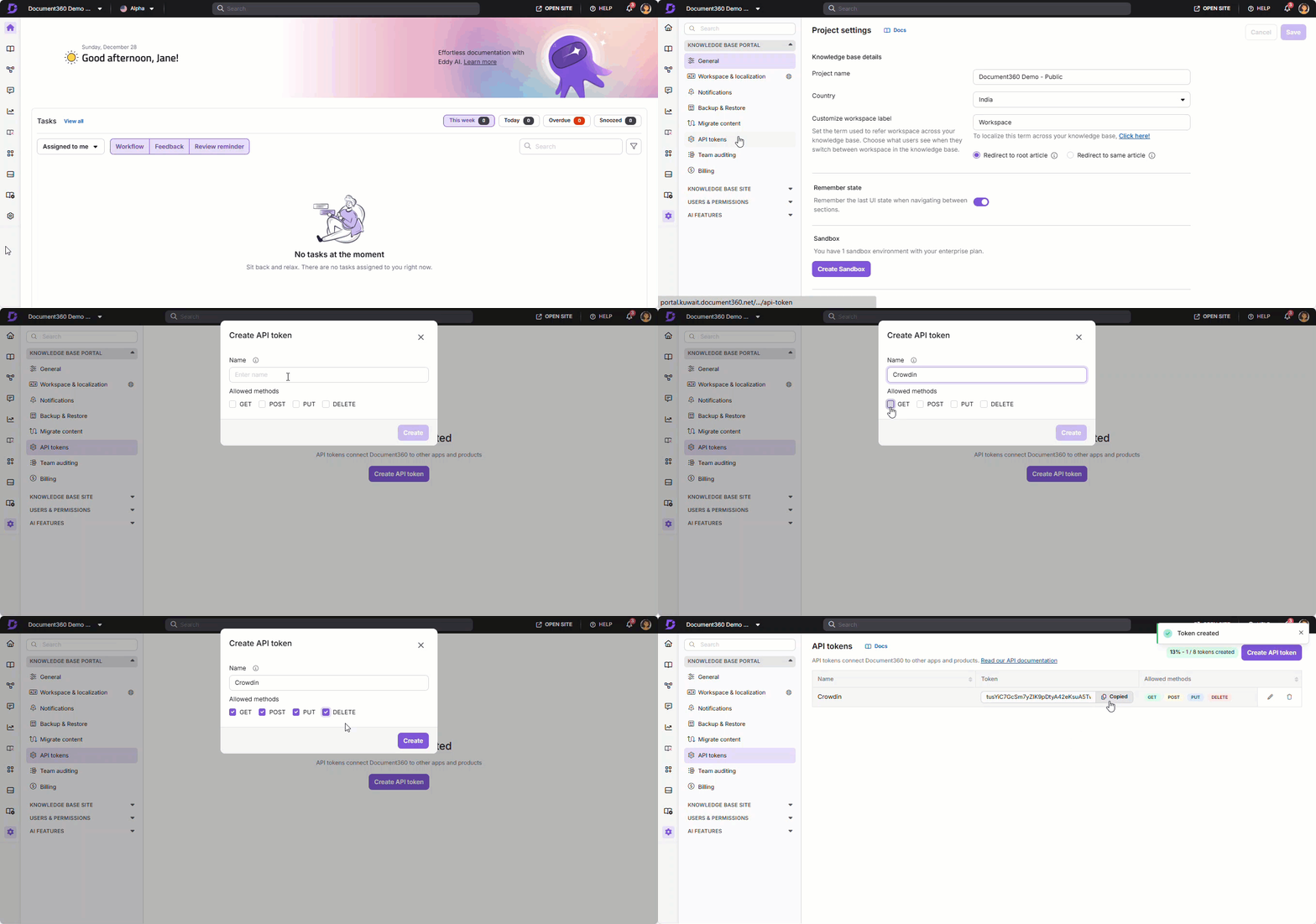
- Navigate to Settings () in the left navigation bar of the Knowledge base portal.
- Go to Knowledge base portal > API Tokens.
- Click Create API token if this is your first token.
- Enter a Token name.
- Select the required methods in the Allowed Method(s) field (GET, POST, PUT, DELETE).
- Click Generate and copy the token.
Step 3 — Connect Document360 to Crowdin
- Head back to the Crowdin integration page and select the Crowdin project you created.
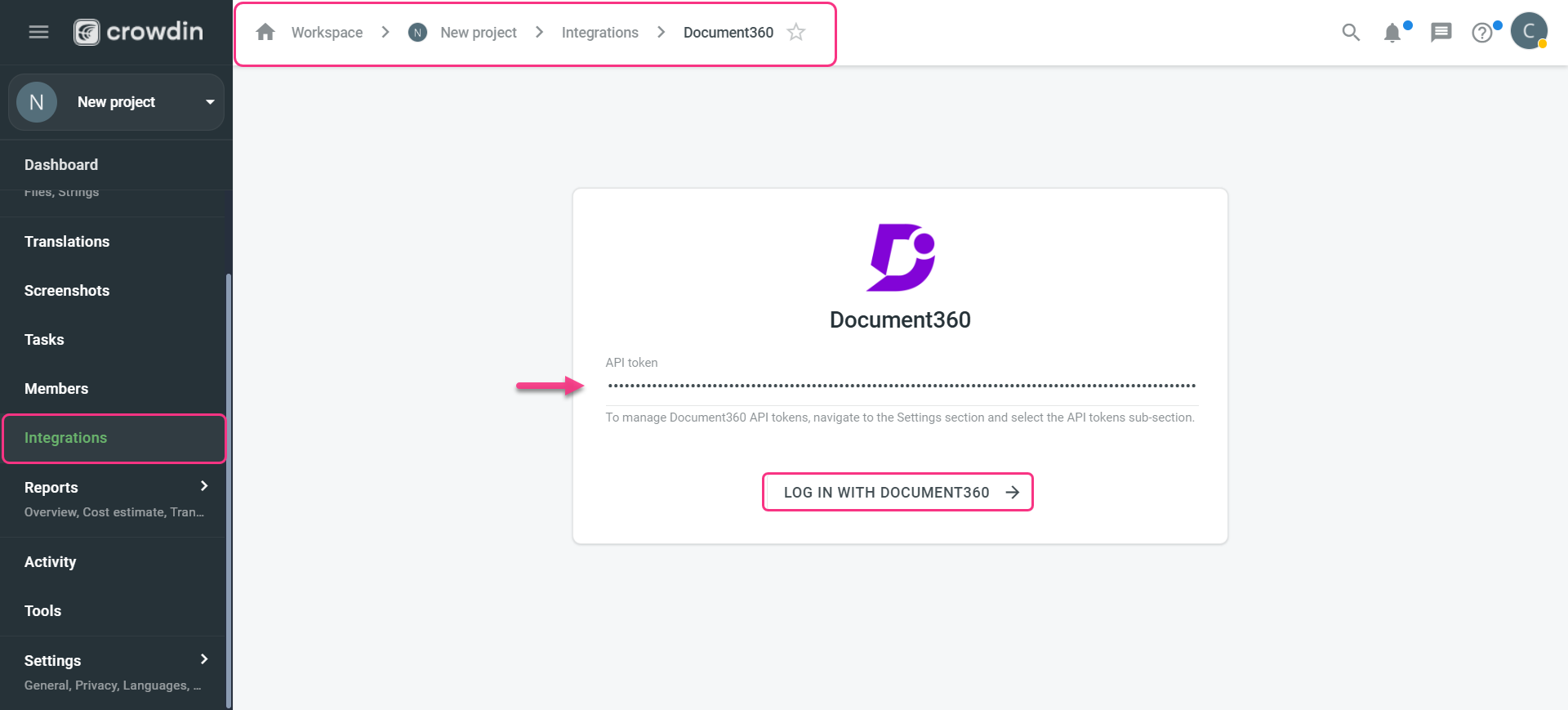
- On the dashboard side menu, go to Integration.
- From the list of integration options, select the Document360 application.
- Paste the copied API token into the field.
- Click Log in with Document360.
Machine translations are enabled for each Crowdin project by default, with Crowdin Translate as the default engine. Other supported engines include Microsoft Translator, DeepL Translator, Google Translate, Amazon Translate, Yandex Translate, Watson (IBM) Translator, ModernMT, and Google Cloud AutoML Translation. Learn how to configure machine translation engines on Crowdin.
Step 4 — Generate an API token from Crowdin and connect to Document360
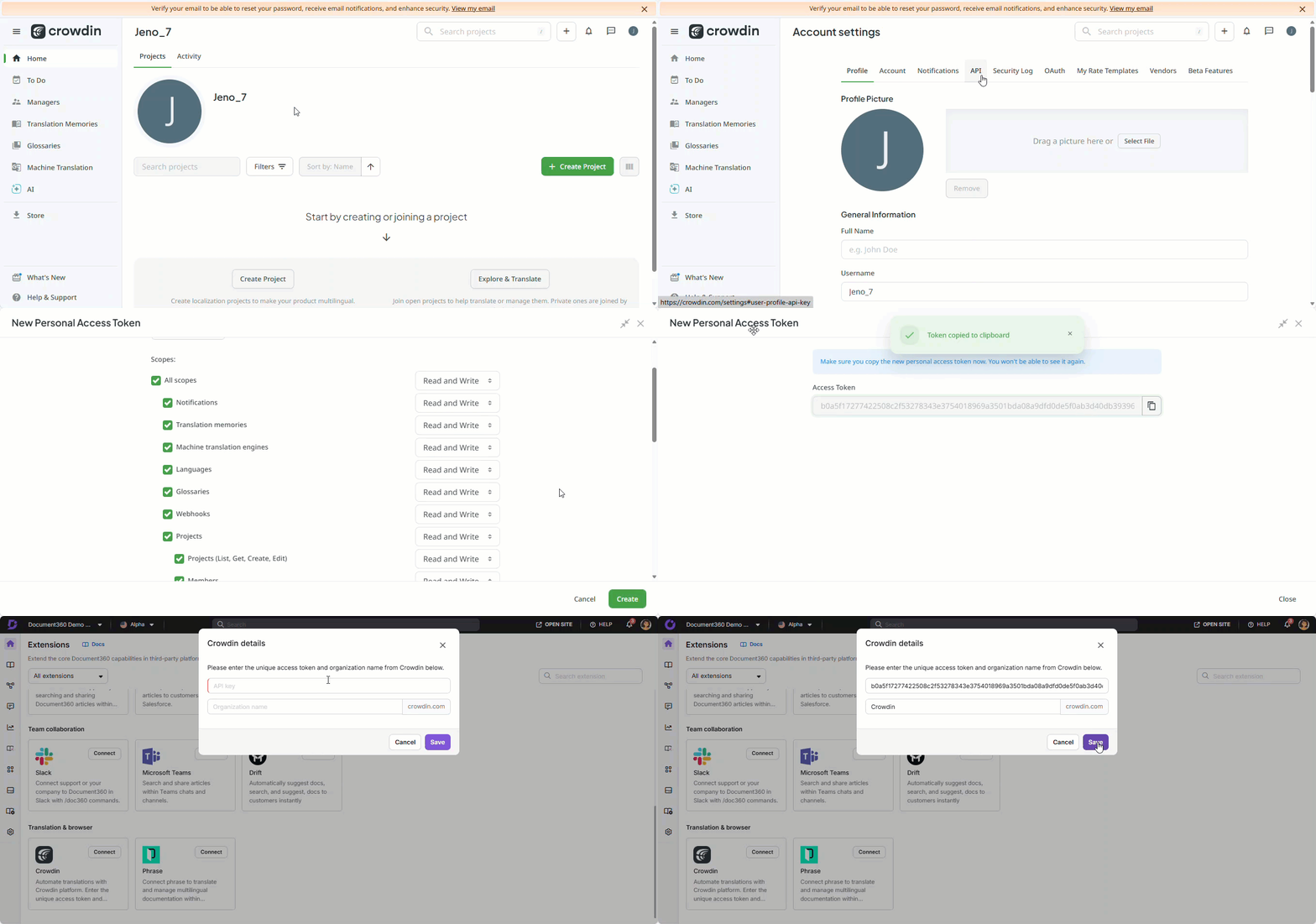
- In Crowdin, click your Profile (top right) > Account settings.
- Go to Access tokens > Personal Access Tokens and click New Token.
- Enter a token name and select All scopes.
- Click Create and copy the generated token.
Now, back in Document360:
- Navigate to Connections > Extensions in the left navigation bar.
- Under the Translation section, click Connect on the Crowdin tile.
- Paste the copied Crowdin access token in the API key field.
- Enter the organization name from your Crowdin account.
- Click Save.
You can now use the Push to Crowdin option from Document360.
Syncing articles to Crowdin for translation
After integration, you can sync categories and articles from Document360 to your Crowdin project for translation.
To sync articles seamlessly, ensure the project name is the same in both Document360 and Crowdin.
- Log in to your Crowdin account and select the project configured with your knowledge base.
- On the dashboard side menu, go to Integration.
- The Crowdin project and Document360 project are shown side-by-side.
- On the Document360 side, browse or search for the categories and articles you want to sync.
- Select the content and click SYNC TO.
Each article synced to Crowdin creates two files: the article content file (in Markdown or HTML format) and the article title file (.txt).
Push to Crowdin from Document360
After syncing articles, you can push updated content directly from the Document360 article editor without visiting the Crowdin workspace.
Click the Crowdin icon at the top of the article editor (next to the See contributor option) to open the Crowdin Sync panel.
Default language: The panel shows the time of the last push to Crowdin and the Push to Crowdin button.
Non-default languages: The panel also shows the time of the last translation sync from Crowdin, in addition to the last push timestamp.
Click Push to Crowdin to sync the latest article content to your Crowdin project.
Only articles that have already been synced to the Crowdin project can use the Push to Crowdin feature.
Timestamp feature
The Crowdin Sync panel displays two timestamps for each article:
- Last translation sync from Crowdin — the timestamp of the most recent translation push from Crowdin back to Document360.
- Last push to Crowdin — the timestamp of the most recent push from Document360 to Crowdin.
Translating articles in the Crowdin workspace
Once articles are synced, translation work happens in Crowdin:
- From the Crowdin project home, you can view the current translation status and progress for each target language, and pause translations if needed.
- Click any target language to see a detailed view of the categories and articles pushed from Document360.
- Invite team members or external agencies to collaborate directly on the Crowdin platform.
- Translators can edit or review machine-translated content in Crowdin and push the finished translations back to Document360.
Best practices
- Use the same project name in both Document360 and Crowdin when you first set up the integration. While you can rename projects later, matching names are required for the initial API key validation and make the Push to Crowdin feature work without friction.
- Sync articles in batches rather than all at once when starting out. Begin with a small set of high-priority articles to verify the workflow end-to-end before syncing your full knowledge base.
- Use the Push to Crowdin button from the Document360 article editor whenever you update an article that's already been translated. This keeps translators working from the latest version rather than an outdated copy.
- Set up a Crowdin workflow that includes a review step before content is pushed back to Document360. Machine translations in particular benefit from human review before they go live in your multilingual knowledge base.
FAQ
Does the Document360 subscription include the Crowdin translation service?
No. The Document360 subscription does not include the Crowdin translation service. You can integrate Document360 with Crowdin for translation purposes, but a separate Crowdin subscription is required.
Can multiple team members use different Crowdin API keys for the same Document360 project?
No. The Crowdin extension in Document360 is configured at the project level, which means a single Crowdin integration is shared across the entire project. All team members working in the same project use the same API key and organization settings. It is not currently possible to assign separate Crowdin personal API keys for individual users within the same project.
