
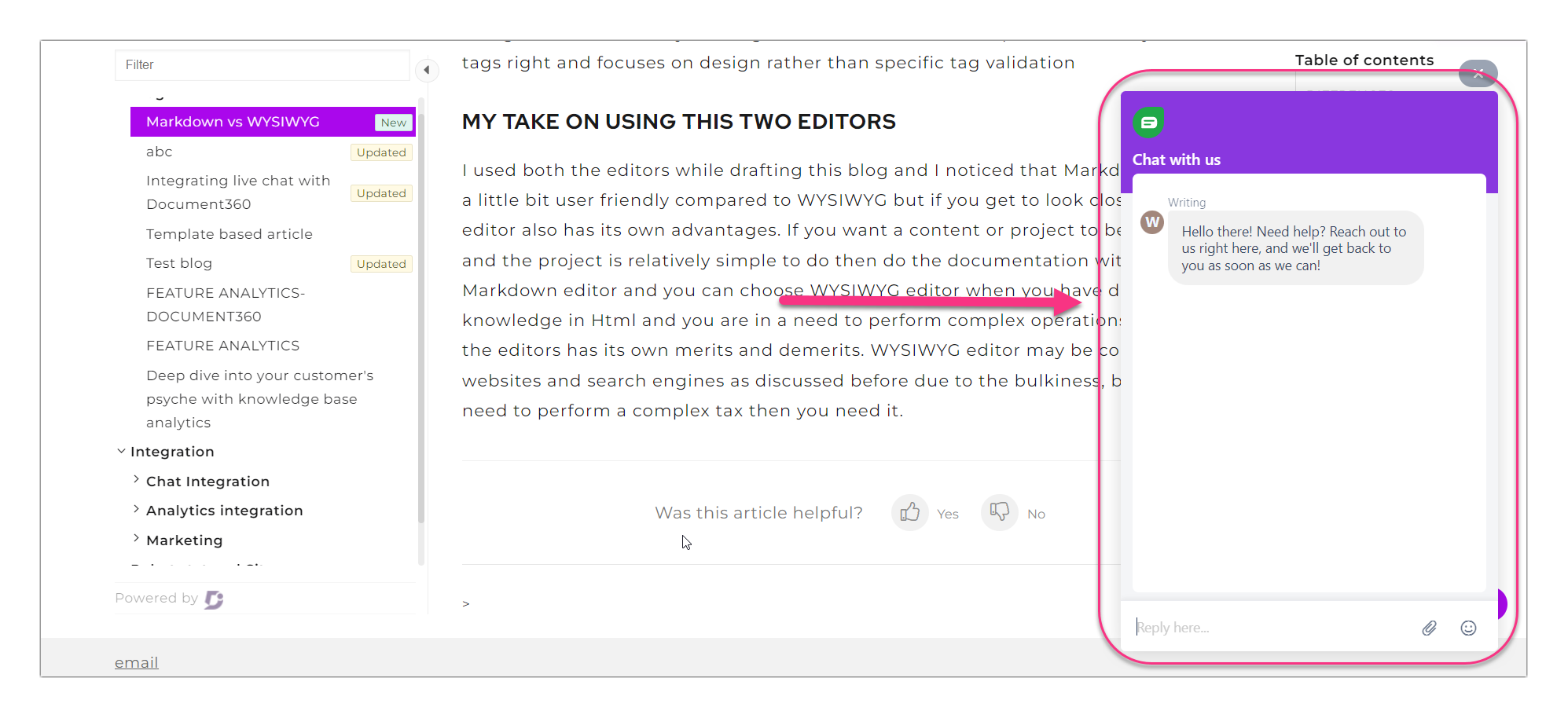
Freshchat is a modern messaging platform designed for sales and customer engagement teams to communicate effectively with website visitors. It enables businesses to deploy AI-powered chatbots and supports integration with popular communication channels including WhatsApp, Apple Business Chat, Facebook Messenger, and LINE, providing a unified messaging experience across your website and mobile app.
Key features of Freshchat include:
- One inbox: consolidate messages from different communication platforms into a single inbox, making it easy to manage all conversations in one place.
- Self-Service with AI Bots: empower customers with AI-driven chatbots to find answers independently, reducing response times and improving efficiency.
Before you begin
- You need a Freshchat account.
- You need your Freshchat Token. See How to find your Freshchat Token below.
How to find your Freshchat Token
The Freshchat Token is a unique code obtained from the Freshchat application. It is required to connect Freshchat with Document360.
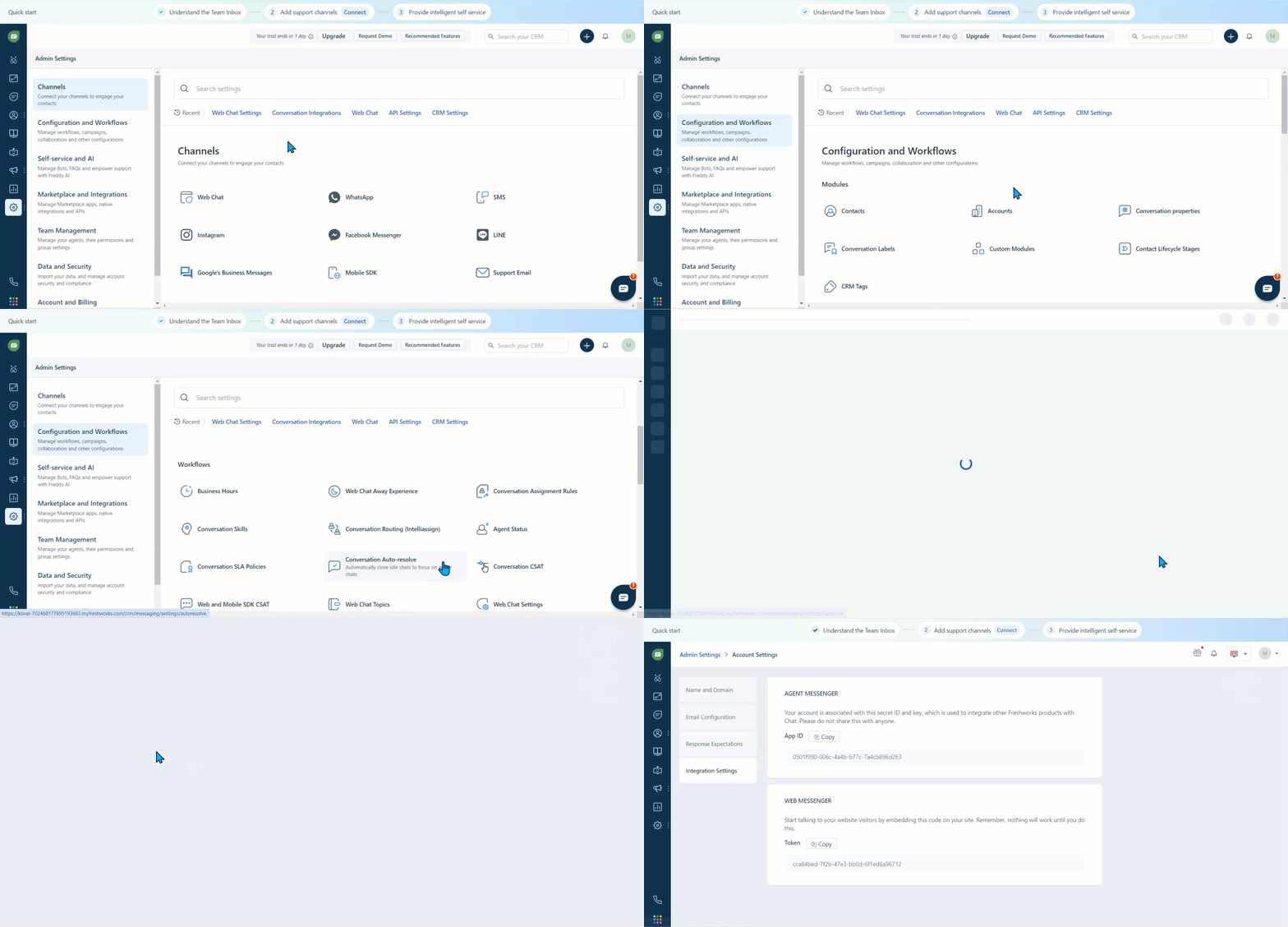
- Log in to your Freshchat dashboard.
- Navigate to Settings > Admin settings.
- Select the Configuration and Workflows section and scroll down to Workflows.
- Select Web Chat Settings > Integration Settings.
- Under the Web messenger section, find and copy the token.
How to integrate Freshchat with Document360
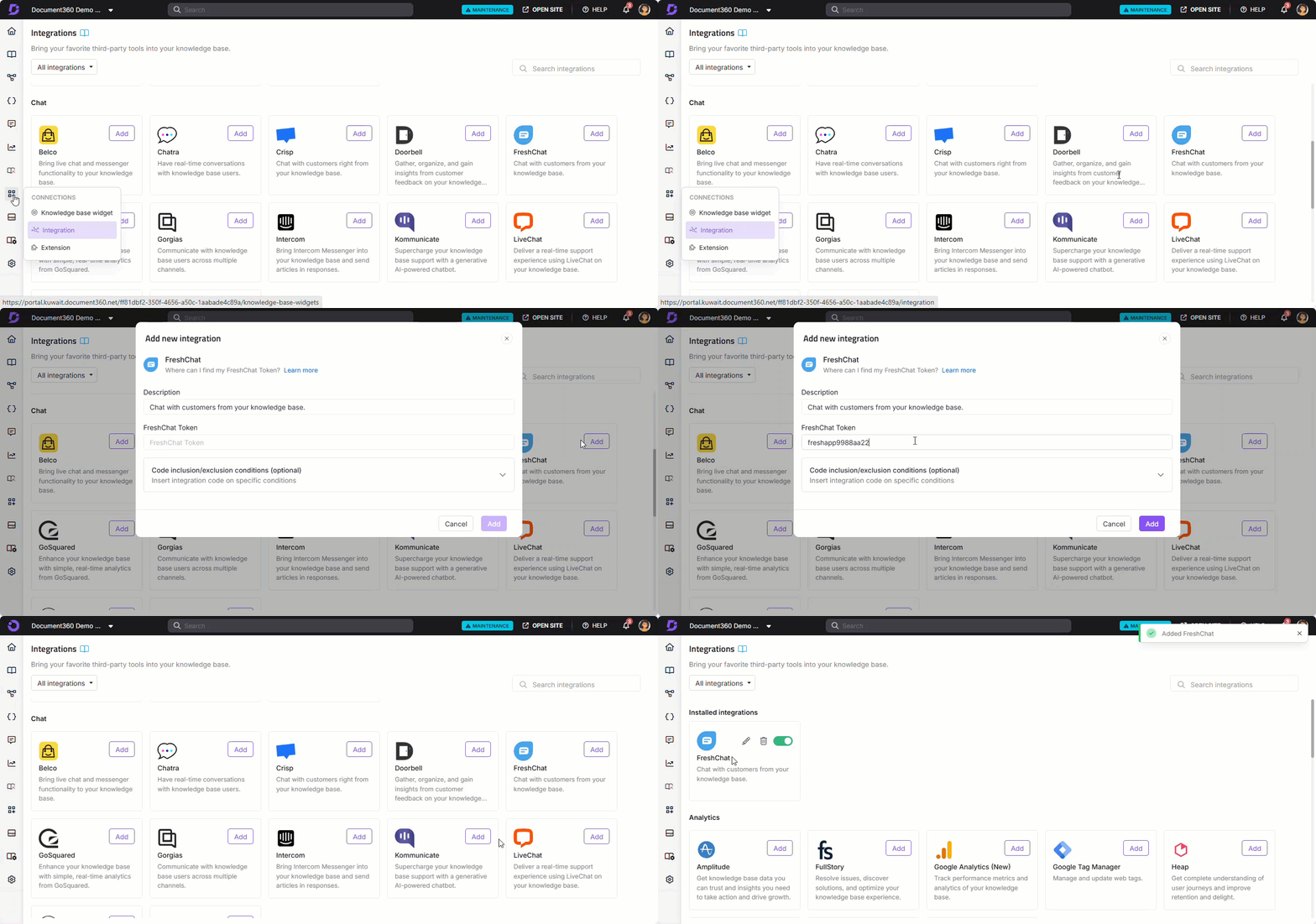
- In the Document360 portal, navigate to Connections () > Integrations () in the left navigation bar.
- Select Freshchat from the list of integrations and click Add. The Add new integration panel appears.
- Add a Description and enter your Freshchat Token.
The Freshchat Token is a unique code obtained from the Freshchat application. It is required to connect Freshchat with Document360 in the knowledge base portal.
- Optionally, expand Code inclusion/exclusion conditions to control when the integration runs based on IP address, Workspace, or Language.
- Click Add.
After setup, open your Freshdesk account interface to view and reply to your users.
Best practices
- Use One inbox to manage conversations across channels. Once Freshchat is integrated, all messages from WhatsApp, Facebook Messenger, and other channels consolidate into a single inbox, making it easier for your team to respond without switching between platforms.
- Deploy AI bots to handle common knowledge base questions. Configure Freshchat's AI bots to answer frequently asked questions automatically, reducing the number of conversations your team needs to handle manually.
- Use Code inclusion/exclusion conditions to limit where the widget appears. If the Freshchat widget should only appear on specific workspaces or for certain languages, configure conditions to control where the integration script runs.
- Test the chat widget after integration. Open your knowledge base site in a new browser tab and confirm the Freshchat widget loads and responds as expected before announcing it to your users.
FAQ
What is the Freshchat Token?
The Freshchat Token is a unique identifier obtained from the Freshchat application. It is required to connect Freshchat with Document360. You can find it in Freshchat by going to Settings > Admin settings > Configuration and Workflows > Workflows > Web Chat Settings > Integration Settings, then copying the token from the Web messenger section.
What communication channels does Freshchat support?
Freshchat supports integration with WhatsApp, Apple Business Chat, Facebook Messenger, and LINE, in addition to direct website and mobile app chat. All messages from these channels consolidate into a single inbox.
What is the One inbox feature in Freshchat?
One inbox consolidates messages from all connected communication platforms (WhatsApp, Facebook Messenger, website chat, and others) into a single unified view. This makes it easier for your team to manage all customer conversations without switching between different tools.
Can I limit which workspaces or languages the Freshchat widget appears on?
Yes. When adding or editing the Freshchat integration, expand Code inclusion/exclusion conditions and add conditions based on IP address, Workspace, or Language. See Code inclusion and exclusion conditions for full details.
Where do I view and reply to Freshchat conversations after integration?
After completing the integration, open your Freshdesk account interface to view and reply to conversations from your knowledge base visitors.
