
The GitHub integration lets you sync Markdown content from a GitHub repository directly into your Document360 knowledge base. When commits are pushed to the connected repository, Document360 automatically pulls the updated files and publishes them, no manual imports needed. The folder and article structure in your GitHub repository is mirrored exactly in Document360.
Content synced from GitHub is read-only in Document360. All edits must be made in the source GitHub repository. New article creation is not allowed within Document360 for GitHub-synced categories.
Why use the GitHub integration
- Engineering-led documentation: teams where developers own the docs can write and review Markdown files in the same pull request as the code change. When the PR merges, Document360 automatically reflects the update.
- Versioned product documentation: if your repository uses a structured folder hierarchy for different product versions or modules, that structure is mirrored exactly in Document360, giving readers an organized, navigable knowledge base without manual re-entry.
- Version-controlled docs that stay in sync with releases: your documentation updates are tied to code commits, so docs and product are always in step with each other.
- Open-source or community-contributed docs: for projects that accept documentation contributions via GitHub pull requests, the integration ensures that approved contributions are published to Document360 without a separate upload step.
- Markdown-first teams: if your team prefers writing in Markdown in a local editor rather than the Document360 editor, GitHub is the natural authoring environment.
Before you begin
- You must have admin access to the Document360 knowledge base portal.
- You need a GitHub account with access to the repository you want to connect.
- Your GitHub repository must follow the required folder structure before connecting. See Setting up your Git repository below.
- The integration supports a one-way sync: GitHub to Document360 only. Exporting content from Document360 back to GitHub is not supported.
How to connect GitHub to Document360
Connect the GitHub extension
- In the Document360 portal, navigate to Connections > Extensions in the left navigation bar. You can find the GitHub extension under the Code repositories section.
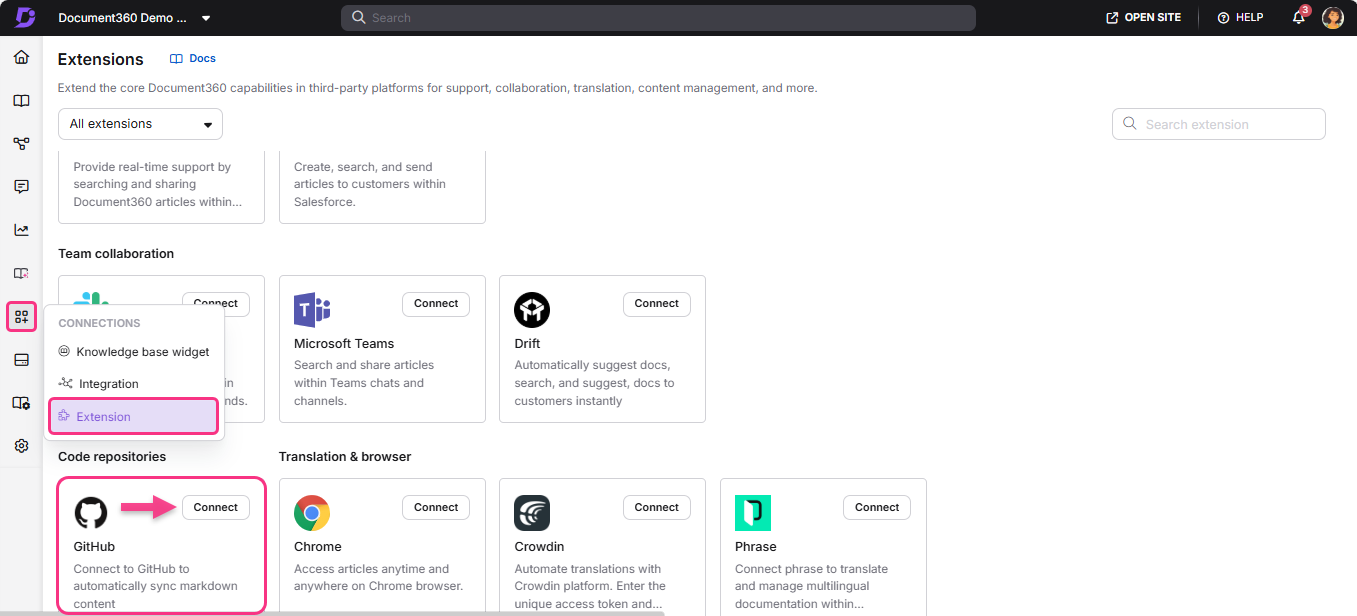
- Click Connect on the GitHub extension tile. The Install panel opens.
- Select the repository scope you want to grant Document360 access to:
- All repositories — grants access to sync all repositories in your GitHub account.
- Only select repositories — grants access to specific repositories based on your project requirements.
- Click Install.
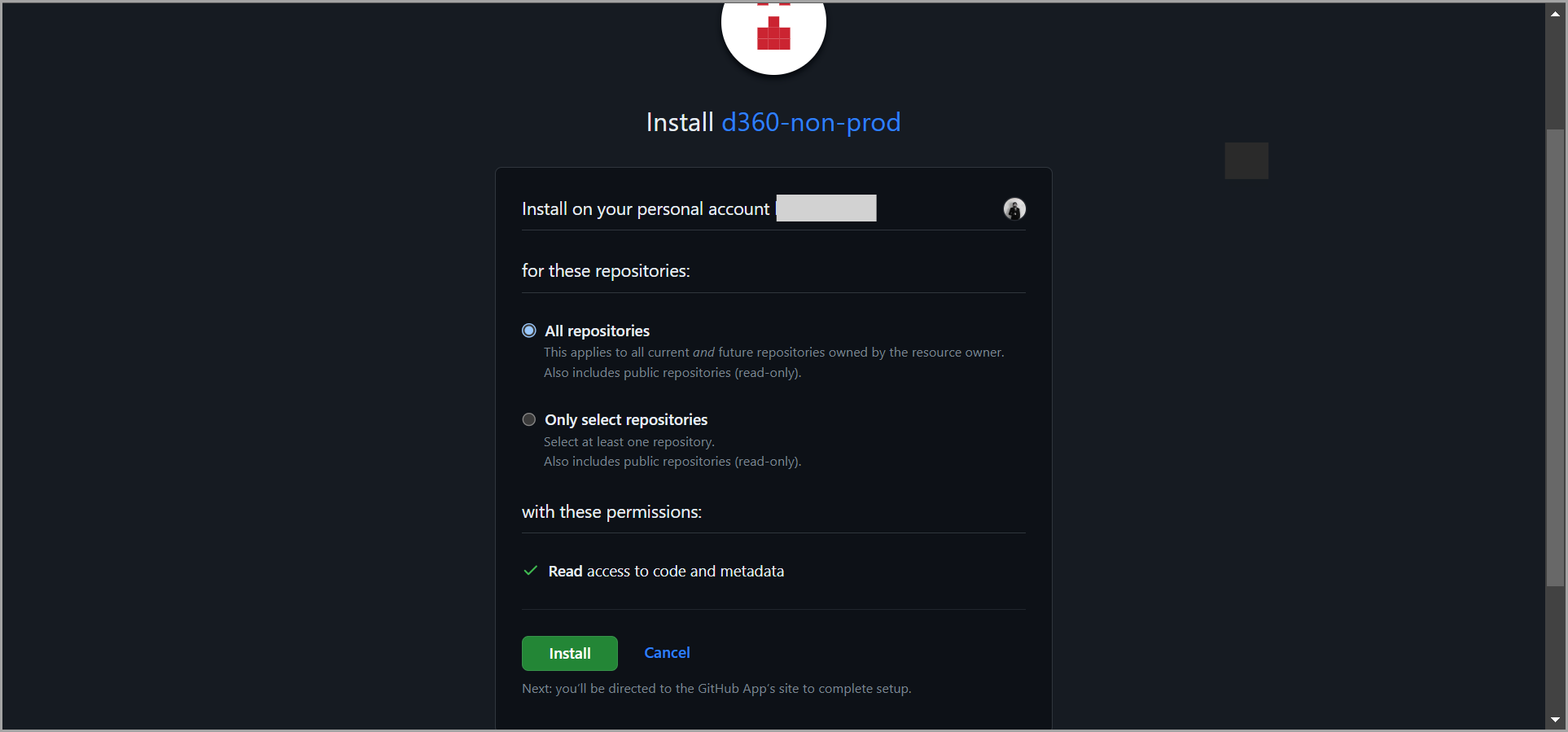
If you are not logged into GitHub, you are redirected to the GitHub login screen.
- Enter your GitHub credentials and log in. You are redirected back to the Document360 knowledge base portal. The Create new category module appears.
- Select GitHub as the category type, then select the repository from your connected GitHub account.
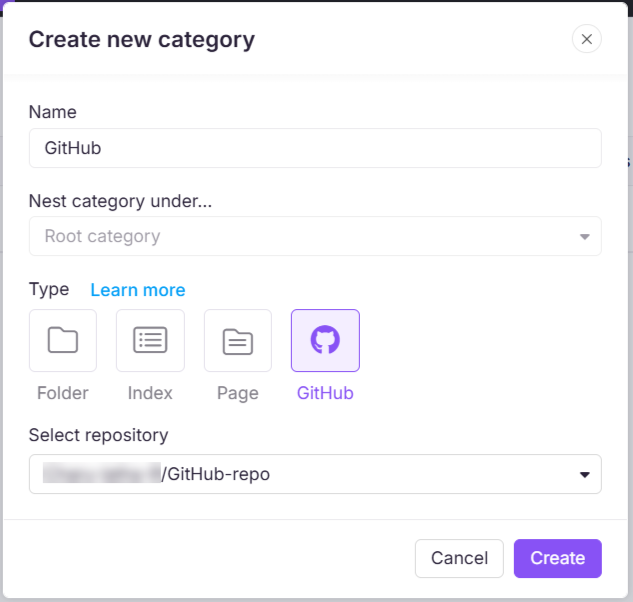
A confirmation message saying Your GitHub has been successfully initiated appears.
- Document360 creates a category for the repository. Each branch in the repository appears as an article within that category, identified by a branch icon.
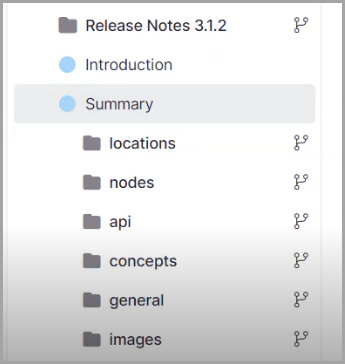
- From this point, whenever a commit is pushed to the connected repository, Document360 automatically syncs and publishes the updated content. You do not need to trigger the sync manually.
Setting up your Git repository
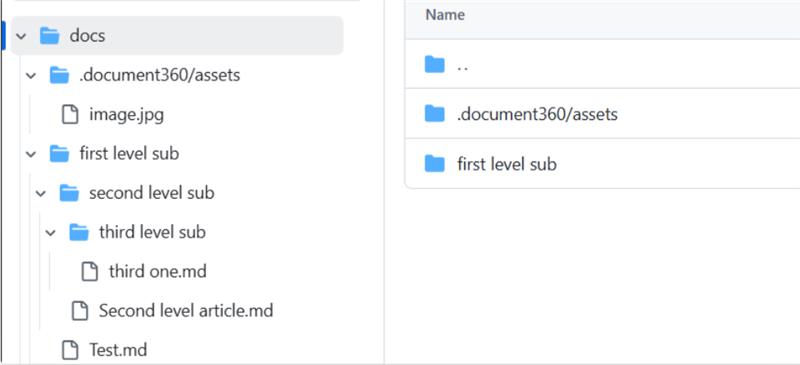
Your repository must be structured correctly before connecting it to Document360. Follow the structure below.
Main folder
- The repository must include a root-level folder named
docs. This is where you organize all subfolders and Markdown articles. - This folder name must remain unchanged.
Media files storage
- Store all media files inside the
docs/.document360/assetsfolder. - This folder name must remain unchanged.
- For example, if an image is referenced in an article named "What is Document360", the image file must be placed in
docs/.document360/assets.
Article storage
- Within the
docsfolder, create a subfolder to store your articles, for exampledocs/articles. - All articles must be in Markdown (
.md) format.
Inserting media files in articles
To reference a media file in an article, upload it to docs/.document360/assets and use the following syntax:

For example, if your media file is named test.png, use:

Tutorial
Watch the video below for a walkthrough of the full GitHub integration setup.
Best practices
- Structure your repository before connecting. Set up the
docsfolder, subfolders, and at least one.mdfile before configuring the integration. An empty or incorrectly structured repository will not sync correctly. - Use descriptive branch names. Since each branch maps to an article in Document360, clear names (for example,
v2.1-release-notes) make the knowledge base easier to navigate. - Keep all media files in the designated assets folder. Images referenced outside
docs/.document360/assetswill not render in Document360. - Treat the main branch as your source of truth. Only the main branch is supported for sync. Use pull requests and branch protection rules in GitHub to control what gets published.
- Coordinate your release timing. Because commits auto-publish, align your GitHub merge schedule with your documentation release windows to avoid publishing incomplete content.
FAQ
Are drafts or revision history available for GitHub-synced articles?
No. Revision history and change tracking are not available for GitHub-synced articles in Document360.
Why are newly synced GitHub articles not appearing in alphabetical order?
During the initial sync, categories and articles are imported in alphabetical order. However, during subsequent incremental syncs, any newly added categories or articles are appended to the end of the respective category rather than being reordered alphabetically. This happens even if the content was added alphabetically in GitHub.
Can I sync a non-main GitHub branch with Document360?
No. Document360 currently supports syncing content only from the main branch of a connected GitHub repository.
Will the GitHub icon appear on all categories?
No. The GitHub branch icon is displayed only for public categories.
Can I connect multiple GitHub repositories to Document360?
Yes. You can connect multiple repositories by repeating the connection steps. Each repository is created as a separate category in Document360.
