
If your team uses Google Docs for content collaboration with external vendors, contractors, or distributed writers, manually copying articles from Google Docs into Document360 is time-consuming and error-prone. By connecting Google Docs and Document360 through Zapier, you can automate this content flow. Whenever a new Google Doc is created in a designated folder, Zapier automatically creates a corresponding article in your Document360 knowledge base.
When to use this integration
- Your team works with external vendors, contractors, or freelance writers who contribute content in Google Docs but don't have access to the Document360 portal.
- You want to eliminate the manual step of copying content from Google Docs into Document360 every time a new document is ready.
- You manage a high volume of content contributions from multiple collaborators and need a consistent, automated way to bring that content into your knowledge base.
Before you begin
- You must be logged into your Zapier account.
- You must have a Google account with access to the Google Drive folder you want to monitor.
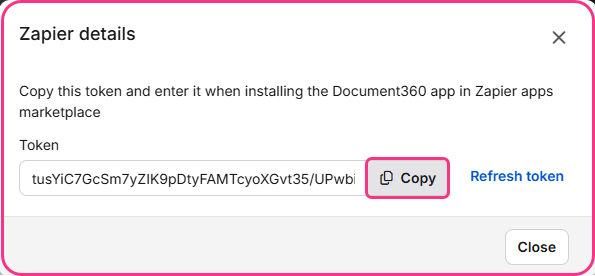
- You must have your Document360 API token ready. To generate one, navigate to Connections > Extensions , locate the Zapier tile, and click Connect to copy the token.
How to set up the Zap
Step 1 — Create a new Zap
- Log in to your Zapier account.
- From the left navigation menu, click Create then select Zaps.
- A new Zap is created with a Trigger and Action flow.

Step 2 — Connect Google Docs as the trigger
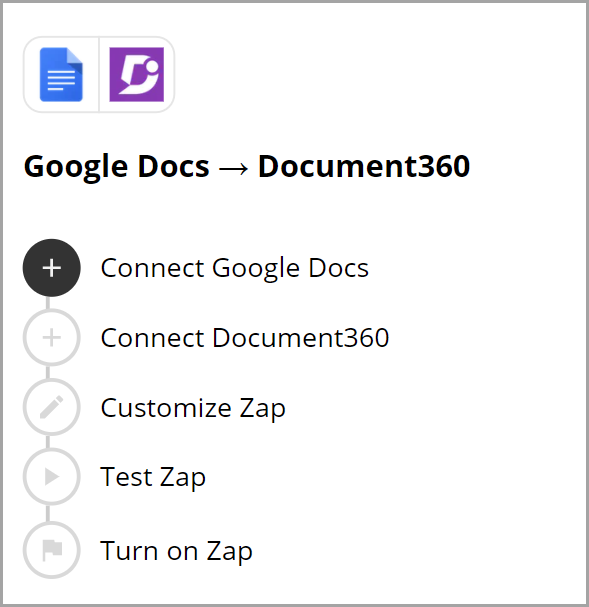
- In the Trigger field, choose Google Docs.
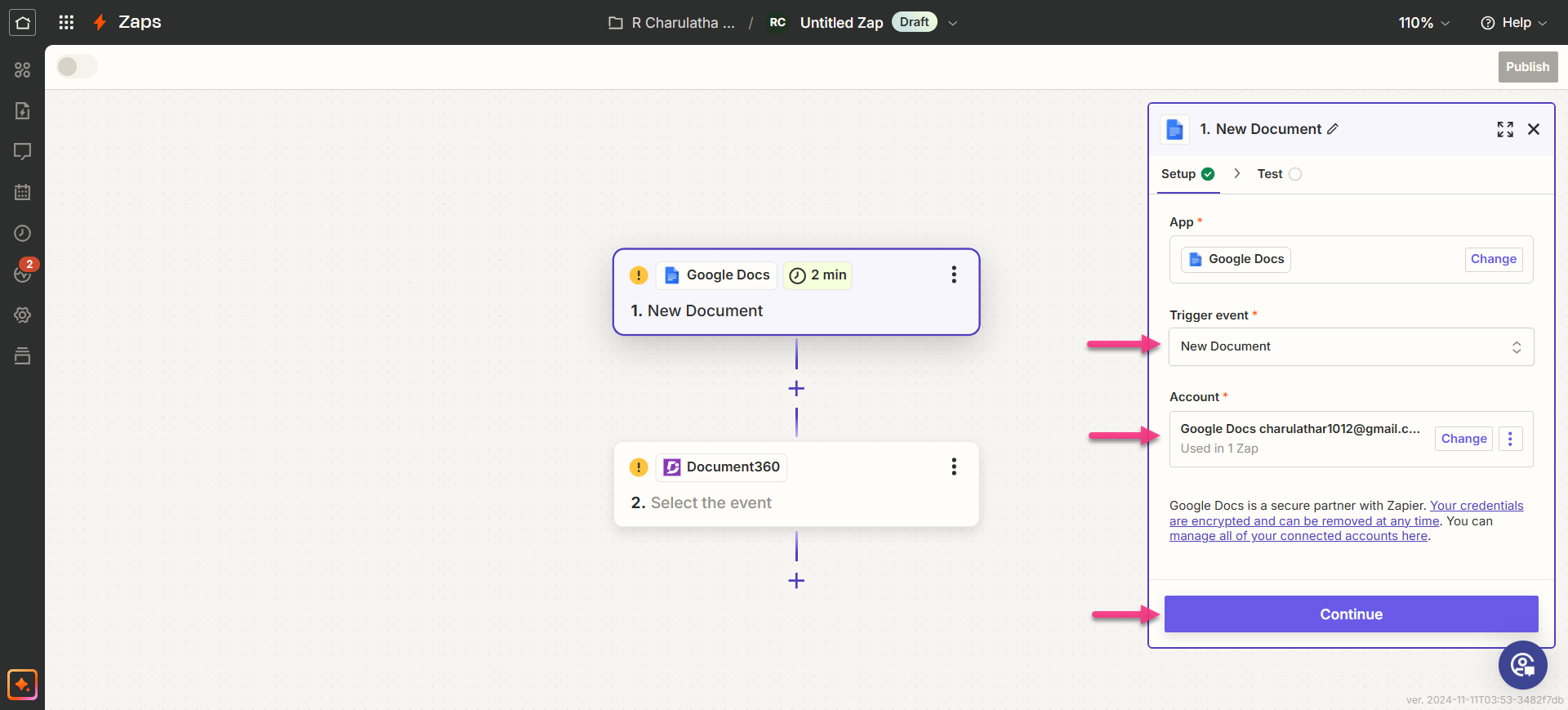
- In the Trigger event field, select the event that should trigger the Zap.
If you want to change the trigger app later, click Change in the Trigger field.
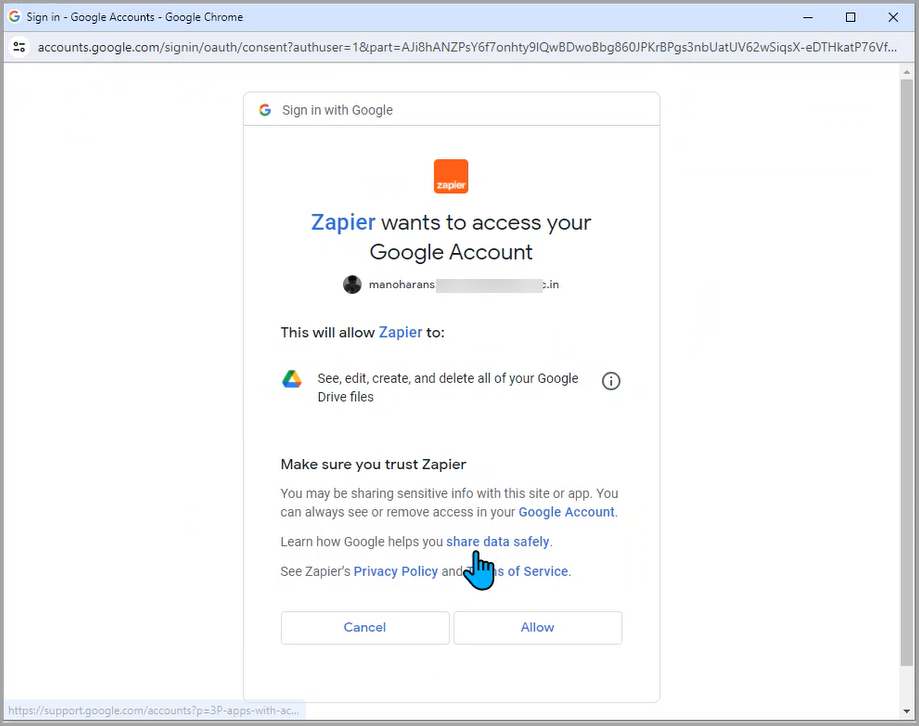
- Click the Account field — a Sign-in panel appears.
- Enter your Google account credentials and click Allow.
- Click Continue.
- Find the list of folders retrieved from your connected Google Drive account.
- Choose the desired folder and click Continue.
- Zapier runs a test to confirm the trigger is correctly configured.
- Create a Google Doc inside the selected folder to test the trigger.
Step 3 — Connect Document360 as the action
- In the Action field, choose Document360.
- On the Setup panel, select the desired Event from the dropdown.
- Click the Account field — a Sign-in panel appears.
- Enter your sign-in credentials and click Allow.
To generate the API token from Document360:
- Navigate to Connections > Extensions in the left navigation bar of the Knowledge base portal.
- On the Zapier extension tile, click Connect.
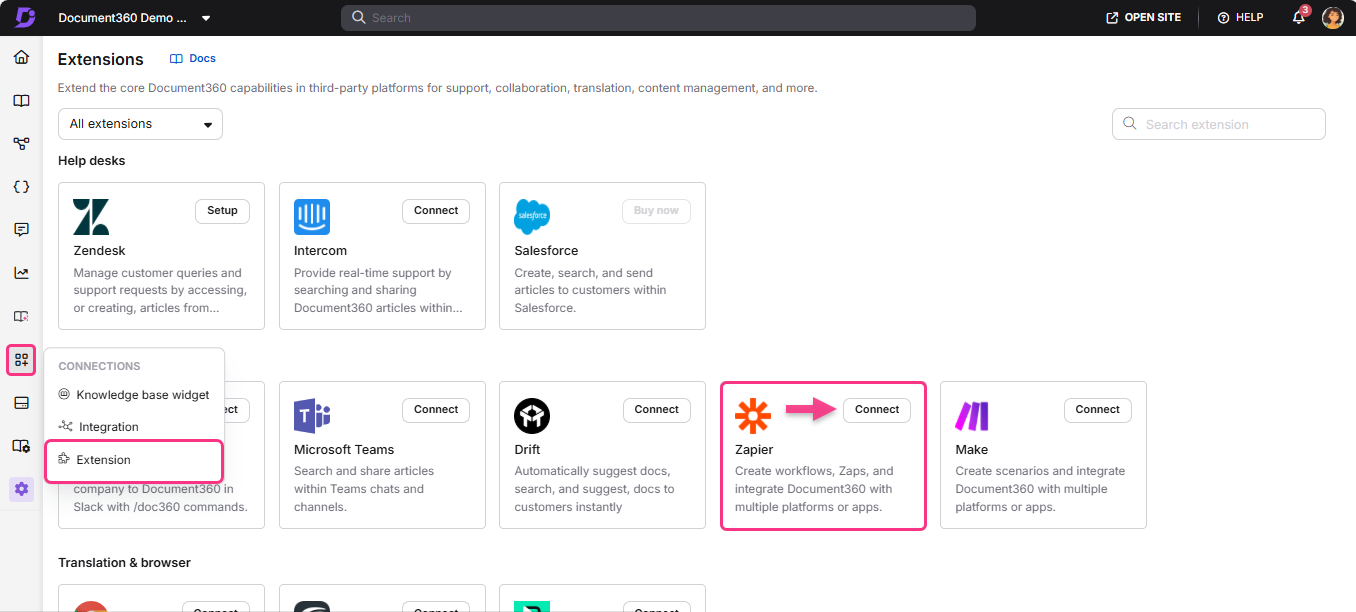
- Click the Copy icon to copy the token.
- Head back to the Zapier panel and paste the API token into the field.
- Click Yes, Continue to Document360.
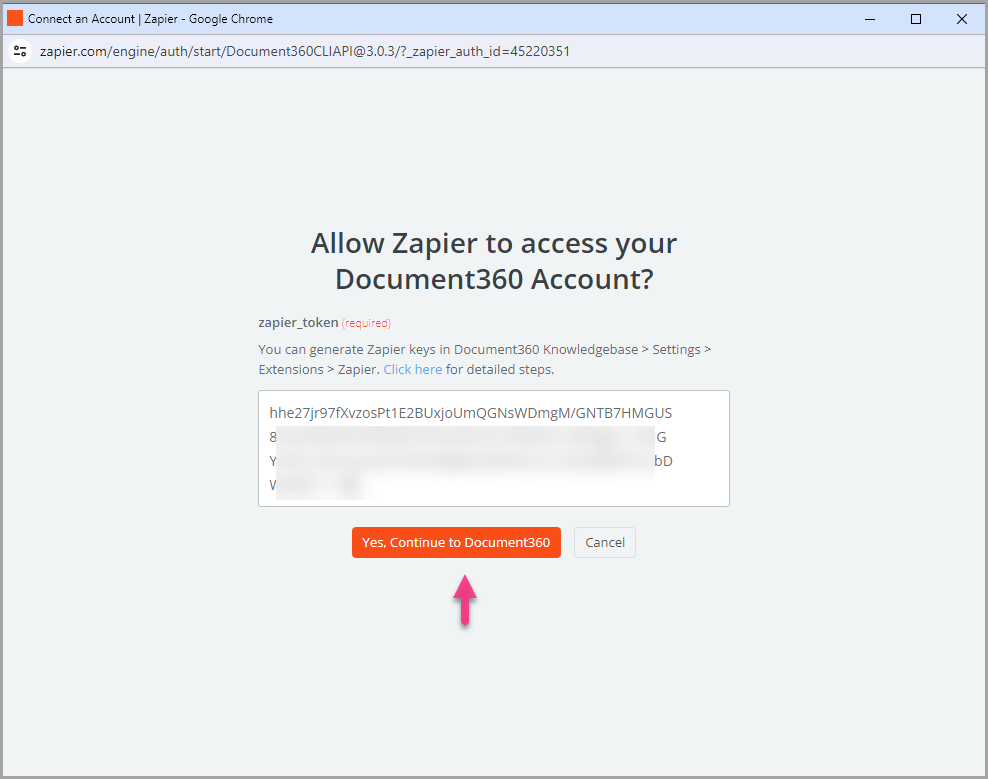
- You can find the connected Document360 project on the Connect Document360 account page. To use a different account later, click Change.
- Click Continue.
Step 4 — Map the fields
- Map the fields from Google Docs to Document360:
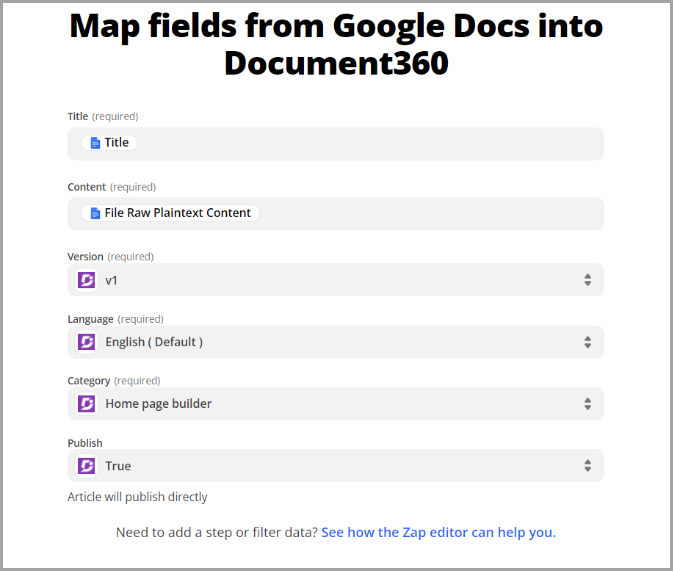
| Field | Description |
|---|---|
| Title | By default, the Google Docs file title is selected. Other options are available based on your requirements. |
| Content | By default, the Google Docs content is selected. Other options are available based on your requirements. |
| Version | Choose the workspace in your Document360 project where the article should be created. |
| Language | Choose the language within the selected workspace. |
| Category | Choose the category where the article should be placed. |
| Publish | Select True to publish the article immediately. Select False to save it as a draft. |
The Continue button is only enabled after all required fields have been mapped.
- Click Continue.
Step 5 — Test the Zap
- In the test section, click Test step.
- If successful, you will see the message An Article was sent to Document360.
- In your Document360 portal, you'll find the article titled after the Google Docs file name, located in the category you selected.
- Head back to the Zapier setup panel.
Step 6 — Turn on the Zap
- Review or edit the trigger and action settings as needed.
- Click to turn on the Zap. You will see a success message: Your Zap is on.
- Click Manage your Zap to go to the Zap overview page.
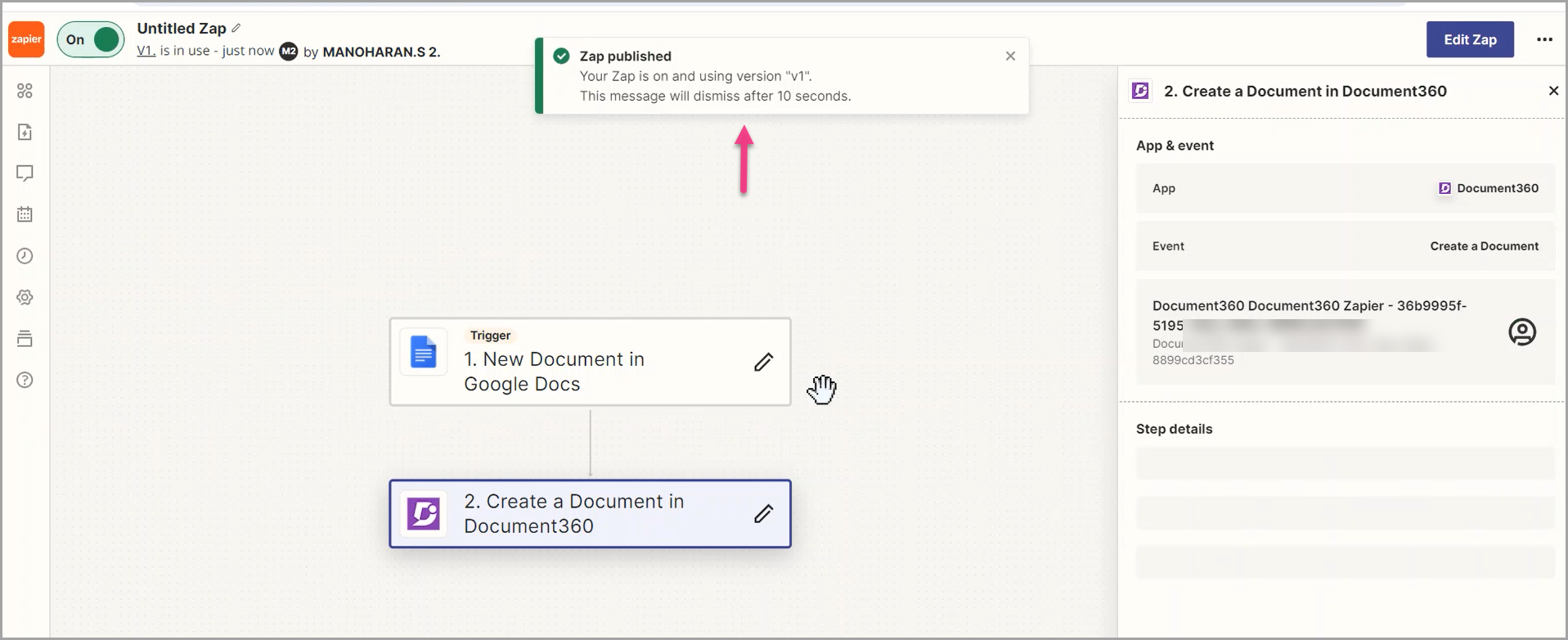
Zap overview
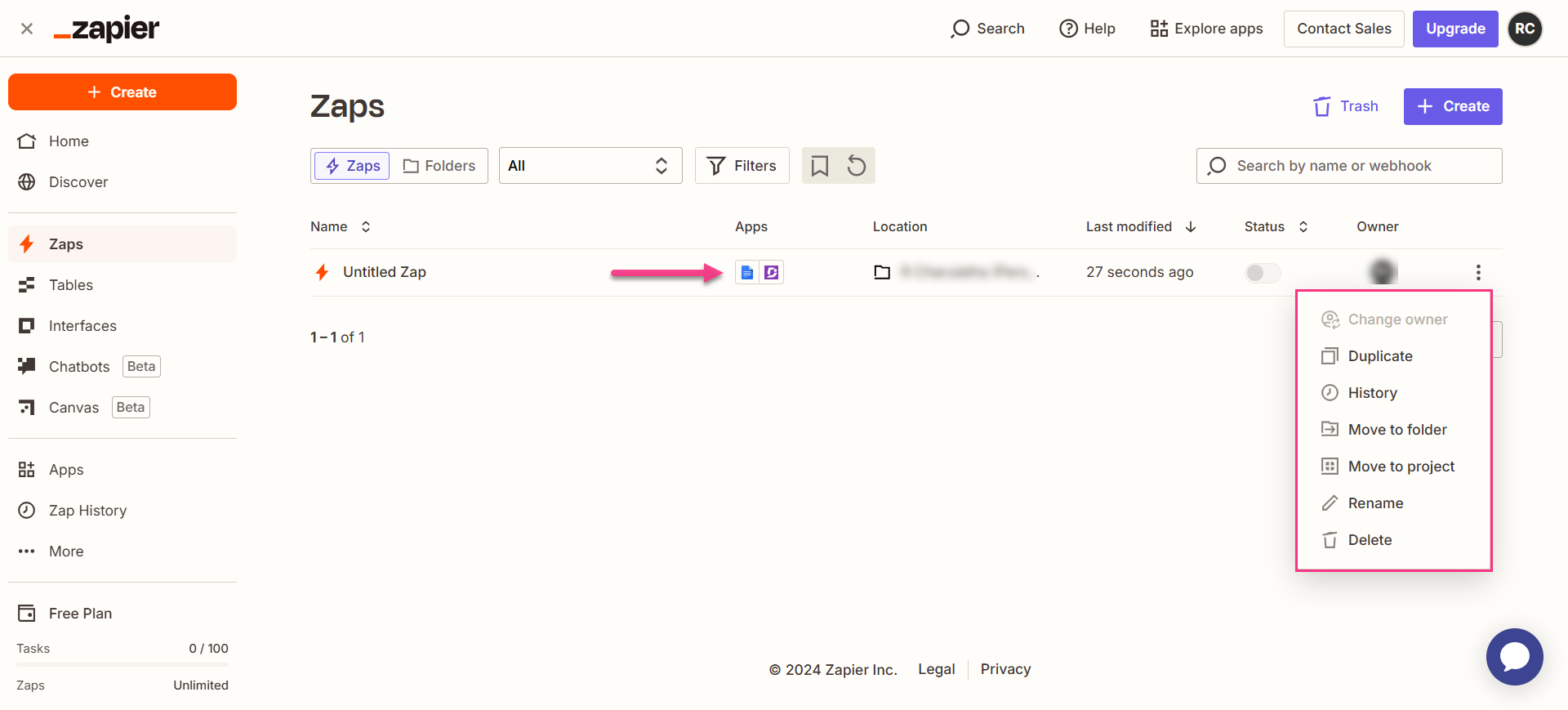
Once active, you can view and manage the Zap from the Zapier dashboard. The overview page shows the trigger, action, and run history for the Zap.
How to delete a Zap
- Navigate to the Zapier dashboard. A list of all existing Zaps is displayed on the overview page.
- Click the arrow (>) icon to the right of the Zap you want to remove and click Turn off and delete Zap. The Zap is permanently deleted.
Best practices
- Set the Publish field to False when mapping fields in Step 4. This creates the article as a draft in Document360, giving your team a chance to review and format the content before it goes live.
- Monitor the designated Google Drive folder closely — any new document created there will trigger the Zap, so make sure collaborators only place finalized or review-ready content in that folder.
- Use a dedicated Google Drive folder per content type or team so you can build separate Zaps with different category mappings for each, keeping your knowledge base organized without manual sorting.
