
HubSpot is a leading inbound marketing, sales, CRM, and customer success platform. When your support team receives new tickets in HubSpot, there's often a need to check whether a related knowledge base article already exists in Document360 — and if not, to create one that addresses the knowledge gap. By connecting HubSpot and Document360 through Zapier, you can automate this: whenever a new support ticket is created in HubSpot, Zapier can trigger article creation in Document360, helping your team build documentation directly from support activity.
When to use this integration
- Your support team manages incoming customer queries in HubSpot and wants to automatically create a Document360 draft article whenever a ticket comes in for an undocumented topic.
- You want to close knowledge gaps faster by using real support ticket data — ticket names and descriptions — as the starting point for new knowledge base articles.
- You're building a workflow where support activity drives documentation, ensuring your knowledge base grows in response to what customers are actually asking.
Before you begin
- You must be logged into your Zapier account.
- You must have a HubSpot account with access to the support tickets you want to use as triggers.
- You must have your Document360 API token ready. To generate one, navigate to Connections > Extensions , locate the Zapier tile, and click Connect to copy the token.
How to set up the Zap
Step 1 — Create a new Zap
- Log in to your Zapier account.
- From the left navigation menu, click Create then select Zaps.
- A new Zap is created with a Trigger and Action flow.

Step 2 — Connect HubSpot as the trigger
- In the Trigger field, choose HubSpot.
- In the Trigger event field, select the required event to trigger in HubSpot.
To change the trigger app later, click Change in the Trigger field.
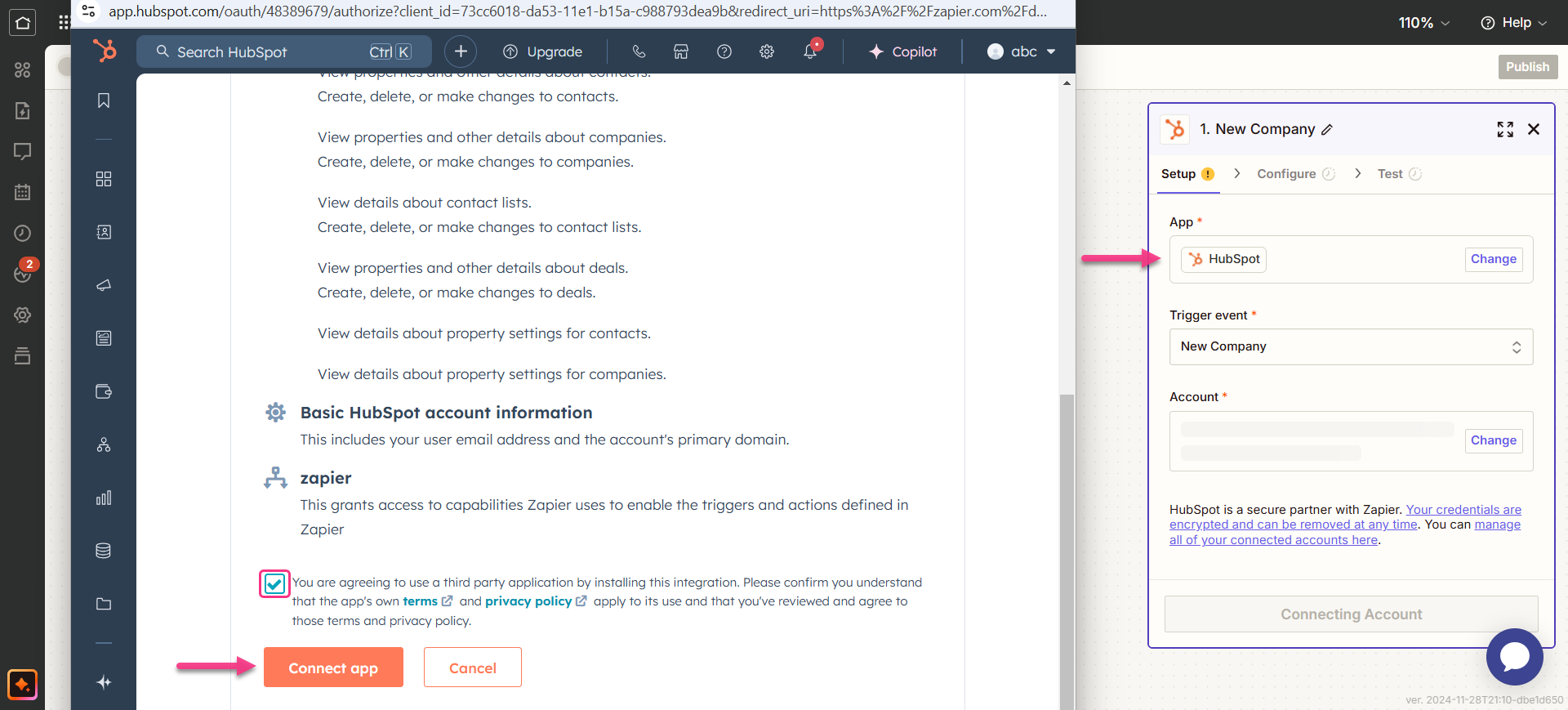
- Click the Account field — a Sign-in panel appears.
- Enter your HubSpot sign-in credentials and select the checkbox.
- Click Connect app. Zapier runs a test to confirm the trigger is correctly configured.
- Click Continue.
Step 3 — Connect Document360 as the action
- In the Action field, choose Document360.
- On the Setup panel, select the desired event in the Event field.
- Click the Account field — a Sign-in panel appears.
- Enter your sign-in credentials and click Allow.
To generate the API token from Document360:
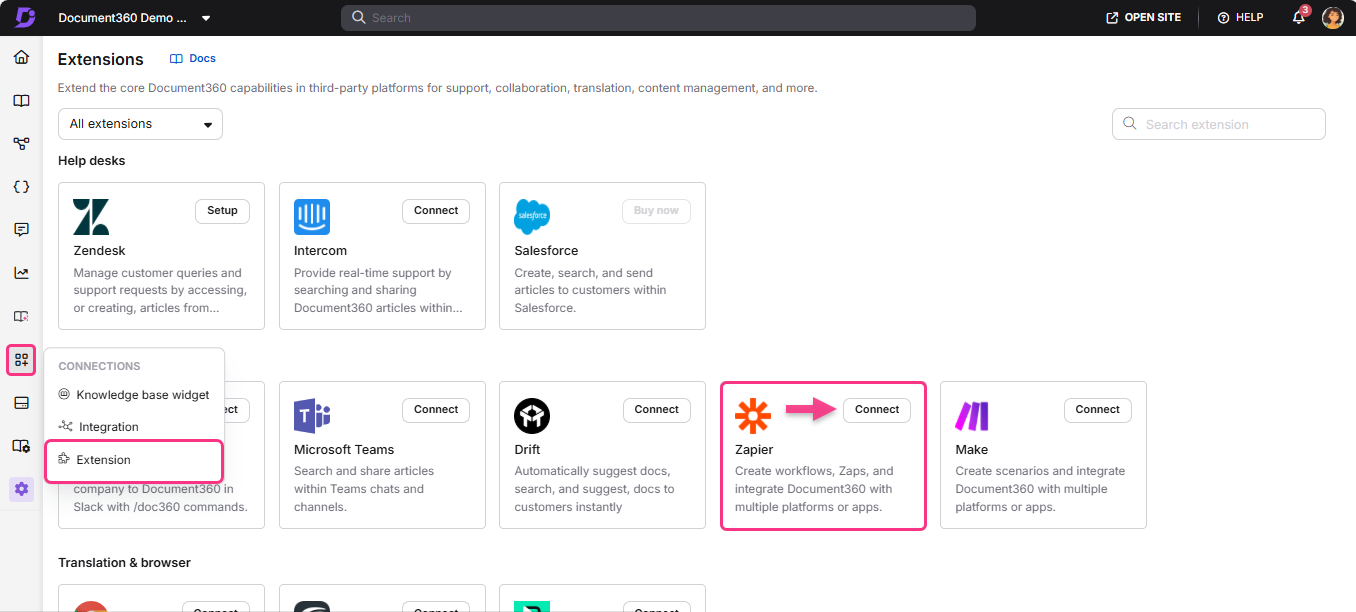
- Navigate to Connections > Extensions in the left navigation bar of the Knowledge base portal.
- On the Zapier extension tile, click Connect.
- Click the Copy icon to copy the token.
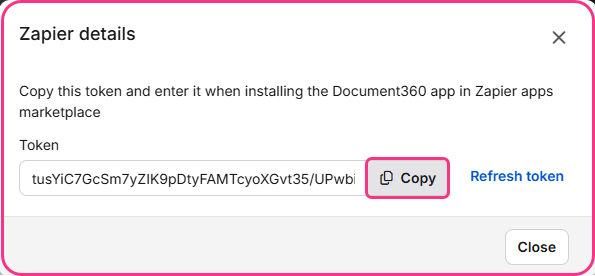
- Head back to the Zapier panel and paste the API token into the field.
- Click Yes, Continue to Document360.
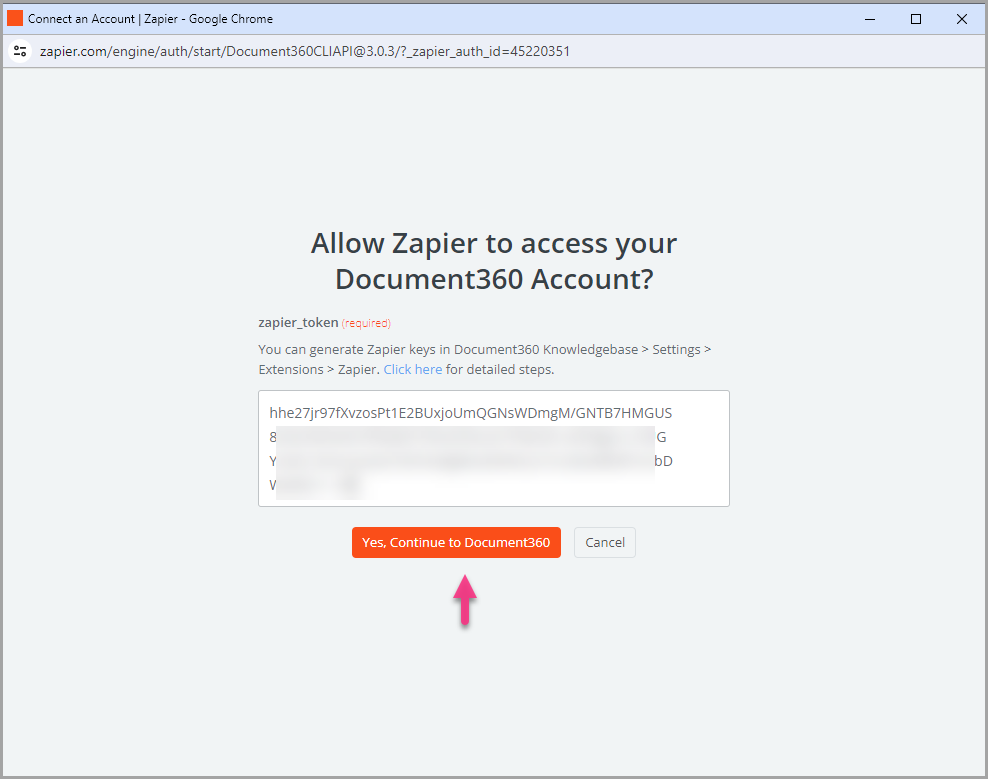
- You can find the connected Document360 project on the Connect Document360 account page. Click Continue.
Step 4 — Map the fields
- Map the required fields from HubSpot to Document360:
| Field | Description |
|---|---|
| Ticket name | By default, the HubSpot ticket name maps to the article title in Document360. |
| Ticket description | By default, the HubSpot ticket description maps to the article content in Document360. |
| Version | Select the workspace in your Document360 project where the article should be created. |
| Language | Choose the language within the selected workspace. |
| Should this step be considered a "success" when nothing is found? | Set to True or False depending on how you want the Zap to behave when no matching content is found. |
- Once done, click Continue.
- Click Test & Continue.
Step 5 — Turn on the Zap
- After testing, review or edit the trigger and action settings as needed.
- You will see a success message: Your Zap is on. Click Manage your Zap to go to the Zap overview page.
Zap overview
Once active, you can view and manage the Zap from the Zapier dashboard. The overview page shows the trigger, action, and run history for the Zap.
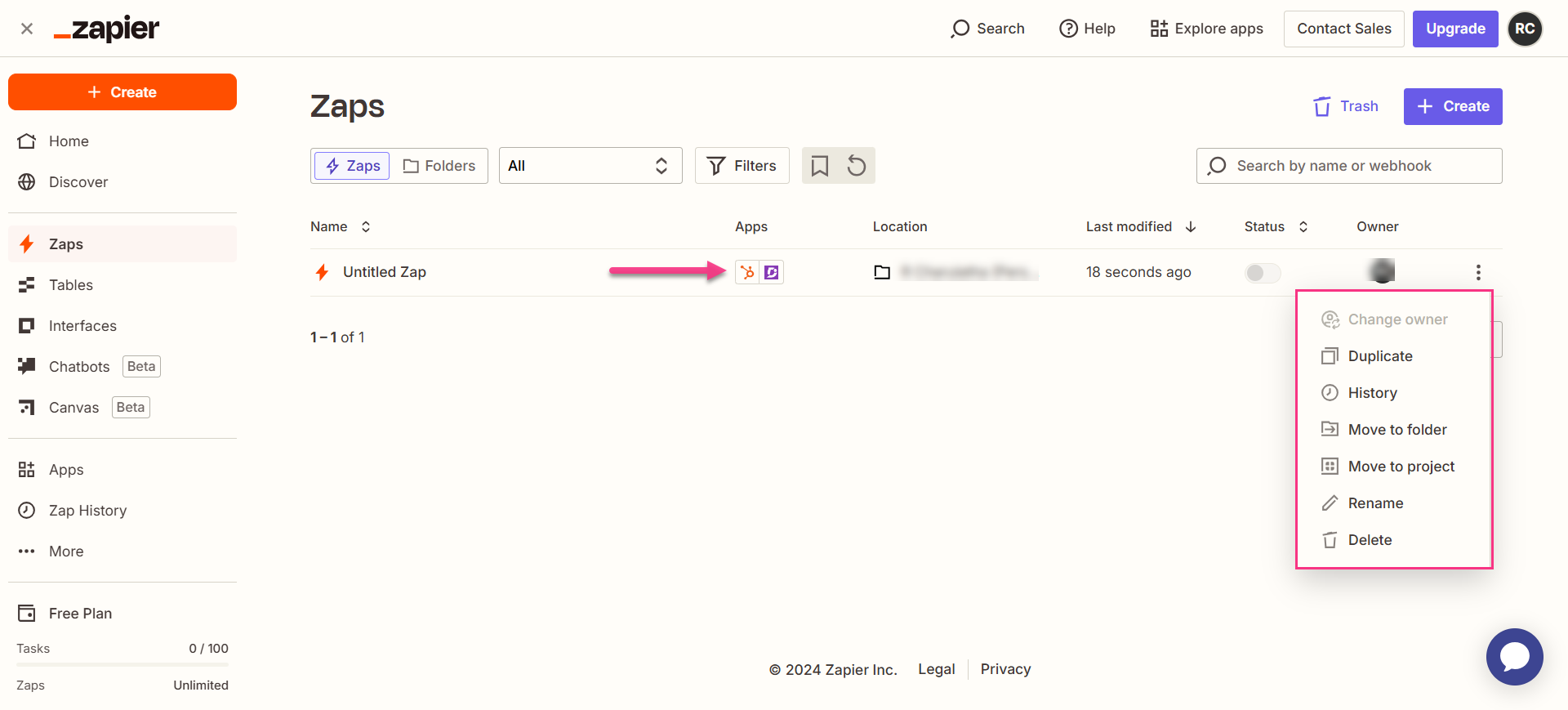
How to delete a Zap
- Navigate to the Zapier dashboard. A list of all existing Zaps is displayed on the overview page.
- Click the Zap actions () icon to the right of the Zap you want to remove and click Delete. The Zap is permanently deleted.
Best practices
- Set the "Should this step be considered a success when nothing is found?" field to True if you want the Zap to continue running even when no matching article exists. This prevents the Zap from stopping on tickets that don't have a corresponding article yet — which is likely most of them when you're just starting out.
- Review the ticket name and description that get mapped as the article title and content. HubSpot ticket names are often short and terse — consider whether you need a follow-up step in your workflow to enrich the article before it goes live.
- Use this Zap to create draft articles rather than published ones, so your documentation team can review and expand the content before it appears in the knowledge base.
