
Pipedrive is a deal-driven CRM that automatically tracks calls, emails, and sales activity across your pipeline. When your team adds new leads, contacts, or deals in Pipedrive, corresponding knowledge base articles — such as account briefs, product documentation, or onboarding guides — often need to be created in Document360 alongside them. By connecting Pipedrive and Document360 through Zapier, you can automate this: whenever a specified event occurs in Pipedrive, Zapier creates the corresponding article in your knowledge base automatically.
When to use this integration
- Your sales team logs new deals or contacts in Pipedrive and needs a corresponding knowledge base article created in Document360 each time — for example, a deal-specific brief, a product guide, or an account summary.
- You want documentation to stay in step with your pipeline activity without requiring a manual handoff between your sales and documentation teams.
- You're building a documentation workflow where CRM deal events trigger content creation, ensuring your knowledge base reflects the current state of your sales operations.
Before you begin
- You must be logged into your Zapier account.
- You must have a Pipedrive account with access to the pipeline you want to monitor.
- You must have your Document360 API token ready. To generate one, navigate to Connections > Extensions , locate the Zapier tile, and click Connect to copy the token.
How to set up the Zap
Step 1 — Create a new Zap
- Log in to your Zapier account.
- From the left navigation menu, click Create then select Zaps.
- A new Zap is created with a Trigger and Action flow.

Step 2 — Connect Pipedrive as the trigger
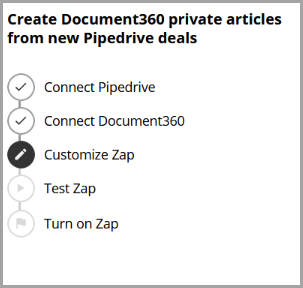
- In the Trigger field, choose Pipedrive.
- In the Trigger event field, select the event that should trigger the Zap.
To change the trigger app later, click Change in the Trigger field.
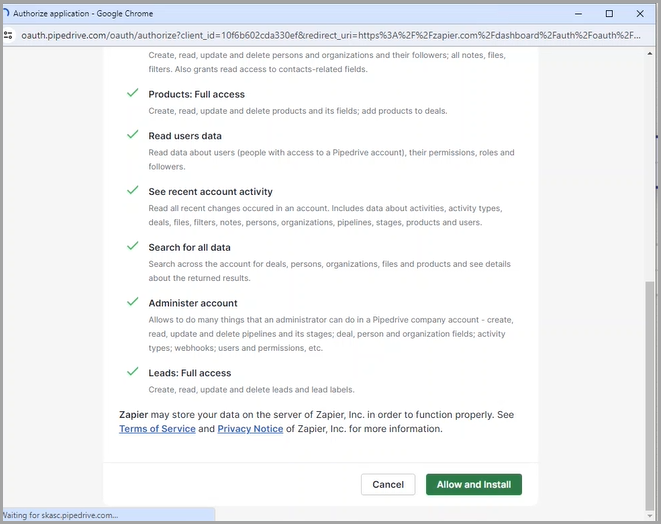
- Click the Account field — a Sign-in panel appears.
- Enter your Pipedrive credentials and click Allow and Install. Zapier runs a test to confirm the trigger is correctly configured.
Step 3 — Connect Document360 as the action
- In the Action field, choose Document360.
- On the Setup panel, select the desired event in the Event field.
- Click the Account field — a Sign-in panel appears.
- Enter your sign-in credentials and click Allow.
To generate the API token from Document360:
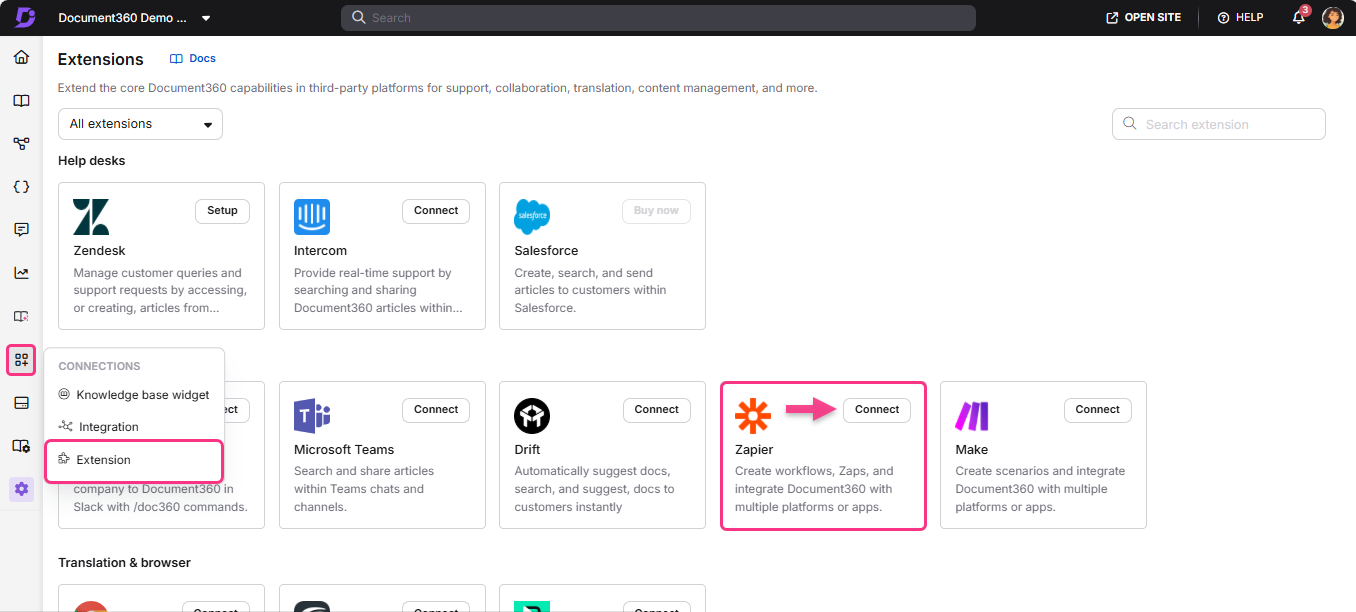
- Navigate to Connections > Extensions in the left navigation bar of the Knowledge base portal.
- On the Zapier extension tile, click Connect.
- Click the Copy icon to copy the token.
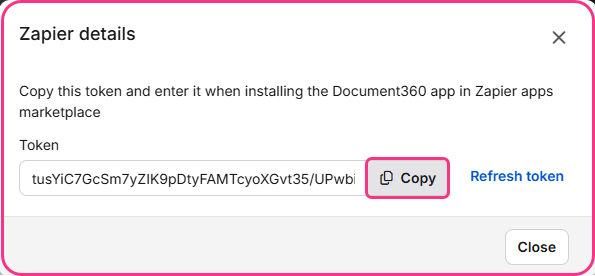
- Head back to the Zapier panel and paste the API token into the field.
- Click Yes, Continue to Document360.
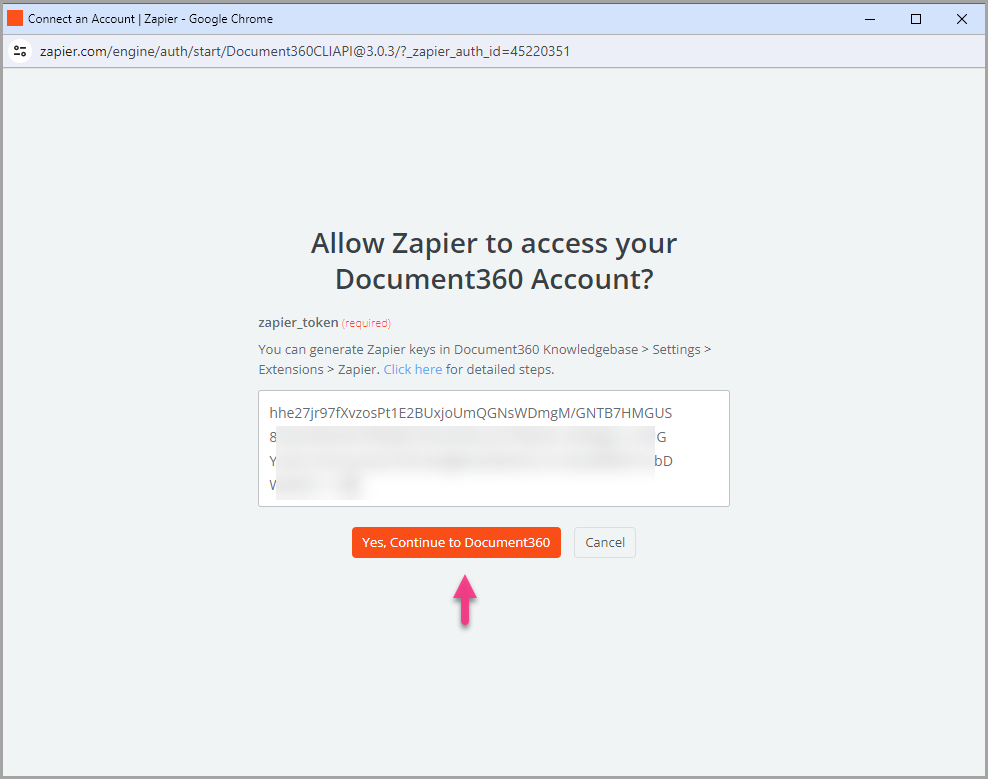
- You can find the connected Document360 project on the Connect Document360 account page. Click Continue.
Step 4 — Map the fields
- Map the required fields from Pipedrive to Document360:
| Field | Description |
|---|---|
| Title | Choose a suitable title from the available Pipedrive fields. |
| Content | Choose suitable content based on your business requirements. |
| Version | Select the workspace in your Document360 project where the article should be created. |
| Language | Choose the language within the selected workspace. |
| Category | Select the category under the chosen language where the article will be created. |
| Publish | Set to True to publish immediately. Set to False to save as a draft. |
The Continue button is only enabled after all required fields have been mapped.
- Click Continue.
Step 5 — Test and publish the Zap
- In the test section, click Test step.
- If successful, you will get the message A Document was sent to Document360.
- In your Document360 portal, you'll find an article titled after the Pipedrive deal, located in the category you selected.
- Head back to the Zapier setup panel and click Next, then click Publish.
- Review or edit the trigger and action settings as needed. You will see a success message: Your Zap is on. Click Manage your Zap to go to the Zap overview page.
Zap overview
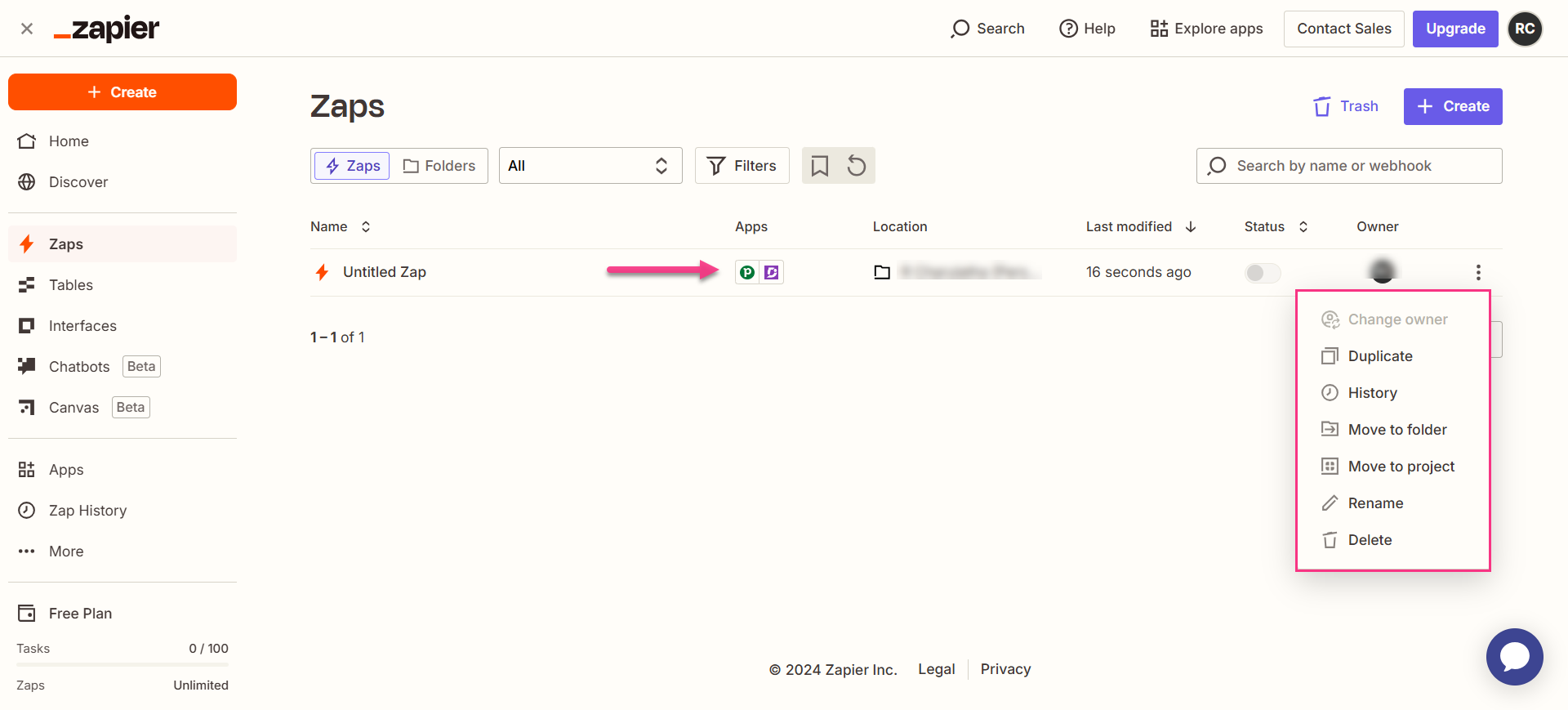
Once active, you can view and manage the Zap from the Zapier dashboard. The overview page shows the trigger, action, and run history for the Zap.
How to delete a Zap
- Navigate to the Zapier dashboard. A list of all existing Zaps is displayed on the overview page.
- Click the Zap actions () icon to the right of the Zap you want to remove and click Delete. The Zap is permanently deleted.
Best practices
- Set Publish to False when mapping fields so that Pipedrive-triggered articles land in Document360 as drafts. Deal titles and descriptions from Pipedrive are rarely formatted as publishable documentation — a review step ensures quality before the article goes live.
- Map the deal title to the Document360 article title field so each article name reflects the deal it corresponds to. This makes it easy to trace articles back to their Pipedrive source.
- Choose a specific trigger event that marks a meaningful point in your sales process — for example, a new deal being created or reaching a specific stage — rather than triggering on every Pipedrive activity, which could generate unwanted articles.
