
VWO (Visual Website Optimizer) is an all-in-one experience optimization platform that helps businesses improve key metrics. It empowers you to discover insights, test ideas, and improve engagement across the entire customer journey.
Key features of VWO include:
- Test product features: run experiments to validate changes before rolling them out to all users.
- Extract user intention details: understand what users are trying to accomplish on your site.
- Push notifications: re-engage visitors with targeted browser notifications.
- Product roadmap optimization: use data from experiments to prioritize and refine your product roadmap.
Integrating VWO with Document360 lets you use VWO's intuitive point-and-click visual editor to run A/B tests on your knowledge base site and test different page variations on a sample of visitors.
Before you begin
- You need a VWO account.
- You need your VWO Account ID. See How to find your VWO Account ID below.
How to find your VWO Account ID
The VWO Account ID is a unique code obtained from the VWO application. It is required to connect VWO with Document360.
New VWO user
- Register a VWO account and sign in.
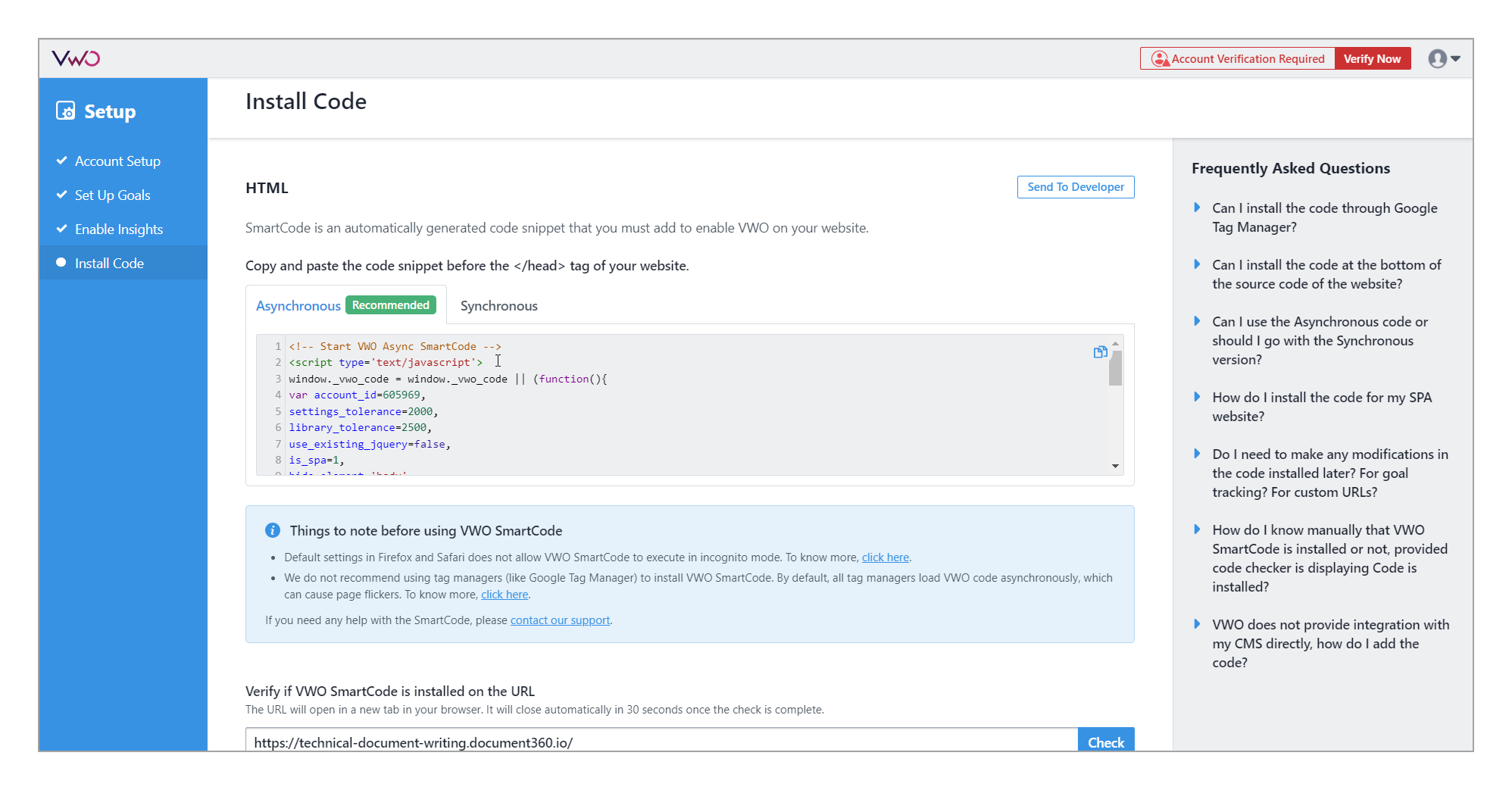
- During account setup, you are automatically directed to the install code section. Copy the snippet and paste it into a text editor.
- Copy the value of
var account_idfrom the snippet.
Existing VWO user
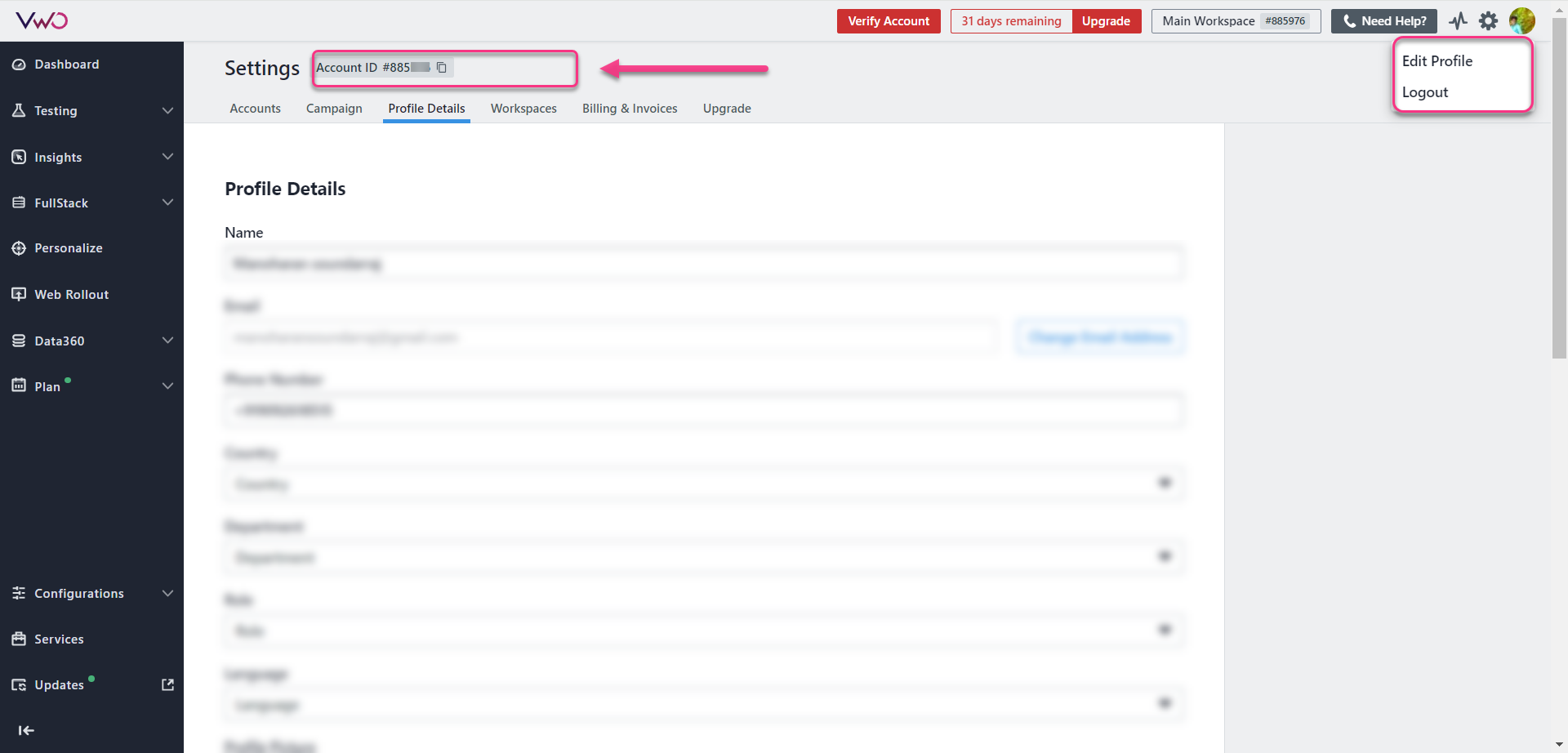
- Click your profile picture and select Edit profile.
- Copy the Account ID shown at the top of the page.
How to integrate VWO with Document360
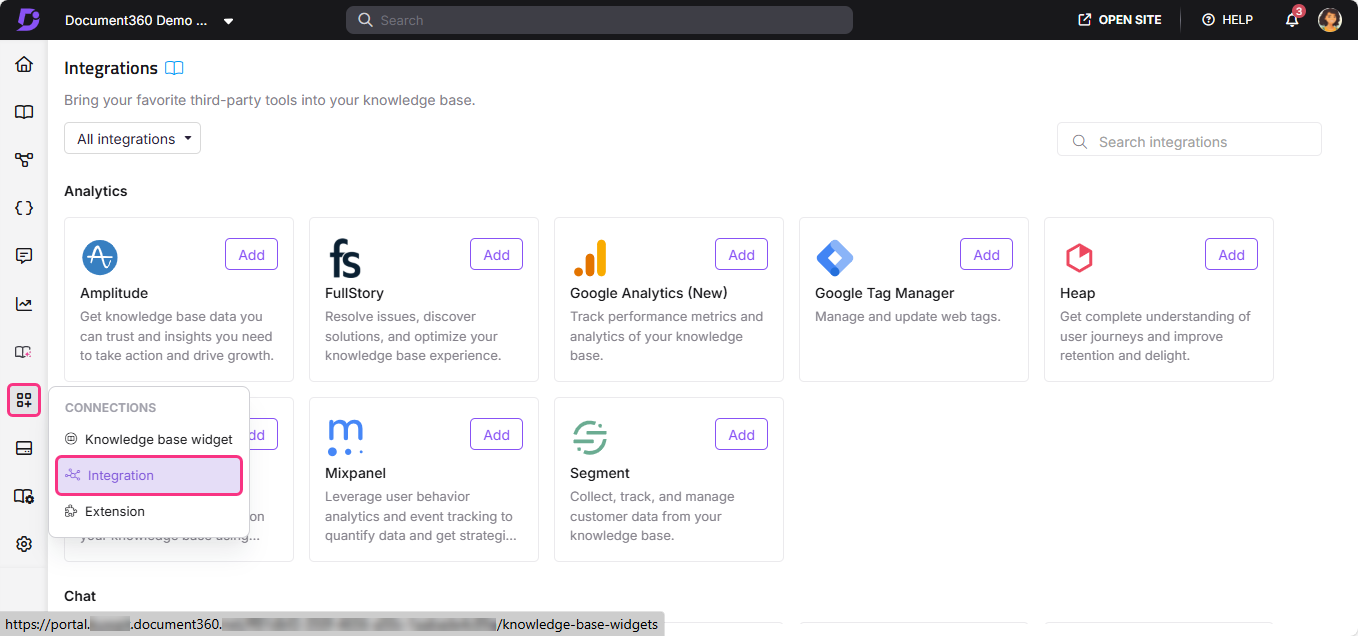
- In the Document360 portal, navigate to Connections () > Integrations () in the left navigation bar.
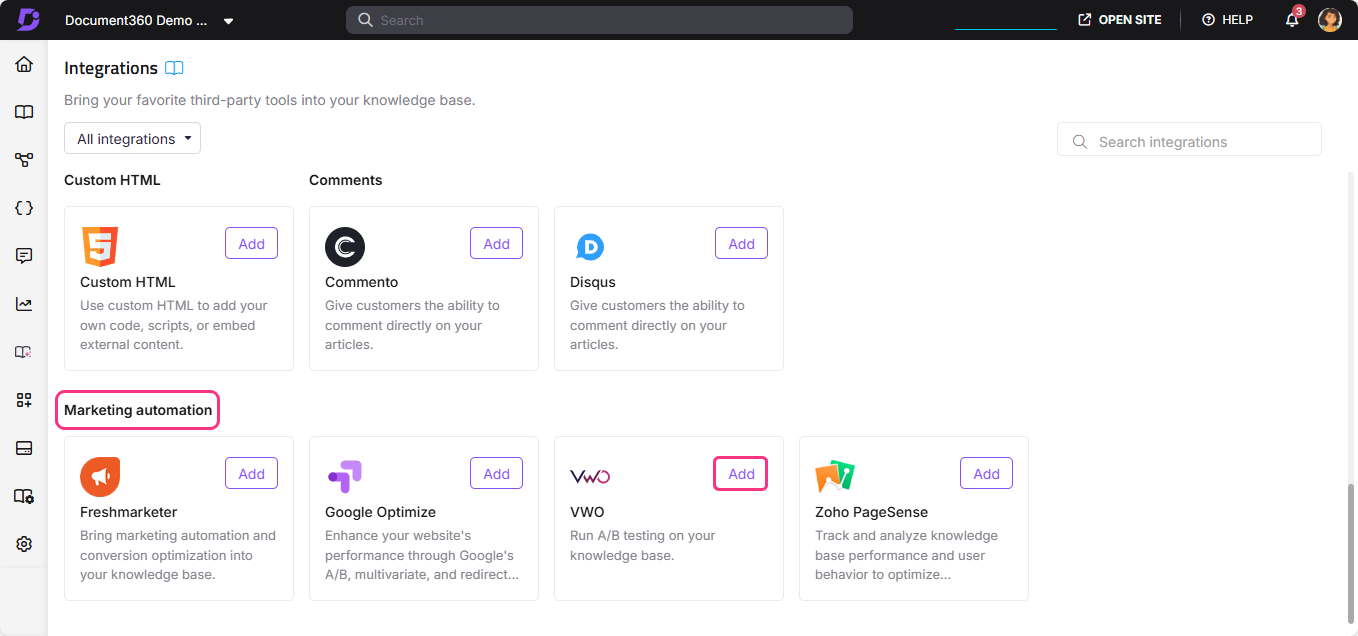
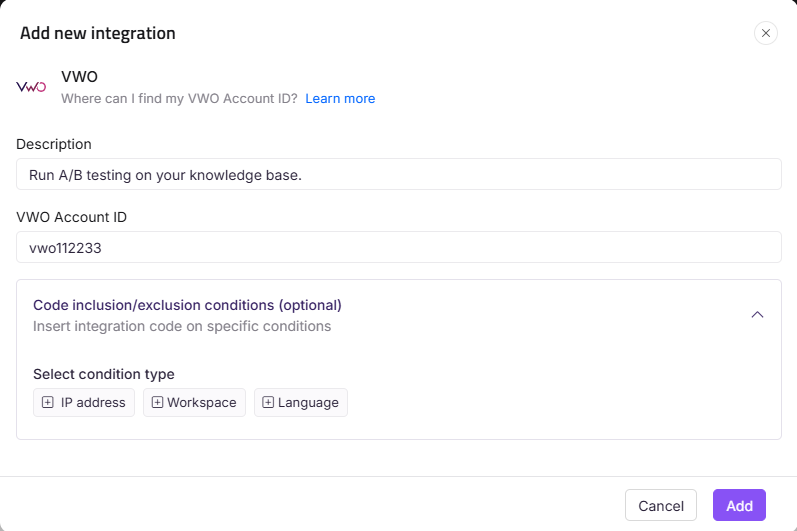
- Select VWO from the list of integrations and click Add. The Add new integration panel appears.
-
Choose a configuration type:
Basic configuration: sets up a standard integration using your VWO Account ID.
- Description: enter a description for this integration.
- VWO Account ID: enter your VWO Account ID.
NOTEThe VWO Account ID is a unique code obtained from the VWO application. It is required to connect VWO and Document360 in the knowledge base portal.
Custom configuration: sets up an advanced integration with custom events added to a snippet code.
- Description: enter a description for this integration.
- Snippet code: paste your custom snippet code.
-
Optionally, expand Code inclusion/exclusion conditions to control when the integration runs based on IP address, Workspace, or Language.
-
Click Add.
After setup, open your VWO account to manage web optimization and run test experiments on your knowledge base site.
VWO provides an intuitive point-and-click visual editor for conducting A/B tests. You can test different page variations on a sample of visitors before rolling out changes to everyone.
Best practices
- Use Basic configuration for standard A/B testing. Entering your Account ID under Basic configuration is sufficient for most knowledge bases and gives you access to VWO's full testing suite.
- Use the visual editor to test article layout changes. VWO's point-and-click editor lets you test different article structures, heading placements, or calls to action without touching your knowledge base code.
- Run experiments on a sample before rolling out changes. Use VWO to test variations on a small percentage of visitors first, so you can validate improvements before applying them to your full audience.
- Use push notifications to re-engage readers. After integration, use VWO's push notification feature to bring readers back to updated or popular articles.
- Use Code inclusion/exclusion conditions to exclude internal traffic. Add your office IP address as an exclusion to keep team visits from affecting your experiment results.
FAQ
What is the VWO Account ID?
The VWO Account ID is a unique identifier obtained from the VWO application. New users can find it in the install code snippet during account setup, by copying the value of var account_id. Existing users can find it by clicking their profile picture, selecting Edit profile, and copying the Account ID shown at the top.
What is the difference between Basic and Custom configuration?
Basic configuration connects VWO using your Account ID and starts tracking automatically. Custom configuration lets you add a snippet directly, which is useful when you need to include custom events or advanced tracking parameters beyond what the standard setup provides.
What can I do after completing the VWO integration?
After setup, open your VWO account to manage web optimization and run test experiments on your knowledge base site. You can use the visual editor to run A/B tests, test page variations on a sample of visitors, and use push notifications to re-engage readers.
Can I limit which workspaces or languages VWO runs on?
Yes. When adding or editing the VWO integration, expand Code inclusion/exclusion conditions and add conditions based on IP address, Workspace, or Language. See Code inclusion and exclusion conditions for full details.
Why should I use VWO instead of a standard analytics tool?
VWO goes beyond tracking by letting you actively test and optimize your knowledge base. Its visual editor, A/B testing, push notifications, and user intention analysis give you the tools to act on data rather than just observe it.
