



I have created the Markdown Component component for Blazor WebAssembly and Blazor Server based on the EasyMarkdownEditor. The repository is not been maintained for a while. For this reason, I decided to start my repository and fix the issues I found in the JavaScript code.
So, from now, I'm going to maintain 2 different repositories:
For more information, please visit my blog PureSourceCode.
A drop-in JavaScript text area replacement for writing beautiful and understandable Markdown. EasyMDE allows users who may be less experienced with Markdown to use familiar toolbar buttons and shortcuts.
In addition, the syntax is rendered while editing to clearly show the expected result. Headings are larger, emphasized words are italicized, links are underlined, etc.
EasyMDE also features both built-in auto saving and spell checking. The editor is entirely customizable, from theming to toolbar buttons and javascript hooks.
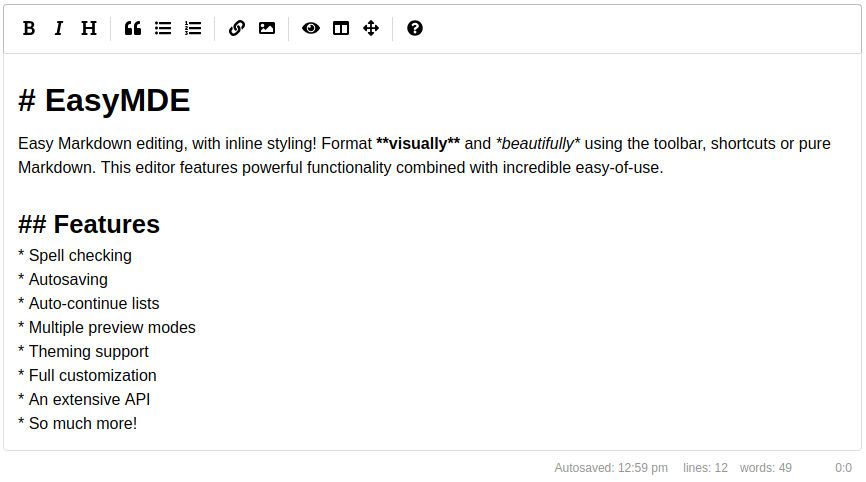
- Easy Markdown Editor
Via npm:
npm install psc-markdowneditor
Via the UNPKG CDN:
<link rel="stylesheet" href="https://unpkg.com/psc-markdowneditor/dist/easymde.min.css">
<script src="https://unpkg.com/psc-markdowneditor/dist/easymde.min.js"></script>
Or jsDelivr:
<link rel="stylesheet"
      href="https://cdn.jsdelivr.net/gh/erossini/EasyMarkdownEditor@main/dist/easymde.min.css">
<script src="https://cdn.jsdelivr.net/gh/erossini/EasyMarkdownEditor@main/dist/easymde.min.js">
</script>After installing and/or importing the module, you can load EasyMDE onto the first textarea element on the web page:
<textarea></textarea>
<script>
const easyMDE = new EasyMDE();
</script>
Alternatively you can select a specific textarea, via JavaScript:
<textarea id="my-text-area"></textarea>
<script>
const easyMDE = new EasyMDE({element: document.getElementById('my-text-area')});
</script>Use easyMDE.value() to get the content of the editor:
<script>
easyMDE.value();
</script>
Use easyMDE.value(val) to set the content of the editor:
<script>
easyMDE.value('New input for **EasyMDE**');
</script>-
autoDownloadFontAwesome: If set to
true, force downloads Font Awesome (used for icons). If set tofalse, prevents downloading. Defaults toundefined, which will intelligently check whether Font Awesome has already been included, then download accordingly. -
autofocus: If set to
true, focuses the editor automatically. Defaults tofalse. -
autosave: Saves the text that's being written and will load it back in the future. It will forget the text when the form it's contained in is submitted.
- enabled: If set to
true, saves the text automatically. Defaults tofalse. - delay: Delay between saves, in milliseconds. Defaults to
10000(10 seconds). - submit_delay: Delay before assuming that submit of the form failed and saving the text, in milliseconds. Defaults to
autosave.delayor10000(10 seconds). - uniqueId: You must set a unique string identifier so that EasyMDE can autosave. Something that separates this from other instances of EasyMDE elsewhere on your website.
- timeFormat: Set DateTimeFormat. More information see DateTimeFormat instances. Default
locale: en-US, format: hour:minute.
- enabled: If set to
-
autoRefresh: Useful, when initializing the editor in a hidden DOM node. If set to
{ delay: 300 }, it will check every 300 ms if the editor is visible and if positive, call CodeMirror'srefresh(). -
blockStyles: Customize how certain buttons that style blocks of text behave.
- bold: Can be set to
**or__. Defaults to**. - code: Can be set to
```or~~~. Defaults to```. - italic: Can be set to
*or_. Defaults to*.
- bold: Can be set to
-
unorderedListStyle: can be
*,-or+. Defaults to*. -
scrollbarStyle: Chooses a scrollbar implementation. The default is "native", showing native scrollbars. The core library also provides the "null" style, which completely hides the scrollbars. Addons can implement additional scrollbar models.
-
element: The DOM element for the
textareaelement to use. Defaults to the firsttextareaelement on the page. -
forceSync: If set to
true, force text changes made in EasyMDE to be immediately stored in original text area. Defaults tofalse. -
hideIcons: An array of icon names to hide. Can be used to hide specific icons shown by default without completely customizing the toolbar.
-
indentWithTabs: If set to
false, indent using spaces instead of tabs. Defaults totrue. -
initialValue: If set, will customize the initial value of the editor.
-
previewImagesInEditor: - EasyMDE will show preview of images,
falseby default, preview for images will appear only for images on separate lines. -
imagesPreviewHandler: - A custom function for handling the preview of images. Takes the parsed string between the parantheses of the image markdown
as argument and returns a string that serves as thesrcattribute of the<img>tag in the preview. Enables dynamic previewing of images in the frontend without having to upload them to a server, allows copy-pasting of images to the editor with preview. -
insertTexts: Customize how certain buttons that insert text behave. Takes an array with two elements. The first element will be the text inserted before the cursor or highlight, and the second element will be inserted after. For example, this is the default link value:
["[", "](http://)"].- horizontalRule
- image
- link
- table
-
lineNumbers: If set to
true, enables line numbers in the editor. -
lineWrapping: If set to
false, disable line wrapping. Defaults totrue. -
markdownUrl: Customize url for guide.
-
minHeight: Sets the minimum height of the composition area, before it starts auto-growing. Should be a string containing a valid CSS value like
"500px". Defaults to"300px". -
maxHeight: Caps the height of the composition area. Should be a string containing a valid CSS value like
"500px". Defaults toundefined. Behavior depends on whether you also setminHeight:- Both
minHeightandmaxHeightset (and they differ) — the editor starts atminHeight, grows with the content up tomaxHeight, and then scrolls internally. This is the "grow to a point, then scroll" pattern. - Only
maxHeightset — the editor is given a fixed height equal tomaxHeight(the historical behavior; kept for backward compatibility).
- Both
-
fullScreenZIndex: Overrides the z-index applied to the editor when it goes fullscreen. Accepts a number or a CSS value as string. Defaults to
undefined, in which case the stylesheet values are used (8for the editor,9for the toolbar/preview). Useful when your page has elements with a higher z-index (sticky headers, overlays, toasts, modals from UI frameworks) that would otherwise cover the fullscreen editor. When set, the editor gets the given value, and the toolbar + side-by-side preview getvalue + 1to stay above it.new EasyMDE({ fullScreenZIndex: 1050, // above Bootstrap modals (default z-index 1040) });
-
resize: Adds a drag handle to the editor so the user can grow or shrink it at runtime. Accepts
true(alias for"vertical"),"vertical","horizontal", or"both". Defaults tofalse(not resizable). When enabled, the handle is attached to the whole.EasyMDEContainer, so the toolbar and status bar follow the drag in lockstep with the editing area — the CodeMirror area itself is sized to fill the container minus the toolbar and status bar.maxHeight, if provided, becomes the initial container height (rather than a fixed height on the editor). Powered byResizeObserver; in browsers without it the handle still works but CodeMirror's internal layout is not refreshed on drag.Example:
new EasyMDE({
    resize: 'vertical',   // or true, 'horizontal', 'both'
    maxHeight: '300px',   // initial height
});
See
example/index_resize.htmlfor a live demo of all three directions. -
onToggleFullScreen: A function that gets called when the editor's full screen mode is toggled. The function will be passed a boolean as parameter,
truewhen the editor is currently going into full screen mode, orfalse. -
parsingConfig: Adjust settings for parsing the Markdown during editing (not previewing).
- allowAtxHeaderWithoutSpace: If set to
true, will render headers without a space after the#. Defaults tofalse. - strikethrough: If set to
false, will not process GFM strikethrough syntax. Defaults totrue. - underscoresBreakWords: If set to
true, let underscores be a delimiter for separating words. Defaults tofalse.
- allowAtxHeaderWithoutSpace: If set to
-
overlayMode: Pass a custom codemirror overlay mode to parse and style the Markdown during editing.
- mode: A codemirror mode object.
- combine: If set to
false, will replace CSS classes returned by the default Markdown mode. Otherwise the classes returned by the custom mode will be combined with the classes returned by the default mode. Defaults totrue.
-
placeholder: If set, displays a custom placeholder message.
-
previewClass: A string or array of strings that will be applied to the preview screen when activated. Defaults to
"editor-preview". -
previewRender: Custom function for parsing the plaintext Markdown and returning HTML. Used when user previews.
-
promptURLs: If set to
true, a JS alert window appears asking for the link or image URL. Defaults tofalse. -
promptTexts: Customize the text used to prompt for URLs.
- image: The text to use when prompting for an image's URL. Defaults to
URL of the image:. - link: The text to use when prompting for a link's URL. Defaults to
URL for the link:.
- image: The text to use when prompting for an image's URL. Defaults to
-
iconClassMap: Used to specify the icon class names for the various toolbar buttons.
-
uploadImage: If set to
true, enables the image upload functionality, which can be triggered by drag and drop, copy-paste (including clipboard-only images such as screenshots) and through the browse-file window (opened when the user click on the upload-image icon). Defaults tofalse. Seeexample/index_image_paste.htmlfor a runnable demo that usesimageUploadFunctionto embed the pasted image as a data URL, so you can test without a server. -
imageMaxSize: Maximum image size in bytes, checked before upload (note: never trust client, always check the image size at server-side). Defaults to
1024 * 1024 * 2(2 MB). -
imageAccept: A comma-separated list of mime-types used to check image type before upload (note: never trust client, always check file types at server-side). Defaults to
image/png, image/jpeg. -
imageUploadFunction: A custom function for handling the image upload. Using this function will render the options
imageMaxSize,imageAccept,imageUploadEndpointandimageCSRFTokenineffective.- The function gets a file and
onSuccessandonErrorcallback functions as parameters.onSuccess(imageUrl: string)andonError(errorMessage: string)
- The function gets a file and
-
imageUploadEndpoint: The endpoint where the images data will be sent, via an asynchronous POST request. The server is supposed to save this image, and return a JSON response.
- if the request was successfully processed (HTTP 200 OK):
{"data": {"filePath": "<filePath>"}}where filePath is the path of the image (absolute ifimagePathAbsoluteis set to true, relative if otherwise); - otherwise:
{"error": "<errorCode>"}, where errorCode can benoFileGiven(HTTP 400 Bad Request),typeNotAllowed(HTTP 415 Unsupported Media Type),fileTooLarge(HTTP 413 Payload Too Large) orimportError(see errorMessages below). If errorCode is not one of the errorMessages, it is alerted unchanged to the user. This allows for server-side error messages. No default value.
- if the request was successfully processed (HTTP 200 OK):
-
imagePathAbsolute: If set to
true, will treatimageUrlfromimageUploadFunctionand filePath returned fromimageUploadEndpointas an absolute rather than relative path, i.e. not prependwindow.location.originto it. -
imageCSRFToken: CSRF token to include with AJAX call to upload image. For various instances like Django, Spring and Laravel.
-
imageCSRFName: CSRF token filed name to include with AJAX call to upload image, applied when
imageCSRFTokenhas value, defaults tocsrfmiddlewaretoken. -
imageCSRFHeader: If set to
true, passing CSRF token via header. Defaults tofalse, which pass CSRF through request body. -
imageTexts: Texts displayed to the user (mainly on the status bar) for the import image feature, where
#image_name#,#image_size#and#image_max_size#will replaced by their respective values, that can be used for customization or internationalization:- sbInit: Status message displayed initially if
uploadImageis set totrue. Defaults toAttach files by drag and dropping or pasting from clipboard.. - sbOnDragEnter: Status message displayed when the user drags a file to the text area. Defaults to
Drop image to upload it.. - sbOnDrop: Status message displayed when the user drops a file in the text area. Defaults to
Uploading images #images_names#. - sbProgress: Status message displayed to show uploading progress. Defaults to
Uploading #file_name#: #progress#%. - sbOnUploaded: Status message displayed when the image has been uploaded. Defaults to
Uploaded #image_name#. - sizeUnits: A comma-separated list of units used to display messages with human-readable file sizes. Defaults to
B, KB, MB(example:218 KB). You can useB,KB,MBinstead if you prefer without whitespaces (218KB).
- sbInit: Status message displayed initially if
-
errorMessages: Errors displayed to the user, using the
errorCallbackoption, where#image_name#,#image_size#and#image_max_size#will replaced by their respective values, that can be used for customization or internationalization:- noFileGiven: The server did not receive any file from the user. Defaults to
You must select a file.. - typeNotAllowed: The user send a file type which doesn't match the
imageAcceptlist, or the server returned this error code. Defaults toThis image type is not allowed.. - fileTooLarge: The size of the image being imported is bigger than the
imageMaxSize, or if the server returned this error code. Defaults toImage #image_name# is too big (#image_size#).\nMaximum file size is #image_max_size#.. - importError: An unexpected error occurred when uploading the image. Defaults to
Something went wrong when uploading the image #image_name#..
- noFileGiven: The server did not receive any file from the user. Defaults to
-
errorCallback: A callback function used to define how to display an error message. Defaults to
(errorMessage) => alert(errorMessage). -
renderingConfig: Adjust settings for parsing the Markdown during previewing (not editing).
- codeSyntaxHighlighting: If set to
true, will highlight using highlight.js. Defaults tofalse. To use this feature you must include highlight.js on your page or pass in using thehljsoption. For example, include the script and the CSS files like:<script src="https://cdn.jsdelivr.net/highlight.js/latest/highlight.min.js"></script><link rel="stylesheet" href="https://cdn.jsdelivr.net/highlight.js/latest/styles/github.min.css"> - hljs: An injectible instance of highlight.js. If you don't want to rely on the global namespace (
window.hljs), you can provide an instance here. Defaults toundefined. - markedOptions: Set the internal Markdown renderer's options. Other
renderingConfigoptions will take precedence. - singleLineBreaks: If set to
false, disable parsing GitHub Flavored Markdown (GFM) single line breaks. Defaults totrue. - sanitizerFunction: Custom function for sanitizing the HTML output of Markdown renderer.
- codeSyntaxHighlighting: If set to
-
shortcuts: Keyboard shortcuts associated with this instance. Defaults to the array of shortcuts.
-
showIcons: An array of icon names to show. Can be used to show specific icons hidden by default without completely customizing the toolbar.
-
spellChecker: If set to
false, disable the spell checker. Defaults totrue. Optionally pass a CodeMirrorSpellChecker-compliant function. -
inputStyle:
textareaorcontenteditable. Defaults totextareafor desktop andcontenteditablefor mobile.contenteditableoption is necessary to enable nativeSpellcheck. -
nativeSpellcheck: If set to
false, disable native spell checker. Defaults totrue. -
sideBySideFullscreen: If set to
false, allows side-by-side editing without going into fullscreen. Defaults totrue. -
status: If set to
false, hide the status bar. Defaults to the array of built-in status bar items.- Optionally, you can set an array of status bar items to include, and in what order. You can even define your own custom status bar items.
-
statusTexts: Customize the text used to status bar.
-
styleSelectedText: If set to
false, remove theCodeMirror-selectedtextclass from selected lines. Defaults totrue. -
syncSideBySidePreviewScroll: If set to
false, disable syncing scroll in side by side mode. Defaults totrue. -
tabSize: If set, customize the tab size. Defaults to
2. -
theme: Override the theme. Defaults to
easymde. -
toolbar: If set to
false, hide the toolbar. Defaults to the array of icons. -
toolbarTitles: Customize the title used to toolbar.
-
toolbarTips: If set to
false, disable toolbar button tips. Defaults totrue. -
toolbarButtonClassPrefix: Prefix applied to every toolbar button class, so selectors become
"mde-bold","mde-table", etc. Defaults to"mde"to avoid collisions with CSS frameworks (notably Bootstrap, which defines its own.table,.image,.linkrules). Set it to a different string to use a custom prefix, or to""(empty string) to disable prefixing entirely (not recommended when loading Bootstrap or similar). -
direction:
rtlorltr. Changes text direction to support right-to-left languages. Defaults toltr.
Most options demonstrate the non-default behavior:
const editor = new EasyMDE({
autofocus: true,
autosave: {
enabled: true,
uniqueId: "MyUniqueID",
delay: 1000,
submit_delay: 5000,
timeFormat: {
locale: 'en-US',
format: {
year: 'numeric',
month: 'long',
day: '2-digit',
hour: '2-digit',
minute: '2-digit',
},
},
},
blockStyles: {
bold: "__",
italic: "_",
},
unorderedListStyle: "-",
element: document.getElementById("MyID"),
forceSync: true,
hideIcons: ["guide", "heading"],
indentWithTabs: false,
initialValue: "Hello world!",
insertTexts: {
horizontalRule: ["", "\n\n-----\n\n"],
image: [""],
link: ["[", "](https://)"],
table: ["", "\n\n| Column 1 | Column 2 | Column 3 |\n| -------- | -------- | -------- |\n" +
"| Text | Text | Text |\n\n"],
},
lineWrapping: false,
minHeight: "500px",
parsingConfig: {
allowAtxHeaderWithoutSpace: true,
strikethrough: false,
underscoresBreakWords: true,
},
placeholder: "Type here...",
previewClass: "my-custom-styling",
previewClass: ["my-custom-styling", "more-custom-styling"],
// Returns HTML from a custom parser
previewRender: (plainText) => customMarkdownParser(plainText),
previewRender: (plainText, preview) => { // Async method
setTimeout(() => {
preview.innerHTML = customMarkdownParser(plainText);
}, 250);
// If you return null, the innerHTML of the preview will not
// be overwritten. Useful if you control the preview node's content via
// vdom diffing.
// return null;
return "Loading...";
},
promptURLs: true,
promptTexts: {
image: "Custom prompt for URL:",
link: "Custom prompt for URL:",
},
renderingConfig: {
singleLineBreaks: false,
codeSyntaxHighlighting: true,
sanitizerFunction: (renderedHTML) => {
// Using DOMPurify and only allowing <b> tags
return DOMPurify.sanitize(renderedHTML, {ALLOWED_TAGS: ['b']})
},
},
shortcuts: {
drawTable: "Cmd-Alt-T"
},
showIcons: ["code", "table"],
spellChecker: false,
status: false,
status: ["autosave", "lines", "words", "cursor"], // Optional usage
status: ["autosave", "lines", "words", "cursor", {
className: "keystrokes",
defaultValue: (el) => {
el.setAttribute('data-keystrokes', 0);
},
onUpdate: (el) => {
const keystrokes = Number(el.getAttribute('data-keystrokes')) + 1;
el.innerHTML = `${keystrokes} Keystrokes`;
el.setAttribute('data-keystrokes', keystrokes);
},
}], // Another optional usage, with a custom status bar item that counts keystrokes
statusTexts: {
characters: "characters: ",
lines: "lines: ",
words: "words: ",
autosave: "Autosaved: ",
},
styleSelectedText: false,
sideBySideFullscreen: false,
syncSideBySidePreviewScroll: false,
tabSize: 4,
toolbar: false,
toolbarTips: false,
toobarTitles: {
"bold": {"title": "Bold"},
},
toolbarButtonClassPrefix: "mde",
});Below are the built-in toolbar icons (only some of which are enabled by default), which can be reorganized however you like. "Name" is the name of the icon, referenced in the JavaScript. "Action" is either a function or a URL to open. "Class" is the class given to the icon. "Tooltip" is the small tooltip that appears via the title="" attribute. Note that shortcut hints are added automatically and reflect the specified action if it has a key bind assigned to it (i.e. with the value of action set to bold and that of tooltip set to Bold, the final text the user will see would be "Bold (Ctrl-B)").
Additionally, you can add a separator between any icons by adding "|" to the toolbar array.
| Name | Action | Tooltip Class |
|---|---|---|
| bold | toggleBold | Bold fa fa-bold |
| italic | toggleItalic | Italic fa fa-italic |
| strikethrough | toggleStrikethrough | Strikethrough fa fa-strikethrough |
| heading | toggleHeadingSmaller | Heading fa fa-header |
| heading-smaller | toggleHeadingSmaller | Smaller Heading fa fa-header |
| heading-bigger | toggleHeadingBigger | Bigger Heading fa fa-lg fa-header |
| heading-1 | toggleHeading1 | Big Heading fa fa-header header-1 |
| heading-2 | toggleHeading2 | Medium Heading fa fa-header header-2 |
| heading-3 | toggleHeading3 | Small Heading fa fa-header header-3 |
| code | toggleCodeBlock | Code fa fa-code |
| quote | toggleBlockquote | Quote fa fa-quote-left |
| unordered-list | toggleUnorderedList | Generic List fa fa-list-ul |
| ordered-list | toggleOrderedList | Numbered List fa fa-list-ol |
| clean-block | cleanBlock | Clean block fa fa-eraser |
| link | drawLink | Create Link fa fa-link |
| image | drawImage | Insert Image fa fa-picture-o |
| upload-image | drawUploadedImage | Raise browse-file window fa fa-image |
| table | drawTable | Insert Table fa fa-table |
| horizontal-rule | drawHorizontalRule | Insert Horizontal Line fa fa-minus |
| preview | togglePreview | Toggle Preview fa fa-eye no-disable |
| side-by-side | toggleSideBySide | Toggle Side by Side fa fa-columns no-disable no-mobile |
| fullscreen | toggleFullScreen | Toggle Fullscreen fa fa-arrows-alt no-disable no-mobile |
| guide | This link | Markdown Guide fa fa-question-circle |
| undo | undo | Undo fa fa-undo |
| redo | redo | Redo fa fa-redo |
| indent | indent | Indent fa fa-indent |
| outdent | outdent | Outdent fa fa-outdent |
| attention | drawAttention | Attention callout fa fa-exclamation-circle |
| note | drawNote | Note callout fa fa-info-circle |
| tip | drawTip | Tip callout fa fa-lightbulb |
| warning | drawWarning | Warning callout fa fa-exclamation-triangle |
| video | drawVideo | Insert Video fa fa-video |
Five extra fenced-code languages are rendered as rich blocks in the preview:
```att→ red Attention callout```note→ blue Note callout```tip→ green Tip callout```warn→ amber Warning callout```video→ responsive embed; recognises YouTube and Vimeo URLs, otherwise falls back to an HTML5<video>element with the URL as the source
Each has a matching toolbar button (attention, note, tip, warning, video) that wraps the current selection in the right fence. The styling lives in src/css/alert.css and src/css/video.css and is bundled into dist/easymde.min.css. See example/index_alerts_video.html for a working demo.
Example markdown:
```note
This ships in the next release.
```

```video
https://www.youtube.com/embed/dQw4w9WgXcQ
```Customize the toolbar using the toolbar option.
Only the order of existing buttons:
const easyMDE = new EasyMDE({
    toolbar: ["bold", "italic", "heading", "|", "quote"]
});
All information and/or add your own icons or text
const easyMDE = new EasyMDE({
    toolbar: [
        {
            name: "bold",
            action: EasyMDE.toggleBold,
            className: "fa fa-bold",
            title: "Bold",
        },
        "italic", // shortcut to pre-made button
        {
            name: "custom",
            action: (editor) => {
                // Add your own code
            },
            className: "fa fa-star",
            text: "Starred",
            title: "Custom Button",
            attributes: { // for custom attributes
                id: "custom-id",
                // HTML5 data-* attributes need to be enclosed in quotation marks ("")
                // because of the dash (-) in its name.
                "data-value": "custom value"
            }
        },
        "|" // Separator
        // [, ...]
    ]
});
Put some buttons on dropdown menu
const easyMDE = new EasyMDE({
    toolbar: [{
                name: "heading",
                action: EasyMDE.toggleHeadingSmaller,
                className: "fa fa-header",
                title: "Headers",
            },
            "|",
            {
                name: "others",
                className: "fa fa-blind",
                title: "others buttons",
                children: [
                    {
                        name: "image",
                        action: EasyMDE.drawImage,
                        className: "fa fa-picture-o",
                        title: "Image",
                    },
                    {
                        name: "quote",
                        action: EasyMDE.toggleBlockquote,
                        className: "fa fa-percent",
                        title: "Quote",
                    },
                    {
                        name: "link",
                        action: EasyMDE.drawLink,
                        className: "fa fa-link",
                        title: "Link",
                    }
                ]
            },
        // [, ...]
    ]
});EasyMDE comes with an array of predefined keyboard shortcuts, but they can be altered with a configuration option. The list of default ones is as follows:
| Shortcut (Windows / Linux) | Shortcut (macOS) | Action |
|---|---|---|
| Ctrl-' | Cmd-' | "toggleBlockquote" |
| Ctrl-B | Cmd-B | "toggleBold" |
| Ctrl-E | Cmd-E | "cleanBlock" |
| Ctrl-H | Cmd-H | "toggleHeadingSmaller" |
| Ctrl-I | Cmd-I | "toggleItalic" |
| Ctrl-K | Cmd-K | "drawLink" |
| Ctrl-L | Cmd-L | "toggleUnorderedList" |
| Ctrl-P | Cmd-P | "togglePreview" |
| Ctrl-Alt-C | Cmd-Alt-C | "toggleCodeBlock" |
| Ctrl-Alt-I | Cmd-Alt-I | "drawImage" |
| Ctrl-Alt-L | Cmd-Alt-L | "toggleOrderedList" |
| Shift-Ctrl-H | Shift-Cmd-H | "toggleHeadingBigger" |
| F9 | F9 | "toggleSideBySide" |
| F11 | F11 | "toggleFullScreen" |
| Ctrl-Alt-1 | Cmd-Alt-1 | "toggleHeading1" |
| Ctrl-Alt-2 | Cmd-Alt-2 | "toggleHeading2" |
| Ctrl-Alt-3 | Cmd-Alt-3 | "toggleHeading3" |
| Ctrl-Alt-4 | Cmd-Alt-4 | "toggleHeading4" |
| Ctrl-Alt-5 | Cmd-Alt-5 | "toggleHeading5" |
| Ctrl-Alt-6 | Cmd-Alt-6 | "toggleHeading6" |
Here is how you can change a few, while leaving others untouched:
const editor = new EasyMDE({
    shortcuts: {
        // alter the shortcut for toggleOrderedList
        "toggleOrderedList": "Ctrl-Alt-K",
        // unbind Ctrl-Alt-C
        "toggleCodeBlock": null,
        // bind Cmd-Alt-T to drawTable action, which doesn't come with a default shortcut
        "drawTable": "Cmd-Alt-T",
    }
});
Shortcuts are automatically converted between platforms. If you define a shortcut as "Cmd-B", on PC that shortcut will be changed to "Ctrl-B". Conversely, a shortcut defined as "Ctrl-B" will become "Cmd-B" for Mac users.
The list of actions that can be bound is the same as the list of built-in actions available for toolbar buttons.
You can catch the following list of events: https://codemirror.net/doc/manual.html#events
const easyMDE = new EasyMDE();
easyMDE.codemirror.on("change", () => {
    console.log(easyMDE.value());
});You can revert to the initial text area by calling the toTextArea method. Note that this clears up the autosave (if enabled) associated with it. The text area will retain any text from the destroyed EasyMDE instance.
const easyMDE = new EasyMDE();
// ...
easyMDE.toTextArea();
easyMDE = null;
If you need to remove registered event listeners (when the editor is not needed anymore), call easyMDE.cleanup().
The previewRender option lets you post-process the HTML that EasyMDE's built-in marked renderer produces. Two common extensions are rendering Mermaid diagrams and highlighting fenced code blocks with highlight.js. Working examples live in example/index_mermaid.html and example/index_highlight.html.
1. Load the libraries from a CDN (no build step required — EasyMDE itself is unchanged):
<link rel="stylesheet" href="https://cdn.jsdelivr.net/gh/highlightjs/cdn-release@11.10.0/build/styles/github.min.css">
<script src="https://cdn.jsdelivr.net/gh/highlightjs/cdn-release@11.10.0/build/highlight.min.js"></script>
<script type="module">
    import mermaid from 'https://cdn.jsdelivr.net/npm/mermaid@11/dist/mermaid.esm.min.mjs';
    mermaid.initialize({ startOnLoad: false });
    window.__mermaid = mermaid;
</script>
2. Override previewRender to swap ```mermaid blocks for <div class="mermaid"> nodes, then highlight the remaining code blocks:
const easyMDE = new EasyMDE({
    previewRender: function (plainText, preview) {
        const container = document.createElement('div');
        container.innerHTML = easyMDE.markdown(plainText);

        // Convert ```mermaid fences to <div class="mermaid">.
        container.querySelectorAll('code.language-mermaid').forEach(function (code) {
            const div = document.createElement('div');
            div.className = 'mermaid';
            div.textContent = code.textContent;
            const pre = code.closest('pre') || code;
            pre.parentNode.replaceChild(div, pre);
        });

        // Highlight remaining fenced code blocks.
        if (window.hljs) {
            container.querySelectorAll('pre code').forEach(function (block) {
                window.hljs.highlightElement(block);
            });
        }

        // Render Mermaid asynchronously after the preview is in the DOM.
        if (window.__mermaid) {
            setTimeout(function () {
                window.__mermaid.run({ nodes: preview.querySelectorAll('.mermaid') });
            }, 0);
        }

        return container.innerHTML;
    },
});
Author diagrams and code with the standard fenced syntax — ```mermaid, ```csharp, ```javascript, etc. marked emits class="language-<lang>" on the <code> element, which is exactly what both Mermaid detection and highlight.js key off.
The following self-explanatory methods may be of use while developing with EasyMDE.
const easyMDE = new EasyMDE();
easyMDE.isPreviewActive(); // returns boolean
easyMDE.isSideBySideActive(); // returns boolean
easyMDE.isFullscreenActive(); // returns boolean
easyMDE.clearAutosavedValue(); // no returned valueEasyMDE is a continuation of SimpleMDE.
SimpleMDE began as an improvement of lepture's Editor project, but has now taken on an identity of its own. It is bundled with CodeMirror and depends on Font Awesome.
CodeMirror is the backbone of the project and parses much of the Markdown syntax as it's being written. This allows us to add styles to the Markdown that's being written. Additionally, a toolbar and status bar have been added to the top and bottom, respectively. Previews are rendered by Marked using GitHub Flavored Markdown (GFM).
The files under dist/ (easymde.min.js and easymde.min.css) are generated artifacts. If you change anything under src/, you need to recompile to regenerate them.
Prerequisites: Node.js and npm. Install the project dependencies once:
npm install
Full build — lints src/js/**/*.js, bundles the JavaScript with Browserify, minifies it with Terser, concatenates the CSS, and writes dist/easymde.min.js and dist/easymde.min.css:
npm run prepare
(You can also invoke the build task directly with gulp or npx gulp.)
Watch mode — rebuild automatically on every change to src/js/**/*.js or the CSS sources:
npx gulp watch
Lint only (no build):
npm run lint
Run the test suite — lint + TypeScript type-check of types/easymde.d.ts + Cypress end-to-end tests (this also rebuilds dist/ as part of npm run e2e):
npm test
After compiling, reload any page that uses the library (for example example/index.html or the files under cypress/e2e/*/index.html) to see your changes, since those pages load dist/easymde.min.js directly.
You may want to edit this library to adapt its behavior to your needs. This can be done in some quick steps:
- Follow the prerequisites and installation instructions in the contribution guide;
- Do your changes;
- Run
gulpcommand, which will generate files:dist/easymde.min.cssanddist/easymde.min.js; - Copy-paste those files to your code base, and you are done.
If you want to publish the library on npm, you have to login first with this command from the command prompt:
npm login --scope @your-org
Then, publish the JavaScript library with the following command:
npm publish --access public
Remember this upgrade the version number in the package.json.
Want to contribute to EasyMDE? Thank you! We have a contribution guide just for you!
This library is built and maintained by Enrico Rossini — .NET architect, Blazor advocate, and indie maker.
If this project helped you, here are a few more things from me you might like:
📝 My blog — PureSourceCode.com
Deep-dives on Blazor, .NET, JavaScript frameworks, DevOps, and real-world engineering problems. 10+ years of articles, demos, and open-source components.
🚀 FastLinkIt (flnk.it) — My SaaS platform
A full-stack platform for link shortening, QR codes, link-in-bio pages, contact management, email campaigns, event booking, payments & donations, service requests, AI doc chat, and more. Free tier available, no credit card required.
Got a library, NuGet package, template, or digital product? Sell it through flnk.it/features/sell-code — private NuGet feed for buyers, one-command install, Stripe Connect payouts, licence keys, no monthly fees. You keep the money, I keep the platform running.
🌍 LanguageInUse.com — Language learning, reinvented
My other project: an app for learning languages through real-world usage patterns instead of textbooks. Visit and give it a try and search the apps in your app store.
- ⭐ Star this repo on GitHub
- 🐛 Open an issue for bugs or feature requests
- 💬 Follow me on LinkedIn
- ☕ Donate (optional)
Thanks for using this project. 🙏
