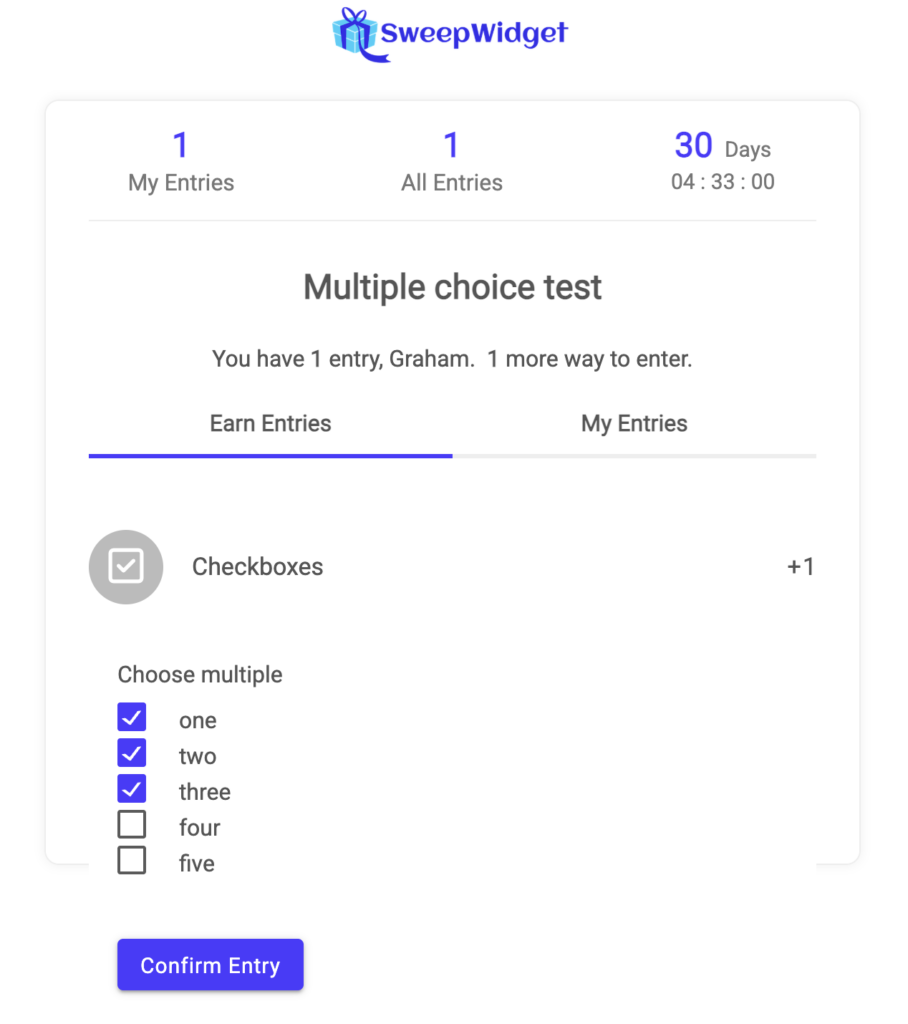
Custom Input Field Entry Methods
This article will explain how to setup custom fields in your giveaway.
Note: if you want to learn how to add custom fields to the user login part of the giveaway, please read this article.
Table of contents:
Text field
Ask users questions with a simple text field.
Admin view
Navigate to Entry Methods > Text Field.
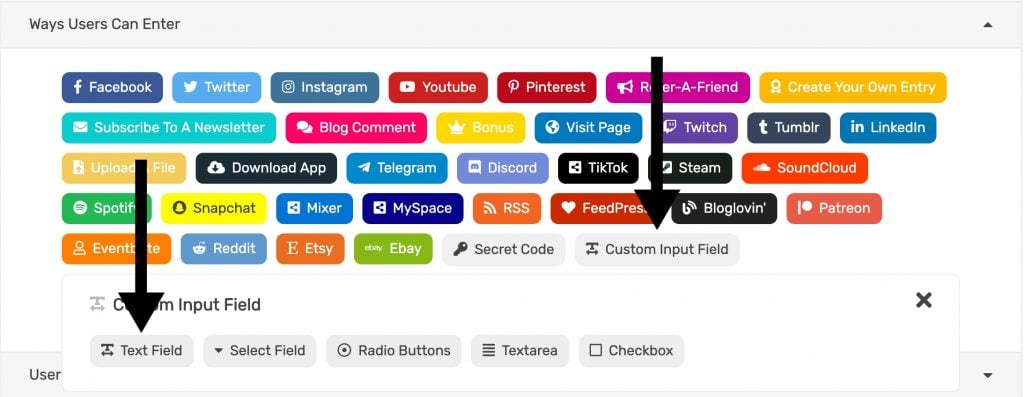
Fill in all of the required fields.
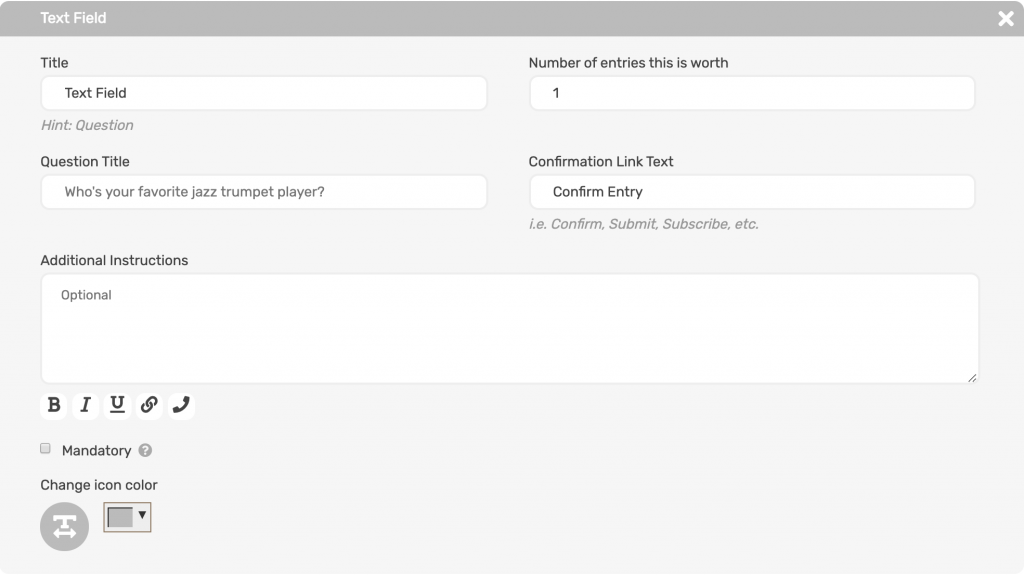
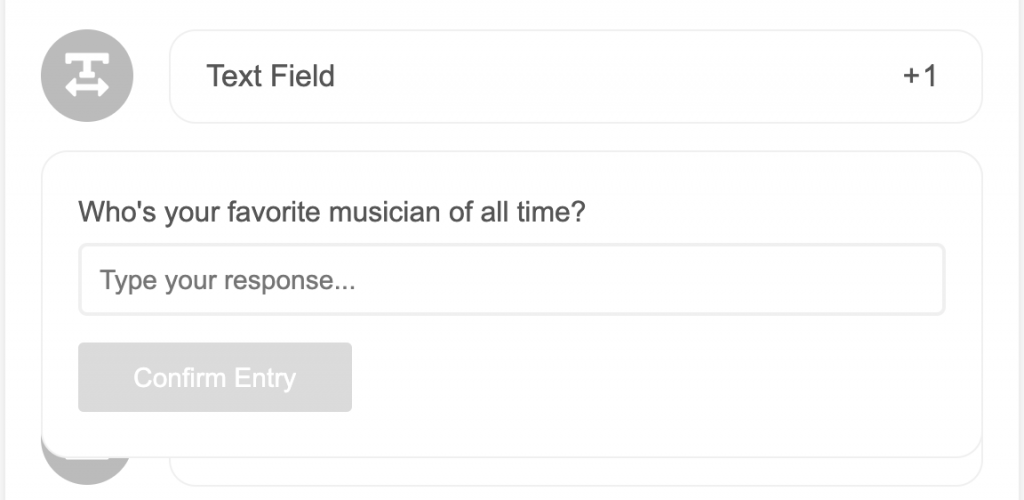
Public view
The user will get credit after answering the question and confirming their entry.
Select field
Ask users questions with a custom select field. Add as many options as you want.
Admin view
Navigate to Entry Methods > Select Field.
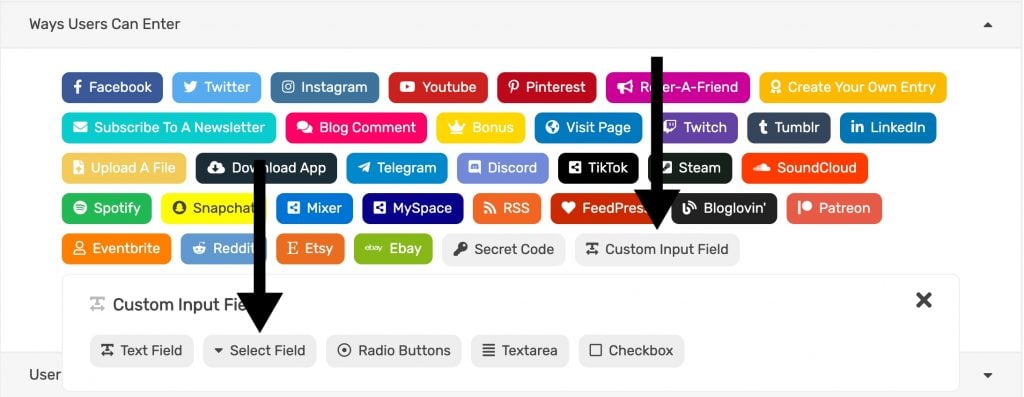
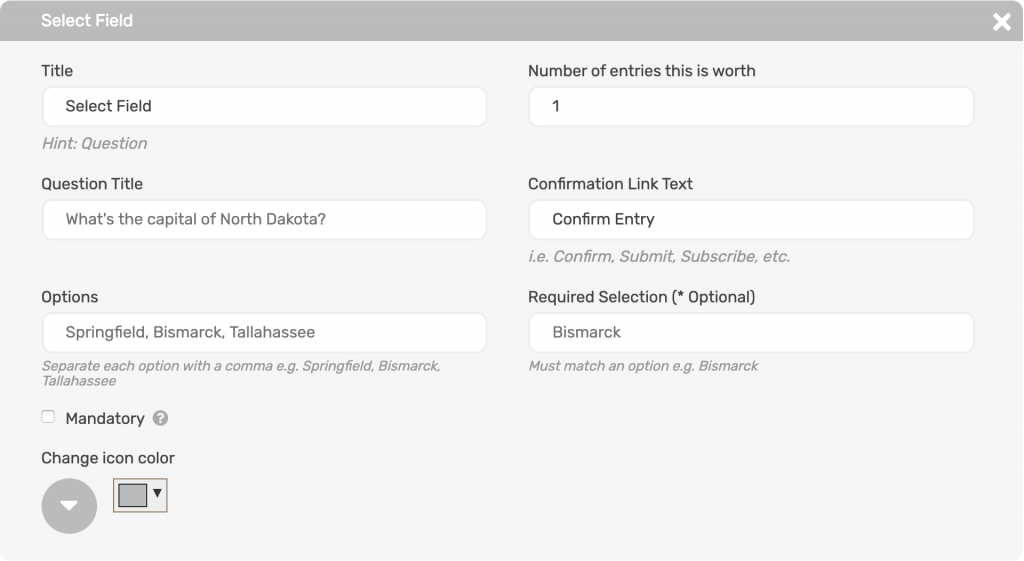
Fill in the required fields.
Put the select field options in the Options field and separate them by a comma i.e. Springfield, Bismarck, Tallahassee.
If you require a correct answer put it under Required Selection. Note: this must exactly match one of your options.
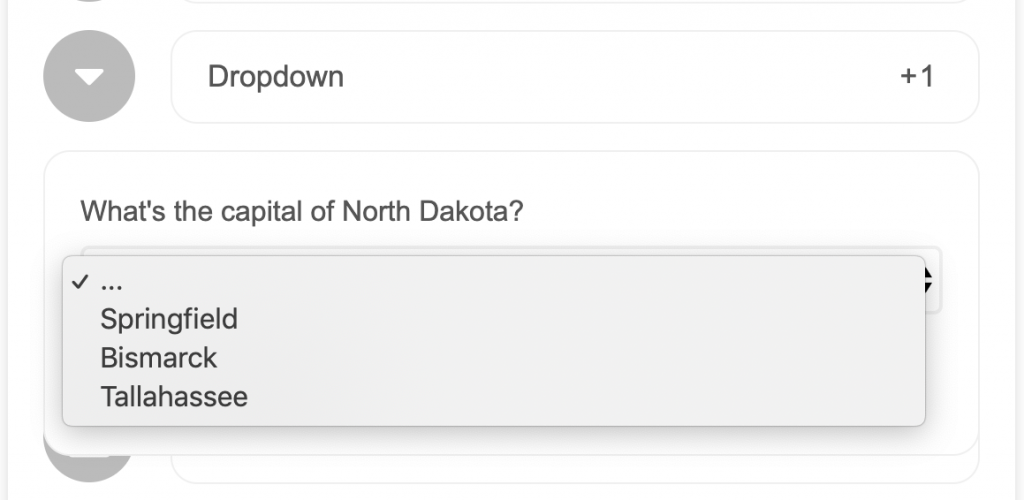
Public view
The user will get credit after answering the question and confirming their entry.
Radio buttons
Ask users questions with a custom radio buttons. Add as many options as you want.
Admin view
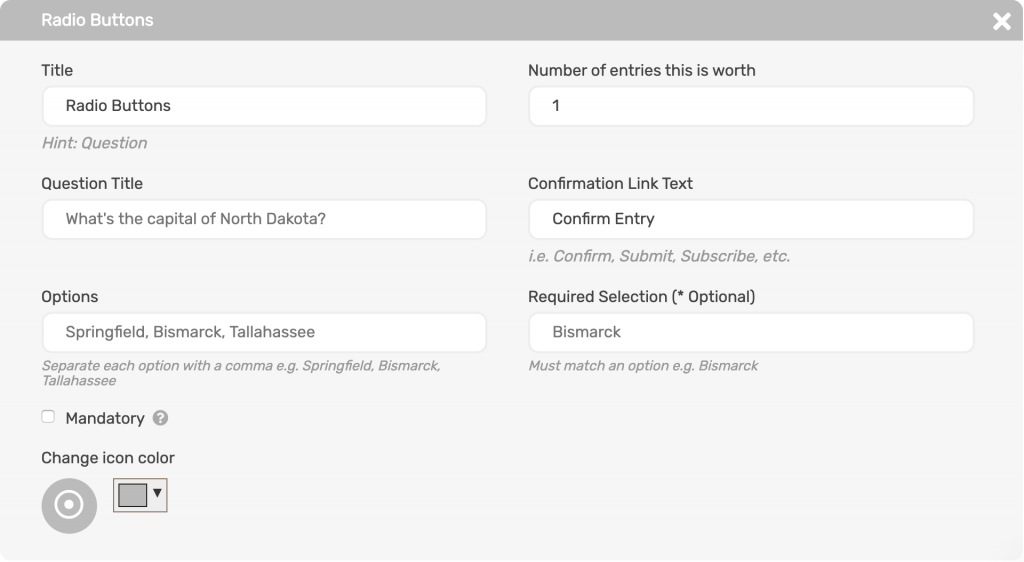
Navigate to Entry Methods > Radio Buttons.
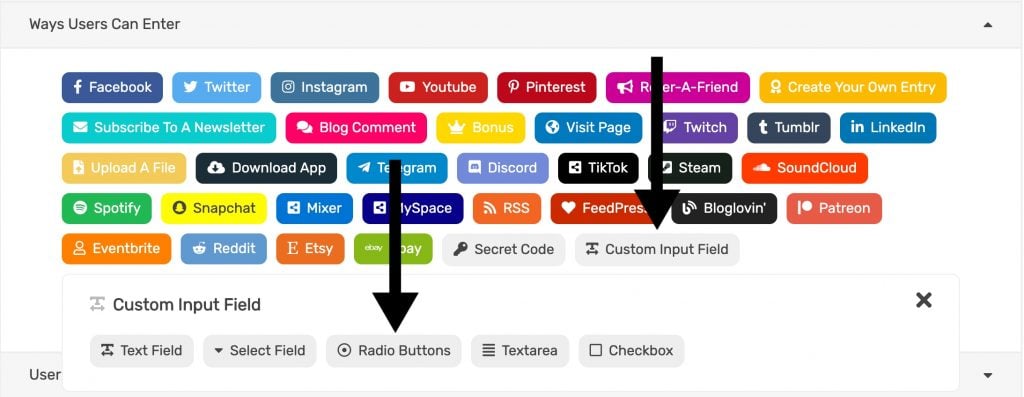
Fill in the required fields.
Put the select field options in the Options field and separate them by a comma i.e. Springfield, Bismarck, Tallahassee.
If you require a correct answer put it under Required Selection. Note: this must exactly match one of your options.
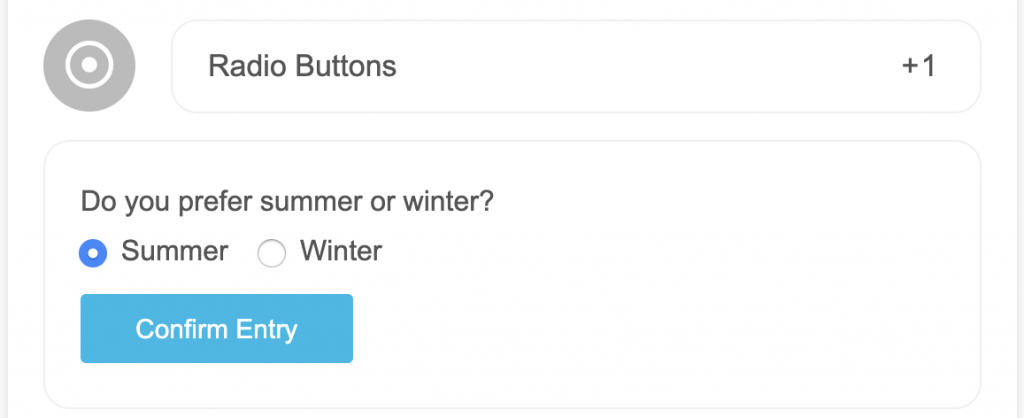
Public view
The user will get credit after answer the question and confirming their entry.
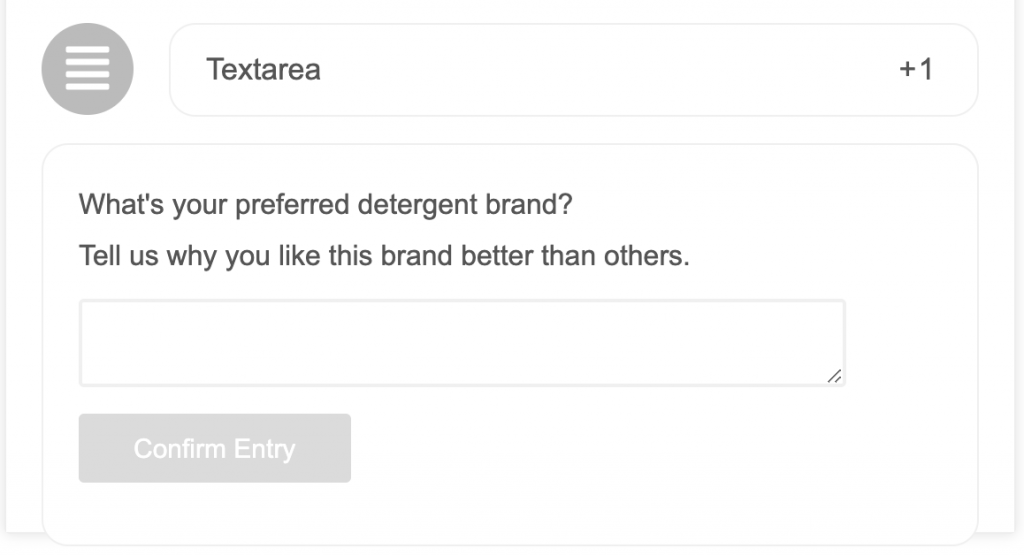
Textarea
Ask users questions with a simple text area field.
Admin view
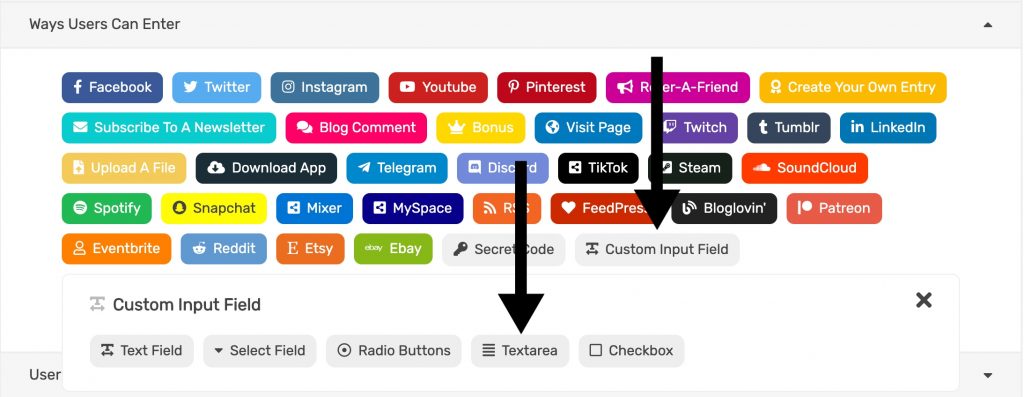
Navigate to Entry Methods > Textarea.
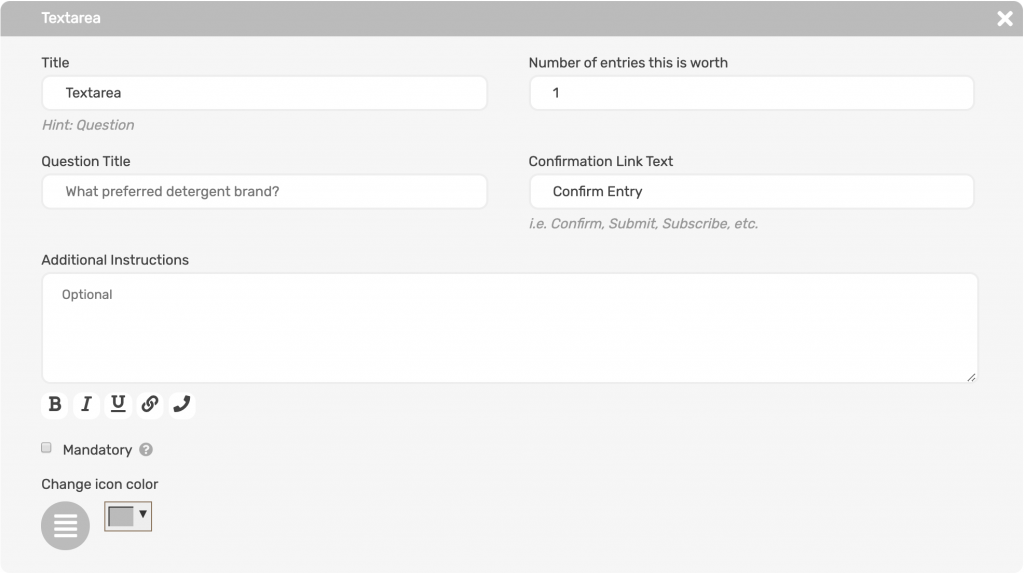
Fill in all of the required fields.
Public view
The user will get credit after answer the question and confirming their entry.
Checkbox
Have users confirm things with a check box.
Example:
- Are you 18?
- I confirm to receive newsletters.
- I accept the terms of use.
- Etc.
Admin view
Navigate to Entry Methods > Checkbox.
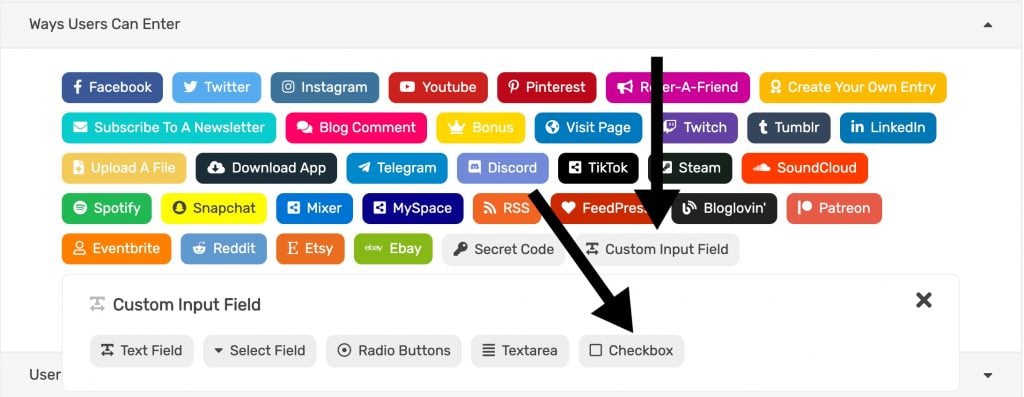
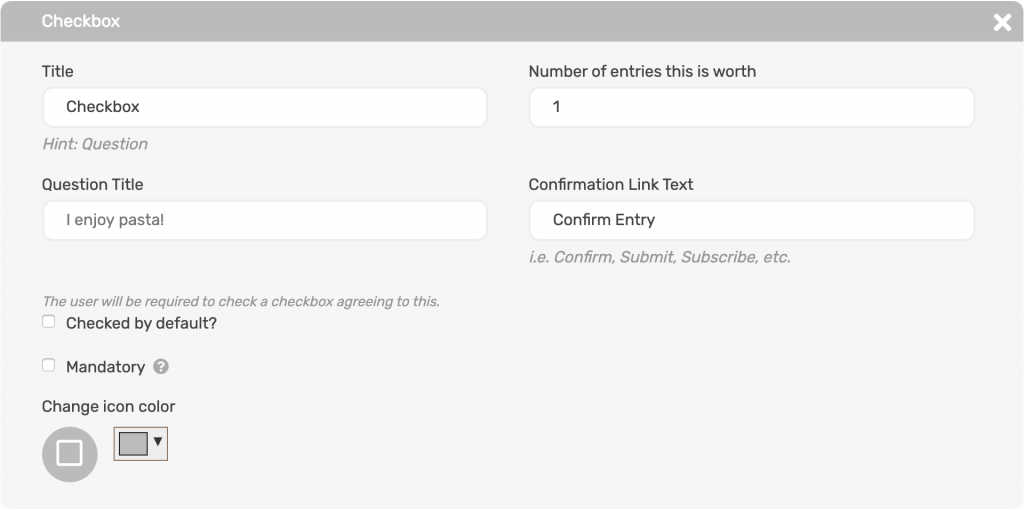
Fill in all of the required fields.
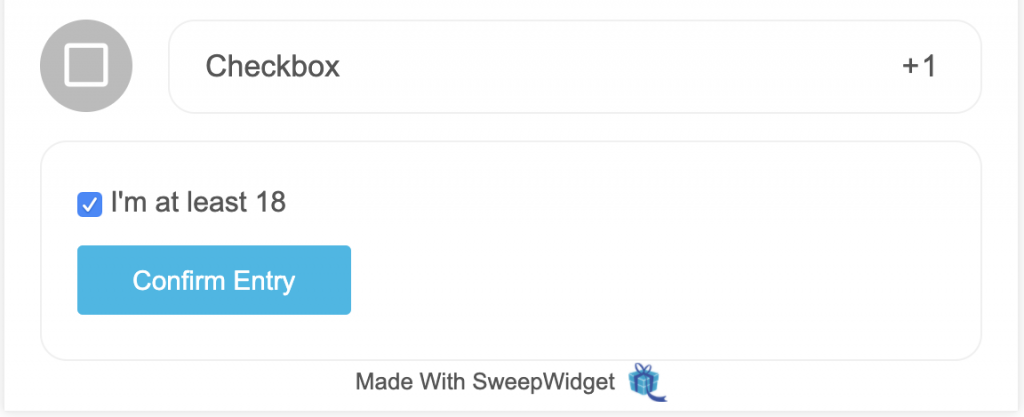
Public view
Checkboxes (Multi-Choice)
Allow users to select multiple options from a list of choices. Unlike radio buttons (which allow only one selection) or a single checkbox (which is yes/no), checkboxes (multi-choice) let users choose any number of options from your list.
Example use cases:
- What are your favorite genres of music? (Select all that apply)
- Which of our products are you interested in?
- What topics would you like to learn more about?
Admin view
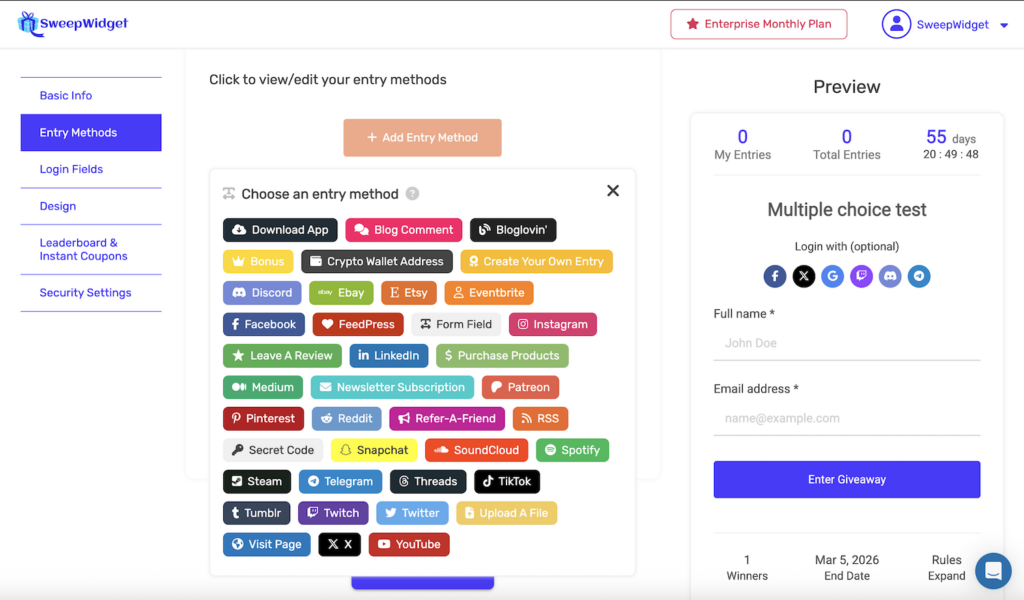
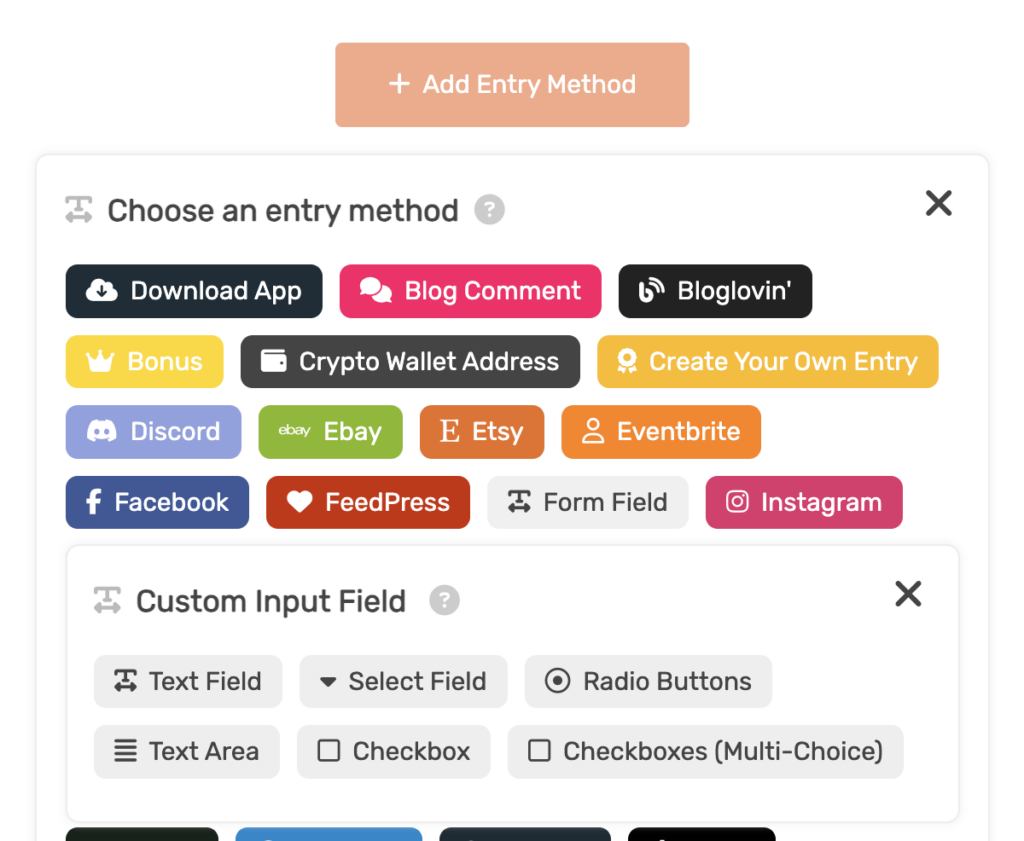
Navigate to Entry Methods > Form Field > Checkboxes (Multi-Choice).
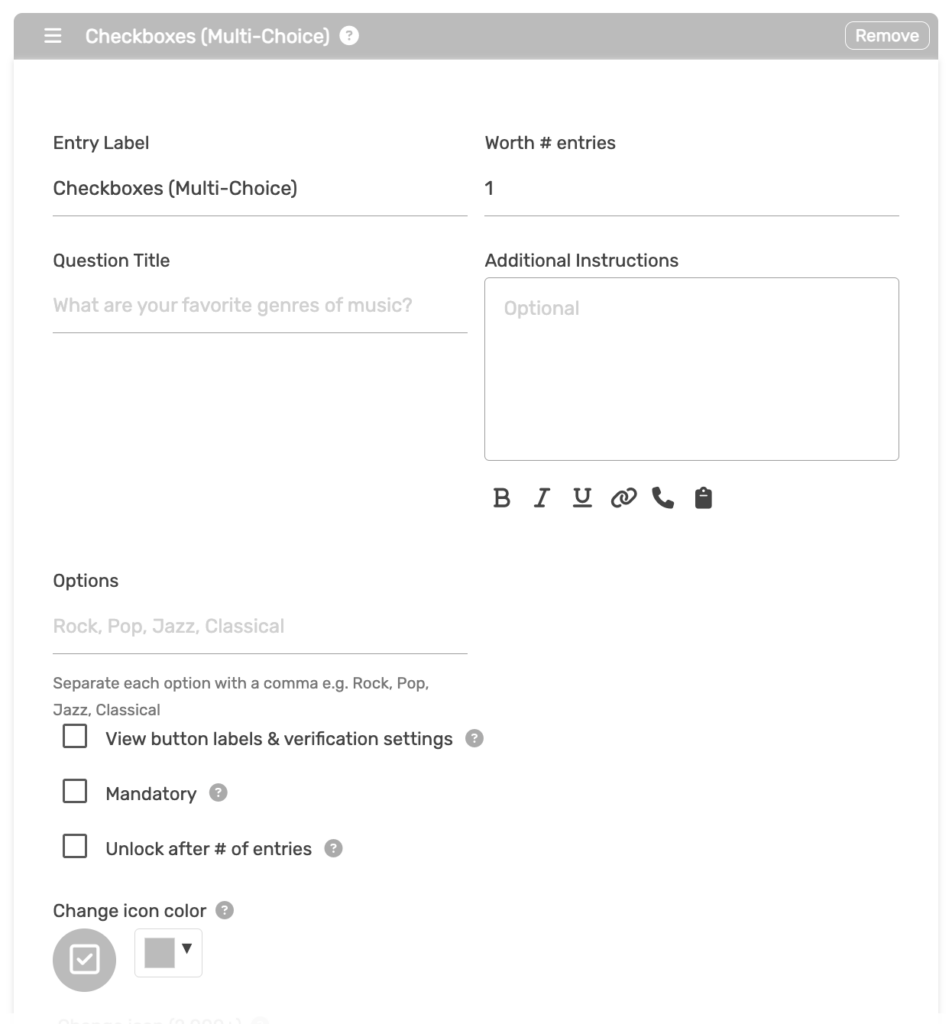
Fill in the required fields.
Put the checkbox options in the Options field and separate them by a comma i.e. Rock, Pop, Jazz, Classical, Hip Hop.
Public view
The user can select one or more options and then confirm their entry.