New to Rust? Grab our free Rust for Beginners eBook Get it free →
How to Use IndexedDB in JavaScript for Browser Storage

IndexedDB lets your JavaScript application store structured data in a browser, then query that data without sending every read to a server.
I checked the current browser API guidance from MDN, web.dev, and the Indexed Database specification, then ran the example against Node.js 26.7.0 with fake-indexeddb 6.2.5.
IndexedDB or localStorage?
Use localStorage for a few small string values such as a theme choice, and use IndexedDB for structured objects, indexes, larger collections, asynchronous operations, or transactions that group several changes.
| Need | localStorage | IndexedDB |
|---|---|---|
| Data shape | Strings only | Objects, arrays, blobs, and more |
| API style | Synchronous key and value calls | Asynchronous requests and transactions |
| Searching | Application code scans values | Object stores and indexes support queries |
| Grouped changes | No transaction model | Read-only and read-write transactions |
| Best fit | Small preferences | Offline records and structured browser data |
IndexedDB data belongs to the page’s origin, normally its scheme, host, and port, so another origin cannot open that database and IndexedDB is not a substitute for a server backup.
A notes-demo database opened by one origin remains separate from a notes-demo database opened by another origin.
Use a descriptive database name and store name so the Application panel tells you what the data represents.
Keep records small enough for the interface to load and paginate sensibly. IndexedDB can hold structured values, but a large local archive still needs an eviction policy, a loading strategy, and a way to rebuild data from its source.
That origin boundary is why a page can store user-specific drafts without exposing them to a different site. It also means a development server on a different port can show an empty database even when the production page has records.
Create a database and object store
The browser database has a name and an integer version. The version describes the schema, while an object store holds records and a key identifies each record. Schema changes belong in the upgrade callback, not in the code that reads or writes ordinary records.
Open the database
Opening a database returns a request immediately. Wait for its success or error event before using the database result, because the request has not finished when the open call returns.
const request = indexedDB.open('notes-demo', 1);

request.onsuccess = () => {
  const db = request.result;
  console.log('database ready:', db.name);
};

request.onerror = () => {
  console.error('database could not open:', request.error);
};
The number 1 is the schema version in this example. If the database is missing, the browser fires the upgrade event before success, giving you a place to create the store. If you later open version 2, the browser fires that event again so you can add or change schema objects.
Do not put ordinary record writes in onupgradeneeded. The upgrade transaction has a schema job, while a readwrite transaction has an application-data job, and separating them makes failures easier to diagnose.
Define the schema during an upgrade
Create the notes store in the upgrade callback and choose a key path that identifies each record, using an auto-incrementing key when your input does not already contain a unique identifier.
request.onupgradeneeded = () => {
  const db = request.result;
  const store = db.createObjectStore('notes', {
    keyPath: 'id',
    autoIncrement: true
  });
  store.createIndex('by_title', 'title', { unique: false });
};
The store keeps the complete note object, and the by_title index gives you a second lookup path, both created during the upgrade transaction that defines the schema.
Keep the version number in application code and make each upgrade conditional. Check whether a store or index already exists before creating it, then increase the version only when the schema actually changes.
Changing a key path is a data migration, not a display adjustment. The browser may require you to copy records into a replacement store, so plan how existing data survives before shipping that upgrade.
Add and read records in a transaction
Every IndexedDB data operation starts with the database, opens a transaction, selects an object store, and sends a request. A read-only transaction is enough for get and getAll, while adding or changing records requires readwrite mode.
const writeTransaction = db.transaction('notes', 'readwrite');
const store = writeTransaction.objectStore('notes');
store.add({ title: 'First note', body: 'Stored in the browser' });
store.add({ title: 'Second note', body: 'Read through a transaction' });

writeTransaction.oncomplete = () => {
  console.log('insert transaction complete');
};

const readTransaction = db.transaction('notes', 'readonly');
const readRequest = readTransaction.objectStore('notes').getAll();
readRequest.onsuccess = () => {
  console.log(readRequest.result);
};
Calling add queues the writes, but transaction completion is the useful boundary for the group because a failed request can abort the transaction instead of leaving half of a related change applied.
Do not start a second operation by holding a store from a finished transaction. Open a fresh transaction for the next read or write, because requests belong to the transaction that created them.
The sample opens one transaction for both insert calls, then a separate readonly transaction for getAll. That arrangement keeps the write group short and makes the read result reflect the completed writes.
Use an index when the question is about a property such as a title, email address, or timestamp. Use the primary key when you already know the record id, since that direct lookup avoids scanning every note.
An index does not replace the records in the object store. It gives the browser an alternate key for finding them, while the object store remains the place where the complete note objects live.
The complete runnable sample uses small promises around those request and transaction events. Run it from the directory that contains the sample and its dependency:
npm install
node indexeddb-demo.mjs
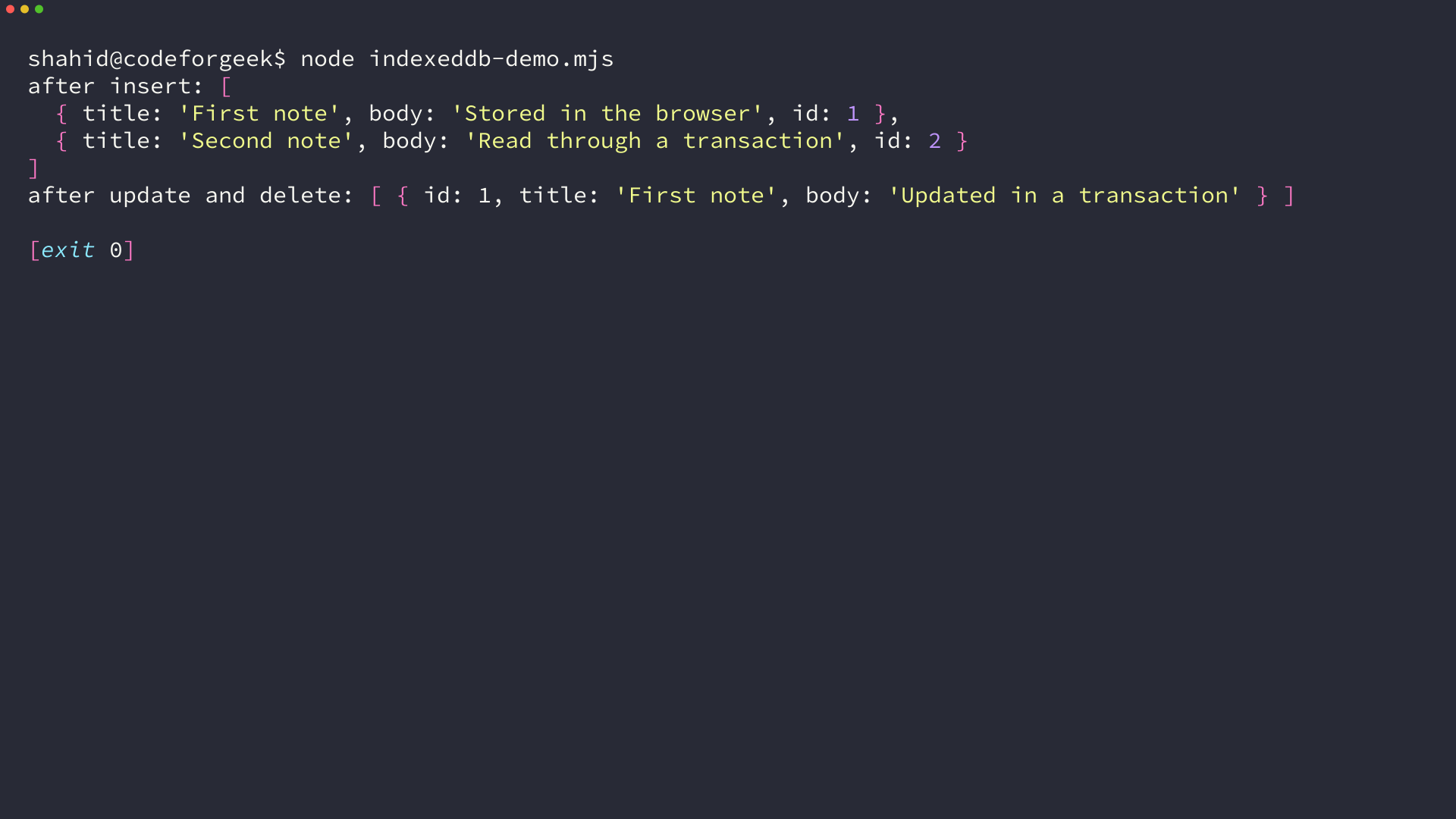
The first output contains two records with ids 1 and 2, while the second contains only id 1 after its body changed during the update transaction.
Update and delete records
Use put when you want to insert a record or replace the record whose key already exists. Use delete when the key identifies the record you want removed, and keep both calls inside a readwrite transaction.
const updateTransaction = db.transaction('notes', 'readwrite');
updateTransaction.objectStore('notes').put({
  id: 1,
  title: 'First note',
  body: 'Updated in a transaction'
});

const deleteTransaction = db.transaction('notes', 'readwrite');
deleteTransaction.objectStore('notes').delete(2);
put needs the id because the store uses id as its key path. If you leave that property out, the browser cannot identify which existing record to replace, while delete receives the key directly.
For a production application, attach onerror handlers to requests and transactions, close the database when the page is no longer using it, and decide how the interface should react when a write fails. A successful request does not remove the need to handle a transaction that later aborts.
When a transaction aborts, show the user which action did not finish and leave the interface consistent with the stored data. Reloading a list from a new readonly transaction is safer than assuming an earlier in-memory object reflects the database.
Inspect the database in Chrome DevTools
Open the page that creates the database, then open Chrome DevTools and select the Application panel.
DevTools is useful when your code reports success but the screen shows no data.
Expand Storage, then IndexedDB, choose the page origin, and open notes to inspect records and indexes. Check the database name, version, object-store name, key values, and record fields before changing the application code.
If the store is missing, inspect the version passed to open and confirm that onupgradeneeded ran. If records are missing, confirm that the page origin is the one that wrote them and that a delete operation did not remove them during debugging.
Handle version, permission, and storage boundaries
An upgrade can be blocked when another page still has the database open, so listen for the blocked event and close old connections when the page receives a version-change notification.
Storage behavior depends on the browser and its privacy mode, and private browsing data may last only for that session.
Storage limits and eviction rules differ between browsers. Keep important data on a server when losing the local copy would harm the user, and let the application rebuild a cache when the browser removes it.
Feature-detect the API before opening it and show a supported fallback when the browser does not provide IndexedDB.
A fallback can use a server request, a smaller localStorage preference, or a message that the offline feature is unavailable. The choice depends on whether the user can continue without local records.
Permission errors also need a visible recovery path. Explain that the browser refused storage, continue with the network-backed path when possible, and avoid reporting a successful save until the transaction completes.
if (!('indexedDB' in window)) {
  throw new Error('IndexedDB is not available in this browser');
}
Move from local storage to offline sync
Once the local CRUD path works, keep a local record of pending changes, send them when a network request succeeds, and resolve conflicts with a rule that your application can explain to the user.
Store a stable record id and a change state if the browser must retry a request after a network failure, saving both fields together in one transaction.
Synchronization also needs an authority rule, such as keeping the newest server timestamp, asking the user to choose between versions, or merging fields independently before multiple devices edit the same note.
IndexedDB handles the local state, not the network protocol. Your server still needs authentication, validation, retry limits, and an idempotent update rule so a second request does not create a duplicate record.
For a server-backed design, see the CodeForGeek IndexedDB and MySQL synchronization tutorial for the next implementation stage. The native database example here remains the foundation for that queue because it demonstrates stores, keys, and transactions without hiding them behind a library.
FAQ
These answers cover the decisions that usually surface after the first database opens.
Is IndexedDB better than localStorage?
IndexedDB is the better fit for structured records, asynchronous work, indexes, and grouped changes. localStorage is easier for a few small string preferences.
Does IndexedDB persist after a browser restart?
Normally, the browser keeps IndexedDB data after a restart, but private sessions and browser eviction rules can remove it. Treat local data as a cache unless your application has a recovery path.
Where should I create an object store?
Create an object store inside the onupgradeneeded handler. Increase the integer database version when you need to change the schema.
How do I clear IndexedDB in Chrome?
Open the Application panel in Chrome DevTools, expand Storage and IndexedDB, select the page origin, then use the available delete controls. Clearing the store removes its local records, so use it as a debugging action rather than a normal data operation.
Start with the small notes store, inspect its records, and add schema changes only through a new version. That sequence keeps the browser database understandable when your application grows.