Showing posts with label IoT. Show all posts

Thursday, June 11, 2020

TouchSlider control

Aloha,

Yesterday evening and this morning I've spent some time on creating a new control...a touch slider. To be honest I can't remember why I had the idea to create one but who cares...now it's ready :)
So here is a screenshot of it...

Image

So it's not really fancy but it works and is customizable in many ways. So first of all one can set the orientation to either horizontal or vertical. 
You can set a name and you can also define if that name should be visible or not. In addition you can define if the current value should be visible or not.
The color of the bar background, the bar itself, the thumb, the value text, the name text and the zero indicator are also adjustable.
This control is based on the JavaFX Canvas node which means it does not use a lot of nodes. But even if it is based on the Canvas node it is still styleable by CSS. If you take a look at the Demo class in the github repo you will figure out that the black and blue sliders are styled using code but the red slider on the right side ist styled using CSS.
This works because JavaFX offers so called StyleableProperties which bridge the gap between code and CSS.
The plan is to use this slider in a specific Tile for TilesFX for control e.g. IoT projects.
Here is a little video of the slider in action...


In addition to the above mentioned features you can also define if the bar should start at the zero position, this might come in handy if you have to control values that go from a negative to a positive value.
In this control I've used a little bit different approach to set the min and max values. Here you can define the min value and the range. The value property of the slider will always be in the range from 0 - 1 but if you call the getSliderValue you will get the "real" value based on the min value and the range back.
The slider will fire TouchSliderEvents when you drag it so that you can attach an observer to it and react on the events.
Well that's in principle it and as always you can find the code at github...

That's it for today...so keep coding...

Monday, February 1, 2016

Taking control by using the Medusa Clock

Hi there,

Last weekend I've got the idea that it might make sense to add sections and areas to the Medusa Clock control. The visualization looks like follows...


Image

Sections and Areas
The orange part is the area and the green part the section. Sections will be drawn on top of areas. The same principle exists in the Medusa Gauge control. The Gauge uses instances of the Section class and the Clock of the TimeSection class. Both of these classes have a method named checkForValue(). This method takes a double (Gauge) or a LocalTime (Clock) as a parameter and checks if this value is inside of the section that is defined by a start and a stop value.
The Section and TimeSection class will fire events for the following cases

  • The current value entered the section
  • The current value left the section
With this approach you can attach a listener to the section and enable the setCheckSectionForValue(true) in either the Gauge or Clock control to activate this functionality.
In a clock control that can be really useful to control things like switching lights for example. Let's take a look at a simple example.
We will switch on a light in our garden from 7pm to 10pm by using the TimeSection in the Clock control.
The first thing we need to do is creating the TimeSection like follows:

TimeSection gardenLightOn =
    TimeSectionBuilder.create()
                      .start(LocalTime.of(19, 00, 00))
                      .stop(LocalTime.of(22, 00, 00))
                      .onTimeSectionEntered(event -> 
                          System.out.println("Garden light on"))
                      .onTimeSectionLeft(event -> 
                          System.out.println("Garden light off"))
                      .color(Color.rgb(255, 128, 0, 0.5))
                      .build();

As you can see we define the start and stop values by LocalTime instances and add an EventHandler with the onTimeSectionEntered() and onTimeSectionLeft() calls. Then we define a color for the section and that's it.
Now we have to create the Clock control and set the sections like follows:

Clock clock = ClockBuilder.create()
                          .sectionsVisible(true)
                          .sections(gardenLightOn)
                          .checkSectionsForValue(true)
                          .running(true)
                          .build();

The result of this will then look like this...

Image

As soon as it will be 7pm you will see an output on the console with "Garden light on" and at 10pm it will say "Garden light off".
So in this case we only used a System.out.println command to show some action but you might want to send a MQTT message to your device that switches on or off the lights in the garden.
The area is in principle exactly the same just with a different visualization as you can see on the first image on this post. Oh and before I forget it...you can add multiple sections and areas to the Clock and also the Gauge control.
This was one way to use the Medusa Clock to control something but there is another one.

Alarms
You could also use Alarms to control things.
The Medusa Clock also takes a list of Alarm objects. You could either create a simple Alarm and react on the Alarm in the setOnAlarm() method with an EventHandler or you can create an Alarm that executes a so called Command. But let's take a look at the code to create a simple Alarm...

Alarm simpleAlarm =
    AlarmBuilder.create()
                .time(LocalDateTime.now().plusSeconds(2))
                .repetition(Repetition.ONCE)
                .text("Simple Alarm")
                .build();

As you can see it's really simple, you just define the time and the repetition, add a text and now we can add the Alarm to the Clock as follows...

Clock clock = ClockBuilder.create()
                    .alarmsEnabled(true)
                    .alarms(simpleAlarm)
                    .onAlarm(alarmEvent ->
                        System.out.println(alarmEvent.ALARM.getText()))
                    .running(true)
                    .build();

Two seconds after starting our code we will see the "Simple Alarm" message on the console...very easy right :)
In case you would like to create specific Alarms you will find the @FunctionalInterface called Command that only has one method named execute(). This method will be called when an Alarm is triggered and a Command is provided. So with this you could create a Command for switching on/off lights like follows...

class LightOn implements Command {
    @Override public void execute() {
        System.out.println("Switch light on");
    }
}
class LightOff implements Command {
    @Override public void execute() {
        System.out.println("Switch light off");
    }
}

LightOn  lightOn  = new LightOn();
LightOff lightOff = new LightOff();

Alarm alarmLightOn = 
    AlarmBuilder.create()
                .time(LocalDateTime.now().plusSeconds(5))
                .repetition(Repetition.ONCE)
                .text("Light On")
                .command(lightOn)
                .build();

Alarm alarmLightOff = 
    AlarmBuilder.create()
                .time(LocalDateTime.now().plusSeconds(10))
                .repetition(Repetition.ONCE)
                .text("Light off")
                .command(lightOff)
                .build();

So we created two classes that implement the Command interface and in this case we only output something on the console but you could implement whatever you want in that classes. Then we create two Alarms that take the created command classes.
Now we just have to create the clock control and add the alarms like this...

Clock clock = ClockBuilder.create()
                    .alarmsEnabled(true)
                    .alarms(alarmLightOn, alarmLightOff)
                    .onAlarm(event ->
                        System.out.println(LocalTime.now() +
                                           ":" +
                                           event.ALARM.getText()))
                    .running(true)
                    .build();

When you start that code you should see something like the following on your console...

Image

So the first Alarm was triggered 5 sec after the program started and 10 sec after the program was started the second Alarm was triggered.

To be honest I was not sure if it makes sense to implement that functionality in a Clock control but this makes it very easy for me to use a JavaFX Clock control on e.g. a Raspberry Pi with a display and at the same time I'm able to control things with it without using extra code :)

The code can be found on github...

So that's it for today...keep coding... :)

Tuesday, December 1, 2015

Events events events...

Hi there,

As some of you might know I love the Internet of Things and so I have a couple of sensors around that measures different kind of data. I'm also a big fan of MQTT because it makes things so easy and with it's publish and subscribe model it seems to be a natural fit for a lot of IoT projects.

When playing with my own stuff on my server and on my home network I'm totally fine with using MQTT for all of my IoT related communications. 

BUT...if you ever spoke at conference venues like hotels you will find out that they are very strict with their network...means usually the ports you need for your MQTT communication are not open :(
Or if you work in a company with very strict rules you might have the same problem with the port availability.
For this years JavaOne I was playing around with an Application Container Cloud Service where I again had the same problem...only port 80/443 have been available for all communications.

So I remembered a conversation that I had with David Delabassee at JavaOne Brazil this year in June. He mentioned SSE (Server Sent Events) and that it might be a possible solution for these kind of problems. 

Hey hipsters...sure you can use WebSockets...BUT you might run into problems with Proxy Servers. And using WebSockets is not always needed. In my case I would like to visualize data that is coming from either a sensor or an IoT gateway. Usually I don't need to send data to these devices and even if I have to send data it will be rare.
So for such a use case SSE is a perfect fit because it is a unidirectional event stream from the server to the client.

My idea was to write some code that subscribes to MQTT topics on a given broker and forwards them to connected clients via SSE. Sounds easy...and it is easy :)

To be able to subscribe to specific topics I needed a simple REST endpoint in my code that accepts POST calls from the client. The POST endpoint takes the topic and the qos (Quality of Service) for the subscription as parameters.
The program will add the client with the subscribed topic to a map and everytime a new MQTT message arrives on the broker the message will be pushed to all subscribed SSE clients.

The following image hopefully explains what I had on my mind...

Image


As you can see on the image above you need at least a MQTT broker and a server that runs either Java SE or node.js or both :)

So I've implemented my little MQTT to SSE application in node and Java SE. Yes you read it right...Java SE...no Java EE :)
Don't get me wrong, Java EE is fine for a lot of things but if you just need something like I do here, it's just overkill and things like Spring Boot do better.

On Java EE it's also not that easy to make use of MQTT but on Java SE it's very easy if you use libraries like Eclipse Paho, FuseSource etc.

If you are not afraid of using JavaScript node.js is also a really good fit for stuff like this (even if I'm not the best JavaScript programmer I was able to write this app).

For those of you that can't wait...here are the links to the repositories.

MQTT to REST/SSE bridge and Java SE SSE client:


So in principle the whole app has only two methods one to publish a message via REST POST and one to subscribe to a topic via SSE.

In addition I've also created a HTML page and a Java SE client that both publish and subscribe messages to the MQTT broker using REST POST and SSE.


Set it up...

1. Setup a MQTT broker
If you don't have a broker yourself you might want to setup a free version over at www.cloudmqtt.com
After you signed up for the free Cute Cat plan you will find the settings of your MQTT broker in the Control Panel under details. There should be something like this...


Image

Just note the Server, User, Password and Port


2. Configure and Start the REST service

The node.js version:
If you use the node.js app you will find a file named config.js in the project. In this config.js file please add the url, user, password and port of your MQTT broker or the broker you host at cloudmqtt. This should look similar to the following picture...


Image

In principle you are now ready to start and if you've put the right credentials for your broker in the config.js file you should now be able to start the mqtt2sse.js file by calling

node mqtt2sse.js

on the command line or you start it from your preferred IDE.

The Java SE version:
If you use the Java SE based version you should find a config.properties file in the project directory. 
Just put the data like url, port, user and password of your MQTT broker or the broker you host at cloudmqtt in this file. It should look similar to the following one...

Image

Now you are ready to start the file eu.hansolo.mqtt2sse.Main either in your preferred IDE or you can also build the project and start the created fat jar from the command line as follows...

java -Dserver.port=8080 -jar mqtt2sse-1.0.jar

The application will make use of Spring Boot for the REST service and will simply output incoming messages on the command line.


3. Publish and Subscribe some messages via HTML/JavaScript
In both projects you will find a test.html file which simply displays incoming messages and will publish messages with random data every 5 seconds.

It will subscribe to the MQTT topic: 

sensor/+

which means it will receive every of the following messages...

sensor/NNN

The + is a MQTT wildcard and you can find more information about MQTT and topics over at the awesome guys from dc-square (creators of hivemq), here is a the link.

The HTML/JavaScript client will also publish messages every 5 seconds to the MQTT topic:

sensor/HtmlClient

The data it will publish looks like this...

{
  'temperature' : 23.24234,
  'pressure' : 1002.12312,
  'humidity' : 65.23414
}

So if you start it you should see something like the following in your browser...


Image


4. Publish and Subscribe some messages via Java
This Java app makes use of the jersey libraries to subscribe to SSE and HttpURLConnection to make the REST POST calls. The functionality is the same as with the HTML/JavaScript client, means it subscribes the MQTT topic

sensor/+

and publishes data to the MQTT topic

sensor/JavaClient

So every 5 seconds it will publish a messgae to the MQTT topic above. If you start the app you should see something similar on the console...


Image

As you can see it's in principle the same as with the HTML/JavaScript client.


5. Manually publish messages via REST POST
Finally you could also use a REST client like the Chrome App Postman (get it here) to manually publish a MQTT message via REST. 
On the following screenshot you can see how it looks like...


Image

So you have to add one header as follows...


Image

Select POST as the method to use and the following url: 

http://localhost:8080/publish

Now go to the Body tab and select raw. To publish something on the MQTT topic

sensor/Postman

put the following in the textarea...

{
  "topic"   : "sensor/Postman",
  "msg"     : "{\"temperature\":23.0,\"pressure\":1005.2,\"humidity\":60.0}",
  "qos"     : 0,
  "retained": false

}

If you now press the Send button you should see the new message in the HTML/JavaScript and the Java Client like on the following pictures...


Image

You could also use all clients at the same time and should see something like this...


Image

Because each client is subscribed to the MQTT topic sensor/+ it will show messages that arrive from itself and each other client.


6. Publish/Subscribe the messages in a MQTT client
Of course one could also use MQTT directly to publish/subscribe. Therefor I can recommend using MQTT.FX from Jens Deters. This tools is written in JavaFX and so it will run on all platforms. 

So if you publish messages from MQTT.FX it could look like this...


Image

And if the Java SE client is running the messages will appear like you can see here...


Image

And because the Java SE client is sending messages every 5 seconds you will also see the messages in MQTT.FX if you subscribe to the MQTT topic sensor/+


Image


So as you can see with this MQTT <-> SSE bridge kind of code you could use MQTT via REST and SSE. This might not be the ultimate solution but for my use case it's a perfect fit and if you like it...feel free to fork it...

Here are the links to the repositories:

MQTT to REST/SSE bridge and Java SE SSE client:


That's it for today...keep coding... 

Thursday, January 1, 2015

JavaFX on e-paper

Hi there,

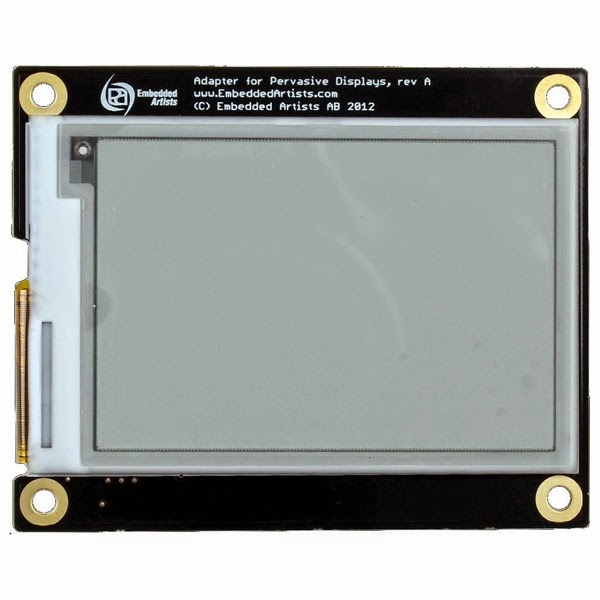
Before christmas I was playing around with the following e-paper display from Embedded Artists...
E paper display
The nice thing about e-paper displays is the fact that they are very energy saving because they use an interesting approach to visualize data (wikipedia). The Embedded Artists display only needs power to change the screen content and after it has changed it will stay on the display even without power connected to the panel. 

If you hear this for the first time you think...man...that's great I wanna use it for my embedded project...BUT...keep in mind that it has two major drawbacks...
  • It is only black and white...so no colors, gradients etc.
  • The screen refresh is really slow compared to the TFT panels (this panel takes up to 2 sec to change the screen)
So an e-paper display is not useful for animated or colorful apps but if you think about a weather station or a price display in a supermarket it absolutely makes sense to use such a display. In these cases the content of the display only changes a couple of times a day (weather station) or week (price display).

For me it was only interesting to see if I would be able to use JavaFX to render something on this display. If people hear JavaFX they first of all think about animations, effects etc. but hey, it's just a simple UI toolkit which can create visual content.

So I wanted to use the e-paper display on an Odroid-W from Hardkernel (which is hardware compatible to the Raspberry Pi). Lucky me there was already a tutorial on the Embedded Artists website that describes how to hookup the e-paper panel to a Raspberry Pi. In principle it describes how to install the driver for the panel on the Pi and how to display some content on it. My idea was to visualize maybe a clock (without second pointer) and also some weather information. So I would have to change the content of the screen at least once a minute which should be ok.

The tool that was provided by Embedded Artists is able to display an image in XBM format which is a plain text binary image format to store bitmaps (wikipedia). To display the xbm image you simple clear the screen and copy the image to a special folder by using two shell commands.

Now to the idea on how to use JavaFX to visualize data on the e-paper panel...

1. Create the JavaFX scene
  • Make sure that the size of the scene is exactly the size of the e-paper display (264 x 176 px).
  • Instead of colors just use black on white (you could also use white on black).
  • Make sure that you don't use an AnimationTimer (it will lead to render on every pulse)
  • Update the scene from a scheduled task via Platform.runLater(()->{...}) once a minute
And this is how my JavaFX app looks like when connected to a standard display

Monosnap 2014 12 31 13 17 50


2. Create the XBM file
To create an xbm image file we first need to take a snapshot which is very easy in JavaFX. In fact it is just one line of code...


final WritableImage SNAPSHOT = NODE.snapshot(new SnapshotParameters(), null);

With the writable image in place we now can use a PixelReader to read out the color of every pixel in the image. This is needed to create the corresponding hex string for the xbm image. Creating the image is done by two loops that simply loop over all pixels, read out the rgb value of each pixel in the snapshot, convert it into a hex string (0x00 - 0xff) and write it into a file. To give you an idea on how the xbm file will look like, here are some lines from the file...

#define yotaclock_width 264
#define yotaclock_height 176
static unsigned char yotaclock_bits[] = {
0x00,0x00,0x00,0x00,0x00,0x00,0x00,0x00,0x00,0x00,0x00,0x00,
0x00,0x00,0x00,0xf8,0xff,0x1f,0x00,0x00,0x00,0x00,0x00,0x00,
0x00,0x00,0x00,0x00,0x00,0x00,0x00,0x00,0x00,0x00,0x00,0x00,
0x00,0x00,0x00,0x00,0x00,0x00,0x00,0x00,0x00,0x00,0x00,0xf0,
0xff,0xff,0xff,0x0f,0x00,0x00,0x00,0x00,0x00,0x00,0x00,0x00,
0x00,0x00,0x00,0x00,0x00,0x00,0x00,0x00,0x00,0x00,0x00,0x00,
...
}

3. Updating the e-paper display
Now we only have to update the display every time we create a xbm image file. To make it as easy as possible I simply call the shell commands via ProcessBuilder like follows...


Process p1 = new ProcessBuilder("/bin/bash", "-c""/PATH/TO/DRIVER/gratis/PlatformWithOS/driver-common/xbm2bin < /PATH/TO/IMAGE/YOUR_IMAGE.xbm > /PATH/TO/EPD/epd/display").start();
p1.waitFor(1, TimeUnit.SECONDS);

Process p2 = new ProcessBuilder("/bin/bash", "-c", "echo U > /PATH/TO/EPD/epd/command").start();
p2.waitFor(1, TimeUnit.SECONDS);

And that's all you have to do to use JavaFX with an e-paper display on a Raspberry Pi. This really more a quick hack than a really nice solution but it works :)

And here is an example image of the e-paper display...

Image


There is definitely place for improvements like handling the whole image thing in memory and pass it directly to the driver instead of saving it to a file and calling the update via a shell command. But because I don't update the display very often this approach also works really well.

I've created a little gist that contains the code you need...

That's it for today...so keep coding... :)

Thursday, October 30, 2014

Sensor Networks with Java (Part II)

Hi there,

Getting back from GeeCON Prague and EclipseCon Europe I thought it might be time for part 2 of my Sensor Networks post.
In the last post I've explained how to setup the network and how to use Java to read out the data from the Coordinator Node.

For a session at Java One this year I've created a little demo project that also shows another example on how to connect to a XBee Series 2 using Java. You can find the code for that little demo here.

But now back to my Sensor Network, now that I've setup all the hardware I needed a way to store and visualize the data.

Storing data
To store the sensor data you have different options

  • local
  • cloud

Because a cloud solution was a bit overkill for the kind of stuff that I would like to do and I also like to keep as much data in-house as possible I've decided to go with solution one...local storage.
Well like I've mentioned in the last post I would like to use as many embedded devices as possible (at least because they are small, cheap and I can setup them up in my office easily). The easiest way would be installing a little database on a Raspberry Pi, BeagleBoneBlack or similar hardware and store the Sensor Network data in this database.
But because these devices are using SD-Cards as their hard-drive this would mean I would have to install the database on the SD-Card. In principle no problem BUT SD-Cards are not made for continuous file access which means your SD-Card will get corrupted very soon. One solution would be using an USB memory stick on these devices and store the data on the stick. The disadvantage of this approach might be the speed of the memory stick and to be honest I don't really like the idea :)
So I was looking for an embedded board that has a SATA port where I could attach a real hard-drive. Long story short I've decided to go with the CubieBoard 2 which you could see on the following picture


Image

The CubieBoard 2 is a really nice board with following specs

  • DualCore ARM A7 1 GHz CPU
  • Mali-400 MP GPU
  • 1 GB RAM
  • 1 Micro SD slot
  • 1 SATA 2.0 connector
  • RJ45 Ethernet
  • I2C, SPI, LVDS and more

So with the ability to connect a SATA hard-drive I'll be able to put the database to the hard-drive which will give me more speed. Even if a SSD drive is also not the best solution for a database drive I decided to use one because it's faster and if you take a small size SSD it will be cheap (I'm using a 64GB SATA 2 drive from Sandisk which costs around 40 €).
As database I decided to go with mongoDB but you can use whatever you like. I used mongoDB because there was an ARM port available (which is not really up to date but hey...it works). 
The problem with mongoDB was that you have to build the version on your own, means there is no out of the box binary that you can use. You will find some blogposts on the web that describe how to do that (e.g. here).
After that was done my CubieBoard based database-server was ready to go.
So let's take a look at the current setup, we have the Raspberry Pi that acts as Coordinator Node in my Sensor Network and that get events everytime a XBee is sending data. Then I have the CubieBoard 2 which is running mongoDB and could store the data in that database.
The question is how should the data get from the Coordinator Node into the database?
Well the simplest solution would be using the mongoDB Java driver to store the data directly from the Raspberry Pi over my internal network into the mongoDB on the CubieBoard. But I used a different approach...

Communication
Because all the embedded devices are running on my local network at home I needed to find a way to access my internal network from the outside. I could have open ports for each device and access it from outside but I decided to use some kind of a central communication server.
Therefor I decided to go with MQTT (Message Queue Telemetry Transport). When using MQTT you need a so called MQTT broker that receives all incoming messages and forwards them to the subscribed clients. Lucky me there is a very small free MQTT broker available called Mosquitto. Because this broker is small and doesn't need huge hardware to run it was the perfect fit for my project. My broker is running on an Odroid-U3 from hardkernel which looks like this.


Image

This board has more than enough power to run Mosquitto as you will find out when taking a look at the specs.
So with the MQTT broker in place I had a central communication server where all devices can talk to. 
The Coordinator Node now publishes a MQTT message every time it receives data from a XBee Sensor Node in the Sensor Network.
Because of the Publish-Subscribe model now everybody that is interested in that data can subscribe to the topic and can use it.
Instead of directly writing the data from the Coordinator Node into the mongoDB instance on the CubieBoard 2 I've wrote another small Java program that is running on the CubieBoard 2 and that is listening to data from the Coordinator Node.
With this approach I could also place the mongoDB server where ever I like. But the main reason for the additional Java program was the reason that I can now also do some data preprocessing on the CubieBoard 2 before storing the data to the database which is nice.
So now we have the Raspberry Pi Coordinator Node that receives the XBee data and publishes it via MQTT. Then there is the CubieBoard 2 that is running the mongoDB instance and is listening to MQTT messages from the Coordinator to store the preprocessed data in the mongoDB.

Visualization
Ok now that I can measure the and store the data it was time to create something to visualize the data and because I love Java I decided to create a JavaFX based desktop client to visualize the measured data.
Instead of only monitoring the Sensor Network data I've added more features like getting the current weather conditions from the closest airport, showing weather information from my own weather station outside (because the airport is around 30km away) and more.
But here let's only focus on the Sensor Network Data...
Now that we have all the data available in the database we can use different kind of visualizations, first of all we can visualize the live Sensor Node data which I did like follows


Image

As you can see I use a gauge to visualize the last measured temperature of each Sensor Node (the three gauges without a value are ran out of battery...waiting for new batteries at the moment :)). The color of the gauge will change with the temperature and in addition also the current supply voltage will be visualized with a little battery icon. The color of the battery also indicates the state of the battery.
Well it's nice to see the current situation but I'm interested in the temperature of the last 7 days...so I simply used a line chart to visualize the data from the database like this...


Image

Here you can see the temperature variation of each Sensor Node over the last 7 days which is useful to indicate weather trends etc.
Because we have the supply voltage also available in the database why not visualizing the voltage of each Sensor Node...here you go...


Image

As you can see on this chart I can easily identify Sensor Nodes that will need a new battery soon (e.g. Anton in the chart above). This is very useful because the batteries will last for a long time but when they are going down the drain it will just take a fews days before they will die. So with this chart I can identify weak batteries by looking at the chart once a week.

Because the temperature do not only vary from day to day but also within one day I was interested in how the temperature in each room varies over the day. Therefor I've created a little RadarChart that shows the temperature for each room, here is a screenshot...


Image

As you can see I can select each Sensor Node on the left side and one of the last 7 days on the bottom. With this you can monitor the temperature variation from each Sensor Node on each of the last 7 days which is really interesting some times.

All the controls that you see on the screen shots above are taking from the Enzo JavaFX controls library that you can find here.
Please keep in mind that all controls in that library are made for my personal demos and are not production ready (but might be useful as a start) :)

Because this post is long enough I won't show you all the mobile clients that I've also created like an iOS and Android client and also a SmartWatch client. But in principle they all look like the desktop version and thanx to Gradle I build all these versions for all these platforms in one Multiproject Gradle build which means more than 90% of the code is the same for all platforms...remember the credo of Java...write once run anywhere :)

That's it for today...keep coding...

Tuesday, October 21, 2014

Sensor Networks with Java (Part I)

Hi there,

End of last year I've started to build a little Sensor Network that I've placed in my house. I never thought that many people are interested in that but I was wrong, nearly every time I did a presentation about that topic many people asked me for a blog post about the project...and here it is :)

First of all this is not really about a Smart Home or something similar, this is simply a project to monitor data (temperature in my case). The original idea was monitoring multiple cold stores which seems to be something that is really useful :)
But because I didn't had the cold stores I've decided to measure the temperature in nearly every room of our house.
The things I was interested in have been the behavior of the room temperature compared to the temperature outside. Does the temperature in the rooms follow the temperature outside of the house and how fast does it follow. To be able to compare those values I had to measure the conditions outside and in inside of the house.
Well measuring is one thing but you also have to analyze the data right? This means I needed to store the data somewhere and also needed to visualize the data somehow. Because I'm working from home I don't have a big server room where I can put a computer that acts as a server so one other requirement was to use as many embedded devices as possible in the whole setup (means for communication, storage, etc.).

Wife factor
One very important (if not most important) factor in the whole project was what I call the "Wife factor". When I've started with the project I've used hardware like Raspberry Pi, BeagleBoneBlack and Arduino Yun to measure the temperature in different rooms in our house. It worked very nice BUT most of these devices have some kind of status led or I/O led which is blinking all the time. In addition all of those devices needed a power supply which means you have to place them close to a power plug. When my wife saw all these lights blinking and wires lying around she was not very amused.
I figured out that as long as she does not see the so called Sensor Nodes everything is fine.

Size matters
That said one thing was pretty clear, the Sensor Nodes have to be small and they should run on batteries...for months!!! I've tried different hardware like Raspberry Pi, Arduino Yun, Arduino + XBee but all of these approaches did not really work out well.
The biggest problem was the need for a power supply which limited the location I could place the Sensor Nodes. In the end I've took a closer look to the XBee itself which looks like follows...


Image

XBee's are modules that provide a cost-effective wireless connectivity to devices in ZigBee mesh networks. They are produced by Digi and there are different modules available.
For my Sensor Network I'm using the XBee S2 or XBee ZB. If you take closer look to the XBee you will figure out that it does not only give you a cheap reliable wireless connection but also has pins for PWM, AD, RX/TX etc. 
So in principle this is a little micro controller with a wireless connection feature which made it the perfect fit for my Sensor Nodes.

Network Topology
For my approach I've used the simplest network setup that is supported, the Star Network. With this network topology I just need one XBee that acts as a so called Coordinator for the network and to that all Sensor Nodes connect to. Another advantage of the Star Network is the low power consumption because I don't have any Router Nodes (that have to be always on) between the Sensor Nodes and the Coordinator. To make it work every Sensor Node has to know the uniqe Serial Number of the Coordinator which has the advantage that the Sensor Nodes don't need to broadcast their data on the network but can directly "talk" to the Coordinator which again saves some energy.

Programming XBees
To let the Sensor Nodes know the Serial Number of the Coordinator Node you have to program them somehow. Lucky me that Digi created a nice tool that makes it very easy to setup the XBees. The tool is called XCTU and could be found here (btw it's a Java application :) ).
Now that we have the software to setup a XBee we somehow need to connect the XBee to our computer. Therefor the easiest solution is a little piece of hardware called XBee Explorer and can be find at SparkFun. It looks like follows...


Image

You could also find other versions from other vendors. As you can see it has a socket for the XBee and a micro USB port that you can connect to your computer.
If you then start XTCU you should see something similar to the following...


Image
If you follow the instructions you should be able to discover the XBee that is connected to your computer. 
The next step is the setup of the XBee, therefor you first should update the firmware of the XBee to the correct version. 

Attention:
The Coordinator Node needs a different firmware than the Sensor Nodes!!!

If you also use a XBee S2 you should see something similar to this...


Image
For the product family XB24-SB I've selected the firmware with the version 21A7 for the Coordinator Node as you can see on the following screenshot


Image

As you can see on the screenshot there are firmwares for the so called API mode and the so called AT mode. The API (Application Programming Interface) mode is a frame-based method for sending and receiving data to and from a radio's serial UART. The API mode gives you more flexibility because you can send and receive packets to and from the XBee. In AT or transparent mode the XBee simply relays all serial data to the receiving XBee.
So I've choosen the API mode for my project.
After you've updated the firmware of your Coordinator XBee you have to program it using the XCTU software. Don't worry, programming in this case means simply set the right parameters in the Radio Configuration part of the XCTU window.

Setup of Coordinator Node:
For the Coordinator Node there are only a few things you have to set:

Variable    Name                Value                            
ID          PAN ID              A unique id that is the same for                                     all Nodes in your Sensor Network
                                (e.g. 312)

NI          Node Identifier     A name for this XBee
                                (e.g. coordinator)

Attention:
Write down the variables SH and SL which is the Serial Number of the Coordinator Node because you will need it for the setup of the Sensor Nodes!!!

Don't forget to save the Coordinator Node profile from within the XCTU software. So you can re-use it later if needed.


Setup of Sensor Nodes:
For the Sensor Nodes you have to set up a few more things:

Variable    Name                Value                            
ID          PAN ID              The same PAN ID as on the 
                                Coordinator (e.g. 312)

NJ          Node Join Time      1 x 1 sec

DH          Destination High    High Address of Coordinator Node
            Address             e.g. 13A200

DL          Destination Low     Low Address of Coordinator Node
            Address             e.g. 40C05061

NI          Node Identifier     Some name (e.g. sensor-node0)

SM          Sleep Mode          Cyclic Sleep [4]

SN          Number of Cyclic    1E
            Sleep periods

SO          Sleep Options       4

AP          API Mode            2

SP          Cyclic Sleep Period 3E8 x 10 ms

ST          Time before Sleep   3E8 x 1 ms

D3          AD3/DIO3 Config.    ADC [2]

IR          IO Sampling Rate    400 x 1 ms

V+          Supply Voltage      0C00
            High Threshold


These are a lot of values that seems to be a bit cryptic but if you know what how it works it's logical. Let me try to explain the important parts.
First of all you have to know my setup to understand the settings above.
To measure the temperature I simply use a TMP36 temperature sensor and the circuit looks like this


Image

You can see that this is a really simple circuit which could be very small. To get better results one could add an additional capacitor between +3.6V and the signal pin of the TMP36 but it also works without it. The signal pin of the TMP36 is connected to the AD3 pin of the XBee.
Because when measuring the temperature of a room you don't expect the temperature to change very fast it makes sense to measure the temperature only every couple of minutes and put the XBee to sleep between the measurements.
So the procedure that I use in my Sensor Network measures the temperature every 5 minutes (which still is to often :) ).

So now we know all parameters to understand the setup of the XBee, let's have a look:

We need to configure pin AD3 as an analog input pin which is done by the parameter:

D3          AD3/DIO3 Config.    ADC [2]


Enabling the cyclic sleep mode is done by the parameter:

SM          Sleep Mode          Cyclic Sleep [4]


Now we need to define the sleep cycle which is done by the following parameters:

SN          Number of Cyclic    1E
            Sleep periods

SO          Sleep Options       4
            Extended cyclic
            sleep (SN x SP)

SP          Cyclic Sleep Period 3E8 x 10 ms

ST          Time before Sleep   3E8 x 1 ms
                        1000ms wake time

IR          IO Sampling rate    400 x 1 ms
            Sample ever 1024ms
            (Should be a bit
            higher than ST to
            send 1 sample)

Attention:
All numeric parameters in the XCTU software are in hexadecimal!!!

Means we define one sleep cycle as long as 

(SP) 0x3E8 => 10000 ms and the number of cycles to sleep should be (SN) 0x1E -> 30 which means the XBee should sleep 10000 x 30 ms = 300000 ms = 5 Minutes.

The sample time is set to (IR) 0x400 => 1024 ms and the time before the XBee goes to sleep again is set to (ST) 0x3E8 => 1000ms which means it will wake up after 5 Minutes, will sample data on pin AD3 and before it can sample data again it will fall a sleep again.

Now you should save this profile in XCTU.

You have to repeat that procedure for each Sensor Node and because you saved the profile the only thing you have to change is the NI parameter which is the name of the Sensor Node. This name will later be part of the message and makes it easier to identify the Sensor Node.


Connecting the Coordinator:
Because I would like to use only embedded devices I've decided to use a Raspberry Pi as my "Coordinator Node Server". Means the Coordinator Node will be hooked up to the Raspberry Pi. The easiest way I found out was to use a little add-on board named "Slice of Pi" which looks like this


Image

This board has a socket for the XBee which makes it really easy to connect the XBee to the Pi.

Talking to the XBees
Now that we have the hardware in place the Sensor Network is working already but how could we get the data?
Well there is a really nice Java project on GoogleCode named xbee-api. With this Java library it's really easy to connect to the XBee that acts as a Coordinator Node attached to the Raspberry Pi. To be able to connect to the XBee that is connected to the Slice of Pi board you need to make sure that the following settings on the Pi are set:

1. Remove all references to ttyAMA0 from /boot/cmdline.txt

2. Comment the line "T0:23respawn:/sbin/getty -L ttyAMA0 115200 vt100" in /etc/inittab

3. Sudo apt-get install librxtx-java

The nice thing about the xbee-api library is that you can attach a listener to the XBee Coordinator and you will get notified everytime a XBee Sensor Node sends it's data.

If you would like to play around with it you will find examples on how to use the API with a Receiver and Sender here.


This should be enough for today...so keep coding... :)