Photo Styling Tutorials: Give Any Image a Signature Look
Learn to control the look and feel of a photo in Photoshop and Lightroom: tone, mood, contrast, texture, and the finishing choices that make a set of images read as yours. More than 100 free video tutorials from Aaron Nace on building a consistent, recognizable style.
What You’ll Learn
Style is what is left after correction: the deliberate choices about contrast, color, texture, and finish that make two photographers’ edits of the same RAW file look different. These tutorials break style into decisions you can make on purpose.
- Tone and contrast. Matte blacks, lifted shadows, punchy midtones, soft highlights, and how each one changes the mood of a photo.
- Mood with color. Warm and cool palettes, muted versus saturated, cinematic and vintage looks, and keeping skin natural inside a strong grade.
- Texture and finish. Grain, film borders, glows, halation, overlays, and light leaks, applied so they support the image instead of decorating it.
- Consistency. Building a look once and applying it across a shoot or a feed with presets, actions, and LUTs.
- Drama and restraint. Adding drama with light and contrast, and knowing when a photo needs less, not more.
Where to Start
The Coloring Learning Path is the foundation, because most style choices are color choices. From there, the cinematic and film-look tutorials in this category are the fastest way to see how a full look is built, and the Lightroom presets and LUTs let you apply those looks in one click while you learn the technique behind them.
Free and PRO Tutorials
Free tutorials are complete lessons, not previews. PRO tutorials go deeper and longer, and they include the sample images, RAW files, actions, and presets used in the lesson so you can follow along on the exact same file. A PHLEARN PRO membership unlocks every PRO tutorial on the site, including all of the ones in this category.
Frequently Asked Questions
How do I develop my own editing style?
Pick two or three decisions and keep them consistent across every photo: a contrast curve, a color palette, and a finish. The tutorials here show what each decision does so you can choose deliberately instead of by accident.
Should I use presets or edit from scratch?
Both. A preset is a starting point that keeps a shoot consistent; the edit from scratch is where you learn what the preset is doing. Most of these tutorials show the manual version, then how to save it.
Does style work the same in Lightroom and Photoshop?
The decisions are the same. Lightroom is faster for applying a look to many photos; Photoshop gives more control over local areas, textures, and layered effects. Several tutorials here show the same look built both ways.
Where to Go Next
Styling overlaps with Color Grading, which goes deeper on the tools, and with Visual Effects for glows, light, and atmosphere. For the correction that should come before any style, see Photo Editing, and for painterly and illustrative looks, see Art & Style.
Build a Look
The Coloring Learning Path teaches the color decisions that most editing styles are made of.
On This Page
PHLEARN PRO
Every PRO tutorial in this category, with sample and RAW files, plus the full PRO library.
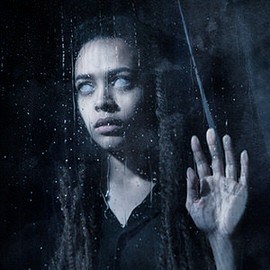
The last in our series of Horror movie posters! Join us from shoot to edit as we create a dark and creepy poster with some DIY special effects.
Sample Images Included
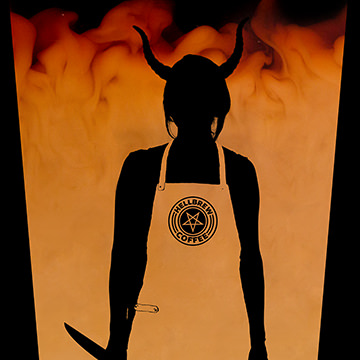
In part two of our Horror Movie Poster Series, coffee and cream are transformed into our background, providing some texture and an eerie transition from light to dark.
Sample Images Included

Take your landscape photos to the next level with these coloring techniques. Is the grass a little lifeless? Add more green! Is the sky a bit gray? Add more blue!
Sample Images Included

Create a soft and dreamy look by adding a slight blur to the edges of a photo and adding a soft blur to the Light in a photo.
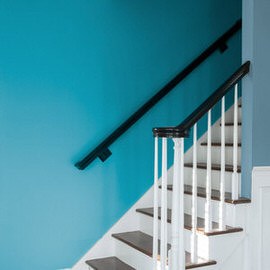
Before spending time painting your walls, test out different Colors in Photoshop! This tutorial makes changing wall Color easy and fun!
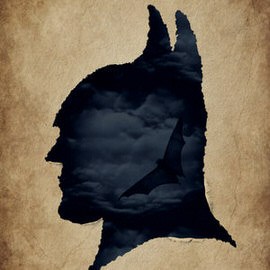
We start with creating a ripped paper effect and then apply that to a silhouette for a cool Batman themed poster.

Take any photo and convert it into latte art using our free custom brush and the Smudge Tool!
Sample Images Included

Light rays are fun to create, and can make a big Difference in your photos! Learn how to identify the best place to put Light rays and how to create them using a Brush Tool and a Radial Blur Filter.
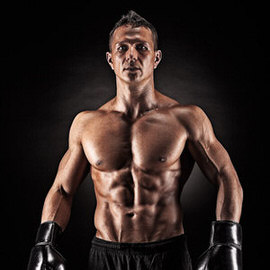
Sometimes it’s better to be nasty, as in the case with sports portraits. Learn how to make a sports portrait even more gritty by using Dodge and Burn and advanced sharpening in today’s episode.
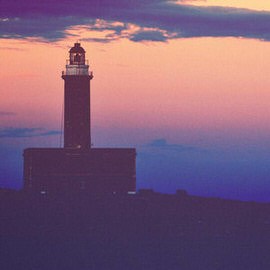
We are going to apply the look of a dark film photograph to a digital image in today’s tutorial.
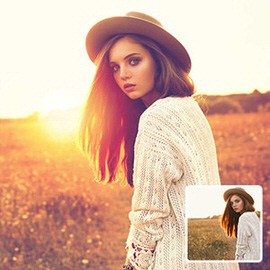
Adding a sunset effect to a photo can be done in a couple of easy steps, and makes a huge difference in a back-lit image.
Sample Images Included
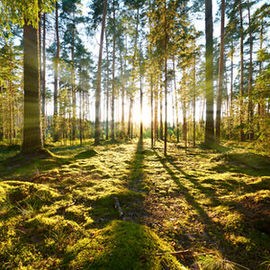
We’ll show you how to add some awesome sun rays into your image in Photoshop, but first make sure it makes sense in your image!
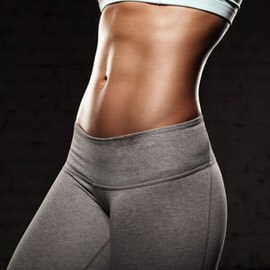
You’ll be amazed at what you can do when using the Blend If sliders. You can blend based off of information from the Layer you are on, or based off of information from the rest of the image.
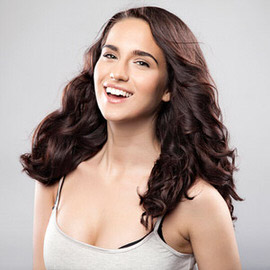
Use these tips and tricks to adjust the style hair in Photoshop.
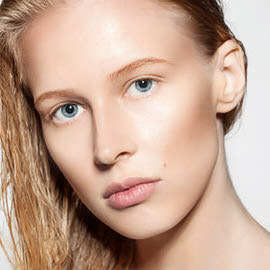
We will walk you through the process of “contouring” makeup in Photoshop to enhance facial features.

Repeatable Patterns can be used for so many different applications. You can use a repeatable Pattern to Add Texture to your images. In our case, we used a repeatable Pattern to add a Background to our website.

From flyaways to frizzies, hair seems to never do exactly what we want it to. Learn how to shape and Style hair in Photoshop in today’s episode!
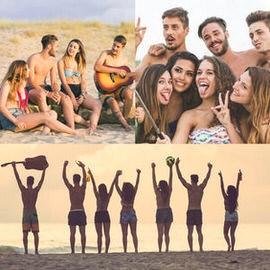
Learn How to Create Collage Templates in Photoshop in this episode! This is a priceless technique for anyone with a blog, website, or someone just wanted to combine a few images together into one.
Sample Images Included
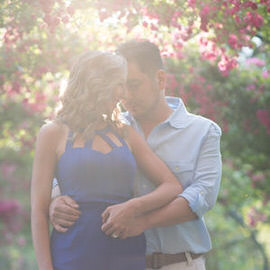
Learn How to Add and Remove Fog in Photoshop in today’s episode! This super quick and Easy Tutorial will turn you into a fog wizard. Guaranteed.

Have you ever really needed to extend the Background of your image, but not wanted to spend hours with the Clone Stamp tool? If so, today’s episode is for you! Learn How to Stretch Images Using Content Aware Scale!

Learn How to Turn on Headlights in Photoshop! Learn all the tricks to creating realistic light, including Lens Flares and light streaks made from scratch.

If you think Black and White images are simple, think again! Learn how to create a stunning Black and White portrait in Photoshop in today’s episode!
Sample Images Included

In today’s episode, we show you how to do Focus Stacking in Photoshop. We also give you some pointers on how actually shoot the images you’d need in order for Focus Stacking to work.
Sample Images Included
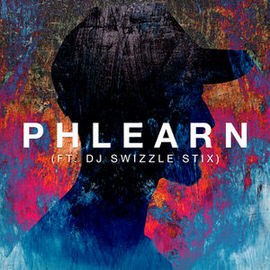
Join us for a jam packed episode on how to create an amazing painted album cover!

The trickiest part of this whole process might be the very first step! If you are adding a different sky to an image, make sure it compliments the rest of that photo. The two images should match up really well in terms of Color, Contrast, and tone.
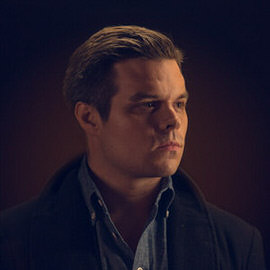
In today’s episode, learn How to Retouch a Dramatic Male Headshot in Photoshop! Fix blemishes and redness, and add classic Color Styling to your photographs!
Sample Images Included
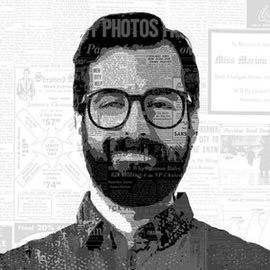
In today’s episode we combine Vintage newspapers with a portrait to create a piece of art. Learn how to apply Filters to your subject to make them appear like an illustration, then Add Texture to that illustration in a few easy steps.
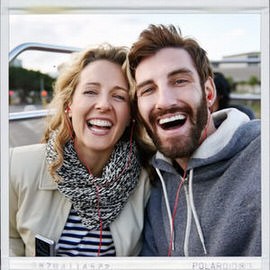
In today’s episode, we show you how to make a Polaroid framed picture in Photoshop!
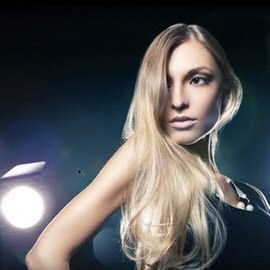
When are flares appropriate in photos? Why can’t you customize the Photoshop Lens Flare Filters?? In today’s episode, we show you the best way to use Lens Flares in Photoshop and answer those burning questions!
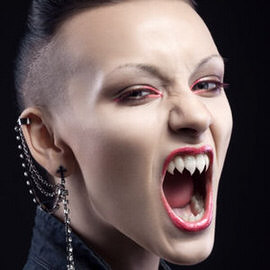
Are you ready for our fourth and final Halloween episode?? Learn how to shape teeth into sharp fangs to give your images some real “bite!”
