Slides presentations are HTML documents, which gives developers additional ways to customize their content. You can work with syntax-highlighted code, edit slide HTML, assign custom CSS classes, and export your presentation as HTML.
Slides also provides a Define API for creating prefilled presentations, a REST API for working with decks and account data, and an MCP Server for connecting AI tools.
Syntax highlighted code
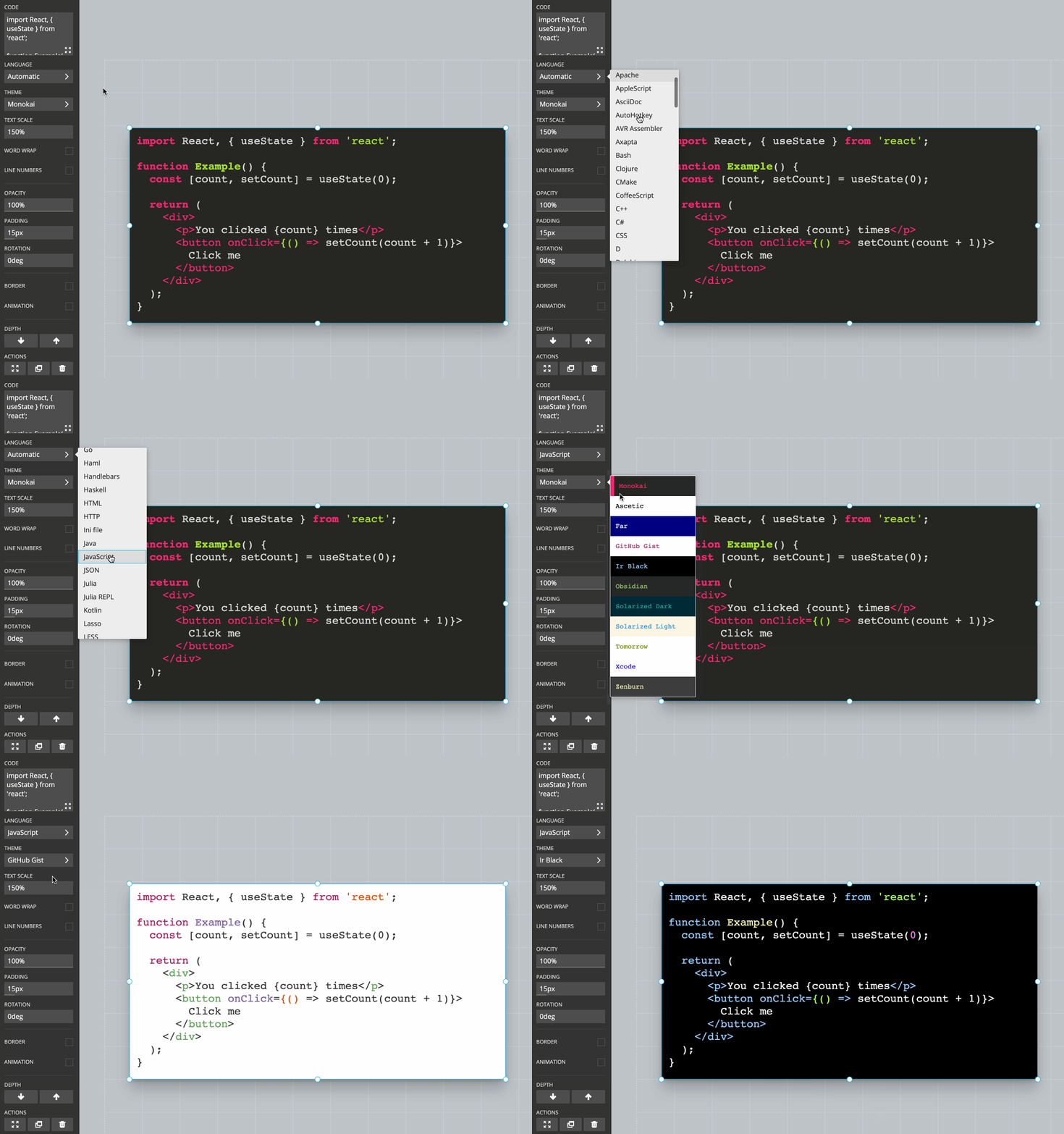
Code blocks support syntax highlighting for common programming languages and include several highlighting themes. You can also emphasize specific lines and step through multiple line-highlight states while presenting.
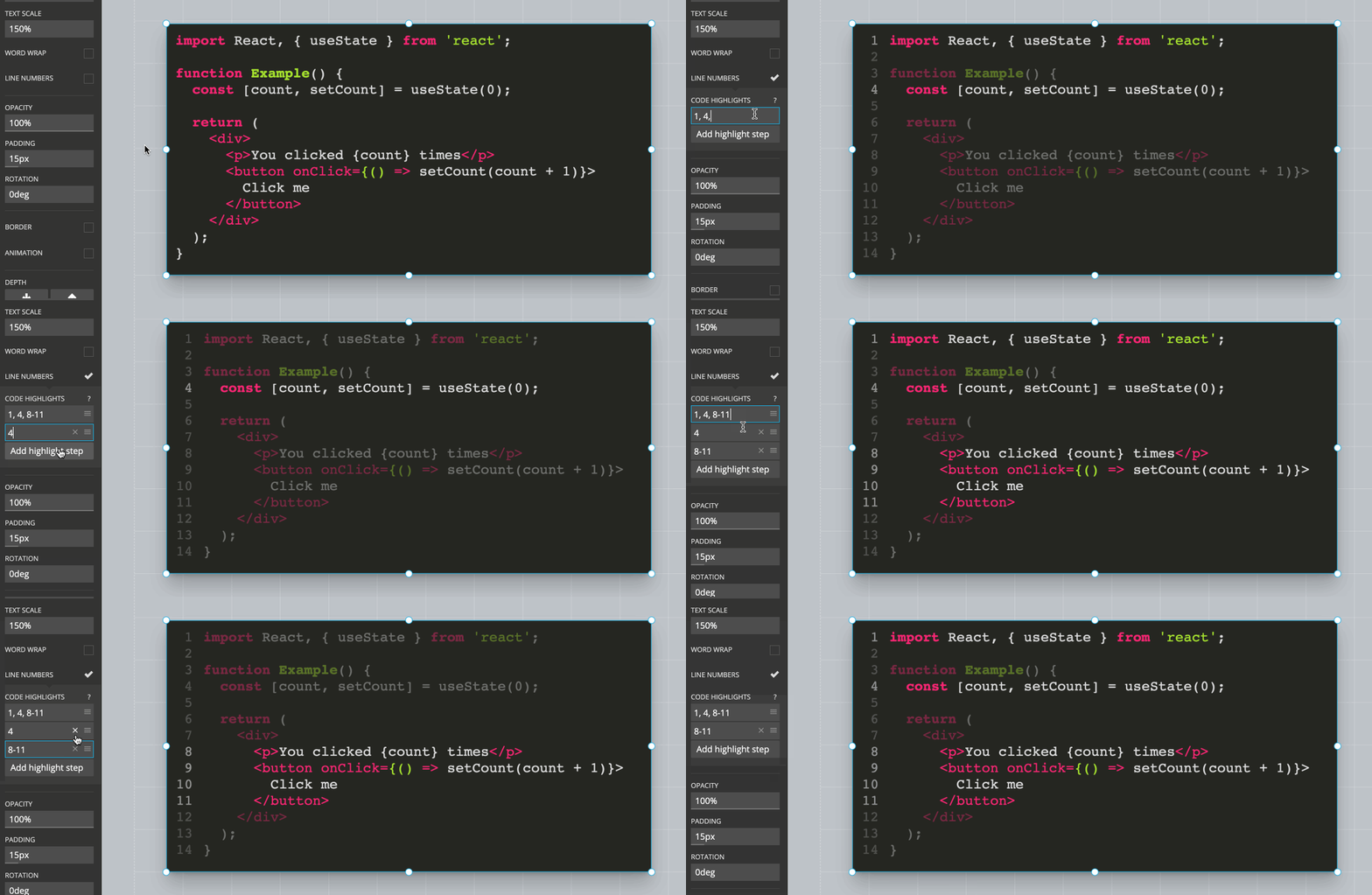
Line highlights
Add multiple highlight steps to direct your audience's attention to different lines. An empty step displays the code without highlighting any lines.
Learn more about syntax-highlighted code.
Developer mode
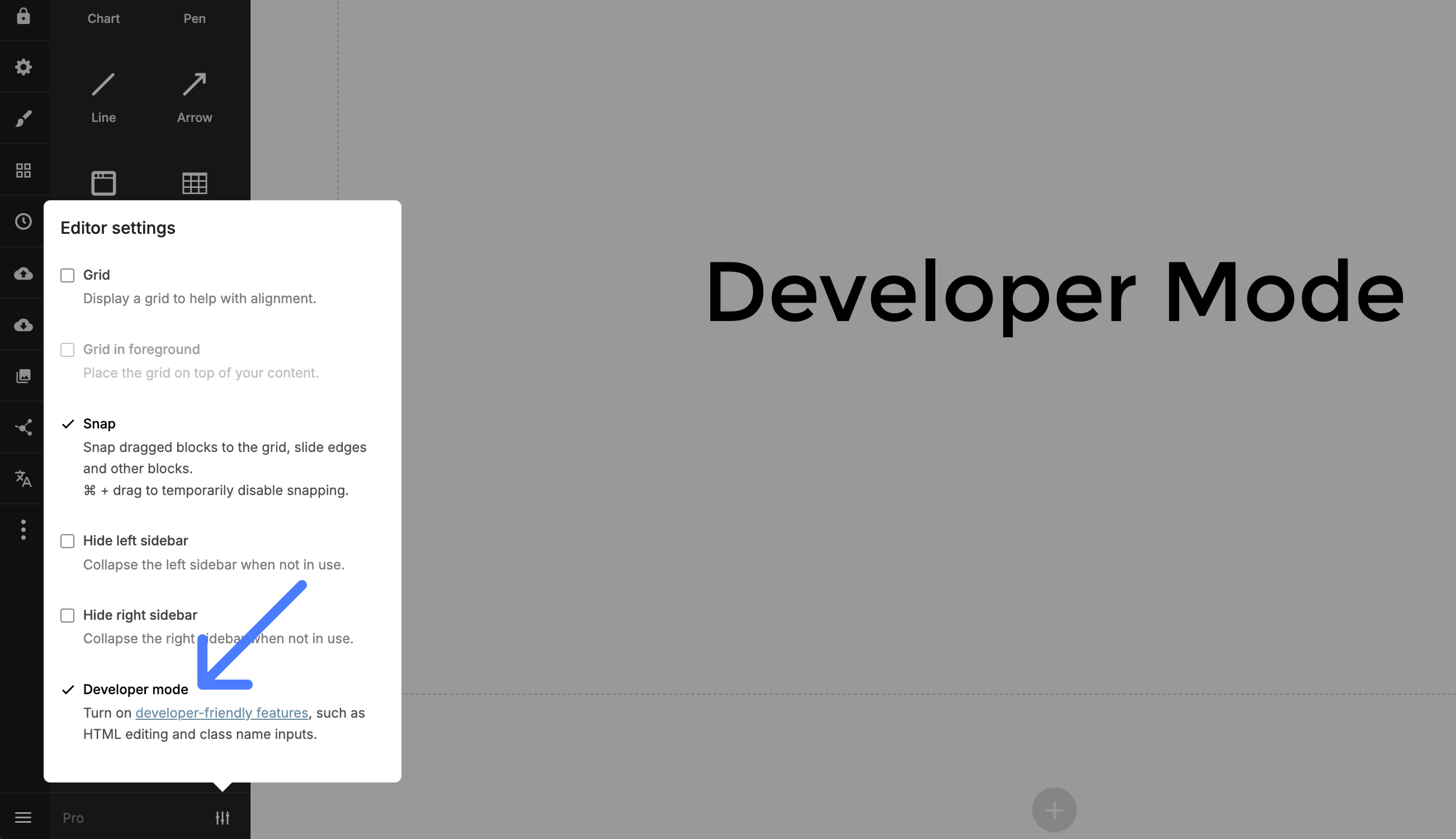
Developer mode adds HTML and CSS controls that are not available in the standard editor interface. Enable it from the editor settings in the lower-left corner.
Editing HTML
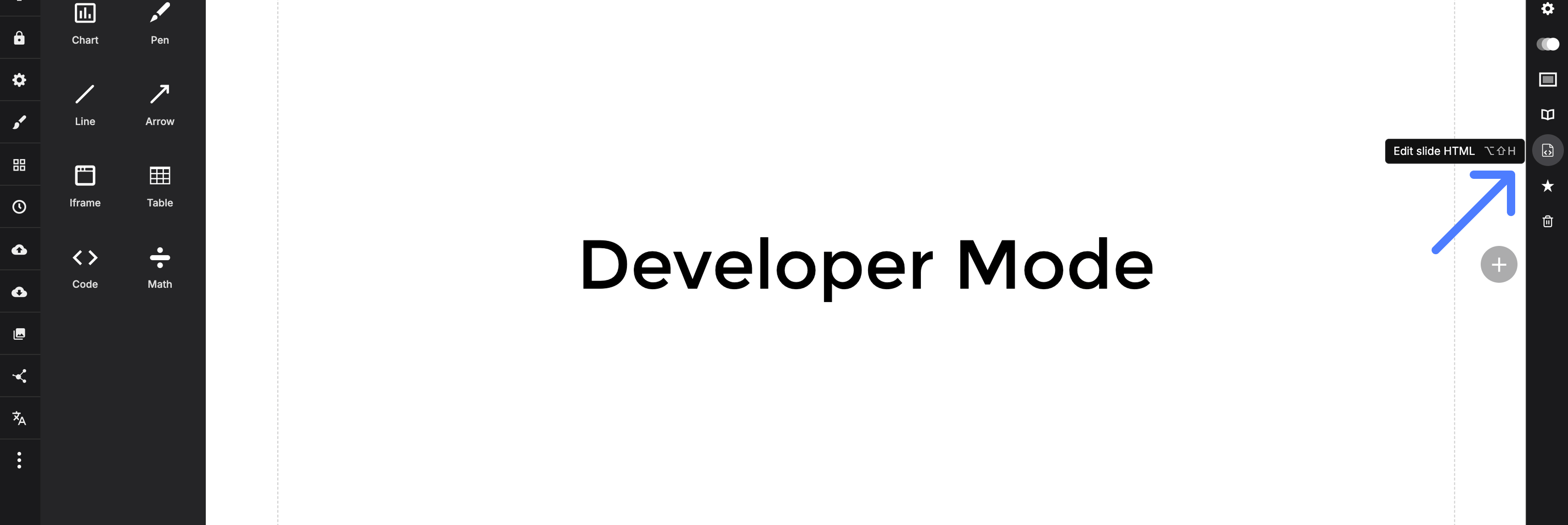
Open the slide options and select Edit HTML to edit the current slide's markup. Some elements, including <script> and <link>, are not allowed for security reasons.
Element classes
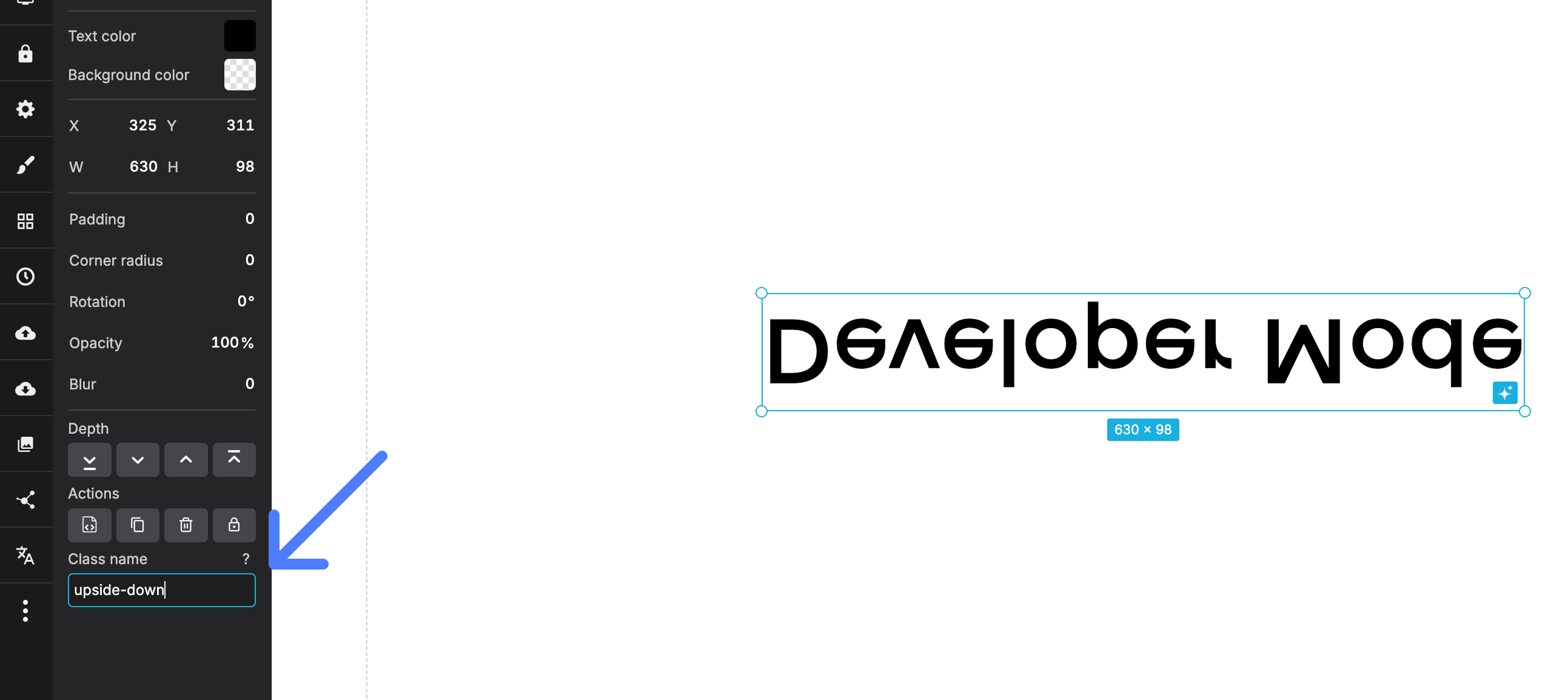
If your plan includes custom CSS, developer mode adds a class name field to focused content blocks. Assign a class when you need to target a specific block from the CSS editor.
This example defines an upside-down class:
.upside-down {
  transform: scale(1, -1);
}
Slide classes
You can also assign a class to a complete slide. Use slide classes for broader changes such as adjusting foreground colors or using a different transition.
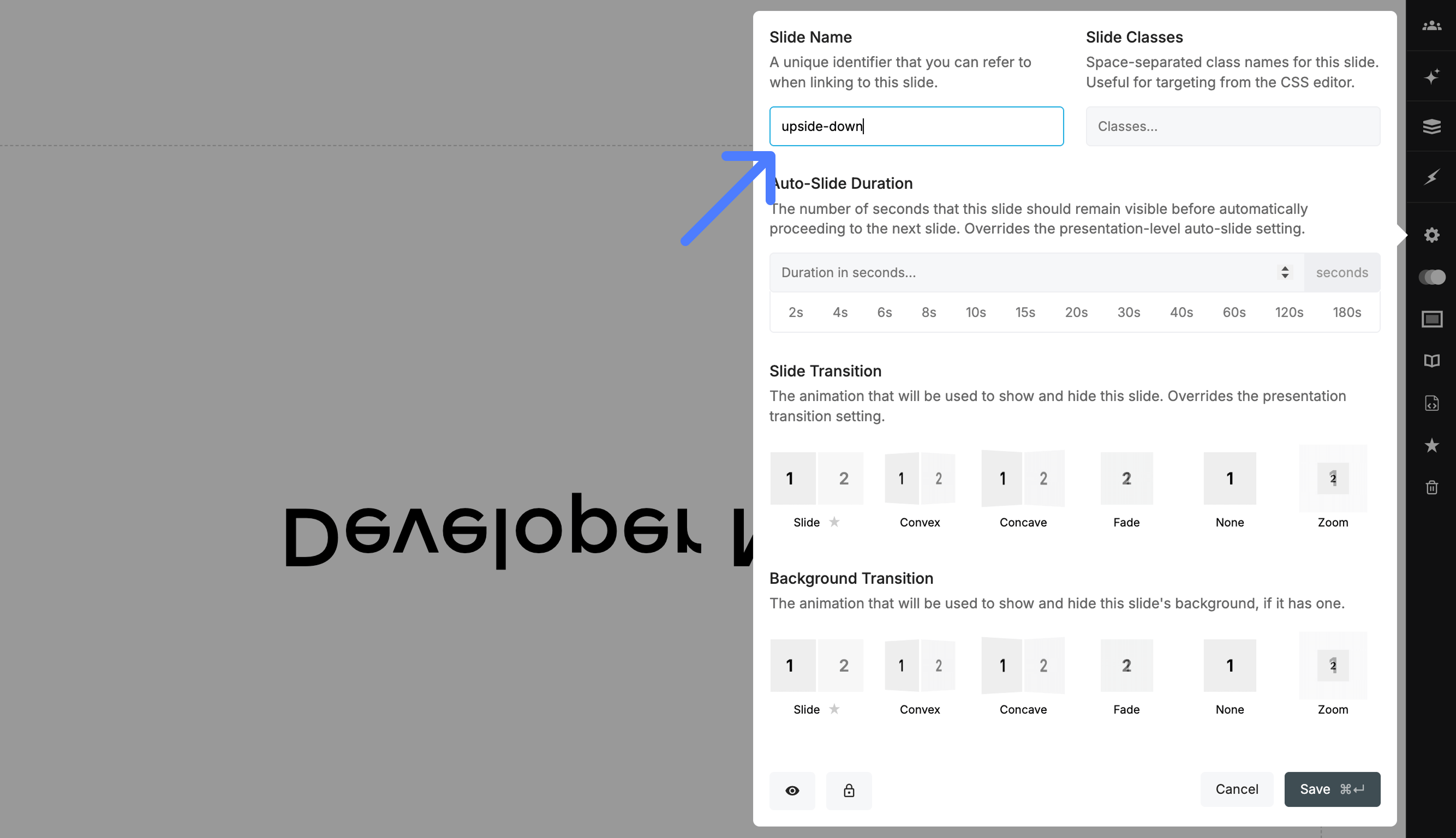
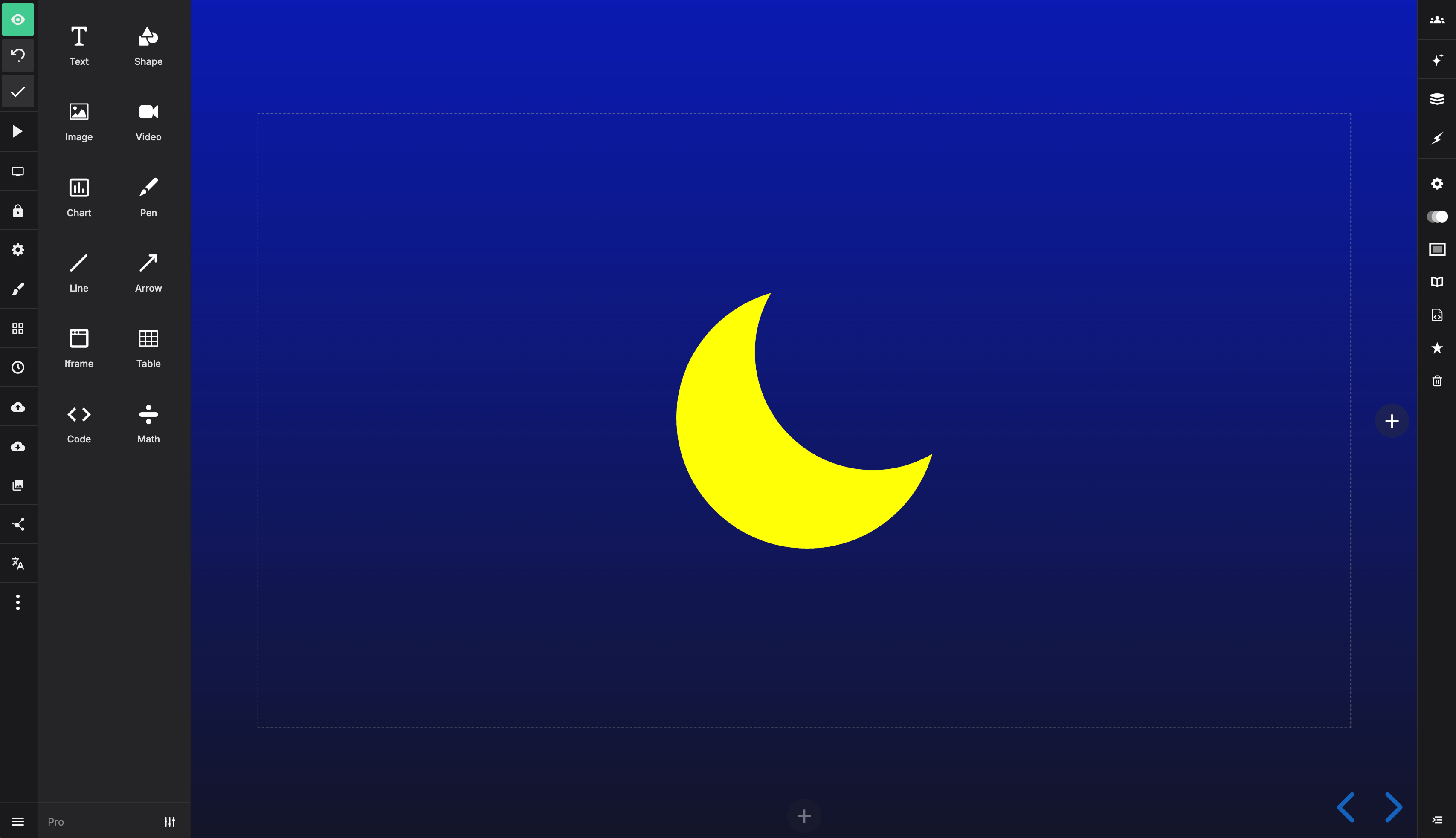
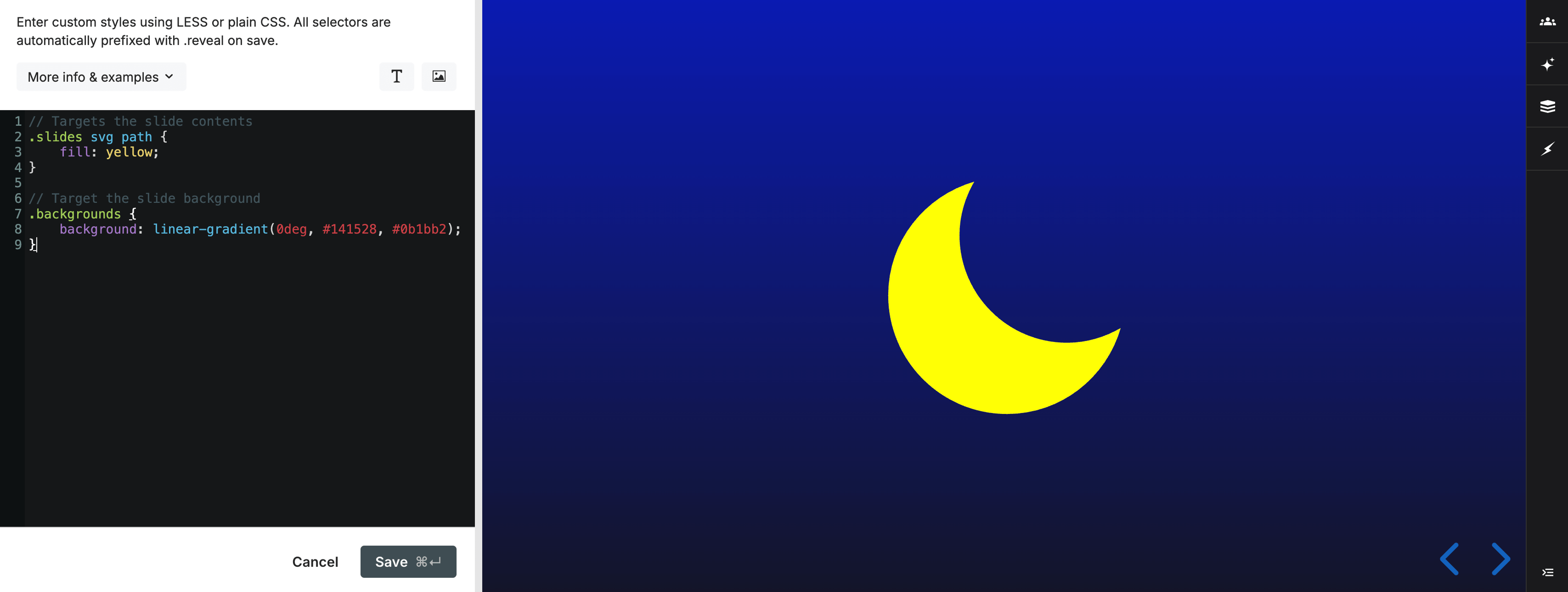
The slide content and slide background are separate elements. This example targets both using a class named night-sky:
/* Target the slide content */
.slides .night-sky svg path {
  fill: yellow;
}

/* Target the slide background */
.backgrounds .night-sky {
  background: linear-gradient(0deg, #141528, #0b1bb2);
}
Export HTML
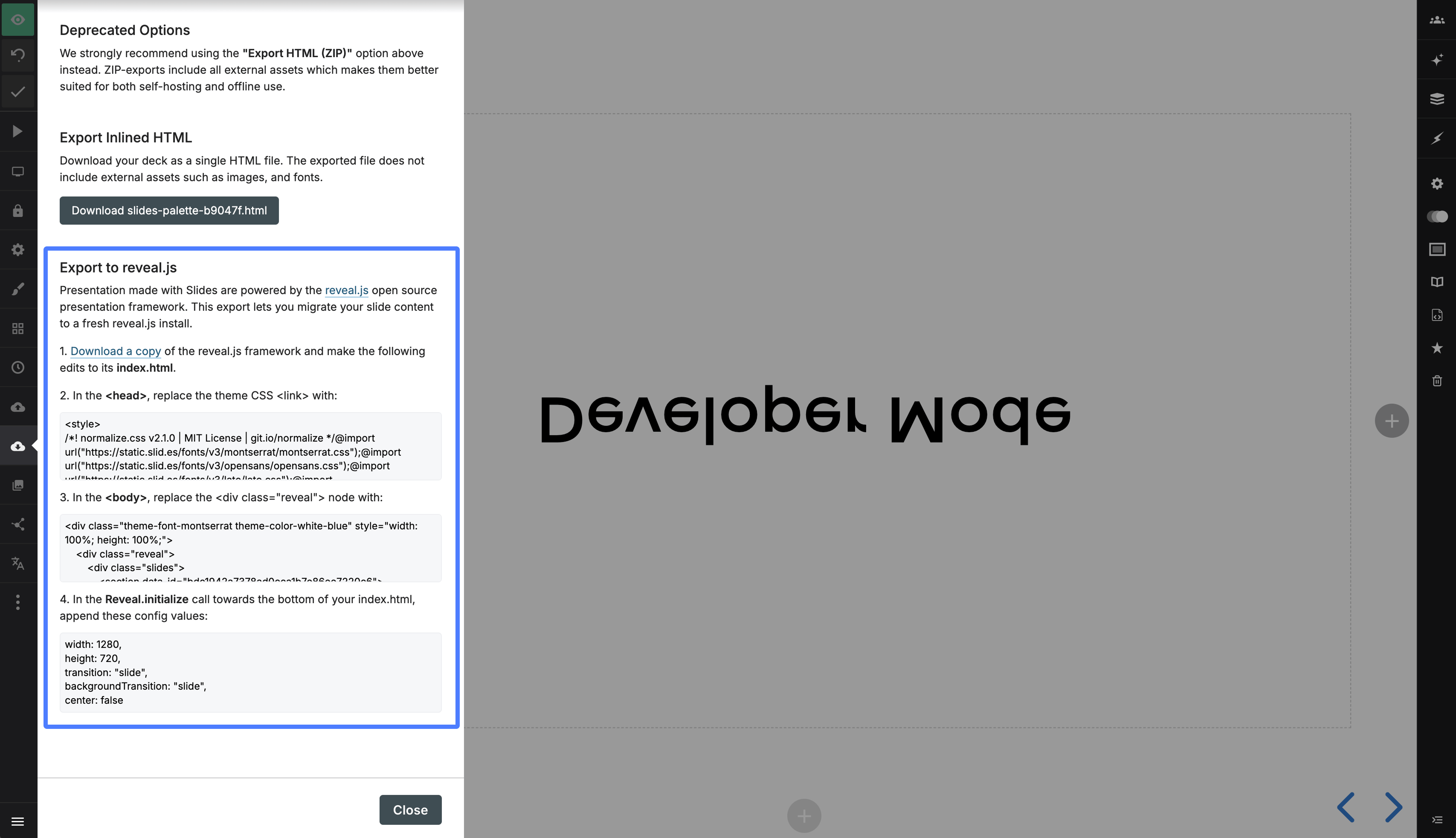
The Export panel includes an option to download your presentation as HTML for use with reveal.js. The export contains your slide markup and the core styles needed to present it outside Slides.
Learn more about exporting to HTML and developer mode.
CSS editor
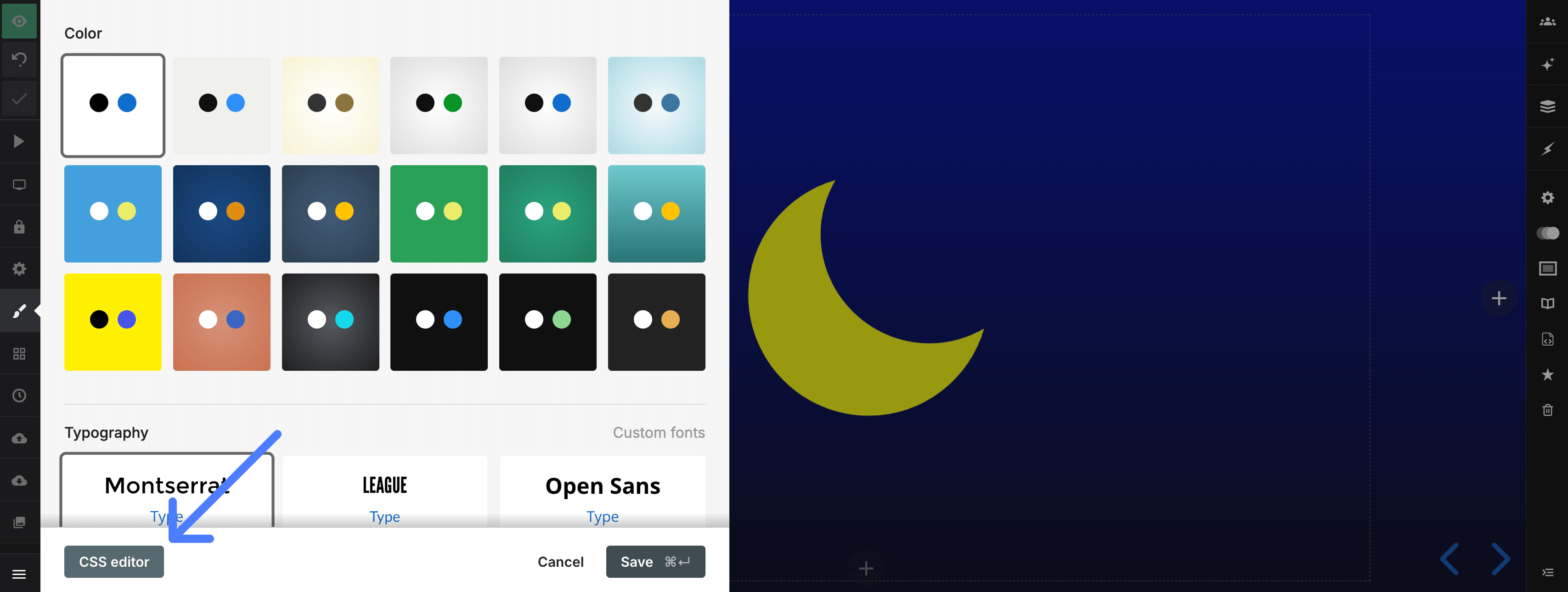
The CSS editor provides a live preview while you customize your presentation. Open the Style panel in the editor and select CSS editor. Custom CSS requires a Pro plan.
The editor supports plain CSS and LESS features such as nesting. Slides scopes saved styles to the presentation so they do not affect the surrounding page.
You can also load custom fonts and use classes assigned through developer mode.
Examples
/* Change the presentation progress bar color */
.progress span {
  background: #ff0000;
}

/* Change the control arrow color */
.controls button {
  color: #ff0000;
}

/* Change the presentation background */
& {
  background: #a83239;
}

/* Change the body text color */
.slides {
  color: #009999;
}

/* Turn text white on slides with a dark background */
.has-dark-background {
  color: #ffffff;
}

/* Increase the size of slide numbers */
.slide-number {
  font-size: 20px;
}

/* Add a blue border to every slide */
.slides section {
  outline: 1px solid blue;
}

/* Add a red border to every vertical stack */
.slides section.stack {
  outline: 1px solid red;
}

/* Load a custom font */
@font-face {
  font-family: "Cabin Sketch";
  src: url("https://static.slid.es/fonts/cabinsketch/cabinsketch-regular.woff") format("woff");
}

.slides h1,
.slides h2,
.slides h3 {
  font-family: "Cabin Sketch";
}
The CSS editor is available from the Style panel:
Changes appear alongside a live preview of the presentation:
Learn more about custom CSS.
