Featured framework
Carbon for modern Rust servers
Fast, self-updating, and built for performance with seamless in-game plugin and server management.
1,800+
servers powered by Carbon
$24.99
Procedural Dungeons for Rust
Give your players somewhere new to take their best gear.
When a portal opens, players step through into a newly generated dungeon. Inside they fight NPCs, bosses, animals and auto turrets, then collect whatever loot you’ve set up. Dungeon Events adds repeatable PvE to your Rust server. The plugin generates every layout, and a dungeon can start automatically or when a player buys one.
Six difficulty presets come included for building your server’s dungeon progression, and you can customize the encounters and rewards. Players can take a dungeon on alone or bring their allies.
6 difficulty presets · 14 construction options · Classic stone dungeons · Private purchases · Custom loot · Optional economy and XP rewards
Watch Dungeon Events in action
Fresh layouts. Familiar controls.
Every newly spawned dungeon gets a procedurally generated layout. Rooms and corridors are built by the plugin, giving players new spaces to explore while you control the difficulty, size and rewards.
You do not need to build dungeon layouts or supply CopyPaste files. Choose your settings and let Dungeon Events generate the environment.
Choose from 14 construction options: Wood, Legacy, Gingerbread, Stone, Adobe, Brick, Brutalist, Metal, Container, Armored, Jungle, Crypt, Space and Classic. Customize supported container colors, garage door skins, lighting and dungeon time of day to give different tiers their own identity.
Classic dungeons included
Turn a run into a torchlit expedition through stone chambers and branching corridors. Classic mode uses a separate layout generator, with stone floors, walls and roofs, and open passages without garage doors.
Let players choose their next challenge
Players can open /buydungeon, choose an available tier and pay with your configured currency. Enable ownership locking to reserve the dungeon for its owner and permitted allies.
Play solo or bring a team. Allow Rust teammates and, with the optional Friends plugin, friends to join.
Give currency a purpose. Charge Scrap, another item, an item with a specific skin, Economics balance or ServerRewards points.
Set the pace. Configure prices, purchase cooldowns and active dungeon limits for each tier.
Control access. Use tier permissions and delays after a wipe to decide when harder content becomes available.
Prices and availability are configurable. The screenshot shows an example setup.
From Easy to Impossible, you set the difficulty
Start with Easy, Normal, Medium, Hard, Nightmare and Impossible, then adjust each tier for your community.
Encounter
What you control
NPCs
Count, names, health, damage, clothing, weapons and weapon attachments
Boss NPCs
Separate combat settings, equipment and loot tables
Animals
Species, spawn weights, health, damage, movement and sensing settings
Auto turrets
Count, health and weapon
Dungeon layout
Construction style, room settings and lighting
Mix armed defenders with threats such as wolves, bears, tigers, panthers and crocodiles. Enable the species you want and build an encounter that fits each tier.
An in-game event HUD shows the timer and remaining enemies, containers and turrets. Defeat the enemies and destroy the remaining loot containers and turrets to complete the dungeon.
Make the rewards fit your server
Give each difficulty its own reason to be played. Configure separate loot tables for regular NPCs, bosses and loot containers, with item chances, amount ranges, skins, custom names and item text.
Use the included default loot table to get started, then tune the rewards around your server's economy.
Optional integrations add more ways to reward a successful run:
Economics and ServerRewards: configurable currency or point rewards for defeating enemies, destroying turrets and loot boxes, and completing the dungeon.
SkillTree: dungeon completion XP, with options to split the reward between eligible players or give each eligible player the full amount.
Keep events running on your terms
Enable automatic spawning for recurring content, let players purchase their own runs, or create events through admin commands.
Choose portal placement: automatic location searches or separate custom portal locations for automatic events and purchases.
Manage the map: configurable marker names, colors, visibility and spawn announcements.
Protect access: optional first-player ownership, ally access and portal protection rules for combat, building, deployables and vehicles.
Control the event lifecycle: unentered and active lifetimes, cleanup conditions and removal delays.
Shape the experience: dungeon height settings for terrain, elevated or underground placement; command restrictions; and an option to reset NPCs and animals when the last player leaves or dies.
Tune server workload: adjustable batches for building, entity spawning, cleanup and location searches, plus global and per-tier event limits.
Before you buy
Does the basic dungeon system require other plugins?
No. Dungeon generation, NPCs, the purchase menu and item-based payments are built in. CopyPaste and NpcSpawn are not required. Install optional integrations only for the features you want to use.
Can I use it for solo players and groups?
Yes. Configure encounter difficulty for your players and enable the teammate or friend access options you want. Friend access requires Friends; Rust team access is built in.
Can I offer automatic events and private purchases together?
Yes. They have separate enable settings and limits. Keep ownership locking enabled when you want access reserved to owners and permitted allies.
Does returning through a portal generate another layout?
No. Layouts are generated when a new dungeon spawns. Returning to an existing active dungeon takes players back to that dungeon.
Are translations included?
Default messages are included in English, Brazilian Portuguese, German, Spanish and Russian.
Setup and reference
Getting started on Oxide
Player commands and permissions
Admin commands
Loot files and optional integrations
Developer hooks
Add a dungeon adventure to your server's routine. Let players choose their challenge, put their gear to work and earn rewards worth preparing for.
🗃️Configuration
🗃️Lang
✨XP Keys
⚡Permanent Buffs
🎓Skills
🍀Ability
🌐XPPro Editor
- Edit the levels, rewards, skills abilities using the website (https://xppro-editor.vercel.app/)
⚙️Languages
- Right now I have already translated files you can download and use: German, Spanish, French, Brazilian Portuguese, Russian, Simplified Chinese
Translation.zip
📡Live Server for Test before buy (CREATIVE SERVER)
client.connect 91.229.114.90:28132
15+ settings
Oxide & Carbon
English · Russian
Community servers
toggled one by one
same single file
per-player language
works without UI
Note
Depending on the hardware, client FPS either goes up or becomes noticeably more stable. Every choice is saved per player and restored on the next connect.
Goals
Before developing any plugin, we define the goals it should achieve when running on your game server.
☑ Improve players FPS
☑ Make your project stand out
☑ Improve the overall quality
What you get
Feature
Details
Polished interface
One menu with every option, a draw distance slider and a live FPS counter.
Extensive customization
You decide which options players may enable, which are on for new players, and the cooldown of each one.
Low FPS notification
Shown once, exactly when it matters: the player is offered the menu right after a drop is detected.
15+ settings
Each toggled on its own, saved automatically and restored after relog.
Optimization settings
Players enable exactly what they need — every option is toggled individually.
World around you
Setting
What it does
Draw distance
The server stops sending buildings, boxes and other objects that are far away.
Distant trees
Trees load only around you instead of the whole map — as you move, they stream in on their own. Saves memory and speeds up joining the server.
Images and drawings
Drawings on signs, photos, paintings and spray art stop loading. Saves memory and bandwidth.
Unapproved skins
Disables skins that have not been accepted into the game but may still be used by other players.
Fire, light and animations
Setting
What it does
Flames
Furnaces, campfires and torches no longer display flames. The difference is especially noticeable in large, heavily built-up bases.
Lights
Lamps and searchlights no longer emit light. The difference is especially noticeable in large, heavily built-up bases.
Destruction debris
No debris flies around when walls and structures collapse. The difference is most noticeable during raids.
Falling trees
A chopped tree simply disappears — no falling animation, no cracking sounds.
Construction smoke
Smoke and effects from placing, upgrading and repairing structures are no longer shown.
Wind turbine rotation
Wind turbines stop spinning. They generate power just like before.
Turret lasers
Laser sights on turrets and SAM sites are turned off.
Electricity and industrial
Setting
What it does
Items in industrial pipes
Item animation inside industrial conveyors and pipes is turned off. The conveyors themselves keep working as usual.
Recyclers and quarries
Recyclers, quarries and pumpjacks stop shaking and animating. They keep on working.
Water flow
Water inside hoses and pipes is no longer rendered. Sprinklers and water supply work as usual.
Effects and sounds
Setting
What it does
Distant effects
Explosions, muzzle flashes and smoke from other players' distant fights are hidden. Everything happening near you stays visible as usual.
Voice chat
You won't hear other players' voice chat, or will hear it only at a reduced range.
Community servers
Tip
Some community servers are not allowed to use custom interfaces. Switch the plugin to chat only mode and players get the same optimizations through commands, with no UI at all.
Command
What it does
/fps
Opens the menu, or prints the current status in chat only mode
/fps list
Lists every option with its state
/fps <option>
Turns one option on or off
/fps radius 1-4
Sets the draw distance preset
Permissions and commands
Type
Name
Description
Permission
optimize.use
Grants players access to the plugin
Chat command
/fps
Opens the plugin menu
Console command
optimize.wipe
Clears the player settings database[2]
Frequently Asked Questions
We have anticipated your questions and answered the most common ones below.
You can ask any additional questions in the plugin's discussion section.
Does the plugin require a powerful game server?
No. The plugin is well optimized and will not place a significant load on your server, even on low-end hardware or with a high player count.
Does hiding an effect change how the game works?
No. Hiding is purely visual and per player. A furnace a player hid the flames of still smelts, a wind turbine that stopped spinning still generates power, and a conveyor without item animation still moves items.
Can I keep some options disabled for everyone?
Yes. Every option has its own switch in the config, so you choose which ones appear in the menu. You can also set which options are enabled for new players by default.
Do you accept suggestions for improving the plugin?
Sure! To submit an idea, join our Discord server, obtain the required role, and post your suggestion in the #suggestions channel.
What should I do if the plugin is not working?
Create a support ticket on our Discord server and we will help you resolve the issue.
Tip
Join our Discord server for support, updates and announcements.
Developed in Hustle Industries · Code by @DezLife · Design by @Illumination
Everything a player hides keeps working on the server — only the picture is hidden for that player. Other players see the world as usual. ↩︎
Available from the server console, RCON or as an admin in game. The first call opens a 30 second confirmation window. ↩︎
This is a custom package created by us, featuring 110 unique bases and a specialized loot setup tailored for five difficulty levels, ranging from Easy to Nightmare.
Note: The building skins in the package showcase images may differ from the spawned bases or use the default building skin.
Warning: The Raidable Bases plugin requires the Copy Paste plugin to function. You must install both for this bases pack to work.
🔗 Raidable Bases (Paid): https://codefling.com/plugins/raidable-bases
🔗 Copy Paste (Free): https://umod.org/plugins/copy-paste
This Raidable Bases Pack & Loot Tables package includes:
🏡30 Easy Bases +🗡️Base_Loot Tables (Easy "Vanilla" and "Enhanced" tables included)
🏡30 Medium Bases +🗡️Base_Loot Tables (Medium "Vanilla" and "Enhanced" tables included)
🏡30 Hard Bases +🗡️Base_Loot Tables (Hard "Vanilla" and "Enhanced" tables included)
🏡10 Expert Bases +🗡️Base_Loot Tables (Expert "Vanilla" and "Enhanced" tables included)
🏡10 Nightmare Bases +🗡️Base_Loot Tables (Nightmare "Vanilla" and "Enhanced" tables included)
Beware: Our loot table package includes only the 5-tier loot tables within the Base_loot folder, ranging from easy to nightmare.
It does not include the loot tables from the Difficulty_Loot or Weekday_Loot folders.
With a total of 110 bases, this package focuses on simplicity and optimization.
Most bases are protected by turrets and traps, and each base is designed with player PC performance and server stability in mind.
VANILLA AND ENHANCED LOOT TABLES FOR RAIDABLE BASES
This package includes 10 different base loot table files, ensuring a well-structured and advanced configuration for every difficulty level, from Easy to Nightmare.
5 loot files for the Vanilla setup (Easy, Medium, Hard, Expert, Nightmare), offering a balanced loot experience with some junk items, staying close to a 1x rate.
5 loot files for the Enhanced setup (Easy, Medium, Hard, Expert, Nightmare), designed for modded servers with 2x, 3x, or higher gather rates, featuring cleaner loot tables with minimal junk and more valuable rewards.
📁 Installation Path:
All loot table files are intended for the /oxide/data/RaidableBases/Base_Loot directory.
⚠️ Setup Requirement: You must choose and install only one loot table setup at a time—either Vanilla or Enhanced. If you want to switch, you can replace the current files with the other set, but both cannot be active simultaneously.
For those exclusively seeking the loot table, we offer it as a standalone product: https://codefling.com/customizations/raidable-bases-loot-tables-pack
(Note: If you've purchased our Raidable Bases Pack & Loot Tables (110 Bases) package, there is no need to buy this separately.)
WARNING: TWO DIFFERENT INSTALLATION METHODS
(PLEASE READ BOTH AND APPLY ONLY THE ONE THAT FITS YOUR NEEDS)
INSTALLATION GUIDE 1:
(If you do not have a custom configuration and are not a professional in server configurations, choose this option. However, if you already have your own configuration and profile settings and do not wish to use the optional configs we provide—in other words, if you only need the bases and loot tables—use the second installation guide instead.)
Step 1: Place the Config File
From the extracted ZIP files, locate the config folder and find the RaidableBases.json file. Move it to the following directory:
📁 /serverfiles/oxide/config
Step 2: Place the Bases
From the extracted ZIP files, locate the copypaste folder and move it to the following directory:
📁 /serverfiles/oxide/data
Step 3: Place the Base_Loot Tables
From the extracted ZIP files, locate the Base_Loot folder and move it to the following directory:
📁 /serverfiles/oxide/data/RaidableBases
Important: If there are any existing JSON files inside this folder that are not part of our loot tables, delete them to ensure proper functionality.
Choose between Vanilla or Enhanced loot tables based on your preference.
If the folder is named "Base_Loot (Enhanced loot)", remove the text in parentheses so that the correct folder name is simply: "Base_Loot" (Otherwise, the loot tables will not work properly.)
Step 4: Place the Profiles Folder
From the extracted ZIP files, locate the profiles folder and move it to the following directory:
📁 /serverfiles/oxide/data/RaidableBases
Why Are Profiles Important?
The profiles folder contains crucial settings that allow you to:
✔️ Enable/disable the dome
✔️ Enable/disable NPCs
✔️ Adjust the number of lootable items
These are just a few examples—there are dozens of important settings that directly affect how raid bases function. The config file alone is not enough—these files play a major role in customizing your raid bases.
⚠️ I strongly recommend reviewing each difficulty setting (Easy to Nightmare) inside the profiles folder and adjusting them based on your needs.
Step 5: Restart the plugin via RCON:
o.reload RaidableBases
INSTALLATION GUIDE 2:
(Use this installation method if you do not want to use our configurations and instead prefer to use your own config files and your own /oxide/data/RaidableBases/Profiles configurations.)
In this case, you only need to add the bases. To do this, use the following commands in RCON:
Step 1:
You can add bases one by one or in bulk.
After executing the commands in RCON, the bases will be registered inside the Profiles configuration.
If you do not want to deal with these adjustments, it is recommended to use Installation Guide 1 instead.
A- Example RCON commands:
rb.config add "Easy Bases" fullwipedeasy1
rb.config add "Hard Bases" fullwipedhard1
B- Commands to Integrate Raid Bases in Bulk via RCON:
rb.config add "Easy Bases" fullwipedeasy1 fullwipedeasy2 fullwipedeasy3 fullwipedeasy4 fullwipedeasy5 fullwipedeasy6 fullwipedeasy7 fullwipedeasy8 fullwipedeasy9 fullwipedeasy10 fullwipedeasy11 fullwipedeasy12 fullwipedeasy13 fullwipedeasy14 fullwipedeasy15 fullwipedeasy16 fullwipedeasy17 fullwipedeasy18 fullwipedeasy19 fullwipedeasy20 fullwipedeasy21 fullwipedeasy22 fullwipedeasy23 fullwipedeasy24 fullwipedeasy25 fullwipedeasy26 fullwipedeasy27 fullwipedeasy28 fullwipedeasy29 fullwipedeasy30
rb.config add "Medium Bases" fullwipedmed1 fullwipedmed2 fullwipedmed3 fullwipedmed4 fullwipedmed5 fullwipedmed6 fullwipedmed7 fullwipedmed8 fullwipedmed9 fullwipedmed10 fullwipedmed11 fullwipedmed12 fullwipedmed13 fullwipedmed14 fullwipedmed15 fullwipedmed16 fullwipedmed17 fullwipedmed18 fullwipedmed19 fullwipedmed20 fullwipedmed21 fullwipedmed22 fullwipedmed23 fullwipedmed24 fullwipedmed25 fullwipedmed26 fullwipedmed27 fullwipedmed28 fullwipedmed29 fullwipedmed30
rb.config add "Hard Bases" fullwipedhard1 fullwipedhard2 fullwipedhard3 fullwipedhard4 fullwipedhard5 fullwipedhard6 fullwipedhard7 fullwipedhard8 fullwipedhard9 fullwipedhard10 fullwipedhard11 fullwipedhard12 fullwipedhard13 fullwipedhard14 fullwipedhard15 fullwipedhard16 fullwipedhard17 fullwipedhard18 fullwipedhard19 fullwipedhard20 fullwipedhard21 fullwipedhard22 fullwipedhard23 fullwipedhard24 fullwipedhard25 fullwipedhard26 fullwipedhard27 fullwipedhard28 fullwipedhard29 fullwipedhard30
rb.config add "Expert Bases" fullwipedexp1 fullwipedexp2 fullwipedexp3 fullwipedexp4 fullwipedexp5 fullwipedexp6 fullwipedexp7 fullwipedexp8 fullwipedexp9 fullwipedexp10
rb.config add "Nightmare Bases" fullwipednight1 fullwipednight2 fullwipednight3 fullwipednight4 fullwipednight5 fullwipednight6 fullwipednight7 fullwipednight8 fullwipednight9 fullwipednight10
Step 2: Place the Base_Loot Tables
From the extracted ZIP files, locate the Base_Loot folder and move it to the following directory:
📁 /serverfiles/oxide/data/RaidableBases
Important: If there are any existing JSON files inside this folder that are not part of our loot tables, delete them to ensure proper functionality.
Choose between Vanilla or Enhanced loot tables based on your preference.
If the folder is named "Base_Loot (Enhanced loot)", remove the text in parentheses so that the correct folder name is simply: "Base_Loot" (Otherwise, the loot tables will not work properly.)
Step 3: Restart the plugin via RCON:
o.reload RaidableBases
EXTRA IMPORTANT INFORMATIONS:
We do not use a dome, NPCs, or arena walls around raid bases on our servers, and in the ZIP file we provided, these features are also disabled by default. If you want to enable them, you will need to adjust the settings accordingly.
For example, to enable the dome, follow the steps below:
Navigate to:
/oxide/data/RaidableBases/Profiles
Open the files inside the Profiles folder with a text editor.
Locate the following settings:
(This is already set to false because it is required for markers to appear on the map.)
"Spawn Silently (No Notification, No Dome, No Map Marker)": false,
"Create Dome Around Event Using Spheres (0 = disabled, recommended = 5)": 0,
Change the value from 0 to 5 as shown below:
"Create Dome Around Event Using Spheres (0 = disabled, recommended = 5)": 5,
Additionally, the loot amount for bases varies depending on the difficulty level (easy, medium, hard, expert, and nightmare). You can adjust this setting in the same Profiles location according to your needs:
"Amount Of Items To Spawn": 210,
For example, in medium bases, this value is set to 210, which determines the total number of items that will appear in crates, furnaces, and the cupboard.
Our current configuration is specifically adjusted to prevent players from feeling overwhelmed by massive buildings right after a wipe. We have configured Maintained Events accordingly to ensure a balanced experience.
In our setup:
- Timed events and purchasable events are disabled.
- After a wipe, easy bases will start spawning 30 minutes later.
- Nightmare bases will begin spawning 48 hours (2 days) later.
Imagine starting the game with just a torch in hand and immediately encountering a nightmare base on the shore.
You’d likely quit the game right away—this setting is crucial for us to avoid such scenarios.
Configuration Example: serverfiles/oxide/config
"Maintained Events": {
"Always Maintain Max Events": true,
"Max Maintained Events": 30,
"Enable X Hours After Wipe (0 = immediately)": {
"Easy": 0.5,
"Medium": 1.0,
"Hard": 3.0,
"Expert": 24.0,
"Nightmare": 48.0
All of our bases from Easy to Nightmare are equipped with turret protection.
If you do not want turrets to spawn in your raidable bases on your server, you can use the following method.
Go to the file path /data/RaidableBases/Profiles, open the JSON files inside with a text editor, and apply the following:
"Kill These Prefabs After Paste": [
"assets/prefabs/npc/autoturret/autoturret_deployed.prefab",
"autoturret_deployed"
],
If you are satisfied with this package, you can support us by leaving a 5-star review on the site where you purchased it. Your feedback motivates us to continue improving and providing even better configurations for dedicated server owners like you.
Please leave a review here: https://codefling.com/bases/raidable-bases-pack-loot-tables-110-bases?tab=reviews
Thank you! ❤️
Support: FULLWIPED DISCORD
$15.00
Rust / Server Plugins
BoatControl
Modular Boat ManagementRust Plugin
Take the helm. Control the ship. Command the cannons.
Bring navigation, cannons, lighting and boat management together in a clear interface at the helm. Manage sails and engines, upgrade performance, repair the boat and customize its setup with permission-controlled features.
Helm controls
Navigation, anchors and lighting
Cannon crew
Aim, reload and fire from the helm
Boat progression
Upgrades, repairs and customization
01 / Video demos
See BoatControl in action
Video demo
Watch on YouTube
Video Update 1.0.0
Watch on YouTube
02 / Helm & navigation
One interface for the whole boat
The control interface appears when a player with boatcontrol.use mounts a modular boat’s steering wheel.
BoatControl helm control bar
Raise or lower the sails and anchors.
Start or stop the engines.
Switch between forward and reverse navigation; engines and sails adjust accordingly.
Use W and S to change direction when keyboard direction control is enabled.
Hold R to open the boat’s radial menu when enabled, and release it to close the menu.
Live boat information
Display boat health, mass, power, power-to-mass ratio and speed in knots. Players can unlock and move the information window; its saved position is retained. Administrators can configure window colors, dimensions and placement, or disable the information window.
Boat information and controls while steering
03 / Cannons & crew
Coordinate your fire from the helm
Reload cannons using cannon ammunition from the player’s inventory. A separate permission bypasses ammunition costs.
Fire through the interface or left mouse click when enabled. Configure the firing cooldown, or bypass it through a permission.
Aim cannons in configurable angle steps and select numbered crew groups to control which crew-operated cannons are targeted.
Assign or remove NPC cannon crew through the interface. Configure crew names, health, outfits and skins, maximum crewed cannons, toggle cooldown and whether corpses are created.
Configure whether cannons need a mounted operator before remote aiming and firing.
Cannon control and crew interface
boatcontrol.cannonuse controls access to BoatControl’s cannon interface. It does not disable manual, vanilla cannon use. Assign ammunition and cooldown bypasses carefully.
04 / Lighting
Switch the boat’s lights together
Toggle configured torches, lanterns, candle sets, jack-o’-lanterns and Chinese lanterns together from the boat controls. Configure supported item shortnames, the toggle cooldown and whether lights require fuel.
Boat lighting controlled from the helm
Optional fuel-free lighting applies to supported lights. It does not make boat engines operate without fuel.
05 / Boat editing
Edit away from a fixed boat-building area
Grant boatcontrol.edit to access boat editing from the controls. Configure a damage cooldown before editing and block editing inside safe zones when desired. Editing also requires a Boat Building Station item in the player inventory, a boat moving at no more than 2 m/s, and no other active station owned by that player.
Boat editing through BoatControl
Safe-zone restriction for boat editing
Larger building stations
Major update — new features in 1.2.0, with station resizing available from 1.2.3.
Scale the boat-building station created by the edit option with Building Station Scale. This supports a larger construction area for custom boat builds.
Expanded boat-building station
For larger ships, adjust the game block-count limit separately if needed. Set a limit of 500 blocks with the following server variable:
playerboat.maxblockcount 500
Safe-zone anchor protection
Optionally prevent anchor activation inside safe zones.
Anchor restriction inside safe zones
Safe-zone anchor protection example
06 / Authorization
See who can access the boat
Open the list of authorized players from the helm. Grant the separate deleteauth permission to allow authorized users to revoke individual authorizations.
Boat authorized-player list
07 / Sail configuration
Upgrade thrust and customize sail size
View all sails installed on the boat, including their health. Use configurable upgrade levels to change thrust. Starting with version 1.2.3, sail upgrades can also increase or decrease sail size according to your configured scale multiplier.
Sail configuration and health
Sail upgrade levels and costs
Additional sail upgrade interface example
Sails with different configured size multipliers
Define the number of upgrade levels, display names and costs. Select resources, ServerRewards points or Economics money as the upgrade currency.
08 / Engine configuration
Manage fuel, health and engine upgrades
View installed engines with their health and current fuel. Refuel them from the player’s inventory through the refueling menu. Configure upgrade levels that improve engine power and reduce fuel consumption through an efficiency multiplier.
Engine configuration and refueling
Engine upgrade levels and costs
Choose resources, ServerRewards points or Economics money for upgrade costs. Engine and sail upgrade levels are saved in the plugin’s data, and boatcontrol.upgrade.nocost can waive upgrade charges.
Upgrades modify power and thrust, and the plugin adjusts boat drag for upgraded propulsion. Final speed still depends on the game’s boat physics; power multipliers do not guarantee an equal multiplier to maximum speed.
09 / Automatic repairs
Repair using materials from the player’s inventory
Configure repair costs per block/component and a cooldown after recent damage.
Set repair frequency through permission profiles; a larger interval repairs more slowly.
Repairs stop if new damage is received, the player runs out of materials or the player disconnects.
Grant boatcontrol.repair.nocost to waive repair materials.
Automatic boat repair system
Boat health differs from ordinary building health. The repair system simulates repair points according to lost health, so the repair sound may come from a different point than the damaged component.
10 / Wallpaper & impact physics
Customize the interior and naval combat
BetterTC wallpapers
With BetterTC 1.6.2 or later installed, BoatControl provides access to its automatic boat wallpaper placement interface. Grant boatcontrol.wallpaper to make this feature available.
Automatic boat wallpaper placement through BetterTC
Cannon impact physics
Enable configurable force on boats hit by cannon damage. Adjust the impact force and enable diagnostic logging when needed.
11 / Permissions & access
Choose what each player can control
Permission
Purpose
boatcontrol.use
Enable BoatControl when mounting the helm.
boatcontrol.edit
Access boat editing away from a fixed building area, subject to configured restrictions.
boatcontrol.bypassAmmo
Bypass cannon ammunition consumption.
boatcontrol.bypasscannoncooldown
Fire cannons without the configured cooldown.
boatcontrol.cannonuse
Access the cannon control interface; manual vanilla use remains available.
boatcontrol.authlist
View authorized players.
boatcontrol.deleteauth
Revoke individual boat authorizations.
boatcontrol.sailconfig
Open the sail configuration menu.
boatcontrol.sailupgrade
Upgrade sails using the configured levels.
boatcontrol.engineconfig
Open the engine configuration and refueling menus.
boatcontrol.engineupgrade
Upgrade engines using the configured levels.
boatcontrol.upgrade.nocost
Waive engine and sail upgrade costs.
boatcontrol.wallpaper
Access boat wallpapers through BetterTC 1.6.2 or later.
boatcontrol.repair
Access automatic boat repairs.
boatcontrol.repair.nocost
Repair without consuming materials.
boatcontrol.vip
Example profile in the repair-frequency configuration; configurable, not a boat speed-limit permission.
Additional repair-frequency profile names are registered from the configuration. They adjust repair intervals, not the boat’s maximum speed.
Normal use is through the CUI and keyboard controls; no chat command is required. The plugin also registers console actions used by its interface.
Utility console action
Purpose
boatcontrol.resetuiposition
Player console: reset your saved information-window position.
boatcontrol.clearorphancrew
Console: remove orphaned cannon crew.
12 / Requirements & configuration
Configure the controls for your server
Rust server using Oxide or Carbon. On Oxide, install ImageLibrary; Carbon uses its built-in Image Module.
Install BetterTC 1.6.2 or later for automatic wallpapers.
Install ServerRewards or Economics only when using their upgrade currencies.
Optional Notify or UINotify integration supplies configured notifications; chat alerts are also configurable.
Configure keyboard controls, cannon aiming and cooldowns, crew behavior, supported lights, impact physics, GUI, safe-zone restrictions, repairs, station scale and upgrade levels.
The example below uses the supplied costs and profiles, with current keys and sail-scale options from BoatControl 1.2.5. It is an example, not a replacement for the configuration generated by your installed version.
13 / Configuration example
Controls, costs and upgrade profiles
{
"Enable WASD Direction": true,
"Enable Cannon Fire Key (Left Mouse Button)": true,
"Cannon Aim Step (degrees per click)": 5.0,
"Cannon Fire Cooldown": 5.0,
"Cannon Crew": {
"Enable": true,
"Names": [
"Seaman",
"Deckhand",
"Bosun",
"Gunner",
"Quartermaster",
"Navigator",
"Sailor",
"Crewman",
"Mate",
"Boatswain",
"Cannoneer",
"Buccaneer",
"Mariner",
"Sea Dog",
"Old Salt"
],
"Health": 100.0,
"MaxCannons": 0,
"Wear": {
"burlap.shirt": 1380044819,
"burlap.trousers": 1380047706,
"burlap.shoes": 2215057317,
"hat.boonie": 965553937
},
"RequireOperate": true,
"ToggleCrewCooldown": 30.0,
"NoCorpse": true
},
"Lights": {
"Light Toggle Cooldown": 1.0,
"Require Fuel For Lights": false,
"Light Items (shortnames)": [
"tunalight",
"lantern",
"torchholder",
"largecandles",
"smallcandles",
"jackolantern.angry",
"jackolantern.happy",
"chineselantern",
"chineselanternwhite"
]
},
"Impact Force Physics": {
"Enable Impact Physics": true,
"Impact Force (default: 100, range: 50-500)": 100.0,
"Enable Debug Logging": false
},
"Alert Chat": true,
"Alert Notify Plugin": false,
"Notify: select what notification type to be used": {
"error": 0,
"info": 0
},
"Color Prefix Chat": "#f74d31",
"GUI": {
"GUI Windows Belt": {
"BG Color Primary": "0.10 0.15 0.10 1",
"BG Color Secundary": "0.2 0.30 0.2 0.80",
"Button Active Color": "0.2 0.6 0.2 0.80",
"Button Inactive Color": "0.2 0.30 0.2 0.80",
"OffsetMin": "-200 15",
"OffsetMax": "181 79",
"AnchorMin": "0.5 0",
"AnchorMax": "0.5 0"
},
"GUI Windows Info": {
"BG Color Primary": "0.10 0.10 0.10 0.8",
"BG Color Secundary": "0.2 0.30 0.2 0.80",
"Button Active Color": "0.2 0.6 0.2 0.80",
"Button Inactive Color": "0.2 0.30 0.2 0.80",
"OffsetMin": "-115 -100",
"OffsetMax": "115 100",
"AnchorMin": "0.902 0.8104",
"AnchorMax": "0.902 0.8104"
},
"GUI Windows Cannons Menu": {
"BG Color Primary": "0.10 0.15 0.10 1",
"BG Color Secundary": "0.2 0.30 0.2 0.80",
"Button Active Color": "0.2 0.6 0.2 0.80",
"Button Inactive Color": "0.2 0.30 0.2 0.80",
"OffsetMin": "-140 85",
"OffsetMax": "140 185",
"AnchorMin": "0.5 0",
"AnchorMax": "0.5 0"
}
},
"Show Info Window": true,
"Boat Edit Damage Cooldown (seconds)": 30.0,
"Block Anchor in Safe Zone": true,
"Block Boat Edit in Safe Zone": true,
"Config Version": "1.2.5",
"Repair Cooldown After Recent Damage (seconds)": 30.0,
"Cooldown Frequency Repair (larger number is slower)": {
"boatcontrol.use": 2.0,
"boatcontrol.vip": 1.0
},
"Repair Costs (ItemShortName: Amount per block/component)": {
"lowgradefuel": 4,
"wood": 75
},
"Engine Upgrades": {
"Enable Engine Upgrades": true,
"Upgrade Levels": [
{
"Level": 1,
"Display Name": "Tier 1",
"Fuel Efficiency Multiplier (1.0 = normal, 0.5 = half fuel consumption)": 0.9,
"Power Multiplier (1.0 = normal, 2.0 = double power)": 2.0,
"Upgrade Cost": {
"Resource Costs (ItemShortName: Amount)": {
"scrap": 100,
"lowgradefuel": 50
},
"ServerRewards Points": 0,
"Economics Money": 0.0
}
},
{
"Level": 2,
"Display Name": "Tier 2",
"Fuel Efficiency Multiplier (1.0 = normal, 0.5 = half fuel consumption)": 0.8,
"Power Multiplier (1.0 = normal, 2.0 = double power)": 4.0,
"Upgrade Cost": {
"Resource Costs (ItemShortName: Amount)": {
"scrap": 250,
"lowgradefuel": 100,
"metal.fragments": 300
},
"ServerRewards Points": 0,
"Economics Money": 0.0
}
},
{
"Level": 3,
"Display Name": "Tier 3",
"Fuel Efficiency Multiplier (1.0 = normal, 0.5 = half fuel consumption)": 0.65,
"Power Multiplier (1.0 = normal, 2.0 = double power)": 8.0,
"Upgrade Cost": {
"Resource Costs (ItemShortName: Amount)": {
"scrap": 500,
"lowgradefuel": 200,
"metal.fragments": 500,
"metal.refined": 25
},
"ServerRewards Points": 0,
"Economics Money": 0.0
}
},
{
"Level": 4,
"Display Name": "Tier 4",
"Fuel Efficiency Multiplier (1.0 = normal, 0.5 = half fuel consumption)": 0.65,
"Power Multiplier (1.0 = normal, 2.0 = double power)": 16.0,
"Upgrade Cost": {
"Resource Costs (ItemShortName: Amount)": {
"scrap": 1000,
"lowgradefuel": 300,
"metal.fragments": 1500,
"metal.refined": 100
},
"ServerRewards Points": 0,
"Economics Money": 0.0
}
}
],
"Currency Type (Resources, ServerRewards, Economics)": "Resources"
},
"Sail Upgrades": {
"Enable Sail Upgrades": true,
"Upgrade Levels": [
{
"Level": 1,
"Display Name": "Tier 1",
"Thrust Multiplier (1.0 = normal, 2.0 = double thrust)": 1.5,
"Upgrade Cost": {
"Resource Costs (ItemShortName: Amount)": {
"scrap": 75,
"cloth": 100
},
"ServerRewards Points": 10,
"Economics Money": 0.0
},
"Scale Multiplier (1.0 = normal size, 1.5 = 50% bigger)": 1.2
},
{
"Level": 2,
"Display Name": "Tier 2",
"Thrust Multiplier (1.0 = normal, 2.0 = double thrust)": 2.0,
"Upgrade Cost": {
"Resource Costs (ItemShortName: Amount)": {
"scrap": 150,
"cloth": 200,
"leather": 50
},
"ServerRewards Points": 15,
"Economics Money": 0.0
},
"Scale Multiplier (1.0 = normal size, 1.5 = 50% bigger)": 1.4
},
{
"Level": 3,
"Display Name": "Tier 3",
"Thrust Multiplier (1.0 = normal, 2.0 = double thrust)": 2.5,
"Upgrade Cost": {
"Resource Costs (ItemShortName: Amount)": {
"scrap": 300,
"cloth": 300,
"leather": 100,
"metal.fragments": 200
},
"ServerRewards Points": 20,
"Economics Money": 0.0
},
"Scale Multiplier (1.0 = normal size, 1.5 = 50% bigger)": 1.6
},
{
"Level": 4,
"Display Name": "Tier 4",
"Thrust Multiplier (1.0 = normal, 2.0 = double thrust)": 3.0,
"Upgrade Cost": {
"Resource Costs (ItemShortName: Amount)": {
"scrap": 600,
"cloth": 500,
"leather": 200,
"metal.fragments": 500
},
"ServerRewards Points": 30,
"Economics Money": 0.0
},
"Scale Multiplier (1.0 = normal size, 1.5 = 50% bigger)": 1.8
}
],
"Currency Type (Resources, ServerRewards, Economics)": "ServerRewards"
},
"Enable Boat Pie Menu Key (R)": true,
"Building Station Scale (1.0 = normal, 2.0 = double size)": 1.0
}
14 / Current limitations
Plan your boat setup around the game
Engine efficiency is configurable; engines still require fuel.
The plugin does not provide a supported increase to the maximum number of engines or sails.
Larger construction stations are supported; the game’s separate block-count setting still applies.
Final speed depends on boat physics and the installed game version.
15 / Try it & support
Try the setup and share your ideas
You can try the plugin on the RustSpain Staging test server when it is online. It is a test server, so availability is not guaranteed.
connect staging.rustspain.com
For questions, suggestions or assistance, contact ninco90 on Discord. Feature suggestions are also welcome in the product discussion.

ServerPanel adds a player information menu to your server. Use it to share useful information with your players and to integrate your plugins into it.
🌟 Features
User-Friendly Interface: A GUI that is easy to navigate.
Economy Integration: Works with different economy plugins.
Dynamic Menu Categories: Group features into categories you can customize.
Extensive Configuration Options: Almost every part of the plugin can be customized, including messages, colors, sizes and fonts.
Auto-Open Menu: Opens the menu automatically when a player connects (configurable in the settings).
Block Settings: Block the menu while a player is building, raiding or in combat.
Multiple Economy Head Fields: Show several economy values, such as balance, server rewards and bank information.
Permission Management: Set permissions for different user roles to control who can use which features.
Localization Support: Translate and edit all messages for different languages.
Performance Optimized: Built to keep server lag to a minimum.
Customizable Hooks: Connect existing economy systems through configurable hooks for adding, removing and showing balances.
Editor Position Change: Admins can move the editor to the left, center or right with one click.
Command Enhancements: Commands accept multiple arguments separated by "|", so several commands can run at once.
🎮 Commands
/info: open menu
/sp.install (or) /welcome.install: open installer menu
sp.migrations: console command that updates the plugin data structure when you upgrade to a new version. It creates backups before making any changes.
sp.migrations list: shows available migrations and whether they need to run
sp.migrations run <version>: runs specific migration (e.g., "1.3.0")
sp.migrations run <version> force: forces migration even if not detected as needed
🛡️ Permissions
serverpanel.edit: allows players to edit the plugin settings and open the edit menu
serverpanelinstaller.admin: required to access the plugin installation functions
🎥 Video
🖼️ Showcase
Templates
Template V1
Template V2
Template V3
Template V5
Editor
Installer
🧪 TEST SERVER
Join our test server to try all the features yourself.
Copy the IP address below to start playing.
connect 155.103.86.38:28015
📊 Update Fields
ServerPanel supports update fields: placeholders for your templates that show live information. They update automatically and work in text components, headers and other interface elements.
Player Information
{online_players}: Number of currently online players
{sleeping_players}: Number of sleeping players
{all_players}: Total number of players (online + sleeping)
{max_players}: Maximum server capacity
{player_kills}: Player's kill count (requires KillRecords, Statistics, or UltimateLeaderboard)
{player_deaths}: Player's death count (requires KillRecords, Statistics, or UltimateLeaderboard)
{player_username}: Player's display name
{player_avatar}: Player's Steam ID for avatar display
Economy
{economy_economics}: Economics plugin balance
{economy_server_rewards}: ServerRewards points
{economy_bank_system}: BankSystem balance
Note: Economy fields can be customized in "oxide/config/ServerPanel.json" under "Economy Header Fields". You can add support for any economy plugin by configuring the appropriate hooks (Add, Balance, Remove). Custom keys can be created and used in templates just like the default ones.
Server Information
{server_name}: Server hostname
{server_description}: Server description
{server_url}: Server website URL
{server_headerimage}: Server header image URL
{server_fps}: Current server FPS
{server_entities}: Number of entities on server
{seed}: World seed
{worldsize}: World size
{ip}: Server IP address
{port}: Server port
{server_time}: Current server time (YYYY-MM-DD HH:MM:SS)
{tod_time}: Time of day (24-hour format)
{realtime}: Server uptime in seconds
{map_size}: Map size in meters
{map_url}: Custom map URL
{save_interval}: Auto-save interval
{pve}: PvE mode status (true/false)
Player Stats
{player_health}: Current health
{player_maxhealth}: Maximum health
{player_calories}: Calorie level
{player_hydration}: Hydration level
{player_radiation}: Radiation poisoning level
{player_comfort}: Comfort level
{player_bleeding}: Bleeding amount
{player_temperature}: Body temperature
{player_wetness}: Wetness level
{player_oxygen}: Oxygen level
{player_poison}: Poison level
{player_heartrate}: Heart rate
Player Position
{player_position_x}: X coordinate
{player_position_y}: Y coordinate (height)
{player_position_z}: Z coordinate
{player_rotation}: Player rotation (degrees)
Player Connection
{player_ping}: Connection time in seconds
{player_ip}: Player's IP address
{player_auth_level}: Authorization level (0=Player, 1=Moderator, 2=Admin)
{player_steam_id}: Steam ID
{player_connected_time}: Connection start time
{player_idle_time}: Idle time (HH:MM:SS)
Player States
{player_sleeping}: Is sleeping (true/false)
{player_wounded}: Is wounded (true/false)
{player_dead}: Is dead (true/false)
{player_building_blocked}: Is building blocked (true/false)
{player_safe_zone}: Is in safe zone (true/false)
{player_swimming}: Is swimming (true/false)
{player_on_ground}: Is on ground (true/false)
{player_flying}: Is flying (true/false)
{player_admin}: Is admin (true/false)
{player_developer}: Is developer (true/false)
Network & Performance
{network_in}: Network input (currently shows 0)
{network_out}: Network output (currently shows 0)
{fps}: Server FPS
{memory}: Memory allocations
{collections}: Garbage collections count
Usage Example:
Use these fields in any text component, for example: "Welcome {player_username}! Server has {online_players}/{max_players} players online."
🔧 API Documentation for Developers
ServerPanel provides an API for plugin developers to integrate their plugins into the menu system.
Required Methods
API_OpenPlugin(BasePlayer player): Main integration method that returns CuiElementContainer
OnServerPanelClosed(BasePlayer player): Called when panel closes (cleanup)
OnServerPanelCategoryPage(BasePlayer player, int category, int page): Called when category changes (cleanup)
OnReceiveCategoryInfo(int categoryID): Receives your category ID
Integration Example
[PluginReference]
private Plugin ServerPanel;
private int _serverPanelCategoryID = -1;
private void OnServerInitialized()
{
ServerPanel?.Call("API_OnServerPanelProcessCategory", Name);
}
private void OnReceiveCategoryInfo(int categoryID)
{
_serverPanelCategoryID = categoryID;
}
private void OnServerPanelCategoryPage(BasePlayer player, int category, int page)
{
// Cleanup when player switches categories
}
private CuiElementContainer API_OpenPlugin(BasePlayer player)
{
var container = new CuiElementContainer();
// Create base panels (required structure)
container.Add(new CuiPanel()
{
RectTransform = {AnchorMin = "0 0", AnchorMax = "1 1"},
Image = {Color = "0 0 0 0"}
}, "UI.Server.Panel.Content", "UI.Server.Panel.Content.Plugin", "UI.Server.Panel.Content.Plugin");
container.Add(new CuiPanel()
{
RectTransform = {AnchorMin = "0 0", AnchorMax = "1 1"},
Image = {Color = "0 0 0 0"}
}, "UI.Server.Panel.Content.Plugin", "YourPlugin.Background", "YourPlugin.Background");
// Add your plugin's UI elements here
container.Add(new CuiLabel
{
RectTransform = {AnchorMin = "0.1 0.8", AnchorMax = "0.9 0.9"},
Text = {Text = "Your Plugin Interface", FontSize = 16, Align = TextAnchor.MiddleCenter, Color = "1 1 1 1"}
}, "YourPlugin.Background", "YourPlugin.Title");
// Add buttons, panels, etc. using "YourPlugin.Background" as parent
return container;
}
private void OnServerPanelClosed(BasePlayer player)
{
// Cleanup when panel closes
}
Header Update Fields
API_OnServerPanelAddHeaderUpdateField(Plugin plugin, string updateKey, Func<BasePlayer, string> updateFunction): Registers a per-player string provider for a header placeholder. Returns true on success.
API_OnServerPanelRemoveHeaderUpdateField(Plugin plugin, string updateKey = null): Unregisters a specific updateKey for your plugin, or all keys for your plugin when updateKey is null. Returns true on success.
Usage Example
[PluginReference]
private Plugin ServerPanel;
private void OnServerInitialized()
{
// Register a dynamic header field for each player
ServerPanel?.Call("API_OnServerPanelAddHeaderUpdateField", this, "{player_kdr}", (Func<BasePlayer, string>)(player => GetKdr(player)));
}
private string GetKdr(BasePlayer player)
{
// Compute and return the value to display in the header for this player
return "1.23";
}
Using in UI: Place your key (e.g., {player_kdr}) directly in Header Field texts. Your function updates the value for each player.
📚 FAQ
Q: Why can't I open the menu?
A: Make sure that the plugin is installed and activated on your server. If the problem persists, contact the server administrator.
Q: How do I enable Expert Mode? (disables automatic template updates)
A: In the data file "Template.json", turn on the "Use an expert mod?" option:
"Use an expert mod?": true,
P.S. "Template.json" is located in the "oxide/data/ServerPanel" directory (if you use Oxide) or in the "carbon/data/ServerPanel" directory (if you use Carbon)
Q: I see black images with Rust logo or get error 429 when loading images. What should I do?
A: This happens when images fail to download from the internet. To fix it, enable Offline Image Mode, which uses local images instead:
Enable the mode in config:
Open "oxide/config/ServerPanel.json" (or "carbon/config/ServerPanel.json" for Carbon)
Set "Enable Offline Image Mode": true
Set up the images:
Create folder "TheMevent" in "oxide/data" (or "carbon/data" for Carbon)
Download PluginsStorage (click "CODE" → "Download ZIP")
Extract the ZIP and copy all contents to the "TheMevent" folder
Reload the plugin:
Type o.reload ServerPanel (Oxide) or c.reload ServerPanel (Carbon)
Note: If using a hosting service, you may need to use their file manager or FTP to upload the files.
Q: Does ServerPanel work only with Mevent's plugins?
A: Currently, ServerPanel integrates with Mevent's plugins (Shop, Kits, Daily Rewards, etc.). Other developers can use the API to add their own plugins to the menu.
Q: Why do integrated plugins (Shop, Kits) have different window sizes?
A: Different plugins may use different templates for integration. Make sure all your integrated plugins use the same template version (V1, V2, etc.) that matches your ServerPanel template. Update the template in each plugin so the sizes match.
Q: The panel displays differently for different players. How can I make it show the same on everyone's screen?
A: This happens when players have different UI scale settings. To make it look the same for everyone:
Open the "Template.json" file located in "oxide/data/ServerPanel" (or "carbon/data/ServerPanel" for Carbon)
Find the "Parent (Overlay/Hud)" setting in the "Background" section
Change the value from "Overlay" to "OverlayNonScaled"
Save the file and restart your server or reload the plugin
Q: How can I change the video displayed in the ServerPanel interface to my own custom video?
A: You can replace the default video with your own using this command:
serverpanel_broadcastvideo [your_video_url]
Replace [your_video_url] with the direct link to your video. For best compatibility, we recommend hosting your video on imgur.com.
Q: My custom images are not loading or show as blank/question marks. What image hosting should I use?
A: For custom images, we recommend using imgbb.com for image hosting. Avoid Imgur and services without direct access to the image. The most reliable option is Offline Image Mode with local images.
Q: How can I make plugin UIs open outside of the ServerPanel menu instead of inside categories?
A: You can configure buttons to execute chat commands that open plugin UIs independently. To do this:
In your button configuration, set "Chat Button": true
Set the "Commands" field to "chat.say /command" (replace "command" with the actual plugin command)
Example: To open the Cases plugin outside the menu:
"Chat Button": true
"Commands": "chat.say /cases"
The command runs as if the player typed it in chat, and the plugin's interface opens on its own, outside the ServerPanel menu.
Q: Text in V4 template is shifting or sliding out of place. How can I fix this?
A: This happens when the text width is not set correctly. The "TITLE LOCALIZATION" settings in ServerPanel control text width for categories and pages:
Open the ServerPanel editor (click the "ADMIN MODE" button to open the edit menu)
Select the category or page you want to edit (click to "EDIT CATEGORY" or "EDIT PAGE" button)
In the editor, find the "TITLE LOCALIZATION" section
For each language (en, ru, etc.), you'll see three columns:
LANGUAGE: The language code
TEXT: The localized text content
WIDTH (px): The width setting in pixels
Adjust the "WIDTH (px)" value to match your text length. Longer text requires larger width values
Save your changes and test in-game
Tip: Start with a width value around 100-150 pixels for short text, and increase it for longer titles. You can adjust this value until the text displays correctly without shifting.
Premium Betterloot loottable V.4 Compatible + November 2026 update!
Elevate your Rust server's loot economy with this meticulously crafted BetterLoot v4 configuration, designed exclusively for 2x gather servers.
Probability-driven drops ensure reasonable and fair loot without flooding the map with junk loot.
This covers boxes, NPC and all other loot on rust.
Key Balancing Features
Precision 2x Scaling: Matches vanilla logic with custom percentage drop rates for every item, ensuring a perfectly balanced 2x progression.
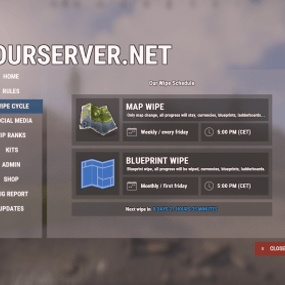
Balanced Probabilities: Barrels stay low-tier for early-game grind. Tested for wipe-long sustainability—no early-game god-rolls or late-game starvation.
Unlike generic 'copy-paste' tables that simply slap a 2x multiplier on everything, this config features distinct loot tiers. You won’t find Heavy Scientist loot on a regular NPC, and you won't find endgame items in a roadside barrel. Every drop is manually weighted for logical progression.
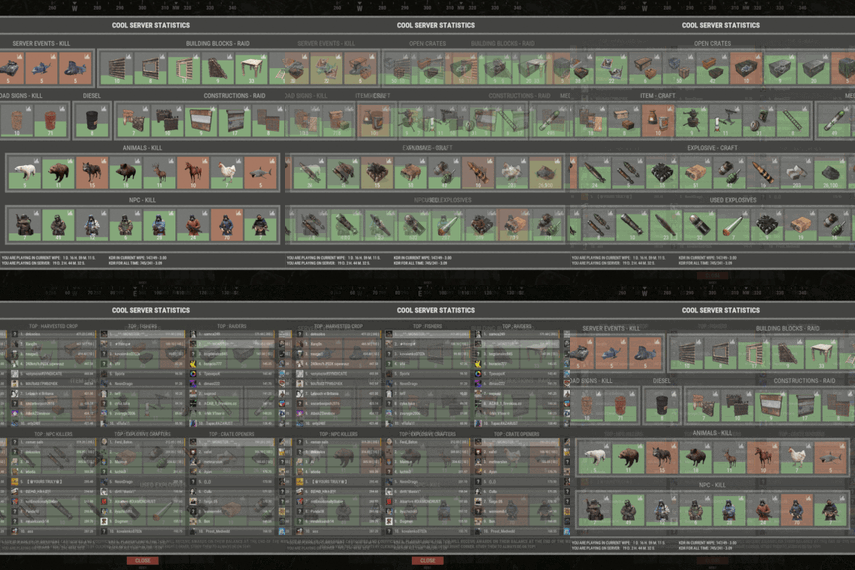
Perfect for servers seeking premium, player-approved loot without a lot of custom plugins.
Full config JSON included with setup guide.
I also have a , 3x, 5x and 10x table based like this.
Links: 3x, 5x and 10x
Why choose this config? Setting up a balanced 2x server can be a real headache. I’ve spent countless hours fine-tuning these tables to ensure your players get a rewarding experience without breaking the progression. Save your time and focus on growing your community instead of fighting with config files!
This configuration is backed by consistent positive feedback by a lot of servers, 5-STAR reviews and has been refined to ensure a stable, bug-free experience. Quality and reliability are my top priorities.
You do not need to buy any plugin! BetterLoot is free to download.
Video of the loot table in action:
Immerse your players in a unique world with a fresh gaming experience, introducing drone patrols on monuments! Drone patrols are a fantastic addition to the existing NPCs on monuments, bringing a new level of interest to the game and extending your players' gaming experience!
The plugin introduces dynamic battles, completely transforming the mechanics of monument raids and turning them into airborne combat scenarios!
Give your server a breath of fresh air with the IQDronePatrol plugin. It's a unique addition that will delight players on your servers!
Suitable for both PvP and PvE servers, with maximum customization options and easy plugin installation
Be sure to watch until the end - dynamic moments unfold gradually. This video is worth 1.5 minutes of your time.
Also, check out the screenshots section.
Standard configuration is already provided in the plugin after installation!
List of features :
❗New! New Year's decoration!
Let's add some light decorations for drones, in honor of a suitable holiday!
Raid bases protected by drones! (Raidable Bases):
Now the drone plugin is integrated with RaidableBases.
You can set up drones of varying difficulty and quantity to protect raid bases!
Everything is configured in the RaidableBases configuration.

Bradley Defense :
After the bradley is destroyed by players, patrol drones will fly out to protect its crates!
This will add more variety and enhance the gameplay experience!
Drone Battle :
If you have the IQGuardianDrone plugin installed, your guardian drones will engage patrol drones in thrilling aerial battles!
EMP Grenades :
The plugin features two types of EMP grenades:
- Overload: Upon detonation, creates a visual red zone. Drones caught in this zone immediately explode due to electrical overload.
- Electro: Upon detonation, creates a visual blue zone. Drones caught in this zone are temporarily stunned and crash to the ground, emitting sparks. After some time, they can take off again and resume the fight.
Upon repeated hits with an electro grenade, the drone explodes as if hit by an overload grenade.
Overload Electro
Drone Sizes :
Drones come in four sizes: standard, small, medium, and large. You can create different types of drones of varying sizes on the same monument.
Loot Configuration :
The plugin offers detailed loot configuration. You can create various loot presets and use multiple presets with different loot in drones simultaneously. Drop chances for each item can be customized!
Presets:
The plugin offers detailed customization options for everything!
You can create an unlimited number of drone presets and loot presets.
All of this can be used on monuments, and each monument can be configured separately!
This allows you to create unique battles at each monument, limited only by your imagination and settings!
Drone Display on G-Map:
You can enable drone display on the G-Map for each preset. This allows you to create the visibility of 'hardcore' drones or make 'ninja drones' that will not be displayed on your G-Map for players!
Weapon rotation by wipe time :
The plugin includes weapon rotation for drones over wipe time. This means you can configure drones to have revolvers after a wipe, and after a certain amount of time, their weapons and difficulty level improve!
This is a fully dynamic plugin!
Position generation :
The plugin automatically generates positions for all monuments and saves them until the next wipe. The positions are always unique and unpredictable. Patrol drones fly randomly, patrolling the area and never intersecting at the same position*.
*Supports 80% of monuments!
Optimization :
Optimization features are provided, and the plugin will not operate unnecessarily without player presence. This means that if there are no players at the monument, drones will not operate and will remain in standby mode. As soon as a player approaches the monument, drones activate for the duration of their presence. This prevents unnecessary use of server resources and ensures stable plugin operation.
Limits and restrictions on the number of drones (maximum of 15 per monument) are provided to prevent potential overload
Free
Contracts is a time-rotating quest system plugin that allows you to create versatile quests/missions that rotate periodically.
Each contract can have one or more objectives, with multiple objective types to choose from. It doesn't stop there: each objective can be augmented with objective conditions, which add additional requirements in order to progress it. This allows you to define versatile and unique quests:
You could have quests as simple as "Kill 5 scientists"...
or a little bit more challenging quests like "Kill 5 scientists with an assault rifle"
or have crazy requirements like "Kill 5 scientists, with an assault rifle OR an MP5, between 25-50m away, while being below 20 HP, while wearing a bandana and riding a horse". The possibilities are endless!
Not just another quest plugin
Most quest plugins hand out static, repeatable, single-objective quests with no cap on how many you can have active at once and no deadline on finishing them. Players end up completing them passively in the background without ever engaging with the system, like achievements.
Contracts turns these side-quests into main quests by putting them on a timer. A limited set of contracts is live at a time, each with a real deadline you define, so players have to decide what to prioritize rather than mindlessly clear a checklist. That's what keeps players logging back in throughout the wipe, when they'd otherwise burn out once progression stalls.
Contracts also supports multi-objective quests with layered conditions (requirements), so a single contract can demand more than "kill 10 scientists." Simple objectives stack into real challenges.
Features (Lite)
The following are the limited features of the Lite version. See the Full version's page for the full feature set. Read more about the Lite edition on the website.
Highly customizable quests/missions to help you build your unique set of goals and control difficulty beyond just progression amounts required.
Control the flow and order of how contract objectives can be completed.
5 objective types to vary gameplay across your server
5 objective condition types to add as many layers of challenge that you want to your objectives
Customizable categories and their rotation period, with the possibility to disable rotations altogether and manually control when contracts rotate.
Clean and customizable UI for browsing and tracking contracts.
Leaderboard to rank your whole server by Contract Score.
(limited) Event logging with JSONL format support
Powerful Web editor to make editing your configs a breeze and viewing insightful charts on your JSONL logs
Quick Links
⭐Full Edition
🗨️Discord Server
📄Full Documentation
✏️Web Editor
🧭Roadmap
Full Plugin Documentation
Contracts is a very large plugin with a growing number of features. Documenting everything on the Codefling plugin page (here) can be very intimidating, inconvenient to read/search and drive new users away when they see a wall of text. For these reasons, I've created a structured, digestable and detailed documentation website with guides for new Contracts users! Check it out:
https://www.rustcontracts.com
Web Editor
Nobody wants to be writing complex JSON structures by hand! Head to the Web Editor at https://editor.rustcontracts.com , drop your data configs and start editing your configs in a convenient UI. The quality of the editor and its extensive features are on par with the quality of the plugin! This isn't just simple forms and inputs.
Editor Features
Convenient UI: Edit all your contracts, categories and presets in a Web-based UI. No manual JSON editing required.
Rich Editing Experience: Validation, undo/redo from anywhere, ID refactoring, autocomplete fields, optional raw JSON editing and more QoL features.
Data Persistence: Save snapshots of your configs and restore or download them at a later time (data saved in your browser).
Advanced Data Importing: You can import entire data files or choose parts of them to merge into your working config. This makes importing new default contracts or shared contracts into your existing config a breeze.
AI Generated Contracts: Use the prompt given by the editor in ChatGPT/Claude and paste its response into the editor to generate a contract.
Command Palette: Easily navigate through contracts, categories, presets from anywhere in the editor through the command palette.
Stats: View your JSONL logs in pre-made charts to gain insights into your contracts, such as pacing and reward balance.
Discord
Join the official Discord server for support, announcements and more! https://discord.rustcontracts.com
SimplePVE
Simple, powerful PVE for Rust. Control every damage, raid, loot and protection rule from a clean in-game menu. Save rules as profiles and switch between them on a schedule. Run a full PVE server, weekend purges or a hybrid PVE/PVP server, all from one plugin.
Tip
No server.pve needed. SimplePVE handles everything itself. Keep server.pve false.
Video Showcase
Features
Rules and profiles
In-game rule manager (/sprules). Toggle every rule with one click, no config editing needed.
Rule profiles. Save several rule sets (for example Normal PVE, Raid Weekend, Event Night), then duplicate, rename and switch them live.
Easy rule categories. Damage, raiding, looting, NPCs, traps, vehicles, Deep Sea and Apartments.
Debug mode (/spdebug). Shows exactly which rule blocked or allowed a hit.
Schedules and purges
Automatic PVE/PVP purges. PVP turns on and off by itself on your schedule.
Weekly schedules. Pick days and times, like Friday 18:00 → Sunday 22:00 or weekends only.
Dated schedules. For example January 1 → January 7, holiday events or wipe weekends.
Priorities. Several schedules can overlap and the highest priority wins. Outside every schedule, your base profile runs.
Run commands when a purge starts or ends.
Master switch (/simplepve on|off). Pauses everything and turns the server vanilla in one command.
Protection
Loot protection. Corpses, backpacks, boxes and supply drops are protected from other players, with team access.
Building, vehicle and boat protection. Separate rules for your own, your team's and other players' property.
Vehicle auto-claim. Vehicles are claimed when you start the engine. You can also lock claimed vehicles to the owner and their team.
Admin bypass permissions for loot and damage.
Zones and events
ZoneManager support. Create PVP zones inside your PVE server.
Exclude zones from the global PVE rules.
PVP delay when leaving a PVP zone. Nobody can escape a fight by stepping out.
Works with many popular event plugins.
HUD, status and notifications
SimplePVE HUD. Shows the current mode, what's next, a live countdown and a progress bar. Green when safe, red during raid time.
In-game HUD editor (/sp_change). Move it and save it without touching the config.
Status UI for PVE/PVP, PVP zones, PVP delay, purge countdown and Deep Sea (via CustomVitalsManager).
Discord embeds when a purge starts or ends, plus optional early warnings.
In-game warnings before every schedule change.
Chat, UI, Toastify or Notify for warning messages.
Multi-language. Every message is in the lang file, sent in each player's language. Profile names can be translated too.
How it works
Rules. Open /sprules and set what players can and can't do.
Profiles. Save those rules as a profile, and create more for different situations.
Schedules. Tell SimplePVE when each profile (or full PVP) should run.
Players see it. The HUD shows the current mode and counts down to the next change, with chat and Discord warnings ahead of time.
Note
Example setup: Base profile PVE all week. A weekly schedule switches to PVE OFF (full PVP and raiding) every Saturday 18:00 → Sunday 23:00. Players get a warning 30 minutes before, and Discord announces the purge.
Rule categories
Category
What it controls
General
Friendly fire, suicide, sleepers, radiation, codelock raids, wallpaper, bee swarms, clan support
Player
Player vs player, animals, NPCs, vehicles, boats, buildings (own / team / others), twigs
Deep Sea
PVP and boat damage out in the Deep Sea
NPC
NPCs, animals, Patrol Heli, Bradley and SAM sites vs players and buildings
Entity
Walls, barricades, MLRS, vehicle collisions and all traps
Loot
Loot protection, team access, PVP-zone looting, supply drops, Deep Sea looting
Zone
ZoneManager integration and the PVP delay
Apartment
Apartment combat zones, master keys, break-ins, rental shops, basement bribes
Commands
Command
Type
Description
/sprules
Chat
Open the menu for rules, profiles and schedules
/simplepve
Chat & Console
Toggle SimplePVE on or off
/simplepve on / /simplepve off
Chat & Console
Turn SimplePVE on, or turn it off (vanilla, schedules paused)
/spdebug
Chat & Console
Debug mode: shows why damage was blocked or allowed
/sp_change
Chat
Open the in-game HUD position editor
/sp_hide
Chat
Hide or show the SimplePVE HUD (players, name set in the config)
/spve.langkeys
Chat & Console
Create lang keys for your profile names so they can be translated
/resetsprules
Chat & Console
Reset the rules to default
Permissions
Permission
Allows
simplepve.admin
Using the admin commands and the /sprules menu
simplepve.adminloot
Looting other players' protected containers and using their claimed vehicles
simplepve.admindamage
Damaging any entity while PVE is on
Hosting partner
Installation
Upload SimplePVE.cs to oxide/plugins.
Make sure server.pve is false.
Grant yourself admin:
oxide.grant user YourName simplepve.admin
Type /sprules in game and set up your rules.
(Optional) Create profiles and schedules in the same menu.
(Optional) Set your timezone (see below) if you use schedules.
Schedule timezone
Schedules use UTC plus your offset in minutes. Set it in the config under Schedules Setting → UTC Time Difference.
Your timezone
Calculation
Value
UTC
60 × 0
0
United Kingdom (GMT+1, summer)
60 × 1
60
Central Europe (UTC+2)
60 × 2
120
Bangladesh (UTC+6)
60 × 6
360
US Eastern (UTC−4)
60 × −4
-240
US Pacific (UTC−7)
60 × −7
-420
Warning
Schedules starting at the wrong time? Your UTC Time Difference doesn't match your timezone. Fix it and reload the plugin.
Configuration
Tip
Translating: copy the lang file to another folder (for example oxide/lang/de/SimplePVE.json) and translate the values. Each player gets their own language. Run /spve.langkeys to add lang keys for your profile names too.
FAQ
Does SimplePVE need server.pve?
No. Keep server.pve set to false. SimplePVE does all the protection itself.
Where do I change the rules?
Type /sprules in game (needs simplepve.admin). Every rule is a toggle, and changes save to the profile you're editing.
What are profiles?
A profile is a saved set of rules. Make one for normal PVE days and one for raid weekends, then switch them by hand or let a schedule switch them.
Can I make automatic purges?
Yes. Create a schedule in /sprules → Schedules, pick what it runs (a profile, PVE ON or PVE OFF) and when. Outside every schedule, your base profile runs.
Weekly or date-based schedules?
Both. A schedule's time windows can be weekly (days and times, or a day-to-day span) or dated (a date range, or a daily time inside a date range). When schedules overlap, the one with the highest priority wins.
My schedules start at the wrong time.
Your UTC Time Difference doesn't match your timezone. See Schedule timezone above.
How do I turn PVE on or off by hand?
/simplepve on or /simplepve off (needs simplepve.admin). Off makes the server vanilla and pauses all schedules until you turn it back on.
Damage still happens in PVE mode. Why?
Either one of your rules allows that damage, or another plugin changes damage too. Turn on /spdebug to see which rule decided each hit, and turn it off again when you're done.
How does loot protection work?
Players can't loot other players' corpses, backpacks, containers and called supply drops. Teammates can if you allow it. Admins with simplepve.adminloot can bypass it. Add entity short names to Loot Protection Excluded Entitys to keep them open to everyone (mailboxes and drop boxes by default).
Can admins damage things while PVE is on?
Yes, with the simplepve.admindamage permission.
Does it support ZoneManager?
Yes. ZoneManager zones can run PVP inside your PVE server, with an optional PVP delay when players leave. List zone IDs under Exclude Zone IDs From Rules to keep SimplePVE out of them completely.
Can it post to Discord?
Yes. It sends embeds when a purge starts or ends, and optional warnings a set number of minutes before. In-game warnings work without Discord too (Warn Players Before Schedule Change).
Can I run commands when a purge starts or ends?
Yes. Add them to Commands when PVP Purge Starts and Commands when PVP Purge Ends.
The menu or HUD looks see-through.
Keep UI - Use blur materials set to false. Blur is broken on Rust's new render pipeline.
For developers
Hooks and API
void OnSPVEPurgeStarted()
void OnSPVEPurgeEnded()
TimeSpan GetPVPStartTimeRemaining()
TimeSpan GetPVPEndTimeRemaining()
bool IsServerPVE()
bool IsStatusEnabled_API()
bool AddToExcludeZone(string zoneId)
bool RemoveFromExcludeZone(string zoneId)
Override hooks. Return true or false to force the result and skip SimplePVE's own checks. Return null to let SimplePVE decide.
object CanEntityTakeDamage(BaseCombatEntity entity, HitInfo hitInfo) // true = allow damage, false = block
object CanEntityBeTargeted(BasePlayer player, BaseEntity entity) // true = allow targeting, false = block
object CanEntityTrapTrigger(BaseTrap trap, BasePlayer player) // true = allow trigger, false = block
Support
Need help or found a bug? Open a support ticket on this page or join the Discord.
Check out my other plugins
What's New
Fresh uploads, new releases, and recently updated files.
-
Free
By Nnertz
-
$149.99$129.99By DesignCrew
-
$3.00$2.00By NooBlet
-
Free
By Snaplatack
-
Free
By sinansis
-
$4.00
By The Saptan
-
$6.50$6.18By vetrovskiy
-
Free
By vetrovskiy
-
Free
By vetrovskiy
-
$19.99$14.99By Simil3x
-
$14.99
By DesignCrew
-
$20.00
By Razor
Highest Rated
Top-rated picks trusted and loved by the community.
-
$40.00$30.00By nivex
-
$16.99
By David
-
$40.00$31.95By Mevent
-
$29.99
By imthenewguy
-
$24.99
By LosGranada
-
$24.99
By Whispers88
-
$14.99
By Sheo
-
Free
By Steenamaroo
-
$19.99$15.99By Fruster
-
$14.99
By David
-
$45.99
By Monster
Trending Files
Discover what files are trending right now.
-
$40.00$30.00By nivex
-
$29.99
By imthenewguy
-
Free
By Steenamaroo
-
$29.99
By Adem
-
$40.00$31.95By Mevent
-
$40.00
By The_Kiiiing
-
$16.99
By David
-
$49.99
By Adem
-
$40.00
By Steenamaroo
-
$24.99
By Martian
-
$19.99$15.99By Fruster
Recently Updated
Recently improved files with fresh updates, fixes, and new content.
-
$34.99$29.99By Simil3x
-
$20.00
By Razor
-
$24.99
By Martian
-
By Keirox
-
Free
By Snaplatack
-
Free
By herheliuk
-
$6.00
By Barry_Allenn
-
$44.99
By shady14u
-
$6.50$6.18By vetrovskiy
Latest Reviews
See what customers are saying about their experience with files.
Отличная идея и интересные механики! HexFront добавляет новый смысл в борьбу за территории и делает выживание увлекательнее. Спасибо авторам за работу, жду дальнейших обновлений!
Thanks for the plugin. I’ve been looking for something like this for a long time. The free alternatives are no longer supported or updated. GG
A very unusual plugin, but it’s helpful for players. Players had long been asking for a plugin like this on the server, as there are many newcomers—though it’s also great for intermediate players.
Works well.
A very unusual plugin; I haven’t seen anything like it anywhere else. I was worried about the load on the server, but everything seems fine so far. I’ll need to test it further when there’s a high number of concurrent users.
amazing! This tickles me in all the right places lol
Amazing outside of the box idea, works perfectly, creates awesome atmosphere!
Probably one of the best one grid maps out on codefling to get this map is very well made and optimized for server performance with good fps, i have had the pleasure of haven close to 60 players on the map and would like to say it's very fun and exciting to see what kind of bases players will build on the map. If you decide to buy any maps from this map dev please do as he has come out with some bangers in the past year.
Update: The rivers issue was fixed by the mapmaker - 5 stars.
All in all good map, but dont build at rivers, they are fake ones as they do not have the correct water layers attached to them. The lakes work dou.
A cool, simple plugin. Now you don’t have to go through the hassle of finding a coder to create tools—and besides, coders usually don’t make skins anyway; they just grab them from the Workshop.