
Note: Full MCP (Model Context Protocol) support, including modify/write actions, is rolling out in beta to ChatGPT Business, Enterprise, and Edu plans, Functionality, UI, and permissions may change as we iterate.
Overview
Using ChatGPT developer mode, your organization can build, test, and deploy apps and MCP-powered connectors that let ChatGPT securely take action in your tools.
Review and publish custom MCP connectors for your company. Admins/owners and authorized developers (Enterprise/Edu only) can upload and test MCP connectors privately in developer mode – both connectors they’ve built, and popular connectors built by others.
Take action with your company’s tools and systems from ChatGPT, moving beyond read/search by creating apps with interactive UI and connectors with full MCP support, including write/modify actions. Kick off workflows, create project management tasks, update your CRM, or combine connectors for complex orchestrations.
Test and vet connectors before you deploy - only admins/owners can enable developer mode or publish MCP connectors after testing. Enterprise/Edu admins can further control developer authorization and workspace access by RBAC.
Review Apps in ChatGPT and the Apps SDK and Build with the Apps SDK for more detail on ChatGPT apps.
Availability and requirements
Apps, full MCP support and developer mode is available for ChatGPT Business and Enterprise/Edu customers on ChatGPT web. Admins/owners can enable developer mode in workspace settings, create and test custom apps or MCP connectors, and publish them for their workspace. Enterprise/Edu admins can further use RBAC to provide developer mode access to select individuals, and then choose who can access each vetted connector.
Deploying an app or new MCP connector
Enabling developer mode
Workspace admins must first enable developer mode from their Admin workspace settings. The developer mode toggle can be found in Workspace Settings → Permissions & Roles → Connected Data Developer mode / Create custom MCP connectors. See section below for plan specific details.
Business plans
Only admins/owners can enable developer mode and deploy an app or new MCP connector. Admins cannot enable developer mode for individual members in their workspace.
You can view the current list of admins and owners for your workspace from Workspace Settings → Members.
Each admin/owner must enable developer mode for themselves; the toggle does not apply to all admins/owners in a workspace.
Enable developer mode when creating a new custom connector, from Workspace settings > Apps & Connectors > Apps & Connectors > Create.
Enterprise/Edu plans
Admins/owners can enable developer mode from their user settings. Navigate to Settings → Apps & Connectors → Advanced Settings to toggle.
You can also enable developer mode for yourself when creating a custom connector, from Workspace settings > Apps & Connectors > Apps & Connectors > Create.
Use RBAC to enable developer mode for a specific set of workspace members.
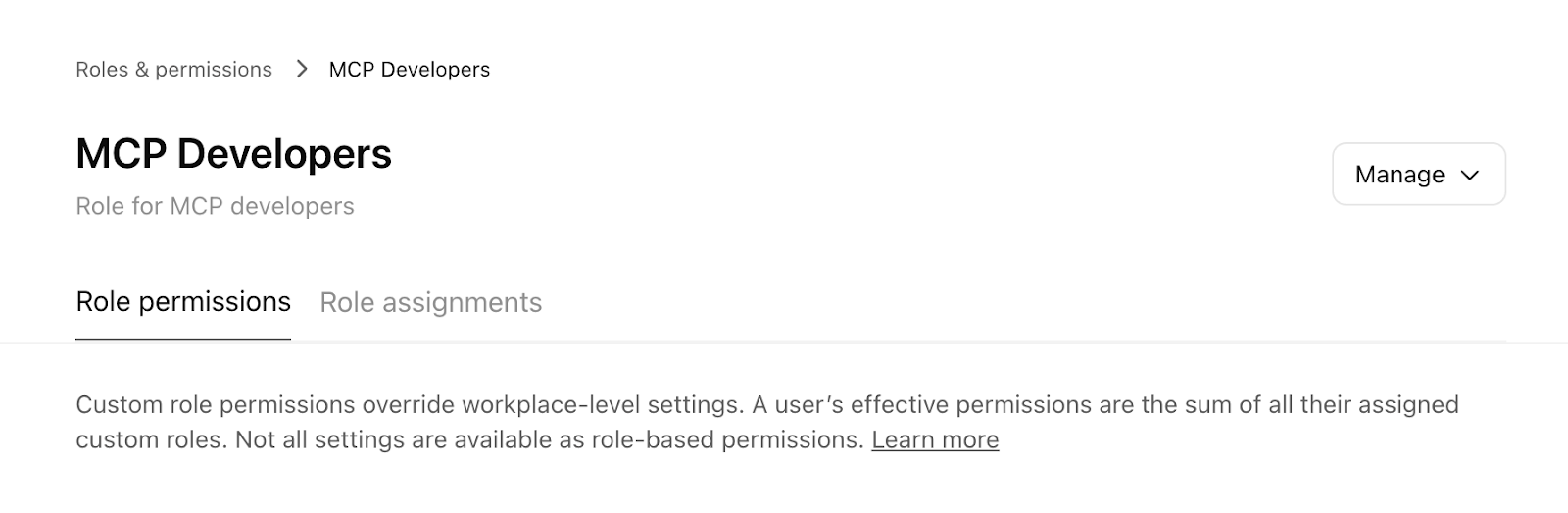
After access is granted, enabled members can toggle developer mode for their account by navigating to Settings → Apps & Connectors → Advanced Settings.
Configuring an app or new connector
You can create a new app or MCP connector from admin settings or user settings.
Confirm developer mode is enabled for your account (see above).
Admins/owners: from Workspace settings, navigate to Connectors → Connectors → Create.
Authorized users (including admins/owners): from user settings, navigate to Apps & Connectors → Create.
Provide endpoint and required metadata for your MCP server.
Pick authentication mechanism, if applicable.
Click Create.
After configuration, the app / connector appears as a draft in Workspace Settings → Connectors → Connectors → Drafts
In user settings, the new app/connector appears under Settings → Apps & Connectors → Enabled Apps & Connectors. The new connector will have the label Dev next to its name
If using OAuth for authentication
When configuring an MCP connector, confirm if your OAuth/OpenID Connect provider is configured to issue refresh tokens, as additional configurations are required in order to maintain connectivity.
For OpenID Connect providers, the standard way to request a refresh token is to include the offline_access scope in the authorization request, and for the provider to advertise support for it in its discovery metadata.
Verify the provider’s discovery .well-known endpoints (.well-known/openid-configuration or .well-known/oauth-authorization-server) list offline_access (or your provider’s equivalent) in scopes_supported or a similar capability field. If offline_access (or the equivalent refresh token scope) is not advertised or refresh tokens are not being issued, enable offline or refresh access in your provider’s admin console, tenant settings, or metadata configuration, then recreate the MCP connector so ChatGPT fetches the updated metadata.
If a refresh token is issued during OAuth configuration but the offline_access is not granted, the ChatGPT connector may lose access to previously available content once the original authorization expires, requiring manual reauthentication each time the access token runs out.
Test the new app / connector in ChatGPT
Open a new chat and select your draft app or connector from the ChatGPT tools menu (+button) or by prompting via text..
Try different prompts / use cases for your app or connector.
Use tools exposed by the app or full MCP connector (including write actions).
Confirm write actions when prompted — ChatGPT will display explicit confirmation modals before any write/modify operation.
Publish app / connector
Note: You are responsible for verifying the MCP server and app/connector is safe and appropriate for your organization before publishing. Learn more
Only Admins and Owners can publish apps / connectors. Go to Workplace Settings → Connectors to publish. Click on Drafts and then the Publish button. Review safety warnings (especially for write actions). Once published, apps and connectors appear in the workspace’s approved connectors list and in users’ Apps & Connectors settings in ChatGPT with the label custom next to the app or connector name.
For Business plans, apps or connectors cannot be updated after publishing at launch. To change tools or metadata, you must recreate and republish. Enterprise/Edu plans have additional controls available to them - read on to find out more.
Enterprise/Edu Admin & Owner controls
Enterprise/Edu admins/owners can further use RBAC to determine who can access the app or connector, and control specific actions that app or connector can take prior to publishing.
After clicking Publish (in the previous step), use Configure Actions in the modal that appears to determine what actions the app or connector is allowed, by selecting/deselecting the action. You can also click Refresh to pull new actions (deselected by default) or updates to action definitions. Use Configure Access to select specific groups to provide access to, prior to publishing.
You can also control app or connector actions after publishing.
Locate the app or connector in Workspace Settings → Connectors, clicking the ellipsis menu (...) next to the app or connector to be configured, and click Manage Actions.
Updates to the MCP server are not automatically enabled - you can click the Refresh button to obtain the latest set of actions, or updates to existing actions. New actions are disabled by default, and changes to existing actions are shown as a diff.
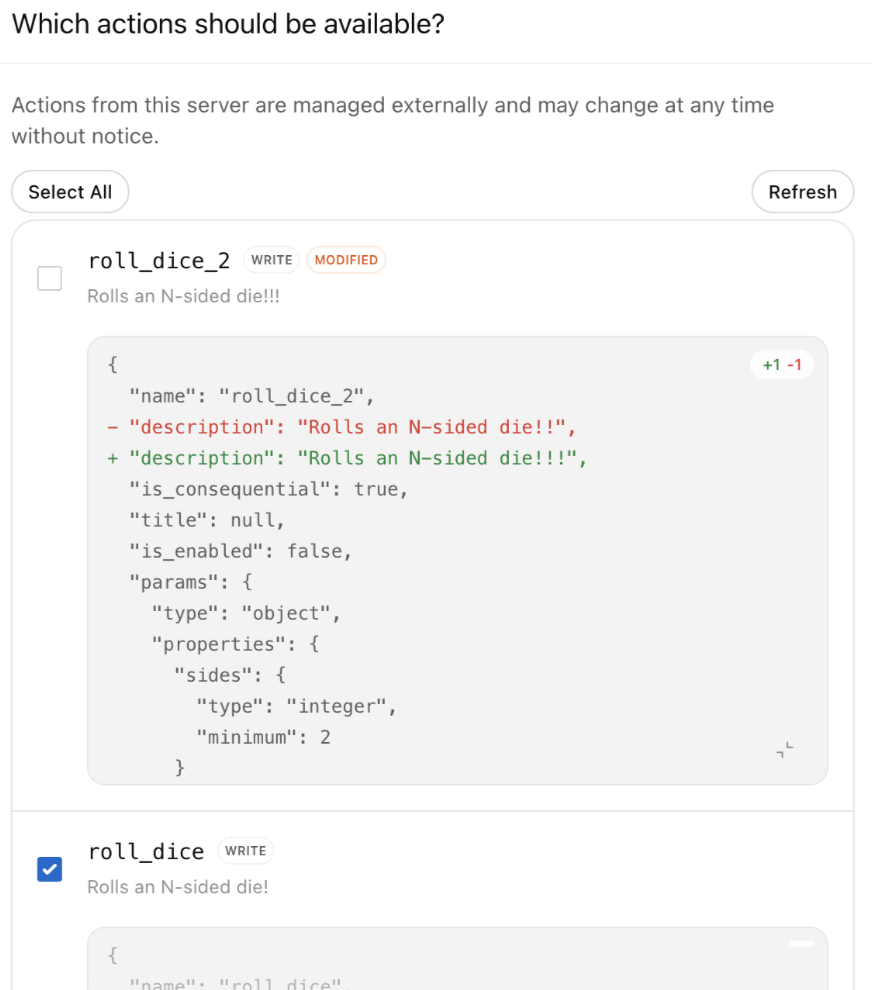
Note - you’ll need to configure the app or connector in your user settings before the Refresh button is available, because of OAuth requirements. New actions are not automatically available - use the Refresh button to examine and approve MCP server action changes.
Use the new app or connector in chats
Start a chat and select one or more apps or connectors, or use company knowledge.
You can invoke multiple first-party and third-party apps and connectors in a single prompt (e.g., retrieve internal data and then create a ticket based on the result).
Note: if you use company knowledge, only connectors with search/fetch functionality are included.
For any action that writes or modifies data, ChatGPT will show a confirmation modal before execution.
Security, safety, and data considerations
Note: Connecting to unsafe or untrusted MCP servers may increase exposure to security risks (including prompt injection). Only connect servers you trust, and ensure builders understand the risks before enabling developer mode. Learn more
Developer mode is a powerful capability that requires responsible setup and oversight. ChatGPT shows explicit confirmation modals before write/modify actions run and admins/owners see risk warnings when enabling such connectors.
You are responsible for vetting and verifying the suitability of custom apps and connectors you build, or third party apps and connectors you add for use in your workspace. Ensure all technical, usage and policy checks pass before you deploy a custom connector.
Compliance API
User conversations — including those using any app or connector — are available in the Compliance API for Enterprise/Edu customers. No new Compliance API fields specific to developer mode have been added (e.g., no auditing of tool calls, uploads, or deletes).
FAQ
What does it mean for developer mode to be in beta?
With this initial beta launch, we’ve optimized for safety and Enterprise-grade access permissions. We will make a series of UX-related improvements before considering developer mode generally available (GA).
Who can enable developer mode?
Enterprise/Edu: Admins grant access in Permissions & Roles → Connected Data. Enabled users then turn it on in Settings → Connectors → Advanced Settings. Only Admins/Owners can publish. Admins can further configure who gets access by using RBAC.
Business: Only Admins can use developer mode. Turn it on via User Settings → Connectors → Advanced settings → Developer mode or Workspace settings → Connectors → Drafts → Create connectors → Toggle on developer mode. Then publish in Workspace settings → Connectors.
Are there geo restrictions?
No.
Can I test Apps built with Apps SDK in developer mode?
Yes, you can test apps and full MCP connectors in development mode
Are MCP connectors available on mobile?
No - web only.
Can connectors be updated after publishing? Can I toggle on/off specific tools (read vs. write vs. fetch)?
Business admins/owners cannot currently update apps and connectors after publishing; recreate and republish to update tools or metadata. Enterprise/Edu admins/owners can enable or disable app/connector actions after publishing. See the Publish app / connector section for more detail.
What safety controls are in place for write actions?
ChatGPT shows explicit confirmation before executing write actions; admins see risk warnings when enabling connectors that can write or modify data.
How does OpenAI review app and MCP connector safety?
OpenAI performs red-teaming, monitoring, and warnings for write actions. Apps and connectors in the OpenAI-approved registry have been reviewed before availability. You are responsible for verifying that any app or connector is appropriate for your organization, including apps and connectors you develop, or third party apps and connectors you upload.
Can I upload an app or connector someone else built?
Yes. Admins and developers can upload any app or MCP connector (including open-source or vendor-built). Verify safety and suitability before publishing.
Can ChatGPT use multiple apps / connectors at once?
Yes. Workspaces can invoke multiple first-party and third-party apps / connectors in a single prompt.
Should I use an OpenAI-built connector or a custom MCP connector?
OpenAI-built connectors are search-only today and do not support write actions. Use custom MCP connectors for write/modify capabilities.
Can I connect to a local MCP server?
Not currently. Only remote servers are supported.
Are search and fetch tools required for connected servers?
No. They are no longer required.
Can agent mode and deep research use custom connectors?
Agent mode will not use custom connectors. Deep research can use custom connectors, but for read/fetch actions only - not for write actions.
Are apps and full MCP beta available to Pro users?
Pro users can build apps and connectors using the AppsSDK. Full MCP is only available to Business and Enterprise/Edu users, currently. Pro users can connect MCPs with read/fetch permissions in developer mode.
Note that Pro users must continue enabling developer mode to usee custom apps and MCP connectors MCPs in chat.
Can I use my custom app/connector with company knowledge?
Company knowledge supports custom connectors with fetch/search access. Enterprise admins and owners govern who can see and access these connectors using RBAC. Apps with interactive UI are not currently supported in company knowledge.
