
Overview
Make ChatGPT more actionable and personalized with your own data sources or company knowledge, now available on demand. Connectors let ChatGPT securely connect to third‑party applications—like Google Drive, GitHub, or SharePoint—so you can search files, pull live data, and reference content right in the chat.
Depending on your plan and role, you can:
Use connected apps in a chat to help with everyday tasks, previewing results inside ChatGPT.
Run deep research for complex projects that require deep analysis across multiple sources at once, with citations back to the originals.
Sync and index select knowledge sources in advance, to speed up and help improve ChatGPT’s answers.
Types of connectors
Chat connectors
Quick, one‑off searches that are great for everyday tasks like back-and-forth iteration, synthesizing content across sources, and quickly finding the files or context you need. Ask questions like “Show me Q2 goals in Drive” or “Find last week’s roadmap in Box.” Results appear inline with links to open the original file.
Deep research
Certain chat connectors can be used with deep research to handle more complex tasks. Run deep research queries across many sources—perfect for competitive analysis, incident retros, or code reviews. Deep research can use connectors to read, reason over, and cite internal sources, alongside the web, to produce fully cited reports.
Chat and Deep Research connectors are available to Plus, Pro, Business and Enterprise/Edu plans.
Synced connectors
Chat connectors may support sync, which enables the indexing of content in advance so you have up‑to‑date information on-demand in your workspace’s knowledge base. This enables ChatGPT to answer questions even faster and can improve the quality of responses, without re‑querying each source.
Chat connectors that can be synced will have the Enable Sync option available after connection (Settings > Apps & Connectors). Synced connectors are available to Pro, Business and Enterprise/Edu plans.
Some synced connectors also present an admin-managed option which allows an Enterprise/Edu admin to deploy the connector to their entire workspace.
For additional information on synced connectors, please refer to our help article here: ChatGPT synced connectors. For a list of supported connectors, see table below.
Note: For synced connectors, ChatGPT automatically references indexed data when ChatGPT thinks that data can help answer your question, without requiring you to make an explicit source selection. Optionally, you can include or exclude a synced connector by telling ChatGPT in your prompt at any time.
Custom connectors
Custom connectors let you bring third-party systems and internal data into ChatGPT using the Model Context Protocol (MCP). They’re available to:
ChatGPT Plus and Pro users
ChatGPT Business, Enterprise, and Edu workspaces
For additional information on getting started with creating custom connectors, please refer to our help article as well as technical documentation.
How to connect to a new application
Users can enable connectors from Settings > Apps & Connectors, while Business and Enterprise/Edu admins can control connector enablement from Workspace settings.
Business, Enterprise/Edu workspace setup
Admins can enable access to connectors and sync connectors from Admin connector settings. Locate the Connectors section, and enable/disable the connector of interest. Note that for Business accounts, connectors are enabled by default. The figure below shows an example for the SharePoint connector.

After enabling a connector, you can then click Enable Sync for that connector under the Synced Connectors section. Follow the prompts to complete the setup - once this is done, members of your workspace will be able to enable sync on their individual accounts (see the User Setup section below).
Enterprise/Edu admins can further control which users get access by using RBAC, or use admin-managed sync (select connectors only) to deploy to all authorized users, avoiding the need for per-user setup.
User Setup
Users can enable a connector by navigating to Settings > Apps & Connectors. Click on the connector tile you’re interested in, and then click connect. You can select Chat or Deep Research (if offered by the connector) before connecting.
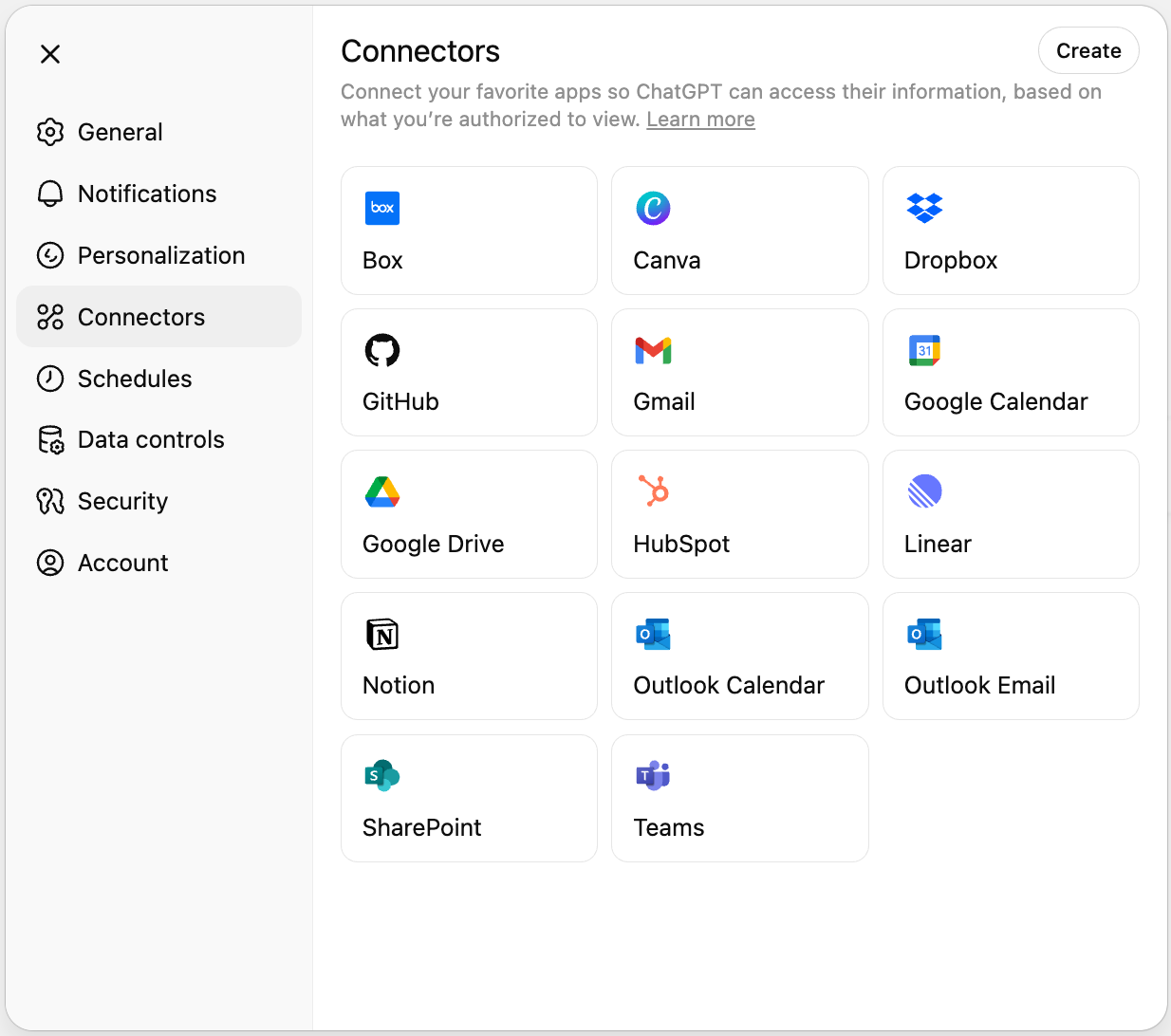
You will be redirected to the respective application’s login flow. Sign in, grant permission, and review the content ChatGPT can access if connected.
How to use connectors
Open a new chat in ChatGPT.
Click the + button on chat, then More to select connectors.
You can also refer to the connector inline in your chat; ChatGPT will automatically add the connector.
Ask your question.
When reviewing ChatGPT’s response, click a citation to open it in the native connected app.
Business and Enterprise/Edu users can also leverage company knowledge.
Automatic use for Gmail, Google Calendar, and Google Contacts connectors
With GPT-5, ChatGPT can automatically use certain connected Google apps in chat, starting with Gmail, Google Calendar, and Google Contacts. Once connected, ChatGPT will reference them when relevant, so you do not need to select them before you chat.
Selecting Use connectors shows an AUTO indicator to show that ChatGPT can use these sources automatically. After setup, you can utilize these connectors without enabling Use connectors.
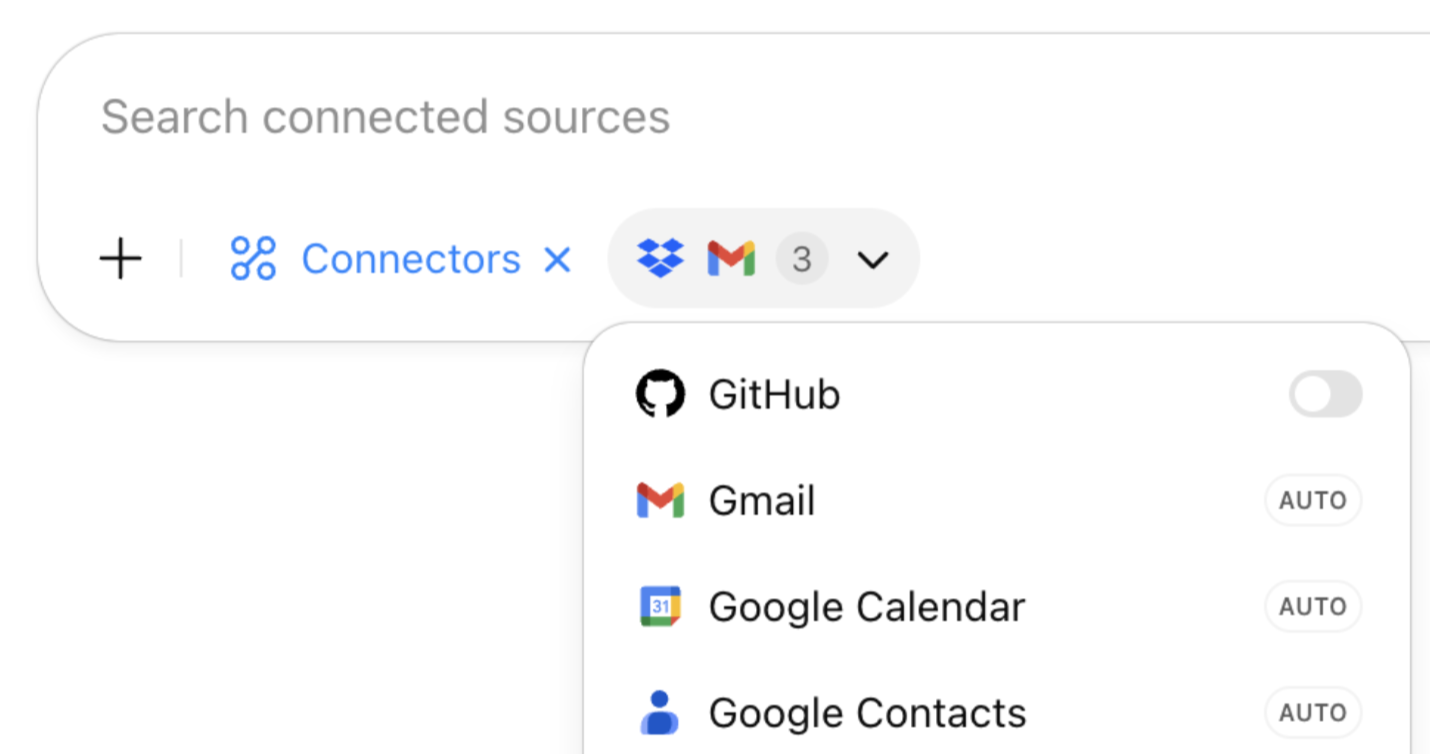
You can disable automatic use at any time in Settings → Connectors and deselecting Use automatically in chat.
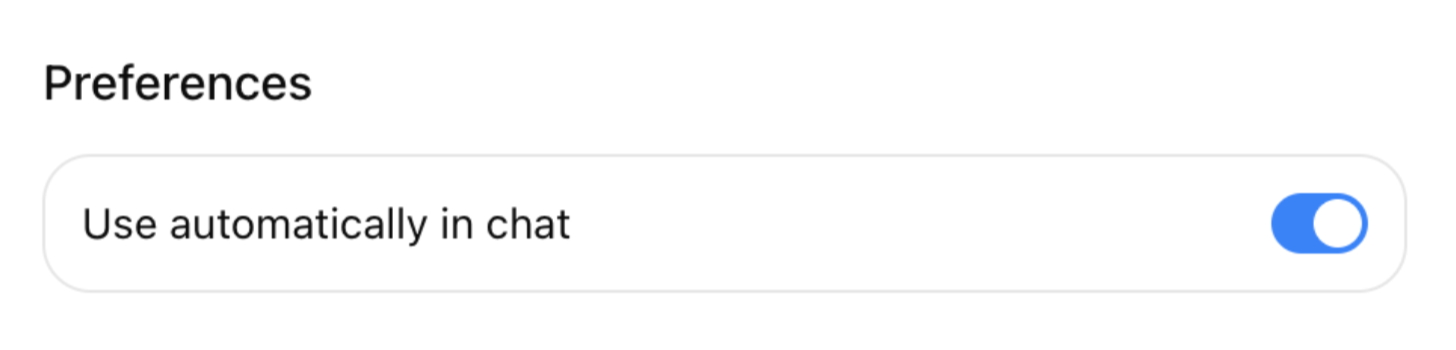
Note that the automatic use is currently limited to Google Mail, Calendar, and Contacts connectors.
Note: the following section refers to ChatGPT pulse, currently available to Pro users on iOS and Android.
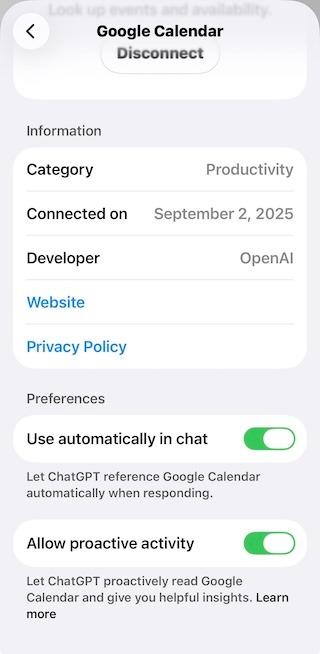
ChatGPT pulse can work with Gmail and Google Calendar to proactively read them in the background to provide helpful insights. For example, if you have upcoming travel to a new city, you may see suggested local restaurants or events where you are visiting.
The setting to allow pulse access is disabled by default. To enable, toggle on “Allow proactive activity” in the connector’s settings. Content from Gmail and Calendar will not be used to train the model and you can disconnect the connection anytime in settings.
Use Cases
You can see a library of ready-to-use prompt examples to get the most out of connectors in our help center article: Connector use cases and prompts
Connector availability by plan
| Plan | Chat | Deep Research | Synced | Custom |
| Plus | ✔︎ | ✔︎ | - | ✔︎ |
| Pro | ✔︎ | ✔︎ | ✔︎ | ✔︎ |
| Business | ✔︎ | ✔︎ | ✔︎ | ✔︎² |
| Enterprise/Edu | ✔︎ | ✔︎ | ✔︎¹ | ✔︎² |
¹ Depending on the connector, Enterprise/Edu users can use the admin-managed option to deploy to all authorized users in their workspace.
² Business and Enterprise/Edu users can upload custom connectors with full MCP support.
Note: For Enterprise and Edu workspaces, synced connectors are currently only supported for customers either based in the US with data residency enabled or for those who have not elected for data residency at-rest. See ChatGPT synced connectors.
Supported Connectors
| Connector | Chat | Deep research | Synced |
|---|---|---|---|
| Aha! | ✔︎ | ✔︎ | |
| Alpaca | ✔︎ | - | - |
| Amplitude | ✔︎ | - | - |
| Asana | ✔︎ | ✔︎ | |
| Azure Boards | ✔︎ | ✔︎ | |
| Basecamp | ✔︎ | ✔︎ | |
| BioRender | ✔︎ | ||
| Box | ✔︎ | ✔︎ | ✔︎ |
| Canva | ✔︎ | ✔︎ | - |
| ClickUp | ✔︎ | ✔︎ | |
| Custom Connectors (MCP) | ✔︎ | ✔︎ | - |
| Dropbox | ✔︎ | ✔︎ | ✔︎ |
| Egnyte | ✔︎ | ✔︎ | - |
| Fireflies | ✔︎ | ✔︎ | - |
| GitHub | ✔︎ | ✔︎ | ✔︎ |
| GitLab Issues | ✔︎ | ✔︎ | |
| Gmail | ✔︎ | ✔︎ | - |
| Google Calendar | ✔︎ | ✔︎ | - |
| Google Contacts | ✔︎ | - | - |
| Google Drive | ✔︎ | ✔︎ | ✔︎¹ |
| Help Scout | ✔︎ | ✔︎ | |
| Hex | ✔︎ | - | - |
| HubSpot | ✔︎ | ✔︎ | - |
| Intercom* | ✔︎ | - | ✔︎ |
| Jam.dev | ✔︎ | ✔︎ | |
| Linear* | ✔︎ | ✔︎ | ✔︎ |
| Microsoft OneDrive | ✔︎ | ✔︎ | - |
| Microsoft Outlook Calendar | ✔︎ | ✔︎ | - |
| Microsoft Outlook Email | ✔︎ | ✔︎ | - |
| Microsoft SharePoint | ✔︎ | ✔︎ | ✔︎¹ |
| Microsoft Teams | ✔︎ | ✔︎ | - |
| Monday.com | ✔︎ | - | - |
| Notion | ✔︎ | ✔︎ | - |
| Semrush | ✔︎ | - | - |
| Slack* | ✔︎ | ✔︎ | - |
| Stripe | ✔︎ | ✔︎ | - |
| Teamwork.com | ✔︎ | ✔︎ | |
| Vercel | ✔︎ | - | - |
| Zoho CRM | ✔︎ | ✔︎ | |
| Zoho Desk | ✔︎ | ✔︎ |
* Not currently available for users located in EEA, Switzerland, and the UK
¹ Offers admin-managed sync option for Enterprise/Edu users.
Admin controls, security, and compliance
For additional information regarding available controls for admin users in Business, Enterprise, and Edu workspaces, as well as information regarding security and compliance, please refer to our article, here: Admin controls, security, and compliance in connectors
FAQ
In Enterprise, Edu, and Business workspaces, who can enable or disable connectors?
Workspace owners and admins manage availability in Settings → Connectors.
For Enterprise and Edu workspaces, workspace owners can configure role-based access controls (RBAC) for connectors.
Are there special rate limits for connectors?
No. Connectors follow normal ChatGPT rate limits for your plan (external apps may impose their own caps).
Can I remove a connector from my workspace?
Yes. You can remove a connector anytime from Settings → Connectors. Your connected third-party application may also have its own options for how to unlink a connector.
Will more connectors be added?
We’re actively working with additional providers and will post updates in our release notes.
What file types do connectors support?
Currently, connectors are able to retrieve text data from most common file types, including TXT, PDF, CSV, XLSX, PPTX, DOCX. The ability to analyze images, visual PDFs, etc. (multimodal support) is not currently available.
Why did my Google Contacts connector become disabled?
Google Contacts connector automatically disables if both Gmail and Calendar connectors are later disabled. You can enable Contacts without connecting Gmail or Calendar, however.
What does ChatGPT share with connected applications?
When you enable a connector, ChatGPT can send and retrieve information from the connected app in order to find information relevant to your prompts and use them in its responses. For example, if the GitHub connector is enabled and you ask, “Can you show me where I handled file uploads in the backend?”, then ChatGPT might send a query to GitHub like “file upload handler backend.” If needed, it may send a few different queries to find the most relevant information.
If you have “Memory” enabled, when ChatGPT sends a query to connected apps, it may also leverage relevant information from memories to make the query better and more useful. For example, if the user has “Memory” turned on and their memories mention working in a repo called acme-uploader, and they ask “Can you show me where I handled file uploads in the backend?”, ChatGPT might include “acme-uploader” in the query. You can learn more here about Memory, including how to disable it or control individual memories.
How does ChatGPT use information from connected applications?
When you enable a connection, ChatGPT will use information in the connected application as context to help ChatGPT provide you with responses. If you have Memory enabled in your settings, ChatGPT may remember relevant information accessed from connectors. ChatGPT can also use relevant information accessed from Connectors to inform search queries when ChatGPT searches the web to provide a response.
Does Voice mode support connectors?
No, Voice mode currently does not support connectors. You can only use connectors in text-based conversations in ChatGPT.
Does OpenAI use information from connectors to train its models?
For ChatGPT Business, Enterprise, and Edu customers, we do not use information accessed from connectors to train our models. Please see our Enterprise Privacy page for information on how we use business data.
For ChatGPT Free, Plus, and Pro users, we may use information accessed from connectors to train our models if your “Improve the model for everyone” setting is on. You can read more about how your data is stored and used in this article in our help center.
Troubleshooting
“This MCP server doesn't implement our specification”
This error can occur when attempting to connect ChatGPT to a custom connector using the model context protocol (MCP) which doesn’t fully meet our technical requirements.
In most cases, this means the connector is missing a required tool. To resolve this, the team that develops or maintains the desired connector will need to make changes to bring it into compatibility with the expected structure.
For more information regarding our specification and information about MCP, please refer to our documentation: https://platform.openai.com/docs/mcp
"Admin approval required" or "Need admin approval"
Some users may experience an error message suggesting that ChatGPT is unauthorized to connect to their application. In these cases, you'll need to contact your Systems Administrator in order to allow ChatGPT access to the application.
In some situations, additional allowlisting (such as IP or Domain) may be required, even after granting ChatGPT permissions. We recommend to review our network recommendation guide for additional assistance: Network recommendations for ChatGPT errors on web and apps
Custom connectors (MCP) disabled
Plus and Pro users must enable developer mode in ChatGPT settings in order to use MCP connectors.
Enterprise, Edu, and Business users must either be an owner user, admin user, or have been granted the appropriate permission to use developer mode to test and create custom connectors. Additionally, custom connectors must also be published before they can be used by additional members of the workspace.
