

Summary
The Page field allows the creation of multi-page forms. The Page field is available in the Standard Fields section of the field library sidebar in the form builder.
Adding a Page field will automatically add three new markers to your form:
- A Start Paging marker at the top of your form.
- A Page Break marker in the position you dragged to.
- An End Paging marker at the bottom of your form.
Each one of these sections offers different settings, all of which are explained here.

Common Settings
This field uses only common field settings for the Appearance and Advanced settings. For a description of each of the common field settings, refer to this article. Below you will find description of specialty settings that are particular to this field.
Start Paging Marker

The Start Paging field will always appear at the top of your form (after a Page Break field is added to your form). This field is used to specify general options that define the behavior of your multi-page form.
General Settings
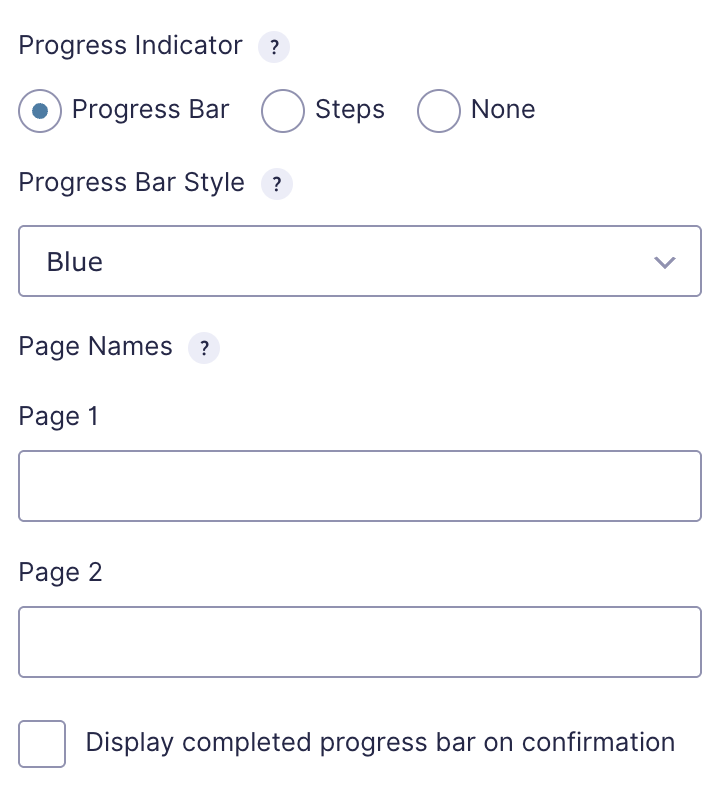
| Setting | Description |
|---|---|
| Progress Indicator | Select which type of visual progress indicator you would like to display. Available options are Progress Bar, Steps or None. |
| Style | Select which progress bar style you would like to use. Select custom to choose your own text and background color. |
| Page Names | Name each of the pages on your form. Page names are displayed with the selected progress indicator. |
| Display completed progress bar on confirmation | Check this box to display the progress bar with the confirmation text. |
Page Break Marker

The Page Break field specifies exactly where one page ends and the next page begins. You can add as many Page Break fields as you need, and each carries settings that will customize the behavior for that page only. Settings here affect the page layout before the page break field.
General Settings
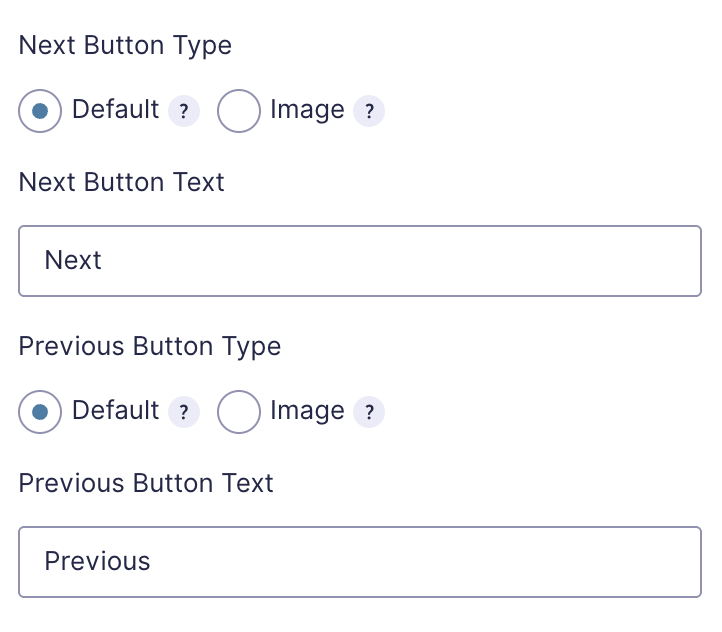
Next Button and Previous Button Settings
| Setting | Description |
|---|---|
| Next Input Type | Select whether you would like to use Text or Image for the form’s submit button element. |
| Next Button Text | Enter the text to appear as the button text. |
| Next Button Image Alt Text | Enter the Alt text that describes the image. |
| Next Button Image URL | Enter the full URL of the image to be used for the button. |

Conditional Logic Settings

Page and Next Button Conditional Logic Settings
| Setting | Description |
|---|---|
| Page Conditional Loic | When enabled, you can show or hide a specific page based on the user’s selections. |
| Next Button Conditional Logic | When enabled, you can show or hide the Next button based on the user’s selections. |
End Paging Marker

The End Paging field occurs at the bottom of your form. It provides an option to modify the Previous button on the last page.
General Settings

Previous Button Settings
See the same options above in the Page Break marker.
Removing Page Breaks
To remove a page break from your form, click the Delete (trash can) icon on the Page field. Please note: you must remove each individual page field before you can remove the Start and End page fields and all paging from your form.
Merge Tags
This field does not support merge tags.
