-1.png?width=180&height=60&name=shiftbase-text-logo-transparent-dark%20(3)-1.png)

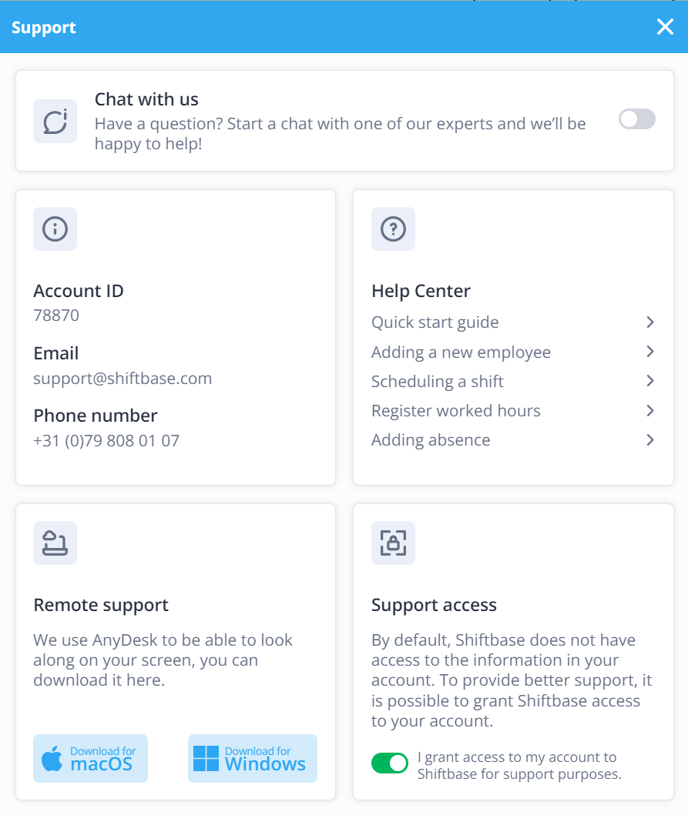
To install AnyDesk on your Mac, you click on the ? in the upper right corner of Shiftbase.

A window will pop up as shown below. Here, you click on AnyDesk (macOS) right under Remote support.
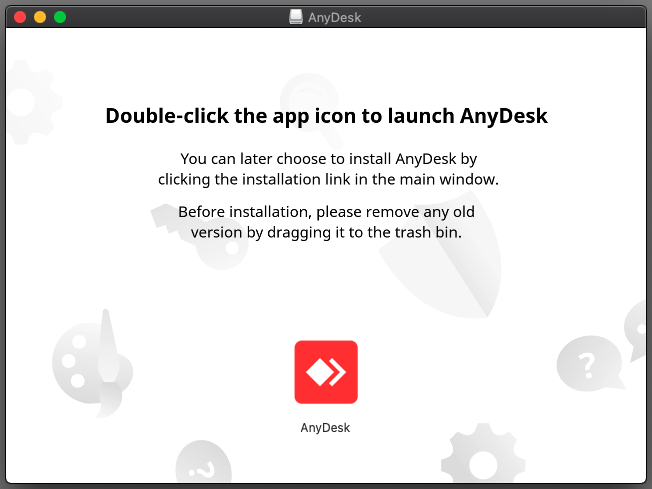
Once the .dmg file is dowloaded, you open it. After opening the file you see the screen that is shown below. Here you will double-click the AnyDesk app icon as they ask.
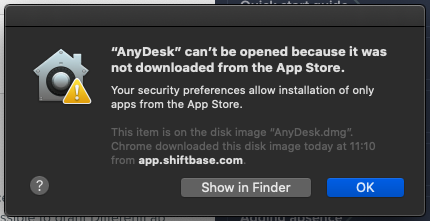
Do you see the error message show below?
No worries, Apple has built in security against programs that are not available in the App Store. You can click on OK.
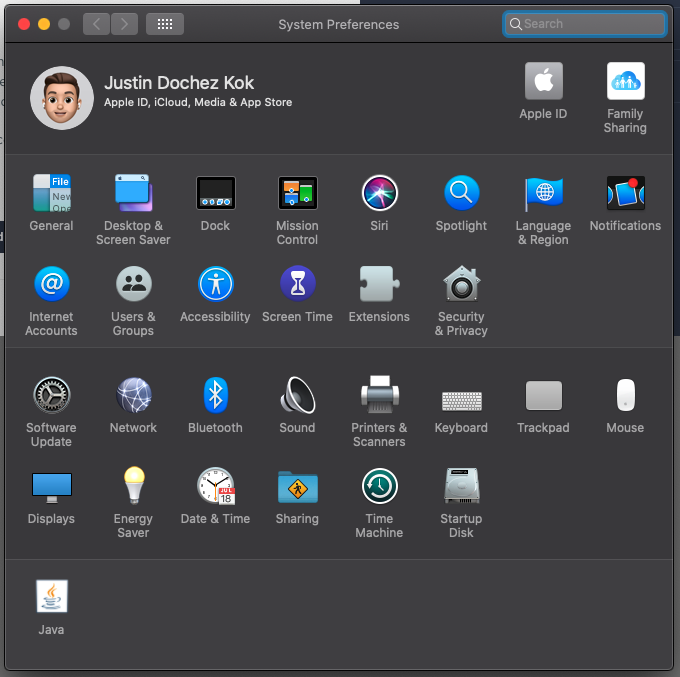
To fix this, you go to your System Preferences of your Mac. Inhere, you go to Security & Privacy.
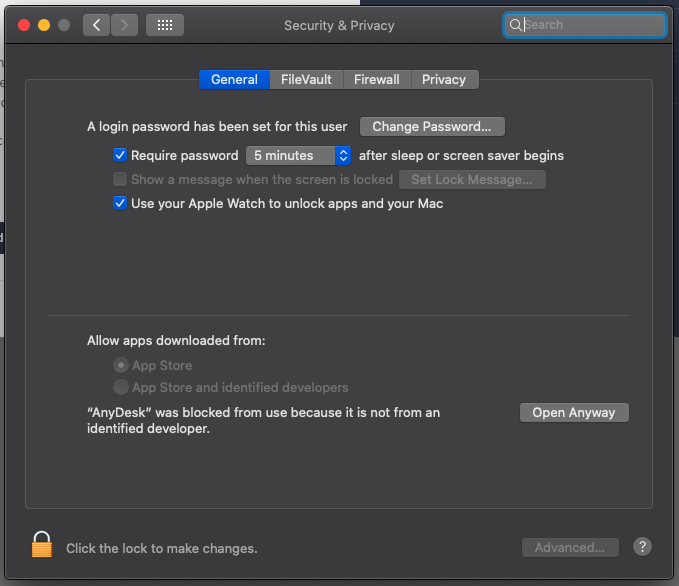
Now you go to the General tab. You will see a message about how "AnyDesk" is blocked. Next to the message you see the button Open Anyway, click this.
Within the Privacy tab you can allow the AnyDesk app to control your computer for Accessibility, Full Disk Access and Screen Recording. If it's blocked out like on the picture below you'll have to click the lock and unlock with their admin password.
.png)
Now you should end up in a new screen as shown below. Here you will see a code that you can pass through to our support.