Summary: in this tutorial, you’ll learn how to build a Word Counter application using vanilla JavaScript.
Here is the Word Counter App that you’re going to build.
Create the project structure #
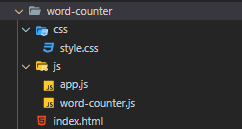
First, create the project folder called word-counter.
Second, under the word-counter project, create the css and js folders, which will store CSS and JavaScript files accordingly.
Third, create a style.css file inside the css folder, and two JavaScript files called word-counter.js and app.js inside the js folder.
Finally, create the index.html file in the project root folder.
The final project folder structure will look like this:
Create the HTML file #
First, edit the index.html file and place the CSS and JavaScript files in the index.html file:
<!DOCTYPE html>
<html lang="en">
<head>
<meta charset="UTF-8">
<meta name="viewport" content="width=device-width, initial-scale=1.0">
<title>JavaScript Word Counter</title>
<link rel="stylesheet" href="css/style.css">
</head>
<body>
<script src="js/word-counter.js"></script>
<script src="js/app.js"></script>
</body>
</html>The WordCounter app will have a simple <textarea> element. When you enter some text, it’ll show the number of characters and words that you’ve entered.
To do so, you’ll need to have <textarea> and <div> elements :
- The
<textarea>element will allow you to enter text. - And the
<div>element will show the number of characters and words entered into the<textarea>element.
By default the <div> element should show 0 characters and 0 words.
Second, add the <textarea> and <div> elements to the index.html file after the opening <body> tag and before the first <script> tag:
<!DOCTYPE html>
<html lang="en">
<head>
<meta charset="UTF-8">
<meta name="viewport" content="width=device-width, initial-scale=1.0">
<title>JavaScript Word Counter</title>
<link rel="stylesheet" href="css/style.css">
</head>
<body>
<h1>Word Counter</h1>
<label for="text">Enter some text below:</label>
<textarea id="text" rows="10" cols="60"></textarea>
<div id="stat">You've written 0 words and 0 characters.</div>
<script src="js/word-counter.js"></script>
<script src="js/app.js"></script>
</body>
</html>Create the WordCounter class #
First, you’ll create the WordCounter class in the word-counter.js file:
class WordCounter {
}The WordCounter class will accept a <textarea> element. It’ll listen to the input event of the <textarea> element and calculate the number of characters and words that the <textarea> element has.
Second, add the constructor to the WordCounter class. The constructor will accept a <textarea> element.
Inside the constructor, you’ll initialize the inputText property of the class to the inputText argument and attach the input event listener to the inputText element:
class WordCounter {
constructor(inputText) {
this.inputText = inputText;
this.inputText.addEventListener('input', this.count);
}
count(){
}
}The this.count() method will execute every time the input event occurs. We’ll go back to implement the logic for the count() method later.
Third, add a new method to the WordCounter class, which calculates the number of characters and words:
class WordCounter {
constructor(inputText) {
this.inputText = inputText;
this.inputText.addEventListener('input', this.count);
}
count(){
}
getWordStat(str) {
let matches = str.match(/\S+/g);
return {
characters: str.length,
words: matches ? matches.length : 0,
};
}
}The getWordStat() method uses a regular expression /\S/g to return the number words of a string. It also uses the string length property of the input string str to get the number of characters.
Third, the count() method will need to call the getWordStat() to calculate the number of words and characters of the inputText element.
To get the text of the <textarea> element, you use its value property:
...
count() {
let wordStat = this.getWordStat(this.inputText.value.trim());
// how to expose the wordStat to the outside
// ..
}And the count() method also needs to communicate with the outside the number of words and characters.
To do this, you have two options: using a callback and a custom event. We’ll use a custom event in this tutorial.
If you want to know how to use a callback, check it out the countdown timer tutorial.
Fourth, add a new method called emitEvent to the WordCounter class:
emitEvent(wordStat) {
// Create count event
let countEvent = new CustomEvent('count', {
bubbles: true,
cancelable: true,
detail: {
wordStat
}
});
// dispatch the count event
this.inputText.dispatchEvent(countEvent);
}The emitEvent() method accepts a wordStat object. Inside the method, we create a custom event for the inputText element called count using the CustomEvent constructor and dispatch the count event using the dispatchEvent method.
Later, you’ll attach an event listener to the count event and access the wordStat object using the event.detail.wordStat syntax.
The emitEvent() should be called every time the input event occurs. Therefore, we invoke the emitEvent() inside the count() method:
count(){
let wordStat = this.getWordStat(this.inputText.value.trim());
this.emitEvent(wordStat);
}The WordCounter class will look like the following:
class WordCounter {
constructor(inputText) {
this.inputText = inputText;
this.inputText.addEventListener('input', this.count);
}
count(){
let wordStat = this.getWordStat(this.inputText.value.trim());
this.emitEvent(wordStat);
}
emitEvent(wordStat) {
// Create count event
let countEvent = new CustomEvent('count', {
bubbles: true,
cancelable: true,
detail: {
wordStat
}
});
// dispatch the count event
this.inputText.dispatchEvent(countEvent);
}
getWordStat(str) {
let matches = str.match(/\S+/g);
return {
characters: str.length,
words: matches ? matches.length : 0,
};
}
}Add logic to app.js file #
First, select the <textarea> and <div> element using the querySelector() method:
const inputText = document.querySelector('#text');
const statElem = document.querySelector('#stat');Second, create a new instance of the WordCounter class and pass the inputText element into its constructor:
new WordCounter(inputText);Third, define a new function called render() that updates the word and character counts to the statElem element.
The render() function accepts a custom event object:
const render = (event) => {
statElem.innerHTML = `<p>You've written <span class="highlight">${event.detail.wordStat.words} words</span>
and <span class="highlight">${event.detail.wordStat.characters} characters</span>.</p>`;
}Fourth, add an event listener to count even and execute the render() method each time the count event occurs:
inputText.addEventListener('count', render);The app.js will look like the following:
const inputText = document.querySelector('#text');
const statElem = document.querySelector('#stat');
// create a new instance of WordCounter
new WordCounter(inputText);
const render = (event) => {
statElem.innerHTML = `<p>You've written <span class="highlight">${event.detail.wordStat.words} words</span>
and <span class="highlight">${event.detail.wordStat.characters} characters</span>.</p>`;
}
inputText.addEventListener('count', render);Now, if you open the index.html file in the web browser, you’ll see the following error:
Uncaught TypeError: Cannot read property 'value' of undefined at HTMLTextAreaElement.countAnd the problem occurred in the count() method of the WordCounter class:

It’s showing that the this.inputText is undefined. Therefore, accessing the value property of the this.inputText causes an error.
Solve this issue #
When an input event occurs on the inputText element, the count() method executes.
And the object that executes the count() method is the inputText object, not the instance of the WordCounter class.
It means that inside the count() method, the this value references the inputText element, not the WordCounter object.
To prove this, you can log the this value inside the count() method as follows:
count() {
console.log(this);
}… and refresh the index.html again, you’ll see the <textarea> element in the console every time you type some text in the <textarea>:
<textarea id="text" rows="10" cols="60"></textarea>Since the this value inside the count() method references the <textarea> element, it doesn’t have the inputText property. And it also doesn’t have the emitEvent() method.
To fix the issue, you need to change the event listener to an arrow function like this:
constructor(inputText) {
this.inputText = inputText;
this.inputText.addEventListener('input', () => {
this.count();
});
}When you use the arrow function, the this value references the object of the surrounding block which is the WordCounter in this case. In other words, you can access all the properties and methods of the WordCounter in the count() method.
The final WordCounter class will look like this:
class WordCounter {
constructor(inputText) {
this.inputText = inputText;
this.inputText.addEventListener('input', () => {
this.count();
});
}
count() {
let wordStat = this.getWordStat(this.inputText.value.trim());
this.emitEvent(wordStat);
}
emitEvent(wordStat) {
// Create count event
let countEvent = new CustomEvent('count', {
bubbles: true,
cancelable: true,
detail: {
wordStat
}
});
// dispatch the count event
this.inputText.dispatchEvent(countEvent);
}
getWordStat(str) {
let matches = str.match(/\S+/g);
return {
characters: str.length,
words: matches ? matches.length : 0,
};
}
}Click here to see the Word Counter App in action.
Summary #
In this tutorial, you have learned how to develop a Word Counter app using vanilla JavaScript. And the following are the key takeways:
- How to create and emit a custom event.
- How to resolve the
thisissue using arrow functions.
Thank you for your feedback!
