1. Choose where to run it
Run Pi-hole in a Docker container, or install it directly on a supported Linux distribution with our automated installer. A Raspberry Pi, an old PC, a VM or a NAS all work well.

2. Install Pi-hole
One command starts the installer. It asks a few questions, sets everything up, and gives you the address of your new web interface. Then move on to step 3.

3. Use Pi-hole as your DNS server
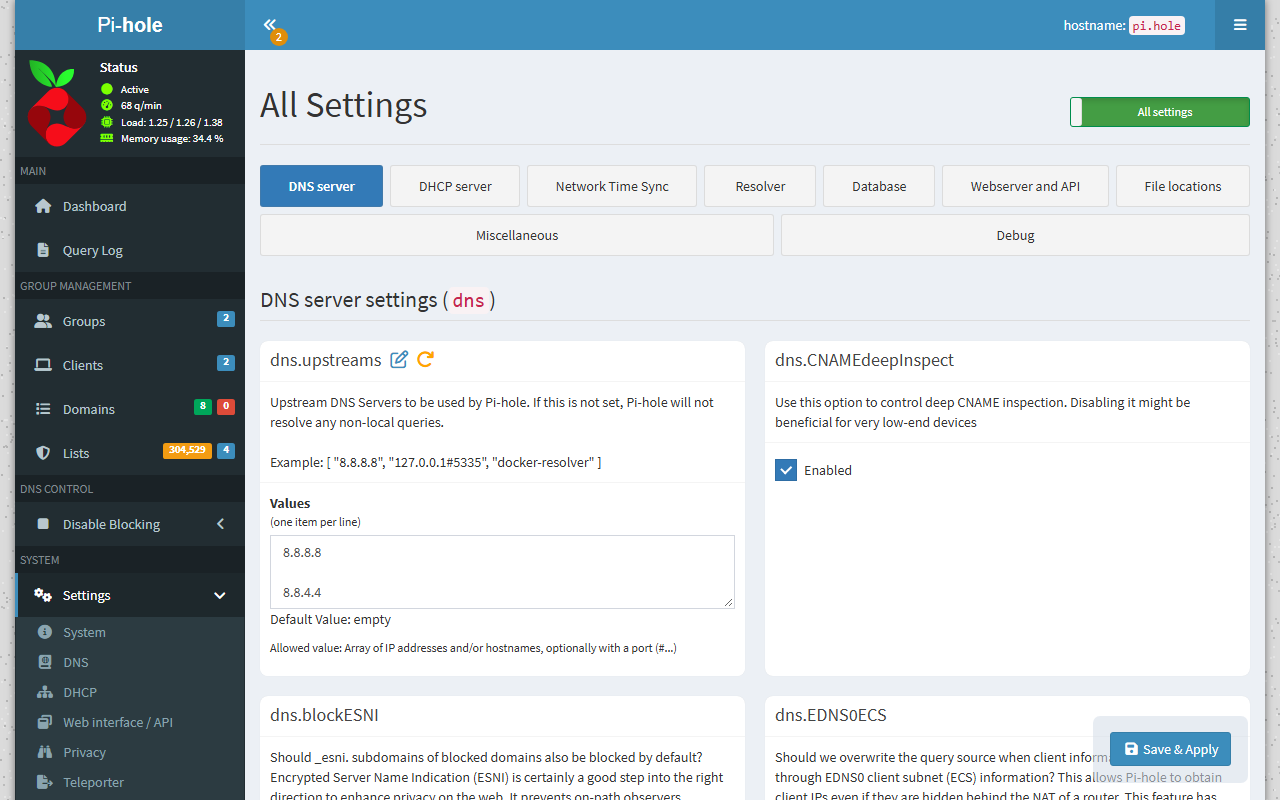
Point your router’s DHCP settings at Pi-hole so every device on your network uses it automatically. You can also set Pi-hole as the DNS server on individual devices, or let Pi-hole’s own DHCP server handle it.
4. Block ads everywhere, even on the go
Pair Pi-hole with a VPN such as WireGuard and your phone and laptop stay protected on mobile data and public Wi-Fi. Blocked ads never download, which also saves data.

The Pi-hole Team
The Pi-hole Developers are spread across the globe and work on the project in their spare time. We are a 100% remote-work team.

Dan Schaper
Co-Founder
Core Developer

Adam Warner
Docker Maintainer
Core Developer

Dominik Derigs
FTL Designer
Core Developer
Web Interface
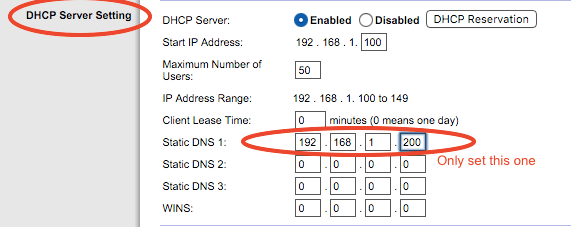
Pi-hole’s web interface shows what’s happening on your network at a glance: total and blocked queries, activity over time for each client, query types, upstream servers, and your most requested and most blocked domains. It’s built into Pi-hole, so there’s no separate web server to install.
Built-in DHCP Server
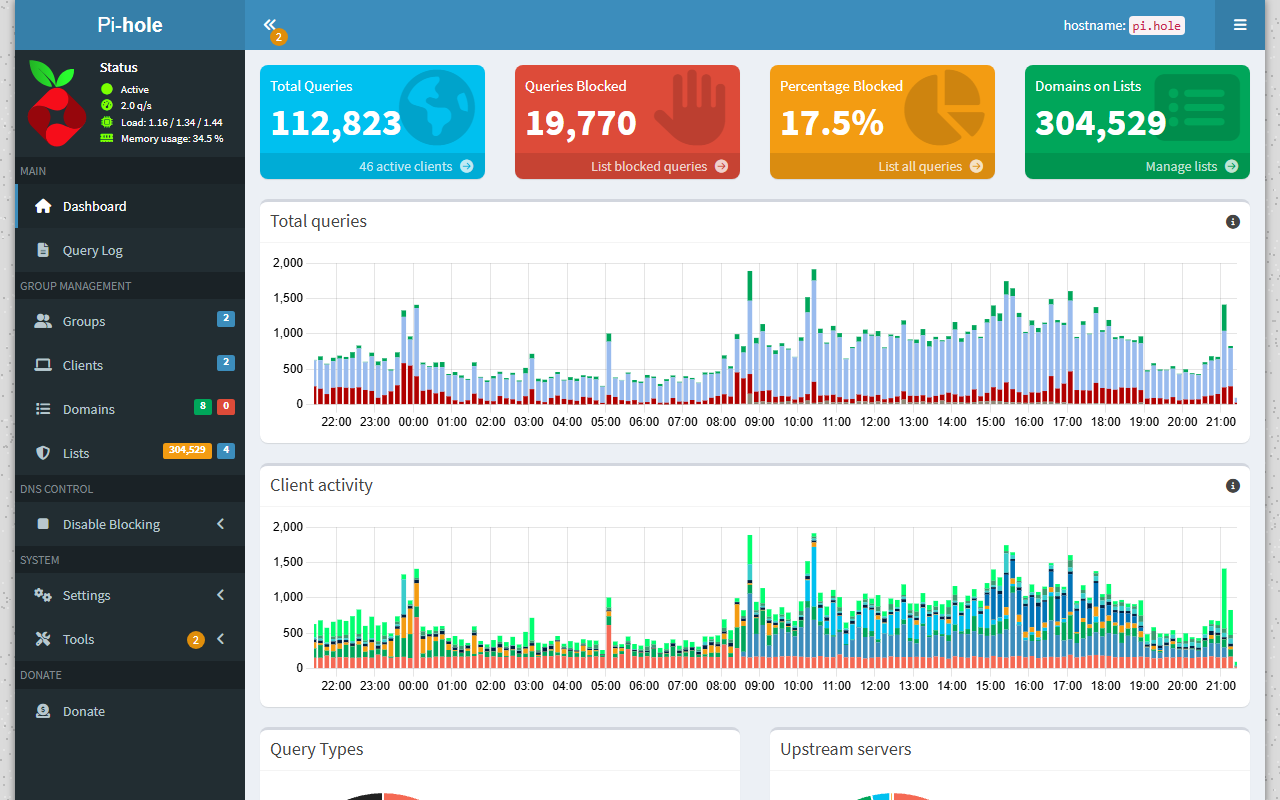
Pi-hole works fine alongside your existing DHCP server, or you can use Pi-hole’s built-in one, with optional IPv6 support, to keep your network management in one place.
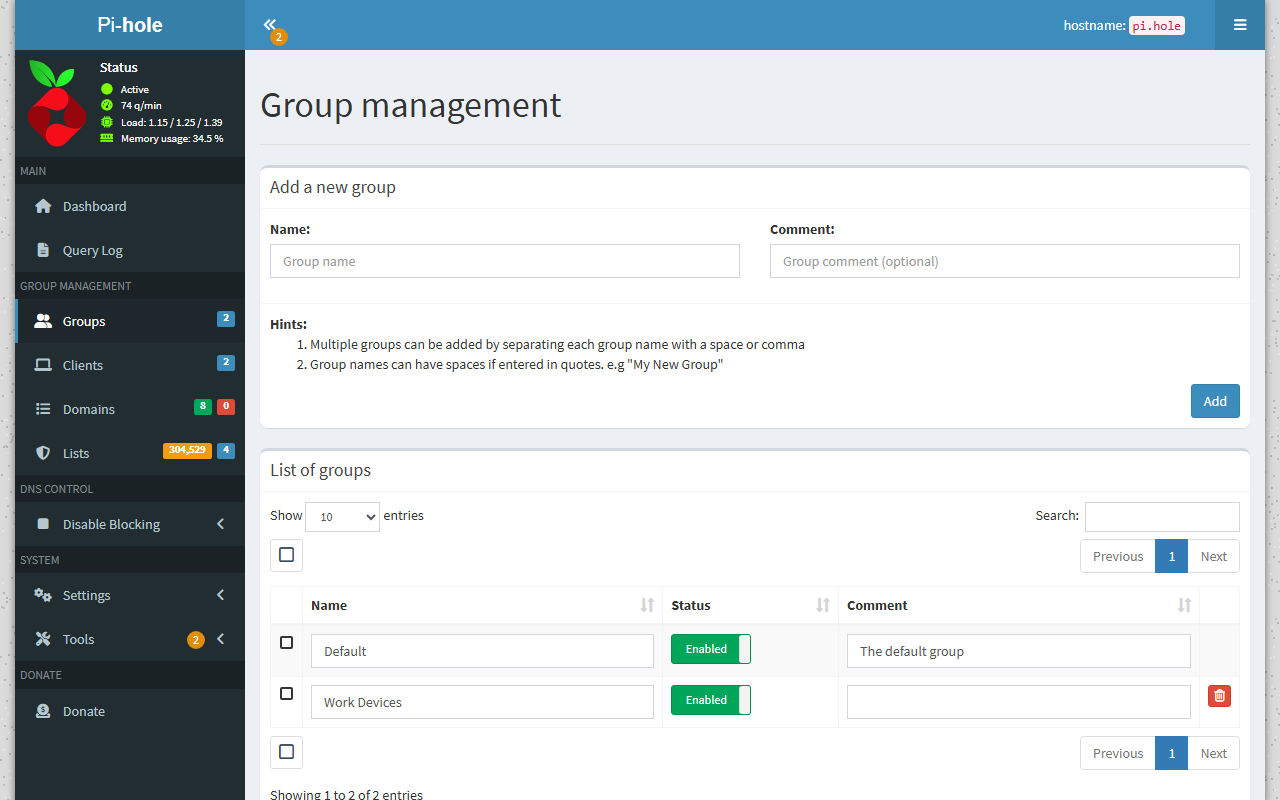
Group Management
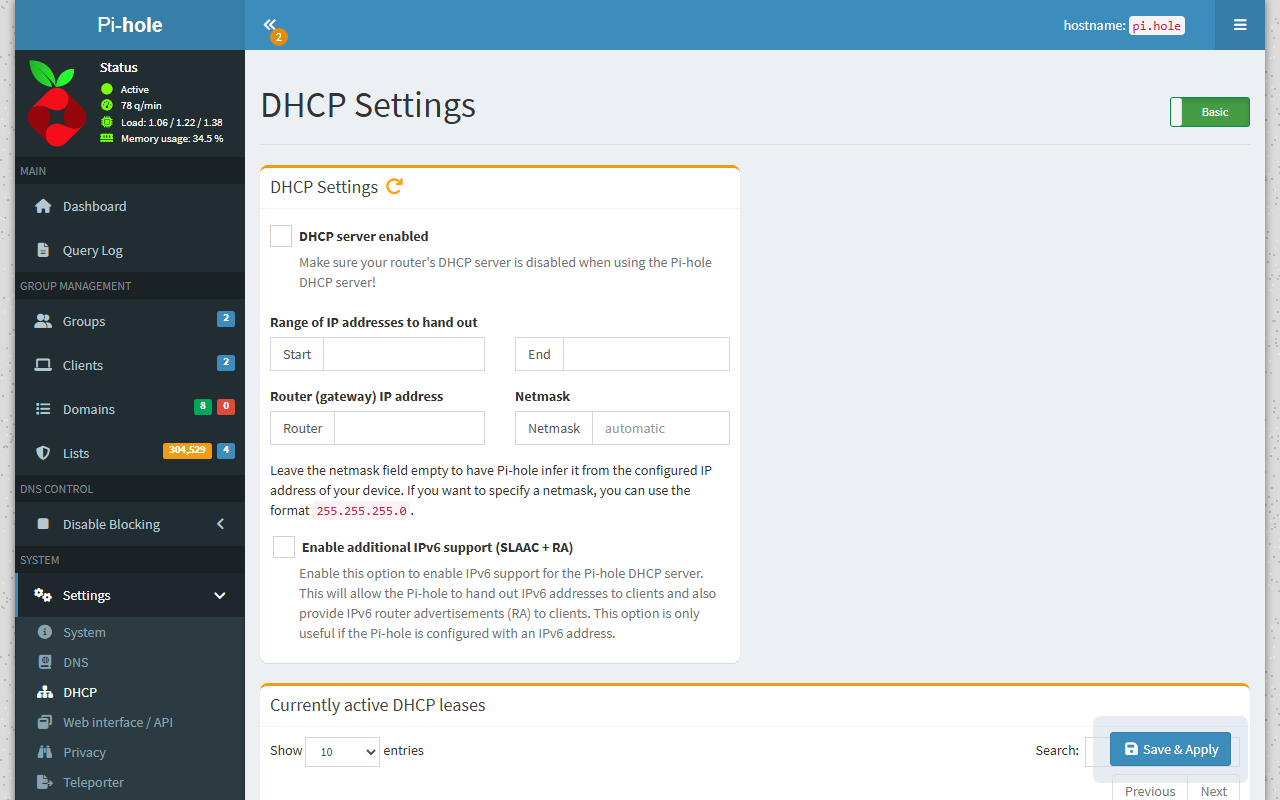
Different rules for different devices. Put clients into groups and give each group its own lists and domains, for example stricter filtering for the kids’ tablets and a lighter touch for the work laptop.
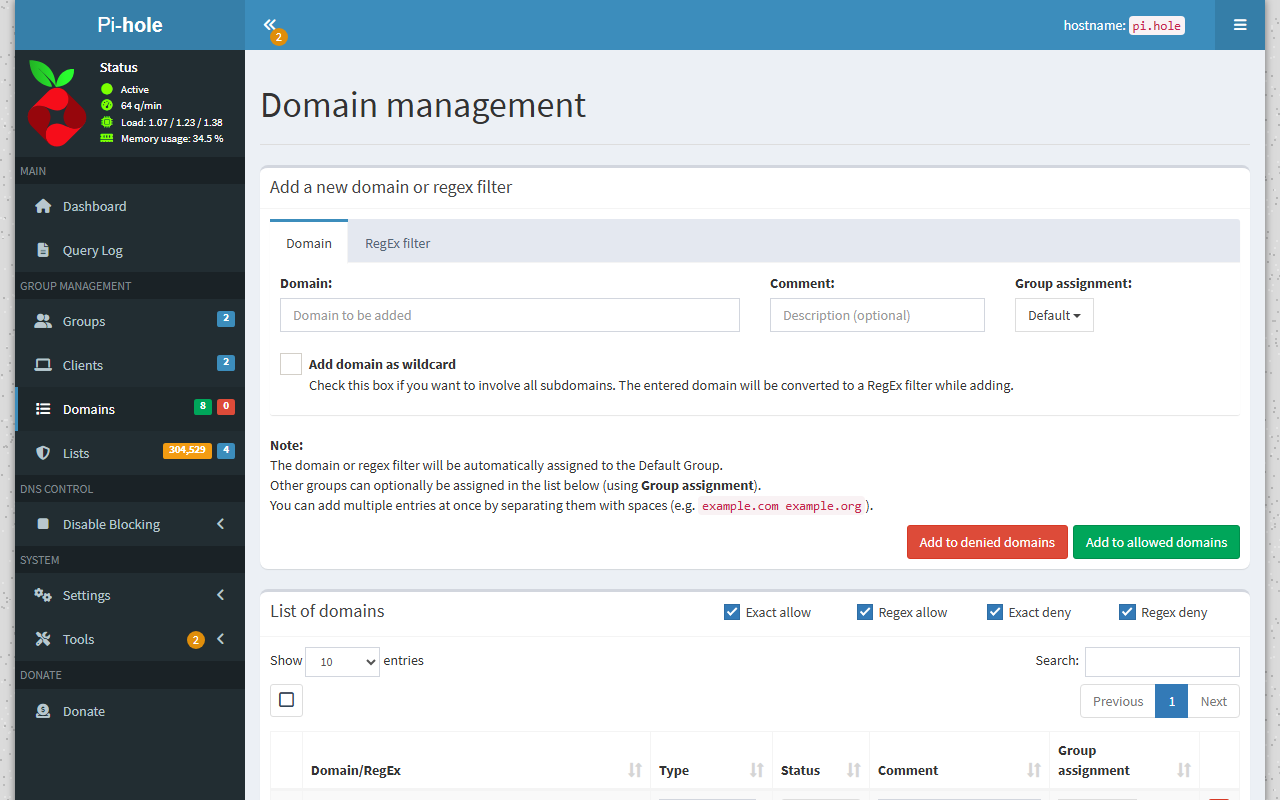
Allow and Deny Domains
Fine-tune your blocking by allowing or denying individual domains, or whole families of domains with powerful regex statements. Subscribe to community blocklists, and allowlists, and keep them up to date automatically.
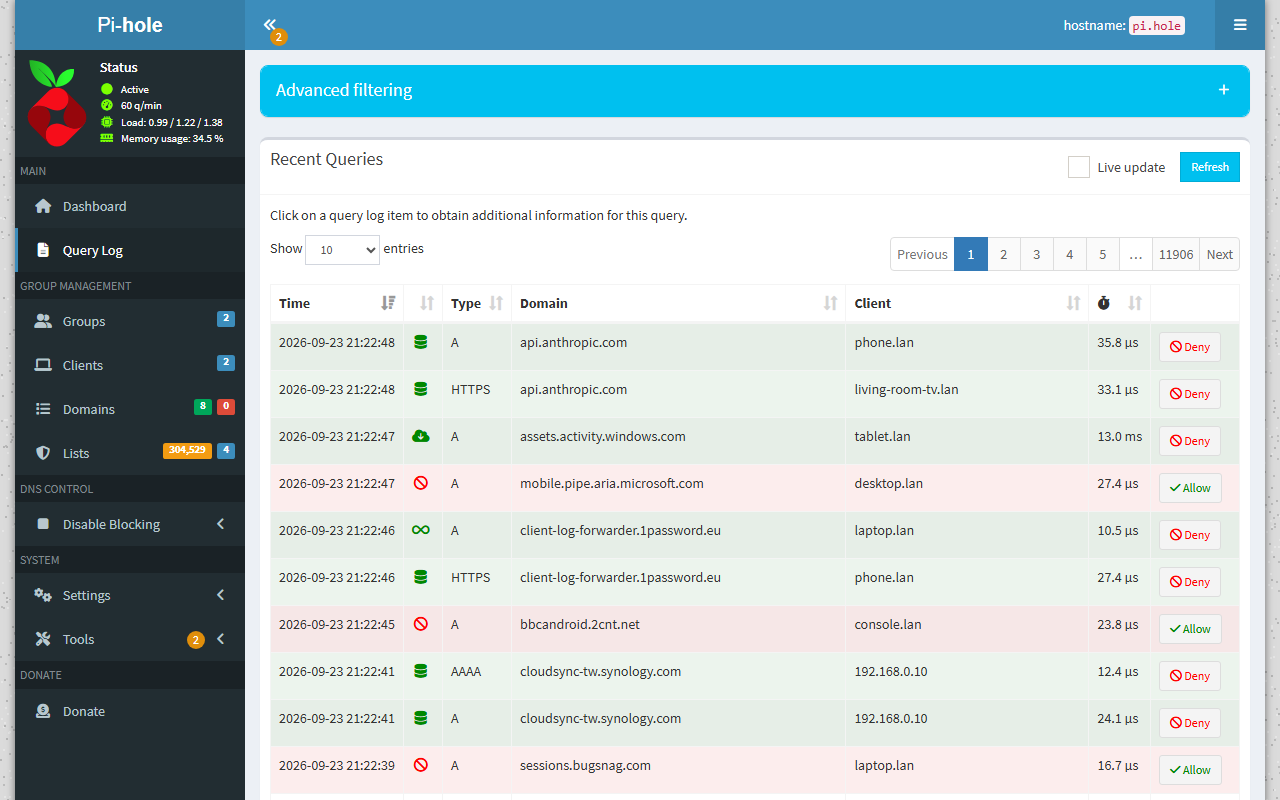
Query Log
See every domain being queried on your network, which device asked for it, and what Pi-hole did with it. Queries are stored in a long-term database, and advanced filtering lets you search any time range. Allow or deny a domain in one click.
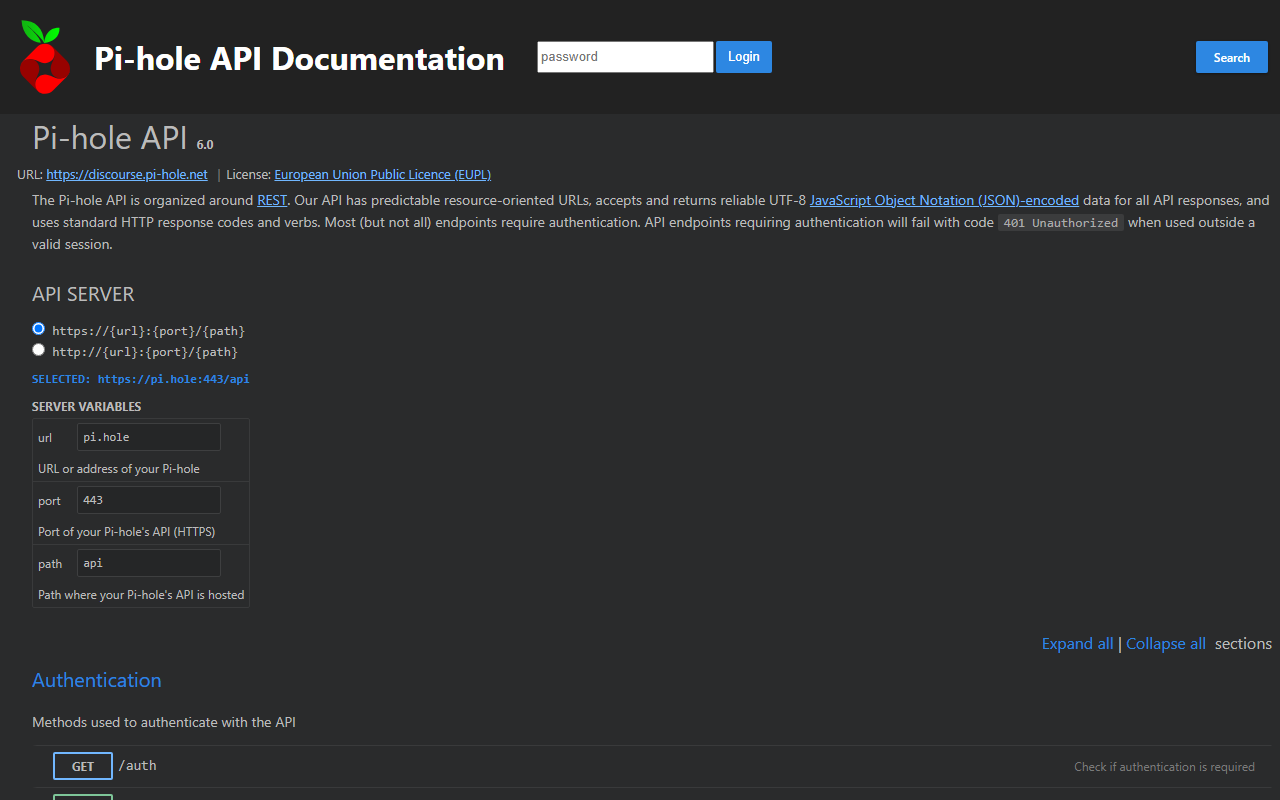
REST API
Everything the web interface can do, you can do through the API. Interactive documentation is built into every Pi-hole, and app passwords let your scripts and home-automation tools connect securely.
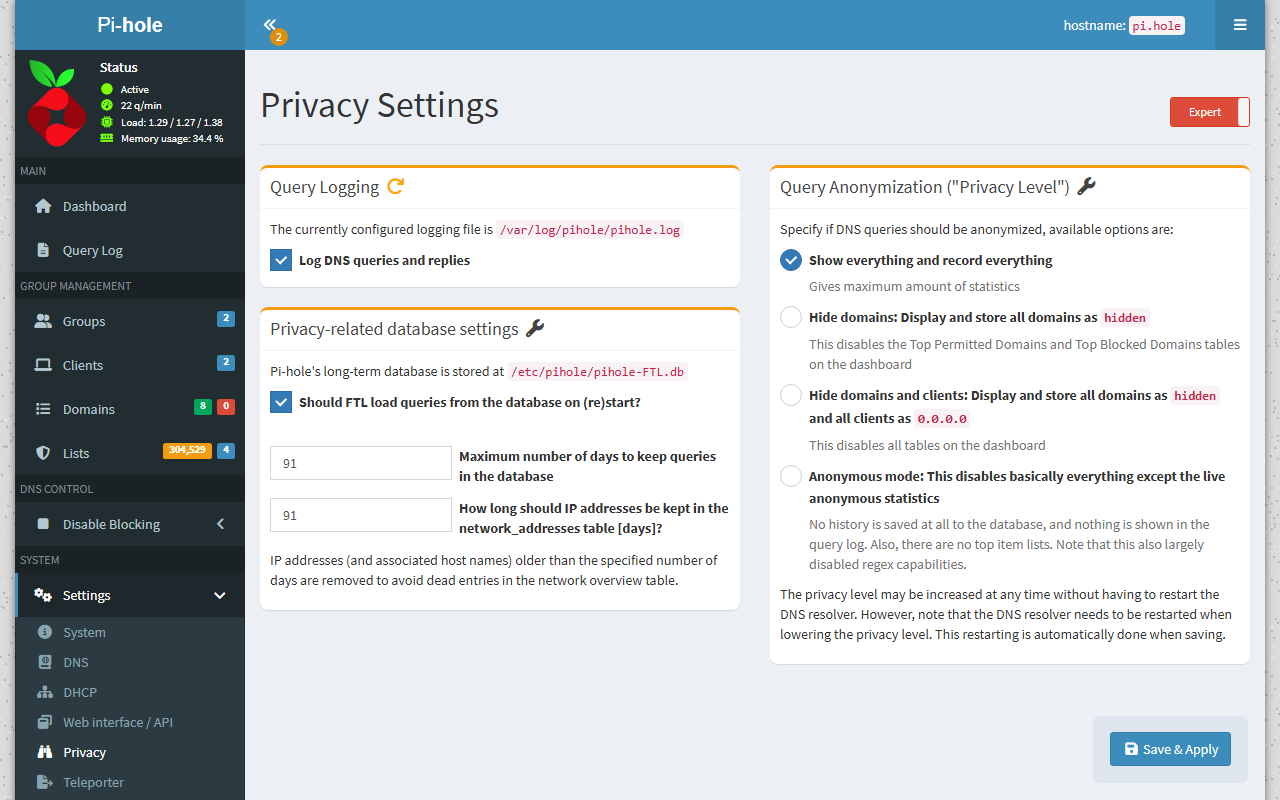
Privacy Modes
Choose from four different privacy modes that works for your environment.
Every Setting, One Place
Configure DNS, local DNS records, the web interface and more from your browser. Expert mode shows every option Pi-hole has, and Teleporter backs up and restores your whole configuration in one file.