
Documentation, Reference Materials, and Tutorials for WPCode
Would you like to let other people on your site manage code snippets without giving them a full administrator account?
In this guide, we’ll walk you through WPCode’s Access Control settings, which hand out snippet permissions role by role. All you need is a few minutes on one settings screen.
Requirements: Access Control settings require a pro license level or higher.
Before you get started, make sure WPCode is installed and activated on your WordPress site.
To get started, we’ll work out which permission each role on your site needs.
Access Control works off WordPress user roles. You pick a permission. Then you pick the roles that get it.
From your WordPress admin sidebar, go to Code Snippets » Settings.
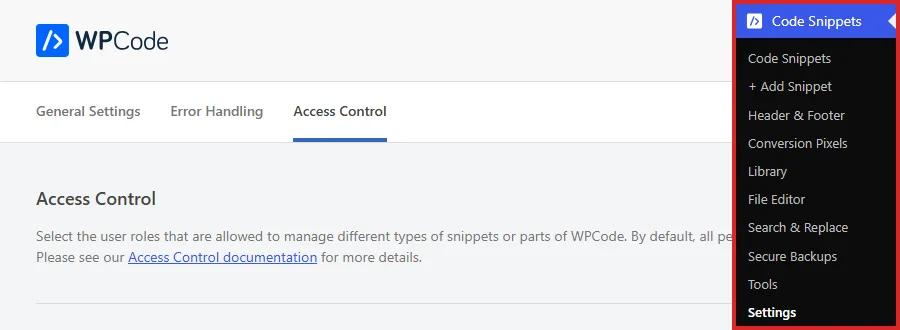
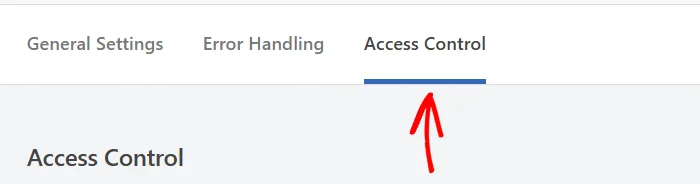
Then select the Access Control tab.
The panel holds five permissions. The first three cover snippet editing, split by code type. Each one has its own field for choosing roles.
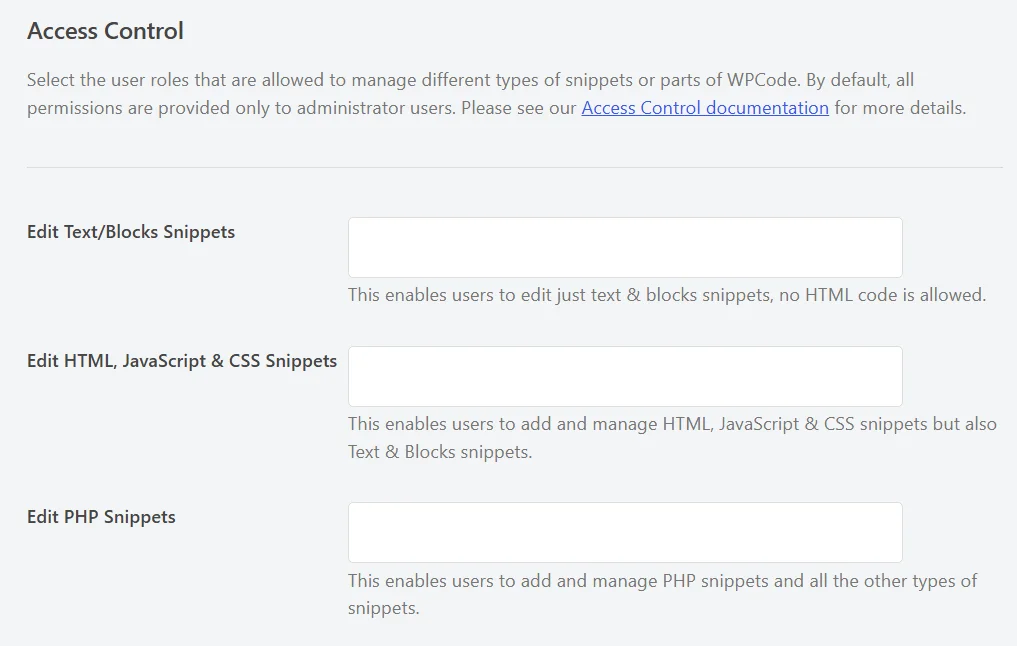
Every field starts empty. WPCode keeps all of it with administrators until you name a role, so you decide exactly what to open up and when.
These three build on each other. You only need to grant the one that matches how much reach you want a role to have.
Edit Text/Blocks Snippets is the narrowest of the three. It covers snippets made of plain text and blocks, formatted the way you format them in the WordPress editor. No code goes in them, which makes this the permission to use for someone who writes copy rather than markup.
Edit HTML, JavaScript & CSS Snippets covers markup, scripts, and styles, along with text and blocks snippets and SCSS. It also opens the Global Header and Footer screen, since that screen holds the same kind of code. Grant this to a role that works on front-end code but not PHP.
Edit PHP Snippets is the widest. It covers PHP and Universal snippets plus every other snippet type. It also opens the WPCode Library, the snippet generators, and the Tools screen.
Grant this permission to roles you trust with server-side code.
Administrator is not listed in any of these fields. Administrators already hold every WPCode permission, so there is nothing to hand them.
To give a role a permission, click the field next to it.

The list that opens holds every role on your site apart from Administrator, including any role a theme or another plugin added.
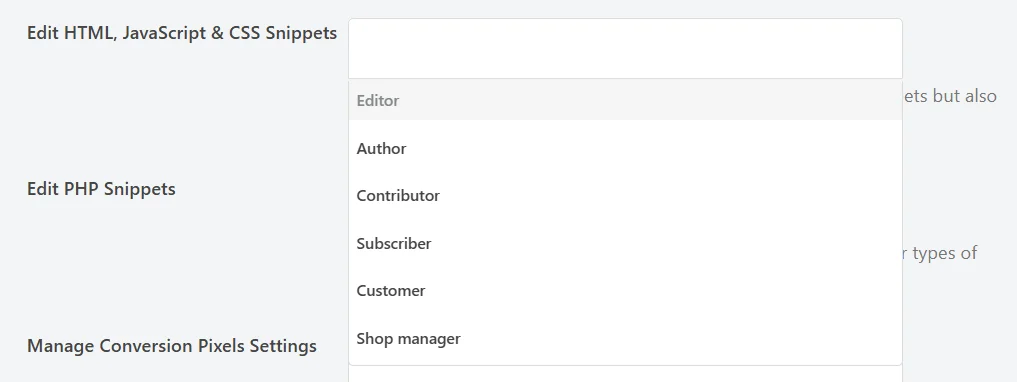
From the list, choose a role. It appears in the field as a tag.
Each field takes as many roles as you need, so you can add several at once. The small x on a tag removes it again.
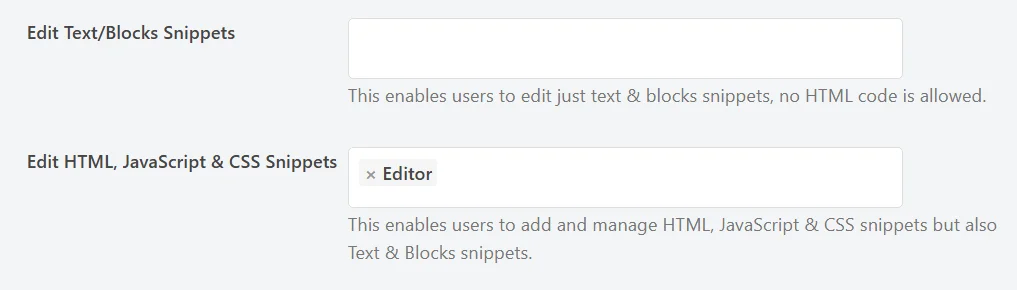
The Edit Text/Blocks Snippets field above it stays empty. Editor does not need it, because the HTML, JavaScript, and CSS permission already covers text and blocks snippets.
The panel saves as a whole, so your role choices are stored the moment you save at the bottom of the page. That is the last step in this guide.
With the snippet permissions set, the remaining two rows on the panel cover WPCode’s other screens.
The last two permissions on the panel work differently from the snippet ones. Each opens a single WPCode screen and nothing else, which makes them useful for handing one job to one person.

Manage Conversion Pixels Settings covers the Conversion Pixels screen: a tab for each pixel platform plus the click-tracking tab. This is the permission for whoever runs your advertising, because it lets them set up tracking without reaching any of your snippets.
Use the File Editor covers the File Editor screen, where WPCode edits the four files it manages: ads.txt, app-ads.txt, service-worker.js, and robots.txt. Like the pixels permission, it stops there.
None of the five permissions gives a role access to the WPCode settings pages or to the connection between your site and the WPCode Library. Those stay with administrators.
Note: While your site is connected to the WPCode Library, a role with Edit PHP Snippets can also manage the snippets in your private library. If you would rather keep that private, disconnect the plugin from the library on the General Settings tab.
Role permissions decide who can work with each snippet type. A separate control further down the panel decides whether PHP snippets run at all.
Disable PHP snippets is a site-wide switch rather than a per-role one. It applies to everybody, administrators included.
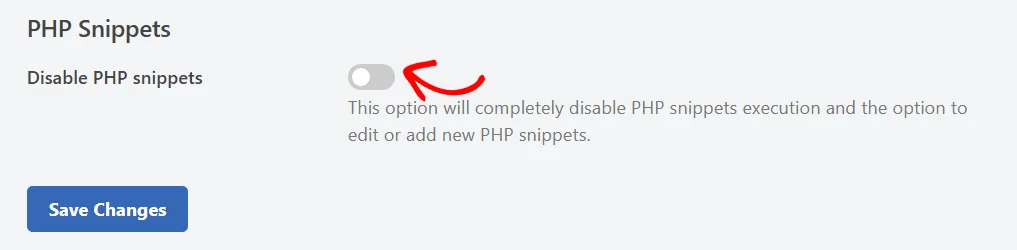
The switch arrives off, so PHP and Universal snippets run as normal. WPCode leaves every snippet type available by default. This switch is here for when you want PHP off on purpose.
Turn it on and PHP and Universal snippets stop running, so nobody can add or edit them.
The WPCode Library and the snippet generators close as well, since both deliver PHP. The Edit PHP Snippets permission row also disappears from the panel while the switch is on, because there is nothing left for it to grant.
Turning the switch back off brings all of it back.
Two things make this handy. It gives you one place to keep a site PHP-free by choice. It also gives you one place to take PHP out of the picture while you narrow down where a behavior is coming from.
You can also set this outside the admin. Adding the following line to your site’s wp-config.php file turns PHP snippets off the same way:
define( 'WPCODE_DISABLE_PHP', true );
With that constant in place, the on-screen Disable PHP snippets option no longer appears at all. The only way to change it is through wp-config.php.
Everything on this screen saves together. Once your role permissions and your PHP choice are set, click Save Changes at the bottom of the page.

That’s it! Your team can now manage the parts of WPCode you have opened up to them, and nothing else. Next, our guide on using the global header and footer settings covers one of the screens the HTML, JavaScript, and CSS permission unlocks.
Below, we’ve answered some of the most common questions about WPCode’s Access Control settings.
No. Administrators hold every WPCode permission already, which is why Administrator is not one of the choices in the role fields. Leaving all five fields empty means WPCode stays administrator-only.
No. The five permissions cover snippet editing, the Conversion Pixels screen, and the File Editor. The WPCode settings pages, including Access Control itself and the WPCode Library connection, stay with administrators.
It is hidden while PHP snippets are switched off by the Disable PHP snippets option. Switch PHP snippets back on and the permission row returns with your roles still set.
WPCode filters the list for them. A user only sees the snippet types their role is allowed to edit on the Code Snippets screen. The code type picker only offers those types when they add a snippet.
As soon as you save. WPCode reads your saved role permissions on every page load, so the people in that role do not need to sign out and back in. Anyone in a role granted one of the three snippet permissions finds Code Snippets in their WordPress sidebar the next time they open the admin.
Yes. Text and Blocks share one permission. HTML, JavaScript, CSS, and SCSS share the next. PHP and Universal share the third. Because the three stack, granting a role the PHP permission gives it every code type in one go.
Future-proof your website with WPCode Snippets and improve the way you manage code across all your websites.
Copyright © 2026 WPCode. WPCode® is a registered trademark of WPCode, LLC


The WordPress® trademark is the intellectual property of the WordPress Foundation. Uses of the WordPress®, names in this website are for identification purposes only and do not imply an endorsement by WordPress Foundation. WPCode is not endorsed or owned by, or affiliated with, the WordPress Foundation.
