
Documentation, Reference Materials, and Tutorials for WPCode
Would you like to update your site’s ads.txt or robots.txt file without opening an FTP client? The WPCode File Editor manages all four supported files from your WordPress dashboard.
In this guide, we’ll walk you through editing each of the four files and saving your changes.
Requirements: The File Editor is part of the paid version of WPCode and is available with a basic license level or higher.
Before you get started, make sure WPCode is installed and activated on your WordPress site.
The File Editor covers four files, and each one has its own job. Knowing which is which makes picking the right tab straightforward.
ads.txt is short for Authorized Digital Sellers. It lists the companies allowed to sell advertising space on your site. Advertising platforms such as Google AdSense usually hand you the exact lines to paste in.
app-ads.txt does the same job for a mobile app. It names the companies authorized to sell advertising inside your app, and it follows the same formatting rules as ads.txt.
service-worker.js holds JavaScript that browsers run in the background on secure sites. On WordPress sites the most common use is a one-step push notification signup, so visitors can subscribe without being sent to a separate service.
robots.txt tells search engine crawlers which parts of your site to visit. WordPress already generates one from the options in Settings » Reading, and many SEO plugins add to it. WPCode appends your content to what those produce rather than replacing it.
Note: WPCode stores your content and serves each file when a browser or crawler asks for it, so nothing new appears in your site’s folders. That’s the same way WordPress produces a robots.txt file for a site that has no physical copy of one.
To get started, we’ll open the File Editor and get familiar with its layout.
From your WordPress admin sidebar, go to Code Snippets » File Editor.
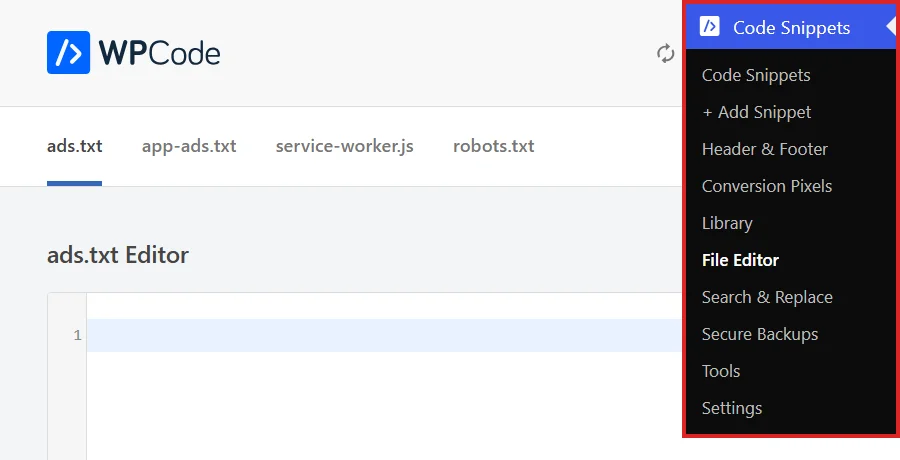
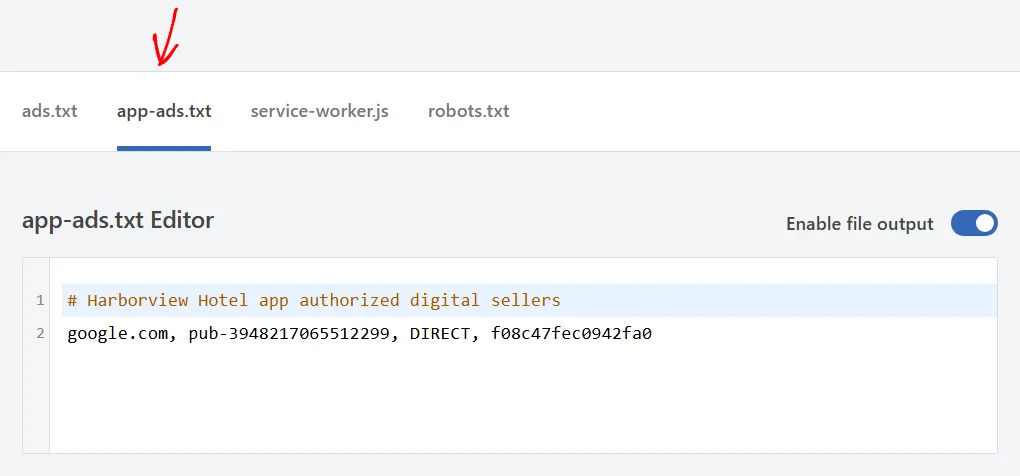
Across the top of the page there’s a tab for each supported file: ads.txt, app-ads.txt, service-worker.js, and robots.txt.
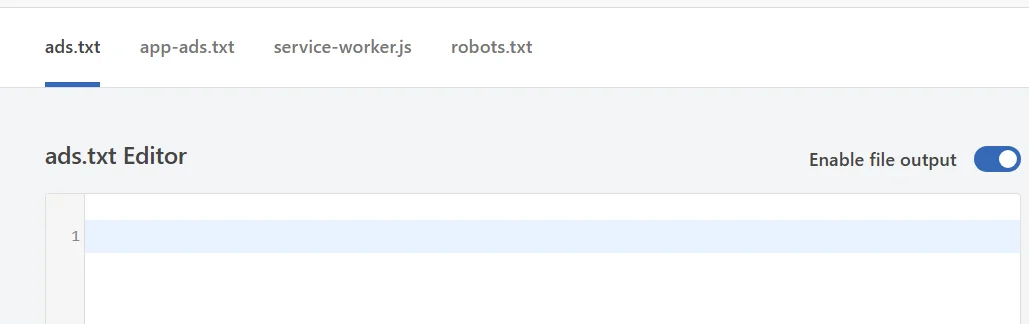
Every tab shares the same layout underneath. There’s a heading naming the file, with an Enable file output toggle on the right. Underneath those sit the editor for your contents and a pair of buttons at the bottom.
With that layout in mind, you’re ready to start on the first tab.
The page opens on the ads.txt tab, so there’s nothing to select before you start.
On the right of the editor heading, check that Enable file output is switched on. This is what tells WPCode to serve the file to visitors and crawlers.

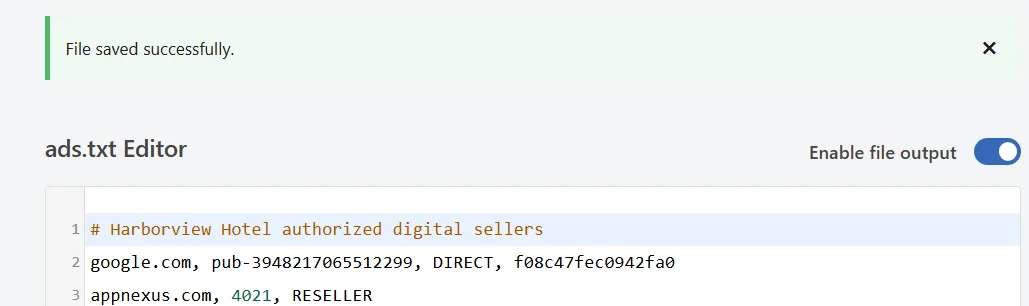
Next, add your file contents to the editor. Lines beginning with a hash are treated as comments. Each seller line lists the ad system’s domain, your publisher account ID, and whether the relationship is DIRECT or RESELLER.
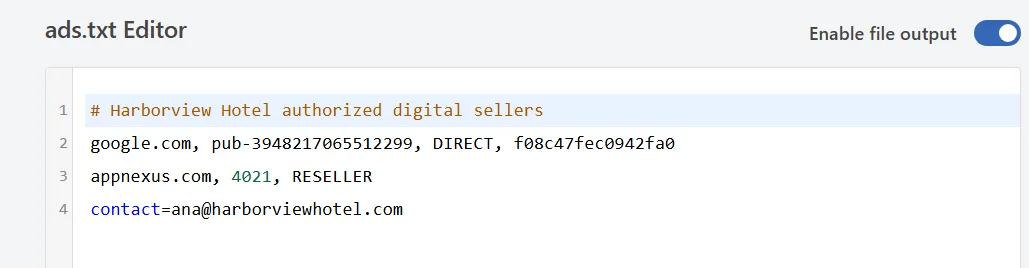
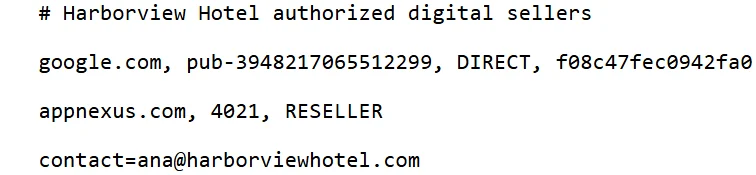
The last line in that example is a contact line. WPCode treats a line written as a name followed by an equals sign as a setting rather than a seller line. That means it accepts the line as written.
When your contents are ready, click Save Changes at the bottom of the editor.
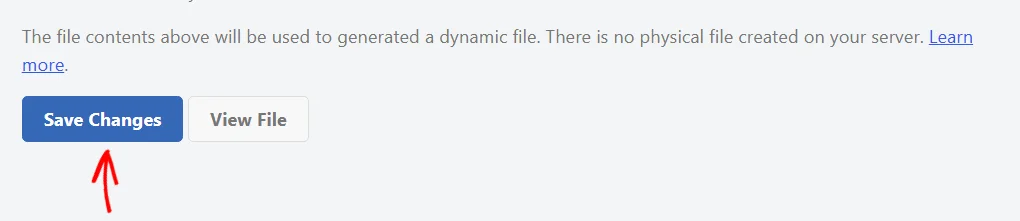
WPCode reloads the page and confirms with a “File saved successfully” message above the editor.
Your ads.txt content is now saved. Next, it’s worth confirming how the file looks to visitors and crawlers.
Checking the saved file in your browser confirms that WPCode is serving exactly what you entered.
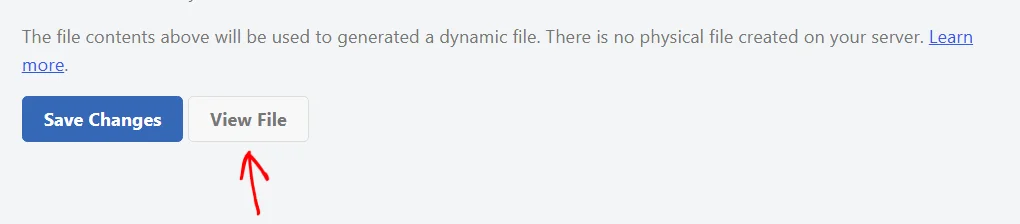
Beside the save button, click View File to open the file exactly as visitors and crawlers receive it.
It opens in a new tab at your site’s root address, showing the contents you saved as plain text.
With ads.txt in place, the same routine covers the other three files.
To manage a mobile app’s authorized sellers, select the app-ads.txt tab. Everything on it works the way it does on the ads.txt tab. It uses the same line formatting, the same Enable file output toggle, and the same pair of buttons at the bottom.
Your app’s authorized sellers are now handled from the same page as your site’s.
Background JavaScript for your site lives on its own tab in the File Editor.
To add that code, select the service-worker.js tab.
Because this tab holds JavaScript, the editor colors the code as you type. That makes it easier to spot a missing bracket or quotation mark.
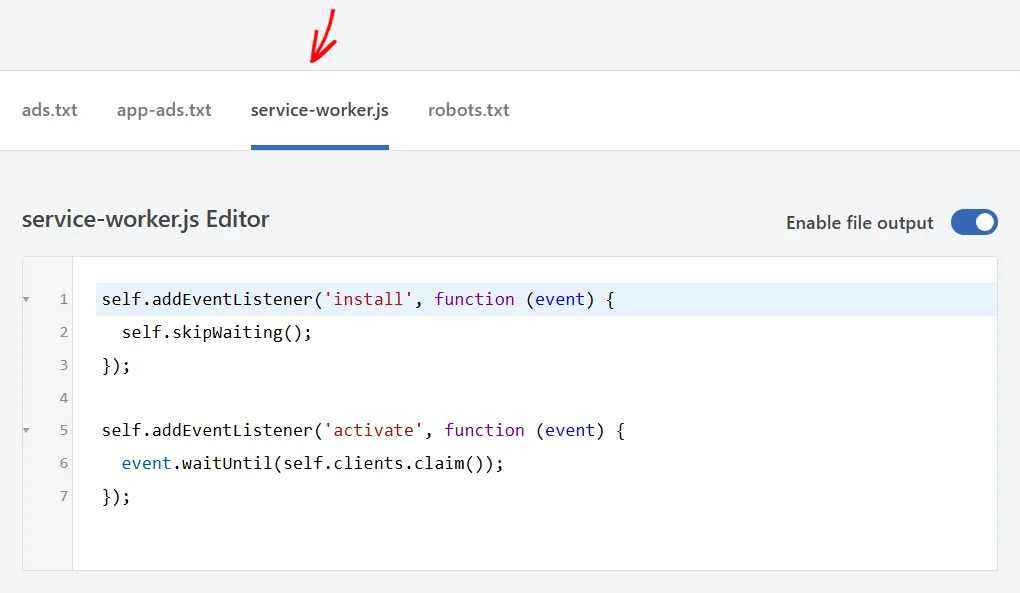
Any JavaScript you add here is saved the same way, using the buttons at the bottom of the editor.
The robots.txt tab holds the crawler directives you want to add to your site.
To add them, select the robots.txt tab.
A note underneath the editor explains how WPCode handles them. Your content is appended to the robots.txt that WordPress and your other plugins already generate, so anything they produce stays in place.
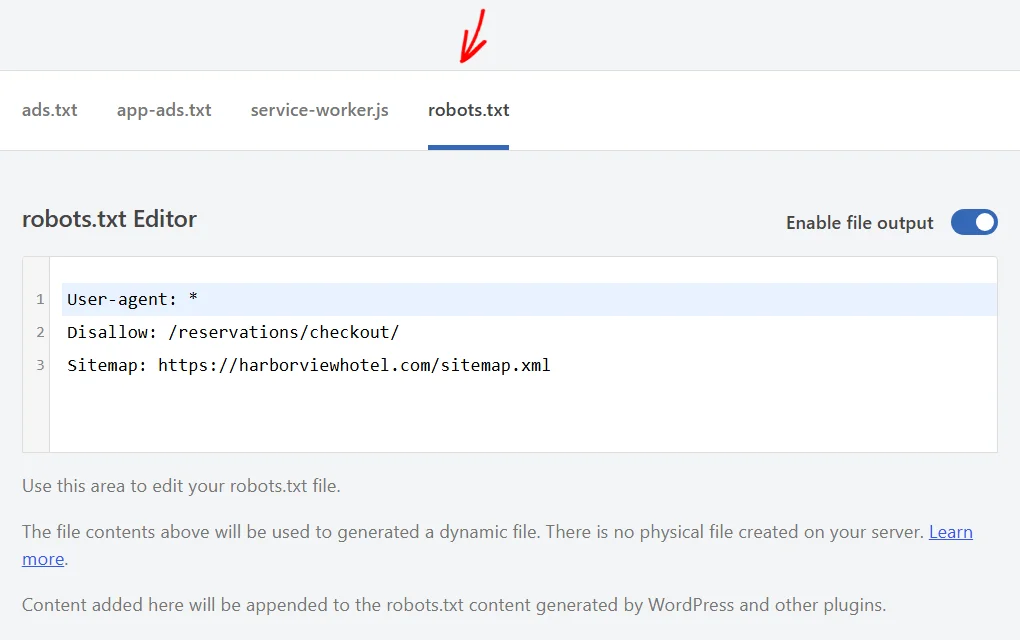
See How to Optimize Your WordPress Robots.txt for SEO for guidance on which directives are worth adding.
Your directives are saved with the Save Changes button at the bottom of the editor. Beside it, View File opens your site’s robots.txt so you can confirm your directives are there.
Your crawler directives now sit alongside the ones WordPress and your other plugins already produce.
WPCode checks the formatting of your ads.txt, app-ads.txt, and robots.txt content each time you save. If a line doesn’t match the expected format, WPCode saves your content and displays a message naming the line and what it found. From there, adjust the line and save again.
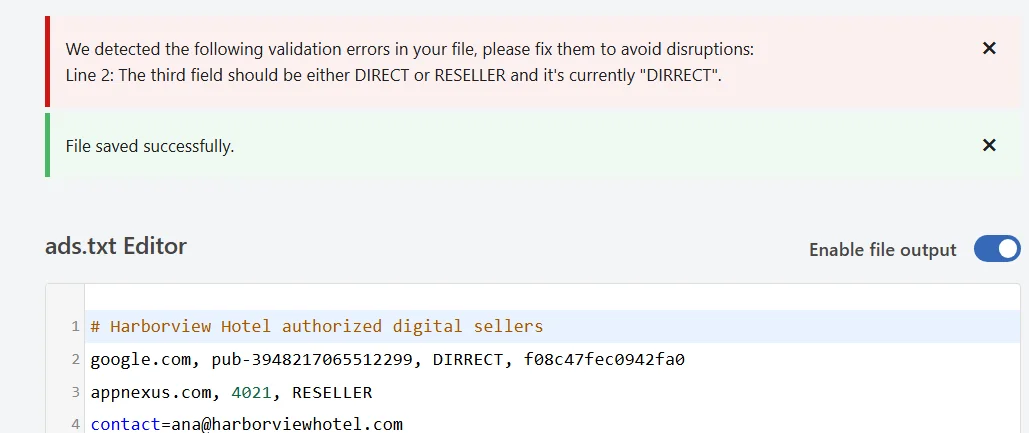
On the service-worker.js tab, the syntax coloring plays that role instead.
That’s it! You now know how to manage your site’s ads.txt, app-ads.txt, service-worker.js, and robots.txt files straight from your WordPress dashboard.
Next, you might like to read our guide on access control, which covers how to choose the user roles allowed to work with WPCode.
Below, we’ve answered some of the most common questions about the WPCode File Editor.
No. WPCode stores what you enter and serves the file when it’s requested, which is why nothing new appears in your site’s folders.
WPCode detects it and displays a message explaining that the file needs to be removed from your server first. That’s because a physical file is served before WordPress loads. Once you remove it, the tab becomes editable and WPCode takes over serving the file.
No. Content you add on that tab is appended to the robots.txt that WordPress and your other plugins generate, so their directives remain.
No. WPCode saves your content and shows the message alongside the save confirmation, leaving the decision about what to change with you.
It controls whether WPCode serves the file. Switch it off and WPCode stops publishing it, while your content stays saved on the tab ready for whenever you switch it back on.
Yes. WPCode’s access controls include a dedicated File Editor permission. That lets a role work with these files without giving it access to the rest of WPCode.
Future-proof your website with WPCode Snippets and improve the way you manage code across all your websites.
Copyright © 2026 WPCode. WPCode® is a registered trademark of WPCode, LLC


The WordPress® trademark is the intellectual property of the WordPress Foundation. Uses of the WordPress®, names in this website are for identification purposes only and do not imply an endorsement by WordPress Foundation. WPCode is not endorsed or owned by, or affiliated with, the WordPress Foundation.
