
Group Chats
Wirechat Groups turn simple messaging into a moderated, multi-user room system. In addition to members, roles, and message permissions, groups can expose invite links, approval-driven joins, public invite pages, and admin-only moderation tools for past and blocked members.
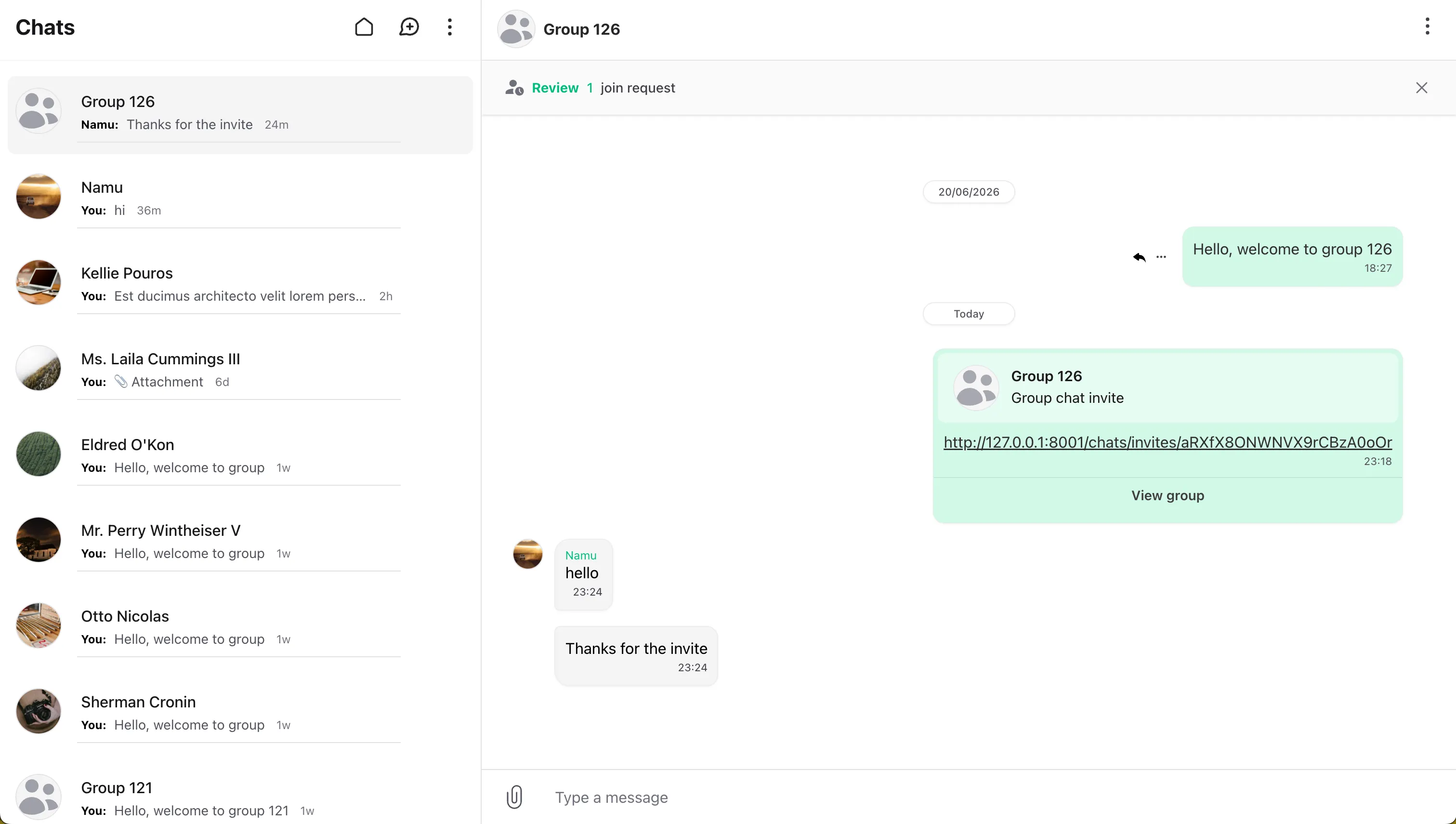
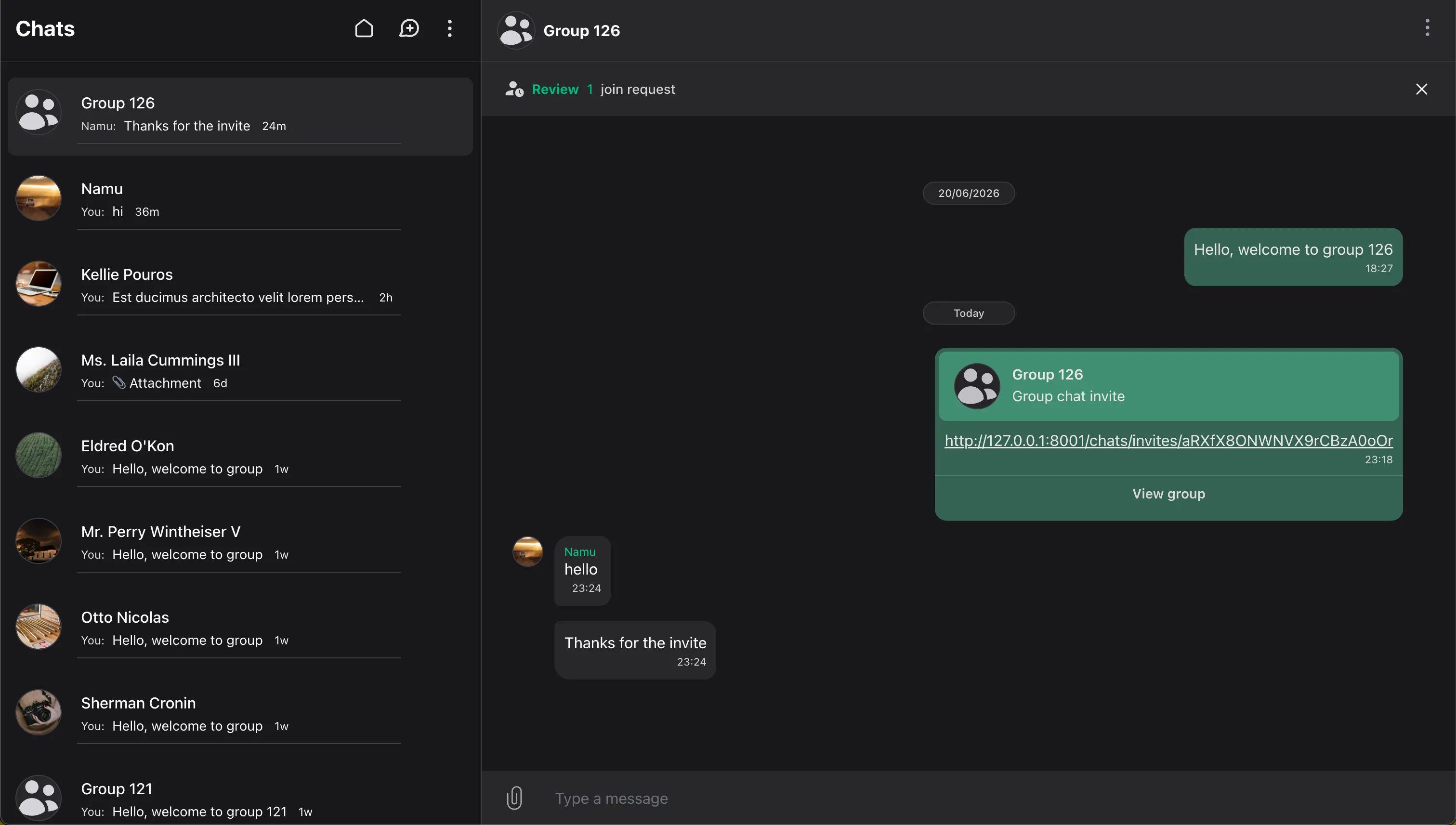
Enabling Group Creation
To allow users to create groups in your application, enable the group creation action in your Wirechat panel:
use Wirechat\Wirechat\Panel;

public function panel(Panel $panel): Panel
{
    return $panel
        // ...
        ->createGroupAction();
}
The createGroupAction() controls group creation entry points wherever the panel exposes them, including the chats header dropdown and the new-chat flow. createChatAction() controls private chat creation. Enable both actions when the default UI should offer both private chats and groups. See the Actions page for the full action API.
Group Settings
Panels define group behavior per panel, so different panels can have different creation rules, limits, invitation policies, layouts, and authorization boundaries.
| Method | What it controls |
|---|---|
createGroupAction() |
Shows group creation entry points, such as the chats header dropdown and the new-chat flow |
maxGroupMembers() |
Sets the maximum number of members allowed in a group |
groupInvitations() |
Enables invite links, invite routes, join requests, and invite moderation |
invitePageLayout() |
Sets the public invite preview page layout |
mountUrl() |
Sets the app page where public invite hand-offs continue when full chat routes are disabled |
inviteJoinRedirect() |
Optionally overrides only the post-join redirect target |
Invitation settings are documented together under Group Invitations because they affect routes, public pages, join requests, and moderation tools.
Maximum Group Members
This option controls how many members a group can have within the current panel.
use Wirechat\Wirechat\Panel;

public function panel(Panel $panel): Panel
{
    return $panel
        // ...
        ->maxGroupMembers(1000);
}
Creating a Group
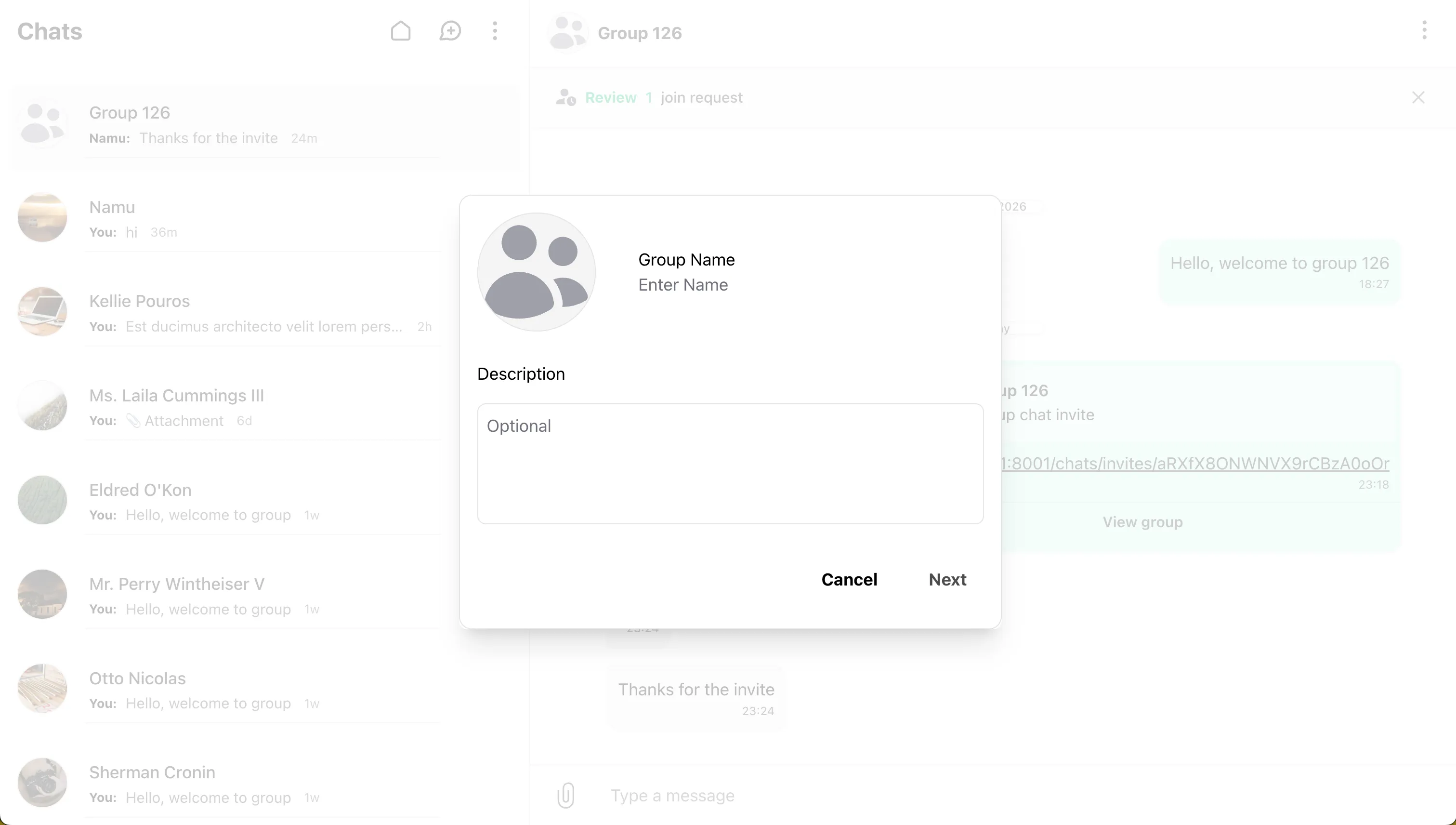
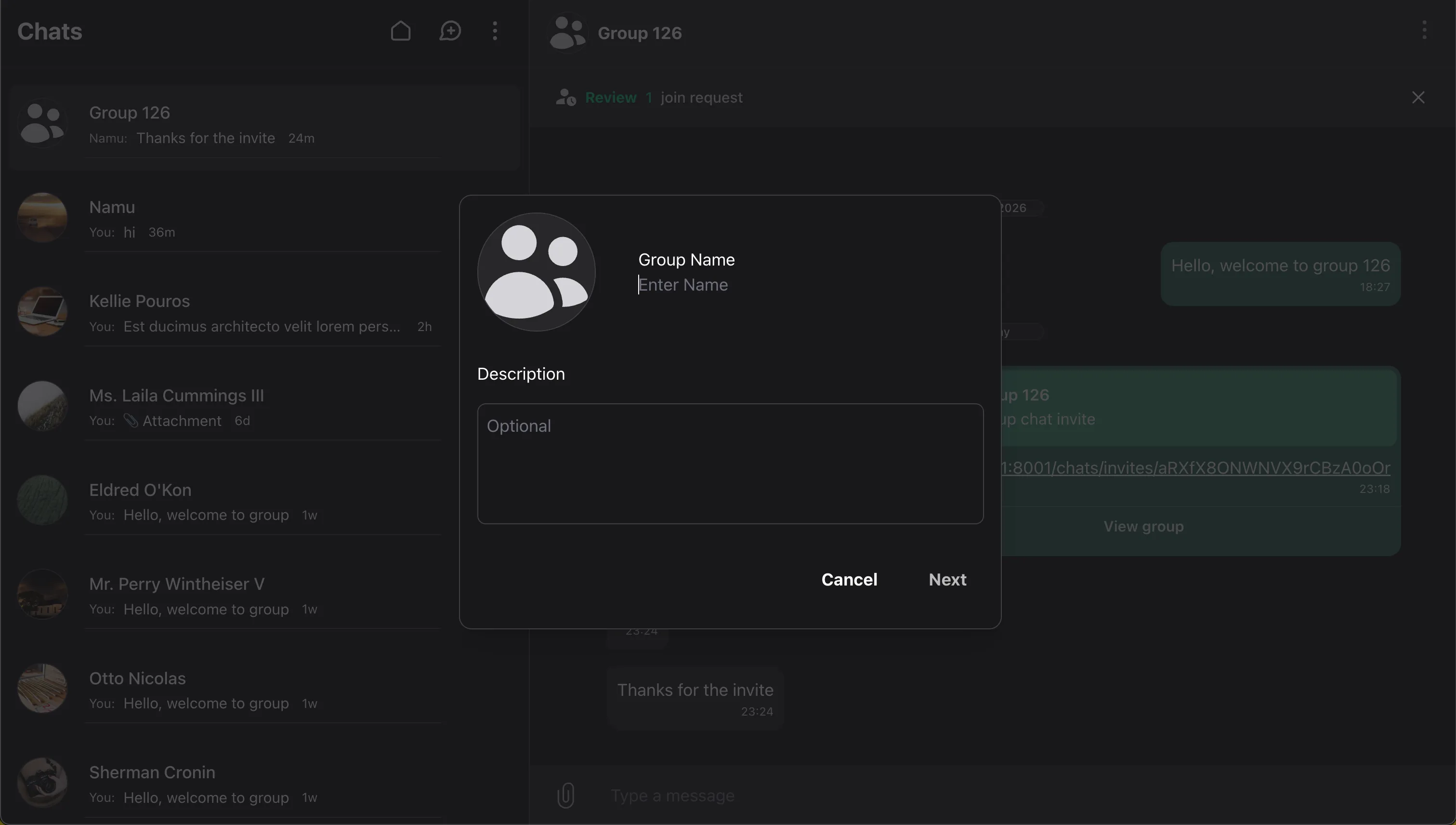
Creating a group gives users a shared space where multiple participants can communicate, assign roles, manage members, and control who can perform sensitive actions.
See Privacy for group-related permissions and security rules.
Group creation via UI
- Click the Plus icon in the chats component.
- Select New Group.
- Fill in the group details:
- Group Name: Required, limited to 100 characters.
- Description: Optional.
- Group Icon: Optional image shown in the chats list and group header.
- Click Next.
- Select members by searching or choosing from the list.
- Click Create.
Customize users returned by group creation search on the Users page.
Programmatically
// Create a group and receive the Conversation model.
$conversation = $user->createGroup(
    name: 'Product Launch',
    description: 'Cross-team launch room',
    photo: $photo,
);
Group Participant Roles
Wirechat supports hierarchical group roles:
- Owner: The creator of the group. Owners have full administrative control and remain the highest authority for group settings.
- Admin: A promoted member with elevated moderation and management permissions.
- Participant: A regular group member.
Common role checks:
// Check whether a user is an admin.
$conversation->isAdmin($user); // bool

// Check whether a user is the owner.
$conversation->isOwner($user); // bool
The creator of a group is automatically assigned the OWNER role.
Managing Group Members
Groups support dynamic membership management, but the exact behavior depends on the participant's history with the room and any moderation actions that were taken previously.
Viewing Members
Owners and group members can view the active member list. Moderation actions, such as promoting members, removing members, or blocking members, are shown only to owners and admins.
Members can also start a direct chat with another member from the group member list when your application's user messaging rules allow it.
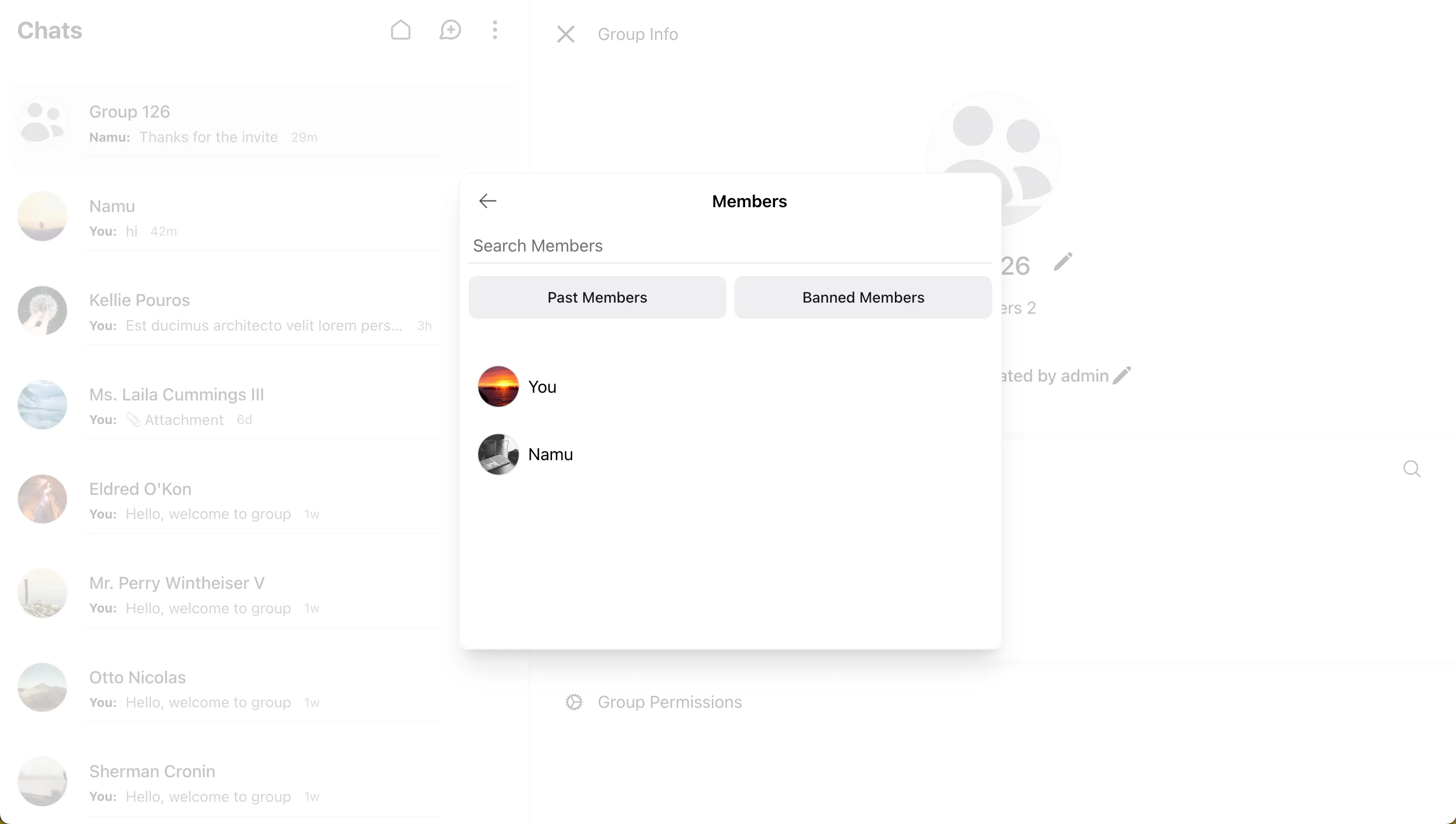
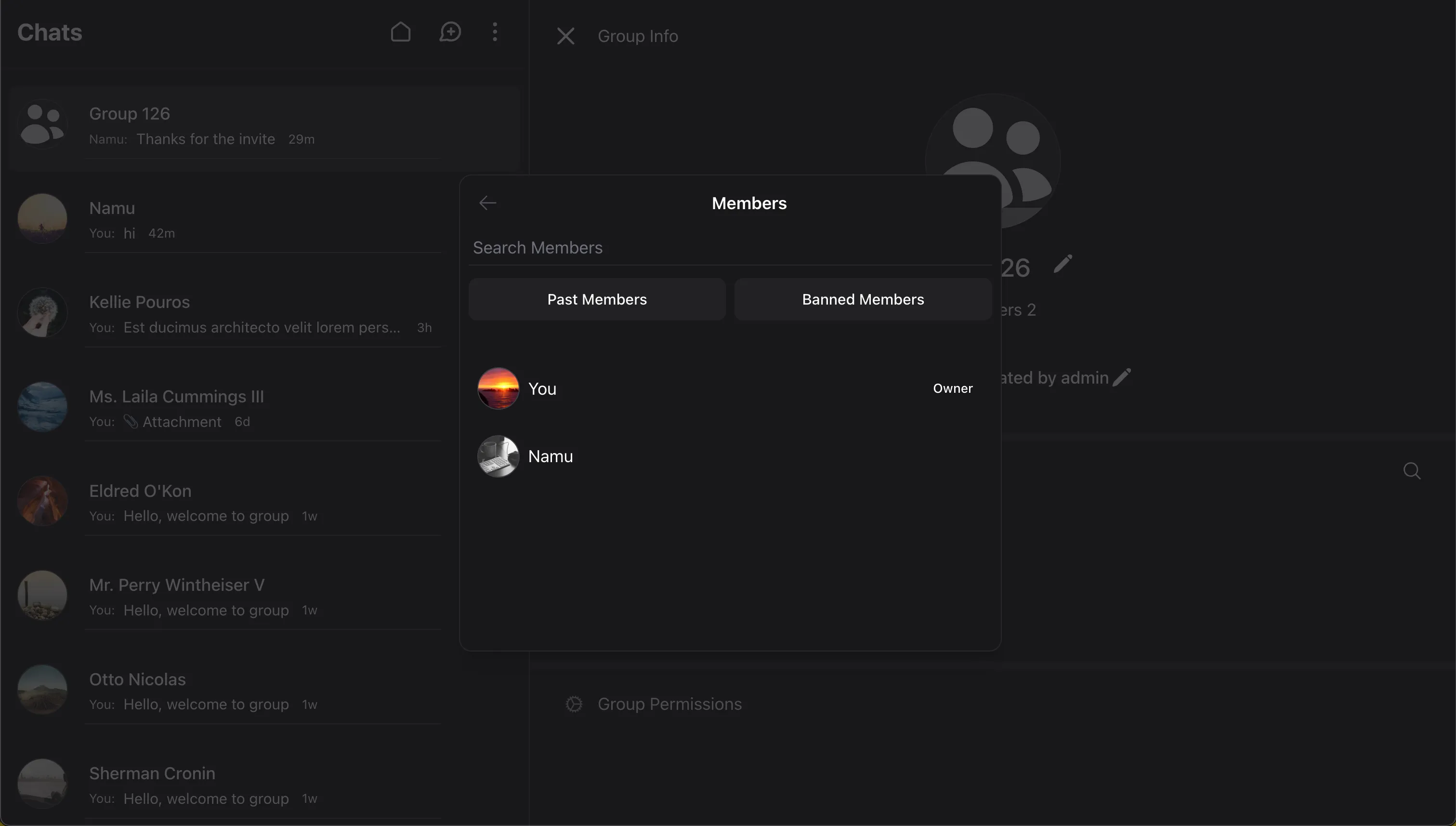
Admins can inspect membership history through dedicated moderation views:
- Past Members shows people who previously belonged to the group and records whether they left on their own, were removed by an admin, or were banned.
- Banned Members shows participants who cannot rejoin until the ban is lifted.
These views help admins understand why someone is missing from add-member search results or why a join action is being rejected. Customize application-level user search filters on the Users page.
Adding Members
Groups can be configured to let all members add others or to restrict that action to admins. In the UI:
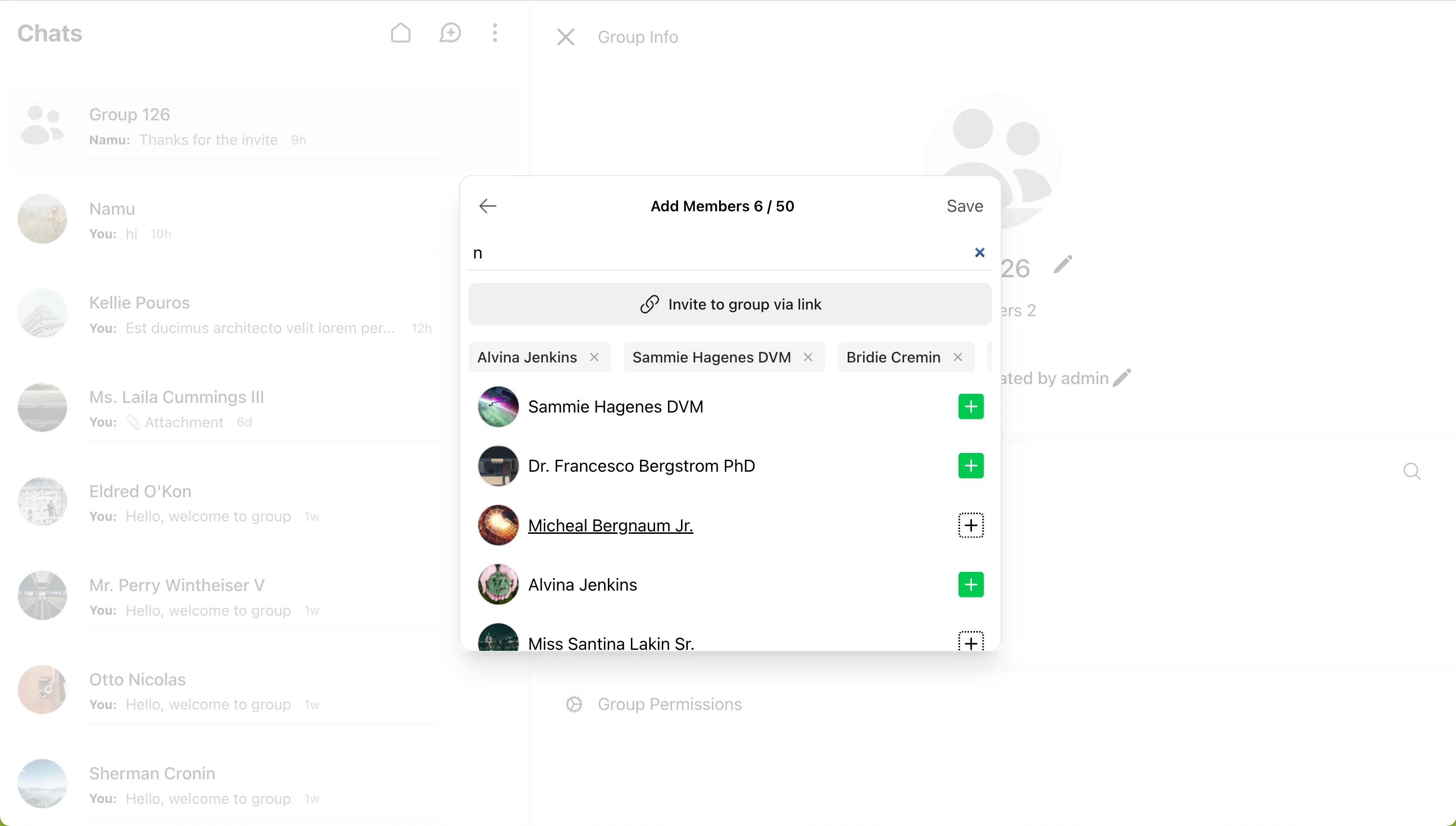
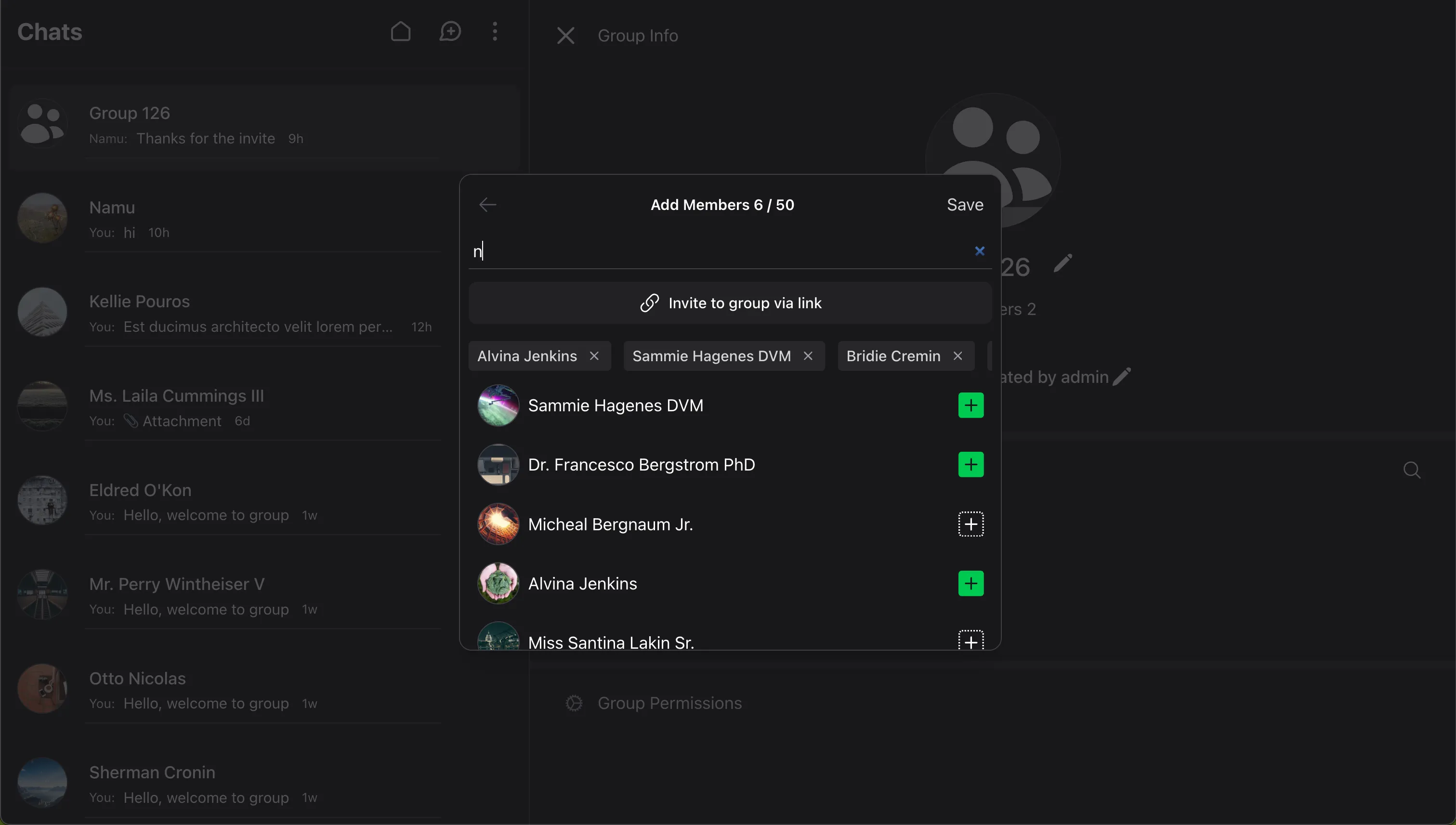
- Open the group chat and click the group name.
- In Group Info, click Add Members.
- Search or select users to add.
- Click Save.
Customize users returned by Add Members search on the Users page.
Programmatically:
// Add a user or model to a group.
$conversation->addParticipant($user);
If group invitations are enabled, the Add Members screen can also expose a primary invite link shortcut. This is useful when members are allowed to add others but should not be allowed to manage invite settings directly.
Re-adding and Restoring Members
Wirechat treats past membership carefully:
- Members who left on their own cannot be force-added back by another user, including admins.
- Members who were banned by an admin cannot be re-added until the ban is lifted.
- Members who were removed by an admin can be intentionally restored programmatically.
// Restore a member who was previously removed by an admin.
$conversation->addParticipant(
    $user,
    undoAdminRemovalAction: true,
);
That explicit undoAdminRemovalAction flag matters because it forces developers to make a deliberate decision before reversing an admin removal.
Removing Members
Only admins can remove members, and the group owner cannot be removed by another admin.
To remove members via UI:
- Open the group chat and click the group name.
- Under Group Info, select Members.
- Find the member and click Remove.
Effect of removal:
- The participant is removed from the active room.
- Any admin role is cleared as part of the removal lifecycle.
- The participant becomes part of the room's moderation history and is no longer treated as an active member.
Exiting a Group
All members except the owner can exit a group voluntarily.
Exit Group via UI
- Open the group chat.
- Click the three-dot menu and select Exit Group.
- Alternatively, open Group Info and use the Exit Group action there.
Exit Programmatically
$user->exitConversation($conversation);
When a user exits by choice, they cannot be force-added back by another member or admin. They must decide to return themselves, usually through an invite link.
Group Permissions
Group permissions control who can perform sensitive actions, such as editing group information, sending messages, adding members, and approving new participants.
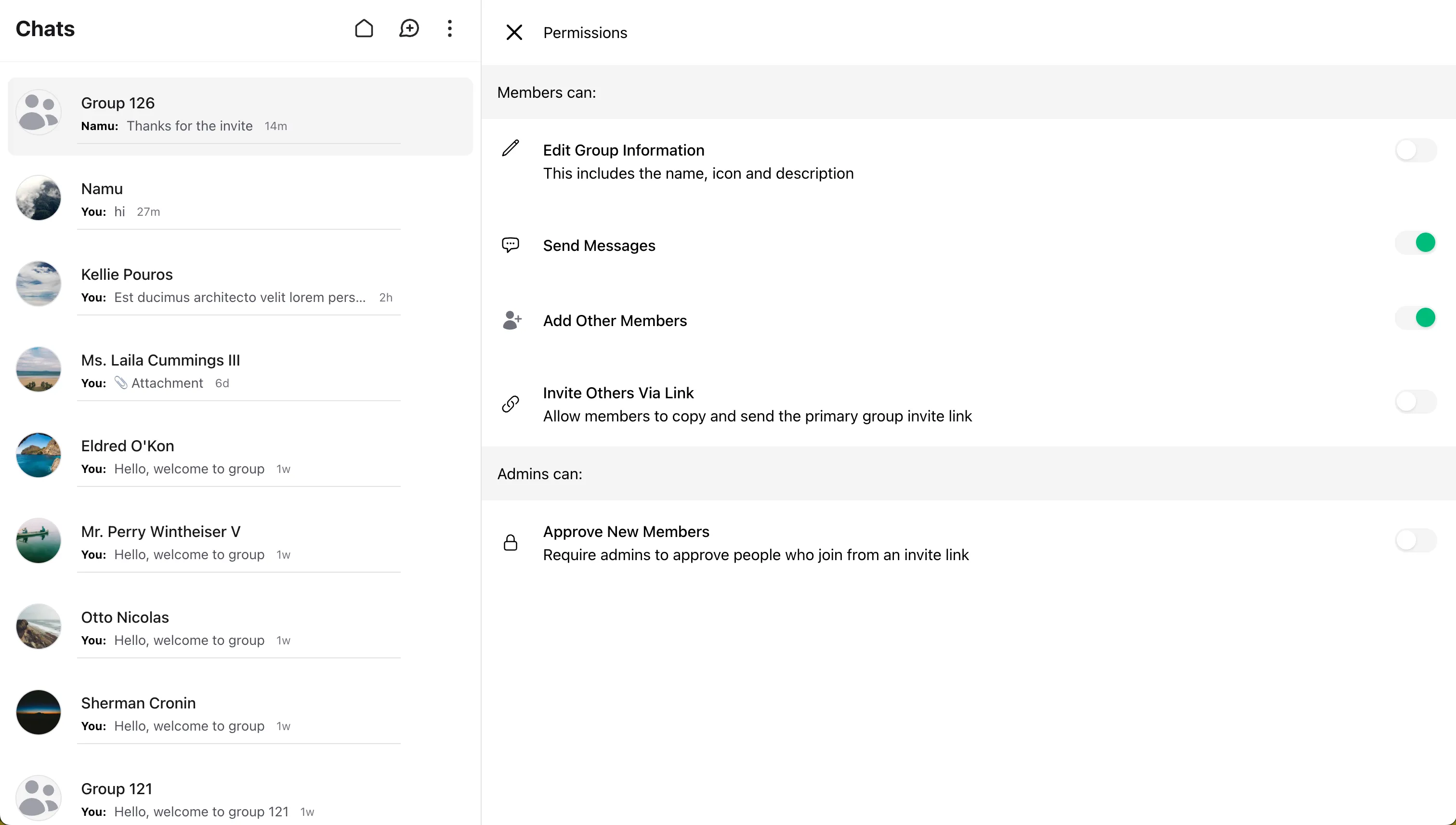
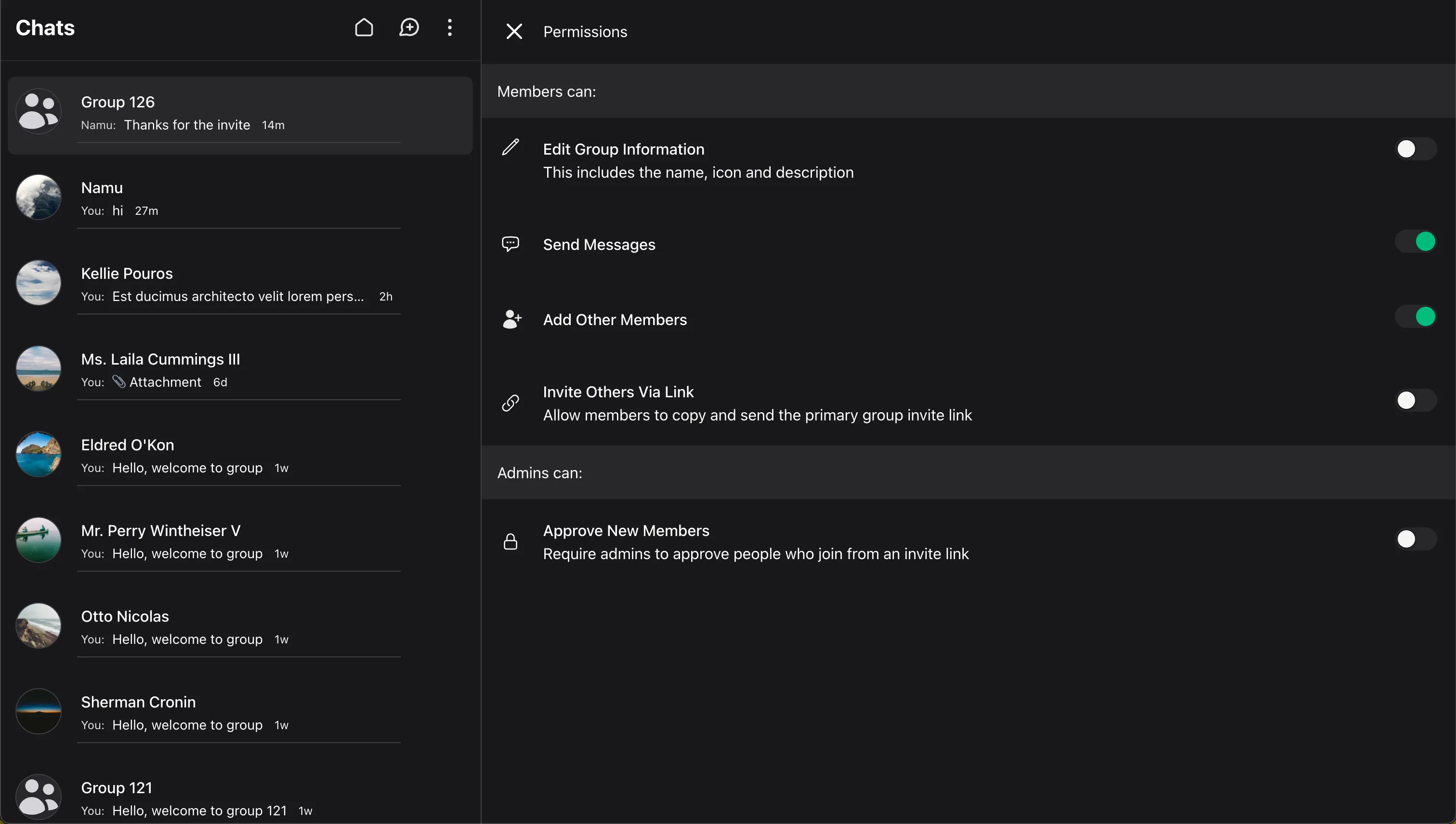
By default:
- All members can send messages and add others.
- Only admins can edit group information.
- Invite-based joins can be made approval-driven when the group owner enables it.
Editing Group Permissions
- Open the group chat and click the group name.
- Select Group Permissions.
- Adjust the settings:
- Add Members: Allow all members or only admins to add participants.
- Send Messages: Allow all members or only admins to send messages.
- Edit Group Info: Allow all members or only admins to edit the group's name, icon, and description.
- Approve New Members: Require admins to review people who arrive through invite links before they join.
Approval Rules and Group Access
Invite approval is derived from two things:
- The group's access mode, such as public vs private access.
- The
admins_must_approve_new_membersflag.
In practice:
- Public groups can allow immediate joins.
- Private-access groups always require a join request.
- Public groups can still require approval if
admins_must_approve_new_membersis enabled.
This means invite links are not automatically equivalent to direct membership. The group configuration still decides whether a valid invite produces a join or a join request.
Group Invitations
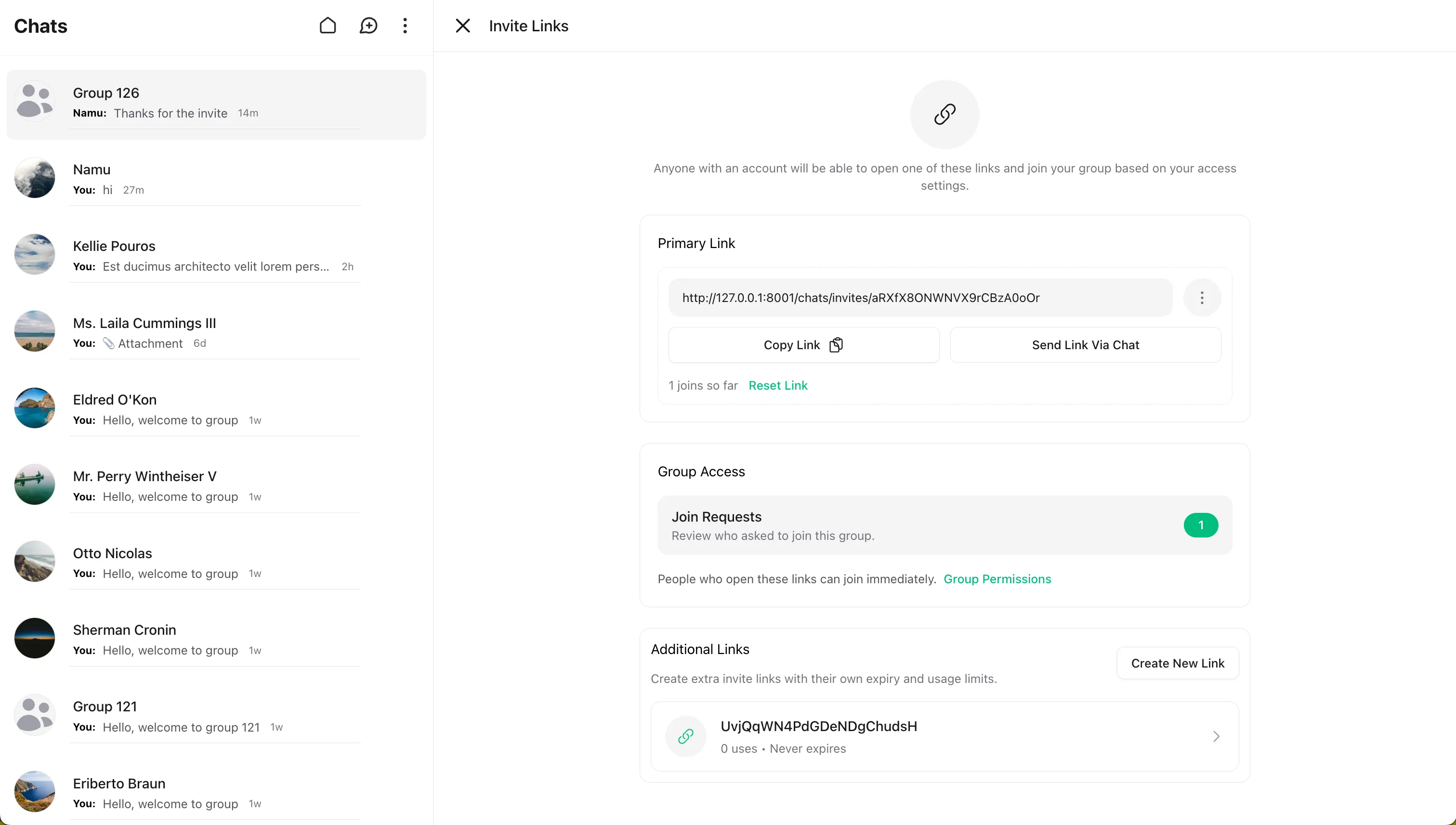
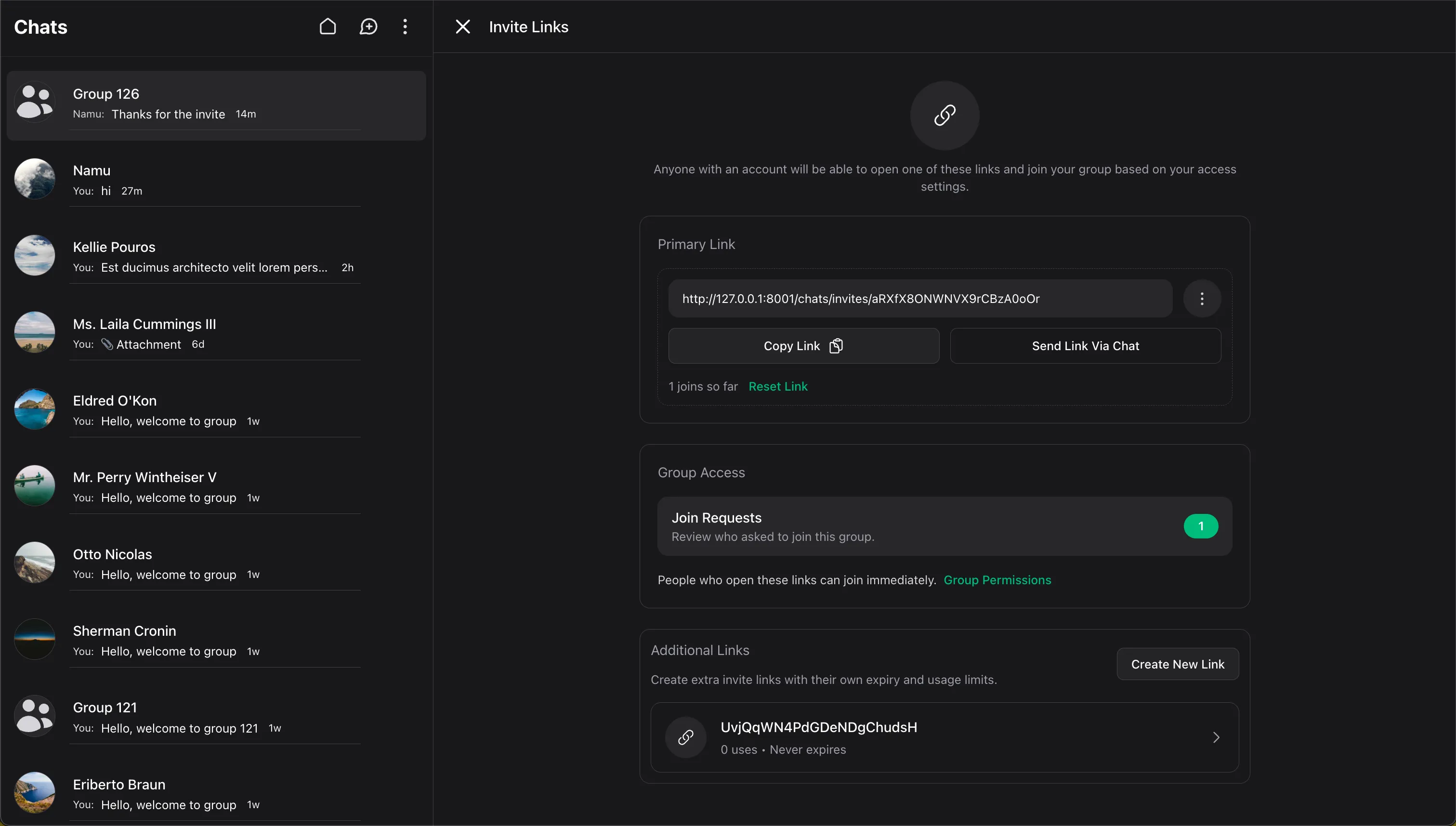
Group invitations provide a structured way to share access without directly adding people into the room. They are designed to work with guest previews, in-app joins, join-request review, and moderation history.
Enabling Group Invitations
Invite links are opt-in at the panel level. When enabled, Wirechat exposes the group invite UI, invite routes, join-request flow, and invite-specific moderation tools.
use Wirechat\Wirechat\Panel;

public function panel(Panel $panel): Panel
{
    return $panel
        // ...
        ->groupInvitations();
}
When the feature is disabled:
- Invite management actions are hidden from group info.
- Invite routes return
404. - Invite-management Livewire components are not a supported UI surface for that panel.
Customizing the Invite Page Layout
Invite links can be opened by guests or by authenticated users who are outside your protected chat area. Because of that, the invite preview page should use a layout that is safe to render publicly.
use Wirechat\Wirechat\Panel;

public function panel(Panel $panel): Panel
{
    return $panel
        // ...
        ->groupInvitations()
        ->invitePageLayout('wirechat::layouts.app');
}
Use a layout that does not assume your normal chat shell, admin dashboard layout, or any route that requires authenticated panel access. The invite preview page is intentionally public-facing, while the actual join is finalized inside the chat application.
Invite Mount Redirects (Widget Support)
Invite joins normally redirect users into the panel's chat index. If your app disables full chat routes and hosts Wirechat as a widget on a dedicated page, set mountUrl() so public invite flows land on the page that actually renders Wirechat.
use Wirechat\Wirechat\Panel;

public function panel(Panel $panel): Panel
{
    return $panel
        // ...
        ->groupInvitations()
        ->registerRoutes(false)
        ->mountUrl(fn () => route('wirechat.widget'));
}
With a mount URL configured, copied invite links remain available even when the full chat pages are disabled. Existing members are sent to the mount page and Wirechat opens the group internally. Non-members continue through the invite lobby or join-request flow.
Use inviteJoinRedirect() only when the join form needs a different destination than the general Wirechat mount page.
Workflow Overview
The invitation flow is intentionally split into multiple stages:
- An admin or owner opens the invite management UI.
- Wirechat ensures the group has an active primary invite link.
- Additional links can be created with their own name, usage limit, and expiry.
- A shared invite URL opens a public preview page under the current panel.
- The join form posts to a dedicated invite join route instead of joining on
GET. - The join route stores the invite token in session and redirects the user into the panel's chats page or the configured mount URL.
- The in-app join modal re-validates the invite and the participant's current state before allowing a direct join or creating a join request.
This separation keeps the public page simple and makes the final membership decision inside the authenticated chat experience.
Authorization Rules
Invite management is intentionally narrower than basic member addition:
- Owners and admins can open the invite-links drawer.
- Owners and admins can create extra links, reset links, send links through chat, and review join requests.
- Only owners can jump from invite management into group-permission editing.
- Members who are allowed to add others may still copy the primary invite link from the Add Members UI, but they do not get invite-management access.
- Non-admin participants should never be able to open invite-management or join-request moderation components directly.
This keeps link generation and moderation within an administrative boundary while still allowing lightweight sharing when your group rules permit it.
Invite Data Model
Invite links are stored as dedicated records rather than as generic actions. The core records are:
| Model | Purpose | Important fields |
|---|---|---|
Invite |
A shareable group access link | panel_id, inviteable_id, inviteable_type, created_by_id, created_by_type, token, name, limit, usages, is_primary, expires_at, last_used_at, revoked_at |
JoinRequest |
A reviewable request created by invite-driven joins when approval is required | joinable_id, joinable_type, requester_id, requester_type, invite_id, status, reviewed_by_id, reviewed_by_type, reviewed_at, data |
The JoinRequestStatus enum supports:
pendingaccepteddismissed
Both models are polymorphic on purpose, so the same structure can support more than one joinable resource type over time.
Creating and Resolving Invite Links
In most applications, invite links are provisioned by the UI. For seeding, admin tooling, or advanced workflows, you can also create them manually:
use Wirechat\Wirechat\Models\Invite;

$invite = $conversation->group->inviteLinks()->create([
    'panel_id' => $panel->getId(),
    'created_by_id' => $user->getKey(),
    'created_by_type' => $user->getMorphClass(),
    'token' => Invite::generateToken(),
    'name' => 'Launch Team',
    'limit' => 25,
    'is_primary' => false,
    'expires_at' => now()->addDay(),
]);

$url = $invite->url($panel);
Important invite behaviors:
- The primary link is the default link for the group.
- Resetting a primary link revokes the previous one and generates a replacement.
- Additional links can carry their own
name,limit, andexpires_atvalues. Invite::isActive()returnsfalsewhen a link is revoked, expired, or has reached its usage limit.Invite::markUsed()incrementsusagesand updateslast_used_at.
Because links are panel-scoped, the same token is also resolved against panel_id, not only against the raw token value.
Public Invite Pages and In-App Handoff
Invite preview pages are intentionally public so that users can inspect a group before opening the app experience. The preview page shows the group identity and posts to the join endpoint with CSRF protection.
From there, Wirechat stages the invite token in session and redirects the user into the chats index for the current panel. The in-app modal then decides whether the user should:
- Join immediately.
- Submit a join request.
- Be blocked from joining.
- Be redirected into the room because they are already eligible to rejoin.
This handoff pattern avoids mutating membership state on a GET request and gives the application one final chance to re-check the user's current participant history.
If you configure a mount URL for widget support, the same handoff still applies. The redirect target should point to the page that renders Wirechat.
Sending Invite Links Through Chat
Admins can send invite links into one-to-one chats using the share modal. This is useful when you want to invite someone without forcing them into the group immediately.
Important invite-share behavior:
- The user search in the share modal follows the panel's configured user-search pipeline. Customize users returned by that search on the Users page.
- Past members and blocked members are intentionally excluded from share-link search results.
- A sent invite link is just a message containing the link. It does not silently restore group membership.
- Users who left, were removed, or were blocked must still pass through the normal invite flow themselves.
Join Requests
A valid invite does not always produce an immediate join. When approval is required, Wirechat creates a dedicated JoinRequest record instead.
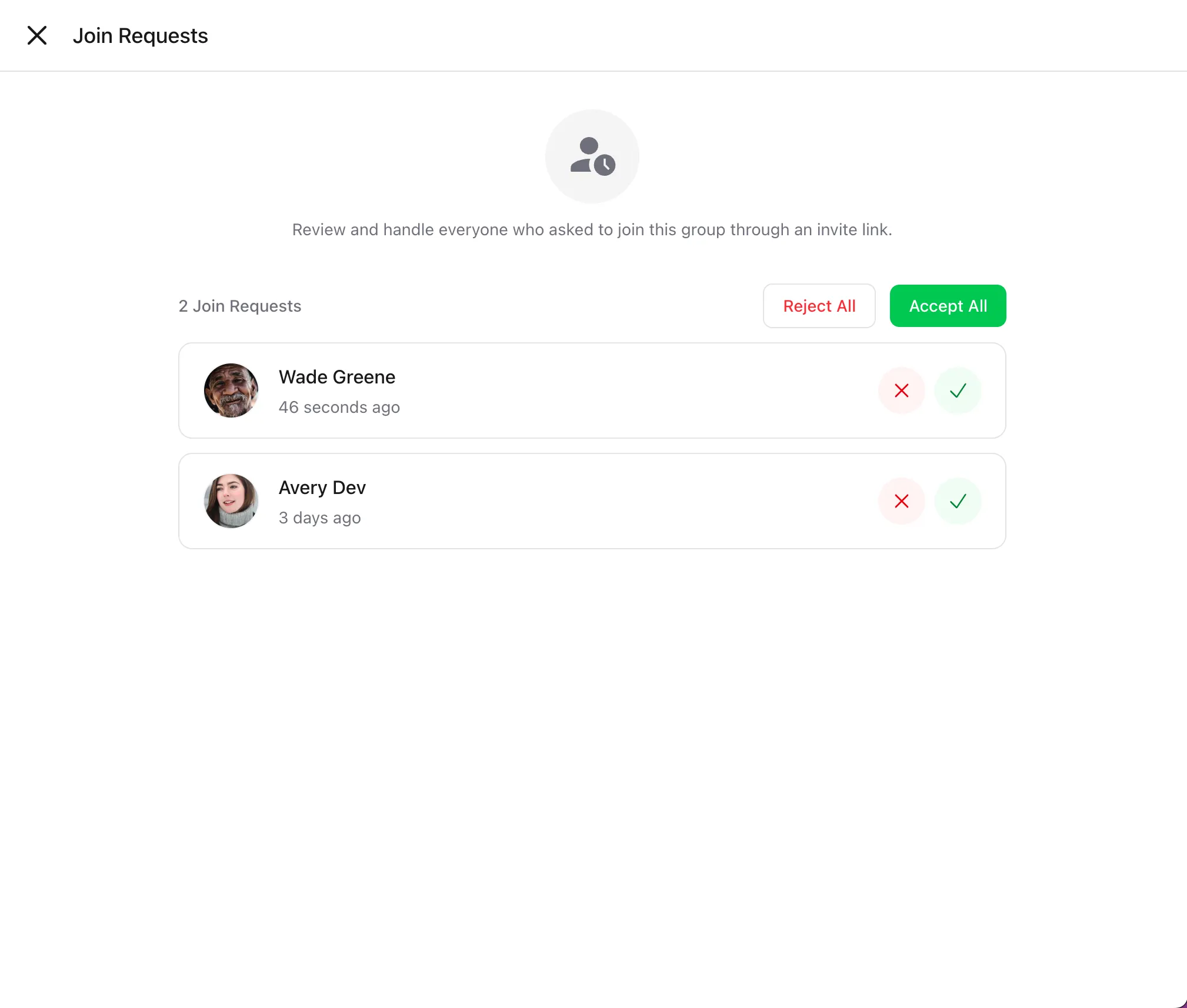
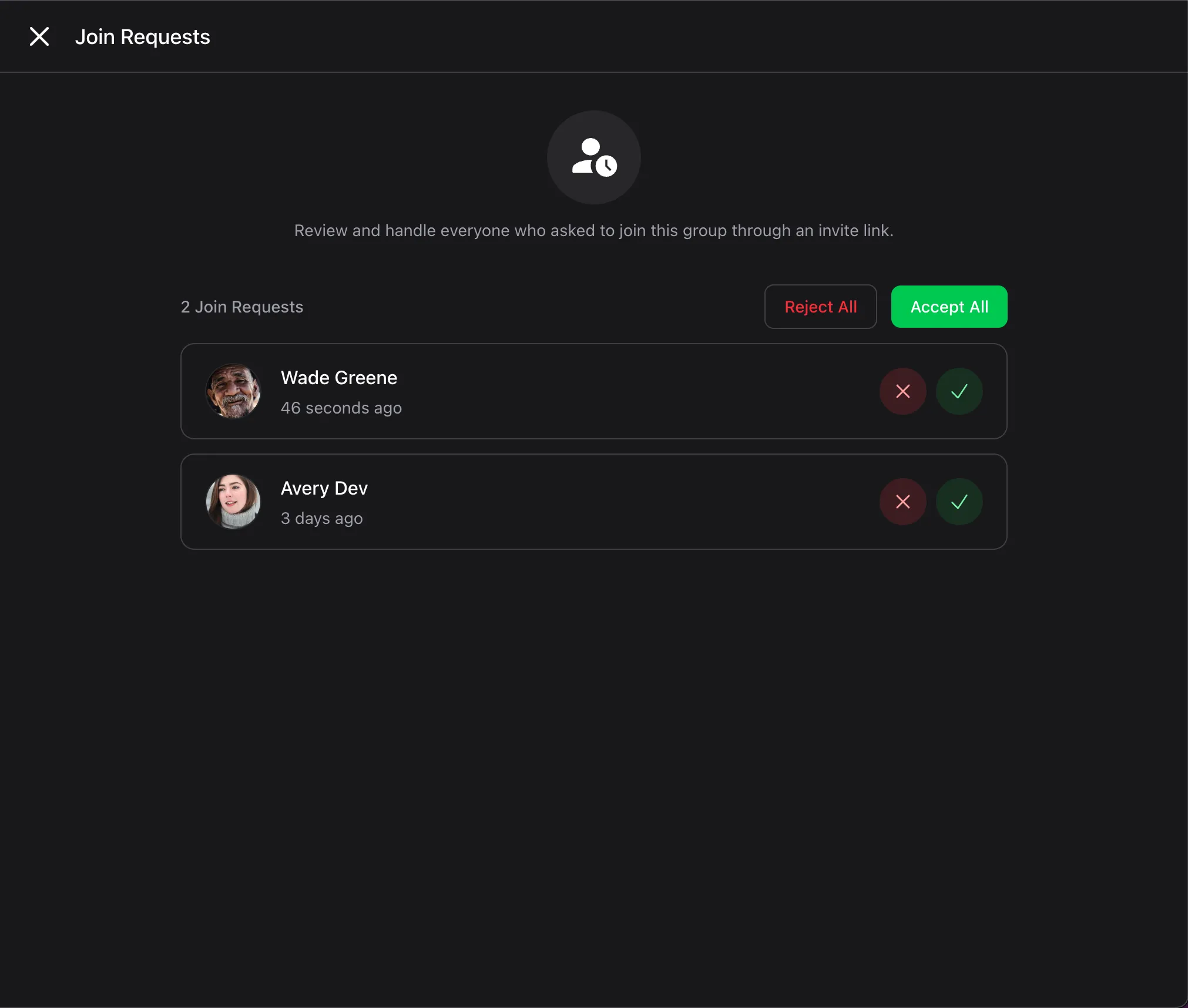
$request = $conversation->group->requestToJoin($user, $invite);

$conversation->group->acceptPendingJoinRequest(
    $user,
    reviewedBy: $admin,
    markInviteUsed: true,
);

$conversation->group->dismissPendingJoinRequest(
    $user,
    reviewedBy: $admin,
);
Important join-request behaviors:
- Duplicate pending requests are not endlessly recreated. If the user already has a pending request, the existing request is refreshed with the latest invite metadata.
- Accepting a request sets the status to
accepted, stores reviewer metadata, and can mark the invite as used. - Dismissing a request stores reviewer metadata and sets the status to
dismissed. - Creating a join request does not increment invite usages. Usage should only move when the join is actually accepted.
Multiple Invite Links Per Group
A group can expose more than one active invite link at the same time (a primary link plus any number of secondary links with their own names, limits, and expiry). All of those links resolve to the same group, so a user's relationship to the group is tracked at the group level — not per link.
This has two practical consequences when the same user opens different links for the same group:
- Pending join requests are per user, per group. If a user has already submitted a join request through Link A, opening Link B does not create a second request and does not surface a different state — the lobby still reports a pending request. The existing request is simply refreshed with the latest invite metadata when re-submitted.
- Membership short-circuits future links. Once the user is already a participant, opening any other link for the same group skips the join flow entirely and routes them straight into the conversation, regardless of which link they used to originally join.
This is intentional. Treating each link as its own approval queue would create duplicate review entries for the same person and let users bypass moderation by spamming different links. If you need per-link attribution (for example, "which link did this member arrive through"), use the invite_id stored on the JoinRequest record rather than separate state.
Past Members, Removed Members, and Blocks
Invite links respect prior moderation actions.
- Users who left on their own cannot be force-added by admins, but they can still choose to rejoin by opening a valid invite link themselves.
- Users who were removed by an admin are not silently restored through add-member flows, but they can rejoin themselves through a valid invite link.
- Users who were blocked by an admin cannot be re-added or self-join until the block is explicitly lifted.
- Share-link search intentionally keeps exited, removed, and blocked users out of the selectable results so admins do not bypass those rules accidentally. Customize application-level user search filters on the Users page.
This distinction matters because "left", "removed", and "blocked" are different security states, not just different UI labels.
Route Helpers and Security
Wirechat exposes invite route helpers on the panel instance:
$panel->inviteRoute($invite->token);      // GET preview page
$panel->inviteJoinRoute($invite->token);  // POST join handoff
$panel->chatsRoute();                     // Chats index for the panel
The invite routes are protected by several layers:
- They are registered under the current panel prefix.
- The token is constrained to
[A-Za-z0-9]{16,64}. - Both preview and join routes are rate-limited with the
wirechat-invitelimiter. - The limiter scopes attempts by request method, IP address, and token.
- Invite resolution checks the current
panel_idbefore loading the record. - Inactive invites return
410 Gonerather than pretending the link still exists. - Disabling group invitations at the panel level hides the UI and returns
404for invite routes.
Finally, invite tokens are generated as unique random strings through Invite::generateToken(). They are meant to be compact enough for sharing while still being difficult to guess, and they are always validated again before any membership state is changed.
