
Holidays allows you to set your availability and planned time out of the office. You'll see people, country and global holidays all on one convenient calendar.
To access Holidays, click on your profile icon in the bottom left-hand corner of the software and select Users & Teams followed by the Holidays tab.
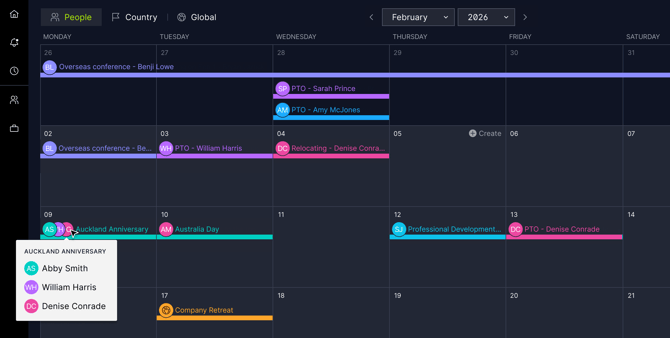
Each type of holiday has implications within the software. Here are the definitions of people, country and global holidays.
Note: Global holidays should be set up before creating the project plan. Due to how the system handles scheduling, global holidays cannot be added to or updated on an existing project.
People Holidays
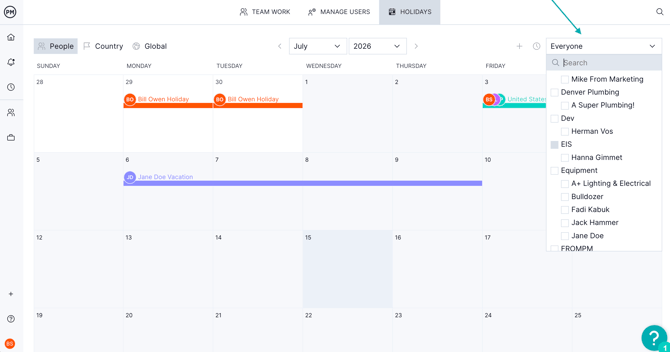
To add a new personal holiday, click the + icon in the upper right-hand corner, or hover over a date. The popup will appear, and you can select the type of holiday you're noting. You'll need to add a reason for the holiday for it to be added to the software.
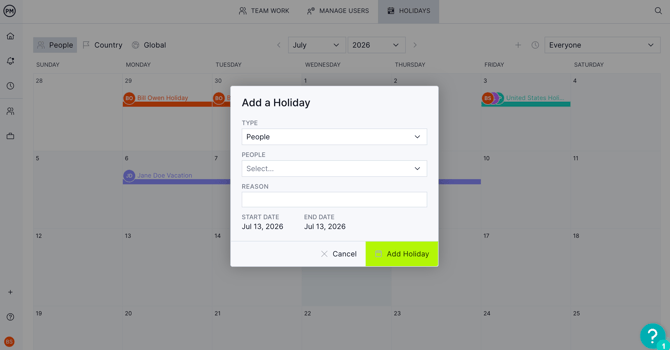
If you add a personal holiday, you will see reduced availability over that duration on the Gantt availability popup. You will also see yellow shading on the Workload page to remind your team that the user will be out of the office.
When a team member is out of the office due to any type of holiday, the workload page will display a yellow box to indicate the holiday.
Note: People and country holidays do not automatically block users from being assigned. This is only the case with added global holidays.
Country Holidays
Country holidays apply to any employees working in a specific country. If your team works in multiple countries, you may want to use the country tab. For example, employees in the United States may have different holidays than employees in the United Kingdom. A user’s assigned country on their profile will link them to the country holidays you have entered.
Use the drop-down menu to filter by country.
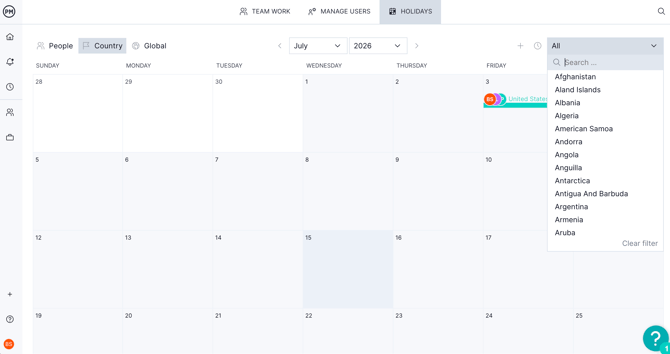
If you add a country holiday, this will work the same as the people holiday. You'll see reduced availability over that duration on the Gantt availability popup and yellow shading for those days on the workload.
To add a country holiday, hover over the ideal date and click Create, or click the + icon.
Global Holidays
If you add global holidays, everyone on your team will appear unavailable regardless of country. In addition, global holidays block out days on the Gantt across your entire portfolio, and the software won't allow you to schedule work on those days.
- If you schedule a start or due date on a global holiday, the software will skip to the next working day.
- If you schedule a task over a time period that includes a global holiday, the software will not count the global holiday when calculating the duration.
- You can set the default planned hours for new users on this page, and you can check the apply to all existing users option to update the planned hours of every user in your workspace.
Troubleshooting Holidays
If you aren't seeing a holiday indicated in yellow for a user on the workload page, double-check that the users are assigned tasks on those days and have the right country assigned. You can change the country for a user by navigating to the user’s profile popup.
Tip! If you set a personal, country or global holiday, the settings will be applied to all future projects only and not current projects.
