
In this article, we will show you how to change the wallpaper and color theme of Google Chrome. We will also show you how to download the new themes from the Chrome Web Store.
Table of Contents:
- Changing the Background and Color Theme of Google Chrome
- Downloading New Themes from Chrome Web Store
- Conclusion
Changing the Background and Color Theme of Google Chrome
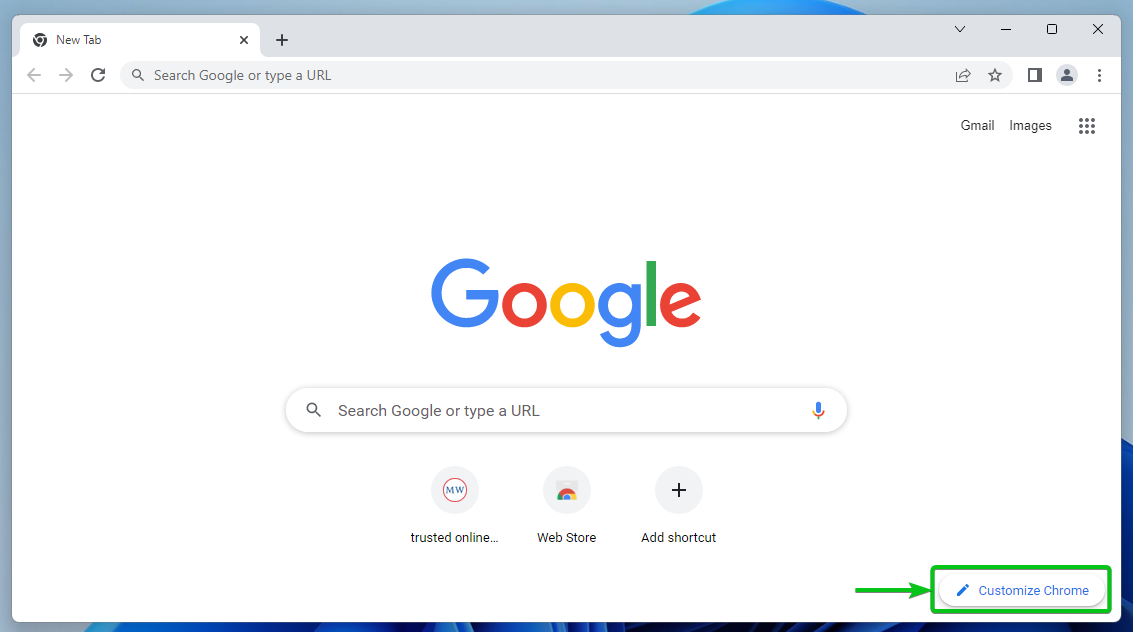
To change the background wallpaper and color theme of Google Chrome, open Google Chrome and click on Customize Chrome from the bottom-right corner of the new tab page of Google Chrome.
NOTE: You can also customize the new tab page of Google Chrome. To learn how to do that, read the article on How Do I Change the New Tab Page in Google Chrome?
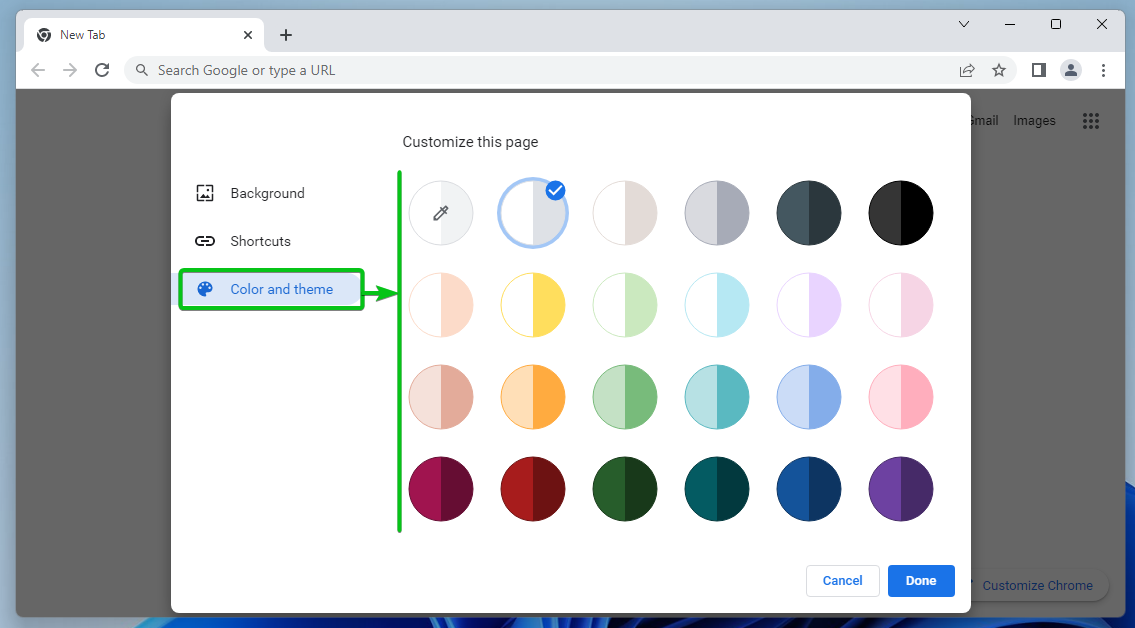
From the Background section, you can pick a background wallpaper from the list, upload the custom background wallpapers from your computer and use it, or select a solid color for the Google Chrome background.

From the Color and Theme section, you can select one of the predefined color themes for Google Chrome. You can also use the color picker to select a custom color theme for Google Chrome.
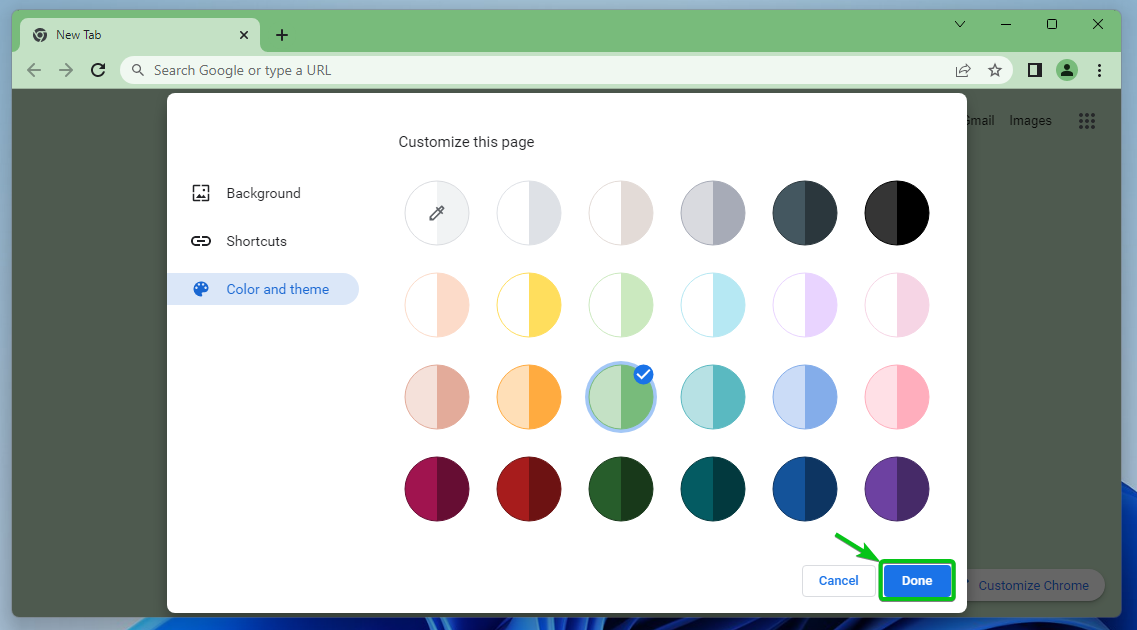
Once you’re done customizing the background and color theme of Google Chrome, click on Done to save the changes.
Downloading New Themes from Chrome Web Store
You can also download new themes for Google Chrome from the Chrome Web Store.
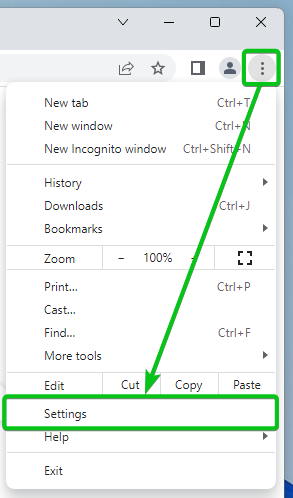
To download new themes from the Chrome Web Store, open the Google Chrome and click on ⋮ > Settings.
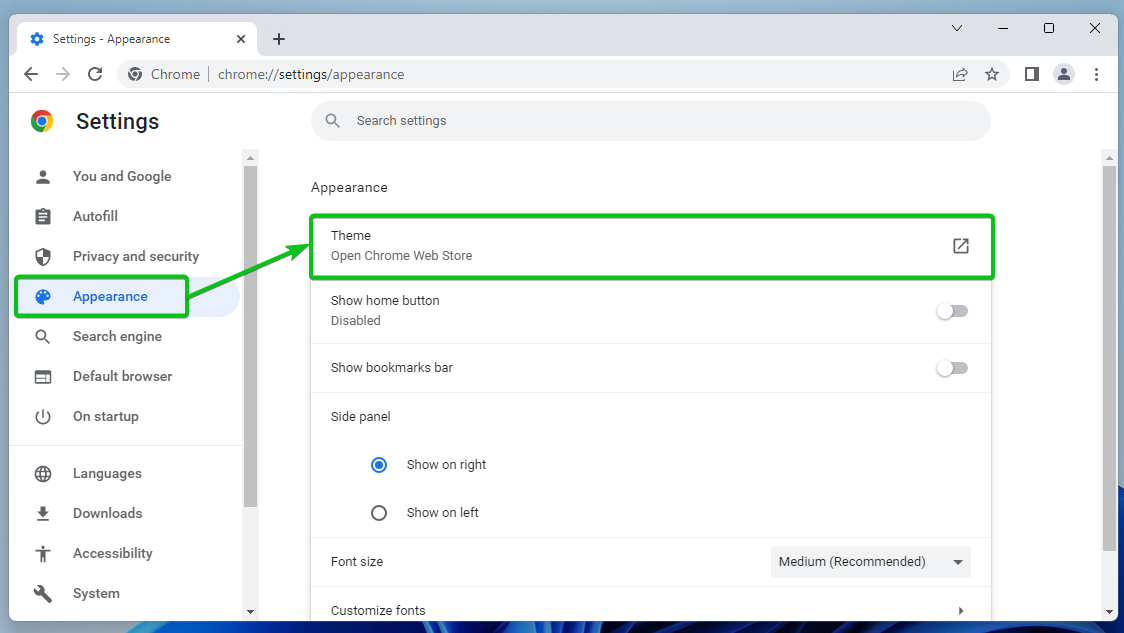
From the Appearance section, click on Theme.
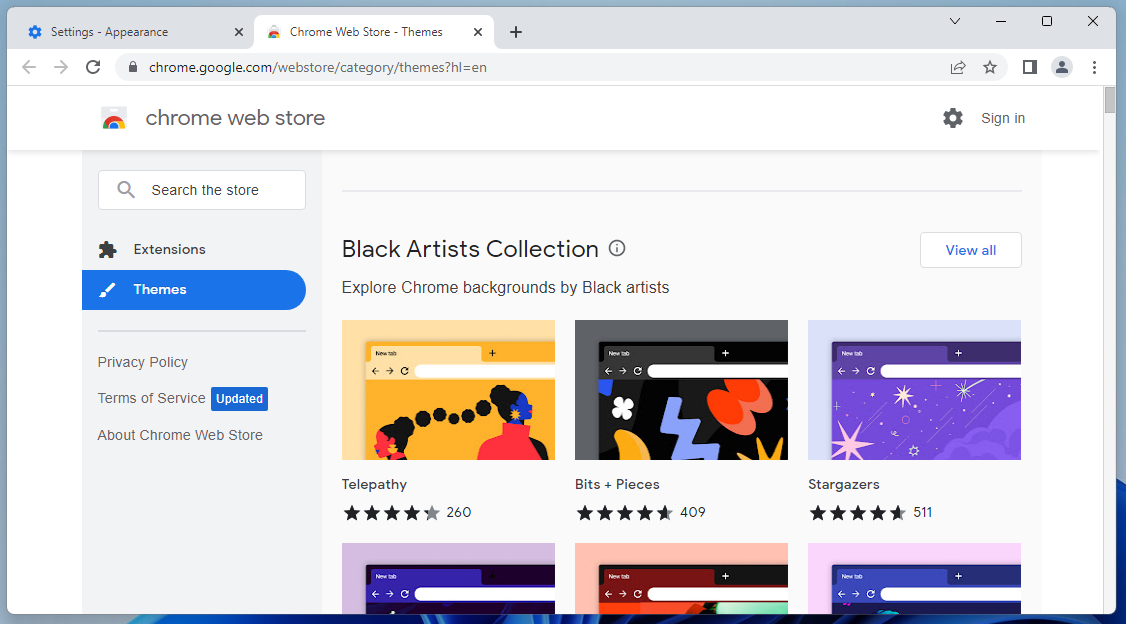
Chrome Web Store should list all the available themes for Google Chrome. You can pick the one that you like from here.
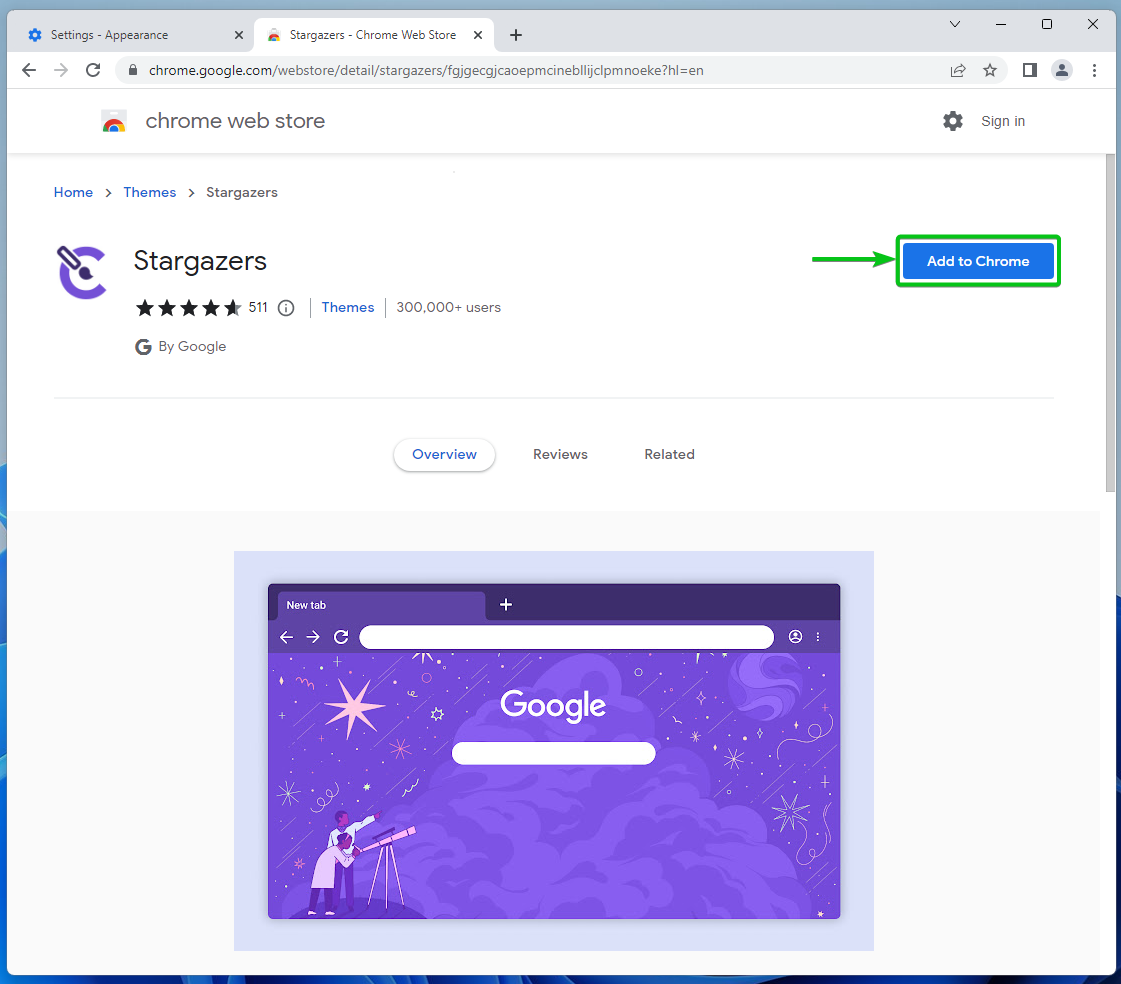
Once you select a theme that you want to download and use on Google Chrome, click on Add to Chrome.
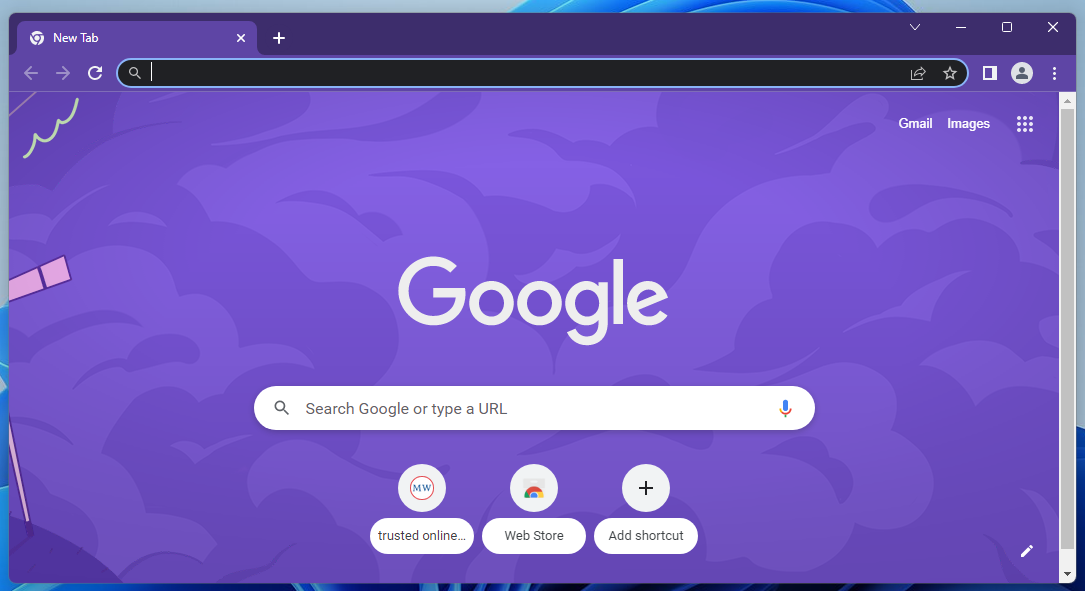
The theme should be downloaded and applied to Google Chrome.
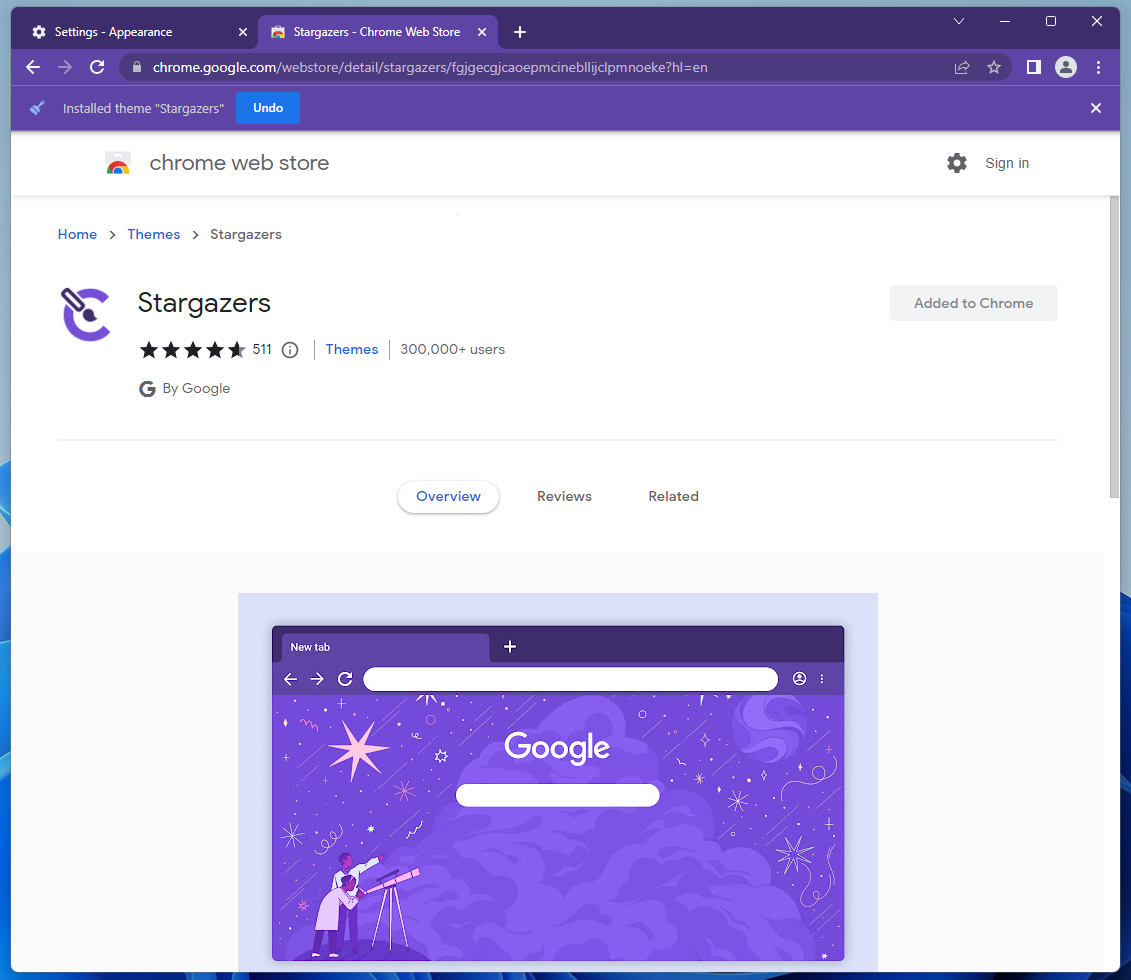
As you can see, Google Chrome has now a new theme and it looks really good.
Conclusion
We showed you how to set a background wallpaper and change the color theme of Google Chrome. We also showed you how to download the Google Chrome themes from the Chrome Web Store and use it on Google Chrome.

