Discover next-gen
AI tools & startups.
Curated directory of the best AI tools. Submit your project to get high-quality backlinks and traffic.
Why Choose thistools?
thistools is your go-to platform for discovering cutting-edge AI tools and innovative tech products. We curate the best tools from around the world, helping you find the perfect solutions for your productivity, automation, and creative needs.
Daily Curated Picks
Every day, we feature fresh AI tools and startups selected for quality and launch momentum.
Quality-First Curation
We prioritize tools that solve genuine problems and offer exceptional user experiences.
Community-Driven Rankings
Trending lists are driven by real user feedback so the most valuable tools rise.
>> LAUNCHING_TODAY
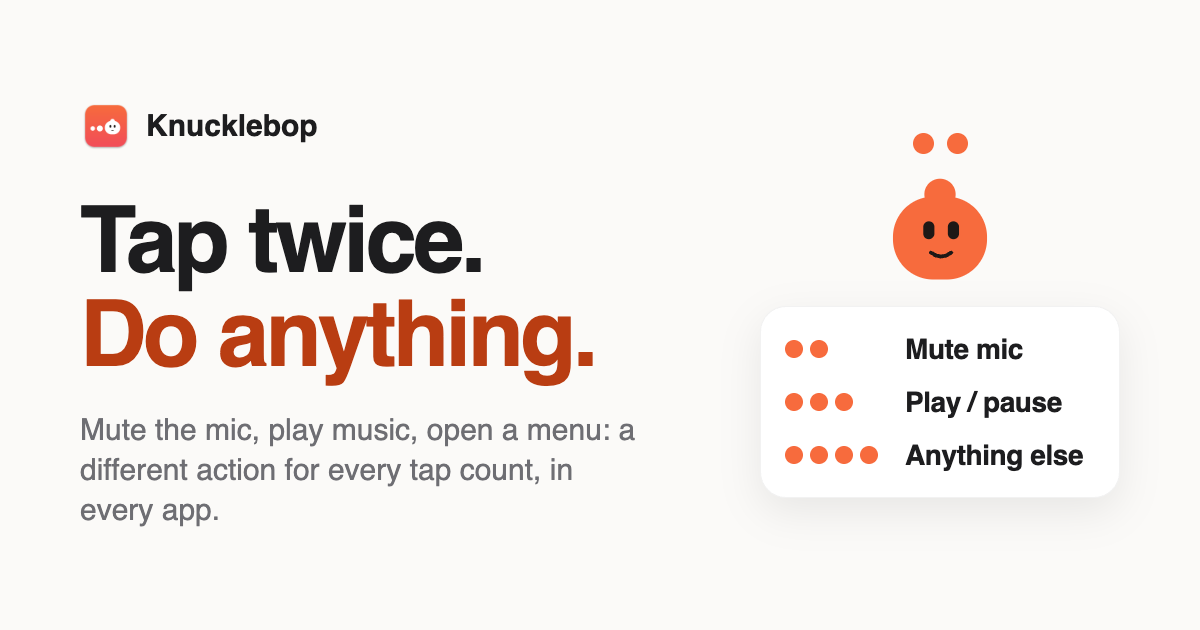
Knucklebop is a Mac app that turns tapping your MacBook’s palm rest or the desk beside it into shortcuts. The product’s core idea is that “a tap is a button” and the number of taps determines which button you pressed. It supports two to six light taps beside the trackpad or on the desk next to the MacBook, and the timing does not matter—only the count. Each app or website can have its own taps, while everything else uses “anywhere” taps. The app then makes your Mac perform the chosen action and shows a small pill to confirm what happened. The content frames Knucklebop around giving the palm rest a job. Instead of reserving quick controls for keyboard shortcuts or on-screen buttons, users can tap a surface that is already under their hands. The app checks which app is active and applies the appropriate rule, so a tap pattern can mean one thing in a meeting app and another in a music app. Website rules beat app rules, and app rules beat “anywhere” rules, with one pattern allowed per tap count. This makes the same physical gesture useful across different contexts without requiring the user to remember a different global shortcut for every situation. Users tap two to six times on the palm rest or the desk next to the MacBook. Knucklebop uses the MacBook’s motion sensor, described as an accelerometer and gyroscope in the base, to recognize the tiny, sharp jolt made by a tap. It does not use the microphone to hear taps. The default window for keeping taps together is under about 0.7 seconds apart, and the content says this can be made longer. Before use, the app asks the user to calibrate by tapping a few times on each palm rest and the desk so it learns how hard they tap, with taps animating on screen during calibration. Knucklebop includes ready-made actions across several groups. For meetings, it can mute in Zoom, Teams, Slack huddles, and Google Meet using each app’s own shortcut so the app’s button stays in sync, or it can mute the mic everywhere with an on-screen “Mic muted” pill. For music, taps can play or pause, go to the next or previous track, and adjust volume up, down, or mute. For windows and desktops, actions include Mission Control, next or previous desktop, switch to last app, show desktop, Spotlight, lock screen, dark mode, and screen saver. For editing and tabs, the listed actions include copy, paste, undo, screenshot, emoji picker, full screen, and new, close, next, and previous tab. A “boss mode” can hide every app and pause media in one move, optionally locking the screen too. When five buttons are not enough, four taps can open the tap menu, a list of as many actions as the user likes. Each extra tap moves down the list; when the user stops tapping, the highlighted action runs. Arrow keys and Return also work, and Esc cancels. The menu comes with switch app, desktops, play/pause, screenshot, and confetti, and items can be added, removed, and reordered under Rules. For power users, Knucklebop can run any keyboard shortcut, run a Shortcuts automation, or execute AppleScript or a shell command. These options let a tap count point at existing workflows rather than only at a fixed set of built-in commands. Every app gets its own taps. Ready-made rules switch on for apps the user already has installed, and the user can change them, add new ones, or turn any of them off. The content lists Zoom, Teams, and Slack rules for muting in the app, which press the app’s own mute shortcut so its button changes too. Google Meet has a mute-in-Meet rule that works in Chrome, Safari, Arc, Edge, or Brave, and a Meet tab gets the Meet rule rather than the global one. Spotify and Music have play/pause and next-track rules. VS Code and Xcode have toggle terminal and build rules. Anywhere else can use mute mic, tap menu, and confetti. The hierarchy is explicit: website rules beat app rules, and app rules beat anywhere rules. Knucklebop is built to not misfire. A tap has a sharp signature, while typing, trackpad clicks, picking up the laptop, and a train ride do not. Every pattern requires at least two taps in quick succession, so a dropped pen or a single bump does nothing. The app ignores taps during and just after keyboard or trackpad use, and the gyroscope tells a tap from a lift or a tilt; detection pauses in a moving car until things settle. Test mode shows what would fire and why without running anything. Nothing runs while the screen is locked, and the same rule cannot fire twice from one burst. The app can be switched off from the menu bar or paused for 15 minutes or an hour. With the lid closed, the Mac sleeps or the laptop is not where the hands are, and taps on the top edge of the lid are not supported. Fun mode is one switch and goes quiet by itself whenever the mic or camera is on. Tap sounds come in four packs: Woodblock, Bubbles, 8-bit, and Drum kit. The drum kit turns the palm rest into an instrument: soft taps hit the hi-hat, harder ones hit the snare and kick, and users can record a 10-second loop and export it while tap patterns take a break. Every tap sends a ripple across the bottom of the screen, five taps throws confetti, and other taps can play a rimshot, a round of applause, or have Bop wave hello. A weekly stats card shows taps, mutes, and hardest tap, and there are two secret tap patterns the content does not disclose. Setup is described in four short steps. The user downloads and opens the app—notarized by Apple—and it lives in the menu bar. They calibrate by tapping each palm rest and the desk, then try the first rule, double-tap to mute. Permissions are requested only when needed: Accessibility for shortcuts and meeting-app mute, Automation for website rules, and none for the system-wide mic mute. Privacy is by design: sensor data is processed on the Mac and never leaves it, and the app has no analytics, no telemetry, and no account. Its only network calls check the licence and look for updates. Website rules read the current tab’s domain only when a tap pattern finishes and never store it. The app does not use the microphone to hear taps. Knucklebop is a paid app with a free 7-day trial that includes every feature. There is no account and no subscription. A one-time purchase is $12.99 for one Mac or $19.99 for three Macs, for work and home laptops. Every feature is included, the licence key arrives by email, the licence can be moved to a new Mac at any time, and there is a 14-day refund. Prices are in US dollars and local taxes may be added at checkout; payments are by Dodo Payments. After the trial ends, patterns and rules are kept but actions stop until a licence key is entered; nothing is deleted. The app is not on the Mac App Store because macOS has no public API for the sensor, so it uses an undocumented system interface, is signed with an Apple Developer ID, and is notarized by Apple. Concrete use cases follow directly from the rules: mute in Zoom, Teams, Slack huddles, or Google Meet with a tap; control Spotify or Music; toggle the terminal in VS Code or build in Xcode; open the tap menu for screenshot, desktop switching, or confetti; run a Shortcuts automation, AppleScript, or shell command; use boss mode to hide apps and pause media; or use fun mode for tap sounds, drum loops, ripples, and confetti. For MacBook users who want fast, app-aware controls under their hands, Knucklebop’s primary value is turning tap count into a context-sensitive button while guarding against accidental triggers and keeping sensor data local.
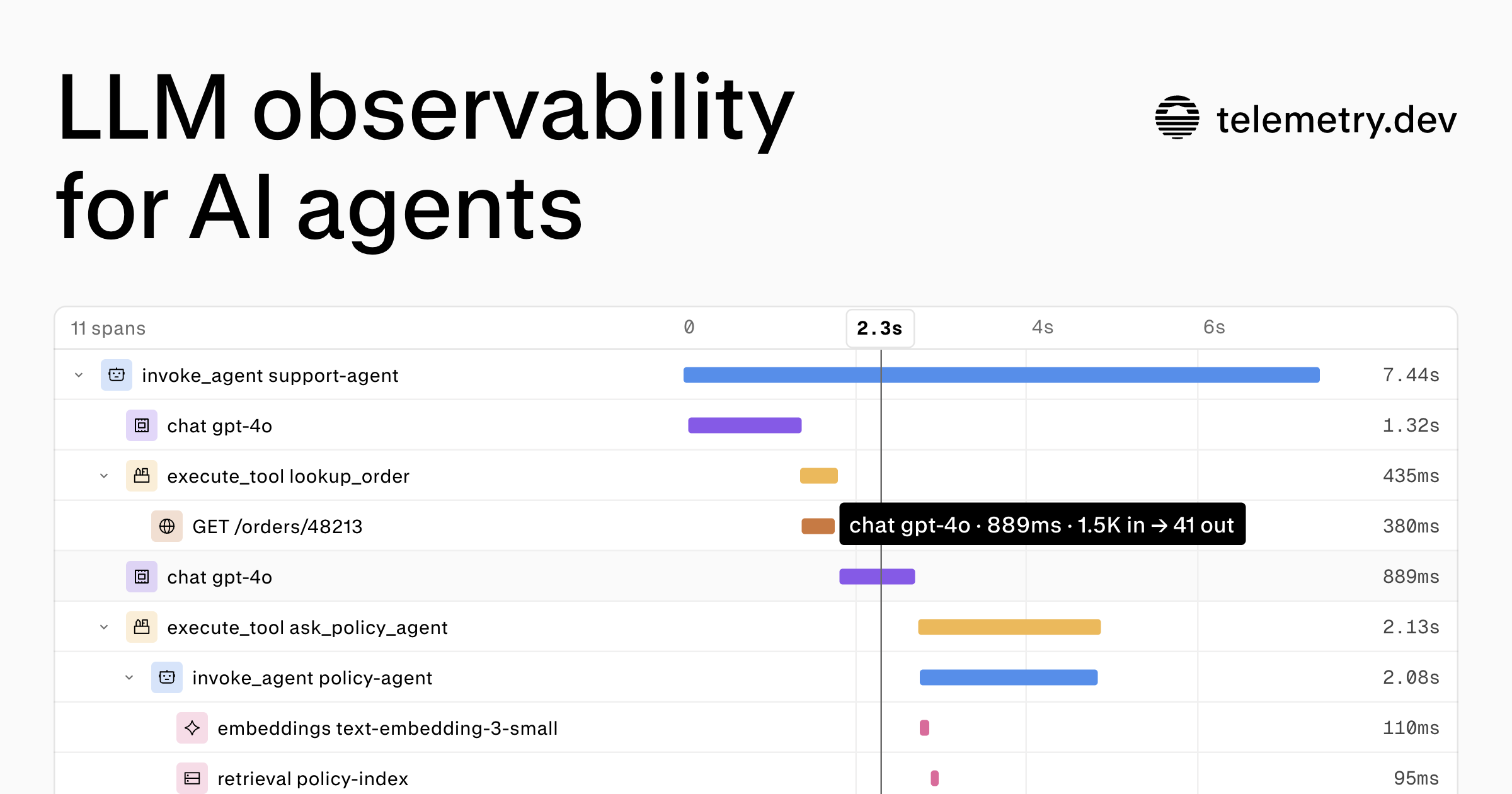
telemetry.dev is an LLM observability platform for AI applications and agents, built on OpenTelemetry. It shows each run of an AI agent as one trace, where each model call and tool call is a span carrying its duration, tokens, cost, and error. From that trace, developers follow model calls, tool steps, and retrievals together, find failures, inspect latency, and track token usage and cost. The product is aimed at teams building and operating AI agents and LLM-backed applications who need to see what actually happens inside a run instead of inferring it from scattered logs. An agent run is rarely a single request. The live demo on the site shows a support-agent trace containing thirteen spans: loading a customer profile, loading a session, routing intent, retrieving policy context, generating embeddings with text-embedding-3-small, calling gpt-4.1-mini, searching a help center, running a second retrieval, calling the model again, running a guardrail output step, and saving the session. When something breaks in that chain, the failure can sit in any step, and the slowest step is often not the model call itself. telemetry.dev frames the problem plainly: find the slow step, inspect the failed call, pinpoint a tool timeout, inspect a model response, and see where your budget goes. It also aims to tell you about errors, cost spikes, agent loops, and model or tool errors before your users do. The core of the product is trace detail. Each trace lists its spans with the duration of every step, so a run is readable end to end. In the example trace, a track_shipment span takes 2,418ms and accounts for 49% of the run, while the two chat steps take 845ms and 1.16s. Selecting a span opens its summary and attributes, including fields such as gen_ai.operation.name set to "execute_tool", gen_ai.tool.name set to "track_shipment", and gen_ai.tool.call.id. Those attributes identify precisely which tool executed inside the run, which is what makes it possible to separate a model problem from a tool timeout. Finding the right trace is handled through search and filtering. Traces can be searched by name, or filtered by status, environment, framework, or session. The production view lists runs such as support-agent, classify-ticket, and summarize-session with their durations, and a selected trace reports how many spans it contains and what it cost. A separate overview keeps cost and reliability in view by comparing spend, latency, and errors by model, provider, and environment. In the sample dashboard, LLM cost for the last seven days totals $2.98 across gpt-4.1-mini, claude-sonnet-4.5, gemini-2.5-flash, and text-embedding-3-small, alongside 812 requests, a p95 latency of 1.8s, and 2.6M tokens. For Model Context Protocol workloads, telemetry.dev reports spans, failures, and p95 duration by method and tool, measured from both the client and the server. The example MCP analytics table lists create_refund with 2,330 spans, a 2.4s p95, and 18.0% failed; get_invoice with 5,912 spans, 640ms, and 1.1% failed; check_inventory with 4,208 spans, 310ms, and 0.2% failed; and cancel_order with 1,077 spans, 880ms, and 0.6% failed. Email alerts complement the dashboards, covering cost, budgets, agent loops, and model or tool errors, with states such as tool errors alerting, monthly budget all clear, agent loop all clear, and missing prices needing more data. Privacy controls determine what gets stored. Prompt capture is on by default and can be turned off for an environment before storage. The settings screen lists production, staging, development, and preview with whether stored prompts and responses were captured, and in the example production shows prompts and responses are not stored. Redaction patterns, both built-in and project-specific, are applied, but the product states that pattern matching cannot catch all sensitive data, that capture controls only cover recognized prompt, response, and tool-payload fields, and that removing sensitive content in your instrumentation before export is the way to prevent transmission. Separately, prompts and evals use the same traces: a prompt can be changed without a deploy, then run on a dataset and its scores compared with production. Overall the product works by ingesting OpenTelemetry data. You create a project API key, configure a telemetry.dev integration or an OTLP/HTTP exporter, run an instrumented request, and open its trace in your project. Cost is calculated at ingest from reported token usage and a model-pricing catalog, with cache-read and cache-write tokens using separate rates when available, reasoning tokens not charged separately, and an explicit span cost taking precedence; without matching model pricing or token usage, computed cost is unavailable. Trace detail depends on what your instrumentation emits, and each integration guide describes its coverage. Ingestion is metered in ingestion units, where each normalized span, OTLP log record, or metric data point uses one unit. The benefits follow from that structure. Instead of stitching together provider dashboards and application logs, a team gets one view of a run with durations per step, so a tool timeout or a slow model call is visible in context. Cost is attributed by model, provider, and environment, which makes the source of spend changes observable. Failure rates and p95 latency for MCP tools show which tool calls are unreliable. Alerts on budgets, agent loops, and errors surface incidents before users report them, and per-environment prompt capture settings give a way to keep recognized prompt and response fields out of storage. Typical scenarios map directly to the interface. A developer debugging a failing support agent opens the trace, scans spans for the longest duration, and inspects the selected tool span and its attributes. An engineer investigating errors in production filters traces by status and environment to isolate affected sessions. A team watching spend compares the cost breakdown across models and providers over the last seven days and drills into the traces contributing to it. An MCP-based integration checks which tools have the highest failure rate or p95 duration. An on-call engineer relies on email alerts for cost spikes, budget thresholds, agent loops, and tool errors. A team preparing a prompt change tests it on a dataset and compares scores against production on the same traces. Development teams connect through a first-party TypeScript SDK or Python SDK, or through any exporter that sends OTLP/HTTP. Model provider integrations cover OpenAI, Anthropic, Claude SDK, Claude Platform, Google Gen AI, Amazon Bedrock, OpenRouter, and LiteLLM. Framework integrations cover Vercel AI SDK, TanStack AI, LangChain and LangGraph, CrewAI, Pydantic AI, Eve, and Model Context Protocol. Coding agents can be traced as well, including Claude Code, Cursor, opencode, OpenClaw, Hermes Agent, Oh My Pi, and Pi, and the platform exposes a read-only MCP server so an AI agent can investigate errors, latency, and cost through telemetry.dev itself. The Free plan costs $0 with no credit card, includes 30,000 ingestion units per month, 14-day retention, one project, and two seats. A demo call is offered for teams that want tracing, cost tracking, and privacy controls walked through for their own frameworks and providers. In short, telemetry.dev turns an AI agent run into a single inspectable trace of model calls, tool steps, and retrievals with duration, tokens, cost, and errors attached to each span, and layers search, cost and reliability overviews, MCP analytics, alerts, and prompt capture controls on top of OpenTelemetry data you already emit.
>> ALL_LOGS

Download Spotify songs, playlists, and albums for free with Spotidown – Free Spotify Downloader. Fast, high-quality Spotify downloader with no login required.
Free invoice generator with live preview: add your logo, tax and discounts, then download a PDF invoice. No signup, no watermark, saved in your browser.
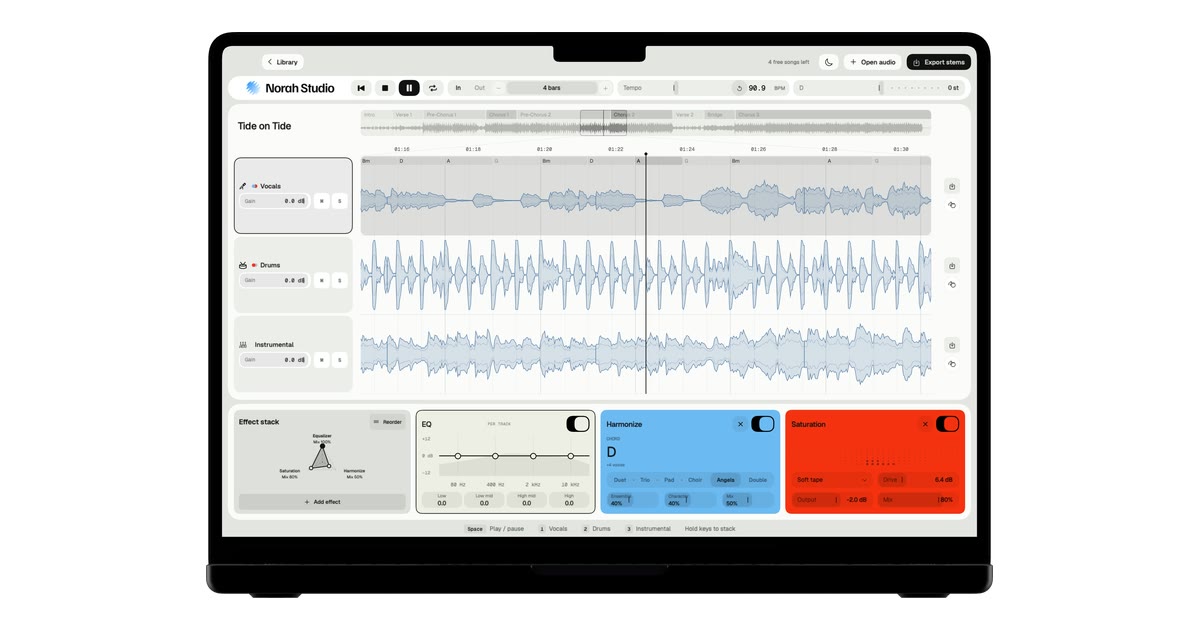
Norah Studio is a creative studio for exploring, transforming and reimagining your music on Mac, iPad and iPhone. It separates any song into vocals, drums and instrumental on the device in your hands, then lets you loop it by bars, change its tempo and key, add effects, take the stems with you, follow chords, build harmonies, turn melodies into instruments and export audio or MIDI. It is aimed at anyone who wants to take a song apart — to learn a part, build a backing track or pull a drum loop — and it works as both a practice room and a remix desk. Recorded music usually arrives as one finished mix. The vocal, the drums and the band are already blended together, which is exactly what you want for listening and exactly what gets in the way when you want to learn a part, play along in a different key, sing over the record's own band or sample a drum groove. Norah Studio's answer is to split the song into its parts first: vocals, drums and instrumental, each in its own lane, ready to be soloed, looped, reshaped and exported. Because streaming services lock their files to their own apps, the app works with audio files you already have that the system decodes — MP3, M4A and AAC, WAV, AIFF, FLAC, CAF and more, up to ten minutes — rather than with tracks from streaming catalogues. The workflow starts with Open, split, play. You open a song and three tracks come out. It starts playing from the first second while the rest is still being separated, so there is no queue and nothing to wait for. The app reports 1.1 s to first sound on a Mac and 1.5 s to first sound on an iPhone 16, measured in October 2026 with a song of 2 min 18 s, and 0 bytes uploaded, ever. There is no account to create and no upload step: the models that take the song apart travel inside the app and run on your own chip. The chosen lane can be soloed on its own, so you can hear just the vocal, just the drums or just the instrumental. Once the song is apart, the practice tools take over. Loop by bars gives you a bar grid and named sections, so you can loop exactly one section or any number of bars instead of guessing at a selection by ear. Tempo and key let you slow a song down without the pitch dropping, or move it to your range without changing its speed. Chords are read above the vocal, one per beat group, together with the key and the tempo, so you can see the harmonic shape of the passage you are working on. The app labels tempo, key and chord results as estimates — good enough to loop by bars and play along. Each lane has its own processing chain. Norah Studio offers 24 effects and 4 visualizers, an EQ on every lane, and the effects run in the order you choose. MIDI Learn maps any control to a knob on your controller, so the parameters you reach for most can sit under your hands rather than on the screen. Melody Synth takes the vocal melody and plays it with 19 instruments, from synth leads to a grand piano, turning a sung line into an instrumental part. Harmonize adds a choir that follows the chords, with six voicings — Duet, Trio, Pad, Choir, Angels and Double. Export closes the loop. You can take the three stems with their effects, and the melody as MIDI, so the work you did inside the app can move into whatever comes next. The Library keeps recent songs and reopens them with everything as you left it, so a session can be picked up later rather than rebuilt from scratch. Reopening a song you already took apart is always free. Norah Studio is the same engine, native on each device. On a Mac it is the whole desk, with a keyboard and a mouse; on an iPad it is the whole desk under your fingers; on an iPhone it is the desk folded upright for one thumb. Your songs never travel between them: each device separates on its own, offline. There is no server and no analytics, and the App Store privacy label reads Data Not Collected. Because the models are inside the app, the first song works in airplane mode, and nothing leaves your device. The app is also candid about its limits: no separation is perfect, and on a dense mix a little of the voice can stay in the instrumental; tempo, key and chords are estimates and are labelled as such. The practical benefit is that a finished recording becomes material you can work with. A song you own can become a slower version in the same key for practice, a version without the singer for karaoke, a drum loop lifted from a track you like, a backing track built from the record's own band, or a vocal melody handed to a piano. Because everything happens on the device, the work is private by default and available without a connection — on a plane, in a practice room, wherever the song and the device are. Because every feature is in the free version, the whole studio can be tried on five songs before deciding about Pro. The app suggests concrete places to start. Remove vocals takes the singer out of any song you own, leaving the record's own band. Slow down a song lets you practise at your speed in the same key, with looping to repeat the passage you are learning. Karaoke gives you the record's own band in your key. Beyond those, the separated lanes make it possible to learn a part against the lane that carries it, pull a drum loop for reuse, or turn a vocal melody into an instrument line and export it as MIDI. Norah Studio runs on a Mac with Apple silicon on macOS 15 or later, an iPad on iPadOS 26 or later, or an iPhone on iOS 26 or later. The free version includes every feature and five songs; Pro adds unlimited songs and nothing else, with Pro Monthly at €7.99 per month (cancel any time) and Pro Lifetime at €69.99 once (never renews). Prices are shown in your country's currency on the App Store, and Pro bought on one device also covers your other devices signed in with the same Apple Account. In short, Norah Studio turns any song you own into parts you can play with — separated, looped, retuned, processed and exported entirely on your own device, with no account, no upload and no connection required.
Nocto is a native macOS app that turns the black notch at the top of a MacBook display into a small, interactive control center — the product itself calls it a Dynamic Island for the MacBook's notch. Rather than staying empty, the notch grows into a panel when there is something to show: the song that is playing, the next meeting on the calendar, files parked on a shelf, items recently copied to the clipboard, or battery status for the Mac and connected AirPods. It shrinks back when it is not needed. Nocto is aimed at MacBook owners running macOS 14 Sonoma or later who want everyday information and quick actions within reach without opening another app or managing another window. It is an independent Mac app and is not made by Apple. The starting point is the notch itself. On a MacBook the notch is a strip of black space that, for most people, does nothing at all — it occupies part of the screen and gives nothing back. Nocto treats that space as an opportunity: a place where the small, frequent things that interrupt a working day can live briefly instead of demanding a window. A single day involves checking what a song is called and skipping it, remembering a call that starts in ten minutes, holding onto a file that needs to be dragged somewhere else, reusing something copied a moment ago, and glancing at battery levels. Each of those normally means switching context, and each is a place where Nocto puts the answer next to the notch instead. The music mode is built for whatever is playing. Nocto supports Apple Music, Spotify, YouTube, browser-based players and podcasts — anything macOS reports as Now Playing appears in the notch, browser tabs included. Pointing at the notch reveals artwork, playback controls and a scrubber, so the current track and its progress are visible without switching to the player. Gestures sit on top of that: swiping sideways over the music changes songs, next on a right swipe and previous on a left swipe, while scrolling over the progress bar seeks through the track. The point is that hearing a song you want to skip no longer requires hunting for the app that is playing it; the control is already at the top of the screen, in the space the pointer passes anyway. The meetings mode is where Nocto is most opinionated. Today's meetings appear in their calendar colours, so work and personal events look the way they do in Calendar. Ten minutes before a call begins, a countdown appears next to the notch. When the meeting actually starts, the notch opens on its own and offers a Join button. Nocto finds the call link inside the event and recognises Zoom, Google Meet, Microsoft Teams, Webex and FaceTime, so joining does not require opening the calendar, finding the event and looking for the right link in the notes. The calendar is read on the Mac and is never uploaded. For anyone who joins several calls a day, the countdown works as an early warning and the Join button as the single action that matters at the moment the call begins. The shelf gives files a place to wait. Files, images, links and text can be dragged onto the notch to park them there, then retrieved after switching to another app by dragging them back out. Dragging an item onto AirDrop sends it straight to an iPhone or another device. It behaves like a temporary holding area on top of the screen: the file does not need a folder, it does not need a window kept open, and it does not need to be found again through Finder. Dragging out works anywhere, into any app, so the shelf can be used to move an image into a document, a file into an email, or a link into a message without saving anything first. Clipboard history turns what was copied into something visible. Copy a hex value and Nocto shows the colour; copy a screenshot and it shows the picture; copy a link and it shows the site rather than the tracking. Items can be filtered by text, links, colours and images, clicked to copy again, or dragged directly into any app. Links are cleaned before they are pasted: tracking parameters such as utm, fbclid and si are removed. Privacy is handled explicitly — history is kept in memory only and is cleared when the app quits, copies that password managers mark as private are skipped, and clipboard history is off until it is turned on. Battery information appears once and then disappears. Plugging in shows how long until the battery is full; connecting AirPods shows the level of the left bud, the right bud and the case. On the Mac, Nocto covers charging status, time to full and low battery. The design choice here is deliberate: the notch shows the information for a moment and then gets out of the way, rather than leaving a persistent indicator on screen. The information arrives when it is relevant — on connection or on power — and does not compete with anything afterwards. Beyond the five main modes, Nocto collects a set of smaller behaviours. Clean links remove utm, fbclid and si tracking before pasting. Drag out anywhere means files, text, links and images can be pulled from the notch into any app. The open notch can be shaped — width and corner radius are adjustable to match the screen. Nocto hides in full-screen apps, has no dock icon and opens no windows to manage, so it does not add to the window clutter it is meant to relieve. macOS 14 Sonoma or later is required; MacBooks with a notch get the full effect, while other displays get a small virtual notch at the top of the screen. Nocto is driven by the trackpad and a few consistent gestures. Resting the pointer on the notch makes it open, so a peek requires no click. A swipe down pins the notch open while work continues; a swipe up dismisses it or clears a notice; sideways swipes over the music change songs. Everything else follows the same idea of small, reversible interactions. The app is native and described as light — about 4 MB — and it is signed and notarized by Apple. Data stays local: music, calendar, clipboard and files are read on the Mac and remain there. There is no account, no analytics and no tracking, and Nocto only goes online to check the license and look for updates. Permissions are requested only when they are used: calendar for meetings, Bluetooth for AirPods, and permission to read Music or Spotify. The outcome Nocto is selling is fewer interruptions, not more features. Music control, the next meeting, a parked file, the last thing copied and the battery level are all things a person checks many times a day; putting them at the notch means checking them does not require leaving what is being worked on. The countdown and the Join button mean a call is harder to miss. The shelf means a file can be held without a desktop full of windows. Clipboard history means something copied can be found again instead of re-copied. And because the notch hides in full-screen apps and has no dock icon, all of this arrives without adding another thing to manage through the day. Concrete workflows follow from those behaviours. During focused work, a swipe on the notch skips a track without opening Music or Spotify. Ten minutes before a standup, the countdown appears, and when the call starts one click joins it in Zoom, Meet, Teams, Webex or FaceTime. A screenshot copied for a design review can be found again in clipboard history, or dragged straight into a document. A file pulled from Finder can be parked on the shelf while switching to another app, then dragged out — or dropped on AirDrop to reach an iPhone. A hex code copied from a design tool shows its colour before it is pasted. And on plugging in a charger or connecting AirPods, the levels appear and then disappear. Nocto is aimed at people who spend the day on a MacBook — particularly those who join several meetings and switch between apps constantly — and who would rather have small pieces of information at the edge of the screen than another window. It requires macOS 14 Sonoma or later. Pricing is a one-time purchase: $9.99 at launch, down from $14.99, and not a subscription. A license covers everything on the page on up to three Macs plus all 1.x updates. There is a 7-day free trial with no card and no account, a 14-day refund with no questions asked, and secure checkout through Lemon Squeezy with the license key arriving by email. A license can be moved between Macs by deactivating it in Settings → License. After the trial, music in the notch keeps working for free; meetings, the shelf, AirDrop, the clipboard and battery updates need a license. Nocto's proposition is narrow and concrete: the notch is already there, and it can do something. By putting music, meetings, files, clipboard and battery into that black space — with a countdown before calls, a one-click Join, a shelf with AirDrop, a clipboard that shows colours and clean links, and information that appears once and leaves — it turns an unused part of the screen into a genuinely useful one. One payment, local data, no account, and music free forever.

XWiki MCP Server is a free, open-source, self-hostable extension that connects an XWiki knowledge platform to the AI agent of your choice. XWiki itself is a versatile knowledge platform for teams of all sizes, used to create wikis, documentation spaces, intranets, procedures and knowledge bases, where knowledge is organized in real time, collaborators work together, information is found faster and access is managed. The MCP Server adds a connection layer so that AI agents such as Claude Code, Codex, OpenCode, Pi, GitHub Copilot and MS Copilot — or anything else that speaks MCP — can work directly with that accumulated knowledge. Its stated purpose is to give your AI your wiki's knowledge while keeping the control: the extension is optional, installed by you and configured by you, rather than being a vendor-side feature that operates on your documentation without your say. The extension arrives at a specific moment for XWiki. XWiki has been around for over 20 years, which the team notes is plenty of time for organizations to build up a lot of knowledge in their wikis: documentation, internal procedures, and custom applications full of structured data. As AI agents become ingrained in daily workflows, the makers started thinking of ways to make all that internal knowledge available to them. The positioning is blunt: when knowledge grows, other tools start to break, and XWiki scales. A related problem raised in the launch discussion is that knowledge systems can eventually become write-only, and connecting them to an agent of choice may help surface what is already stored. The other half of the problem is control. The makers point out that Confluence announced this year that it will train AI on user documentation, something they completely disagree with, and that is why the XWiki MCP server keeps control in the hands of users, with the freedom to host as needed. Once an agent is connected, the first capability is reading. You can use the extension to query your knowledge base to get answers, so an agent can find out about an old project decision rather than a person digging through pages manually. Because the agent navigates the wiki with the same permissions as your user account, what it can see mirrors what you can see. Write, delete and page creation tools are destructive and are disabled by default, which the makers describe as the default starting point so no accidental oopsies happen; they can be turned on by ticking a box on the configuration page. That means a team can begin with read access, observe what the agent does with its wiki, and only later decide to allow changes. When write operations are enabled, the scope goes well beyond reading. The extension lets agents create and edit pages, update attached documents, and even build a small internal app. Since XWiki supports structured data, agents can work with objects and classes, not just read and write pages — the makers call this combination of XWiki and AI especially good for developers. Working with structured data means an agent is not limited to free text: it can operate on the data models that custom applications inside the wiki are built on. The launch description lists three things you can already do with the extension: query your knowledge base to get answers, create and edit pages, and work with structured data directly in XWiki. Control is enforced at several levels. The MCP endpoint is an OAuth protected resource: it advertises the XWiki OIDC Provider through the standard RFC 9728 metadata and a WWW-Authenticate header on a 401 response. Clients such as Claude Code or Claude Desktop discover it, run the normal OAuth authorization code flow against the OIDC Provider, and send a Bearer token; XWiki validates the token and the agent acts as that user, with that user's rights. The XWiki OIDC Provider extension must be installed for this. On the content side, XWiki has several deconflicting mechanisms: when collaborative editing is disabled, pages are locked while someone edits them; when collaborative editing is on, page saves are propagated to all users; if conflicts do appear, you choose whether to merge the changes or keep one or the other. Unlimited version history lets you revert a page to a previous version, and reverting restores the whole page — as a workaround for partial reverts you can preview any version and copy-paste changes into the latest version. Scripting capabilities, on top of being open source, make it possible to define and use your own deconflicting strategies. Overall, the product is an MCP server: an extension that speaks the Model Context Protocol, the interface through which AI agents call tools on an external system. Anything that speaks MCP can be connected, and the makers name Claude Code, Codex, OpenCode, Pi, GitHub Copilot and MS Copilot as examples. Installing it is a choice rather than a given: you decide if and when to install it, which model to connect through it, and where everything runs. You can self-host everything — XWiki, the MCP server and the AI model — if that is what you need. Because XWiki and the MCP server are fully open source, anything missing from the MCP layer is probably already doable through the REST API, which agents are described as quite good at using; if something is missing from the API, the open-source project can be extended or the changes contributed upstream. There is also a repository of skills and knowledge for agents (xwiki/xwiki-dev-llm on GitHub), an installation guide, source code on GitHub (xwiki-contrib/ai-llm) and feedback tracked on JIRA. The stated benefits follow from that design. Teams get an agent that can find out about an old project decision, update pages and attached documents, or build a small internal app, without exporting their knowledge to a third party. Discoverability and efficiency improve with the help of agents while the platform remains human-focused, which the makers describe as the focus: not turning the wiki into an agent-only system, but making what people wrote easier to reach. Documentation owners keep control rather than handing it to a vendor, and administrators keep the ability to run everything on their own infrastructure. Starting with read access gives a team room to see what the agent does with its wiki before enabling writes, and unlimited version history plus page-level conflict handling provide a route back if an agent edit goes wrong. Concrete scenarios named in the launch material include asking an agent about an old project decision recorded in the wiki, having it update pages, having it update attached documents, and having it build a small internal app. More broadly, XWiki is used to create wikis, documentation spaces, intranets, procedures and knowledge bases, and the MCP Server exposes that material to an agent of choice, so an organization's documentation, internal procedures and custom applications full of structured data become reachable by that agent. The makers also frame this as a fit for agentic workflows: one commenter noted they were using Confluence org-wide and that it was not coping with agentic workflows. The extension can be explored for use cases the team has not yet thought of, and the makers explicitly invite experimentation. The extension targets teams and organizations already using XWiki, and by extension any team that treats documentation as a long-lived asset — the wiki, intranet, procedure and knowledge base use cases XWiki serves. Named integrations are the AI agents themselves: OpenCode, Pi, Codex, Claude Code, GitHub Copilot and MS Copilot, plus anything else that speaks MCP. Two XWiki extensions are relevant: the XWiki OIDC Provider extension, required for the OAuth flow, and the MCP Server extension itself, installed and enabled as needed. The product is free and open source, listed with free options on Product Hunt and launched under Productivity, Open Source and Artificial Intelligence tags; the launch reached 175 upvotes and 38 comments with a #4 of the day badge for October 30th, 2026, while XWiki itself is rated 4.8 from 6 reviews. The takeaway is straightforward: XWiki MCP Server gives AI agents access to a wiki's knowledge — reading, writing and working with structured data — while every decision about installation, connection, hosting and permissions stays with the organization that owns the documentation. It is free, open source, optional and self-hostable, with destructive operations off by default and the agent bound to the rights of the connecting user. For teams whose knowledge has grown beyond what older tools can carry, that combination of reach and control is the point.
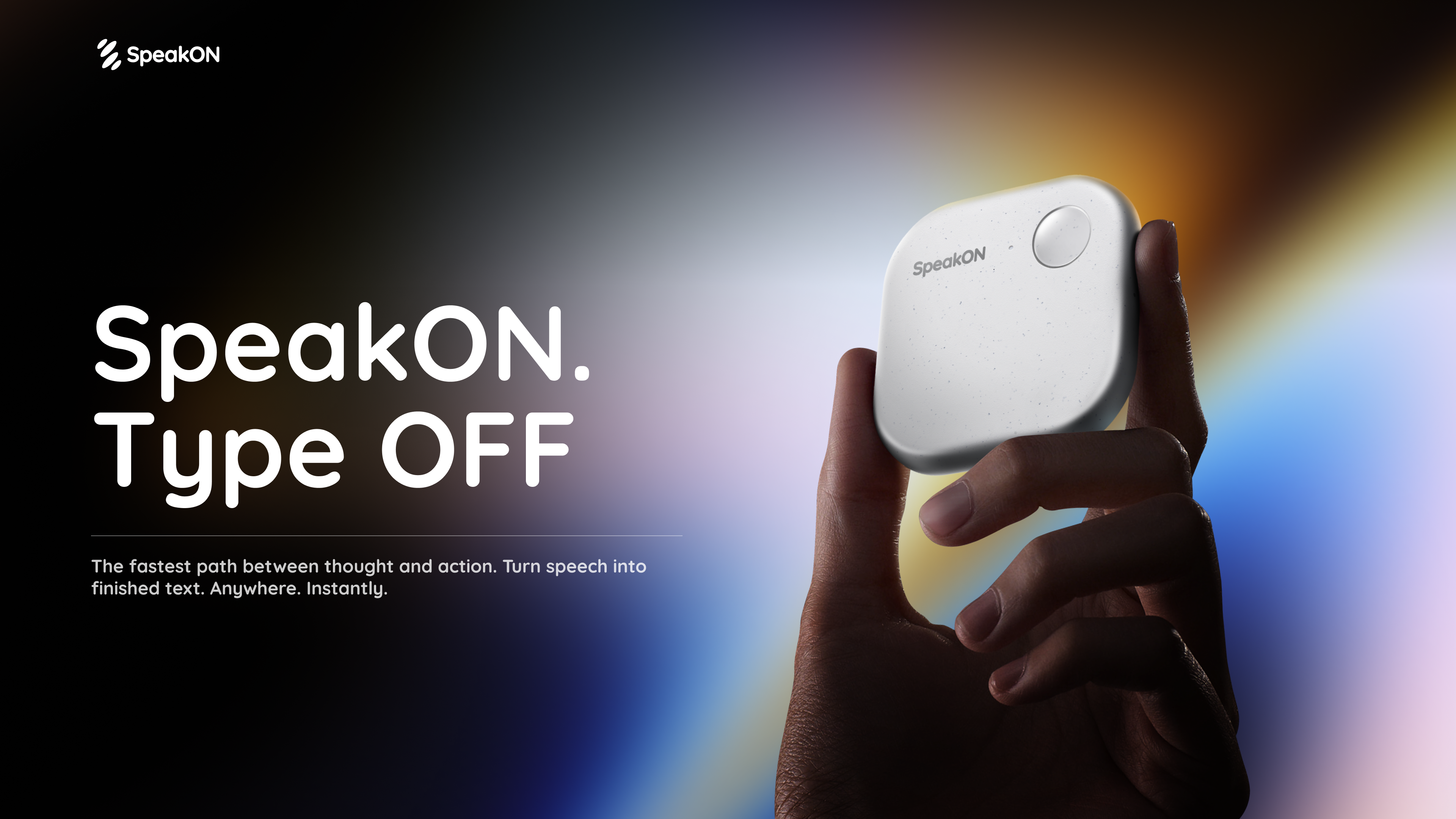
SpeakON Agent is a voice-first AI agent presented by SpeakON. Its stated purpose is to turn natural speech into real work: the user speaks naturally, the Agent understands the request, finds the right context, and prepares Actions for the user to review and confirm. The page describes it as part of a voice-first AI communicator experience, shown alongside the SpeakON device and an iPhone app download. It is designed for people who want to move from spoken intent to structured tasks and coordinated actions across connected tools rather than starting every workflow with typing. The core promise is to say what you need, review what the Agent prepares, and move it forward after approval. The page frames the product around the idea that the next workflow does not have to start with another keystroke. The problem context is repeated typing and fragmented work: users have ideas, meeting Notes, and requests that need to become tasks, messages, calendar events, reminders, and updates across different apps. SpeakON Agent is presented as a way to turn natural speech into structured work while keeping the user in control as the Agent prepares the next steps. It can start with the current Note and use relevant details from saved Notes and connected apps, so the spoken request is not handled as isolated text but as work that can be prepared across the tools a user already uses. A central capability is handling one request that contains multiple Actions. The page says Agent understands the people, timing, context, and different Actions inside one natural request. In the illustrated flow, a spoken request asks for a one-hour product discussion tomorrow at 10:30 a.m. in Conference Room 203, a Slack notification to #productteam, an email to Daniel from Marketing with an invite, and a reminder to review the product brief. Agent identifies four tasks, finds the right context, prepares the calendar event, Slack announcement, Gmail draft, and reminder, and then waits for review. This shows how a single natural request can become a coordinated set of prepared actions rather than separate manual steps. Agent starts with the user's current Note and turns it into a structured Task. It can also use relevant details from saved Notes and connected apps. The page includes an example of finding related context in saved Notes, such as asking Agent to find customer feedback Notes from the past month and summarize the biggest issues. This context-finding step matters because the Agent is locating calendar availability, a room, a contact, and relevant Notes before preparing the task. The page describes this as finding context: calendar availability, the room, Daniel's contact, and the relevant Notes. That context is then used to prepare the event, announcement, invitation, and reminder that the user can review. Connectors bring in context from the apps a user connects. The page lists Gmail, Google Drive, Calendar, Slack, Reminders, Contacts, Notion, Evernote, and Obsidian, and says more integrations are to come. These connectors allow the Agent to prepare actions that touch tools people already use for communication, scheduling, storage, and note-taking. In the illustrated workflow, Calendar provides availability, Slack receives the #productteam announcement, Gmail holds the email draft to Daniel, and Reminders stores the personal reminder. The Connectors section is explicitly about bringing context from connected apps into the Agent's work, so the Agent can prepare tasks with details that come from those sources. You decide what happens next. The page says Agent moves things forward and checks with the user when it needs approval. The user can review the details and make changes along the way. Messages stay unsent until approved, and only the actions the user approved are completed. In the example, an email to Daniel is ready for review, and the page shows a Voice edit option before Confirm. The Agent waits for approval before sending the email. This approval step is central to the product's workflow because it keeps the user in control of what is sent and what is completed, even when multiple Actions have already been prepared. The overall methodology is described as a six-step flow: Request, Understand, Find Context, Prepare Task, Review, and Complete. The user speaks naturally and gives Agent the full request. Agent identifies the people, timing, and every action. It finds calendar availability, the room, Daniel's contact, and the relevant Notes. It prepares the event, Slack announcement, invitation, and reminder. The user reviews the email to Daniel before Agent sends it. After the user confirms, Agent completes the approved actions. This Request-to-Complete flow is the product's described approach: natural speech goes in, structured context is gathered, Actions are prepared, and the user approves before completion. The stated outcomes are that approved actions are completed: the meeting is scheduled, the team is notified, Daniel is invited, and the reminder is set. The page emphasizes that only approved actions are completed and that messages stay unsent until approved. For users, this means the Agent can prepare multiple parts of a workflow while the user retains final review. The page also presents the product as a way to stop typing and let spoken ideas move forward, with creator quotes about less typing and getting things done. The benefits are tied to voice-first input, context from Notes and connected apps, prepared Actions, and user approval rather than unapproved sending. The page shows several concrete use cases. Agent In Action includes moving a launch forward by scheduling a launch check-in, inviting Maya, posting the agenda in #launch, and setting a reminder to review the rollout checklist. It includes keeping a shipment moving by finding the latest Rotterdam shipment update, summarizing the delay, drafting a customer email, notifying #operations, and setting a follow-up reminder. It includes following up after a property showing by emailing Olivia the property details, scheduling a second viewing for Saturday at 2 p.m., and reminding the user to send disclosure documents. It includes preparing a renewal response by finding the latest renewal proposal from Marcus, comparing it with a previous Note, summarizing what changed, and preparing a reply. The product discussion example and the customer feedback Notes summary example add further workflows. The page frames SpeakON Agent for iPhone users and people who want to turn speech into work without typing every step. It is presented alongside the SpeakON device and an iPhone app download, and press coverage describes a MagSafe AI communicator and a voice-first interface. The Connectors list includes Gmail, Google Drive, Calendar, Slack, Reminders, Contacts, Notion, Evernote, and Obsidian, with more integrations to come. The page does not list detailed Agent pricing or plan tiers; it does show a Halloween Sale with 15% OFF SpeakON using code HW15, and it mentions AI Agent credits as a Creator Challenge reward. Those are the only pricing-related details present in the content. In summary, SpeakON Agent's primary value proposition is turning natural speech into real work with an agent that understands Notes, connects tools, and prepares Actions for review and confirmation. It combines voice input, Notes-based context, connectors, multi-action preparation, and an approval step so users can move from spoken intent to completed, approved work. The page presents this as a voice-first workflow where the user says what they need, reviews what Agent prepares, and decides what happens next.

ilse is a visual feedback layer for AI code agents. It puts a toolbar on top of the React app you already have running in your browser, letting you click an element, write a note, or drag, resize, and tweak things directly on the live interface. Those instructions then reach the coding agent you already use — Claude Code, Codex, Cursor CLI, Gemini CLI, or any agent that speaks MCP — already pointing at the right spot in your code. ilse is built for developers and designers whose app already exists and who want to refine its interface without leaving it, on their own machine, using their project's own tokens and components. The problem ilse addresses is captured in the maker's own story. He had been a designer for over nine years and found himself spending more time in code than in Figma. He would ask Claude Code to fix a button, describe in words what he saw on screen, and the agent would edit the wrong file. As he puts it, the agent writes well, but it does not see what he sees — it was missing a designer's eye. So ilse was built so he could point at the real app, let ilse gather the context, and have the agent change the code. The site draws an explicit line between ilse and generators such as Lovable, Claude Design, and Replit: those are described as great for starting from scratch in their own environment, while ilse is for when the code already exists and lives on your machine. The core of the product is Design Mode. You click an element or select some text and write what should change. The note reaches your agent already pointing at the right spot in the code, so there is no loose "crooked button" description to interpret. That is the point-and-say workflow: the instruction is anchored to a specific element in a specific file rather than to a vague verbal description of a screen. The panel extends that same idea with gestures. Move, resize, edit text, and choose whether a change applies only to this instance or to all of them. There is also a Draw control and Screens, which is marked as new. Drag lets you reorder elements, and you can tweak spacing and colors using your project's own tokens. Simple tweaks land instantly with no AI involved, spending few or zero tokens, while anything that goes beyond a class mapping is handed to your agent to change in the code. A component library is listed as a Pro capability. Before calling your agent, ilse does the search for it. What the agent receives includes the element's file and line with only the snippet that matters, the component that wrote the JSX and where it is used, your project's design tokens, your note plus the panel tweaks and gestures you made, what a test found (the journey step, the screen, and the element), and any pasted references you optionally add. This context packaging is what replaces the agent guessing at which file to edit. Test Mode, available in Pro, is the second major capability. You describe what a person does — the site's example is "buy the lamp" — and ilse walks the flow in the real app on its own, then shows where it got stuck and reports what breaks. Pro is described as test mode with accessibility, errors, layout, the memory, and journeys, plus the Library's hands: dragging components onto the page, their copies, and taking your design system to other tools. A Review Mode is listed as coming soon: reviewers would leave notes on your product's own link without needing an account, and those notes would reach both you and the agent so the loop starts again. The overall workflow is deliberately lightweight. You run npx ilse-design@latest in your project folder; Next.js, Vite, CRA, Remix, and Astro are detected on its own; the app opens at the usual address with the bar on top. There is no extension, no app, and no account. ilse runs on your machine as a CLI and an MCP server, and the agent you already pay for is the one that changes the code. The loop is refine, test, and repeat. Privacy is a structural part of the design rather than an add-on. Everything runs on your computer and ilse has no server to send your code to. The code, the context, and the history stay local. ilse never touches a key — your agent is the one calling the AI. And the bar only exists on the dev server, so the final production build ships nothing. ilse describes itself as an agentic WYSIWYG rather than a faster generator, and it does not generate anything from scratch. The site's comparison table frames the difference: generators start from a blank prompt, while ilse starts from the app that already runs; generators produce code generated anew, while ilse edits your repo in place; generators apply whatever design system the tool picks, while ilse uses your tokens and components; and generators use the platform's AI on its credits, while ilse uses the agent you already use. A testimonial on the page from Huxley Dias of Punk Metrics states that if you develop locally, this is excellent for refining interfaces, and calls it way better than Claude Design, Replit, and Lovable. The benefits follow directly from that approach. Because simple tweaks map to a class and land instantly, common adjustments cost few or zero tokens. Because the note arrives with the file, the line, and the component context attached, the agent no longer edits the wrong file. Because your own tokens and components are part of the context, refinements stay inside your design system instead of introducing a parallel one. And because everything runs locally against your dev server, your code and history never leave your machine. Concrete use cases described on the site include clicking any element in a demo shop interface to change it, reordering items by dragging, resizing elements, editing text in place, tweaking spacing and colors against your tokens, and pasting optional references into the note. Test Mode covers journeys such as buying a lamp, where ilse walks the flow and identifies the step, screen, and element where it got stuck. Design Mode covers the everyday case of pointing at a crooked pixel and telling the agent what to do about it. ilse works with any React project that has a dev server. The listed frameworks are Next.js, Vite, Remix, Astro, and React, with CRA mentioned as auto-detected. Styling and component systems listed are Tailwind, shadcn/ui, Radix, and MUI, and the project's design tokens and components go into the context. Supported agents include Claude Code, Codex, Cursor CLI, Gemini CLI, Cline, Windsurf, GitHub Copilot, Goose, and any agent with MCP. Pricing is free for the core tool under the PolyForm Shield license, which allows free use including at work as long as you do not turn it into a competing product. A founder pre-sale offers Pro at US$49 instead of US$79 as a one-time payment, limited to the first 10 founders, with Pro shipping by November 30, 2026, a refund if it does not, renewals locked at the founder price, a roadmap vote, a direct channel with early builds, and a 30-minute 1:1 setup. The Pro purchase includes 12 months of updates counted from Pro's launch, after which the version you have stays yours. In short, ilse's value proposition is precision: you show the agent what you mean by pointing at the real running app, ilse gathers the code context so the instruction lands in the right place, and your existing agent makes the change in your repo with your tokens — all locally, with nothing shipped to production.

Kestrix is a CI/CD control plane that orchestrates pipelines across multiple repositories using declarative HCL configuration. Rather than scattering CI logic across dozens of separate pipeline files, teams define repositories, tasks, and their relationships in one place. Kestrix resolves those definitions into a DAG, or directed acyclic graph, and executes tasks in dependency order. It is aimed at engineering teams whose delivery spans several repositories, whether a monorepo or a multi-repo estate, and who need builds to run conditionally based on what actually changed. The project describes itself as a repo-agnostic CI/CD orchestrator with HCL-based DAG pipeline definitions that supports OR/AND/NOT trigger logic for cross-repo conditional builds. The problem Kestrix addresses is configuration sprawl. When CI logic lives in dozens of `.gitlab-ci.yml` files, keeping trigger conditions consistent across repositories becomes difficult, and it is hard to see which services depend on which. The README states the intent directly: instead of scattering CI logic across dozens of `.gitlab-ci.yml` files, you define everything in one place with clear trigger conditions. A related problem is wasted compute, since pipelines that run unconditionally rebuild things that never changed. Kestrix's answer is that a task runs only when the repositories its trigger names have changed, so cross-repo conditional builds are expressed declaratively instead of being hand-coded in each repository's pipeline file. Pipelines are written in HCL, typically in a `pipeline.tf` file inside a pipeline directory. Two concepts carry most of the weight. A `ci_repo` maps a repository name to a path (for a monorepo) or to a Git URL, so the same definition style works whether the code sits beside the pipeline or in a separate remote repository. A `ci_task` defines what to run, when to run it, and what it depends on. The README shows a `ci_task "deploy_staging"` block whose trigger names two repositories joined with `||`, whose repo is `infra`, and whose script runs `terraform apply -auto-approve`, illustrating that a task is essentially a trigger expression plus a target repository plus a command. Trigger expressions are the heart of the product. Kestrix supports references such as `repo.auth_service.changed`, negation such as `!repo.docs.changed`, and the `||` and `&&` operators, which together provide OR/AND/NOT logic for cross-repo conditional builds. The engine resolves these expressions into a DAG, so dependencies determine execution order and a task fires only when the repositories its trigger names have actually changed. The CLI exposes this directly: `kestrix resolve` resolves triggers against a supplied list of changed repositories, for example `--changed auth_service,billing_service`, so you can inspect what a given change set would set off before running anything. `kestrix validate` checks a pipeline definition, and `kestrix variables` prints resolved variables for a repository and environment, which helps where pipeline definitions use variable interpolation. Operations are visible in a web UI. Pipeline runs appear in a global runs list, with a new-run view that combines a project selector with the DAG, and projects have list and detail pages with URL routing. Task logs stream live into a React Flow UI, so the graph itself becomes the monitoring surface. Runs are persisted in PostgreSQL, and a single task can be re-run from the run detail view rather than restarting the entire pipeline. Execution can be delegated to remote runners, which the project describes as making only outbound HTTPS requests, meaning workers poll rather than accepting inbound connections, which suits networks that will not expose an inbound port to the internet. The server side ties these pieces together. `kestrix serve` listens on port 8080 by default and refuses to start without PostgreSQL, a credential master key, and a JWT signing key. Kestrix serves no request until an administrator account exists: the UI opens directly on a "Create the first administrator" form when it detects a fresh instance, and a scripted deployment can create the same account from the CLI with `kestrix user create --role admin`. The API is protected by bearer tokens obtained from the login route, with `/api/health` as the one open route. Project registration is not a metadata write, because the server validates `repo_url` by cloning it at `repo_ref` and parsing the pipeline directory, so the remote must be reachable from the server; a private repository needs a credential created first and referenced as `credential_ref`. An unreachable URL answers `400` with the Git error and the project is not created. Benefits follow from that design. Because triggers are declarative, a change to an authentication service or a billing service can cascade to the infrastructure tasks that depend on it without anyone maintaining per-repository rules by hand. Because tasks are skipped when nothing relevant changed, work and compute are reserved for real changes. Because webhook verification fails closed, a delivery is accepted only if it verifies against the matched project's own `webhook_secret` or the global `KESTRIX_WEBHOOK_SECRET`, and with neither configured every delivery is rejected with `401` and nothing is recorded, so the control plane does not act on unverified input. Central definitions also give teams one place to read, review, and audit pipeline behaviour instead of reconstructing it from many files. Concrete scenarios appear throughout the documentation. A team registers a monorepo project by supplying `repo_url`, `repo_ref`, `pipeline_dir`, and `pipeline_file`, then reads it back to see the sources it now listens to. A developer runs a pipeline locally in dependency order with `kestrix run --changed kestrix ci/pipeline.tf`, or resolves triggers for a change set with `kestrix resolve`. The example task deploys staging with Terraform when the auth or billing service changes. Webhooks come from the Git host, for example GitLab under Settings then Webhooks, pointing at `/webhook` with the project's secret as the token, and a webhook must be registered on every source repository: a project listens to its own repository and to each `ci_repo` in its pipeline that declares a `url`, and a push to one of those secondary repositories triggers the project only if that repository also posts to `/webhook`. Kestrix is built for developers and platform teams running multi-repository or monorepo CI. The repository shows the stack: Go, with the badge stating Go 1.25, for the server and CLI; HCL for pipeline definitions; PostgreSQL for persistence; React Flow for the DAG UI; and Docker for distribution, with released images pulled from the GitLab Container Registry and a production deployment that defaults to Docker Compose with PostgreSQL, TLS, backups, and upgrades. A Terraform and OpenTofu provider, listed at version v0.1.0, lets teams manage projects and configuration as code. Integrations described in the content include GitLab dispatch and webhook verification through the `--dispatch`, `--gitlab-token`, `--secret`, and `--method gitlab` flags, Git webhooks generally, repositories addressed by a `repo_url` and `repo_ref`, and a GitHub push mirror used for releases and distribution. On licensing, the project is licensed under PolyForm Noncommercial 1.0.0, with a separate `LICENSE-COMMERCIAL.md` covering the paid commercial license described in `PRICING.md`. Kestrix's value proposition is centralization plus conditionality: one HCL definition per pipeline, resolved into a DAG, with tasks that run only when the repositories named in their triggers change. Combined with a live DAG interface, outbound-only remote runners, and a CLI that resolves and validates definitions without a server, it gives teams an inspectable control plane instead of a sprawl of pipeline files.

Experience Viston AI in Action Don't just read about AI—experience it. Try our live AI demonstrations and see how our solutions transform business operations
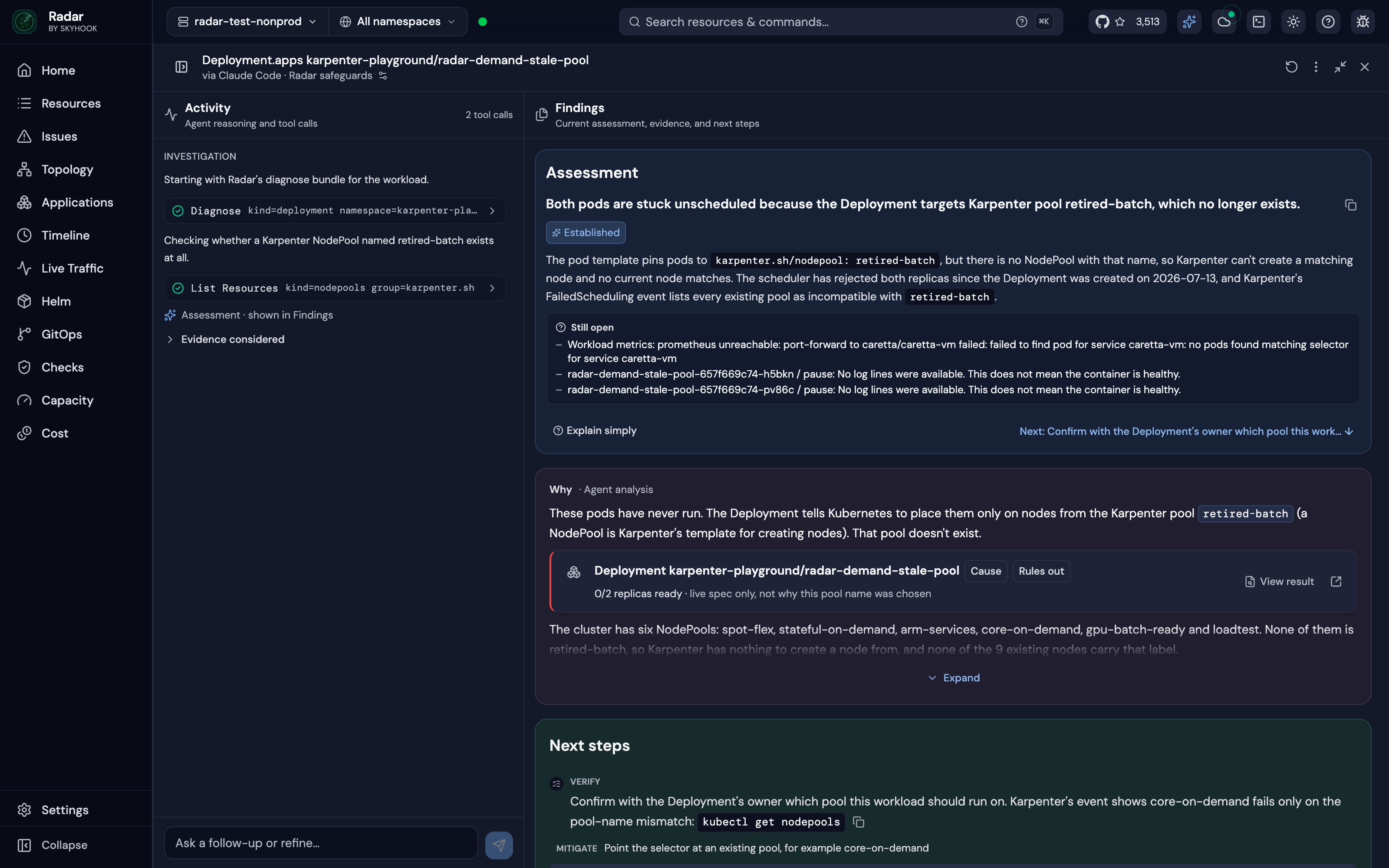
Radar is an open-source Kubernetes UI and MCP server, and AI investigations are one surface of it. It lets the AI agent you already use work out why something in your Kubernetes cluster is broken, returning the root cause, the evidence behind it and a proposed fix. Radar's own summary of the flow is direct: click Investigate on an issue and the agent digs into it read-only, then shows you the evidence for what it found. The same investigation can run three ways — from your own agent over MCP, from Radar's UI using your agent CLI, or automatically from Radar Cloud when an alert fires. It is built for people who run Kubernetes and already have an agent such as Claude Code, Codex, Cursor, GitHub Copilot, OpenCode or Google Antigravity, and its stated purpose is to give that agent cluster context rather than replace it with a dedicated AI SRE tool. The stated premise is "You don't need an AI SRE. Give your agent Radar." Your agent knows Kubernetes; what it does not know is your cluster. Radar's FAQ repeats the point: an investigation is only as good as the cluster context the agent reads, and you likely already have the agent. To reason about an incident, that agent needs ranked failures, a change timeline, and logs and owners in one view. Radar also frames its speed advantage around this: an investigation starts from a cluster model that is already joined, time-indexed and checked for failures, so the agent does not begin by assembling the picture itself. The product therefore positions itself less as another AI SRE product and more as the context layer that makes an existing agent effective at Kubernetes incidents. Investigations start from Radar's Issues list, which ranks what is broken across the cluster and places an Investigate button on every issue. There is no prompt to write and no context to paste. Radar's Issues engine ranks failures before anyone asks; in Radar's benchmark it was the agent's first call on all 50 faults. Past runs stay under Investigations, each with its own link, and the UI runs them read-only because write tools are not loaded. The wider Issues feature set that the investigation flow sits on top of groups failures by subject, folds them to the cause and includes blast radius. The result is that a responder does not have to decide where to start: the ranked list of failures is already there, with an entry point to an investigation attached to each one. An investigation answer arrives with its evidence: the log lines, events, metric charts and resources the agent relied on, drawn by Radar from what it recorded. Every claim can be checked, and one click opens the real object behind it. Radar also states how sure the finding is, using three levels — Established, Likely or Still open — so the reader knows whether the cause is confirmed or still being chased. A follow-up question continues the same investigation from where it stopped rather than starting over. When the agent proposes a fix, you approve it, and Radar checks whether it worked. The evidence framing shows in the interface: Radar illustrates an assessment that a Deployment targets a Karpenter node pool that no longer exists, alongside what is still open and an evidence card tagged Cause. Radar's third step is showing the cluster around the answer. Where a chat gives you the answer one line at a time, Radar shows what changed and when, the topology around the workload, its logs and its Helm history, so you can check the agent's story yourself. Spec changes, events and problems sit on one timeline — Radar's Timeline shows an hour of changes, Kubernetes events and problems for each workload on one time axis — and topology, logs, Helm and GitOps live in the same app. Change tracking matters because "what changed before this broke" is one call when spec changes and events are already time-indexed. The same binary also includes an Applications view that folds workloads into the apps they form with health rollups and env skew, GitOps support for Argo CD and Flux with fleet and per-app diagnosis including field-level drift, controller attribution and lifecycle awareness, and a live topology graph of every resource and connection, laid out by ELK.js and updated via SSE. Radar offers three ways to run an investigation. Open source, your agent over MCP: you ask Claude Code, Codex, Cursor, Copilot or any MCP agent from your terminal or IDE, and Radar's MCP server returns the resources with their relationships and recent changes. Open source, your agent CLI run from Radar: click Investigate on anything broken and Radar runs Claude Code, Codex, Cursor or OpenCode read-only on your machine and lays out the findings, the evidence and a fix you approve; Radar detects the agents on your PATH. Radar Cloud: its own agent runs automatically when a rule matches an issue on any connected cluster, or on demand, investigating read-only against the same cluster model and sending the root cause with the alert, evidence included, to Slack or your webhook, with a link to the full investigation and nothing to install on anyone's laptop. A benchmark run shows the MCP route in action — issues, get_changes, get_resource, get_workload_logs and diagnose calls — ending with frontend having lost CART_ADDR at 22:15:29. Safety limits are described explicitly. In Radar's UI and Radar Cloud, investigations are read-only and write tools are not loaded. Over MCP, your agent's write access is your choice, within your RBAC. An approved fix runs alone, in its own session, bound to that one change. Changes to resources managed by Argo CD, Flux or Helm ask for your OK first, because the next sync or Helm upgrade would revert them. With Radar OSS, investigations run on your machine and your own model account. On data: with open-source Radar, what the agent reads goes to your own model provider and never to Radar; in Radar Cloud each investigation runs as a sandboxed job with read-only access, and an owner accepts that once for the organization. Radar explains the reasoning in a post titled "Read-Only Is Not a Safety Boundary", describing why the limits live in the tool layer. The headline outcome Radar reports is speed and cost: 1.6–3.6× faster and 30–85% cheaper than the AI SRE tools tested, on live faults. In its benchmark of 50 live Kubernetes faults across six AI SRE products, Claude Code on Radar's tools was the most accurate of the six — clearly ahead of HolmesGPT, OpenSRE, kagent and AWS DevOps Agent, and slightly ahead of kubectl-ai — answering in an average of 79 seconds at $0.27 a fault, the fastest and cheapest of the six. On faults that announce themselves, such as a crash loop or a failed image pull, all six scored between 24 and 27 of 28; they separate on the 14 faults where every pod reports Ready, where Radar scored 12 against kubectl-ai's 9, HolmesGPT's 7, OpenSRE's 6, kagent's 7 and AWS DevOps Agent's 5. A demonstration run notes kubectl took 11.7 minutes by comparison, and every result is downloadable from the benchmark page. Concrete scenarios appear throughout the content. One is a Deployment whose pods cannot be scheduled because they target a Karpenter node pool that no longer exists; the investigation shows the agent's tool calls, an established assessment, the Deployment as the cause and next steps. Another is a frontend that lost the CART_ADDR environment variable (previously cart:8080) at 22:15:29, so checkout could not reach the cart service even though the cart service itself was healthy. A Timeline example walks a crash loop: a Deployment revision at 10:02, a ConfigMap losing DB_URL at 10:04, and a Pod entering CrashLoopBackOff at 10:05, with the detector connecting the symptom to its likely cause. Alert-driven teams use Radar Cloud, where a rule matches an issue on a connected cluster, the agent investigates read-only against the same cluster model, and the root cause arrives in Slack or a webhook with evidence and a link to the full investigation. Radar is aimed at Kubernetes operators, platform and SRE teams, and developers who already work with a coding agent. Supported agents over MCP include Claude Code, Codex, Cursor, GitHub Copilot, OpenCode and Google Antigravity; from Radar's UI, Claude Code, Codex, Cursor and OpenCode are detected on your PATH; Radar Cloud brings its own agent. Radar is one open-source binary, run on your laptop or in your cluster, installed with a curl script and kubectl radar, Homebrew, the desktop app, in-cluster, Krew, Scoop, .rpm or a direct download. It is Apache 2.0 licensed, requires no account for local use, and can be run as OSS forever. Radar Cloud is the hosted option, offered to try free for three clusters, with pricing on Radar's pricing page. The takeaway Radar reinforces is that you do not need to buy a dedicated AI SRE tool: you need to give the agent you already use the context of your cluster. Ranked issues, a change timeline, joined resources with owners, topology and error-filtered logs, and evidence attached to every claim turn an agent into a Kubernetes investigator that runs read-only, shows its work and proposes a fix you approve — from your terminal, from Radar's UI, or automatically from Radar Cloud when an alert fires.

Voxel51 is an end-to-end multimodal data platform built to accelerate robot learning. The real world is messy, and robots encounter unexpected situations and behave in ways their builders never anticipated; Voxel51 is designed for the teams behind those robots and for the video and sensor data those machines produce. Its stated purpose is to help teams find the failures that matter, understand why they happened, and fill gaps in their training data so models can be improved faster. Rather than treating robot data as an undifferentiated archive, the platform is positioned as the place where recorded robot behavior becomes usable evidence for improving the robot itself. The thinking behind Voxel51 starts with a simple premise: every failure is a chance to teach a robot something new. What stands in the way is not the failure itself but the effort required to learn from it. Robots generate hours of video and sensor data, and when a robot does something unexpected, the hard part is sifting through all of that material to figure out why the failure occurred. Without a way to locate the relevant moments and interpret them, the lesson stays buried inside long recordings, and the gap in the robot's understanding never gets closed. Voxel51 addresses that bottleneck by organizing the work around three connected steps that the company repeats in its own tagline framing: find the failures that matter, understand why they happened, and fill the gaps in training data. The first capability Voxel51 emphasizes is finding the failures that matter. Because robots produce hours of video and sensor data, the challenge is not a shortage of material but the difficulty of locating the specific moments that explain a problem. Voxel51 is positioned as the layer that lets teams move through that volume of recorded behavior and isolate the failures worth acting on, instead of treating every minute of footage as equally relevant. For a robotics team, that means the difference between reviewing blind and starting from the episodes that actually explain why the robot behaved in a way they never anticipated. The second capability is understanding why a failure happened. Voxel51 describes itself as a multimodal data platform, and it explicitly works across video and sensor data rather than a single stream. That matters because a robot's behavior is only fully explained when the visual record and the sensor readings are considered together. Once a failure has been located, the platform gives teams the material to examine the situation and work out the cause, so that the response is based on what actually happened during the episode rather than on guesswork about what the robot might have encountered in the messy real world. The third capability is filling gaps in training data. Once a team understands why a robot failed, the next step is to close the gap that the failure exposed, so that the model has the examples it needs to handle the situation next time. Voxel51 frames this as filling gaps in training data and improving models faster. The three capabilities are intentionally connected: the failure points to the gap, the diagnosis explains the gap, and the training data fills it. Because all three steps live inside one end-to-end platform, teams do not have to move data between disconnected stages to get from a recorded failure to a better model. Taken together, Voxel51 describes an end-to-end approach: the platform starts with the raw video and sensor data a robot already produces, helps teams surface the failures that matter, supports understanding why those failures occurred, and then supports filling the corresponding gaps in training data so the model can be improved. The product is delivered as a web application. The Voxel51 app presents dataset views, such as a robotics-droid samples dataset, and the application exposes prompt-style queries over those datasets, as illustrated by an example request for all episodes where the robot is folding clothes. Access to the app is passwordless: users enter an email address, receive a one-time verification code, and sign in with that code instead of choosing a password. Trying Voxel51 is free, and no credit card is required. The outcomes Voxel51 presents are practical and stated directly. Teams can find the failures that matter rather than sifting through every hour of video and sensor data by hand. They can understand why those failures happened, which is the step the company identifies as the hard part of the process. They can fill gaps in their training data, and in doing so improve models faster. The repeated framing, "Better data. Smarter robots. Repeat.", captures the loop the platform is meant to support: the robot's real-world experience becomes better data, better data produces a smarter robot, and the cycle runs again as the robot encounters new and unexpected situations. The concrete scenarios in the content center on robot learning from real-world behavior. A team discovers that a robot behaved in a way it never anticipated and needs to work out why, so it turns to the recorded video and sensor data rather than relying on assumptions. A team notices a pattern of unexpected behavior and needs to locate the specific episodes that explain it within hours of footage. A team identifies a gap in its training data and needs to fill it so the model can be improved faster. And a team working with a robotics dataset, such as the robotics-droid samples, can query episodes directly, for example asking to show all episodes where the robot is folding clothes. Voxel51 is built for the people who train and improve robots: the description speaks directly to teams whose robots encounter unexpected situations and behave in ways they never anticipated, and who must sift through hours of video and sensor data to understand failures. The platform is multimodal, working with video and sensor data, and it is delivered as a web application available through sign-in. On pricing, the content states only that Voxel51 can be tried for free and that no credit card is required to do so; no further plan details are given. The primary value proposition is straightforward: Voxel51 turns the messy, unexpected behavior of real-world robots into an opportunity to teach them something new, by providing one end-to-end multimodal data platform where teams find the failures that matter, understand why they happened, and fill the gaps in their training data, improving models faster and repeating the cycle.

Gemini 4 Carbon is Google's next frontier model, described by the company as its strongest model with state-of-the-art cybersecurity and long horizon capabilities. Announced on October 28, 2026 by Koray Kavukcuoglu, SVP of Google DeepMind and Chief AI Architect at Google, Carbon is designed to take on much harder, long-horizon engineering problems and to support sustained agentic workflows. Its stated purpose is to deliver meaningful leaps in software engineering and cybersecurity defense without compromising on safety or reliability. Carbon builds directly on Gemini 4 Argon, which launched two weeks earlier, and illustrates what Google describes as the pace at which it is pushing the frontier forward, with researchers and models working hand in hand to advance capabilities faster while strengthening safeguards in tandem. Carbon targets a class of work that is hard to complete in a single step. The announcement describes complex, multi-step engineering tasks such as root-causing and patching subtle bugs across large codebases and low-level systems, and notes that Google's internal teams have seen Carbon run for days to persist through dead ends on exactly this kind of problem. Security work is framed around a defense lifecycle of vulnerability detection, validation, and remediation, and Carbon is evaluated against each stage of that lifecycle. The release also reflects a governance problem: Google states it is taking a deliberate approach to rollout, engaging in the U.S. government's voluntary process for pre-release model testing and phasing access to trusted partners rather than releasing broadly at once, so that capabilities can advance while safeguards are strengthened alongside them. Building on user feedback, Google focused Carbon's improvements across coding, agentic and scientific tasks, as well as full-stack web development and multimodal understanding. Internally, teams have seen the model run for days to persist through dead ends on complex, multi-step engineering tasks such as root-causing and patching subtle bugs across large codebases and low-level systems. On full-stack web development, improved quality of output and artifacts lifted Carbon by 89 elo points to #4 with a score of 1768 on WebDev Arena. Carbon also ranks #1 on the recently updated v5.0 of the Artificial Analysis Intelligence Index with a score of 59, and shows significant gains across coding and agentic tasks. These results matter because sustained agentic work is where models typically lose coherence over long runs; Google's claim is that Carbon keeps working through multi-step plans without stalling. Carbon's headline capability is cybersecurity defense, where Google reports state-of-the-art performance across the defense lifecycle. On external benchmarks evaluated without guardrails, Carbon scores 88.2% on SEC-bench Pro for autonomously uncovering complex flaws buried in real-world software, 54.8% on ExploitGym for validating which vulnerabilities are exploitable, and 71.0% on Collinear's CWE-bench for turning validated findings directly into working code fixes. Exploit validation matters because cyber defenders increasingly rely on models to check which vulnerabilities are exploitable so they can prioritize which ones to remediate first, or at all. Internally, Google reports more than a 2x uplift in success rate for generating secure code over Argon; the Chrome team reported Carbon performed more than 10X better than another lab's large frontier model when generating high quality patches; and Wiz, Google's leading cloud security platform, observes Carbon leading on benchmarks for web penetration testing, a core capability for its Scan for Good initiative. Gemini 4 Carbon builds on the same multi-layered safety and security stack as Argon, combining model training, real-time misuse defenses, prompt-injection resilience, and chain-of-thought monitoring. With Carbon, Google set out to go a step further on alignment, training the model to respond to complex or high-pressure tasks in the right way, and reports several concrete results. Carbon reduced successful cheating on Terminal-Bench 4.0 to 0.0%, with attempts to cheat dropping to 0.4%, all while improving overall accuracy; in live coding environments with internal teams, high-severity misalignment alerts dropped by almost 80%. Carbon cuts unsupported claims by approximately 2x over Argon, putting methodological caveats directly into the deliverable or withholding blocked actions with a clear list of what remains required rather than fabricating or hedging around missing evidence. When facing ambiguity, it retrieves the relevant sources and surfaces discrepancies to the user before acting. It simultaneously reduced overreach by 26% and under-service by 29%, and it resisted every evaluated attack attempt on Gray Swan's Indirect Prompt Injection Benchmark, achieving a 0.0% attack success rate versus Argon's 0.7%. Google describes a deliberately staged rollout rather than a broad launch. Carbon is being released under the U.S. government's voluntary process for pre-release model testing, and starting in the announcement week it was made available to a subset of cyber defenders, with access gradually phased to additional trusted partners through the Fairwind Program. Google says it is continuing to gather feedback and iterate on guardrails before making Carbon available to developers, businesses, and consumers via its product surfaces as soon as possible. Underneath that rollout, the model's approach combines the same multi-layered safety and security stack as Argon with training aimed at handling complex or high-pressure tasks correctly, an emphasis on transparency when evidence is missing, and behavior that retrieves sources and surfaces discrepancies rather than guessing or forcing a path forward. Stated outcomes for users include much more reliable execution of multi-step plans end-to-end while respecting project constraints and staying strictly within scope, fewer unsupported claims, and a better collaborative experience when requirements are ambiguous. For security teams, the payoff is a model that can help detect, validate and remediate vulnerabilities rather than stopping at a list of findings. For engineering teams, the reported benefit is persistence on long-running problems: working through dead ends across large codebases and low-level systems instead of giving up after the first failed attempt. Google also points to a stronger internal capability to generate secure code, and to reduced misalignment and fabrication rates in live coding environments with its own teams. The announcement frames several concrete scenarios where Carbon is used. It autonomously uncovers complex flaws buried in real-world software, checks which vulnerabilities are exploitable so defenders can prioritize remediation, and turns validated findings directly into working code fixes. It is applied to sustained engineering work such as root-causing and patching subtle bugs across large codebases and low-level systems over multi-day runs. It supports full-stack web development through improved quality of output and artifacts. It is also used for web penetration testing, the capability behind Wiz's Scan for Good initiative, and for generating high quality patches inside Google's own teams, including work reported by the Chrome team. The initial audience is a subset of cyber defenders, followed by additional trusted partners through the Fairwind Program, with developers, businesses, and consumers to follow via Google's product surfaces. Carbon launches at the same introductory price as Argon: $2 per million input tokens and $10 per million output tokens, with cached input tokens priced at 95% off the input token price. Google notes that after the introductory period expires, the price of $4 per 1M input tokens and $20 per 1M output tokens will apply. The model is presented as part of the Gemini 4 family, following Gemini 4 Argon, which was launched two weeks earlier. Gemini 4 Carbon's primary value proposition is combining frontier-level coding and agentic reasoning with state-of-the-art cybersecurity defense, while holding the line on safety through a deliberately staged release. Google positions it as its strongest model to date, leading the Artificial Analysis Intelligence Index and the SEC-bench Pro, ExploitGym and CWE-bench cybersecurity benchmarks, and as a step toward delivering meaningful leaps in software engineering and cybersecurity defense without compromising on safety or reliability.

JST-2 is Viggle's physics-native world foundation model for generating 3D scenes, characters and full-body motion in one shared world. Built by Viggle, which describes itself as a spatial GenAI platform, the model is centered on characters: it takes one image, or text, and returns a complete full-body 3D character with motion dynamics already built in, ready to animate without separate rigging and skinning steps. The same model generates 3D scenes, which Viggle says take about one second, and produces motion from text or video. It can be tried free in the PINOC browser app, used through Viggle's API, or accessed via MCP with agents such as Claude Code. The character research page documents how the model was tested and where it still falls short. In a conventional animation or game pipeline, a generated character is only the starting point. Rigging and skinning are specialist work measured in hours, and once a rig is built it decides how the character moves for the rest of its life. JST-2 targets exactly that handoff: instead of building a shape and then attaching a rig, it builds the character and its motion dynamics in one generation, so a single input image or prompt yields something already animation-ready. A second problem is input quality. Real creative inputs are not studio plates, and lighting, angle, framing and occlusion are all over the place. Characters are often cropped, turned away, or missing hands and feet, and the model is designed to complete those partial inputs into a body whose structure and proportions hold together. JST-2 generates 3D characters from a single image or from text. In Viggle's blind human tests against Meshy 7.1 and Tripo H3.1, the model led both baselines on character generation, with its strongest results on facial detail. Face quality scored 63.0% against Meshy 7.1 and 82.0% against Tripo H3.1, where a score of 50% means equal preference and draws count as half a win. Facial detail is what preserves a character's identity in 3D, which matters when the asset is your own digital double, an actor's stand-in, or an IP character you will reuse for years. Texture quality, body quality and clothing quality were also rated above both baselines: against Meshy 7.1 the model averaged 58.4% overall, and against Tripo H3.1 it averaged 73.2%. The model also completes characters from cropped or partially occluded images across a wide range of visual styles. When only the upper body is in frame, when the subject is turned away, or when hands and feet are hidden, JST-2 extends the visible region into a full body whose structure and proportions hold together. Viggle notes that on clean images all three tested models are usable and the gap opens on difficult ones, and that real creative work rarely starts from a clean image. The test set reflects this: alongside the photoreal, stylized, cartoon, anime and sci-fi categories used by major commercial 3D asset platforms, it adds hard samples drawn from what users actually upload, including unusual poses, occluded subjects, off-axis viewpoints, bodies cropped out of frame, difficult lighting, low-resolution and blurred images, and busy backgrounds. Motion is where the model is most differentiated. On animation readiness, defined as how a generated character moves once it is driven, JST-2 led Meshy 7.1 with an average score of 73.8% and Tripo H3.1 with 88.9%. The criteria were joint alignment, rig usability, deformation quality and hand rigging. Hand rigging reached 82.8% against Meshy 7.1 and 89.3% against Tripo H3.1, while deformation quality reached 77.6% and 93.2% respectively. Every finger moves on its own, and once the character moves, clothing, hair and accessories deform with the body rather than fighting it. All of this happens in a single generation: complete body, 3D character and motion dynamics at once, with no remesh and no separate rigging step left for the user. Under the hood, JST stands for Joint Space-and-Time. The model represents the world as persistent atoms in 3D space: each atom represents a piece of matter or an object part and retains its identity as it moves and deforms, carrying an explicit xyz position plus learned vectors for its attributes and dynamics. These atoms are encoded as Physics-Native Tokens, and the JST decoder turns them into 3D Gaussian splats. A JST-2 character is built from these tokens, and the dynamics vectors inside its Physics-Native Tokens encode how each part deforms under different motions. Because those dynamics are learned from data rather than authored by hand, the character arrives ready to animate without separate rigging and skinning steps. The practical benefit is removing a specialist bottleneck. Rigging and skinning normally take hours of expert work, and the resulting rig locks in how the character can move for its whole life. With JST-2 the character and its motion dynamics come out of one generation, so teams can go from a single image or prompt to something they can drive. Identity is preserved in 3D through stronger facial detail, which helps when the same character is reused across projects. Because the model handles cropped, occluded and awkwardly framed inputs, teams can work from material they already have rather than requiring studio-grade photography. And since scenes, characters and motion are generated in one shared world, the outputs are meant to fit together rather than being assembled from separate tools. Use cases follow directly from the benchmarks. Viggle names digital doubles, actor stand-ins and IP characters that will be reused for years as the kinds of assets where preserved facial detail matters. Game and animation pipelines benefit from characters that arrive without a rigging step, with hands that articulate finger by finger and clothing that deforms with the body. Teams working from user-uploaded or imperfect imagery can complete partially framed subjects into full bodies. Beyond characters, the model generates 3D scenes in about one second and produces motion from text or video, and it can be driven through an API or through MCP with agents like Claude Code, which supports automated and agent-based workflows. The product is aimed at people building 3D characters and scenes: character artists, animators, game and animation production teams, and developers who want to call the model programmatically. Access options named in the content are the PINOC browser app, where it can be tried free, the Viggle API with a developer portal and documentation, and MCP for use with agents such as Claude Code. Viggle also lists related products including Meme Maker, PINOC, Games and the API. The technical foundation described is the Joint Space-and-Time representation, Physics-Native Tokens and 3D Gaussian splats, with learned dynamics driving character motion. Viggle is explicit about current limits. Gaussian artefacts can appear around limb joints, and in some cases the shoulder-to-torso join, the armpit and the gaps between fingers show holes, merging or collapse, which the page calls the most visible failure mode. Surface detail has a ceiling: hair, clothing and materials read cleanly at normal viewing distance but soften as the camera moves in. Unusual bodies that depart from normal human proportions, such as very long limbs, an exaggerated head-to-body ratio or a non-humanoid silhouette, can produce off joint placement and deformation. Clothing, hair and accessories deform with the body but are not simulated, so they do not swing from inertia or collide with the body or each other; scene collisions and object interactions still rely on rule-based physics. Viggle says upcoming releases will improve how complex clothing deforms during motion and how hair moves, and that JST-3 is in development to replace those rules with learned dynamics. In summary, JST-2's value proposition is a single model that produces complete, animation-ready 3D characters from one image or text, with motion dynamics built in rather than rigged afterwards, backed by Viggle's own blind human benchmarks against Meshy 7.1 and Tripo H3.1 and extended by scene generation and text- or video-driven motion in one shared world.

TopAgent is the AI messaging agent inside TopMessage, an SMS and WhatsApp platform for campaigns, reminders, verification, and customer conversations. The platform brings three capabilities into one account: marketing campaigns, a messaging inbox, and messaging APIs. TopAgent sits on top of that platform and runs SMS and WhatsApp messaging from start to finish — according to the site, you say what you need and TopAgent finds the right customers, writes the message, sends it, and suggests your next move. It is built for teams that reach customers by text: sales and marketing, customer service, developers, and operations. The site positions the platform as ready to use in minutes, with SMS and WhatsApp in one place and a fully agentic assistant that helps teams get the work done and improve results. The problem the product addresses is the fragmentation of business messaging work. Campaigns, two-way customer conversations, and verification codes are typically different jobs with different tools, and the site notes that developers otherwise have to manage multiple providers to send messages worldwide, verify users, and handle replies. Messages also need to be relevant, timely, and compliant, which is why the platform pairs sending with segmentation, analytics, opt-out management, and approval steps. TopMessage's answer is to keep campaigns, an inbox, and APIs in a single business messaging platform, then layer an AI agent on top so that routine setup — choosing contacts, drafting copy, building a campaign — can be described in plain language rather than configured through settings. The stated purpose is to help teams reach customers and hit their goals without technical overhead. TopAgent is the core agentic capability, and the site describes it in three steps. In Tell, you set your goal by describing it in plain language, like you would brief a colleague; no settings are needed, and TopAgent asks if anything is missing. In Send, TopAgent segments contacts, personalizes messaging for each audience, and drafts campaigns. In Improve, TopAgent suggests the next best actions to help you capture opportunities and grow revenue. The agent does not talk to customers on its own: the FAQ states that it selects contacts, writes messages, builds campaigns, and suggests replies inside TopMessage for your team, and that nothing is sent until you approve it. Campaign summaries include approve and request-changes actions. Marketing campaigns let teams run personalized SMS and WhatsApp campaigns and track performance from delivery to click. The site lists advanced segmentation, automation, and engagement analytics as the supporting capabilities, and describes the workflow as creating segments, launching campaigns, and tracking results with AI-powered automation. A campaigns dashboard shows delivery, click, and opt-out statistics per campaign. For sales and marketing teams, the platform supports interactive WhatsApp messages for driving sales, and a retail customer story reports a 3.4x return on campaign spend and an 18% average click rate from weekly product drops announced over WhatsApp. The messaging inbox is a shared space for two-way SMS and WhatsApp conversations. Customer service teams keep messages from both channels in one shared inbox so the team never misses a customer, and the inbox includes templates and suggestions. The site's example is a number customers can text, with your team answering from the inbox, and a dental clinic story reports 45% fewer inbound calls and a 4-minute average reply time after moving patient communication to text. For developers, TopMessage offers a messaging API, a verify API, and webhooks, so teams can add SMS and WhatsApp to an app without managing multiple providers. The site says developers can send messages worldwide, verify users, and handle replies, and the Verify API sends one-time passcodes by SMS so every account belongs to a real person. Transactional use cases such as order and delivery alerts can be sent from your own system through the API. A delivery company story reports 27% fewer support calls and a 98.6% delivery rate, while a fintech story reports 4x faster OTP arrival and 61% fewer fake sign-ups. Integrations connect TopMessage to a CRM, online store, and automation tools so customer data stays in sync and the right message goes out at the right moment. The site names direct CRM integrations with HubSpot and Salesforce, along with Pipedrive, Zoho, Slack, Google Sheets, and Shopify in its integrations illustration, plus no-code automation with Zapier, Make, and Power Automate. For custom builds there is a REST API and webhooks. The FAQ notes that a CRM can be connected three ways: direct integrations, Zapier for no-code connections to 1,000+ apps, or the API with webhooks. The product's unique approach is the combination of a self-service platform and a natural-language agent with an approval gate. Onboarding is described in three steps: connect, where you create your account and start right away with no waiting for setup; engage, where you segment audiences, manage replies, and send campaigns using natural language with TopAgent; and analyze, where you see what worked and what to improve next with AI-powered insights. No technical skills are required because everything works in the web app, and if a step feels technical you describe what you want to TopAgent and it sets it up, while developers can still use the API for custom flows. TopAgent works with the contacts, templates, and campaigns in your workspace, within the permissions of the person asking, and every action it takes is logged. TopMessage is GDPR-compliant and includes built-in opt-out management, so contacts who unsubscribe are excluded automatically. Benefits described on the site are practical and measurable. Automated SMS reminders cut no-shows for a beauty salon by 30% and saved 6 hours every week while keeping every chair booked. A dental clinic cut inbound calls by 45% and answered in 4 minutes on average. A retail brand turned weekly product drops into a new revenue channel with WhatsApp announcements. A delivery company reduced where-is-my-order calls by 27%. A financial company sped up sign-up verification and blocked fake accounts. Across these stories the through-line is faster replies, fewer inbound calls, fewer no-shows, and campaigns that convert. The site lists six best ways to use TopMessage. Sales teams grow revenue with campaigns, driving sales with interactive WhatsApp messages. Support teams reduce calls with texting, offering a number customers can text while the team answers from the inbox. Reminders cut no-shows by connecting TopMessage to your calendar and automatically sending reminders. Internal messaging reaches staff who are not at a desk, such as shift changes and urgent notices read in minutes. Transactional messages keep customers updated automatically with order and delivery alerts from your own system. Security verification uses one-time passcodes by SMS with the Verify API, so every account belongs to a real person. Product Hunt adds a B2B event use case: filling a conference, summit, or workshop with SMS invitations and relevant follow-ups. Pricing works on a top-up balance: you add credit and pay for the messages you send, with prices depending on the channel and the destination country. Setup is self-service and most teams send their first message the same day they sign up, though verifying a phone number or sender can take a little longer. The platform is aimed at every team — marketing, sales, support, and operations — plus developers who need messaging APIs. Channels are SMS and WhatsApp, usable for campaigns, two-way conversations in the inbox, and through the API, all from one account. The overall takeaway is that TopMessage pairs a complete business messaging platform with TopAgent, an AI agent that segments, drafts, and suggests next actions while leaving the final approval to your team.
Notch Metrics is a native macOS app that puts your revenue, MRR and subscriber numbers in your MacBook's notch. Instead of opening a dashboard, a tab or a spreadsheet, you look up at the camera housing and the number is already there. The product is aimed at founders, builders and marketing people who check the same handful of figures every day and want them closer than a browser tab. It pulls numbers from the payment, analytics and code platforms you already use and turns them into widgets that live in the notch: the strip expands over whatever you are doing when you rest the pointer on the camera housing, and folds back to the shape it had when you leave. The tagline on the site sums up the intent directly — every number you check, in the notch. The problem it addresses is the daily routine behind those numbers. MRR lives inside Stripe, today's takings inside Polar, trials inside RevenueCat, stars and open issues inside GitHub, traffic inside Plausible or Google Analytics. Checking them means opening a dashboard, finding the right tab and repeating that several times a day, which turns a five-second question into a context switch. Notch Metrics takes the opposite approach. Rather than building another destination to visit, it puts the figures in the one place a laptop user already looks at constantly — the notch at the top of the screen — so a glance replaces a visit. The site describes the payoff in plain terms: look up, and the number is already there, and the recent-payments feed means you see who just paid without opening a dashboard. The core of the product is the widget strip in the notch. Revenue, subscribers and today's takings sit side by side, and the app keeps nine widgets open at a glance while, in the site's words, the island still reads in a second. Each widget is bound to a source and a metric: the examples shown include a Stripe MRR tile reading $12,480 with +4.2% vs last month, a Stripe subscribers tile at 318, a Polar "Today" tile at $640, a GitHub stars tile at 2,104, a RevenueCat trials tile at 27, a RevenueCat active subscribers tile at 1,208 with +38 this week, a Dodo Payments revenue tile at $3,920 with +11% vs last week, a Dodo Payments orders tile at 146 and a GitHub open issues tile at 14. Widgets come in four tile sizes, from a single square up to the full width of the notch, and you drag to arrange them and resize them in place, inside the notch itself. Two details make the notch format practical rather than gimmicky. First, the strip opens on hover: rest the pointer on the camera housing and the notch expands over whatever you are doing, and when you leave it folds back to the shape it had. There is nothing to launch, click or dismiss. Second, the widgets are not only numbers. A recent-payments feed sits beside the headline figures, listing entries such as "Pro · yearly $79" and "Pro · monthly $19", so you can see who just paid without opening a dashboard. Between the tiles and the lists, the notch covers both the trend and the individual event — the monthly figure and the payment that just landed. Notch Metrics connects to 16 live sources. The connectors named across the site include Stripe, Polar, Paddle, Dodo Payments, Lemon Squeezy, RevenueCat, Shopify, Plausible, Google Analytics, Google Search Console, PostHog, Amplitude, Mixpanel, GitHub, YouTube, Claude and OpenAI. They are deliberately mixed in type: payments beside analytics beside code, on the same strip of glass, so a Stripe tile can sit next to a Plausible tile next to a GitHub tile. Dimmed marks on the site are sources on the way, and the site states that a new one arrives without an app update. Connecting happens on the web: connect a source once, and every Mac you own picks it up. Underneath, Notch Metrics is a small native app written in Swift, built for Apple silicon and macOS 14 or later. It has no dock icon, no window and, in the site's phrasing, no menu bar clutter while you work, and it is described as light on memory and on your battery. Metrics are fetched and normalised by the company's servers on a schedule, which is why a subscription is per account rather than per machine, and why your connections and layout are already there when you sign in on another Mac. Provider keys are handled carefully: a key is encrypted the moment you paste it, with a key of its own, and your account, the integration and the provider are bound into that encryption so a row copied anywhere else decrypts to nothing. The key never leaves the server — Notch Metrics calls Stripe for you and hands your Mac a number, which is all any app on it could find — and disconnecting an integration deletes its encrypted key with no second copy anywhere to clean up. Every plan also includes custom metrics authored by your own coding agent over MCP, which the Product Hunt listing frames as using Claude Code to build analytics widgets for your notch. The benefits follow from that design. You stop paying the cost of a context switch for a question that takes a second to answer, because the figure is already in the notch rather than behind a login. The app stays quiet while you work — no dock icon, no window, no menu bar clutter — and only takes visual space when you deliberately hover. Because every connector is included with no per-integration charge, you are not choosing between tracking revenue or tracking product analytics; the same strip can carry both. Because the layout syncs between Macs, the setup follows you rather than being rebuilt machine by machine, and updates are signed and notarised for as long as you subscribe. Concrete use cases come straight from the widgets and sources described. A founder starts the day by hovering the notch to read MRR and its +4.2% vs last month against the subscriber count, then leaves the strip folded away. After a launch, a recent-payments feed of Pro monthly and yearly entries shows who just paid without opening a payments dashboard. A marketer keeps Dodo Payments revenue for the last seven days next to Plausible traffic and Google Search Console. A developer keeps GitHub stars and open issues beside the same revenue tiles, since code activity and business activity share one strip. Someone running an app business watches RevenueCat trials and active subscribers tick up week over week. And anyone with a second Mac signs in and finds the same connections and the same layout waiting. Target users are named on the site as builders, founders and marketing. The integrations list covers payment platforms (Stripe, Polar, Paddle, Dodo Payments, Lemon Squeezy, RevenueCat, Shopify), analytics and search tools (Plausible, Google Analytics, Google Search Console, PostHog, Amplitude, Mixpanel), code and content (GitHub, YouTube) and AI providers (Claude, OpenAI). Pricing is a paid subscription with no free tier: $9 per month, or $49 per year billed once at $108, working out at $4.08 a month and a saving of 55%. Every plan includes every connector, as many widgets as fit in the notch and in list view, custom metrics via MCP, every Mac you sign in to with your layout synced, and signed notarised updates while you subscribe. There is a seven-day free trial with no card on file. When the trial ends your widgets stop updating but nothing is deleted; cancelling keeps access until the end of the paid period, and a failed payment gets a grace period while the card is retried. Checkout and subscriptions are handled by Dodo Payments, so the company never sees your card number. Requirements are Apple silicon and macOS 14 or later, with the current build listed as v0.4.2. The takeaway is simple. Notch Metrics does not try to be another analytics suite; it takes the numbers you already check obsessively and moves them into the MacBook notch, where a glance is enough. Sixteen live sources, encrypted server-side keys, four tile sizes, a recent-payments feed and custom metrics over MCP all serve one idea: never miss a number, and never open a dashboard to find it.
PHPTRAVELS is self-hosted travel booking software for travel agencies, tour operators and OTAs. Launch a white-label B2C travel website and B2B agent portal with flight, hotel, tour and car booking engines, live GDS, NDC and bedbank suppliers, full source code and a one-time licence from $2,499. Features: flight booking engine, hotel booking, tours/cars, B2B portal, B2C site, GDS, NDC, white-label, self-hosted. Demo https://phptravels.com/demo | Docs https://phptravels.com/documentation | YouTube https://www.youtube.com/@phptravels.official | X https://x.com/phptravels | LinkedIn https://www.linkedin.com/company/phptravels

licenseal is a free, open-source command line tool that checks the license of every dependency in a project, transitive ones included, against the license that project itself ships under. It covers ten ecosystems and is aimed at developers and teams who need to know before a release, rather than after one, whether the packages they depend on are compatible with how they distribute their product. The tool is deliberately narrow in what it promises: it reads manifests and lockfiles, looks up each package's license in public registry metadata, and returns a verdict that CI can gate on instead of a list of license names for a person to interpret. A dependency's license binds the product that ships it, whether or not anyone on the team consciously chose that dependency. Most of a dependency tree is transitive, meaning those packages were chosen by nobody on the team and simply arrived underneath something else. In practice a conflict tends to surface late: in a customer's procurement review, in an investor's due diligence, or in the week of a release, when swapping the offending package out costs the most. licenseal exists to move that check to every pull request, so the same information arrives while changing a dependency is still cheap. The tool reads ten ecosystems in one place: Python, JavaScript and TypeScript, Rust, Go, Java and the JVM, .NET, PHP, Ruby, Elixir and Erlang, and R. In a project's directory you run a single command, uvx licenseal check. It reads your manifests and lockfiles, follows the whole dependency tree, looks up each package's license in public registry metadata, and judges it against the license you ship under. Because resolution is driven by lockfiles and registry metadata rather than by scanning source files, the same command and the same style of output apply across all ten ecosystems. Transitive checking is on by default, and the output is organised to be actionable. A flagged package is listed under the direct dependency that brought it in, so you know what to remove or replace rather than being handed a flat list of unfamiliar package names. Each dependency gets one of four verdicts: compatible, warning, violation or unknown. A run also returns an exit code that CI can gate on, which is the practical difference between a report somebody might read and a check that actually stops a merge. licenseal installs nothing. It builds nothing and downloads no package, so the registries it talks to see a package's name and version and nothing else, and the tool can reach fourteen registry hosts and no others. That constraint matters for teams that run dependency checks inside locked-down CI environments or on machines where installing arbitrary packages is not acceptable: the check does not modify the environment it runs in and does not add supply-chain exposure in order to measure supply-chain exposure. Strictness is the default rather than a configuration option. A license that cannot be read from structured metadata is reported as unknown, and something the tool could not read at all, such as a manifest without an up-to-date lockfile, fails the check instead of passing quietly. The consequence is that a clean result means something: if licenseal produces no violations, it is because the tree was actually walked and judged, not because a file was missing or a lookup silently gave up. A bundled Claude Code skill extends a check into a review workflow. Running /licenseal-review walks you through each flagged dependency, asks how you distribute, host or modify your product, and records each decision with its reason in licenseal.review.toml. Real incompatibilities stay flagged, while decisions a person has made deliberately are preserved in the repository rather than in someone's memory or a chat thread. Because the entry is tied to that version or commit, an upgrade comes back for review instead of quietly inheriting an old approval. The approach is to accept a license only when the maintainer declared it in a structured field. Reading LICENSE files would mean matching text, which is easy to spoof and misses edited licenses, and fetching every dependency's code would be slow and would touch far more than a license checker should. The trade-off is explicit: git dependencies, which carry no registry metadata behind them, are reported as UNKNOWN today. When a license lives only in a repository, UNKNOWN is where the review starts, not where it ends: you check the license once, record it in licenseal.review.toml with a reason, and CI passes from then on. Benefits follow from that design. Compatibility is caught in a pull request rather than during a release, the reason a dependency was accepted is stored next to the code, and review effort is spent only where the tool could not reach a structured answer. In a benchmark of 50 widely used open-source repositories across the ten ecosystems, licenseal flagged 485 license-compatibility issues at default settings: 405 warnings and 80 outright violations. That is the scale of the problem the tool is pointing at, in repositories that are already widely used. Typical use is a CI step that runs licenseal on every pull request, with the exit code deciding whether a dependency change merges. It also fits pre-release checks, where a team wants a final pass over the whole tree before shipping, and the preparation work that precedes a customer's procurement review or an investor's due diligence. During development it answers the narrower question of what a newly added package drags in transitively, and for licenses that only exist in a repository it provides a place to record a deliberate decision. licenseal is aimed at developers and engineering teams who ship software built on open-source dependencies and who need license compatibility to be a check rather than an occasional manual audit. It runs on Python 3.11 or later, through uv or pipx, while the project being checked can be in any of the ten supported ecosystems. It is free and open source under Apache-2.0. It is explicitly not legal advice, not an SBOM generator and not a vulnerability scanner; it tells you where a person needs to look and keeps that person's decisions in the repository. The takeaway is simple: licenseal turns dependency licensing from a late, manual, expensive review into a routine check that runs on every pull request, with a verdict CI can act on, transitive packages accounted for by default, and every human decision about an unclear license written down in the repository where the next person can find it.
throxy is an outbound partner built for B2B companies selling into complex, hard-to-crack industries such as manufacturing, logistics, construction, education and healthcare — markets where generic outreach usually fails. Rather than handing you another dashboard, throxy builds prospect lists using custom, proprietary technology and then puts human sales development representatives on the phone and in the inbox to book qualified sales meetings on your behalf. The arrangement is simple on the buyer's side: you do not hire, ramp or manage anyone; you only choose which of the qualified meetings you want to take. throxy describes itself as Y Combinator's first AI-native sales agency and positions the service as a true outbound growth partner rather than just another sales platform, combining proprietary technology, data intelligence and human expertise. The stated purpose is to create a steady, predictable flow of high-value conversations with decision-makers in industries that are hard to reach but lucrative. The website is direct about the problem it addresses. Most tools, it says, overwhelm: they require tinkering, testing and fixing issues, and they lean on stale data or firmographic filters from generic data providers. Most agencies disappoint: they promise results but deliver poor leads, while SDRs are slow to ramp and need handholding. The industries throxy targets are described as complex, relationship-driven and full of noise — manufacturing is called one of the toughest markets to crack. Most outbound, the site argues, floods your calendar with noise, so the buyers actually worth your time get buried among unqualified conversations. throxy's answer is to combine its own outbound technology with a fully managed human team, so companies selling into traditional industries get real conversations instead of spam, and so internal sales teams can focus on what they do best: closing deals. The first pillar is custom lead targeting. Rather than renting access to a generic database, throxy builds tailored prospect databases from scratch based on your exact ideal customer profile. The site contrasts this with tools that rely on stale data or broad firmographic filters, and it emphasizes custom databases, niche-specific targeting and proprietary infrastructure that reaches buyers others cannot find. Lead research draws on scraped sources including LinkedIn, the prospect's website and Glassdoor, and it hunts for specific triggers — a recent fleet expansion, a new partnership — that make outreach timely. This matters in traditional industries where buyers are not searching for new vendors and where a well-chosen trigger is often the difference between a reply and silence. The second pillar is cold calling, powered by Maestro, the dialer throxy built itself to put SDRs on live conversations instead of dial tones. The site reports that the same team books twice the meetings on Maestro, with 121% more meetings booked per week since the dialer launched, 71% more meetings when calling is added, an 11% booking rate on calls lasting over two minutes, and zero people the customer needs to hire or train. A newer capability routes calls to an SDR who speaks the lead's language: a plant manager in Lyon hears French, a buyer in Munich hears German. The published interface shows an SDR note being written during a live call — qualified on production line downtime, interested in a Q3 pilot, asking about case studies in DACH, ready to book — illustrating how qualification happens inside the conversation rather than afterwards. The third pillar is qualification and approval. Every lead is qualified before it ever reaches your calendar against criteria the site lists as ICP (right company size), decision-maker confirmed, budget authority and timing confirmed, with leads failing a criterion marked to skip. Even after qualification, meetings go through a meeting approval step where you accept or skip each one, and throxy states plainly that it never books without your approval. A sample weekly calendar shows only the accepted names — a VP of Operations, a CEO, a CTO — reinforcing the promise that only qualified buyers make it through, with no noise and no wasted calls. The fourth pillar is messaging. throxy pairs email and cold calling end to end, using context-aware personalization drawn from scraped LinkedIn profiles and websites. The example on the site pairs a trigger observation ("Saw your recent Fleet expansion") with a website observation ("Congrats on your DHL partnership") before asking whether fleet expansion is relevant right now. Messaging-market fit is tested through A/B tests, such as Email version 1 versus a combined email and call sequence, and email deliverability is handled as a managed service, including warming email infrastructure during campaign buildout. The company lists its solution areas as lead finding and qualification, cold calling, messaging, deliverability and closed-loop optimisation, all delivered as a done-for-you service. How the whole thing runs is spelled out as a timeline. On days 1–2, throxy completes onboarding and strategy: ICP definition, qualification criteria and messaging frameworks are signed off, the team scrapes websites, LinkedIn and Glassdoor while searching for triggers, and briefs SDRs on value propositions and objections. On days 3–5 comes campaign buildout: the lead list is built and enriched, the SDR team is briefed and email infrastructure is warmed. From day 5 onward, calls and emails run in parallel, replies are managed and qualified leads are passed to you. From weeks 3–4 onwards, qualified meetings land on your calendar alongside weekly updates, A/B testing and continuous optimisation. The headline is that you are live within a week and see meetings within the month. The intended outcomes follow directly from that model. There are no dashboards to manage, no systems to learn and no resources to hire; the prospecting burden — finding targets, crafting personalised outreach, managing replies and booking meetings — is taken off your plate so your team can focus exclusively on closing. Because the system keeps testing and optimising, throxy says it learns and improves for your specific business the longer you work together. The result it promises is outbound sales that is predictable, profitable and painless, with a steady flow of high-value conversations in markets where outbound is hard, ignored or broken. Concrete scenarios appear throughout the site. A manufacturing software company describes throxy as more than a tool and a true outbound partner, starting real conversations rather than sending spam so the sales team can concentrate on closing. An education solutions provider credits personalised outbound with putting the right message in front of every educator at the perfect moment, unlocking qualified opportunities and freeing time for customers. A third customer reports 12 meetings in 20 days in December — described as the toughest month for outbound — and 137 meetings booked by July 2026 with an 80% show rate. The site also illustrates trigger-driven work with a mid-market logistics ICP: Director of Operations persona, fleet expansion trigger, and outreach referencing a DHL partnership. throxy is aimed at B2B companies selling into traditional, complex or niche industries — manufacturing, logistics, construction, education and healthcare are all named — including teams that have been burned by generic data providers or agencies delivering poor leads. Both email and cold calling are fully managed, and all SDRs are humans. On commercial terms, throxy states that you pay for meetings you accept that actually happen, which shifts the cost toward delivered pipeline rather than effort. The site does not publish tiers or list prices; instead it routes prospects to a strategy call booking form, and its FAQ addresses setup requirements, cold calling, using your own CRM or pipeline tools, niche industries, time to first meetings and how the service differs from a traditional lead gen agency. The takeaway is that throxy sells outcomes rather than software: proprietary list-building technology plus a human SDR team running email and multilingual cold calling, with qualification and approval gates so only meetings worth your time reach your calendar. For companies in hard-to-crack industries, the value proposition is pipeline delivered without hiring, ramping or managing anyone — and paying only for meetings you accept that actually happen.
Dedica is an agent readiness testing tool for websites. It tests your site the way AI agents use it and then gives your team a fix for every place those agents fail. The product is aimed at teams whose websites are visited, compared and signed up on by AI agents such as Muse, Dots, Instinct, ChatGPT, Claude, OpenClaw and GrokBot. A free score is delivered in under a minute with no signup required, and the detailed fix kit is purchased separately. Dedica's stated purpose is simple: find where agents get stuck on your site, and hand your team the fix. Most websites are built for people and fail for software. Dedica's site names the specific failure modes: bot checks, pages that only render in a browser, and APIs with no public docs. When an agent hits one of these, it does not report the problem — it simply moves on, which means the business never learns it was skipped. Dedica cites two figures to frame the stakes: only 6% of business websites are ready for AI agents, and businesses that are ready are recommended by AI agents 1.9× more often. The core problem Dedica addresses is that this failure is invisible by default; there is no error report when an agent quietly abandons a sign-up flow, so teams have to test for it deliberately. The free report runs 125 checks across four areas: discovery, access, usability and payments. Discovery asks whether agents can find what they need on your site at all. In the sample report this area is scored out of 20 and includes checks such as whether an OpenAPI or Swagger spec is published at the usual paths, and whether an MCP server or manifest can be found. The fix kit's file list shows further discovery-oriented items, including a check for an llms.txt file and an agent-friendly 404 page. Each discovery gap is a place where an agent has nothing machine-readable to work with, so the practical result of fixing them is that agents stop guessing and start reading structured information about your product, plans and endpoints. Access checks ask whether agents are let in once they find the right page. The sample report scores access out of 30, and the top-ranked issue in that sample is a bot check that blocks agents at sign-up: acme.com/signup returns a 403 challenge page. Dedica shows what the agent actually received — a challenge page with a reference ID — next to a comparable page that returns plans, prices and a working sign-up without a bot check. The fix instruction is explicit: let verified AI agents through the bot check on public pages and sign-up while keeping rate limits in place. OAuth support appears as another item in the fix kit, covering how agents authenticate rather than being turned away. Usability checks ask whether an agent can read and act on what it finds. This is the largest check group in the sample report, scored out of 40. One issue shown is pricing that needs JavaScript to load: acme.com/pricing is empty until scripts run, so an agent that fetches the page sees no plans or prices even though a human in a browser sees a full pricing table. Dedica contrasts this with a page it can use, where plans and prices sit in the page text and the sign-up action works. The corresponding fix file, 02-content-no-js.md, addresses rendering content without JavaScript. Usability work matters because an agent that cannot read your pricing cannot compare it, and an agent that cannot complete a sign-up cannot convert on your behalf. Payments is the fourth check area, scored out of 10 in the sample report. It covers whether an agent can get all the way through a commercial action — signing up for a plan, for instance — rather than being blocked at the last step. The sample report shows an overall score of 71 out of 100 with a grade of D, and 42 fixable issues spread across discovery (11/20), access (9/30), usability (14/40) and payments (4/10). Presenting the four sub-scores separately tells a team which layer of the problem to attack first rather than treating agent readiness as a single pass or fail. Every finding is ranked by how much fixing it would move the score. The report's Fix first list puts the highest-impact issues at the top with an estimated gain: a bot check blocking agents at sign-up (+6.2), pricing that needs JavaScript (+4.6), no OpenAPI spec published (+4.2), and no MCP server (+4.1). Each issue carries check points, such as 0/6, so a team can see how much of a given check is currently passing. The fix kit then turns each finding into one instruction file per issue, written for a developer or a coding agent, stating what to change and how to check it worked. In the sample, the kit contains 42 files, named so they map directly to the issue — 01-bot-detection.md, 02-content-no-js.md, 03-openapi-spec.md, 04-mcp-server.md, 05-llms-txt-exists.md, 06-oauth-support.md, 07-agent-friendly-404.md and 35 more. The workflow is scan, fix, scan again. First, you enter your domain; the score is free and takes under a minute. Second, you hand over the fix kit — either giving the files to your developer or pasting them into Claude Code, Codex, Cursor or GitHub Copilot. Third, once the change ships, you rescan and watch each check pass. The sample walks through exactly this loop, with a score of 38 turning into 71 after the fixes are applied. Because the fix files are written for coding agents as well as people, the same artifact can be routed into an existing agent-assisted development workflow without rewriting the instructions. The outcome Dedica describes is a site that agents can actually use: they find the pricing page, read the plans and open the sign-up flow, instead of hitting a 403 challenge page and silently giving up. Teams get a documented, per-issue record of what was wrong and how to verify the repair, which removes the guesswork from a class of problem that produces no error log. Dedica also frames the upside commercially — businesses ready for agents are recommended by AI agents 1.9× more often — so the work is positioned as revenue-relevant rather than purely technical hygiene. Concrete scenarios in the content include a team asking an agent to sign up for a plan and discovering the site blocks it; a pricing page that renders in a browser but arrives empty to an agent; and an API with no published spec or MCP server that leaves agents with nothing to call. The product suits teams shipping websites with pricing and sign-up flows, developers maintaining public APIs, and teams already using Claude Code, Codex, Cursor or GitHub Copilot who want remediation delivered as instructions those tools can execute. Pricing is explicit: the score with 125 checks is free, no signup is required, and the fix kit is $30 one-time per site. Dedica also lists Claude Code, Codex, Cursor and GitHub Copilot as ready targets for its fix files. In short, Dedica makes agent readiness measurable and fixable: it scores how agents find, read and use your website, ranks the issues that cost you the most, and hands your team an instruction file for each one so a developer or a coding agent can close the gap and verify the result on the next scan.

TONKO is a pocket money app for the whole family. A parent sets the allowance, the jobs and the family rules; a child earns money by doing jobs, then decides how to split every euro between three jars — Spend, Save and Grow — and saves toward goals with a picture and a finish line. It is built for families with children aged 6 to 14, with content that adjusts by age band (6–8, 9–11, 12–14), and its purpose is to teach money skills through a child's own pocket money, week after week, rather than through lectures or worksheets. One app serves the whole family: everyone downloads the same TONKO, and what it shows depends on whose phone it is and whose turn it is. The idea behind the product is that money isn't just a number on a screen. It's small decisions, every day, around the kitchen table — and TONKO turns those decisions into habits that last a lifetime. Its own framing is that money is a skill learned by doing, not by lecture: the lessons come from a child's own euros, from waiting for a goal to fill up, and from choosing where each euro goes every single week. TONKO also removes the parts parents worry about. There are no ads, nothing is sold, and there is no bank card and no real investing — TONKO is a family ledger for pocket money you already give, in real currency, but it does not hold or move money. You pay out the way you always do; TONKO makes it visible and meaningful. Earning is the first lesson. Work has a value, agreed in advance, so a job done well turns into pocket money — but only once a parent says well done. Jobs pay out only after a parent approves them, nothing moves on its own, and approval takes one tap from the parent's phone. Parents can invite a second parent with a link, and both can set jobs, approve them and see progress. The app's example moments show how this plays out: a child tidies his room and the job waits for Mum, it is marked done, Mum says well done, and the money lands in his pocket. On the parent side, a dashboard shows the next allowance and the jobs waiting for approval — for example, “Tidied his room, Leo, €2.00” and “Watered the plants, Mia, €1.50.” Every euro gets a job. New pocket money waits until the child decides where it goes, choosing between three jars: Spend, for now — small treats chosen on purpose; Save, for later — a goal with a picture and a finish line; and Grow, for much later — a family bonus that rewards waiting. Making that choice is the lesson, and it happens every week. Goals make saving concrete: a “My first bike” goal showing €67.50 of €120 (56%) fills up week by week, and a goal streak shows progress such as four weeks of saving. Wishes complete the picture: a wish becomes a goal to save for rather than something to drop in a basket, because the gap between wanting and having is where judgement grows. The Money Time Machine is a playful tool kids find inside TONKO, and the same tool appears on the website as the Money Lab. Move the sliders — for example €5.00 every week for 1 year — and see what a little every week could become: the illustration shows €273 from €260 put in plus a €13 family bonus, and lists example targets like headphones at €45, a bike at €120 and a school trip at €300, with a bike reached in about six months. The bonus is a family reward the parent sets (10% a year in the example), not a market return — no markets, no investing, no trading. The one-euro story on the site walks the same path: a euro is earned, then given a job, then added to week after week, and a euro a week for five years is €260 put in, about €337 with a 10% yearly family bonus. Alongside these tools, children learn money skills in short lessons inside the app. Getting started is designed to be quick — “ready before dinner.” First you set up your family: download TONKO, add your children with a nickname and an avatar, and choose their pocket money and jobs. Second, you connect their phone with a one-time code, or simply hand them your own phone; it is the same app, with their own space. Third, they earn, share out and grow: they mark jobs done, you say well done, and they decide where every euro goes, with goals to aim for. The first time a child opens TONKO, Tonko the mascot shows them around — a tickle, five practice coins and a dream to save for, with no lectures — while parents get their own short tour explaining why TONKO works the way it does, plus a “First steps” card that gets the family ready in five minutes. The outcomes are framed as five things a child walks away with: that money is earned, because work has a value agreed in advance and a job done well becomes pocket money once a parent says well done; that every euro needs a job, because choosing between spending now, saving for a goal and growing for later happens every week; that saving has a point, because a goal with a picture and a finish line is easier to reach than a vague “someday”; that waiting pays, because a little every week becomes something real over months and years and kids see it before they believe it; and that wanting isn't buying, because a wish becomes a goal to save for rather than an impulse. Together these turn everyday money moments into visible progress a child can watch accumulate. Typical use cases follow the family routine. A parent sets a weekly allowance, shown in the app as allowance arriving on Saturday, and the child splits it across the three jars. Jobs around the house become earning opportunities — tidying a room for €2.00, watering the plants for €1.50 — each waiting for a one-tap parental approval before it pays out. A child saving for a bike watches the goal reach 56% and eventually “Goal reached!” after months of small transfers. A family using a shared phone can hand the device to a child, whose space stays open until the parent takes it back with a fingerprint, face or the family PIN. A second parent joins by link and approves jobs too. And because TONKO tracks pocket money the family already gives, parents keep paying out exactly as they always have. Safety is built around parents. Jobs pay out only after a parent says well done, and nothing moves on its own. On a child's phone, grown-up settings open only with an OK from a parent's phone or the family PIN, then close again. Wrong PIN guesses slow things down, and every sign-in is kept encrypted on the phone. Kids see no ads and nothing is sold — the website itself carries no analytics. Children stay private: they use a nickname and an avatar, with no email, password or photo needed, and a child only sees their jars, jobs, goals, the Money Lab and their own progress — never family settings or other children's details. TONKO is free on Android with one child, with an iPhone version planned for later, and it speaks English and Croatian, following the phone's language with a setting to change it at any time. In short, TONKO's value proposition is simple: one app for the whole family where kids learn how money works by earning it, sharing it out and saving for something they really want, with a parent approving every step. Little habits, a lifetime ahead.
OneDeploy is a deployment platform for running open-source applications on a server that belongs only to you. It offers a catalog of 105 open-source apps covering websites, chat, files, CRM, analytics, AI and developer tools, and each one deploys the same way: you pick an app, choose a region and a plan, and OneDeploy creates the server, installs the application, issues the TLS certificate and schedules nightly backups. A few minutes later the app is live with its own web address and an admin account. Plans start at $18 a month for a server, billed by the hour and capped monthly, and deleting a service stops billing. OneDeploy never charges per user, so the price follows the server rather than the size of your team. The product addresses a trade-off that teams face when choosing software. As the company puts it, a subscription is easy but it is never yours, while a server of your own is yours but never easy. With a hosted subscription, the vendor runs the server on their terms and charges per seat. With a self-managed server, the team takes on patching, monitoring, restores, DNS and certificate work — an afternoon of setup if all goes well, followed by ongoing chores. OneDeploy is positioned to give both halves at once: the app runs on a server nobody else uses, in the region you choose, while the operational work — server, certificate, backups, updates and resizing — is handled from the dashboard. The comparison the site draws is direct: easier than a server, and yours, unlike a subscription. The catalog is the starting point of every deployment. It spans websites and publishing (WordPress, Ghost), chat and collaboration (Mattermost, Zulip, Nextcloud, Docmost, Outline, Wiki.js), files and documents (ONLYOFFICE Docs, Paperless-ngx, Stirling PDF, DocuSeal), CRM and business apps (Odoo, Twenty, ERPNext, Invoice Ninja, Kimai), analytics (Metabase, Apache Superset, Grafana, Plausible Analytics, Umami, Matomo), automation (n8n, Activepieces, Apache Airflow, Kestra, Windmill) and AI tools (LibreChat, AnythingLLM, Flowise, Dify, Langflow, Langfuse, Open WebUI, OpenClaw, Hermes Agent). It also includes databases and infrastructure such as PostgreSQL, MySQL, MongoDB, Redis, Valkey, ClickHouse, Qdrant, Typesense, Meilisearch, OpenSearch, Elasticsearch, Kafka, RabbitMQ and NATS, plus developer tooling like GitLab, Gitea, Forgejo, Jenkins, Woodpecker CI, Harbor, Docker Registry, SonarQube Community Build and code-server. OneDeploy notes that the list keeps growing, and that every app in it deploys the same way. Each service runs on its own virtual machine, so there are no shared resources and no noisy neighbors — the performance of your chat, CRM or database is not affected by anyone else on the platform. Backups are part of the package rather than an add-on: encrypted, off-site backups run every day, and the dashboard example shows nightly backups kept for 30 days. You can restore a backup in place or into a new service, and there is a "Back up now" action for an immediate copy. The activity feed records these events, for example a backup completed today, a certificate issued for a domain yesterday and the app deployed yesterday, so there is a visible timeline of what the platform has done for the service. Domains and certificates are handled from the same dashboard. Every app gets a web address when it deploys, and you can add your own domain; OneDeploy issues the certificate and the dashboard shows the domain as verified with TLS on. Day-to-day operations are also one-click: update the app, restart it, or change the server. The service view in the dashboard shows details such as the app version and whether it is up to date, and the server size — for example a dedicated server with 4 GB RAM — next to Restart, Back up now, Update and Resize controls. When you deploy, you also choose the region, so an app can run close to its users; OneDeploy lists Hetzner and Vultr as providers behind its regions, and its worked example creates a Mattermost server in Frankfurt. Pricing is deliberately transparent. You pick a plan, see the live price before you deploy, pay by the hour and the total is capped monthly. Servers start at $18 a month, and the example deployment shows $0.025/hour for the Mattermost instance. Because OneDeploy never charges per user, one server is shared by the whole team at one price, which is the core contrast with per-seat subscriptions. Deleting a service stops billing, so you are not locked into an annual commitment to try something. The dashboard groups usage and settings alongside services, backups and domains, giving one place to watch cost and state together. The working method is a fixed three-step flow. Step one: browse the catalog and choose the tool your team needs. Step two: pick a region and a plan, with the live price shown before you deploy. Step three: a few minutes later the app is live with its own web address and admin account. Behind that, OneDeploy runs a consistent deployment sequence — in the Mattermost example it creates a server in Frankfurt, installs Mattermost, issues the TLS certificate, schedules nightly backups and creates the admin account, updating the interface as each step completes. Every app in the catalog goes through that same sequence, which is why the platform can describe deployment as identical regardless of whether you are launching a chat tool or a database. The outcomes the site promises follow from that model. Your data stays yours: the app runs on a server nobody else uses, in the region you choose, and you can restore a backup, move it, or delete it — it is your call. There are no server chores, because the server, certificate, backups, updates and resizing are all handled from the dashboard, so you spend your time in the app rather than on it. Costs stay flat as the team grows, since the price follows the server and not headcount. And you get production basics that a self-managed box usually lacks at the start: a web address, a TLS certificate, and nightly encrypted off-site backups that can be restored in one click. Concrete use cases are organized by team. For website and marketing, OneDeploy suggests WordPress, Umami and Mautic to publish a site, measure visits without third-party tracking and run your own email campaigns. For sales, Cal.com and Odoo let clients book time while leads, quotes and invoices stay in your own CRM. For customer support, Chatwoot answers chat, email and social messages from one shared inbox. For the whole company, Mattermost, Nextcloud and Docmost provide chat, file sharing and documentation on servers you control. For data and operations, Metabase, n8n and Activepieces build dashboards on your databases and automate repetitive work. For AI, LibreChat, AnythingLLM, Flowise, OpenClaw and Hermes Agent deliver private AI chat, document assistants and agents with the model of your choice. Each app runs on its own server, so a team can start with one and add more later. The product is aimed at teams that want the tools they use to be theirs — chat, files, docs, CRM, analytics, automation and AI — without taking on the work of running a server or accepting per-seat pricing. Infrastructure is drawn from Hetzner and Vultr regions, and everything is managed through a web dashboard rather than a terminal. OneDeploy summarizes its value in one line that also sets expectations: software you control, without the work of running it. In short, OneDeploy takes the open-source catalog your team already wants and turns it into a running, backed-up, certificate-protected service on a server that is only yours, priced by the hour with a monthly cap and no per-user fees.
Dotverse is a Mac app designed for people who already have a Dot in ChatGPT and want to bring that Dot to their Mac in a new form. The app's central idea is expressed in its title: "Your Dot. Now with a crew." Instead of offering a separate AI service or requiring an API key, Dotverse connects to an existing Dot through a sign-in window. Once connected, users can create a crew of custom Dots, each with a different role and personality, and each suited to a different task. The website gives three illustrative examples: a Dot for writing, a Dot for planning, and a Dot for learning. Dotverse is intended for Apple Silicon Macs running macOS 14 or later, and it requires an existing Dot in ChatGPT. It does not replace that Dot; it extends the way the user can organize and interact with it. The product addresses a practical tension: one Dot may be useful across many activities, but different activities call for different styles of help. A writing task may benefit from a candid editor that sharpens a draft while keeping the user's voice. A planning task may call for a pragmatic planner that turns a big idea into manageable next steps. A learning task may call for a patient tutor that explains tricky topics with examples. Dotverse responds by letting users create different Dots for different tasks, giving each one a role and a personality. The content frames this as forming a crew around the existing Dot, rather than starting over with a separate assistant. Because custom Dots share the existing Dot's memory and capabilities, the crew is connected to the same underlying Dot. That shared foundation matters because the user does not have to recreate context for every new role; the custom Dots operate with the same underlying memory and capabilities, while each has its own role, personality, and conversation view in the app. Requests run one at a time, according to the FAQ. The first feature group is the creation of custom Dots for different tasks. Dotverse lets users create different Dots for different tasks and give each one a role and a personality. The website describes this directly and provides examples: a Dot for writing, described as a candid editor to sharpen a draft while keeping your voice; a Dot for planning, described as a pragmatic planner to turn a big idea into manageable next steps; and a Dot for learning, described as a patient tutor to explain tricky topics with examples. These examples show how role and personality are tied to a task. The writing Dot is not merely a general assistant; it is framed as an editor with candor. The planning Dot is framed as pragmatic and focused on next steps. The learning Dot is framed as patient and example-driven. Dotverse does not limit the concept to these examples in the text; it presents them as "a few you could create," while the explicit capability is that each custom Dot can have a role and a personality for a different task. The second feature group is shared memory and capabilities. According to the website, custom Dots share the existing Dot's memory and capabilities. The FAQ adds that each custom Dot has its own role, personality, and conversation view in Dotverse, but they use the same underlying Dot and share its memory. This distinction is important: the roles and conversation views are separate in the app, while the underlying Dot and memory are shared. The FAQ also states that requests run one at a time. The product therefore presents a crew of differentiated Dots without claiming that each one is a separate AI service or a completely isolated assistant. The shared memory is described as a feature of the custom Dots, and the site explicitly says, "Your custom Dots share your existing Dot's memory and capabilities." This allows a user to move between task-specific roles while remaining connected to the same Dot foundation. The third feature group concerns connection, privacy, and local storage. Dotverse connects to an existing Dot through a sign-in window. It does not provide a separate AI service and does not ask for an API key. An internet connection is required to chat, and some features open in the connected Dot window. On the storage side, Dotverse keeps encrypted copies of conversations and drafts on the user's Mac. Messages are also sent to the connected Dot service. The FAQ notes that clearing local history does not clear Dot's own conversations or memory. This means the app maintains local encrypted copies while the connected Dot service also receives messages. The content does not describe the encryption method or the exact scope of local data beyond conversations and drafts. Those details are simply not stated. What is stated is that the copies are encrypted, that they are stored on the Mac, and that clearing local history has a limited effect: it does not clear the Dot's own conversations or memory. Dotverse works as a Mac app that the user downloads as a DMG. The website provides installation steps: open the downloaded DMG, drag Dotverse into Applications, then open it. After opening, the user signs in to their existing Dot and meets their crew. The app runs on Apple Silicon Macs with macOS 14 or later. It requires an existing Dot in ChatGPT. The website lists version 0.2.0 and links to release notes. The overall approach is to bring an existing Dot into a Mac app and then layer a crew of custom Dots on top of it, each with a role, personality, and conversation view, while the underlying Dot and its memory remain shared. The FAQ also notes that some features open in the connected Dot window, which indicates that part of the experience remains connected to the Dot service rather than being fully reimplemented inside Dotverse. The stated benefits follow from those mechanics. Users can create different Dots for different tasks rather than relying on one general-purpose Dot for every activity. They can assign roles and personalities that match the task at hand, such as a candid editor for writing, a pragmatic planner for planning, or a patient tutor for learning. Because the custom Dots share the existing Dot's memory and capabilities, the crew remains connected to the same underlying Dot. Each custom Dot has its own conversation view in Dotverse, which supports separate task-specific interactions, while requests run one at a time. The app also keeps encrypted copies of conversations and drafts on the Mac, and it connects through a sign-in window rather than an API key. These are the outcomes the content supports; it does not make broader claims about productivity gains or accuracy. The content describes concrete use cases through its examples. A writer can create a writing Dot, described as a candid editor, to sharpen a draft while keeping their voice. A user with a big idea can create a planning Dot, described as a pragmatic planner, to turn that idea into manageable next steps. A learner can create a learning Dot, described as a patient tutor, to explain tricky topics with examples. More broadly, the app is for creating different Dots for different tasks, so a user can maintain a crew of task-specific Dots and switch between their conversation views. The FAQ's note that each custom Dot has its own conversation view supports the idea of separate interactions per role, while the shared underlying Dot and memory keep the crew connected. The content does not list other use cases beyond these examples and the general task-specific framing. Dotverse is aimed at people who already have a Dot in ChatGPT and use an Apple Silicon Mac with macOS 14 or later. The website states these requirements directly: "For Apple Silicon Macs · macOS 14+ · Requires an existing Dot in ChatGPT." The app is distributed as a DMG download, and the site lists version 0.2.0 with a release notes link. The connection is made through a sign-in window to the existing Dot, and no API key is required. The content does not state pricing, subscription plans, or a free trial. It also does not list third-party integrations beyond the connected Dot service. The only technical environment details given are Apple Silicon, macOS 14 or later, an internet connection for chatting, and the existing Dot in ChatGPT requirement. The website metadata mentions joining a launch list, but the main page content focuses on the download and setup. In summary, Dotverse's primary value proposition is contained in its tagline: "Your Dot. Now with a crew." It takes an existing Dot in ChatGPT and brings it to a Mac app where users can create a crew of custom Dots with different roles and personalities. The examples—a candid writing editor, a pragmatic planner, and a patient tutor—show how the crew concept maps to different tasks. The custom Dots share the existing Dot's memory and capabilities, each has its own conversation view, and requests run one at a time. The app keeps encrypted copies of conversations and drafts on the Mac, connects through a sign-in window rather than an API key, and requires Apple Silicon, macOS 14 or later, and an existing Dot in ChatGPT. Dotverse is therefore a way to organize task-specific interactions around one existing Dot rather than a separate AI service.
subtitle.im manages existing YouTube captions in Chrome. Choose follow YouTube, automatically on or automatically off across videos. Local OCR detects burned-in subtitles to help handle duplicate soft captions according to your settings. Restore captions anytime. Try 10 successfully handled videos without signup; optional Pro supports continued handling, channel rules, video exceptions and memory of confirmed closures. It does not generate, translate, download or remove burned-in subtitles.

Paddock is a self-hosted platform that gives each AI agent its own computer. Instead of running an agent inside your laptop, your CI runner or a shared container, Paddock creates a box: a Linux machine with its own Ubuntu XFCE desktop, its own files and tools, and its own Docker daemon. The same platform can also create locked-down sandboxes for code you do not trust. Everything runs on one VPS that you own, installed with a single script that sets up the server, HTTPS and Docker. Paddock is aimed at developers and teams who give coding agents real work to do and want that work to happen somewhere isolated, observable and disposable rather than on their own machines. It is free, open source and MIT licensed, and you can drive it from a CLI, a dashboard, an HTTP API or TypeScript and Python SDKs. Agents that write code, run commands and browse the web need somewhere to do it. Handing them your own machine means they inherit your credentials, your files and your network. Running them in a bare container is often not enough either, because they may need a desktop, a Docker daemon or state that survives between runs. Paddock's answer is to make the agent's environment an explicit object you create, configure and throw away: a box with a lifetime, a network policy, a snapshot history and, optionally, drives that outlive it. That reframes agent execution as something you provision and inspect rather than something that happens invisibly on the machine you are typing on. Every box ships with an Ubuntu XFCE desktop. You open it with paddock desktop, and an agent can run GUI applications on it with paddock exec --desktop and capture what is on screen with paddock screenshot. That makes computer use inspectable: agents open GUI apps on the box desktop and take screenshots to check what they built. The project's own example is a coding agent that built a Rust application inside a box, opened it on the desktop and took the screenshot shown on the site. Because the desktop belongs to the box, agents can launch and look at real graphical software without touching your own screen, and the output can be reviewed afterwards rather than trusted blindly. A box can also be a sandbox. Network access can be set to allow all, deny all, or an allowlist of domains and CIDRs, and that policy can be changed on a running box. Cloud metadata is always blocked. You can set a run limit so a task cannot run forever, and roll the box back to any snapshot. Snapshots are saved every minute and on stop, which means an agent that breaks its own environment can be restored instead of rebuilt. The same mechanisms let you run code you do not trust at all: lock the network to deny-all, give the workload a time limit, and throw the box away when the run finishes. Docker runs inside the box through Sysbox, so an agent can build images and start containers without needing a Docker socket from the host. Drives are folders under /mnt that outlive the boxes using them; a drive mounts read-write into one box at a time, or read-only into many, which makes it possible to share a cache or a dataset across runs. Boxes can hold isolated Linux users with private homes plus shared group folders under /shared, so several people or agents can work side by side. Access is deliberately ordinary: SSH and scp into the box, and public HTTPS URLs for its ports with paddock host. Paddock is designed to be driven from wherever you already work. The CLI creates, execs into, screenshots and deletes boxes — for example paddock new --ttl 3600 --network deny-all --tag task=run-tests, followed by paddock exec current -- npm test and paddock delete current --yes. Boxes can carry tags and a TTL. The dashboard lets you create boxes, open their desktops and watch agents work from a browser. Underneath sits an HTTP API with TypeScript and Python SDKs, webhooks and API keys, so box creation can be part of a pipeline rather than a manual step. Installation is a single script on an Ubuntu or Debian VPS with ports 80 and 443 open, using your own domain or .sslip.io for HTTPS; the CLI and the agent skill are then installed on your laptop with paddock login and paddock skill install. The practical benefit is separation. An agent's files, tools and desktop persist between runs because they live in the box rather than in your shell session, so a follow-up task can start where the last one stopped. At the same time the box is disposable: stop, resume, fork, restore and delete are single commands away. Because the box sits on a server you control, you decide its network policy, its lifetime and who can reach it, and you keep the artifacts it produces. And because the software is MIT licensed and self-hosted, there is no third party holding the machine your agent works on. Concrete workflows described on the site include a coding agent building and opening a GUI app inside a box, an agent running a test suite through paddock exec, and a scraping or documentation task pinned to an allowlist of domains or to deny-all networking. The illustrative box list on the site shows named jobs — fixing a login bug with Claude, running tests with Codex, scraping docs with OpenCode under deny-all networking, and a nightly build with Pi mounted to a cache drive — each with its own machine, network rules and storage. Sandboxes for untrusted code are the other half of the picture: run the code, cap its time, then roll back or delete the box afterwards. Paddock is for developers, platform engineers and small teams running coding agents in earnest, especially those who already have a VPS and prefer to keep agent execution in-house. It works with Claude Code, Codex, OpenCode, Pi, Prime and Kimi, which come preinstalled and can be sent a task with paddock prompt, and with your own code through the HTTP API, TypeScript and Python SDKs, webhooks and API keys. The stack is a Docker-based Ubuntu box with an XFCE desktop and Sysbox for nested containers, installed by script on Ubuntu or Debian and fronted by HTTPS on your domain. Pricing is simple: the software is free and open source under the MIT license, and the VPS is yours to pay for. In short, Paddock turns "let the agent do it" into a controlled operation. Each agent gets a real Linux computer that keeps its files, tools and desktop between runs, or a locked-down sandbox with a network policy, a run limit and rollback. You create it from the CLI, the dashboard or the API, hand it to a preinstalled agent, watch it work on the desktop, and throw it away when the job is done — all on one VPS you own.

Overmind describes itself as the training platform for specialized agents and, more specifically, the model training platform for AI teams. Its stated purpose is to turn an agent's production data into specialized models that the team owns, with data preparation, training, evaluation and deployment handled inside one platform. The website frames the product as an AI lab for your engineering team, built around the observation that you do not need a frontier model for every task: teams can train smaller models for the work their agents actually do, from labeling emails to calling APIs, and measure those models against the model they use today. Overmind provides a Console for getting started and is open source, with its code available on GitHub. The site positions Overmind against a concrete set of problems. First, agent failures are hard to understand: Overmind's observability section promises to help teams find the cause of agent failures by looking at both code and production context. Second, production work itself is a source of knowledge — real traces contain the knowledge specific to a business, but that knowledge has to be cleaned, filtered and prepared before it can be used as training and evaluation data. Third, improvements need to be proven rather than assumed, which is why the platform includes evaluation against real tasks from production data and regression checks before deployment. Overmind presents its foundations as engineered rather than fragile wrappers, noting that it was founded by security engineers with combined decades of experience across defense intelligence, ML infrastructure and fintech hyper-scaling. The first stage in the platform is code and production context. Overmind lets you connect your repository and your production traces so you can see how your agent makes decisions. When an agent fails, you can inspect the failing step, the tool call, and the context behind it instead of guessing from logs alone. The website illustrates this with an example flow: a repository scan expands into the agent page, discovers capabilities, and opens a capability's full decision graph. This decision-level view is the starting point for everything else in the platform, because the same traces that explain a failure also become the raw material for datasets, evaluations and training runs. Data preparation happens in the Data Workshop, which the site describes as turning real work into training data. You build datasets from your agents' production traces, then clean, filter and prepare examples for training and evaluation, capturing the knowledge specific to your business. The illustrated flow shows production traces opening in Data Workshop, with notebook cells appearing as they clean and prepare training examples, suggesting a notebook-style, step-by-step workspace for shaping data. The purpose is to convert everyday operational activity into curated examples that reflect how the business actually works, rather than relying on generic data that does not capture the team's own workflows. Evaluation and optimization is the third stage, summarized on the site as proving improvements before you ship. Overmind lets teams test prompts and models against real tasks drawn from production data, compare results with the current model, inspect failures, and catch regressions before deployment. The site's illustration zooms from a capability page into a model call and its evaluation gates and judges, then returns to the full decision graph. In practice this means an evaluation is tied to the same agent capability being improved, so a team can see whether a candidate prompt or model actually performs better on the work that matters, and can see where it still fails. The fourth stage is training and deployment. Overmind lets you fine-tune an open model on your own data, handles training and deployment for you, and leaves you owning the weights, with the choice to host the model on Overmind or run it yourself. Taken together, the four stages describe a single loop: production traffic is captured and inspected, prepared into datasets, used to evaluate candidate prompts and models, and finally used to train and serve a specialized model. The training setup is presented as opening into a live run dashboard that follows training progress through to a deployed model, so the same platform carries a team from a raw trace to a model running in production. Overmind emphasizes enterprise-grade security and describes three foundations. It is open source and self-hostable: you can run the platform on your own infrastructure with Docker Compose, and the code is AGPL-3.0 on GitHub. It uses zero third-party training, meaning proprietary operational data never leaves your pipeline to train public foundation models. And it provides deterministic validation, where advanced verification harnesses ensure model outputs are empirically tested before deployment. These points matter for teams whose agent traces contain sensitive operational detail, and they explain why self-hosting is presented as a first-class option rather than an afterthought. The stated benefits follow directly from the workflow. Teams can find the cause of agent failures by inspecting the failing step, the tool call and the context behind it. They can turn real work into training data that captures business-specific knowledge. They can prove improvements before they ship, comparing results against the model in use today and catching regressions early. And they can end up owning the weights of a model trained for their tasks, hosted on Overmind or run themselves — together with the claim that a frontier model is not required for every task, which is the argument the site makes for training smaller, specialized models. The site names concrete kinds of work as examples: labeling emails and calling APIs are the tasks it uses to describe what agents do and what smaller models can be trained for. Beyond that, the described workflows map to common engineering scenarios — investigating why an agent took a wrong step in production, assembling a dataset from live traces, evaluating a prompt change against real tasks before release, catching a regression introduced by a model or prompt update, and fine-tuning an open model on business-specific examples for deployment. Each of these uses the same production traces as the underlying source. Overmind is aimed at AI teams and engineering teams building agents, and its security posture speaks to organizations with sensitive operational data — the founders' backgrounds are given as defense intelligence, ML infrastructure and fintech hyper-scaling. Access starts through the Console, the site invites visitors to create a free account and start for free, and offers a talk-to-the-team path for those who want to engage directly. Teams that need to keep data in-house can self-host with Docker Compose under AGPL-3.0 instead of using the hosted console. In short, Overmind's value proposition is ownership: a single platform where an AI team turns its agents' production data into specialized models it owns, prepared, trained, evaluated and deployed in one place, with open-source, self-hostable foundations and deterministic validation behind it.
Savor is an app that describes itself as an Intention Layer™: a calm app for thoughts and reminders. It is built for the things that come up while life is already happening — a school flyer, an electricity statement, a restaurant someone mentioned, a half-formed idea, a message you owe someone. Rather than asking you to maintain a list-first task manager, Savor lets you capture something in whatever form it arrives, shapes it into a clear Savor Card, and brings it back when it becomes useful. The app is free on iPhone and Android, and its stated aim is less mental clutter and more space to live. Most productivity systems assume you already know what you are doing. They ask for a task, a project, a due date, and then measure you against it with streaks, badges, scores, "5 tasks overdue" warnings, weekly productivity percentages, and endless dashboards. But many of the things people actually carry around are not yet tasks — they are partial thoughts, a question, a possibility, something you are not ready to decide. Savor's answer is the Intention Layer: a place to keep what you are trying to bring about, not just a list of what you have already worked out. As the app puts it, a task manager tracks what you need to do, while an Intention Layer holds what you mean to do until it is ready to become a task. An intention can arrive as a partial thought and keep its thread as you add to it or change direction. The product deliberately strips out pressure mechanics: no streaks, no shame, no dashboards, no badges, no scores, no "don't break it now" messages, and no public profile, feed, follower count, or ranking. Capture is the entry point, and it is intentionally low-friction. You speak it, type it, or snap it. Photo capture is designed for real paperwork — bills, letters, and flyers. Savor reads the photo and creates a card from it, and you can correct anything it missed. On iPhone you can also use Siri, saying something like "Add buy milk to Savor," and the card is waiting the next time you open the app, so capturing does not require opening Savor at all. Whatever route you use, the app turns an unstructured fragment into something findable. Shape is where a captured fragment becomes usable. Savor understands and shapes what you capture into a clear Savor Card, which the app defines as the clear, plain-language version of something you captured: what it is, when it matters, and what to do next. Every card can be edited, moved between lanes, or let go entirely. This is the difference between a note you will never reread and a card you can act on or safely ignore, because it is not asking you to hold the details in your head. Cards live in three lanes — Now, Soon, and Later — so you see what matters when it matters. By default Now is today or overdue, Soon is the next two days, and Later is everything after that, which means "call the dentist tomorrow" lands in Soon while "buy milk" lands in Now. You can drag a card to another lane or move it from the card itself, and you can change what each lane means in Settings so the defaults fit how you actually think. Resurface is the third step: when something becomes useful, Savor brings it forward so you can act, defer, delegate, finish, or let it go. Reminders do that work, and there are two kinds of notification, both of which you control. One fires at the time on any timed card. The other is a daily reminder to check Savor at 9:00 AM until you change or turn it off. On a card with a date but no time, turning on Reminder makes it arrive that day at the time shown beside it, or you can pick another time there. Settings holds the master switch, the daily reminder, and quiet hours. From a card you can also add it to your calendar, so a date lives in both places. Take Action (Beta) is the assistive layer. It helps you explore options, build a plan or list, and draft words you can use, and you review and adjust as you go — you decide what happens next. It is explicitly in Beta, and Savor invites people to work through an intention, review its suggestions, and say what could be clearer. Take Action is described as included during the monetization pause, "happy testing." Handoff is how Savor handles delegation. To delegate a card, you open it and choose Hand this card to someone, or Hand this piece to someone on a subcard. The other person needs Savor and chooses Take it or Not now. Once they take it, only they can change it and they receive its reminders; you see a read-only copy with a Take it back option, and you can talk in the card's chat for context. They can hand it back, you can hand it again, and either of you can resolve it. This keeps ownership explicit instead of leaving a task vaguely shared. Privacy and safety are described in some detail. Your private cards, reminders, voice, and photos are not sold or shared for advertising and are not used to train general-purpose AI models. Voice and scans are turned into text only when you choose to capture, and product analytics contain no capture content. Cards are private unless deliberately shared. Savor is for people 13 and older. On a fresh install it uses an Apple or Google Play age range where the store says a check is required, never asks for a birth date or its own age question, and blocks a store-reported under-13 range. When the store supplies a 13–17 range, model-written Take Action answers stay hidden until an output-safety check clears them; if the check flags an answer or cannot run, Savor withholds it. Behind Take Action, Anthropic's Claude Sonnet 5.5 handles parts of the conversation and OpenAI's GPT-5.6 Luna handles public-information research, while OpenAI's separate moderation service checks Take Action input for every account and, for a known teen account, checks the finished answer before it is shown. Concrete workflows follow from those pieces. A bill, letter, or flyer arrives, you scan it, Savor reads it and creates a card, and you correct anything it missed before the due date passes. A school form lands during your workday: the app's own Journal walkthrough suggests keeping the original accessible, capturing the next step, choosing a reminder, and agreeing who owns the follow-up — which maps directly onto photo capture, a card, a reminder, and a handoff. A thought arrives mid-conversation and you speak it before it slips. A step belongs to someone else, so you hand that subcard over with chat context attached. Something is fuzzy, so you open Take Action, explore options, and draft the words. And once a day, at 9:00 AM by default, Savor nudges you to check what it is holding. Savor is free on iPhone and Android while monetization is paused. Active intentions, photo captures, Take Action (Beta), and collaborations you start are included, and no paid plan or upgrade is required during the pause. Product-limit counters do not block use or trigger an upgrade, though fair-use and service safeguards still apply. Existing subscribers can manage or cancel their subscription through the App Store or Google Play. The app is rated for people 13 and older, and teenagers get the same calm place to capture what is on their mind with age-aware guardrails enforced around it. The payoff Savor promises is not throughput but relief: capture what matters, trust that it is held, and return to your life. With voice, photo, and text capture, three simple lanes, gentle reminders, optional Take Action planning, and card handoffs that keep ownership clear — all without streaks, dashboards, or shame — Savor positions itself as the quiet layer between a passing thought and a finished intention. It's your life; Savor it.
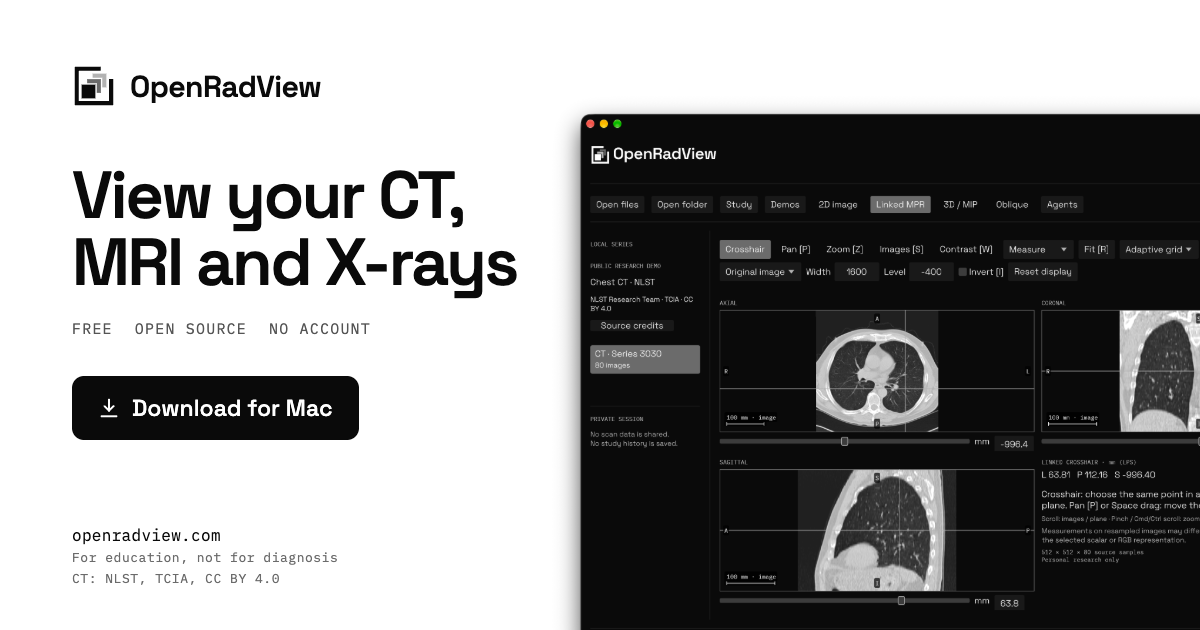
OpenRadView is a free, open-source desktop viewer for opening and exploring your own medical images on your computer. It is designed for CT, MRI and X-ray files, and it opens DICOM, NIfTI-1/2 and ZIP archives locally. The site describes it as a personal research project for education, not a clinically validated diagnostic tool. It is built for Apple Silicon and also runs on Linux, with Mac, Windows and Linux builds available from GitHub. No account is required, and the app does not upload scans or save study history. The product addresses a practical privacy problem: scan CDs and ZIP files often contain DICOM images that are awkward to inspect without sending them to a third-party service. OpenRadView keeps imports local, reads archives without extraction, and processes images on the computer. The site states there is no telemetry, analytics, account or scan upload, and no study history is saved. This matters for people who want to look at scans they own without creating an account or handing files to a cloud viewer. The app displays images without interpreting them; the site repeatedly says it is not for diagnosis and that a qualified clinician should interpret scans. File support is broad within the limits stated on the site. OpenRadView opens grayscale DICOM datasets including native, JPEG, RLE, JPEG-LS, JPEG 2000 and deflated data, plus 8/16-bit RGB/YBR and palette DICOM and native packed 8-bit YBR422. It reads NIfTI-1/2 as .nii, .nii.gz or paired .hdr/.img files, including gzip. Time points and vector/tensor components can appear as separate volumes, and complex data can be viewed as magnitude, phase, real or imaginary. Embedded RGB ICC profiles are converted to sRGB. Files, folders and ZIP archives including ZIP64 are supported, with up to 32 million samples per frame. The site lists unsupported formats such as RGB/RGBA or extended-precision NIfTI, legacy Analyze and alpha/enhanced DICOM palettes. For 2D images, the viewer provides window and level controls for grayscale contrast, with presets or manual window/level adjustment, plus pan, zoom and invert for supported color images. A reset restores the initial display. The site also mentions image information, scalar and RGB histograms, and pointer pixel values, so users can inspect display settings and pixel data. Series can be filtered by modality, series number or time/component label, and source images can play at a chosen speed; slow decoding reduces speed instead of skipping images. Users can export a local PNG and view settings for the completed pane without app overlays or labels, although identifying text may remain in the pixels. Linked MPR is a central viewing mode. It builds axial, coronal and sagittal planes from scalar or color volumes with consistent geometry, and one crosshair selects the same point in all three views. Users can move a plane with the Images control or arrow keys, which helps show how slices relate across planes. Oblique planes let users tilt a plane through a supported scalar or color volume and then step along it. The site notes that MPR, oblique and 3D views need consistent geometry, and that missing or invalid NIfTI geometry stays unlabeled in the 2D source grid. Values on resampled planes can differ from source images. 3D and maximum intensity projection views are labeled experimental. Scalar data has Source range and CT presets, while color data has brightness-based opacity and independent RGB maxima. Users can drag to orbit a projection of the same scan. Measurements include distance and angle where physical geometry is known, and rectangle statistics report scalar values or separate RGB channel codes. The site cautions that RGB maxima can combine colors from different depths, RGB codes are not physical tissue measurements, and volume views have a 512 MiB budget plus GPU limits. The decoded cache is bounded at 128 MiB, with codec and GPU allocations using additional memory. OpenRadView has no AI of its own and gives no opinion. Its optional agent feature is an MCP connection, so an agent the user already uses, on their own subscription or a local model, can see a view the user allows. MCP support is required. The workflow is explicit: a local MCP-capable client requests access, the app shows the series, tools and risks, and the user allows one series or reviewed views. Access can be revoked, changed to another series, or ended by quitting, but copies already sent cannot be recalled. Replies come from the agent, not OpenRadView, and the site says they are experimental AI commentary that can be wrong. Privacy controls are described in detail. All processing happens on the user's computer, with no telemetry, analytics, account or scan upload, and no study history saved. Automatic GitHub update checks are enabled by default and can be turned off on first launch or in Privacy → Updates. Checks send no scan data, but GitHub sees the IP address, app version and requested platform/architecture. Agent access only happens when the user approves a named session and its series or views and tools. A connected agent may send that data to its provider, and logs, retention and training depend on that provider's terms and settings. The stated benefits are educational and practical. The app is good for looking at scans you own on your own computer, seeing how contrast settings change an image, and understanding how slices form planes and a volume. Three public example scans ship with the app so users can try every view before opening their own files. It is explicitly not for diagnosis, screening, treatment or emergencies, not a replacement for a doctor or second opinion, and not for deciding whether to seek care. If urgent help is needed, the site says to contact local emergency services. Concrete use cases follow from those features. Someone with a scan CD or ZIP can open the files or folder locally and inspect the series without extraction. A user can load the bundled chest CT demo and move a linked crosshair through axial, coronal and sagittal views. On the chest X-ray demo, a user can drag to change window and level and then reset the display. A learner can tilt an oblique plane or orbit an experimental 3D/MIP projection. A user with an MCP-capable client can allow one reviewed series for their own AI agent, then revoke access. A user can export a PNG of the completed pane for their own records. The target user is someone who has their own CT, MRI or X-ray files and wants a local, account-free way to view them, plus learners who want to understand planes, volumes and contrast settings. The site stresses education and personal research rather than clinical use. Integrations are limited to optional local MCP clients such as Claude, Codex, Cursor and Grok on a subscription, or local models through LM Studio and Ollama paired with an MCP-capable client. Any client that supports local MCP servers works. Pricing is free and open source under GPL-3.0-or-later, with no account and optional update checks. OpenRadView's primary value is a free, local, open-source way to open and explore personal medical images without uploading them or creating an account. It combines DICOM and NIfTI support, linked MPR, 2D window/level, experimental 3D/MIP and measurements, with an optional MCP bridge to a user's own agent. It is explicitly educational, not diagnostic, and should be paired with a qualified clinician for interpretation.
Tapetide is an AI-first stock research platform built for Indian equities. Instead of clicking through a dozen screens, you ask TapeAi in plain English (for example: "compare HDFC Bank and ICICI Bank on ROE and valuation") and it pulls the numbers, reads the filings and lays out the answer with charts and tables.What you get:Every NSE and BSE stock (8,000+): price history since 2000, 12 years of financial statements, quarterly results, shareholding patterns, key ratios, technical indicators, analyst ratings and forecastsA 326-ratio stock screener with AND/OR filters and live technical signalsMarket dashboards: FII/DII flows since 2014, IPOs, bulk and block deals, F&O ban list, MTF, market valuation, mutual fund holdings, heatmapsParsed corporate filings: annual reports, concall transcripts, credit ratings, promoter pledgesTapetide MCP server: one remote URL (https://mcp.tapetide.com/mcp) gives Claude, ChatGPT, Cursor, VS Code, Windsurf, Codex, Gemini CLI and other MCP clients 55 tools for Indian market data. Google sign-in or API token, nothing to install.Free plan forever (50 MCP tool calls/day, screener, FII/DII data). Paid plans start at ₹299/month with a 7-day free trial.

Loqui is a voice-to-text tool for Mac and Windows that turns spoken words into clean, ready-to-send text inside any application where you can type. You hold a key — the fn key on a Mac or the right Ctrl key on Windows — talk the way you normally talk, and the finished text appears at your cursor. Loqui is built for people who write all day and would rather speak: it delivers the text ready, punctuated and in the right tone, without plugins and without copy and paste. The product also records meetings and writes the minutes afterwards, supports over 90 languages, and offers a free plan with no card needed. The problem Loqui addresses is that modern writing is fragmented across many apps and interrupted by the mechanics of typing. Conventional dictation makes you dictate punctuation out loud — saying "comma" and "period" — and hands back a raw transcript full of hesitations and backtracked sentences that you then have to clean up yourself. Loqui's premise is that you should be able to hesitate, backtrack and change your mind mid-sentence and still get text that reads as if it were written. A second premise is tone: the same spoken sentence should sound loose in a chat, careful in an email and direct in a doc. A third is that conversations with many voices should produce minutes that separate what was decided from what someone agreed to do, with the audio that proves it. Loqui works wherever you write. There is no plugin: the text goes wherever your cursor is, in any app you can type in, and the site lists Gmail, Slack, Notion, WhatsApp, Docs, Teams, Figma, Linear, Zoom, Outlook, Discord, Telegram, VS Code, Cursor, GitHub, Obsidian, Sheets, Trello, Word, Jira, Meet and Asana among the places it is used. Loqui also notices where the text is going and writes the way people write there — professional tone in Gmail, conversational tone in Slack and WhatsApp, technical tone in VS Code, structured tone in Notion and neutral tone in Figma comments. You talk the same way; the output adapts to the destination. It edits while you speak. If you hesitate, backtrack or change your mind mid-sentence, Loqui drops the fillers, understands the correction and formats amounts, dates and lists — all without you saying comma or period. The site's example takes a spoken sentence padded with "uh", "like, wait" and a self-correction from twelve thousand to fifteen thousand, and returns a single clean line: the budget is $15k and delivery is on Friday, with three fillers removed, one correction applied and the amount formatted in dollars. This is what makes the output ready to send rather than a transcript to be tidied. Several capabilities build on that core. Loqui learns your vocabulary: names, acronyms and jargon go into a dictionary, it suggests terms you use, and every correction you make teaches it not to miss again. You can speak in over 90 languages, either by picking the language or by letting Loqui figure out which one you are speaking. Spectros let you pick an option on the glyph before you speak, so the dictation comes out translated, summarized or written as an email. Seals save text you keep repeating and let you call it up by voice — for example a signature you ask Loqui to sign off with. Hands-free mode opens the microphone when you tap the key twice and inserts the text when you tap once more. Everything you say stays at hand. Every dictation is saved with its audio and is searchable, so you can find a past sentence by a word inside it. If you did not like the result, you can redo it from the original speech in another tone — formal, balanced or casual — without saying it again. Loqui also shows how you talk, including your most common fillers and the time of day you talk the most, calculated on your computer. When the conversation has many voices, Loqui records the meeting and gives each voice a Dito and its own track; microphone and system audio are captured on separate tracks and you can name a voice right on the timeline. At the end, the minutes separate what was decided from what someone agreed to do, with the audio clip that proves it. Items to review include decision, action, risk, dependency and open question, and you approve what counts. A contradiction radar flags when a meeting contradicts an earlier decision on the same project, and Loqui suggests the next agenda from whatever was left open. The overall approach is deliberately privacy-conscious. To become text, your audio passes through Loqui's servers and is discarded right there — only the text comes back. No audio is kept on servers, not from dictation and not from meetings, and your dictation history is kept only on your computer. Sync starts off, so taking your dictionary, tones and minutes to another computer is your call. Meetings record only after the notice, and Loqui reminds you to let everyone in the conversation know. The one exception is optional: turning on product improvement donates text samples of your dictations for up to 90 days, never the audio, and servers keep a technical record of each request. For teams, the team speaks the same language: one shared glossary for everyone, with invitations by username, and only people who consented record into the space. Glossary entries can be approved or proposed by team members, so shared names and jargon stay consistent across the group. The practical benefits follow from these mechanics: you stop typing and start speaking at the speed of thought, you stop cleaning up transcripts, and the text arrives formatted for the app it lands in. Typical scenarios on the site include drafting a revised proposal in Gmail, replying in a Slack launch channel, writing a validation comment in VS Code, capturing a planning decision in Notion, sending a quick WhatsApp message, and leaving a note in Figma. Meetings add a second workflow: record the call, review decisions, actions, risks, dependencies and open questions, then use the suggested next agenda. Loqui runs on Mac and Windows with the same experience, triggered by fn on Mac and right Ctrl on Windows. Pricing starts free forever for anyone who wants to stop typing, with a weekly dictation quota, text already formatted and ready to paste, and one hour of meetings per account as a one-time allowance. Pro is US$8 per month for people who write all day, adding dictation with no weekly quota and three hours of meetings per month. Pro + Meetings is US$16 per month for people who live on calls, with thirty hours of meetings per month and an extra ten-hour pack for US$6. Loqui's core promise is simple: speak, and Loqui writes. It turns everyday speech into finished text in whatever app you are already using, adapts the tone to the destination, and extends the same approach to meetings so the record of a conversation is ready when the call ends.
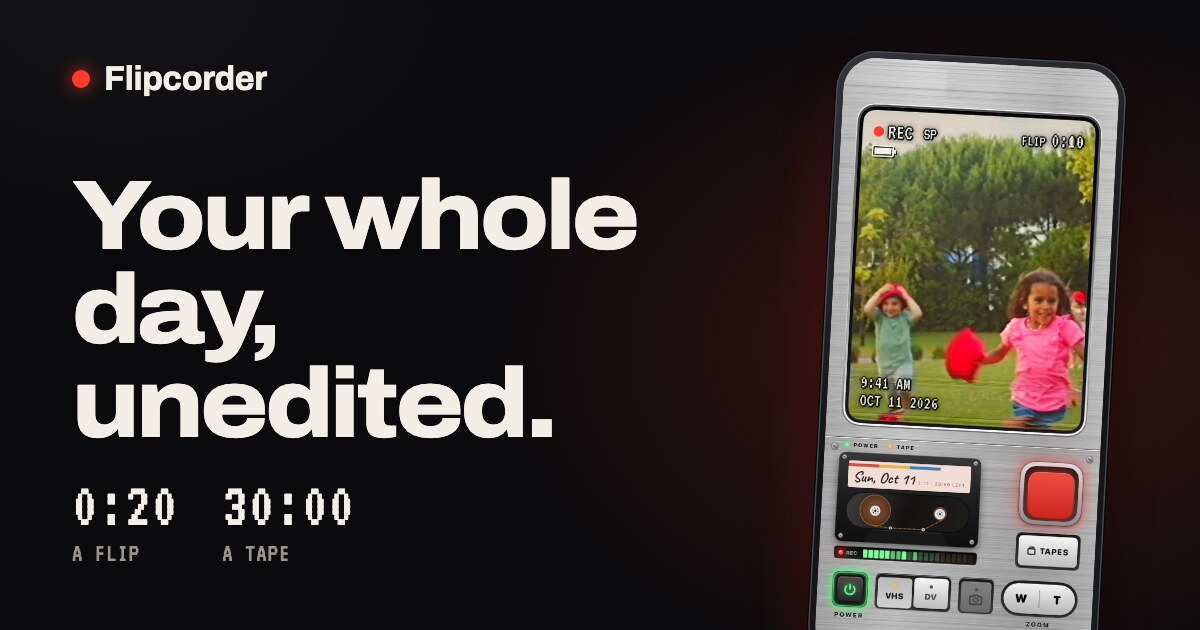
Flipcorder is a retro camcorder app for iPhone that turns the phone into a 1991 camcorder. It is built for catching small moments through your day rather than producing one polished video: you press record whenever something is worth keeping, film in short flips, and at the end of the day you get one raw film of your day to save or share. The app is made for iPhone Duo and works on any iPhone on iOS 26 or later, with the iPhone Duo extras requiring iOS 27.1. Its purpose is stated plainly on the site: film little moments all day, 20 seconds at a time, and nothing is edited out. The app exists as a reaction to how people now film. As the makers put it, we have lost touch crafting perfect videos for social media, and Flipcorder instead encourages you to take shorter flips of 20 seconds each throughout your day to enjoy as a home video at the end of the day. The site describes the product as being for catching small moments through your day, with no editing and nothing removed: the chatter, the pauses, and you fumbling for the stop button all stay in. The maker, Matt of Lotus Apps, describes it as the app he wanted for himself — as a dad, he wanted home video that feels real, with the chatter left in, and he wanted to build something for iPhone Duo. Turning the camcorder on is part of the experience. You press the glowing POWER key and the viewfinder warms up like an old TV; on iPhone Duo, opening the fold does it. The interface is styled as a camcorder body, complete with printed details such as “MADE BY LOTUS · AUTO FOCUS · Ø 52 · 8× ZOOM · 1 : 1.6 · f = 5.4 – 43 mm”, a lens-cap motif that reads “OPEN TO FILM” or “LENS CAP ON”, and a standby screen showing STBY with the time and date and today's cassette. Rather than a generic camera grid, the screen presents a flip counter such as “3 FLIPS · 0:52” and a red record key, so the shooting experience feels like operating a physical camcorder. Filming a flip is deliberately limited. By default, a flip stops by itself at 20 seconds, with a quiet countdown, so a moment is caught without the recording running indefinitely; the 20-second limit can be turned off in settings. You can also close the camcorder mid-flip, and the flip is saved before the camcorder powers down, onto today's tape. On iPhone Duo, the person you are filming sees themselves on the outside screen, in the same retro look, with a REC light so they know when to wave — a small detail that turns the filmed moment into a shared one. Every day gets its own tape, with a handwritten label, and a fresh one loads every midnight. A tape holds thirty minutes, and the app frames the limits as the fun: twenty seconds is enough to catch a moment and get back to your day, and thirty minutes is what a day's tape holds. If today's tape fills up, a flip that runs into the end is cut short and saved, never lost. Tapes accumulate on a tape shelf: a row of cassettes, one for each day, each labelled with its day or a name, showing how much is on it and whether it was saved in VHS or DV style, and you pick a tape to play it. The editing philosophy is the core of the product. There is no trimming, no cutting and no importing: every flip goes onto that day's tape in the order you filmed it, mistakes included. At the end of the day the day's tape can be saved to Photos as one film, and shared with a friend, a group chat, or wherever you like to post. The site's own description of the value is that the chatter stays in — the pauses and the fumbling for the stop button are part of the record rather than something to cut around. Flipcorder films clean video; the VHS or MiniDV look is a small extra you add when you save, so the same footage can be the clean HD original, VHS, or MiniDV. You can play a tape and switch between the three while it runs. The VHS look is described as softer and warmer, with color that bleeds, a tracking glitch that rolls through the picture and a white date stamp. Because the look is applied at save time rather than baked into the recording, one tape can be kept as a clean original and also saved with a retro look, and the time and date are stamped on every flip in the retro presentation. Privacy is handled by keeping everything on the phone. There are no accounts, no Flipcorder cloud and no tracking; videos stay on your phone until you save or share them. Every tape lives inside Flipcorder on your iPhone, one folder for each day, and they are included in your iPhone's backup. Copy new flips to Photos is off by default, so nothing goes to Photos unless you say so, and after you save a tape to Photos it is just a video in Photos. If the app crashes it can send a crash report, and it sends anonymous usage stats that can be turned off in settings; neither is linked to you and neither ever includes your videos. Getting to the camcorder quickly is supported in several ways. A widget shows today's tape as a cassette with a flip from today in its window; tap it and the camcorder opens ready to film, or today's tape opens in the player, and widgets read only a copy kept on your phone, with a “Show flips in widgets” setting that switches the pictures off. The Record control can be added to Control Center, the Lock Screen or the Action button, or you can ask Siri to “Record on Flipcorder”, or touch and hold the app icon and choose Record — any of them opens the camcorder on today's tape ready to go, and you still press REC yourself. Optional reminders offer a quiet morning nudge, an afternoon check-in while today's tape is still blank, and an evening note when it's ready to play; they are off until you turn them on and never count the days you missed. Flipcorder costs $4.99 once. There is no subscription, no watermark, no in-app purchases and no ads, and the site summarises it as one price with nothing locked. It works on any iPhone on iOS 26 or later, while the iPhone Duo extras need iOS 27.1. The app has been featured in WIRED, 9to5Mac, Stuff and The Mac Observer, and it reports being #3 in Top Paid Photo & Video on the US App Store. The maker is Matt of Lotus Apps in Knoxville, Tennessee, who has built software for other people since 2008 and started Lotus Apps in 2015. Coming later this year are a much more organized and useful library for when tapes start to fill up, and an Apple TV app. The site shows what the output looks like with six days saved as tapes, each a few short flips through one day saved as one tape: a picnic in the park, a family day from 10:12 in the morning to 5:58 pm; Sunday with the cats, a day at home with a black cat and a cream one from 10:04 in the morning to 6:05 pm; golden hour at the lake, an evening by the water from 5:10 pm to the sunset at 7:25 pm; Scout at the park, a collie at the park from 8:05 in the morning to the sunset at 6:12 pm; kitten nap day, a kitten asleep through the day with the time and date stamped on every flip; and zoo day, one Saturday at the zoo from 10:15 in the morning to a lioness at 4:05 pm, with a white tiger, a lion, giraffes and ostriches on the way. These examples show the intended workflow: shoot a few short flips as the day happens, then watch the day back as a single tape. Flipcorder's value proposition is that your whole day, unedited, becomes something you can watch back tonight. By keeping the limits — twenty seconds a flip, thirty minutes a tape, no editing — it removes the work of producing a video and leaves the record of the day, with the chatter and mistakes intact, saved as one film you can keep or share, with a retro VHS or MiniDV look available at save time if you want it.

SurgePix is an AI visual generator combined with a layer-based editor. The product's own description states that it generates images, decks, carousels and posters with AI, and then lets you edit every layer and export a finished, ready-to-publish result. The website frames the experience in three moves — dream it, edit it, call it. In practice that means a user can start from an idea, turn it into a visual with AI, refine that visual on an editable canvas, and either publish the result or reach the same capability from an external agent workflow. SurgePix is therefore aimed at anyone who wants AI-generated visuals but does not want to be stuck with a single, unchangeable output, as well as at teams that need their visuals to stay on-brand. The problem SurgePix addresses is stated directly in the product's own summary: most AI image tools stop at one-shot generation. A prompt produces a picture, and that picture is essentially final. If a word is wrong, a region does not fit, or the result drifts from the brand, the usual remedy is to regenerate the whole image and hope for a better outcome. That makes AI-generated visuals awkward to use in real publishing work, where an asset usually has to be corrected, adapted and matched to existing brand standards before it can go out. SurgePix is positioned as the step after generation — the part where a visual becomes a finished, publishable asset rather than a promising draft. SurgePix generates four kinds of visual output as named on the website: images, decks, carousels and posters. Covering several formats in one tool matters because these are the shapes that finished visual work usually takes — a standalone image, a multi-slide deck, a sequence of carousel panels, or a single large-format poster. Instead of treating AI generation as a one-off image experiment, SurgePix applies it to formats that are actually published. Each of these can be produced with AI and then moved onto the editable canvas, where the second half of the workflow — editing layer by layer — begins. The layer-based editor is the core of the product. SurgePix keeps a generated visual editable, so you can edit any layer rather than working on a flattened picture. That single design decision unlocks the specific actions the product advertises: swapping text inside the design, repainting a region, and adjusting individual elements while the rest of the composition stays as it was. For a user, this changes the nature of AI generation. The first output is a starting point rather than a final answer, and corrections are targeted instead of wholesale. When a headline needs rewording, you swap the text; when part of the image is wrong, you repaint that region. The rest of the visual is preserved. SurgePix also includes a brand kit, which the product describes as the way to stay on-brand. Brand consistency is usually the point where AI-generated visuals break down: the image looks good in isolation but does not match the brand's established look. By keeping brand assets in a kit and using them while editing, SurgePix makes it possible to bring a generated visual into line with existing standards instead of rebuilding it. Combined with layer editing and text swapping, the brand kit supports a workflow where AI supplies the composition and the user enforces the identity before anything is exported. The workflow closes with export. SurgePix's promise is a finished, ready-to-publish result — not a draft that still has to be taken into another design tool for cleanup. Once the layers have been edited, the text swapped, regions repainted and the brand kit applied, the visual leaves the product in a publishable state. That end-to-end framing is what distinguishes the product's positioning: generation, editing and export are presented as one continuous path, and the layer editor is the bridge between the AI output at the start and the finished asset at the end. The second route into the product is programmatic. SurgePix describes itself as agent-callable and offers open-source agent skills that let Claude Code and Cursor generate and edit visuals directly. The website puts it as calling SurgePix directly from your agent workflow, alongside the alternative of doing the work on the editable canvas. For developers, this means the same generation and editing capability can be invoked from inside the tools they already use, without switching to a separate interface. The product explicitly frames this as a way to skip the UI when that is preferable, and the skills are described as open-source. SurgePix also refers to a Designer Agent that turns ideas into visuals, and to an editable canvas where users make those visuals their own. The site's three-part summary — dream it, edit it, call it — maps onto this: the agent produces the initial visual, the canvas is where it is refined, and the call route is where the capability is reached from outside. Users are not required to pick one path permanently; the same visual work can begin inside the product or be requested from an agent, depending on how the person prefers to work. The practical benefit is control after generation. Because every layer remains editable, users can correct AI output instead of accepting or discarding it, and can adapt one visual direction to different messages by swapping text rather than starting from a new prompt. Region repaint keeps fixes local, so a single flawed area does not cost the whole composition. The brand kit addresses consistency, and export addresses completion. Taken together, these features are aimed at shortening the distance between an AI-generated idea and something that can actually be published — the gap the product says most AI image tools leave open. Concrete uses follow from the formats the product names. A carousel can be generated and then edited, with text swapped and regions repainted until the content reads correctly. A deck can start from AI-generated visuals and be refined on the canvas before export. A poster can be produced, brought in line with the brand kit, and exported as a finished asset. Teams that need on-brand output can apply the brand kit during editing rather than rebuilding assets. Developers can generate and edit visuals from Claude Code or Cursor through the open-source agent skills, keeping visual production inside their agent workflow. SurgePix is delivered as a web product — the site offers an entry point into the tool and an editable canvas — and it is also reachable from agent workflows, which is where the Claude Code and Cursor skills come in. Its stated audience skews toward people producing visual content: designers and creators working with images, decks, carousels and posters, and teams that care about brand consistency. The agent-callable route extends that audience to developers and technical users who would rather invoke the capability from their own environment than work inside a separate interface. The consistent theme across the product's own description is continuity. SurgePix does not present AI generation as the end of the job; it presents it as the beginning of an editing job that finishes with an exported, publishable visual. Images, decks, carousels and posters are generated with AI, every layer stays editable, text can be swapped, regions can be repainted, the brand kit keeps output on-brand, and the finished result is ready to publish. Users who prefer to work outside the interface can call SurgePix from Claude Code or Cursor through open-source agent skills. That combination — a real editor on top of AI generation, plus an agent-callable path — is the product's stated value proposition.
VibeiDE is a local desktop workspace and command center for running Claude Code, Codex, and OpenCode coding agents across multiple projects. It is built for developers and solo founders who want to queue coding tasks, run agents in parallel, and review every result in one place. Instead of managing separate terminals and tabs, VibeiDE combines projects, task queues, live agent activity, saved conversations, and completion review into a single workspace. The product is not an AI model and does not sell tokens; it orchestrates agents you already install and sign in to. The background behind VibeiDE is a shift in how coding work gets done. The website states that writing code is history and reviewing it is the job now, and VibeiDE is built for that review-first workflow. When developers run multiple coding agents, results can get scattered across terminals, tabs, and sessions. It becomes hard to track which task belongs to which project, which agent is still working, and which result is waiting for review. VibeiDE addresses this by giving every project its own queue and color, keeping running and waiting tasks visible, and making every result wait for review. It also shows provider usage limits at a glance, which helps when work needs to be planned around Claude Code or Codex usage windows. At the center of the product is a project task queue built for parallel agent work. Each project keeps its own queue, so tasks for different projects do not get mixed together. A new task flow lets you pick the agent, model, and effort, then describe the work. You can queue the next task while agents are already working, and live task cards show progress. Projects, queues, and agents sit together in one workspace, with project tabs and task lists for switching between work. An all tasks, all projects strip shows every task across every project in one place. According to the site, customers run four to six agents at once on a daily average, with peak parallel use reaching thirteen times and average parallel use at 5.46 times. VibeiDE offers two ways to watch agents work: Office and Grid. In the Office view, every task gets its own agent and desk inside an illustrated office. Clicking a desk focuses it, and live task cards show progress. The site describes an example where five coding agents work at their own desks and scrolling the first chapter queues a sixth. The Grid view lifts the camera until every desk becomes a terminal pane in a three by two grid. The same agents are visible in both views, and you can switch anytime. Grid is described as a battery-friendly view with less animation and no 3D scene. Other projects keep running and can be opened from project tabs or their task lists, so the workspace does not stop when you focus on one project. Review and resumption are core to the workflow. VibeiDE uses one task, one session, and you can resume anytime. A task is done only after your review, and saved conversations keep history attached to the task. This helps prevent results from getting lost in separate tabs. The workspace also keeps npm scripts and terminals one click away, so scripts are available alongside project queues and agents. Claude and Codex usage limits are visible at a glance for every provider, which supports planning around provider allowances. The selected project queue shows running and waiting tasks, while the all tasks view gives a single strip across every project. Together these features support the product's stated purpose: queue work, watch it run, and review the result. VibeiDE works by driving agents you already use. You install Claude Code, Codex, or OpenCode and sign in with your own subscription or API key. They are the AI that writes the code. For every task, VibeiDE opens a real terminal in the right project and starts your agent, and your login stays inside the CLI. One provider is enough to start. VibeiDE never bills for tokens, and provider subscriptions are separate. The app stores task records on your computers, while your AI provider receives prompts and context under its own terms. With current versions, Company mode, switching between and downloading tasks from your own computers, and optional Mobile control are end-to-end encrypted: data goes between your devices directly or through VibeiDE's relay, with keys only your devices hold, so VibeiDE's servers cannot read or store it. The benefits follow from that workflow. By queueing tasks across projects and running agents in parallel, VibeiDE helps developers keep several streams of work moving without juggling every terminal themselves. Because every result waits for review, the product supports a review-first process rather than treating agent output as automatically finished. Saved sessions and resumption mean a task can be revisited later instead of being lost when a terminal closes. Office and Grid views provide live visibility, and Grid offers a lower-animation option. Provider usage limits at a glance help users plan around allowances. The result is a workspace intended to keep projects, queues, agents, and review together, with no result lost in a tab. Several concrete use cases are described on the site. Developers can run AI coding agents in parallel with clear task ownership, using the Office view to give each task its own agent and desk. A task queue for AI coding agents lets users line up work and see running and waiting tasks in the selected project queue. Users can plan coding work around provider usage windows, including Claude Code rate limits and Codex rate limits. A saved task can be used to resume a Claude Code conversation later. OpenCode is supported alongside Claude Code and Codex, including headless OpenCode tasks, and the site lists a use case for free AI coding models: run OpenCode at no model cost. A plan council use case describes two agents reviewing your plan. Freelancers and agencies can use VibeiDE as one operator workspace for multiple client repositories, keeping client coding work attached to its request. VibeiDE is built for developers and solo founders, and the site also positions it for independent builders, freelancers, founders, agencies, and teams. It runs on macOS and Windows, with a Linux build in beta. It works with Claude Code, Codex, and OpenCode accounts that users bring themselves. Personal plans include all features. Launch pricing lists monthly at $7.99 per month, then $9.99; yearly at $6.58 per month, then $99 per year, billed $79 per year; and lifetime at $249 once, retiring January 1, 2027. Team pricing is $14.99 per seat per month, then $19.99, with a live view of every teammate's agents, end-to-end encryption between computers, and every member and manager counted as a seat. A 14-day trial requires no card, and provider costs are separate. The primary value proposition is a single command center for coding agents. VibeiDE does not replace Claude Code, Codex, or OpenCode; it orchestrates them through project queues, parallel execution, live Office or Grid views, saved sessions, provider usage visibility, and completion review. For developers and small teams who already use these agents, VibeiDE is designed to make parallel coding work easier to queue, watch, resume, and review, so every result has a place to come back to and nothing gets lost between terminals or tabs.
WhoIsCooking is a small Mac app that shows the temperature of your Apple Silicon chip and, more specifically, which AI agent is responsible for the heat. It lives in the MacBook notch or in the menu bar, whichever you prefer, and displays the hottest chip sensor together with CPU and GPU load as a quick readout. Below that readout it lists each running agent — Claude Code, Codex CLI, Cursor and others — with its current CPU share, so you can see at a glance whether your machine is busy because of a coding agent, a build, or a browser with too many tabs. The app is aimed at developers who run AI coding agents on their laptops and want to understand and control the thermal cost of that work, and it is sold as a $5 one-time purchase for Apple Silicon Macs on macOS 14 or later. The problem the app addresses is stated plainly on its own site: Claude Code, Codex and Cursor start builds, tests and renders that turn a MacBook into a stove. Those jobs are useful, but they push the chip hard, and the user usually has no clear view of which tool is actually responsible. Worse, a single agent session spawns a great deal of child activity — the site describes the alternative as "80 cryptic processes" rather than a comprehensible list. That makes it difficult to attribute heat to a cause, to decide what to pause, or to keep working comfortably. The result is a hot laptop, audible fans, throttling, and a user who either kills the whole session or simply endures it. The first thing WhoIsCooking provides is a readable thermal and load readout. It shows the hottest chip sensor in degrees Celsius, plus the overall CPU and GPU percentages, and labels the state when the machine is hot and throttling. In the example shown on the site, the sensor reads 92°C with CPU at 61% and GPU at 34%, flagged as hot and throttling. Underneath that summary, each agent gets one row: Claude Code shown at 184% while running ffmpeg and python, Codex CLI at 91% during a cargo build, Cursor at 62% as editor and agent, and Chrome with 14 tabs at 23%. Instead of digging through a process list, you see a short, meaningful list of what is consuming your Mac. The second core capability is cooling without killing. Every agent row has its own cool control, and there is a primary "Cool down my Mac" action. Cooling moves heavy work onto the Mac's efficiency cores. The job keeps running — a little slower — while the machine drops roughly 14 degrees; the site frames this as "Same render. 64°C before, 50°C after." Nothing is frozen or closed unless you explicitly ask for it, and your terminal and your apps stay usable the entire time. When you want the power back, clicking Full speed restores everything instantly, and quitting the app always restores full speed as well. That combination makes cooling a reversible, low-risk action rather than a destructive one. WhoIsCooking also watches for work that runs away. You get a nudge when an agent burns CPU for five minutes straight, or when it leaves dev servers running after its session ends — two situations that quietly keep a laptop hot long after the user has moved on. To do this it recognises a specific set of tools: Claude Code, Codex CLI, Gemini CLI, Cursor, Aider, Copilot CLI, Ollama and LM Studio, plus Xcode builds, ffmpeg, Docker and your browser. By grouping an agent session and everything it started — builds, tests, dev servers, renders — into a single line, it turns a sprawl of processes into something you can actually reason about. The app is deliberately lightweight in how it works. It reads the chip sensors every 20 seconds and only looks at processes while it is open or while your Mac is hot; idle, it uses about 0% CPU and 14 MB of memory, so the monitoring itself does not add meaningfully to the heat it is trying to reduce. The cooling mechanism does not terminate work: it changes which cores the work runs on, or quits something only when you explicitly choose Quit. The site also notes that the temperature sensors it reads exist only on Apple Silicon, from M1 to M5, so Intel Macs can see CPU use but not temperature. On the safety side, the app is signed with an Apple Developer ID and notarized by Apple, so macOS opens it without warnings. The benefits follow directly from those mechanics. You get a clear attribution of heat to a specific agent rather than a vague sense that the laptop is hot. You get a cooler machine — about 14 degrees in the example given — without losing the build, test or render that you started. You keep a usable terminal and usable apps throughout, and the work stays quiet because it runs on the cooler efficiency cores, even though it takes longer. And you get warning signs for the two failure modes that most often leave a Mac running hot unnoticed: sustained CPU burn and orphaned dev servers. Typical use cases follow the workflows the site describes. A developer running a long cargo build through Codex CLI can see that single row spike, cool that agent down, and keep editing. Someone running ffmpeg or python through Claude Code can move the render onto efficiency cores and let it finish rather than killing it. A user with several agents open at once — Claude Code, Codex CLI and Cursor — can compare their rows and see which one is actually the heat. A user who closed a session but left dev servers running gets a nudge about it instead of discovering the problem an hour later. And anyone working in a quiet room can trade a little speed for a machine that stays quiet. WhoIsCooking is built for developers and other Mac users who run AI coding agents locally and care about laptop temperature, fan noise and battery comfort. It requires an Apple Silicon Mac on macOS 14 or later; on Intel Macs CPU use is visible but temperature is not. It sits in the notch or the menu bar, and pricing is a single $5 one-time purchase with no subscription. The primary call to action on the site is simply "Find out who's cooking." In short, WhoIsCooking answers a question most Mac users cannot answer on their own — which agent is heating this machine — and then offers a one-click, reversible way to cool it down without stopping the work.

MiniMax M3.1 Flash is a next-generation Flash model from MiniMax, officially rolled out as a model built for agentic tasks, coding, Computer Use and cybersecurity. It is aimed at developers, teams and enterprises that need to run agents and software workflows at scale, whether through the MiniMax API, the M Plan subscription, or MiniMax Code, the company's desktop agent product. Its stated purpose is to deliver a generational leap in agentic capability while making online inference nearly three times faster and reducing usage costs by 70% compared with its predecessor, so that complex, multi-step work becomes affordable to run rather than a premium experiment. The model has a public backstory that MiniMax uses to frame its development: Space Bunny, an early version of MiniMax M3.1 Flash, processed more than 200 trillion tokens while operating anonymously before the model was formally released. MiniMax positions Flash as an ongoing exploration of the balance between efficiency and capability, distinct from Pro, which the company describes as pushing the boundaries of intelligence and which it says will arrive later. The problem M3.1 Flash addresses is the cost and latency of running agents that must take many steps, call tools repeatedly, and carry work across documents, files, and applications. Those workflows multiply token consumption, so speed per token and price per token directly determine whether an agent is practical to operate at all. For complex tasks and automation, M3.1 Flash ranks among the top performers on AutomationBench-AA and is described as able to complete real enterprise workflows across SaaS systems, solving practical problems in sales, marketing, operations, customer service, finance, and HR from end to end. It also scores 76.2 on BankerToolBench, where MiniMax says it excels at complex real-world challenges such as multi-step planning, maintaining consistency across documents and files, financial compliance, and chained tool calls. These capabilities matter because enterprise automation rarely fails on a single answer; it fails when an agent loses track of state between steps, misaligns two documents, or drops a tool call mid-sequence. In coding and software engineering, the model achieves 73.7% on DeepSWE v1.1, placing it alongside top models on a benchmark that focuses on complex software tasks requiring a model to independently understand code, develop features, fix issues, and validate its work through testing. MiniMax reports strong execution across long sequences of steps, supporting complex software development workflows at a lower cost. That combination is significant for teams running coding agents continuously, since the value of an agent that can plan, edit, test, and re-check its own work depends heavily on how many steps it can sustain before cost or latency becomes prohibitive. For Computer Use, M3.1 Flash scores 61.7 points on OSWorld V2, which measures AI computer operation and cross-application task execution, and 29.6 points on Agents' Last Exam (ALE), which evaluates performance on real professional work and complex tasks; MiniMax states it ranks first among Chinese models on both benchmarks. The company describes the model as demonstrating strong capabilities in interacting with real environments, using tools, and executing long sequences of tasks, moving beyond understanding a task to taking action and delivering results. In cybersecurity, it achieves 82% on CyberGym for vulnerability discovery and validation, and in in-depth evaluations by MiniMax's internal security experts it performed strongly in code auditing, vulnerability patching, penetration testing, malware analysis, and reverse engineering, enabling efficient, low-cost support for building complex security systems. Overall, MiniMax says it further optimized M3.1 Flash's inference efficiency through more aggressive sparsity. In everyday use, output speeds can reach 200+ tokens per second, with median (P50) speeds consistently reaching 170+ tokens per second. Across three benchmarks, Automation-Bench for complex agentic task execution, DeepSWE for real-world coding, and Agents' Last Exam for computer use in real-world tasks with economic value, MiniMax reports that M3.1 Flash delivers performance on par with top models at a very low task cost, setting a highly competitive new standard for performance and cost. The underlying methodology is stated plainly: aggressive sparsity for faster online inference, paired with a deliberate trade-off between efficiency and raw intelligence. The benefits flow directly from those numbers. For agentic tasks, the model's overall usage cost is 70% lower than its predecessor, and pricing is flat per 1M tokens at $0.15 input, $0.60 output, and $0.015 cached input. Faster output speeds mean agents return results in less wall-clock time, while cached input pricing lowers the cost of repeatedly sending the same context, which is common in long-running agent sessions. Together, higher throughput and lower per-token cost change the economics of running agents continuously rather than occasionally, and they let teams scale from a single workflow to many without multiplying spend proportionally. Concrete use cases described by MiniMax include end-to-end enterprise workflows across SaaS systems in sales, marketing, operations, customer service, finance, and HR; financial work involving multi-step planning, document and file consistency, financial compliance, and chained tool calls; software development in which the model independently understands code, develops features, fixes issues, and validates its work through testing; computer-use scenarios requiring cross-application execution on real environments; and security work spanning vulnerability discovery, code auditing, vulnerability patching, penetration testing, malware analysis, and reverse engineering. M3.1 Flash is available through the MiniMax API, M Plan, and MiniMax Code, with MiniMax Code available as a desktop download. MiniMax states that model weights will be released later, and that a Pro model will also arrive later. Pricing is published as a single flat rate per 1M tokens rather than tiered by context length: $0.15 for input, $0.60 for output, and $0.015 for cached input. In summary, MiniMax M3.1 Flash is positioned as a fast, low-cost model for the work agents actually do: multi-step automation, real coding tasks, computer operation, and security analysis. Its value proposition rests on measured claims, roughly three times faster online inference, 200+ tokens per second output, and 70% lower usage cost than its predecessor, delivered alongside benchmark results MiniMax says place it near top models in agentic execution, coding, and computer use.

Kiwi is a free, proactive AI assistant that lives in your messages. Rather than waiting for you to open an app and type a request, Kiwi keeps track of what is coming up in your life — your trips, plans, bills and the people in them — and texts you first at the right moment. When something needs doing, it does it on any app or website as soon as you say yes. It is available for iPhone and Android, works with your calendar and email, and always asks before it spends. The product is built for people who want the small jobs of daily life handled without opening yet another app, and its stated purpose is to help you spend less time on your phone and more time with the people around you. The problem Kiwi addresses is described on its site plainly: the flights, the bills, the replies, the birthdays — each one pulls you back to your phone. Every small task means opening an app and tapping through it, and the small ones tend to wait until later. Kiwi's answer is not another dashboard to check but a proactive assistant that brings those tasks to you at the right time and gets them done while you get on with your day. The site also frames the economics of the problem: a personal assistant costs about $67,000 a year — citing the average base pay of an executive assistant in the US in 2026, from Payscale, at $67,567 a year, or $1,299 a week — while Kiwi does the same small jobs, every week, for nothing. The first layer of the product is awareness. Kiwi reads your calendar and email, so it knows what is coming up. It texts you once, at the right time, with the small jobs already done, and anything that can wait comes in your morning summary. Examples given on the site include reminding you an hour before a call with the link, sending your ticket on the night with what to bring, and spotting a delayed flight and booking a car for when you land. Kiwi also supports an on-demand watch: you can ask it to keep an eye on something and it tells you the moment it happens. In the site's example, a user writes "Tell me if my flight to Rome gets any cheaper," and Kiwi later replies that the flight just dropped to €84, down from €112 on Monday, offering to send the booking link. A Sunday wrap summarises the week in one text. The second layer is action. When you say yes, Kiwi books, orders and replies for you on any app or website; when there is no app for something, it uses the website. It checks you in, moves a delivery, books a restaurant or a car. Several guardrails are stated: anything that costs money shows its price first, it only says something is booked once the company confirms it, and it never pays twice for the same thing. In one example, a parcel needs a signature while you are at the office until 6, and Kiwi asks whether to move the delivery to Saturday; after the reply "Yes please" it confirms the delivery was moved to Saturday morning and that UPS has confirmed it. In another, a Saturday dinner at 9 leads Kiwi to offer an UberX at about €14 or a Comfort at €18, book the pickup for 8:35, and promise to let you know when the driver is close. Control and privacy sit underneath all of that. Nothing happens without your yes: anything that costs money or speaks for you waits. Kiwi does put your own plans in your calendar and set reminders on its own, but spending or messaging someone always waits for your approval. You can reply with one word, and it only asks again if something is unclear or the price changes. Nothing written in an email or on a website can tell Kiwi what to do — only you can. Passwords are encrypted before they are saved using AES-256-GCM, the AI never sees them, and Kiwi types them for you. Data is never sold, there are no ads, no business can pay to change what Kiwi suggests, nothing is shared for marketing, and nobody at Kiwi reads your conversations. You can delete a single memory, or your whole account and everything in it, from the app. The overall approach is messaging-first. The entire relationship happens in conversation: in the Kiwi app, in Messages and in WhatsApp. You start by tapping Sign up and picking your phone, iPhone or Android; it opens Messages or WhatsApp with "Hi Kiwi" already written, you press send, and Kiwi asks a few quick questions to set you up. After each conversation, Kiwi goes back over it and fixes anything it got wrong or forgot to do. A future piece of hardware, the Kiwi Band, is described as coming later: a band for your wrist with no screen that buzzes when Kiwi needs you, with answers given by a tap or your voice so your phone can stay in your pocket. It is explicitly not available yet. The benefits follow from that design. Nothing sneaks up on you, because Kiwi texts first rather than waiting to be asked. Small jobs that would otherwise wait until later are brought to you at the right moment and finished while you get on with your day, so you spend less time on your phone and more time with the people around you. You also get confirmation-based certainty: Kiwi only says something is booked once the company confirms it, and it never pays twice for the same thing. The site's example receipt for a week shows what this looks like in practice — a reminder before the 10am call with the link, concert tickets the night before with what to bring, a delivery moved to Saturday with UPS confirming it, dinner for five booked with the restaurant confirming it, and a Sunday wrap of the week in one text — with ads none, selling your data never, paying to be suggested never, and no app to install. Concrete use cases recur throughout the site. A free Saturday afternoon prompts Kiwi to offer to plan something with the kids, or the whole day. A delayed flight prompts it to check you in, spot the delay, tell you the new landing time and book a taxi from arrivals. A free evening prompts it to book dinner somewhere you will like with friends. A money question turns into a standing watch — tell me when my flight gets cheaper — and Kiwi reports the drop. A parcel needing a signature while you are at work becomes a request to move the delivery to Saturday. A dinner reservation becomes a car to get you there on time, with prices shown before you agree. Anything that can wait is collected into the morning summary, and the week closes with a Sunday wrap. On integrations and availability, Kiwi starts with your calendar and email — Google Calendar, Gmail and Outlook — then extends to the rest you already use, like Slack, WhatsApp, Spotify, Uber and many more, and can use any website when there is no app for it. It runs on iPhone and Android, and you talk to it in the Kiwi app, in Messages and in WhatsApp. Pricing is simple: Kiwi is free, with no card and no plan to pick, and it is free during the pilot. There are no ads, your data is never sold, and no business can pay to change what Kiwi suggests. The takeaway Kiwi repeats is that it texted first and you said yes. It is a proactive assistant rather than a prompt box: it watches what is coming up, arrives at the right moment in the messaging app you already use, shows the price before it spends, waits for your one-word yes, and only claims something is done once the company confirms it — aiming to give you back the small jobs of the week and, with them, your attention.
SightRadar is a face recognition API for teams that need face search, verification and detection at scale, without AWS Rekognition's pricing. It is Rekognition-compatible: point the AWS SDK (boto3 and others) at SightRadar's endpoint and your existing code keeps working.What you get:Face search: find one person across thousands of photos from a single selfie (event photos, media libraries, photo delivery)1:1 verification: compare two faces with a similarity threshold you chooseFace detection with confidence scores you can threshold onRekognition-compatible API: CreateCollection, IndexFaces, SearchFacesByImage, CompareFaces, DetectFaces and morePhotos with no faces return valid empty results, not errorsPer-photo billing, never per face: batch indexing from $0.00062 per photo, real-time $0.00093 per photoPrivacy by design: GDPR-ready with a Data Processing Agreement, face vectors isolated and encrypted per account, never used for model trainingSDKs on npm and PyPI, plus a Rekognition shim for PythonFree to start with trial credits, no credit card required. Pay-as-you-go prepaid credits, no subscription and no minimums.

Yourcast is a Telegram bot that turns the messaging app into a podcast player. Rather than installing a separate podcast client, a listener opens a chat with @yourcastbot, searches for a show, taps to subscribe, and new episodes arrive as audio right in the conversation. The bot is aimed at people who already spend their day inside Telegram and want podcast discovery, subscription and listening to happen in the same place they already talk, read channels and share files. Yourcast 2.0 builds on that listen-in-chat model with AI summaries that carry timestamps you can tap to jump into the audio, the ability to ask questions about any episode, feeds that repair themselves, file support up to 2 GB, OPML import and payments in Telegram Stars. Podcast listening usually starts by leaving whatever app you are in. You open a dedicated podcast client, search for a show you just heard about, and manage a separate subscription list that lives apart from your conversations. Yourcast addresses that split. Telegram already holds chats, channels and audio files, so keeping a listener's shows in the same space removes a step between hearing about a podcast and following it. The subscribe flow is deliberately reduced to a tap: find the show, tap once, and future episodes are delivered as audio messages in the chat instead of waiting in another library. That matters most in the moment of discovery, when the intent to follow a show is strongest and any friction tends to end it. The core of the product is search and subscription inside a chat. A user searches for a podcast by name, reviews the results the bot returns, and taps to subscribe. From then on, new episodes of that show arrive as audio directly in the Telegram conversation, so playback happens where the notification already is. There is no separate library screen to open and no episode list to refresh: the chat itself becomes the feed. The bot also points to a channel, @yourcast_channel, and a chat, @yourcast_chat, alongside the bot itself, giving listeners a place to follow updates and talk with other users. Because everything happens in a Telegram chat, the same interface works across the Telegram apps a person already uses, with the bot link launching it directly. Version 2.0 adds AI summaries to the listening experience. After an episode is available, the bot can provide a summary of it, and that summary carries timestamps. The timestamps are tappable: tapping one jumps to the corresponding point in the audio. This turns a summary from a static block of text into a navigation tool. A listener can read the summary first to decide whether a long episode is worth the time, then jump straight to the segment that matters instead of scrubbing through the player looking for it. For shows where only one topic is relevant, or for episodes that run long, the combination of an AI summary and tap-to-jump timestamps compresses the decision of what to listen to and where to start into a single screen inside the chat. Beyond summaries, Yourcast lets a user ask questions about any episode. Instead of reading or listening to the whole thing to find one answer, the listener asks the bot directly about the episode in the chat. The second reliability feature is feeds that repair themselves. Podcast feeds can break, and Yourcast 2.0 handles it by repairing the feed rather than leaving the subscription dead. For a listener, that means a show they subscribed to keeps delivering new episodes without manual re-adding or troubleshooting, and the maintenance work that usually falls to the user is handled by the bot. 2.0 also lifts several practical limits. Files up to 2 GB are supported, so long episodes and larger audio files that would previously exceed a limit can be delivered into the chat. OPML import means a listener can bring an existing subscription list from another podcast app into Yourcast rather than rebuilding it show by show. Payments run through Telegram Stars, so upgrading happens inside Telegram without leaving the app or entering card details elsewhere. On the free tier, users get 10 episodes a week on demand, which sets a clear boundary between casual listening and heavier use. How the product works overall is intentionally simple: it is a bot, not a separate app. A user launches it from the bot link, lands in a chat with @yourcastbot, and interacts through messages. Searching, subscribing, requesting an episode on demand, reading a summary, tapping a timestamp and asking a question are all chat actions in the same thread. Because the bot lives inside Telegram, there is nothing to install beyond Telegram itself, and episode delivery uses the app's existing audio file handling. The website presents the product in a single line, the podcast bot that searches, subscribes and plays podcasts, with a Start Bot button as the whole onboarding path. The benefit is consolidation. Listening, subscribing and catching up happen in a place the user already opens many times a day, which makes following a new show a one-tap decision instead of a context switch. AI summaries with timestamps reduce the time spent deciding what to play and finding the relevant part of an episode, and asking questions about an episode replaces hunting through audio for a single answer. Self-repairing feeds remove a maintenance chore from the listener. OPML import protects existing subscriptions, 2 GB file support removes a size ceiling, and Telegram Stars keeps payment inside the app. The free allowance of 10 episodes a week on demand makes it possible to try the workflow before paying. Typical scenarios follow directly from those features. Someone sees a podcast mentioned in a Telegram channel or a group chat, opens @yourcastbot, searches the title, taps subscribe, and the next episode shows up in that same conversation. A commuter with a forty-minute window reads the AI summary of a long episode, taps the timestamp for the segment they care about, and listens to just that part. A listener with an established library in another podcast app imports it via OPML instead of re-adding shows one at a time. Someone curious whether an episode covers a specific topic asks the bot a question about it before committing to a full listen. And a heavy listener who runs past the free 10 episodes a week on demand upgrades through Telegram Stars without leaving the chat. Yourcast is built for Telegram users who listen to podcasts, from casual listeners who follow a handful of shows to heavier users who subscribe to many. The bot interface is available in English, Russian, Portuguese, Spanish, German and Hebrew, so the same chat workflow works for listeners across those languages. The project is open source under GPL v3, with GitHub listed among its topics, which matters to users who want to inspect or reuse the code behind a bot they rely on. Pricing follows a freemium model: a free tier with 10 episodes a week on demand, and paid upgrades handled with Telegram Stars. Yourcast 2.0's value proposition is straightforward: it moves podcast search, subscription and listening into Telegram, then adds AI summaries with tap-to-jump timestamps and episode questions so that the time spent with audio is time spent on the parts that matter. Combined with self-repairing feeds, OPML import, 2 GB files and in-app Telegram Stars payments, it turns a chat window into a complete, low-friction podcast workflow.

Reelsflow is an AI video and image studio built for short-form content. On its site, you describe an idea, upload an image or add a reference, and get a finished short-form video without cameras, editors or agencies. The product describes itself as an all-in-one AI video generation engine designed specifically for short-form content, creating high-retention videos from a prompt, an image or a reference, with neural scriptwriting, realistic AI voiceover, animated captions and cinematic music included automatically. It is aimed at creators, marketers and businesses who publish often — from solo creators to rapid marketing agencies — and it is designed for high-frequency video output. Content is created once in vertical 9:16 and is intended for TikTok, Instagram Reels, YouTube Shorts, LinkedIn, Facebook Reels and Pinterest. The site frames the core problem in terms of effort. Manual video production, it notes, costs the same effort every time: you write the script, find footage or film it, record or buy a voiceover, edit, cut and caption, then resize and export per platform. Automation, by contrast, costs you the idea — you type an idea or upload an image, pick a style and a model, then generate, review and download. Reelsflow also emphasizes that no camera is required: no filming, no editing, no agency. That matters for creators who want to test more ideas, keep a steady posting rhythm and spend their time on what works rather than on repetitive production work. Every video begins the way you think, with three starting points. Text to video takes a described idea, story or lesson and has Reelsflow generate the script, select scene visuals, add a dynamic voiceover and finish the captions, with automatic neural script generation, cinematic visual scene prompts and 5, 10 or 15 second vertical renders. Image to video brings a still photo to life — portraits, Midjourney renders or product photography — adding fluid motion, camera sweeps and voice, with start and end frame control, positioned as ideal for listings, menus and ads. Reference to video maintains the same character face, costume or artistic style across multiple clips so an episodic series looks like one unified cinematic world, and helps build recurring brand mascots. Reelsflow bundles several AI models in one studio. Seedance 2.5 and 2.0 offer fluid movement that holds together from first frame to last, with fast and mini variants for rapid drafts, support for both prompt-to-video and start/end keyframe interpolation with consistent character persistence, up to 4K Ultra-HD and fluid physics. Veo 3.1 Fast is described as cinema with native environmental sound, with volumetric lighting, realistic lens depth of field and optional synchronized native audio, up to 4K with 35mm lens emulation. Kling V3 Pro focuses on humans and characters that feel genuine, with natural micro-gestures, believable facial expressions, voice control and retained clothing details and accessories across camera moves. Grok Imagine is the rapid concept tester for high-speed motion drafts at the lowest credit cost. For images, Nano Banana generates within 3 seconds and supports natural language edits to clothing, lighting, background or camera angle, while GPT Image 2.5 targets sharp, clean typography for YouTube thumbnails, book covers and ad creatives up to 4K. Gemini Omni Flash and MiniMax H3 Max are also built in, and model access depends on the pack purchased. Alongside video, an image studio produces thumbnails, posters, ad creatives and scene starters in seconds with Nano Banana and GPT Image, with examples including cinematic posters, YouTube thumbnails, character designs, photorealistic ads, sci-fi scenes, fantasy concepts, product showcases, anime illustrations and scene starters. The text-to-image workflow includes a neural brief expander that turns raw thoughts — the site's example is "cat astronaut" — into a photorealistic director brief, with square 1:1, 16:9, cinema and 4K master framing options. Voice and captions are handled automatically: six narrator styles are offered (Documentary Narrator, Storyteller, High-Energy Hype, Friendly Business, Dark & Suspense and Calm Explainer) in multiple languages and accents, with captions that animate in time and cinematic music included. Overall the pipeline is summarized as Idea → Script → Scenes → Voice → Captions → Export. For channel launches the site suggests a four-step path: pick an evergreen niche you can talk about for months (History, Wealth, Horror, Anime, Tech); batch generate by inputting seven hooks so the engine writes scripts, voices narrator audio and builds scenes; post consistently by downloading watermark-free 9:16 videos and scheduling daily across TikTok, Reels and Shorts; then scale and monetize by doubling down on top-performing hooks, qualifying for Creator Funds and selling digital products. Creation runs through Text Studio, Image Studio and Reference Studio, matching the three starting points. Reelsflow markets speed and simplicity: videos in minutes rather than hours, no camera required, and content sized for YouTube Shorts, Instagram Reels and TikTok. A comparison table positions it against subscription tools, single-model apps and manual editing across payment model, top AI models, script/voice/captions, images and video, cost if you skip a month, and scheduling. The FAQ states that exported videos are watermark-free and come with full commercial rights for YouTube monetization, TikTok Creator Rewards, Instagram sponsorship deals and client projects. Every new user receives free generation credits on registration so the scriptwriter, voice generator and rendering quality can be tested before purchasing any credit pack. Sample niches show concrete workflows: faceless channels in history, finance, horror and motivation with narrated stories and cinematic visuals and no one on camera; anime and stylized worlds with illustrated characters and dramatic scenes kept consistent across every episode; and serialized content (part one, part two, part three) that reuses a style and characters so followers know what to expect. For businesses, restaurants, salons, gyms and agents turn offers into reels, and image-to-video animation suits product listings, menus and ads. Agencies produce client content at a pace that fits their margins, brands test creative angles quickly across feeds, and coaches and educators turn lessons, podcasts and threads into short videos. Pricing is organized as one-time credit packs rather than subscriptions. Starter costs $19 for 5,000 credits and includes Gemini Omni Flash, with estimated maximums of 20 ten-second videos or 166 images. Growth costs $49 for 12,500 credits, adding Grok Imagine and MiniMax H3 Max, with about 50 videos or 416 images. Studio costs $99 for 25,000 credits and adds Veo 3.1 Fast, Kling V3 Pro and Seedance, with about 100 videos or 833 images. Figures are estimates based on spending the full balance on 10-second Gemini Omni Flash 360p videos or Nano Banana images, vary with the model, resolution, duration, audio and settings chosen, and are not a guaranteed quota. Credits are valid for 30 days from purchase and do not roll over, and prices are in USD. There is no auto-renewal, no stored cards charged on recurring loops, and users recharge as they go. An interactive credit estimator recommends a pack from monthly video needs. Scheduling and automatic publishing are listed as coming soon, with a weekly content calendar and one-click publishing in progress; today users generate videos and images, download them and post them themselves. In short, Reelsflow's proposition is a single studio where one idea becomes a publish-ready vertical video — script, scenes, voice, captions and export — using a choice of leading video and image models on a pay-once credit model instead of a recurring subscription.
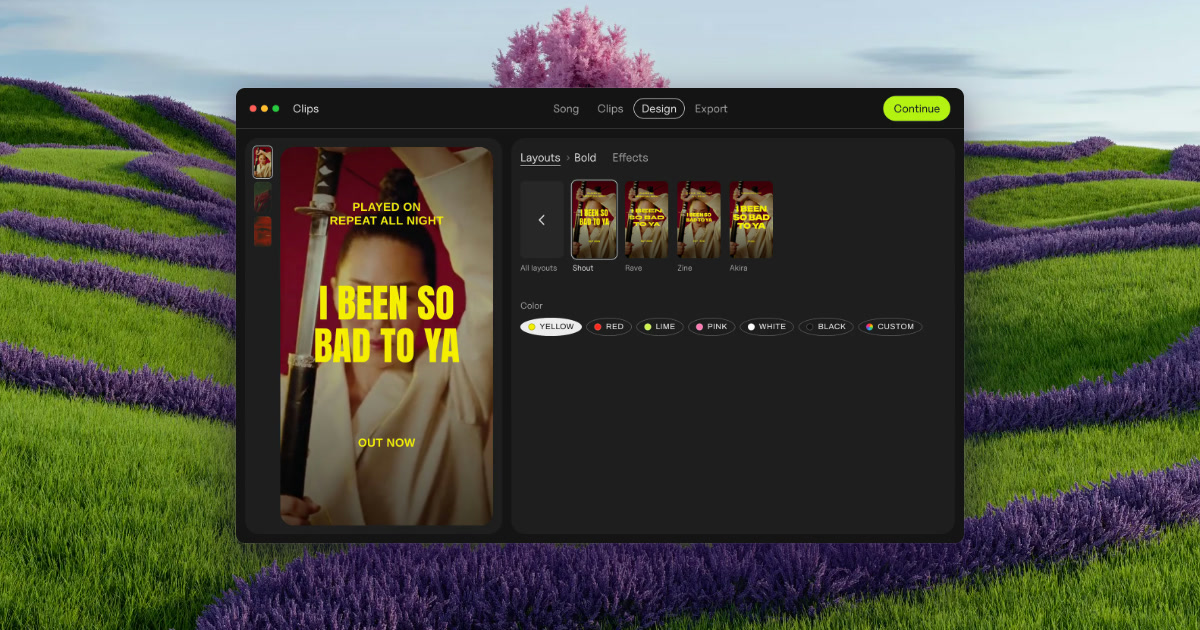
Clips by Plastic is a lyric and lip-sync video maker for Mac that turns a finished song into vertical videos for every part of it. You drop in a song along with your own footage or photos, and the app cuts every part and its catchiest snippets into vertical videos, on the beat, with the lyrics synced word by word. It is built for music artists, and for the people who promote their songs, who need ad creative for a release without opening a timeline-based editor. The point of the app is stated plainly on its site: find the part of your song that sells it, test them all, then spend on the one that works. The problem Clips was built around is stated on its own site: making 15 videos takes all evening, so you cut two and pray. A single song has multiple parts — intro, verses, pre-chorus, chorus and bridge — and any one of them might be the fragment that makes a listener stop scrolling. Producing a separate video for each part, on each backdrop, by hand in a conventional video editor is slow, repetitive work, and it competes directly with the time an artist wants to spend on music. The founder's note on the page makes the same point from personal experience: Clips was built while promoting an album, because cutting the same song fifteen ways was eating the time that was meant for music. Instead of guessing which section to promote, the product is designed to let results from real ad spend pick the hook. Clips begins by analyzing a finished song. It finds the tempo — the page shows an example at 124 BPM — and it detects every part of the song, listing sections such as Verse 1, Pre, Chorus, Verse 2, Bridge, Chorus and Intro. Each of those parts then becomes one clip, and the clip is cut on the beat rather than at arbitrary timestamps; the page describes a chorus section as "16 beats, cut on the beat." This matters because a vertical ad that starts and ends on the musical grid feels intentional and loops cleanly, and because the artist does not have to scrub a waveform to find section boundaries. The work of mapping the song's structure is done automatically, so the first step of the four-step workflow is simply dropping the song in. The second layer is lyrics. Clips syncs the words to the music and offers two modes: word by word, on the beat, or line by line, on the beat. A word-level sync puts each word on screen as it is sung, which keeps a short vertical clip visually busy and readable without the viewer needing sound. The page also shows a third element: a hook line placed on top of the video — a short phrase that stays visible while the synced lyrics run below. The hook is what makes a clip legible at a glance in a feed; the word-level lyrics are what hold attention once the clip starts playing. Together they allow one song section to be presented as a self-contained ad rather than an excerpt that needs context. Visually, Clips separates the words from the treatment applied over them. You pick a layout, then choose from 54 effects — the page lists Paper, Glow, Vertigo, Riso, Xerox, Tape, Bitmap, Lines, Heatwave, Drift and Negative among them — and drag a strength slider to set how strong the effect is. Because the effect sits on top of the same footage, one chorus can be produced in 54 different looks, so ads can match the visual language of a release instead of looking like a template. The page frames the output as ads that look like your release, not like a template. A backdrop in Clips is effectively that combination of footage and treatment: the export screen shows the same set of parts repeated across backdrops named katana, neon and eye. Export is where the multiplication happens. Rather than rendering one video at a time, Clips exports every part of the song on every backdrop in a single batch — the page shows 15 videos being exported at once, in vertical 1080 × 1920, with square 1080 × 1080 also supported. Files are named by song, part and backdrop, so a batch drops straight into Ads Manager without a renaming session. The page contrasts this directly with the manual route: a video editor handles one video at a time, Flowstage limits posts, Hypeddit's maker restricts output, and none of them produce every part of the song in one batch. Clips is presented as producing about 30 ads a song. The four-step workflow is stated explicitly: drop your song, and Clips finds the tempo and every part; pick the parts, and each becomes one clip, cut on the beat; add your hook, a line on top with lyrics synced word by word; and export, every part on every backdrop, ready for Ads Manager. The methodology continues past export into a testing loop the page calls Test first. Then spend. On Day 1 you upload the batch. On Days 2 to 6 you let them all run at a few dollars a day each, so strangers rather than your own guess decide the winner. On Day 7 you keep the winner and put your budget behind it. The example given is deliberately counterintuitive: the intro won, not the chorus — $0.21 cost per result against $0.63 for the chorus — which is the argument for testing rather than assuming the hook is the chorus. Cost per result is tracked one line per part: Intro, Verse 1, Pre, Chorus, Verse 2 and Bridge. The stated benefit is time and confidence. A batch that would take an evening of timeline work is produced in one export, so the artist can ship many variants instead of two. Decisions about ad spend are made on measured cost per result rather than intuition about which section is catchiest. Because the app runs offline and on the Mac, an unreleased song never leaves the machine — a meaningful point for artists sitting on music before release. And the pricing is a one-time purchase of $99 for the Artist license: no subscription, no credits, no caps, free updates, with a 30-day refund. The free version is not a trial with a timer; it includes every feature and unlimited exports, and the only difference is a small Clips tag on exports, which you remove by buying the license before putting money behind an ad. Concrete situations described on the page include an artist with a new single who wants a batch of ad creative in minutes rather than an evening; an artist without footage, who can use photos since Clips animates stills, a single phone clip for a whole batch, or free high-quality vertical videos from Pexels matched to the mood of the song; an artist between releases, who can use the non-expiring free version on an old song; a label, studio or manager producing videos for a roster or clients under the Label / Studio license, which covers client and commercial work and up to 10 Macs; and an artist testing the same chorus across many effects to find a look that fits the release. The Day 1 to Day 7 workflow is itself a use case: running every part of one song as a small-budget ad set for a week and consolidating budget on the winner. Clips is aimed at music artists promoting their own releases and at the labels, studios and managers promoting artists they work with. The site distinguishes the two in licensing terms: Artist at $99 once covers your own music, removes the Clips tag and allows up to 3 of your own Macs with free updates; Label / Studio at $299 once covers up to 10 Macs for a team, client and commercial work, and priority email support. A bundle with Plastic's DOT app is $125 once for both apps unlocked, up to 3 Macs and free updates. Requirements are macOS 13 or later on Apple silicon or Intel, with lyric sync described as best on macOS 26; Clips is Mac only today, and the page invites Windows users to write in. Delivery is a DMG download (Clips-1.3.2.dmg) with a step-by-step guide sent by email. Clips by Plastic packages a repetitive production job into a four-step Mac app and pairs it with a testing method: analyze the song, cut every part on the beat, sync the lyrics word by word, add a hook, export every part on every backdrop in one batch, then let a week of small ad spend reveal which part sells the song. Free to try without a time limit and $99 once for the Artist license, it is built for artists who would rather test fifteen versions than cut two.
LinkedInEmbed is a no-code LinkedIn widget builder that turns public LinkedIn profiles and company pages into embeddable widgets for any website. You can display your latest LinkedIn posts, a profile card, a company page card, your company's open job listings, your LinkedIn recommendations, your licenses and certifications, or your projects — each styled with your own colors, fonts and layout. It is built for professionals with personal websites and portfolios, companies with business and careers pages, marketing agencies managing several brands, consultants and coaches, and job seekers who want to stand out to recruiters. LinkedIn's own embed options are limited: you can embed a single public post and you get a basic profile badge that is small and hard to style. There is no built-in way to embed a live feed of your latest posts, a company page card, your certifications, your projects, your recommendations or your company's job openings. That means most of the credibility you have built on LinkedIn never appears on the website where your visitors, candidates and clients actually are. LinkedInEmbed was built to fill that gap — turning LinkedIn into website-ready social proof that stays updated automatically instead of a static screenshot or a manually re-pasted snippet. The LinkedIn Feed Widget shows your latest LinkedIn posts, with images, videos, documents and engagement, as either a clean grid or a single-column feed. It works for both personal profiles and company pages, and new posts appear automatically without touching the code. On top of the live feed, you can hand-pick up to four posts to feature; picked posts stay in sync with LinkedIn when you edit them, and this featured-post option is available on paid plans. The LinkedIn Profile Widget replaces LinkedIn's small, hard-to-style profile badge with a card showing your photo, headline, current company, skills and past experience, plus one click through to your full profile. The LinkedIn Company Page Widget turns your company page into a polished card with your logo, follower count, about section, key details and specialties, and includes a Follow on LinkedIn button so you can grow your audience directly from your own website. The LinkedIn Recommendations Widget turns written recommendations into testimonial cards on your site, with each person's photo, headline and relationship to you — useful because recommendations are written by real colleagues and clients under their own names. The LinkedIn Certifications Widget shows your licenses and certifications as a clean grid with the issuing organization, dates and a link to verify each credential. The LinkedIn Projects Widget reuses projects you already listed on LinkedIn as portfolio cards with descriptions, dates and skills. The LinkedIn Jobs Widget lists your company's newest LinkedIn job openings with location, workplace type and posting date, with every Apply button opening the role on LinkedIn. Getting started takes three steps and requires no API keys, no plugins and no LinkedIn developer account. First you paste a public LinkedIn profile or company page URL. Then you pick a widget type and customize it — colors, fonts, layouts and section toggles — with a live preview before you publish. Finally you copy a short embed snippet, a single div and one script tag, into your site. It works on WordPress, Elementor, Wix, Webflow, Squarespace, Shopify, Framer, Weebly, plain HTML sites, and React & Next.js projects. Widgets refresh automatically while they are being viewed, and every design change you save goes live instantly without re-pasting code. The widgets are built to behave like native site components rather than rigid embed boxes. They adapt to the space they are given — full-width sections, sidebars and phones — with grids that reduce their columns automatically and long text that wraps cleanly. A tiny script and a sandboxed iframe mean no CSS conflicts and no slowdown: images are served from a cache, the iframe does not block the page, and the widget sizes itself to its content so there is no layout jank or scrollbars. Views and click analytics show which widgets get seen and how many visitors click through to LinkedIn. LinkedInEmbed also notes that embedded widgets mainly help SEO indirectly, by keeping visitors on the page longer and building trust, while post text inside the iframe is generally attributed to LinkedInEmbed's embed page. Documented use cases include personal websites and portfolios that display a LinkedIn profile, posts, certifications and projects; company websites that show the company page and latest company posts to build trust, keep pages fresh and grow LinkedIn followers; careers and employer branding pages that show culture, momentum and real team updates to candidates; marketing agencies that create feed and company page widgets for every client from one account with brand-matched designs and click analytics to report results; consultants and coaches who show expertise through a profile, certifications, thought-leadership posts and projects; and job seekers and resume websites that embed a profile, experience, certifications and projects to stand out to recruiters. Pricing starts with a free plan that is free forever and requires no credit card: one LinkedIn profile or company page, one widget, data refreshes every 72 hours, every widget type, full customization with live preview, and a "Powered by LinkedInEmbed" link. Pro is $11.04 per month billed yearly and covers two LinkedIn profiles or company pages, three widgets, 24-hour refreshes, views and click analytics, and no LinkedInEmbed branding. Essentials is $25.49 per month billed yearly for agencies and teams managing several brands, with five profiles or company pages, five widgets, 30-minute refreshes, analytics and no branding. Yearly billing saves 15%, and plans can be cancelled anytime. The core value is simple: LinkedInEmbed puts the LinkedIn content you already maintain onto the website your audience already visits — automatically updated, brand-matched, responsive and measurable — without writing code or touching an API.
Papermark Data Rooms is a virtual data room built for sharing sensitive documents during diligence and transactions. According to the company's own description, it brings granular access, dynamic watermarking, a Q&A module and a full audit trail into one place, and a room can be launched in under 60 seconds. The product is aimed at teams handling fundraising, mergers and acquisitions, due diligence and investor relations — anyone who needs to give investors, buyers or partners access to confidential material without losing control over who sees what, when they see it, and how they interact with it. Papermark describes a data room as a secure online repository, a kind of digital filing cabinet that replaces emailed PDFs with a single link carrying granular access controls and real-time activity tracking. The problem Papermark addresses is familiar to anyone who has run a deal: documents get emailed as PDFs, lost, or forwarded without permission, and there is no reliable view of who read what. Papermark's site frames data rooms as essential for businesses navigating fundraising, M&A, due diligence or strategic partnerships, because they streamline document sharing, protect intellectual property and demonstrate a professionalism that builds trust. Where a pile of attachments creates back-and-forth communication and slows decisions, a well-organized data room is presented as a way to accelerate decision-making and reduce that back-and-forth. Papermark also positions its approach as combining robust security with simplicity, and it notes that it started as an open source and self-hosted solution — a background it says shaped its focus on absolute control over data. Granular permissions are the center of the product. Within a single data room, administrators can create viewer groups and assign access at file level or folder level, so different investors, buyers or partners see only the documents meant for them. Access controls are complemented by an allow list and email verification, which let teams control access by email domain, and by custom link permissions covering expiry dates, password protection and email verification. Teams can send email invitations and new document notifications, and viewer activity is tracked through an audit log. A one-click NDA and agreements feature makes it possible to require viewers to accept an NDA before they gain access, and NDA-before-viewing appears alongside allow lists and screenshot protection in the feature list. Document protection features are designed for high-stakes sharing. Dynamic watermarking adds viewer details and custom text to documents, and screenshot protection blurs content when a screen capture is attempted — both listed under how Papermark protects against unauthorized sharing. Redaction lets teams black out text and images before sharing, while the separate AI redaction capability detects PII and custom terms, routes them to a review workspace, and then burns the redactions in. Underneath these features sits the security posture: SOC 2 Type II and ISO 27001 certification, GDPR and CCPA compliance, HIPAA compliance for healthcare data, AES-256 encryption described as military-grade, 2FA and SSO for advanced user authentication, and a choice of data residency across EU, US and UAE data centers, with more than 38 data centers listed. Analytics in Papermark are page-level rather than only document-level. The company says you can share a data room from a link but still track activity on each document inside the room and on each page within that document, showing exactly who is engaging with which material. The Q&A module adds structured communication: buyer or investor questions are routed and answered inside the data room with custom permissions, so conversations stay attached to the deal instead of scattering across email threads. Automatic file indexing means uploaded files are indexed for search, which helps viewers find material inside a room that may contain many documents and folders. Setup is deliberately lightweight. Documents and folders are uploaded through a drag and drop editor with bulk actions and support for large files, and the company advertises unlimited data rooms, unlimited visitors with no per-viewer charge on any plan, and unlimited storage and documents. Each room can carry custom branding with the customer's logo and colors, and custom domains let the room be shared on the customer's own domain. Fully white-labelled rooms are available as a plan feature, and the site's headline promise is white-labelling on your domain with clear data room pricing. Papermark says you can share a branded data room via a link and customize the design of each room, which matters when the room is often the first impression a counterparty gets of the business. The newest angle is agent-driven data rooms. Papermark describes Data Rooms 2.0 as secure data rooms your AI agents can run, live in under 60 seconds, and it exposes the product through an API, a CLI and an MCP server that together provide 57 operations for programmatic data rooms. Workflows automate recurring data room steps. The practical effect, as described, is that a team can create and manage rooms from a script or an agent rather than only through the web interface, while still using the same permissions, audit logging, analytics and Q&A. Multiple teams can be created and managed in one account, and enterprise buyers can request custom deployment, security review and procurement support along with SSO and a dedicated support team. A dedicated account manager is listed for deal teams on higher plans. The stated benefits are control and speed. Instead of emailing PDFs that may be lost or forwarded, teams share one link with granular access controls and real-time activity tracking, and the audit log and page-level analytics tell them who engaged and where. Protection features such as watermarking, screenshot protection, NDAs and redaction reduce the risk of leaks and unauthorized sharing, while certifications and encryption address the security review that enterprise counterparties tend to run. Papermark cites customer outcomes: Backtrace Capital says it raises a €50M+ Fund I using Papermark Data Rooms, and another customer says the team saved 70% and scaled sales and fundraising with a modern data room. The company also points to speed of setup, launching a room in under 60 seconds, and reports that 70,000 companies trust Papermark Data Rooms for deal flow. Use cases named on the site include fundraising, where teams share financials, cap tables and pitch decks with potential investors; M&A, to facilitate secure due diligence during mergers or acquisitions; partnerships, to provide secure access to relevant documents while protecting IP; and investor relations, to keep board members and investors informed with organized documents. Customer stories add portfolio management and portfolio updates, where updates and reporting are centralized; project management, where teams collaborate and manage projects transparently; marketing and prospecting, where marketing materials are shared and engagement with prospects is tracked; sales and sharing proposals, where proposals are shared and client engagement tracked; raising a fund; due diligence for transactions; and startup fundraising at every stage. Dedicated data room examples cover real estate, investment banking, due diligence, sales and startups. On pricing, Papermark publishes plan tiers — DataRooms, DataRooms Plus, DataRooms Premium and DataRooms Unlimited — with 3, 5, 10 and unlimited team seats respectively, noting that extra users are billed per seat. Unlimited data room visitors, unlimited data rooms and unlimited storage and documents are listed across plans, and a 7-day free trial is offered alongside a book-a-demo option. Beyond the plans sit Papermark Enterprise, with custom deployment, security review and procurement, SSO and a dedicated support team, and a self-hosted version that runs Papermark on your own infrastructure under the open-source licence with your own S3-compatible bucket. Taken together, Papermark Data Rooms is positioned as a modern, security-first data room for deal teams: fast to launch, controlled down to the file, folder and page, protected by watermarking, NDAs, redaction and encryption, measurable through page-level analytics and audit logs, brandable on your own domain, and now operable by agents through the API, CLI and MCP server.
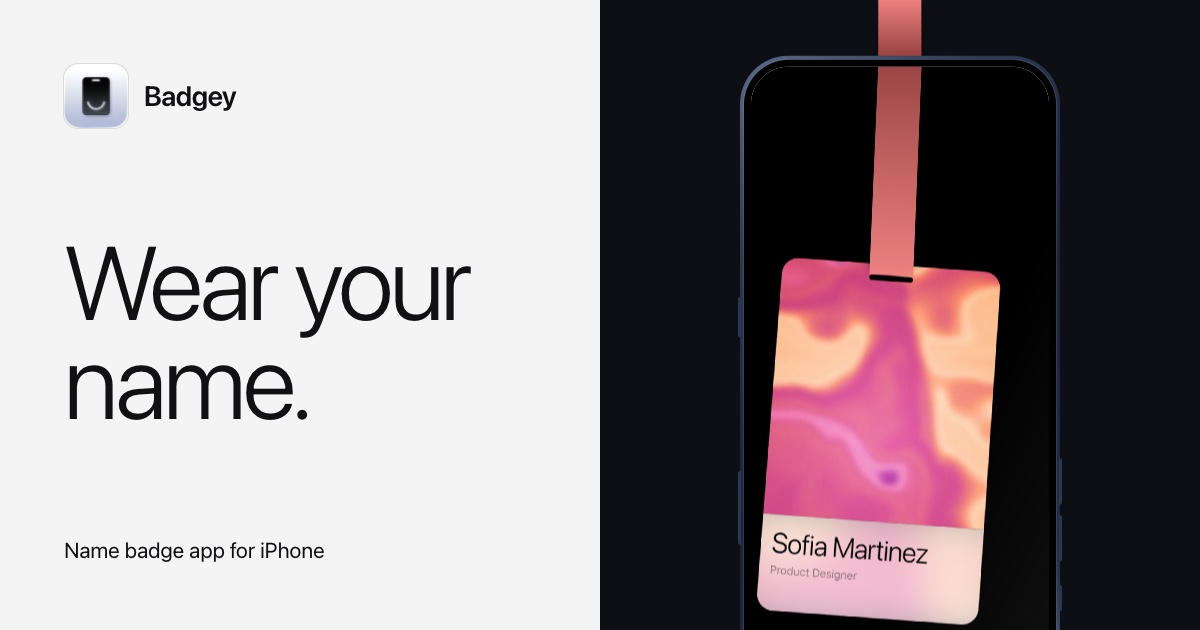
Badgey is a name badge app for iPhone that turns the phone itself into the badge you wear. Instead of printing a card and clipping it on, you create a badge inside the app with a photo, your name, your role and a lanyard colour, then wear the phone. On a lanyard the badge turns to face the people you meet; in a chest pocket it shrinks so your name stays on show above the edge. The app is built for the moments where you introduce yourself over and over — work, conferences and meetups — and it is aimed at anyone who wants their name and role visible without a printed badge, from speakers and organisers to designers, engineers, volunteers and travel writers. The badge you wear to an event usually starts as a printed card: one name, one role, made for a single day. It is designed for one conference, one meetup or one workplace visit, and once the day is over it is usually thrown away. Badgey starts from a different premise — the screen you already carry in your pocket can show your name, your role and a photo, and it can be re-used for every occasion. Because the badge lives on the iPhone, changing a role, swapping a photo or choosing another lanyard colour takes seconds, and separate badges can be kept for work, conferences and meetups rather than re-writing a paper card by hand for each one. The central gesture of Badgey is the lanyard flip. You clip your phone to a lanyard and turn it upside down, and the badge turns to face the room so the people you meet read your name and role rather than looking at the back of your phone. On a lanyard the badge also swings as you move, so the card behaves like the printed badge it replaces. The same badge works in a chest pocket: there the app shrinks the layout so your name stays on show above the edge of the pocket, which means you can keep both hands free and still be identifiable without clipping anything on. Badgey is built around the idea of a badge for every occasion. Work, conferences and meetups each get their own badge, and you swipe between them on the phone. Each badge carries a photo, a name and a role — for example an iOS engineer and speaker, a product designer, an organiser, a volunteer or a travel writer — so the same phone can present a different identity depending on where you are. Switching badges is a swipe rather than a reprint, which makes it practical to arrive at a meetup in the evening with a different badge than the one you wore at work that morning. The editing model is deliberately direct: photo, name, role and lanyard colour are edited right on the card. You see the badge as you change it, so the result on screen is the result you wear, with no separate settings screen standing between you and the finished badge. Photos such as abstract colour swirls, an aerial view of waves breaking on a sandy beach, or a pink and peach swirl sit on the card, and a blurred backdrop of the same photo appears behind the name and role, giving the badge depth without hiding the text. Sharing is handled by the QR button. Tap it and the badge flips over to show a QR code for your link, so someone you have just met can scan it instead of typing a URL. The badge therefore does two jobs at once: it tells people who you are at a glance, and it hands over a way to stay in touch when the conversation ends. Flipping the card over for the QR code keeps the same physical object in play rather than asking you to open a separate app mid-conversation. Badgey's overall approach is to treat the iPhone as a wearable display rather than a document. The badge responds to how the phone is being worn — turned upside down on a lanyard, or sitting in a chest pocket — and stops being a static card. Five designs are available, and Live badges can use animations such as Aurora, a northern lights animation. The app also publishes a promo code offer for Aurora: a free code is sent to your inbox, one code per email while they last, and the address is only used to send it. The benefits follow from that approach. Your name and role stay visible in the situations where they matter, without printing, handwriting or re-ordering a card. Because the badge is edited on the card itself, keeping it current is quick, and because several badges live in the app, one phone covers work, conferences and meetups. The QR flip removes the awkward step of spelling out a link, and the blurred photo backdrop keeps the badge readable while still carrying a personal image. Concrete uses line up with the roles shown in the app. A speaker at a conference can wear a badge showing name, role and photo, flip it for a QR code when someone asks for a link, and stop the badge swinging if the movement is distracting. An organiser can keep a separate badge for the event, a volunteer can wear one in a chest pocket while working, and a designer or travel writer can switch to a badge that matches the context — the app's examples run from an iOS engineer and speaker to a product designer, an organiser, a volunteer and a travel writer. Badgey is an iPhone app, distributed through the App Store, and it is made by Marco Lüthi. The app has a privacy policy and a support page, and its FAQ covers what the app actually does, how it knows the phone is on a lanyard, how it knows it is in a pocket, whether the swing can be stopped, whether you can have more than one badge, how the QR code works, whether the screen turns off while you wear it, and whether an account is needed. Pricing details are not stated on the page; the App Store listing is the place to download it. The takeaway is straightforward: Badgey turns a phone you already carry into a name badge that faces the room on a lanyard, stays readable in a chest pocket, and shares your link with a QR flip. Multiple badges, on-card editing, five designs and live animations make it a practical alternative to the printed card for work, conferences and meetups.
SwipeToLaunch is a launch directory built around one mechanic: swipe. New startups, SaaS products, dev tools and apps appear one card at a time, and visitors swipe right if they like the idea and left if they don't. Every swipe is a vote, no account needed.The ranking comes from approval, not upvote counts. A product's score is the share of its swipes that said launch, and the board weighs that share against sample size, so 100% from 2 swipes sits below 92% from hundreds. Below 5 swipes a score is labelled Early. One vote per person per product.For makers:Submit with one link and no account; the site drafts the listing from your pageFree listing: put the SwipeToLaunch badge on your homepage and the listing goes live, with a followed link while the badge is upFeatured: $29 one-time, live right away, first in the deck and on the board for 30 days, with a gold markA moderator reviews each new listing within about a dayEvery product gets a public listing page, a place in the swipe deck and a spot on the weekly boardFor developers and agents: REST, MCP and Markdown access at https://swipetolaunch.com/developers
AgentValley is a free, open-source Mac app that shows every Claude Code agent, sub-agents included, in the notch at the top of a MacBook screen. It is built only for Claude Code and only for the Mac: it needs macOS 15 or later and is made for MacBooks with a notch. The app puts a panel under the notch, and inside that panel every Claude Code session appears as a card while each agent working inside the session appears as a row. Each agent, sub-agents too, gets its own row and its own little pixel programmer. The stated purpose is simple: see who is working, on which model, and who needs you, without leaving your app. It is aimed at developers who run Claude Code in a terminal and want one glanceable place to watch their sessions. The problem it addresses appears the moment several Claude Code sessions run at once. Each agent reports in its own terminal, line by line, so running a few sessions at the same time means switching windows just to check on them. The product frames the situation directly: five agents running, which one is waiting for you? A waiting agent is the costly case. When Claude Code asks a question or waits for permission, it sits there; one of the site's comics is about an agent that asks to run npm install a minute after the developer leaves for lunch and then waits the whole hour for an answer. Another is about a terminal tab still holding a question from Tuesday. AgentValley exists to surface those moments, and the general state of every session, without a window-switching round trip. Inside the panel, each session is a card and each sub-agent is a row underneath it. A row shows the task, the model and the latest step, and sub-agent rows also count their steps. That means you can read something like a task called "Map payment call sites" running for two minutes fifty-six seconds on Haiku 5.5, latest step Grep PaymentIntent, one step so far, type Explore. Sessions are listed together whichever terminal they run in and are grouped by project, and worktrees count as their project. Every project gets a regular: the same member of the crew takes every session in that project. The app is explicit that there are no guessed progress bars. If an agent goes quiet, meaning it has written nothing for two minutes, AgentValley says so instead of inventing a percentage. When an agent asks a question or waits for permission, a red count appears beside the notch, and opening the panel lets you read the question or the command. From there you can jump to the agent's app in one click; with Go to the session's tab turned on, Terminal and iTerm2 open the exact tab, and so does Ghostty, unless two sessions are running in the same folder. You can also answer Claude Code from the notch with Allow once or Deny, using a plugin you install yourself. The app never answers for you, and Allow happens only when you choose it. Sounds add a second channel: whoever runs the session plays a few notes on their own instrument and says what it needs, whether a command, an edit, a question or a plan. A plain chime is available in Settings, sounds are on from the start, and one switch turns them off. History, opened from the chart button at the top of the panel, shows what each project cost. You pick a day, a week or a month and can go back to any earlier one, choosing a day for its hours or a project for its sessions. Costs are shown at API prices, what Anthropic charges for each token used without a Claude plan, and are kept on your Mac even after Claude Code clears its old files. A month's numbers can be exported as a PDF statement of work, covering every project for you or one project for your team or a client. The panel also carries plan limits, showing your Claude 5-hour and weekly limits with the time left until reset; this is off until you turn it on, and when a limit runs out the crew goes fishing, or takes the van for the weekly one, while a sign says when they are back. Token use is shown for the last 5 hours and today with a 12-hour chart. The keyboard shortcut control-option-command-A opens the panel from any app, with arrows to pick and Return to jump. The app's approach is deliberately read-mostly: it reads and does not touch. It reads ~/.claude/projects and ~/.claude/sessions, the files Claude Code writes as it works. It looks at Claude Code's processes and each project's .git to show which app and branch a session is in. It reads your Claude Code login from the Keychain only when you turn on Plan limits, and sends it only to api.anthropic.com. It asks GitHub once a day whether there is a new version, the whole conversation, and that can be turned off in Settings. Besides its own settings and updates, it writes only in one folder, ~/Library/Application Support/AgentValley, and nothing in ~/.claude changes unless you put the crew in your terminal, which you start yourself with a command from the app's settings. That command sets the status line in ~/.claude/settings.json and adds the crew's font to ~/Library/Fonts, plus one line in Ghostty's config if you use Ghostty, and a matching command undoes all of it. The only hooks are the plugin's two: one brings Allow and Deny to the notch, the other only waits at the end of a turn while you are Away with a phone paired. The code is open source and can be read line by line on GitHub. The crew also shows up in the terminal. Claude Code's status line gets the face of whoever runs the session, with the model, your plan and your limits, and each sub-agent row under the prompt gets its own face, its model and the step it is on. In the terminal the crew holds still: until your first prompt only a coffee waits on standby, and when a limit runs out they go fishing or take the van. One command from the app's settings sets it up, and with the app closed your limits still show and the coffee still waits. The crew travels as a font and has been seen in Terminal, iTerm2, Ghostty and Cursor. The benefits follow from that visibility. You stop cycling through terminal windows to find out whether an agent is still working, stuck or asking for something. A red count next to the notch tells you at a glance that one needs you, and the panel shows the exact question or command, so you can decide without hunting for the tab that asked. Quiet agents are named as quiet rather than hidden behind a guessed progress bar, and cost history turns an abstract monthly bill into per-project numbers you can read, revisit and export. Typical use cases map onto that. A developer running several sessions across projects can see them grouped by project in one list, with worktrees counted alongside. Someone stepping away for lunch can leave sounds on and still catch the permission request that would otherwise wait an hour, or answer it from the notch with Allow once or Deny. A team lead or freelancer can open History, pick a month, and export a statement of work for one project to send to the client. Anyone watching their Claude plan can turn on Plan limits to see the 5-hour and weekly windows and the time until reset, and check token use for the last 5 hours and today. Someone debugging sub-agent behaviour can watch Explore or Plan rows count their steps and report their latest step. AgentValley is free and open source, distributed as a signed app that Apple has checked, as a direct download or through a Homebrew cask. It requires macOS 15 or later, Claude Code, and a MacBook with a notch, and it fits Terminal, iTerm2, Ghostty and Cursor for tab jumping and the terminal status line. Installation is a drag into Applications, after which the panel opens once to show where it lives and pointing at the notch opens it thereafter; the app checks for a new version once a day and asks before it installs. Removing it starts with taking out anything you added yourself, the plugin or the terminal crew, before quitting and deleting the app, and History stays in ~/Library/Application Support/AgentValley until that folder is deleted. In short, AgentValley puts the whole valley in your notch: every session, every agent and sub-agent, every model and every waiting question in one glanceable panel, at no cost, with the source open for anyone to read.

GlossPage is an iPhone and iPad app that translates the text on a page and keeps the page around it. It works with manga, comics, books, PDFs and any app screen: you open or capture a page, GlossPage translates the text inside it, and you can read the translation or see both languages together. The product is built for readers who want to read material in their own language without losing the artwork, layout or reading structure of the original. According to the site, it is available in selected App Store regions, runs on iOS and iPadOS 26 or later, and requires no account. The problem GlossPage addresses is the gap between an original page and a readable translation. Readers of manga, comics, books and PDFs often end up jumping between pages or searching for the matching passage when they want to compare an original against a translation. Text inside apps is harder still, because some of it cannot be copied at all, so translating it would normally mean retyping it somewhere else or changing your workflow. GlossPage's approach is to translate the page itself — its text blocks, speech bubbles and reading structure — and then place the translation where it belongs, so the material stays readable in its original context instead of being pulled out into a separate document. Comic and Webtoon translation is the feature the site leads with. GlossPage detects speech bubbles and text regions across Manga, Webtoons, manhwa, manhua and comics while preserving the artwork around them. Rather than flattening a page, it locates where text sits and treats each region as something to be translated and placed back into position. The site's sample pages show original speech bubbles and translations side by side, which illustrates the intent: the artwork keeps its composition and the translation lands where the text actually was. Books, scans and PDFs get a similar treatment with an emphasis on structure. GlossPage translates scanned books, documents and PDFs while keeping page structure visible, and the page can adapt to keep original and translated passages aligned when translations need more space. Translations rarely match the length of their originals, so this layout adaptation is what keeps a translated book page readable instead of overflowing. Because original and translated passages stay aligned, the bilingual mode remains usable across longer documents rather than only short snippets. Bilingual reading is central to the product. GlossPage places translated blocks beside their originals so you can read both languages together without searching for the matching passage. The site describes reading original passages and their translations together, comparing each passage as you read, without jumping between pages. After translation you choose how to read: Translation, Original or Bilingual mode. Translation shows the translated page, Original keeps the source page, and Bilingual mode presents both together so you can follow every line against its counterpart. Screen translation extends the app beyond files. Using Back Tap, the Action Button, Shortcuts or the Share Sheet, you can translate content from any app without copying text or changing your workflow, including text you cannot copy. Capture routes listed on the site include importing an image, a book scan or a PDF, grabbing a Webtoon from Safari, or capturing any app screen with Back Tap or the Action Button. The Local plan also lists a Safari Webtoon Grabber Extension for pulling a Webtoon from Safari. GlossPage splits translation between on-device and online. GlossPage Local translates privately on the device, while GlossPage Pro adds higher-quality online translation for longer pages and harder text. The site states that source images and PDFs stay on your device, and that online translation sends recognized text blocks. That distinction matters for readers handling personal documents or licensed material: the source file does not leave the device, and only recognized text is transmitted when online translation is used. History and export keep translated pages together. Source images and PDFs stay on your device, and every plan includes unlimited translation history so translated pages and documents are kept in a library. Pro adds recognized, translated and bilingual text plus Markdown exports from PDFs, and the plan details also list plain-text and Markdown export from PDFs. Local removes watermarks. The library shown on the site includes search along with document and image filters, so saved translated pages can be found again later. The workflow runs in four steps. First, open or capture: import an image, book scan or PDF, grab a Webtoon from Safari, or capture any app screen with Back Tap or the Action Button. Second, GlossPage understands the page: OCR finds the text while page analysis identifies text blocks, speech bubbles, illustrations and reading structure. Third, the translation fits the content: GlossPage translates each block and places it where it belongs, and for books and documents the page can adapt to keep original and translated passages aligned. Fourth, read your way: choose Translation, Original or Bilingual mode, save translations to history and export supported documents with Pro. The practical benefit is that reading material in another language stops requiring a second window, a separate document or a manual copy-and-paste step. Comics keep their artwork and bubbles, books and PDFs keep their page structure, and app screens can be translated in place without leaving the app you were using. Bilingual mode lets a reader check a passage against the original immediately, which is useful for verification and for following a text closely rather than trusting a translation blind. Because history is unlimited on every plan, translated pages accumulate into a personal library instead of disappearing after a session. Concrete use cases follow directly from those features. A reader following a manga or manhwa chapter can translate a page and keep the artwork intact. Someone working through a scanned book or PDF can read original and translated passages together on the same page. A person browsing a Webtoon in Safari can grab it into the app through the Safari extension on the Local plan. Anyone stuck on text inside an app that cannot be copied can capture the screen with Back Tap, the Action Button, Shortcuts or the Share Sheet and read the translation without switching workflows. And a reader comparing versions of a text can use Bilingual mode to move passage by passage. GlossPage runs on iPhone and iPad and requires iOS or iPadOS 26 or later, with no account required, and is available in selected App Store regions. Pricing starts with GlossPage Free at $0 forever, offering unlimited on-device image translation in the app, local PDF translation at 10 pages per day, Shortcuts and Back Tap at 15 per day, and unlimited translation history. GlossPage Local is $19.99 per year, or $1.99 per month or $0.99 per week, with unlimited local image and PDF translation, bilingual mode, unlimited history, Shortcuts and Back Tap, the Safari Webtoon Grabber Extension and watermark removal; a Local Lifetime option is $24.99 as a one-time purchase at the U.S. launch price through October 30, 2026, rising to $39.99 from October 31. GlossPage Pro is $49.99 per year, or $5.99 per month or $2.99 per week, adding online image and PDF translation with a weekly allowance and plain-text and Markdown export from PDFs, with 5× the Welcome Pass weekly online credit for PDF pages and photos. Eligible new installs receive a 7-day Welcome Pass with limited online credit, and the site notes that Pro online translation uses a weekly allowance and is not unlimited, that weekly, monthly and yearly subscriptions renew automatically unless cancelled, and that Local Lifetime covers local features only, without online translation or Pro text exports. In short, GlossPage's value proposition is translation that stays inside the page it came from: manga, comics, books, PDFs and app screens translated on iPhone and iPad, with bilingual reading, private on-device translation and a history that keeps everything together.
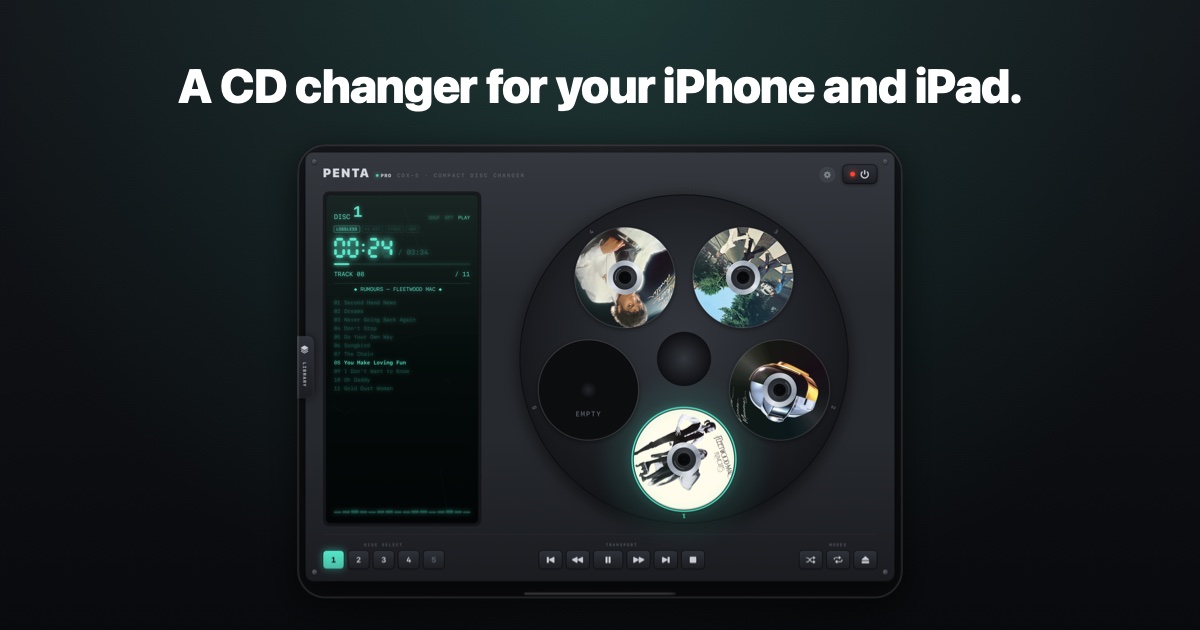
Penta is a CD player app for iPhone and iPad that turns your Apple Music library into a five-disc CD changer. Rather than presenting your albums as a list, it recreates a '90s five-disc carousel: you pick an album, open its jewel case and drop the disc into the carousel, then play music the old-fashioned way with authentic sights and sounds. It is built for people who want the ritual of physical media back on a device they already carry, and it is free on iPhone and iPad. Penta 1.3 extends the idea to iPhone Duo, where the phone itself becomes the jewel case. Streaming libraries made music instant and invisible. Everything you own sits behind a search field, and the small ceremonies that used to surround listening — pulling a case off a shelf, reading the liner notes, hearing a tray motor slide out — disappeared along with the hardware. Penta's answer is to rebuild those ceremonies in software. Its starting point is the five-disc CD changer, a piece of '90s hardware that held a fixed set of albums and asked you to swap discs as you went. The app keeps that constraint and the physicality around it, so browsing a library becomes a sequence of small physical actions again instead of an endless scroll. The core of Penta is the carousel. Five discs sit on it beside a glowing display, and loading one follows the same order every time: pick an album, open the jewel case, drop the disc into the carousel. Music plays the old-fashioned way, from the carousel rather than a queue. Every disc carries real album art, so the changer looks like a rack of CDs rather than a grid of thumbnails, and an optional one-time Pro unlock adds the real printed CD art. Because only five slots exist, choosing what goes in becomes part of using the app — the same small decision a physical changer forced on its owner. Penta's sound design is the detail that sells the illusion. Every click, whir and tray motor in the app was recorded from a real CD changer, so the noises that accompany a tray opening or a disc being loaded are sampled from physical hardware rather than synthesized. Paired with the authentic sights of the changer, those sounds make loading an album feel like operating a machine. The glowing display and its level meters are decorative: Apple Music audio is protected, so no app can read the live signal, and Penta states that the meter animation is decorative by design. iPhone Duo support, arriving with Penta 1.3 as a free update, is where the concept gets unusual. On iPhone Duo the phone itself is the jewel case. Closed, you are holding the album; opening the Duo opens the case with it, because the hinge is the case's hinge — liner notes on one side, the disc on the other. Opened flat, the whole deck is visible: five discs on the carousel and a glowing display. Folded like a laptop, the layout becomes a CD wallet above the deck, so you can flip through your collection above the tray. Held upright, the app shows a CD wallet over the tray that animates open and closed. On iPhone today you also get keys you can feel, and on iPad the app works any way up. Underneath the hardware impression, Penta works with the music you already have in Apple Music. It reads your library to show and play albums and never adds, removes or edits anything. Albums you own play without a subscription; streaming from the Apple Music catalog requires an Apple Music subscription. The app needs permission to access your music library — if access was declined, it can be turned back on in Settings › Penta › Media & Apple Music — and catalog albums will not play without a subscription either. Penta runs on an iPhone or iPad with iOS or iPadOS 17 or later. The benefit is atmosphere: the same library, heard through a deliberately limited, tactile interface. Because the carousel holds five discs, listening becomes a short set of deliberate choices rather than an infinite queue, and because every interaction carries recorded mechanical sound and real album art, the app restores some of the weight that digital music lost. It also respects what you already have — the app is free, an optional one-time Pro unlock adds the real printed CD art, and nothing in your library is modified by using it. In practice, Penta suits a few clear situations. It is for the listener who wants to load a handful of albums and let the changer run. It is for anyone who used a '90s changer and wants the pick, open and drop sequence back, complete with recorded clicks and whirs. It is for iPhone Duo owners who want to close the phone and be holding an album, open it and watch the case open along the hinge, or fold it like a laptop and flip through a CD wallet above the deck. And it is for iPad users who want the carousel and glowing display visible on a stand, any way up, while albums play from their library. Penta is aimed at iPhone and iPad users with an Apple Music library who want to play albums the old-fashioned way, and at iPhone Duo owners curious about what a foldable screen adds to a music app. It is available on the App Store and free on iPhone and iPad, with an optional one-time Pro unlock for the real printed CD art. iPhone Duo support arrives with Penta 1.3 as a free update for everyone who has the app. Support is handled by email at jaseubert@gmail.com, and the developer says every message is read. Penta's value is simple: it makes a digital library behave like a five-disc CD changer, with the case, the carousel, the glowing display and the recorded sounds of real hardware. For anyone who misses the physical ritual of playing an album, that is the whole point.

How It Went is an app that turns one ride or a whole trip into a short film, built from the GPS track, photos and clips a rider already has. The route draws itself across a tilted map, each photo appears at the point on the track where it was taken, and clips play where they were shot. Rides can be picked straight from a Strava account or brought in as Garmin FIT files — including the zip produced by Export File in Garmin Connect — or as GPX. The output is an ordinary MP4 video, delivered in 9:16 for Instagram and TikTok or 16:9 for YouTube, assembled on an iPhone, an Android phone or a Mac. It is made for people who come home from a long Saturday or a week away with a track nobody is ever going to scroll through, and who want that day or that trip told as a film rather than a slideshow. A handful of photos, a couple of clips and a GPS track is what most trips actually produce — and the track is the part nobody is ever going to scroll through. A slideshow fails on exactly the day you most want to keep: the long solitary one where you were too tired to take pictures. There may be one photograph from six hours in the saddle, or none at all, and nothing to hold the day together. The track, by contrast, is the only thing recorded densely enough to carry a day on its own. How It Went is built on that observation: here the route is the film, and the photographs punctuate it. Instead of stringing stills together and hoping they add up to a story, the film is anchored to the movement itself, so a day with almost no pictures still has something to show for it. The app accepts rides in several ways. Strava users can pick rides straight from their account, so a ride already recorded on a head unit or phone arrives without extra handling. Riders who keep their own files can bring Garmin FIT files, including the zip file you get from Export File in Garmin Connect, and GPX files. A whole trip can be dropped in at once rather than loading one activity at a time, and a single ride can be sent over from another app's share sheet. Films can cover one ride or an entire trip. Several activities merge into a single film, day by day, with rest days kept as rest days rather than dropped from the running order, so the shape of a week away stays intact. Each day opens with its figures — a day card over a faded map, as in the app's own example of Day 2 of 5, 152.9 km, 1,283 m and 5 h 06 — and a quiet card marks a rest day. The route is drawn across a tilted map, and the longest climb stands up off the map as a wall with its height captioned. The hardest effort of the week is marked with a highlight on the route. A single ride works as a film on its own: it opens on the date and the distance, with no day count to sit through. Photos find their place automatically, placed along the track by the time they were taken rather than by hand-dragging them onto a timeline. When one lands wrong, the film can be played to the point where the photo was taken and the photo placed there, and the rest of that camera's photos can follow. The same logic covers a common failure: an action cam never set to local time will drop a lunch stop in the wrong valley, and there is no way to tell by looking at the photograph. Fixing the clock once moves everything shot on that camera together, so a whole card of footage is corrected in one step. The times in the film are the times you rode at — edit after you have flown home, and a photo taken at 1:30 still says 1:30. A four-minute action-cam file usually holds two or three moments worth keeping, not one. How It Went lets each of those moments be pulled out on its own, so the clips that land in the film are the ones that matter rather than the whole recording. Clips sit where they were shot, framed by the map above and below, which keeps the footage tied to the place it came from instead of floating free of the route. Combined with photo placement, this means every piece of media in the film is anchored to a specific point on the track. How It Went is explicitly not a training app. There are no leaderboards, no segments, no percentiles and nothing that ranks you against anybody else. The figures in the film say what kind of day it was rather than how you compared to other riders. That choice shapes the whole product: the numbers that appear — distance, elevation, moving time, a hardest effort — are there to describe the day, not to grade it. The film is a record of where you went and what you saw, and the map is the spine that everything else hangs from. Out comes an ordinary video file: 9:16 for Instagram and TikTok, or 16:9 for YouTube. The film is assembled on the phone, so it can be posted the evening you get in. The Mac version is a real Mac app rather than the phone app in a window: a ride can be opened from Finder, and a trip can be sent from the phone to the Mac and back. A single long Saturday becomes a film on its own, opening on its date and distance. A week away becomes a day-by-day film with rest days left in. A rider who shot almost nothing on the hardest day still gets a film out of the track. Someone who comes home with a mis-set action cam fixes the clock once and the photos and clips fall into place. Anyone who wants to post the same evening exports a 9:16 file straight from the phone, and anyone who prefers a bigger screen moves the trip to the Mac. Strava users, riders who record on Garmin devices and export FIT files, and anyone carrying GPX files from another app are the natural audience, along with travellers who bring back photos, action-cam clips and a track from a multi-day trip. The app runs on iPhone, Android and Mac, and is available from the App Store, the Mac App Store and Google Play. It is free to use, with an optional Premium tier. How It Went's proposition is narrow and clear: the route is the film. By building the video around the GPS track and letting photographs and clips punctuate it, the app produces something worth keeping from days that a slideshow would have lost — and it does so on the phone in your pocket, ready to post.

Kept is an AI planner for iPhone and Mac that brings tasks, notes, calendar and habits into a single place, built for people who describe themselves as unorganized. Its stated purpose is simple: turn ideas into action. Instead of asking you to construct a system of folders, tags and databases before anything gets done, Kept is designed to learn your goals and sort your priorities around them. The maker positions it as "the organization app for unorganized people" — a planning tool that takes on the work of keeping you organized rather than becoming one more thing you have to maintain. You write one line into Kept, and it shows you how it intends to file that line before you save. The background behind Kept is a familiar one for anyone who has bounced between productivity apps. The maker describes being "lazy and disorganized by default" and having built lots of automations and productivity hacks just to be a functioning member of society. Notes went into Craft Notes but were never revisited, because taking the time to put things into folders that made sense simply never happened. In Things 3, the fast capture button led to jotting down everything — ideas, notes, tasks, big projects, things with deadlines — without doing the right tagging, leaving a Today inbox with thousands of stubs that "go there to die." Notion and other apps never worked either. The stated conclusion is that most planning apps are one more thing you have to keep organized, and Kept was built to be the opposite: an app that actually keeps you organized. Kept's core interaction is a single line of input. You write one line, and before you save it, Kept shows whether it files as a task, an event or a note, along with the day, the time and the area it read from that line. That preview matters because it lets you confirm or correct the interpretation before anything lands in your system, rather than discovering weeks later that a stray idea became a deadline or that an appointment was buried as a note. Because Kept reads the day, time and area out of what you typed, capture stays fast: you do not have to choose a category, open a date picker or decide in advance where a thought belongs. The app proposes the structure, and you keep the final say. Goal tracking is the feature the maker calls out as the main difference from the many todo apps out there. Kept works by learning your goals and then sorting your priorities based on them, so the app is built around helping you actually achieve your productive goals rather than making you do the work of being organized yourself. Rather than presenting an undifferentiated list, Kept proposes today's Top 3 and explains why each one was chosen. Crucially, you can change any of them — the proposal is a starting point, not a lock-in. That combination of a small, explained daily shortlist plus the freedom to override it is what turns a task list into something closer to a plan, and it gives you a reason to trust the ordering instead of ignoring it. Todos in Kept use Apple Intelligence on device to auto sort tasks into areas that you define. Areas serve as the buckets you actually care about, and because they are yours rather than a preset taxonomy, the sorting reflects how you think about your work and your life. On-device processing is how the maker describes it, with the practical payoff that tasks land in the right area without you filing them by hand, and they stay easily searchable later. For someone whose previous system collapsed because tagging never happened, automatic sorting into a small set of self-defined areas removes exactly the step that used to break down, while keeping the result findable when you come back to it months later. Tasks, notes and calendar are integrated rather than stitched together, and your notes, habits and calendar all sit in the same place. That means a project, the note attached to it and the calendar event where it gets discussed live together instead of in three apps with three separate search boxes. When you open a task you can start Focus, moving from deciding what to do straight into doing it without switching context. Everything works and syncs on iPhone and Mac, so the same picture of your day is available on your phone and on your desktop. The maker also notes that Kept was optimized for iPhone Duo on release day — one of the few notes and productivity apps to be ready for it — so it was designed to use that form factor from the start. Under the hood, the maker describes building "prompts, memory creation and context querying sequences and other secret sauce" that became Kept. The methodology follows from that: the app builds up memory about what you are trying to achieve, queries the context of what you have captured, and uses both to decide how a new line should be filed and which items belong at the top of today. This is why the same one-line input can resolve into a task, an event or a note, and why Kept can offer a Top 3 with reasons attached rather than an arbitrary list. The design goal is a planning app that carries the organizational overhead itself, so being organized becomes an output of using the app rather than a prerequisite for it. The promised outcome is that you stop being the filing system. Ideas captured in a single line do not disappear into a Today inbox; they are read, categorized and placed with the day, time and area that Kept inferred. Goals you have told Kept about shape what it recommends next, so daily effort is aimed at something you actually said you wanted to achieve. A three-item shortlist with stated reasons is small enough to act on and transparent enough that you can adjust it. Because tasks flow straight into Focus, and because notes, habits and calendar are co-located, there are fewer places for a commitment to fall through. The maker's framing of the benefit is direct: Kept is meant to be the app that actually keeps you organized, rather than another system that needs organizing. Concrete uses described in the materials start with quick capture during the day: you have an idea, a note, a task with a deadline or something to attend, and you write one line instead of choosing an app. Kept shows whether it read the line as a task, an event or a note, with the day, time and area it picked, so you confirm before saving. When you plan your day, you open Kept to see today's Top 3 and the reasoning behind each, then change any of them if they do not match. When you sit down to work on one of them, you open the task and start Focus. And when a task relates to something you wrote down, the note is in the same place — along with the calendar entry and your habits — on iPhone or Mac. Someone returning to abandoned notes can search them later precisely because Kept sorted them into your areas. Kept is aimed squarely at people who do not enjoy organizing. The maker's own description — "lazy and disorganized by default" — is the persona the app is designed around, and the product is explicitly framed as "the organization app for unorganized people." That includes anyone who has tried Notion, Craft Notes or Things 3 and found that the upkeep outweighed the benefit. It runs on iPhone and Mac, with notes, habits, calendar and tasks syncing between them, and it uses Apple Intelligence on device for task sorting. Kept is listed as free on Product Hunt, the app is available on the App Store, and the maker directs people to www.kept.do. The takeaway is that Kept inverts the usual productivity bargain. Instead of handing you a flexible canvas and expecting you to invent and maintain a structure, it learns your goals, reads each one-line entry, files it as a task, event or note with a day, time and area, and proposes a Top 3 with reasons you can override. With tasks, notes, habits and calendar together on iPhone and Mac, and a Focus mode that starts work directly from a task, Kept's value proposition is an app that keeps you organized rather than one more thing to keep organized.
Shedi is a Mac cleaner built specifically for developers. It finds what developer tools leave behind, says what every item is, and deletes only what you pick, with everything going to the Trash first. The app targets the places where Xcode, Docker and node_modules eat into a Mac's drive, along with the caches and leftovers of 20 other tools and package managers. It comes from Otabek Abdiraimov, an independent developer who also makes Halo, the notch app for Mac, after his own Mac kept running out of space and the culprits were always the same: Xcode builds, simulators and node_modules in projects he had stopped opening. Shedi is a native Swift app for macOS 15 or later on Apple silicon and Intel, sold once for $9.99 with no subscription. The problem it addresses is narrow and specific. Developer tools leave a lot behind, and cleaner apps earned a bad name for clearing caches that refill by morning, or for asking people to trust a single button that decides everything on their behalf. Shedi's maker describes the opposite failure as well: cleaners either missed developer leftovers entirely or gave no explanation of what they were about to remove. The manual alternative, running rm -rf by hand, works only if you already know every path and which ones are safe to delete. Shedi's stated position is that some of what a cleaner finds does come back, and that this is fine as long as every item tells you whether it returns, so you can skip the ones you would rather keep. Scanning is a single button. Shedi checks every place your developer tools leave things, a process the app describes as taking about ten seconds. In a demonstration on the maker's own 14-inch MacBook Pro with an M3 Pro running macOS 26.5, a read-only shedi scan found 9.05 GB in six seconds with nothing removed. That machine's breakdown included 3.02 GB of app caches and logs, 2.05 GB of projects, 1.66 GB of node_modules and 1.45 GB of package caches, plus 872 MB of large and old files marked as your files. The sample interface shown on the site lists candidates such as Xcode at 12.64 GB, node_modules at 4.59 GB and Docker at 3.76 GB. The scan is explicitly read-only: Shedi only looks, and nothing is removed until you press Clean. After the scan comes the reading step, which is where the product differs most from a one-button cleaner. Every item says what it is, what made it, and whether it comes back. The examples on the site include npm's download cache, marked Safe because npm downloads packages again when it needs them, and browsers that Puppeteer downloaded for testing, marked Check first because they do not come back. Each item carries one of three labels: Safe, Check first or Your files, and only Safe items are selected for you by default. Findings are grouped so they can be judged in context rather than as an undifferentiated list. Cleaning is restricted to what you pick. Before anything is removed, Shedi shows a confirmation such as Move 8 items to the Trash? with the reminder that you can put them back from the Trash any time. Files go to the Trash first, so a mistake is recoverable. A few things cannot go to the Trash, for example Docker images or broken simulator runtimes; those are cleaned with the tool's own command, and Shedi names each one before it runs. The app never touches system files, anything outside your home folder, apps that are running, or your own files unless you pick them. It does not follow symbolic links, and it skips the files of apps that are still open. For project leftovers, Shedi lists node_modules project by project, showing each folder's size and when you last worked on that project, which makes it easy to spot the folders belonging to work you stopped opening. Build output and environments are handled the same way: .next, Pods, Python .venv, Rust target and more, with the note that the next build makes them again. The point of grouping by project is that you can judge a 4.59 GB of node_modules total as individual decisions rather than a single blob you either keep or destroy. App maintenance is covered too. App caches and logs are shown one per app, each explained, and apps that are open are left alone. The uninstaller is described as uninstalling an app properly: every app is listed with its size and last use, along with what it left in your Library, so removal does not leave support files behind. A menu bar storage view is included with the app. Shedi knows where 20 tools and leftovers live, including npm, pnpm, Yarn, Homebrew, CocoaPods, SwiftPM, Cargo, Gradle, pip, Go, DerivedData, Simulators, Device support, Archives, Docker images, Build cache, node_modules, App caches, Logs and Leftovers. The honest part, as the site calls it, is the return question. Package caches refill when a tool needs them again, and build output like DerivedData or .next comes back only if you build that project again. Every item in Shedi says whether it comes back, so you can skip the ones you would rather keep. The site also publishes free guides with the exact paths and commands for cleaning by hand: a reference table of developer caches on macOS with paths, typical sizes, safety and the official clean command, a guide to clearing Xcode DerivedData, simulators and old runtimes, and a guide to deleting node_modules safely and clearing npm, pnpm, Yarn and Bun caches. Safety and privacy are stated explicitly. There is no account, file names and paths never leave your Mac, and the website sets no cookies. Three things go online: the license check with Lemon Squeezy, the update check, and anonymous usage counts that you can turn off. Shedi asks for Full Disk Access because macOS hides app caches, logs and parts of your Library until you allow it; without it, Shedi still works and tells you what it could not see, and names and sizes stay on the Mac. Nothing outside your home folder is touched, except through Docker's and Xcode's own tools and an app you drag into the uninstaller. The overall approach is scan, read, then clean. One button finds candidates, the app explains each one and marks whether it returns, and removal happens only after you confirm, with the Trash as the first destination. The app is also candid about its status: it is not notarized yet because Apple Developer enrollment comes in November, the notarized build follows as a free update, and until then the first launch needs one Open Anyway click. The maker also answers the obvious objection about speed, stating that Shedi does not make a Mac faster by itself; it gives back disk space, and space helps mainly when a Mac is nearly full and macOS runs out of room to work. Users get back disk space that was occupied by projects they stopped opening, caches for tooling they no longer run, and apps they no longer use, without hand-searching paths or trusting a black box. Because items are labelled and explained, the decision stays with the user, and because removal goes to the Trash, an over-eager selection can be undone. The uninstaller reports what an app left in your Library, which addresses the leftover files a drag-to-Trash uninstall does not catch. Concrete scenarios map directly to the interface: reclaiming space after years of Xcode projects by clearing DerivedData, simulators, Device support and Archives; deleting node_modules from abandoned projects while keeping the ones you still work in; dropping Docker images and build cache; clearing package caches for npm, Homebrew, CocoaPods, Cargo or Gradle; removing app caches and logs one app at a time; and uninstalling an app along with its Library leftovers. For anyone who prefers the command line, the companion guides list the same paths so the work can be done by hand. The app is aimed at developers on a Mac, particularly those whose drives fill with build artifacts and package caches. Requirements are macOS 15 or later, Apple silicon or Intel, and a download described as native and small. Pricing is a one-time purchase with free updates for life: $9.99 for one Mac, $17.99 for two Macs and $24.99 for three, with a first-50-buyers $10 discount applied at checkout and a 14-day refund with no questions asked. Support goes directly to the maker at support@shedi.app. Shedi's value proposition is transparency applied to Mac storage: find what developer tools left behind, explain every item and whether it comes back, and remove only what the user chooses, moving files to the Trash first. It is a cleaner that shows its work rather than asking for blind trust.
Peras is a usage guard for people who run Claude Code and Codex against a Claude Pro/Max or ChatGPT plan. It watches both agents, tells you where the current week is heading, and then warns, asks, or pauses the agent at the line you set, so that one long task cannot burn the rest of your week. Running `peras status` prints a compact readout for each agent: the 5-hour and 7-day windows, how much of each is used, when each window resets, and an on-pace projection such as 'on pace for 75% at reset' or 'full by Thu 14:59'. The product is a free, MIT-licensed CLI plus hook guard, with an optional native macOS menu bar app that keeps the same numbers one glance away. A percentage in a usage bar tells you what you have spent, not what you are about to spend. A single long agent run can cross a weekly limit hours before you would have noticed, and by the time the number looks alarming the work is already gone. Peras draws an explicit distinction between monitoring and guarding: a usage display helps you decide when to stop, and an alert asks you to notice it and act, whereas Peras's hook guard actually refuses guarded tool calls and ends the turn once your configured line is crossed. The point is to make the stopping point a rule you set in advance rather than a decision you have to make mid-run. At your line, one of three things happens, and you choose which. `warn` sends a desktop notification while the agent keeps going. `ask` makes the next tool call wait for your OK, once per session, which Peras notes can be answered even from your phone. `pause` refuses tool calls and ends the turn until the pause lifts on its own or you run `peras resume`. Lines can be set per window and per trigger, for example `peras set weekly 85 pause` for a flat weekly line, `peras set weekly pace pause` to stop when you are on pace to run out early, `peras set prompt 3 pause` when one prompt eats 3% of the week, `peras set 01:00-08:00 weekly 50 pause` for overnight runs at 50%, or `peras set --here weekly 60 pause` for just the current folder at 60%. Beyond a single stop line, Peras lets you plan the week. A daily allowance lets an agent use a fixed number of percentage points today, with a fresh allowance at local midnight (`peras budget daily 10 pause`). A folder can be given an estimated weekly allowance (`peras budget --here weekly 5 pause`), though Peras is explicit that parallel account activity can count too and that tracking gaps can miss usage. `peras pace 20` keeps a reserve across working days, and saved allowance profiles can be switched with `peras profile use 'Normal day'`, so a normal day and a heavy day do not need the same rules. Extra room can be granted temporarily with `peras extra daily 3 1h`, and rules and allowances can be edited visually with `peras settings`. Allowances count observed increases in your weekly percentage, and daily tracking begins with the first reading each day. Peras also records what happened. `peras status` breaks the week down by chat, shared out by what each spent, and claude.ai use counts too; the demo output shows entries such as '≈ +41% ~/code/app' and '≈ +12% ~/code/blog'. Weekly charts show observed usage, the last-known remaining allowance, recording gaps, and retained interventions. `peras sessions` lists recently observed sessions, `peras review` reviews the week in Terminal, and `peras compare` compares completed tracked weeks. `peras history` reports past weeks with the peak, the lines crossed and when it hit the wall, while `peras why` says which line is acting and when it lifts, and `peras events` lists recent warnings, pauses, resumes and resets. A 'use it or lose it' notification can be turned on with `peras notify unused on` to flag 20% or more left within 48 hours of a reset. Peras works through agent hooks rather than by intercepting your account. `peras codex setup` adds the same hooks to Codex desktop and the Codex CLI in one command, and Codex's lines, history and pauses are kept apart from Claude Code's. Codex usage comes from your ChatGPT plan, read through Codex's own local app-server, and Peras states plainly that it reads no login files and touches no tokens. Because Codex has no approval prompt, an ask line there holds its tools until you run `peras codex resume`. Everything stays on your machine: no Peras account is required for the guard, there is no product telemetry, state stays local, and the event log holds no prompts and no tool commands. The payoff is that the weekly limit stops being something you discover and becomes something you control. Instead of watching a bar climb and guessing whether a long run will finish in time, you set the number in advance and let the guard end the turn at it, then resume when you actually want to continue, from the terminal or the menu bar. Pauses are reversible: `peras pause 1h` or `peras pause 18:00` stops by hand for a while or until a time, and `peras resume 1h` lifts a stop for an hour instead of until the reset, so the guard does not lock you out of your own work. Peras is candid about the boundary too. Stale readings can make a pause late, requests already in flight and tools outside hook coverage are not stopped, usage is account-wide, folder and prompt numbers are estimates, and default check failures may let work proceed, with opt-in strict checking on supported Claude Code versions, so it is best treated as a guard for your own sessions. The command list maps closely onto real workflows. An overnight or unattended run is the clearest case: `peras set 01:00-08:00 weekly 50 pause` holds the agent to 50% of the weekly window during those hours, so a scheduled job cannot consume the week while you sleep. A long single prompt is another: `peras set prompt 3 pause` catches the case where one prompt eats 3% of the week. Project-level work fits `peras set --here weekly 60 pause` or `peras budget --here weekly 5 pause`, limiting just the folder you are in. Day-to-day pacing fits `peras budget daily 10 pause` with a fresh allowance at local midnight, plus `peras extra daily 3 1h` when a day needs three more points for an hour. Anyone comparing tracked weeks uses `peras review` and `peras compare`, and anyone who wants to use up leftover allowance before a reset can enable `peras notify unused on`. Peras is aimed at developers who run Claude Code and Codex on a Claude Pro/Max or ChatGPT plan and want the weekly limit handled as a rule rather than a surprise. The CLI and hooks work through npm: `npx peras-cli` for each command, or `npm install --global peras-cli` to get `peras`, setting up only your providers and reviewing and trusting Codex hooks in `/hooks` before restarting sessions. The native app requires macOS 13 or later with Node 18+, and builds include Apple silicon and Intel, though execution testing so far is Apple silicon with current macOS and macOS 13 and Intel execution are untested. The CLI, hooks, SwiftBar menu and app source are free and MIT-licensed; €4.99 once buys the signed, notarized, ready-made macOS app with updates included, and Polar handles the separate app purchase and customer downloads. Diagnostics include `peras test`, which tries a pause and resume on a throwaway copy of the hooks for both agents, `peras doctor`, which checks that each agent's hooks actually ran lately, and `peras update`, which refreshes hooks and the menu bar while keeping your lines and history. Peras turns a usage bar into a stopping point you chose. Set the line once, let the hooks warn, ask or pause at it, and spend the rest of the week knowing the guard is holding the number for you.
