

Download Efficient Sticky Notes – Free Virtual Reminder Tool for Windows
Overview – Why Efficient Sticky Notes Is the Right Choice for Everyday Reminders
If your physical desk is cluttered with colorful paper notes, you know the feeling of constantly searching for that one reminder you need right now. Efficient Sticky Notes offers a sleek, virtual alternative that lives directly on your Windows desktop. The application mimics the familiar look and feel of traditional sticky notes while adding modern conveniences such as searchable content, full colour customization, adjustable transparency, and font control. Unlike some heavyweight note‑taking apps, this tool focuses on simplicity: you create a note, type your reminder, and pin it where you want. The interface is clean, the colour palette is vivid, and the notes remain visible even after a system reboot if you enable the “start‑up” option. While the program can feel a little feature‑rich for a pure reminder app, those extra options translate into a highly configurable experience that adapts to both casual users and power users who love to tweak every visual detail. One caveat worth noting is the default publishing behaviour: newly saved notes always appear in the same spot, which can be a minor inconvenience if you rely on spatial organization. However, the ability to change size, font, colour, and opacity more than makes up for this limitation. The latest update also introduces new language packs (Danish, Greek, Slovenian) and improves how the note’s filename appears in the taskbar and system‑tray hint, providing a more polished look. Overall, Efficient Sticky Notes is a functional, secure, and free tool that turns your desktop into a dynamic reminder board without the mess of paper.
Key Features – What Sets Efficient Sticky Notes Apart
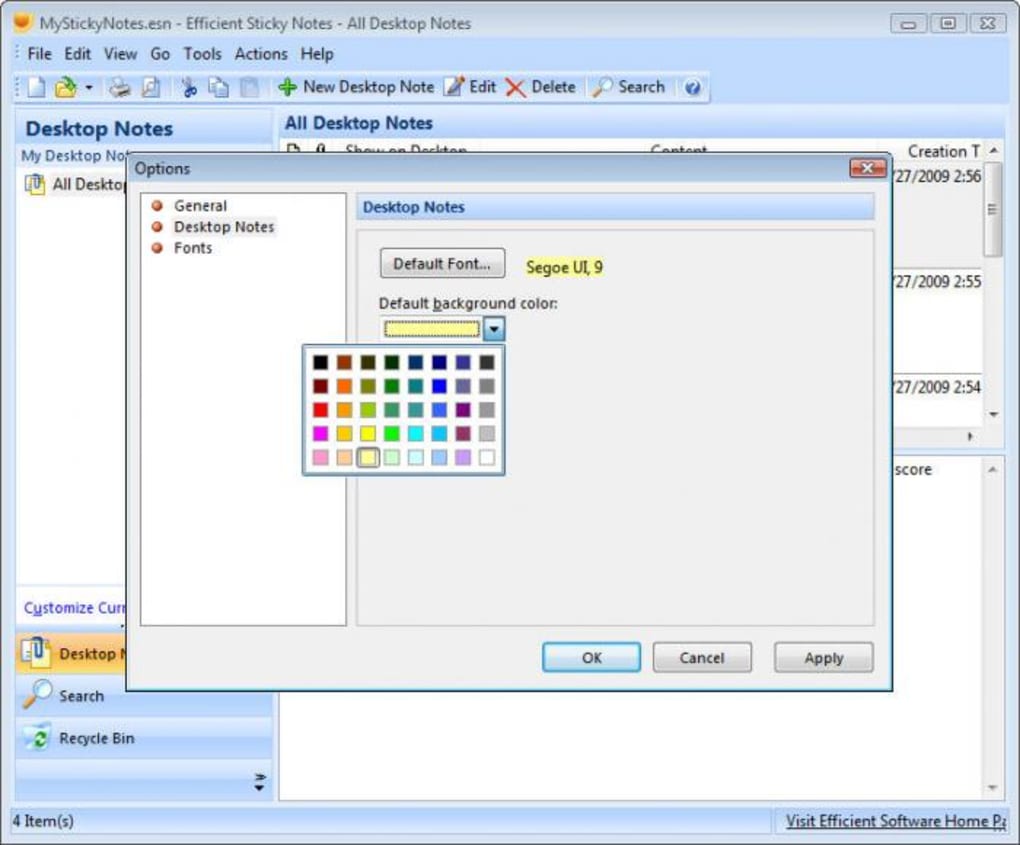
- Unlimited Colored Notes: Choose from a wide range of background colours to match your workflow or personal taste.
- Full Font & Size Control: Adjust font type, size, and colour for each individual note, ensuring readability at a glance.
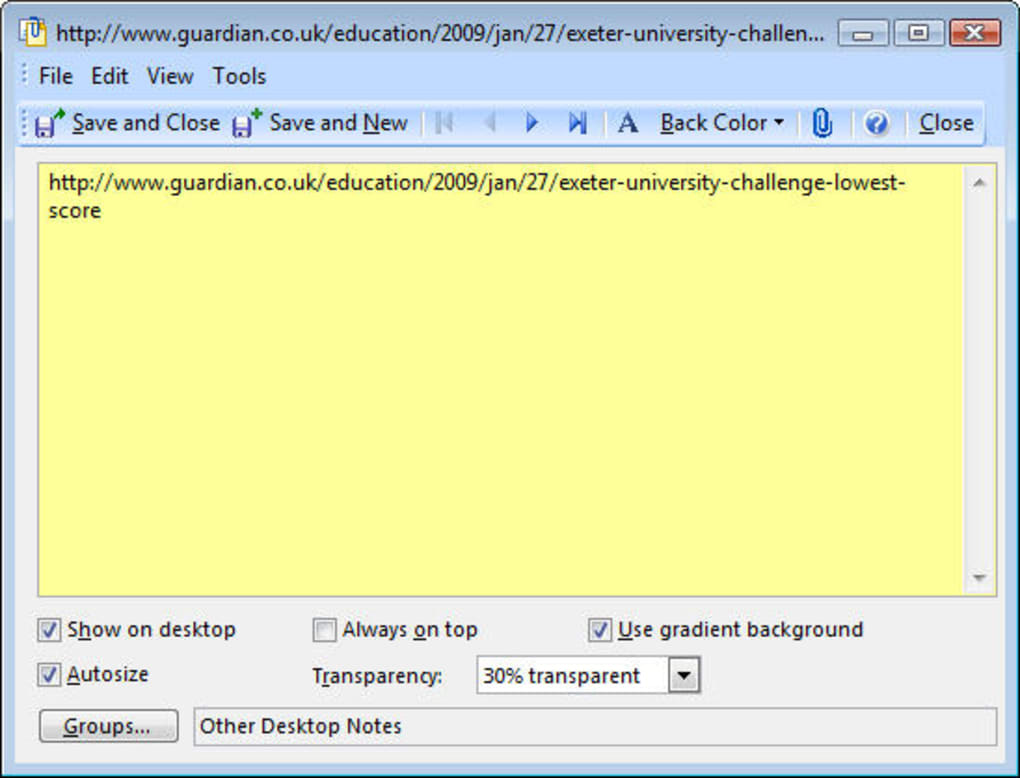
- Transparency Slider: Make notes semi‑transparent to keep your desktop icons visible while still highlighting important information.
- Powerful Search Function: Quickly locate old notes by typing keywords; the search engine scans both note titles and body text.
- Auto‑Start on Windows Boot: Enable the option to have all saved notes appear as soon as the operating system loads.
- System Tray Minimization: Configure the program to minimize to the tray instead of closing, preventing accidental loss of reminders.
- Multi‑Language Support: New language packs for Danish, Greek, and Slovenian expand accessibility for non‑English speakers.
- File‑Name Integration: The opening file name is now displayed in both the taskbar title and system‑tray hint for easy identification.
- Lightweight & Free: No hidden fees, ads, or subscriptions; the tool remains completely free for personal use.
Installation, Usage & Compatibility – Getting Started in Minutes
Supported Operating Systems
Efficient Sticky Notes is built exclusively for the Windows platform, supporting Windows 10, Windows 11, and earlier versions back to Windows 7 (with .NET Framework 4.5 or higher).
Step‑by‑Step Installation Guide
- Visit the official download page and click the Download button for the latest version.
- Once the installer (EfficientStickyNotesSetup.exe) finishes downloading, double‑click to launch it.
- Follow the on‑screen wizard: accept the license agreement, choose an installation folder (the default C:\Program Files\Efficient Sticky Notes works well), and click “Install”.
- When installation completes, you’ll be prompted to run the program immediately. Tick the “Launch after installation” box and finish.
- On first launch, a brief welcome screen explains basic controls. Click “Got it!” to enter the main workspace.
Using the Application Effectively
Creating a new note is as simple as clicking the New Note button on the toolbar or pressing Ctrl+N. A blank note appears in the centre of your screen; you can drag it anywhere you like. Right‑click the note to access the context menu where you can:
- Change the background colour.
- Adjust font family, size, and colour.
- Set transparency using the slider.
- Pin the note to stay on top of other windows.
- Save or delete the note.
For power users, the Settings window offers additional customization:
- Enable “Minimize to tray on close” – this prevents accidental loss of notes.
- Activate “Start with Windows” – all saved notes will re‑appear automatically after a reboot.
- Configure hotkeys for creating, searching, and toggling visibility.
The built‑in Search bar sits at the top of the main window. Type any word contained in a note’s content, and the app instantly filters the visible notes, highlighting matches. This feature is especially handy when you have dozens of reminders spread across the desktop.
Pros & Cons – Balanced Evaluation of Efficient Sticky Notes
Pros
- Completely free with no ads or hidden costs.
- Rich visual customization (colour, font, transparency).
- Powerful search capability makes finding old reminders effortless.
- Auto‑start and tray‑minimization options protect against data loss.
- Lightweight footprint – uses minimal RAM and CPU resources.
- New language packs broaden accessibility.
- File‑name integration improves taskbar and tray visibility.
Cons
- Notes always publish to the same default screen position; no per‑note placement memory.
- Lacks advanced organization features such as tagging, folders, or cloud sync.
- Only available for Windows; no macOS, Android, or iOS versions.
- Interface can feel a bit busy when many notes are open simultaneously.
- No built‑in backup/export function – users must manually copy the data files.
Overall Rating: 4 out of 5 stars – Efficient Sticky Notes delivers on its promise of a simple, visual reminder system, though power users may crave more organizational depth.
FAQ – Frequently Asked Questions About Efficient Sticky Notes
Is Efficient Sticky Notes completely free?
Yes, the software is 100 % free for personal use. There are no hidden fees, subscriptions, or advertisements.
Can I sync my notes across multiple computers?
The current version does not include built‑in cloud sync. Users can manually copy the data folder located in %AppData%\EfficientStickyNotes to another machine.
What happens to my notes if I close the program?
If you enable “Minimize to system tray on close” in Settings, the notes stay saved in the background. Without this option, closing the main window will hide the notes but not delete them; they will reappear when you reopen the app.
Does the software run on Windows 7?
Yes, Efficient Sticky Notes works on Windows 7 (with .NET Framework 4.5 or later) as well as Windows 10 and Windows 11.
Can I change the default position where a new note appears?
Unfortunately, the current version always places a newly created note at the same default screen location. You must manually drag it to a new spot after creation.
Conclusion – Should You Download Efficient Sticky Notes?
For anyone who loves the tactile feel of classic sticky notes but wants to eliminate paper clutter, Efficient Sticky Notes offers a reliable, free, and visually appealing solution. Its strength lies in deep visual customization and a fast, keyword‑based search that keeps your reminders instantly accessible. While it lacks advanced organizational tools like tagging or cloud sync, the program excels at what it promises: turning your Windows desktop into a dynamic reminder board that never fades or gets lost under a stack of paper. If you’re looking for a straightforward, secure way to keep short‑term tasks, shopping lists, or quick ideas in view, this app is an excellent fit. Download it today, enable the start‑up and tray‑minimize options, and enjoy a cleaner, more organized workspace without the mess of physical notes.
Click here to download Efficient Sticky Notes for free and start decluttering your digital desk now.








