
Download ExplorerGenie – Free Windows Explorer Context Menu Enhancer
Overview of ExplorerGenie
ExplorerGenie is a lightweight, open‑source utility that expands the native Windows Explorer context menu with a suite of developer‑friendly commands. Originally launched as CopyPathMenu by Martin Stoeckli—known for freeware classics such as SilentNotes and ColorBug—ExplorerGenie has evolved into a multi‑purpose toolbox for anyone who spends time navigating files, verifying downloads, or launching command‑line sessions directly from the desktop. While the feature set is intentionally focused, the application shines through its seamless integration, Unicode‑aware handling of file names, and a clean, no‑bloat interface that feels native to Windows 10, 11, and earlier editions. Whether you need to copy a file path in several programming‑compatible formats, calculate cryptographic hashes for integrity checks, or open a PowerShell window with elevated privileges, ExplorerGenie puts these actions just a right‑click away. The tool is completely free, secure (no telemetry or ads), and receives regular updates from its developer community, ensuring compatibility with the latest Windows builds. For power users looking to shave seconds off repetitive tasks, ExplorerGenie offers a pragmatic balance between simplicity and capability without the overhead of larger file‑management suites.
Key Features that Set ExplorerGenie Apart
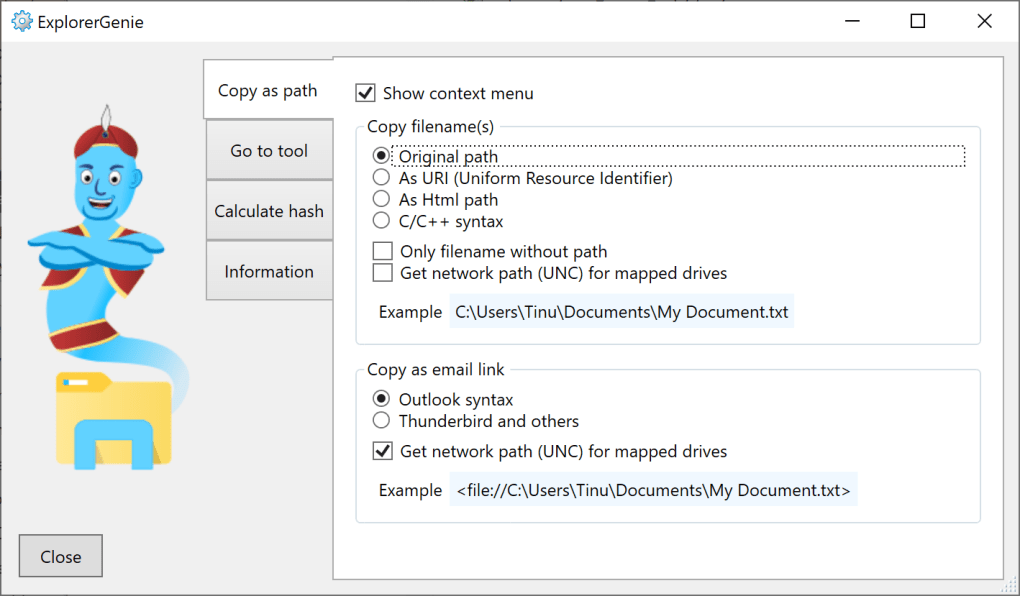
- Copy‑as‑Path in Multiple Formats: Generate plain text, HTML anchor tags, C/C++ string literals, or URI representations of any selected file or folder.
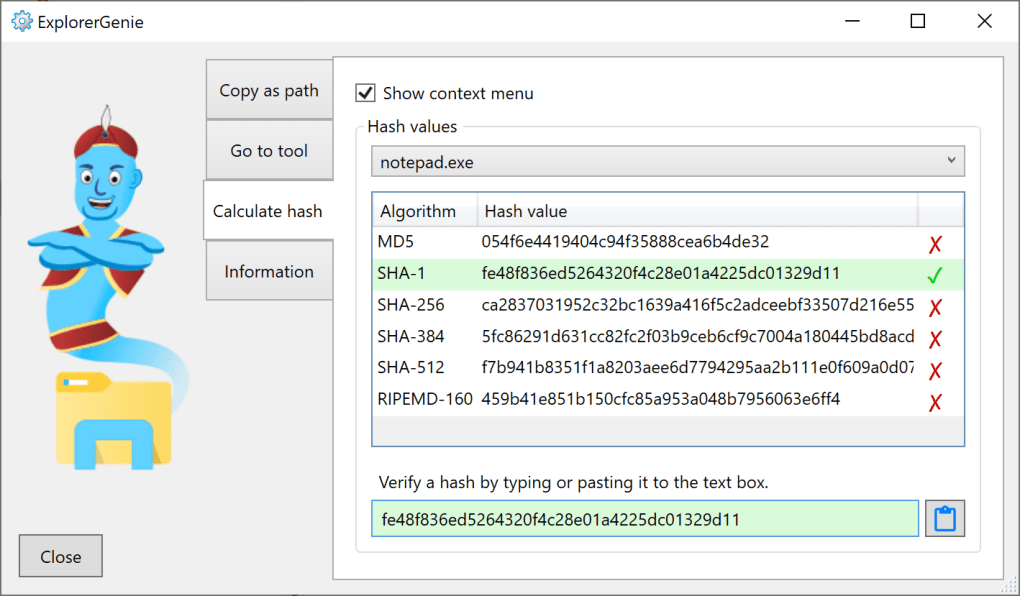
- Hash Calculation Engine: Compute MD5, SHA‑1, SHA‑256, SHA‑384, and RIPEMD‑160 checksums instantly, perfect for verifying downloads or detecting tampering.
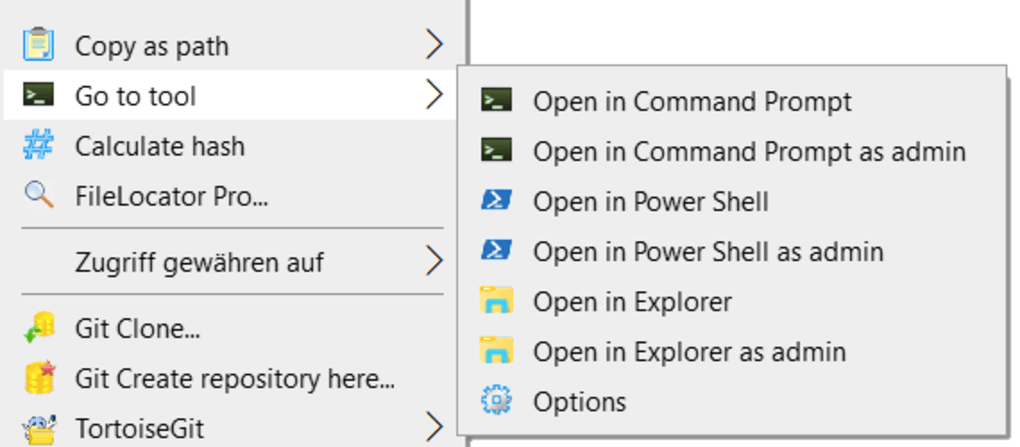
- One‑Click Command Line Access: Launch Command Prompt, PowerShell, or Windows Explorer directly from the context menu, with optional administrator elevation.
- Unicode‑Safe Filename Support: Handles file names containing non‑ASCII characters without truncation or corruption.
- Minimalist UI Integration: Adds entries to the existing context menu without clutter, preserving the familiar Windows look and feel.
- Free and Open Source: No hidden fees, no ads, and full source code available for community inspection and contribution.
Why These Features Matter
The ability to copy paths in programming‑ready formats eliminates the need for manual string manipulation, a frequent source of bugs for developers. Hash calculation, often relegated to separate utilities, becomes a single‑click operation, streamlining security workflows. Direct access to command‑line interfaces from Explorer accelerates debugging, scripting, and system‑administration tasks, especially when administrator rights are required. Together, these capabilities transform the context menu from a static list into an active productivity hub, while the Unicode support ensures global users encounter no barriers when working with international file sets. Because ExplorerGenie stays lightweight, it does not impact system performance, making it suitable for both high‑end workstations and modest laptops.
Installation and Everyday Usage Guide
Step‑by‑Step Installation
1. Download the Installer: Visit the official GitHub releases page and click the ExplorerGenie‑setup.exe link. The file is signed with a trusted certificate, ensuring a secure download.
2. Run as Administrator: Right‑click the installer and select “Run as administrator” to allow the program to modify the Windows registry safely.
3. Follow the Wizard: The setup wizard presents a concise license agreement, a destination folder (default is C:\Program Files\ExplorerGenie), and an optional “Start with Windows” toggle.
4. Complete Installation: Click “Install” and wait a few seconds while the installer writes the necessary registry keys. A confirmation dialog appears once the process finishes.
5. Restart Explorer (Optional): For immediate activation, open Task Manager, locate “Windows Explorer,” and click “Restart.” The new context‑menu entries will appear the next time you right‑click a file or folder.
Practical Usage Scenarios
After installation, ExplorerGenie adds a top‑level “ExplorerGenie” submenu to the context menu. Inside, you’ll find options such as “Copy Path as HTML,” “Calculate SHA‑256,” and “Open PowerShell (Admin).” To copy a path as a C‑style string, simply select a file, navigate to ExplorerGenie → Copy Path → C/C++ Literal, and the formatted string is placed on the clipboard ready for past‑pasting into code. For hash verification, select a downloaded installer, choose ExplorerGenie → Hash → SHA‑256, and a small dialog displays the checksum, which you can compare against the vendor’s published hash. The “Open Command Prompt (Admin)” entry opens an elevated console positioned at the selected directory, saving the time of manual navigation. All actions are instantaneous, and because the utility works directly from the context menu, there is no need to launch a separate application window, keeping your workflow fluid and interruption‑free.
Compatibility, Pros, and Cons
Operating System Support
ExplorerGenie is built for Microsoft Windows environments ranging from Windows 7 (SP1) up to the latest Windows 11 builds. The installer automatically detects the system architecture (x86 or x64) and applies the appropriate registry modifications. While the tool is not designed for macOS, Linux, Android, or iOS, its open‑source nature allows developers to port similar functionality to those platforms if desired.
Pros
- Free, open‑source, and ad‑free.
- Instant integration with the native Windows Explorer context menu.
- Supports a wide range of path‑copy formats useful for developers.
- Comprehensive hash algorithms for security‑focused users.
- Unicode‑compatible, ensuring global file‑name handling.
- Low memory footprint; does not affect system performance.
Cons
- Limited to Windows; no native macOS or mobile versions.
- Feature set is focused; power users may miss advanced file‑management tools.
- Requires administrator rights for initial installation and for certain context‑menu entries.
- No built‑in graphical settings panel; customization must be done via the registry or config file.
Structured Review
Rating: 4.5/5
ExplorerGenie delivers exactly what its name promises—a genie‑like shortcut to the most common file‑related actions. The tool’s simplicity is its greatest strength; it does not overwhelm users with endless options yet provides enough power to satisfy developers, sysadmins, and everyday users alike. The only drawback is its Windows‑only scope, but within that ecosystem, it integrates flawlessly.
Frequently Asked Questions
Is ExplorerGenie safe to install?
Yes. The installer is digitally signed, the source code is publicly available on GitHub, and the program does not contain telemetry, ads, or hidden components.
Can I customize which hash algorithms are displayed?
ExplorerGenie shows all supported algorithms by default. Advanced users can edit the config.ini file in the installation folder to hide or reorder specific hash options.
Does ExplorerGenie work on Windows 10 Home edition?
Absolutely. The tool only requires standard registry access, which is available on all Windows 10 editions, including Home, Pro, and Enterprise.
How do I remove ExplorerGenie if I no longer need it?
Run the uninstaller from Control Panel → Programs and Features or use the ExplorerGenie‑uninstall.exe located in the installation directory. The process cleans up all registry entries automatically.
Is there a portable version that doesn’t require installation?
Yes. The GitHub releases page includes a ZIP archive with a portable build. Extract it anywhere and run ExplorerGenie.exe with administrator rights to register the context‑menu entries temporarily.
Conclusion – Should You Download ExplorerGenie?
If you spend any amount of time navigating files, sharing paths in documentation, or verifying the integrity of downloads, ExplorerGenie is a small but powerful addition to your Windows toolkit. Its zero‑cost, open‑source nature means you can try it without risk, and its tight integration ensures you’ll never have to launch a separate application for tasks that now fit neatly into a right‑click. While it doesn’t aim to replace full‑featured file managers, it excels at filling the niche of a “quick‑access” utility for developers and power users. Download ExplorerGenie today, give your context menu a boost, and experience a smoother workflow in just a few clicks.
Download ExplorerGenie now and enjoy a faster, more flexible Windows Explorer experience.








