Screenshots
App details
- Version
- 1.7.0 | 1.6.3 | 1.6.2 | 1.5.8 | 1.4.8 |...
- Size
- 240.00 MB
- Updated
- June 11, 2025
- Requires
- Mac OS X
- Language
- English | German | Spanish | French | It...
- License
- Free
- Developer
- Scribus
- Category
- Mac OS
About Scribus
Download Scribus – Free Open‑Source Desktop Publishing Software
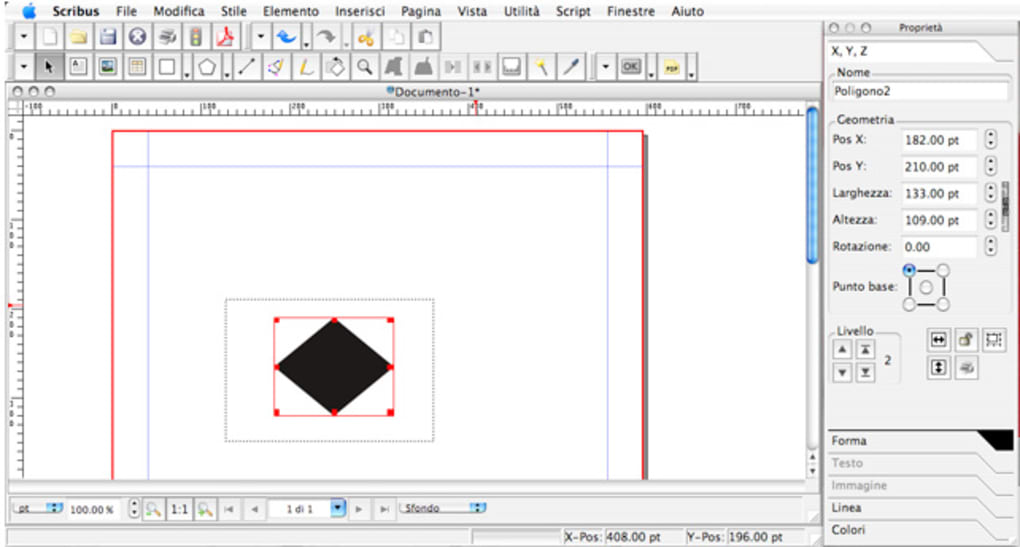
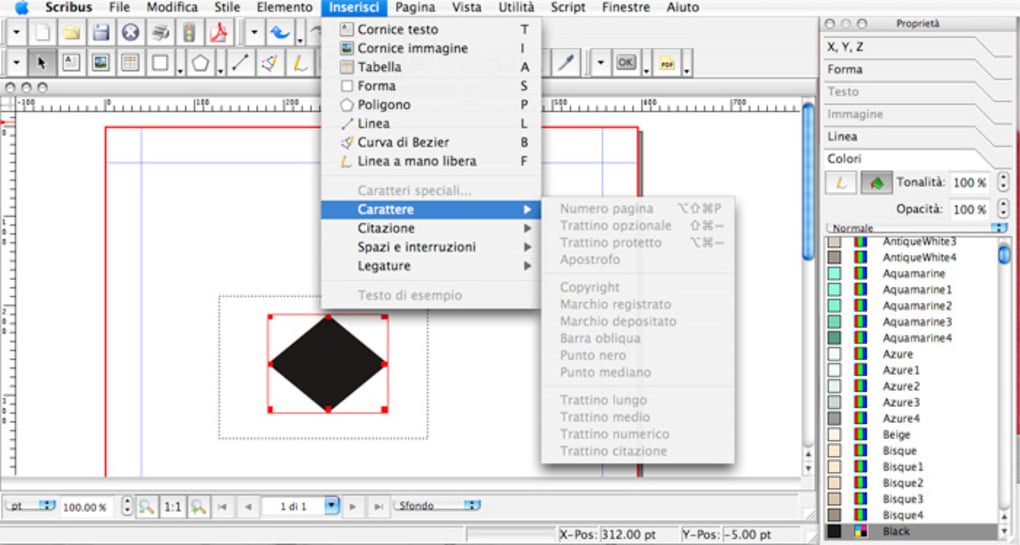
Scribus is a fully‑featured, open‑source desktop publishing (DTP) application that brings professional‑grade layout capabilities to anyone who needs to create brochures, newsletters, magazines, posters, or books—without paying a licensing fee. Developed by a global community of designers and developers, Scribus runs on Windows, macOS, and Linux, making it a truly cross‑platform solution for freelancers, small businesses, schools, and hobbyists alike. While the interface may not have the polished sheen of commercial giants like Adobe InDesign, the program compensates with a powerful engine that supports CMYK color workflows, ICC color management, spot‑color separations, and high‑resolution PDF export. Even though Scribus Aqua (the Qt‑based port for macOS) offers a more native look on Apple hardware, the core application delivers the same robust feature set across all supported operating systems. Users can drag‑and‑drop text frames, images, and vector shapes, and export their finished layouts to PDF, EPS, SVG, or even print‑ready PostScript files. However, newcomers should be prepared for a learning curve—especially when it comes to text styling and real‑time previewing, which require manual adjustments and occasional reliance on external tools like Ghostscript for importing PDFs or EPS graphics. Despite these quirks, Scribus stands out as one of the most capable free publishing tools available today, offering a cost‑effective alternative to pricey industry standards while still delivering the technical depth needed for professional output.
Powerful Features that Rival Commercial Layout Tools
- CMYK and Spot‑Color Support – Full native CMYK workflow with spot‑color handling, allowing designers to prepare print‑ready files that meet professional press standards.
- ICC Color Management – Integrated color profiling ensures consistent color reproduction across monitors, printers, and output devices.
- Advanced PDF Export – Generate PDF‑X‑1a, PDF‑X‑3, PDF‑/UA, and PDF/A files with customizable compression, encryption, and preflight options.
- Vector and Raster Integration – Import and manipulate SVG, EPS, PNG, JPEG, and TIFF graphics, with live preview when Ghostscript is installed.
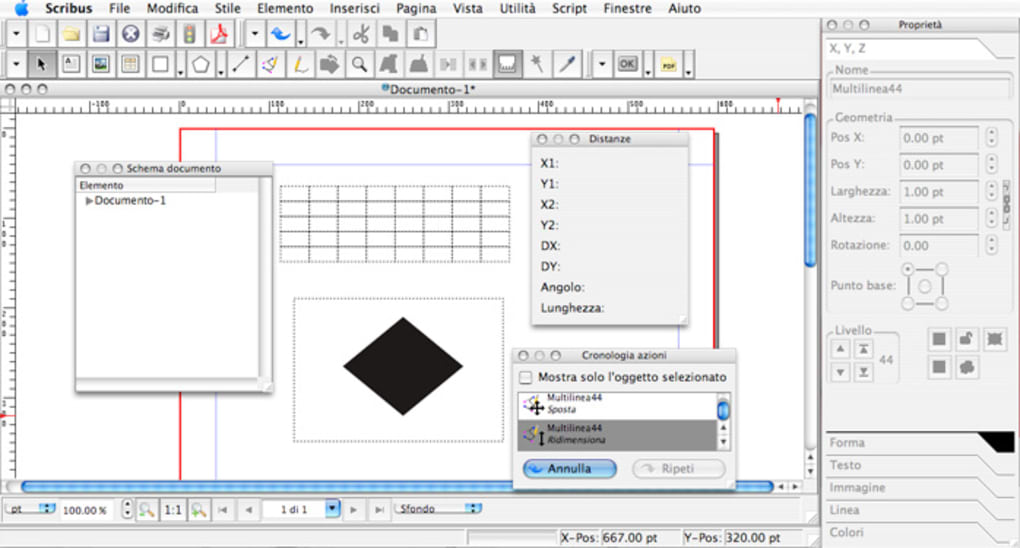
- Text Flow and Styles – Create paragraph, character, and master page styles; manage linked text frames for complex magazine layouts.
- Scripting and Automation – Python scripting support enables batch processing, custom dialogs, and workflow automation.
- Template Library – A collection of pre‑designed templates for newsletters, flyers, business cards, and more, speeding up project setup.
- Cross‑Platform Consistency – Identical feature set on Windows, macOS, and Linux, ensuring seamless collaboration across teams.
- Open‑Source Community – Continuous development, free updates, and a vibrant forum where users share tips, plug‑ins, and troubleshooting advice.
These features collectively give Scribus a competitive edge over many paid DTP programs, especially for users who need precise color control and flexible export options without a subscription model. While the UI may feel dated compared with Adobe’s sleek panels, each tool is purpose‑built for the demanding tasks of print production, making Scribus a reliable workhorse for designers who prioritize functionality over flash. The built‑in script engine also opens the door for custom extensions, meaning the software can evolve with the specific needs of any publishing project, from simple flyers to multi‑chapter books. Whether you’re preparing a corporate report that requires exact CMYK values or a community newsletter that needs quick layout turnaround, Scribus provides the essential building blocks to turn ideas into polished, print‑ready documents.
Step‑by‑Step Installation and First‑Run Guide
Getting started with Scribus is straightforward, thanks to its clear installer packages for the major operating systems. Below is a concise walkthrough that covers download, installation, and the essential steps to launch your first project.
- Download the Installer – Visit the official Scribus website (scribus.net) and select the appropriate installer: Windows 64‑bit .exe, macOS .dmg (Scribus Aqua), or Linux .tar.gz / .deb / .rpm. The download is completely free and secured via HTTPS.
- Run the Installer – On Windows, double‑click the .exe file and follow the wizard, accepting the license agreement and choosing the default installation path. macOS users drag the Scribus Aqua icon into the Applications folder. Linux users can install via the package manager (e.g.,
sudo apt install scribusfor Debian‑based systems) or extract the tarball and run the provided script. - Install Optional Dependencies – For full PDF/EPS import support, install Ghostscript (available from ghostscript.com) and ensure its binaries are added to your system PATH. This step is optional but recommended for professional workflows.
- Launch Scribus – After installation, open Scribus from the Start menu, Launchpad, or your desktop environment’s application list. The first launch will display a welcome dialog offering to open a recent document, start a new file, or explore sample projects.
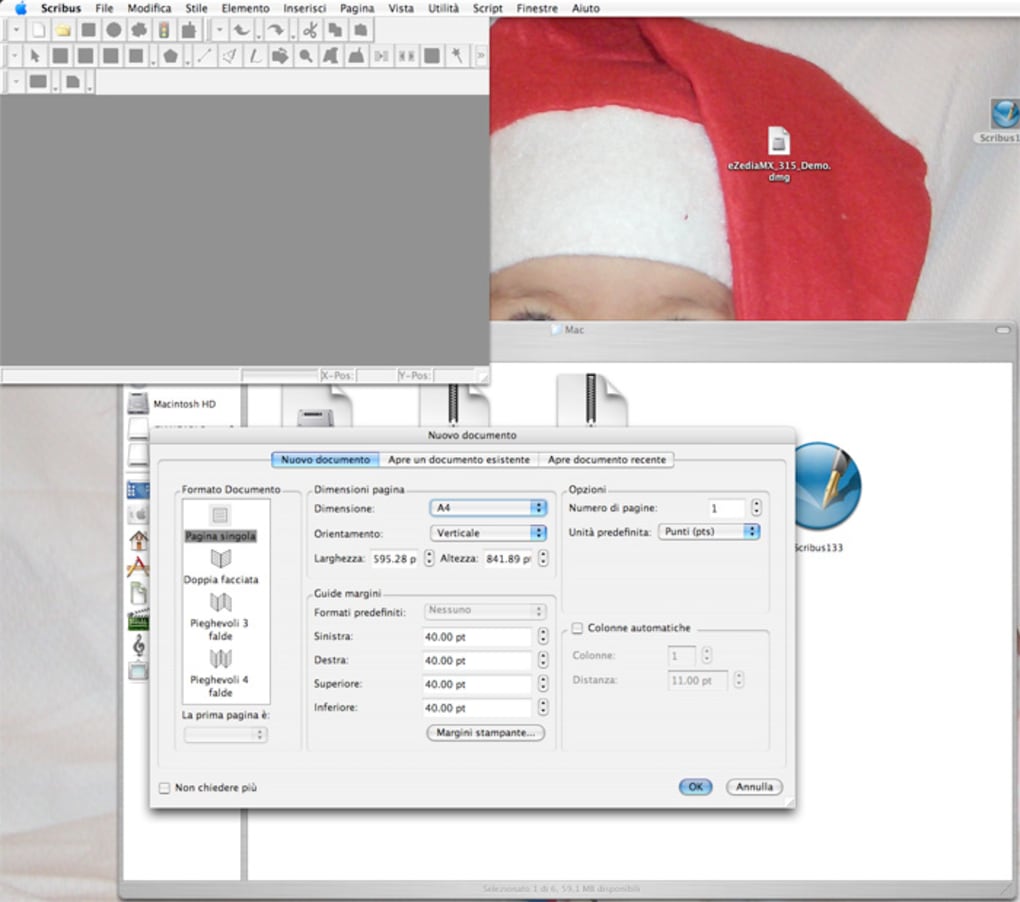
- Create a New Document – Click File → New. In the Document Setup window, choose your page size (A4, Letter, custom), orientation, and number of columns. Enable “CMYK” under the Color Management tab if you plan to print.
- Set Up Master Pages – Master pages let you define recurring elements (headers, footers, page numbers). Access them via Window → Pages and create a master that will be applied to all subsequent pages.
- Add Content – Use the Text Frame tool to draw a placeholder, then import or type your text. For images, select the Image Frame tool, draw the frame, and use File → Import to bring in PNG, JPEG, or EPS files.
- Preview and Export – Press F12 to open the Preview window, which shows a high‑resolution rendering of your layout. When satisfied, go to File → Export → Save as PDF, choose a PDF profile (PDF‑X‑1a for press, PDF‑A for archiving), and click Export.
These steps provide a solid foundation for both beginners and seasoned designers. The learning curve mainly lies in mastering the style and text‑flow panels, but once you internalize the workflow, Scribus becomes an efficient, cost‑free alternative to proprietary software. Remember to regularly check for updates—Scribus releases new versions roughly twice a year, each bringing bug fixes, UI refinements, and additional export options that keep the tool current with industry standards.
Cross‑Platform Compatibility and System Requirements
Scribus is engineered to run on the three dominant desktop operating systems, ensuring that teams using mixed environments can collaborate without format loss or compatibility headaches. Below is a quick reference for each platform, including minimum hardware specs and recommended configurations for optimal performance.
- Windows – Supports Windows 10 (64‑bit) and later. Minimum: 2 GB RAM, 500 MB free disk space, and a graphics card with OpenGL 2.0 support. For handling large‑format PDFs or high‑resolution images, 4 GB RAM and a modern multi‑core CPU are advisable.
- macOS – Scribus Aqua runs on macOS 10.13 (High Sierra) and newer, including the latest macOS Ventura. Minimum: 2 GB RAM, 500 MB disk space, and a Retina display for sharper UI rendering. Apple Silicon (M1/M2) users benefit from native ARM builds that improve speed and battery life.
- Linux – Available for most distributions (Ubuntu, Fedora, Debian, Arch, etc.). Requires Qt 5 libraries, Python 3 for scripting, and optionally Ghostscript for PDF/EPS import. Minimum: 2 GB RAM, 300 MB disk space, and any modern X11 or Wayland compositor.
Because Scribus stores documents in its own .sla format (which is essentially an XML file), moving projects between operating systems is as simple as copying the file—no conversion is needed. Embedded fonts, linked images, and color profiles travel with the project, provided the same resources are installed on the target machine. For teams that need version control, the XML nature of .sla files makes them friendly with Git or Subversion, enabling collaborative editing without the risk of binary conflicts. Additionally, the software respects system‑wide DPI settings, so UI elements scale appropriately on high‑resolution displays, a crucial factor for designers working on 4K monitors or Retina laptops.
Pros and Cons – Quick Verdict
Overall Rating: 4.2/5
Pros
- Zero cost – completely free and open source, eliminating licensing fees.
- Professional‑grade CMYK, spot‑color, and ICC color management.
- Robust PDF export options (PDF‑X, PDF‑A, PDF‑UA) for press‑ready files.
- Cross‑platform support ensures seamless collaboration on Windows, macOS, and Linux.
- Extensible via Python scripting for custom automation.
- Active community forums and frequent updates keep the software current.
Cons
- User interface feels dated compared with commercial alternatives.
- Text styling and real‑time preview are less intuitive; changes require manual refresh.
- Importing PDFs/EPS depends on external Ghostscript installation, which can be confusing for beginners.
- Limited built‑in template library; users often need to create layouts from scratch.
- Learning curve is steep for those unfamiliar with traditional DTP concepts.
In summary, Scribus excels as a cost‑effective, feature‑rich desktop publishing suite that meets the demands of professional print production. Its primary drawbacks lie in usability and the need for auxiliary tools, but for anyone willing to invest a modest amount of time learning the workflow, Scribus delivers a powerful, secure, and future‑proof solution.
Frequently Asked Questions
Is Scribus really free, or are there hidden costs?
Scribus is 100 % free and released under the GNU GPL license. You can download, use, and even modify the source code without paying any fees. The only optional expense is installing Ghostscript if you need advanced PDF/EPS import capabilities, but Ghostscript itself is also free and open source.
Can Scribus handle professional CMYK printing?
Absolutely. Scribus includes native CMYK color support, spot‑color handling, and ICC profile management, making it suitable for preparing press‑ready files. You can export PDFs that comply with PDF‑X‑1a or PDF‑X‑3 standards, which are widely accepted by commercial printers.
What operating systems does Scribus run on?
Scribus works on Windows 10/11 (64‑bit), macOS 10.13 and later (including Apple Silicon), and most Linux distributions. The same feature set is available across all platforms, ensuring consistent workflow regardless of the OS you prefer.
Do I need to be a designer to use Scribus?
While a basic understanding of layout principles helps, Scribus is designed for anyone willing to learn. The community provides tutorials, video guides, and a helpful forum where beginners can ask questions and receive step‑by‑step assistance.
How often is Scribus updated?
New stable releases are typically published twice a year, with additional bug‑fix releases as needed. Each update brings performance improvements, UI refinements, and expanded export options, ensuring the software stays compatible with modern operating systems and printing standards.
Conclusion – Is Scribus Right for You?
If you’re searching for a secure, free, and powerful desktop publishing tool that doesn’t compromise on professional features, Scribus is a compelling choice. Its robust CMYK workflow, extensive PDF export capabilities, and cross‑platform consistency make it suitable for small businesses, educators, and freelance designers who need to produce high‑quality print materials without a costly license. While the user interface may require a brief adjustment period and certain tasks (like real‑time text preview) aren’t as slick as in commercial suites, the trade‑off is a fully open source application that respects your budget and offers complete control over your publishing process. Ready to give Scribus a try? Download Scribus now and start creating print‑ready layouts today.
Guides & Tutorials
How to install Scribus
- Click the Download button above.
- Once redirected, accept the terms and click Install.
- Wait for the Scribus download to finish on your device.
How to use Scribus
This software is primarily used for its core features described above. Open the app after installation to explore its capabilities.
User Reviews
No reviews yet. Be the first to share your experience.
You may also like
more
DiffusionBee
Generate unique art with this app DiffusionBee is a free and accessible artifici...

Excire Foto Light
Organize your snapshots Excire Foto Light is a free-to-download AI -powered phot...

Topaz Photo AI
Photo enhancement tool with AI Topaz Photo AI is a premium AI image editor for P...

anonymoX
Surf anonymously with Firefox anonymoX for Firefox is an add-on that gives you f...

DownThemAll
Download Them All! Downloading anything or everything on a webpage can be a labo...
.webp)
DuckDuckGo Privacy Essentials
A free program for Mac, by DuckDuckGo, Inc.. DuckDuckGo Privacy Essentials is a...
