

Download SmartPixel – Free Screen Recorder & Video Editor for Windows
Overview of SmartPixel
SmartPixel is a lightweight, beginner‑friendly screen recorder and video editing suite designed specifically for Windows users. Built on Direct3D (D3D) technology, the tool captures high‑definition footage from virtually any desktop application, including fast‑paced PC games, software tutorials, and webcam‑driven presentations. The free version already offers a surprisingly rich toolbox: three capture modes (full‑screen, partial screen, and picture‑in‑picture), basic trimming, merging, and a set of visual effects such as subtitles, transition fades, and background music overlays. Because it runs on a modest 28 MB installer and uses minimal system resources, even older rigs can record smoothly without noticeable lag. Whether you are a Twitch streamer, a YouTube educator, or a social‑media influencer, SmartPixel provides a single‑click pathway from raw capture to a polished video ready for upload. While the paid “VIP” tier unlocks advanced features like 4K export, custom watermarks, and premium transition packs, the free edition remains fully functional for most everyday recording tasks. In short, SmartPixel blends simplicity with enough power to produce professional‑looking content without a steep learning curve or a hefty price tag.
Key Features and Easy Installation Process
Feature Highlights
- Three capture modes: full‑screen, region‑only, and picture‑in‑picture with webcam overlay.
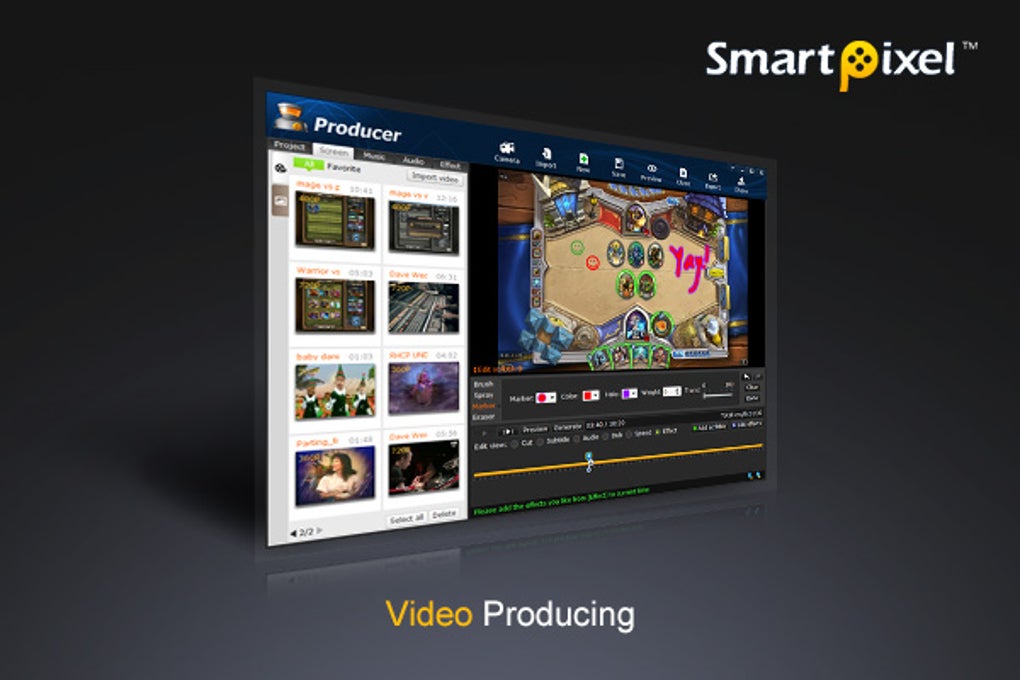
- Built‑in editor for trimming, cutting, merging, and adding subtitles, text, and background music.
- Support for popular export formats: MP4, AVI, WMV, FLV, and more.
- Low‑impact D3D engine that records games at up to 60 fps without throttling performance.
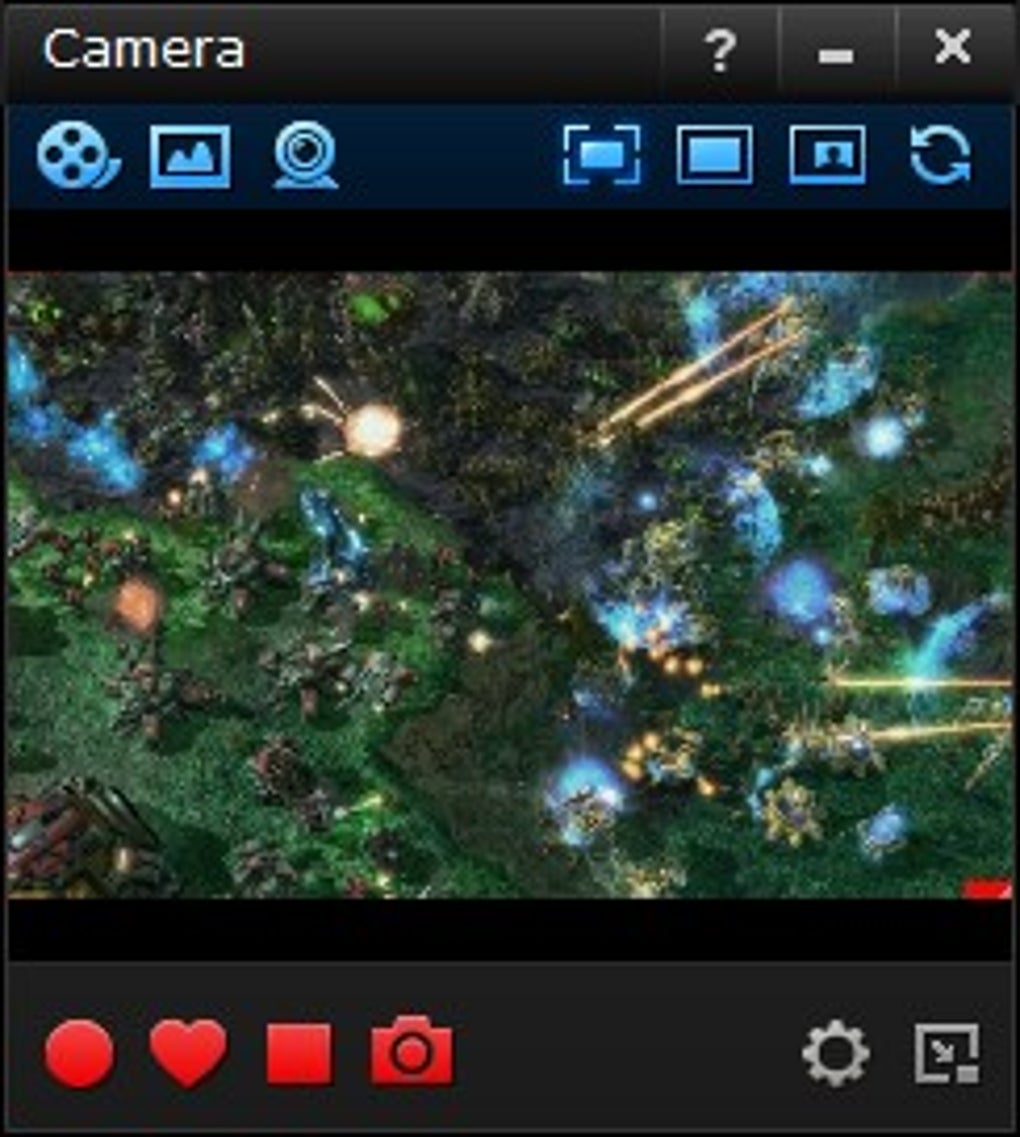
- Simple dark‑theme interface with three main tabs – Record, Produce, and WebCam.
- Free version includes unlimited recording time and basic effects; VIP adds 4K export and premium filters.
Step‑by‑Step Installation & First‑Run Guidance
Installing SmartPixel is intentionally straightforward. After clicking the download link, the installer (under 28 MB) appears; double‑click to launch the wizard. The setup asks for a destination folder, offers to create a desktop shortcut, and then proceeds with a quick file copy. Once the installation finishes, launch the program. A small pop‑up window greets you with three options: Record (start a screen capture), Produce (open the editing suite), or WebCam (activate webcam and microphone). Selecting “Record” opens a live preview where you can choose the capture mode, set frame rate, and pick audio sources. After you hit “Start,” an unobtrusive red border appears around the screen to indicate active recording. When you stop, the footage is automatically saved to the default “SmartPixel\Videos” directory and the “Produce” tab opens, allowing you to edit immediately. The workflow is designed for users who want to click, capture, polish, and publish in under five minutes, making it an ideal tool for rapid content creation.
Compatibility, System Requirements, and Daily Usage Tips
SmartPixel is a Windows‑only application, supporting Windows 10, Windows 11, and legacy Windows 7 (64‑bit). The software requires a minimum of 2 GB RAM, a DirectX 11‑compatible graphics card, and at least 200 MB of free disk space for temporary recording buffers. Because it leverages the D3D engine, modern GPUs deliver smoother recordings, but the program will gracefully fall back to lower resolutions on older hardware. No additional codecs are needed; the installer bundles an internal FFmpeg module that handles all supported export formats.
Best Practices for Recording High‑Quality Gameplay and Tutorials
To achieve the best results, start by selecting the appropriate capture mode. For fast‑moving games, use the full‑screen mode combined with a frame rate of 60 fps and enable hardware‑accelerated encoding in the settings. If you notice occasional frame drops, switch to the partial‑screen mode to reduce the amount of data processed per frame. For tutorial videos, the picture‑in‑picture mode is invaluable: enable the webcam overlay, choose a clear microphone, and add a subtle background track from the built‑in library. Remember to test audio levels before the main recording—SmartPixel displays a real‑time meter so you can avoid clipping. After capturing, head straight to the “Produce” tab where you can trim unwanted segments, insert chapter markers, and add subtitles for accessibility. Exporting in MP4 (H.264) provides the best balance between file size and compatibility with YouTube, Facebook, and Instagram. Finally, use the built‑in “Share” button to upload directly to your preferred platform or copy the file path for manual publishing.
Pros, Cons, and Frequently Asked Questions
Pros and Cons of SmartPixel
- Pros:
- Free core version with no watermarks.
- Very low system resource usage thanks to D3D engine.
- Intuitive three‑tab interface simplifies workflow.
- Supports multiple output formats and basic editing tools.
- Picture‑in‑picture webcam overlay for engaging tutorials.
- Cons:
- Limited advanced editing features compared with premium tools.
- Windows‑only; no macOS, Android, or iOS support.
- VIP subscription required for 4K export and premium effects.
- No built‑in cloud storage or direct streaming integration.
FAQ – Your SmartPixel Questions Answered
Is SmartPixel completely free or are there hidden costs?
The basic version is 100 % free and includes all essential recording and editing tools. Advanced features such as 4K export, premium transitions, and watermark removal are part of the optional VIP subscription.
Can I record gameplay without noticeable performance loss?
Yes. SmartPixel’s D3D engine is designed to offload encoding to the GPU, which minimizes CPU usage. On modern graphics cards you can record at 60 fps with negligible frame drops.
Which video formats does SmartPixel export to?
It supports MP4, AVI, WMV, FLV, and MOV among others. The default export is MP4 (H.264) for maximum compatibility with online platforms.
Is there a limit on recording length in the free version?
No. The free edition allows unlimited recording time, limited only by available disk space.
Can I add captions or subtitles after recording?
Absolutely. The “Produce” tab includes a subtitle editor where you can type, sync, and style captions before exporting.
Conclusion – Should You Download SmartPixel?
If you need a quick, reliable way to capture high‑definition screen activity and turn it into a polished video without investing in expensive software, SmartPixel is an excellent choice. Its free core package delivers everything a casual gamer, tutor, or content creator requires: low‑impact recording, basic editing, and a straightforward interface that shortens the learning curve. While power users may eventually outgrow its feature set and look toward paid alternatives, the VIP upgrade remains reasonably priced for those who need 4K output or premium effects. Overall, SmartPixel strikes a solid balance between functionality and simplicity, making it one of the best free screen recorders for Windows in 2025.
Ready to start creating professional‑looking videos today? Download SmartPixel now and experience a smooth, secure, and free screen‑recording solution that works right out of the box.
SmartPixel offers a user‑friendly interface, reliable D3D‑based recording, and essential editing tools—all for free. While it lacks some high‑end features of premium rivals, its low system impact and unlimited recording length make it a top pick for Windows users seeking a hassle‑free solution.








